Add checkpoint configurations to a Marketplace product(为 Marketplace 产品添加检查点配置)
Use Foundry DevOps to include your checkpoint configurations in Marketplace products for other users to install and reuse. Learn how to create a Marketplace product to get started.
Supported features
Existing checkpoint configurations can generally be included in Marketplace products, but a few limitations apply:
- When a Marketplace product is installed, any checkpoint configurations created by the installation will have a space scope based on the installation location. Checkpoint configurations will also have a location matcher that limits the checkpoint to an input of the installation, another resource included in the installation, or the installation project. Therefore, only checkpoint configurations with checkpoint types that support space scopes and location matchers can be included in a Marketplace product.
- There are various condition matchers that are not enabled for Marketplace products. You can learn more about these conditions in the checkpoint condition documentation.
- Checkpoint configurations that include a condition explicitly limiting checkpoint types to be attributed to a specific user cannot be included in a Marketplace product. This includes conditions where
User submitting checkpointwas selected and only one user was specified, instead of a group. - Checkpoint configurations that include Marking matchers cannot be included in a Marketplace product.
- Checkpoint configurations that include location matchers that specify spaces cannot be included in a Marketplace product.
- Only checkpoint configurations with a single checkpoint type can be included in Marketplace products. Checkpoint configurations with multiple checkpoint types cannot yet be included in Marketplace products.
Package checkpoint configurations
- Navigate to the Marketplace application.
- Select DevOps at the bottom of the page, then Select store on the DevOps page. In the Select your store dialog choose your store.
- If you have already chosen a store, you can select the store name in the upper right to open the Select a store dialog to choose a different store if needed.
- To add a checkpoint type to a product, you can create a new product or add a checkpoint type to an existing product.
- To create a new product, select + New product. Follow the product creation tutorial for additional guidance.
- To add checkpoint configurations to an existing product, select the product and then select Start new version on the top right.
- Use the add outputs feature and select the Checkpoint configuration option.
- Select the appropriate scope to view the available checkpoint configurations.
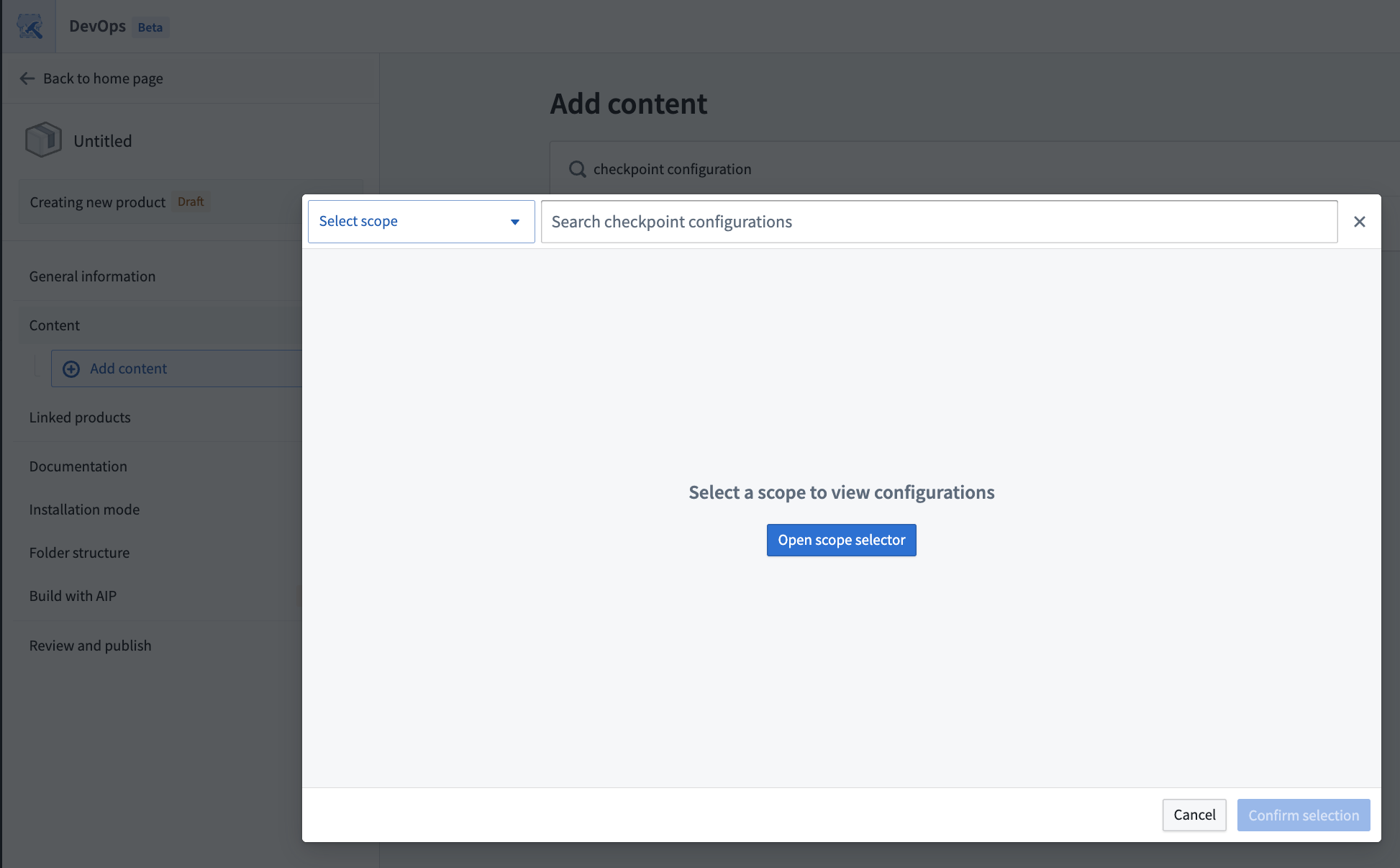
- You can choose between existing checkpoint configurations established under the namespace or Organization scope.
- Select the checkpoint configurations of interest using the Select button on the right of listed configurations or on the top right of the configuration details panel.

- When you have selected all relevant checkpoint configurations, confirm your selection in the bottom right.
- When you finish editing the Marketplace product, open the Review and publish tab and select Publish.
中文翻译
为 Marketplace 产品添加检查点配置
使用 Foundry DevOps 将您的检查点配置包含在 Marketplace 产品 中,供其他用户安装和复用。请先了解如何创建 Marketplace 产品 以开始操作。
支持的功能
现有的检查点配置通常可以包含在 Marketplace 产品中,但存在一些限制:
- 安装 Marketplace 产品时,由安装过程创建的任何检查点配置都将基于安装位置设置空间范围(space scope)。检查点配置还将包含一个位置匹配器(location matcher),将检查点限制为安装的输入、安装中包含的其他资源或安装项目。因此,只有支持空间范围和位置匹配器的检查点类型的检查点配置才能包含在 Marketplace 产品中。
- 存在多种条件匹配器(condition matcher)未对 Marketplace 产品启用。您可以在检查点条件文档中详细了解这些条件。
- 包含明确将检查点类型归因于特定用户的条件(condition)的检查点配置不能包含在 Marketplace 产品中。这包括选择了“提交检查点的用户”(User submitting checkpoint)且仅指定了一个用户(而非用户组)的条件。
- 包含标记匹配器(Marking matcher)的检查点配置不能包含在 Marketplace 产品中。
- 包含指定空间(space)的位置匹配器的检查点配置不能包含在 Marketplace 产品中。
- 只有包含单一检查点类型的检查点配置才能包含在 Marketplace 产品中。包含多种检查点类型的检查点配置尚不能包含在 Marketplace 产品中。
打包检查点配置
- 导航至 Marketplace 应用程序。
- 选择页面底部的 DevOps,然后在 DevOps 页面上选择 选择商店(Select store)。在 选择您的商店(Select your store)对话框中,选择您的商店。
- 如果您已选择了一个商店,可以选择右上角的商店名称,打开 选择商店(Select a store)对话框,根据需要选择其他商店。
- 要将检查点类型添加到产品中,您可以创建新产品,或将检查点类型添加到现有产品中。
- 要创建新产品,请选择 + 新产品(+ New product)。有关更多指导,请参考产品创建教程。
- 要将检查点配置添加到现有产品中,请选择该产品,然后选择右上角的 开始新版本(Start new version)。
- 使用添加输出功能,并选择 检查点配置(Checkpoint configuration)选项。
- 选择适当的作用域(scope)以查看可用的检查点配置。
- 您可以在命名空间(namespace)或组织(Organization)作用域下建立的现有检查点配置中进行选择。
- 使用列表配置右侧的 选择(Select)按钮,或配置详情面板右上角的 选择 按钮,选择感兴趣的检查点配置。
- 当您选择了所有相关的检查点配置后,在右下角确认您的选择。
- 完成 Marketplace 产品的编辑后,打开 审核并发布(Review and publish)选项卡,然后选择 发布(Publish)。