Choose imported dataset branch(选择导入数据集的分支)
Code Workbook implements branch fallbacks for imported datasets, which means that the branch hierarchy in your Workbook will be used to determine where imported datasets should be pulled from.
For example, suppose your Workbook contains two branches, master and develop, and your input dataset titanic also has both of these branches. When you are on the developbranch, the imported dataset will default to pull from develop. If there is another dataset that only exists on master and not develop, input data will be pulled from master.
This fallback structure enables useful workflows. For example, if you have imported datasets from another Workbook or a repository and you want to test your transforms with a branched version of that Workbook or repository, you can simply create a new branch with the same name in your Workbook, and imported datasets will fall back to the appropriate branch automatically.
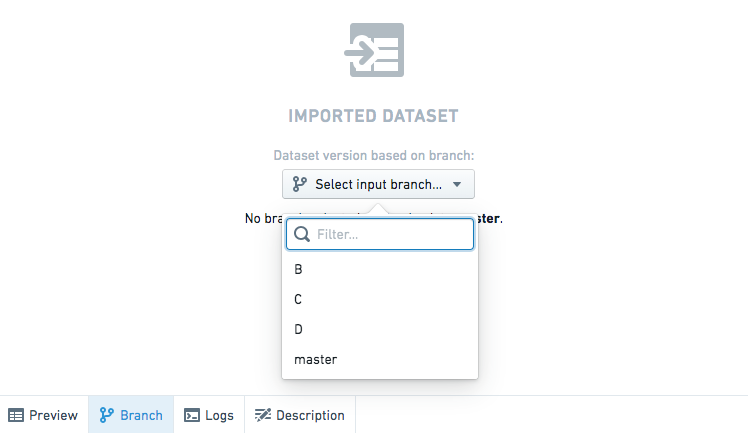
You can also manually choose a branch for imported datasets by clicking on any imported dataset, and choosing a specific branch from the dropdown menu:
中文翻译
选择导入数据集的分支
Code Workbook 为导入的数据集实现了分支回退(fallback)机制,这意味着工作簿(Workbook)中的分支层级结构将决定导入数据集的拉取来源。
例如,假设你的工作簿包含两个分支:master 和 develop,同时你的输入数据集 titanic 也拥有这两个分支。当你在 develop 分支上时,导入的数据集将默认从 develop 分支拉取。如果存在另一个仅存在于 master 分支而不在 develop 分支的数据集,则输入数据将从 master 分支拉取。
这种回退结构支持了多种实用的工作流程。例如,如果你从另一个工作簿或代码仓库(repository)导入了数据集,并希望使用该工作簿或仓库的分支版本来测试你的转换(transform),只需在你的工作簿中创建一个同名的新分支,导入的数据集便会自动回退到相应的分支。
你也可以手动为导入的数据集选择分支:点击任意导入的数据集,然后从下拉菜单中选择特定分支: