Exporting to a Code Repository(导出到代码仓库(Code Repository))
Python and SQL code can be exported from a Code Workbook to a Code Repository. Moving code across to a Code Repository can be useful for production pipelines, as it provides full git version control and several advanced pipelining tools. Learn more about Code Repositories.
When exporting, a new branch will be created on the repository with Code Workbook code converted to its Code Repository equivalent. Because this is a best-effort conversion, you may need to adjust this code to move files around, change dataset names and paths, adjust imported packages, etc.
:::callout{theme="neutral"} The export is a one-time, one-way export. Further edits to the Code Workbook are not automatically pushed to the Code Repository, and subsequent exports of the same datasets into the same repository are not supported. Code cannot be exported from a Code Repository to a Code Workbook. Additionally, the user who is performing the export must have at least Editor permissions on the destination Code Repository. :::
Supported Types
Currently, only SQL nodes or Python code nodes with Pandas or Spark dataframe inputs and outputs are supported. The set of exported nodes must be connected to each other, with imported datasets at the root.
Nodes with input types of Python transform input or object are not supported.
:::callout{theme="neutral"} Before exporting your code to a Code Repository, ensure that the needed languages are supported in the Code Repository. For example, if you export both SQL and Python nodes, you may need to add a new subproject to your SQL-only or Python-only repository. :::
How to Export
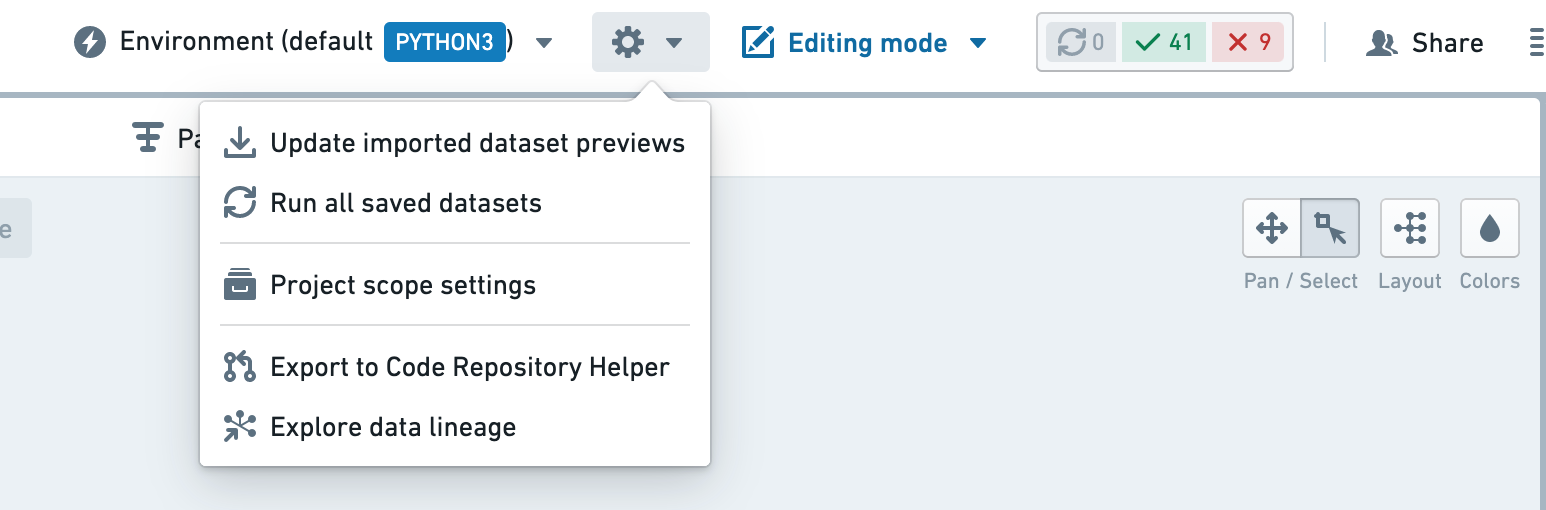
To export, from a Code Workbook, go to the Settings cog > Export to Code Repository Helper:
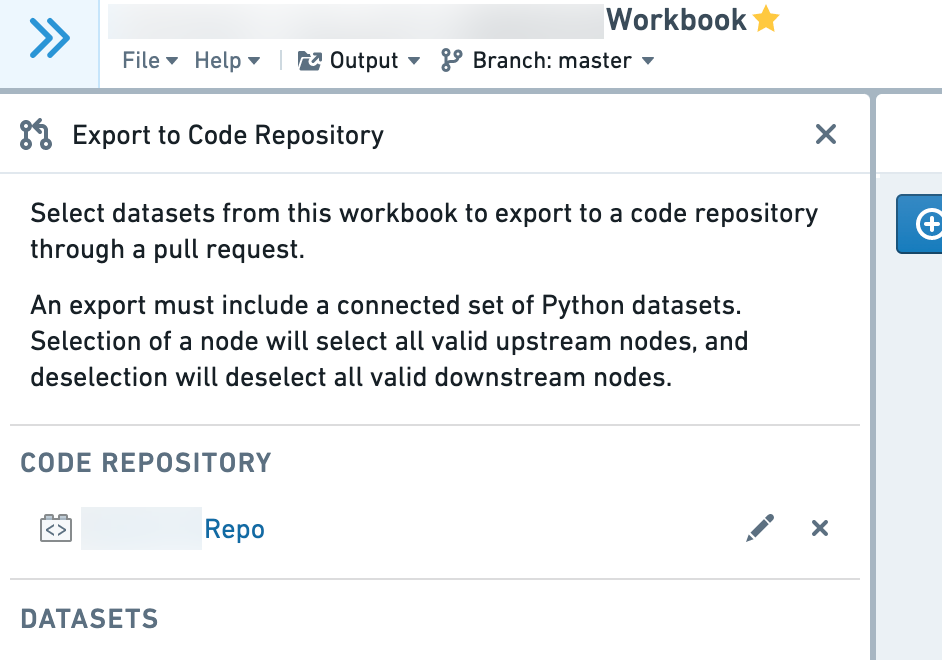
Click Select Repository and choose a Code Repository:
Select datasets to export with the checkboxes in the left hand side panel.
The graph shows which datasets are available for export (white), and which are not available (gray). The export must be a connected graph, and so adding nodes to the selection may make more nodes available for export. Hovering over disabled nodes will explain why they can’t be selected.
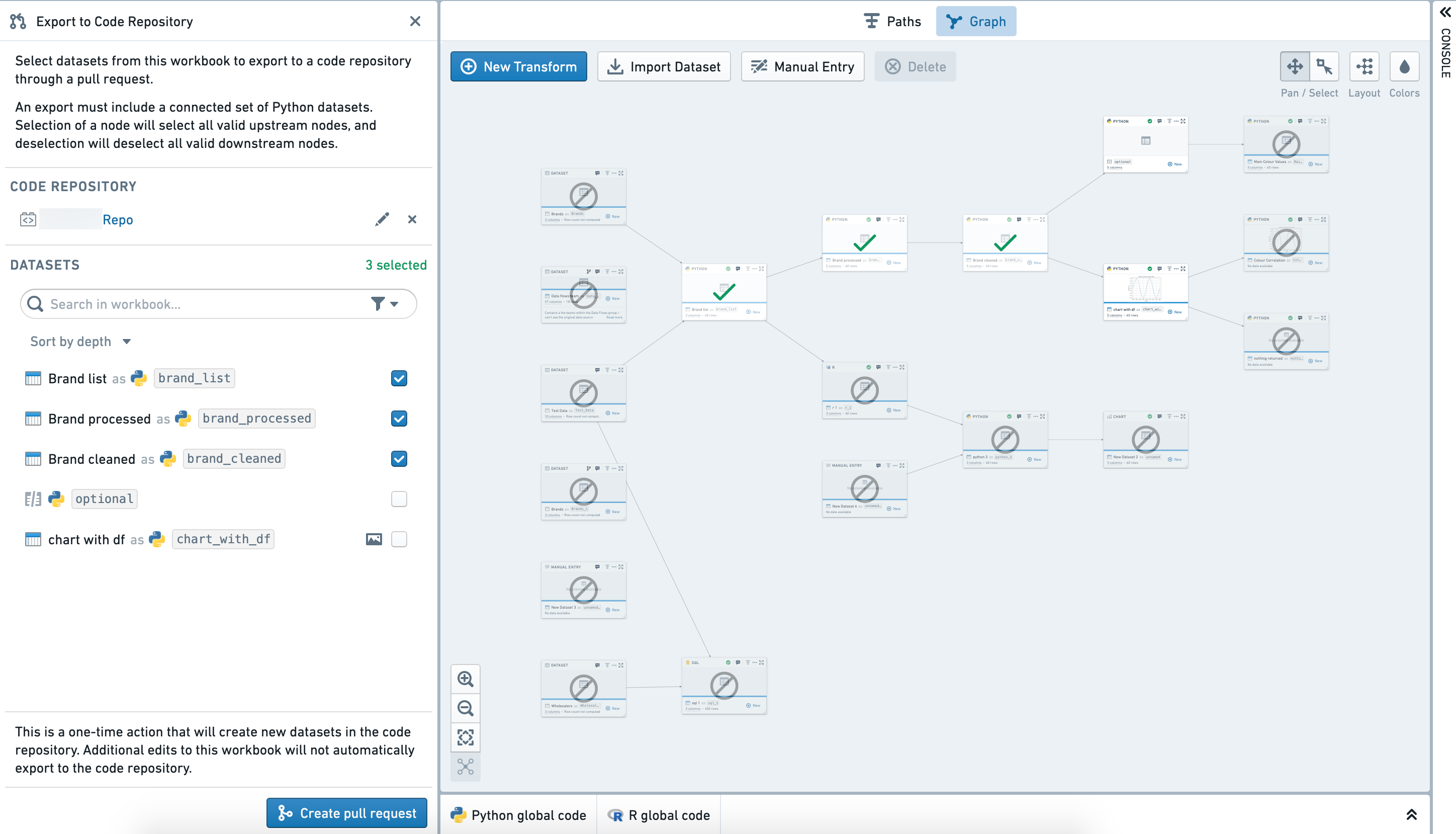
When ready to export, click Create pull request
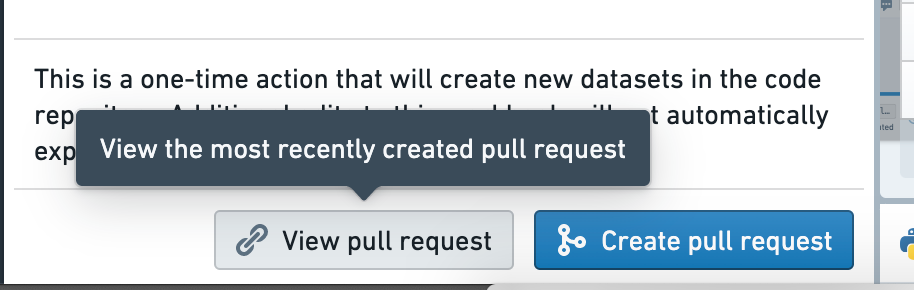
A new branch will be created in the selected Code Repository with code exported from the Code Workbook. Click "View pull request" to open the pull request in the Code Repository.
From here you can inspect the exported code and make any required edits such as dataset paths and names.
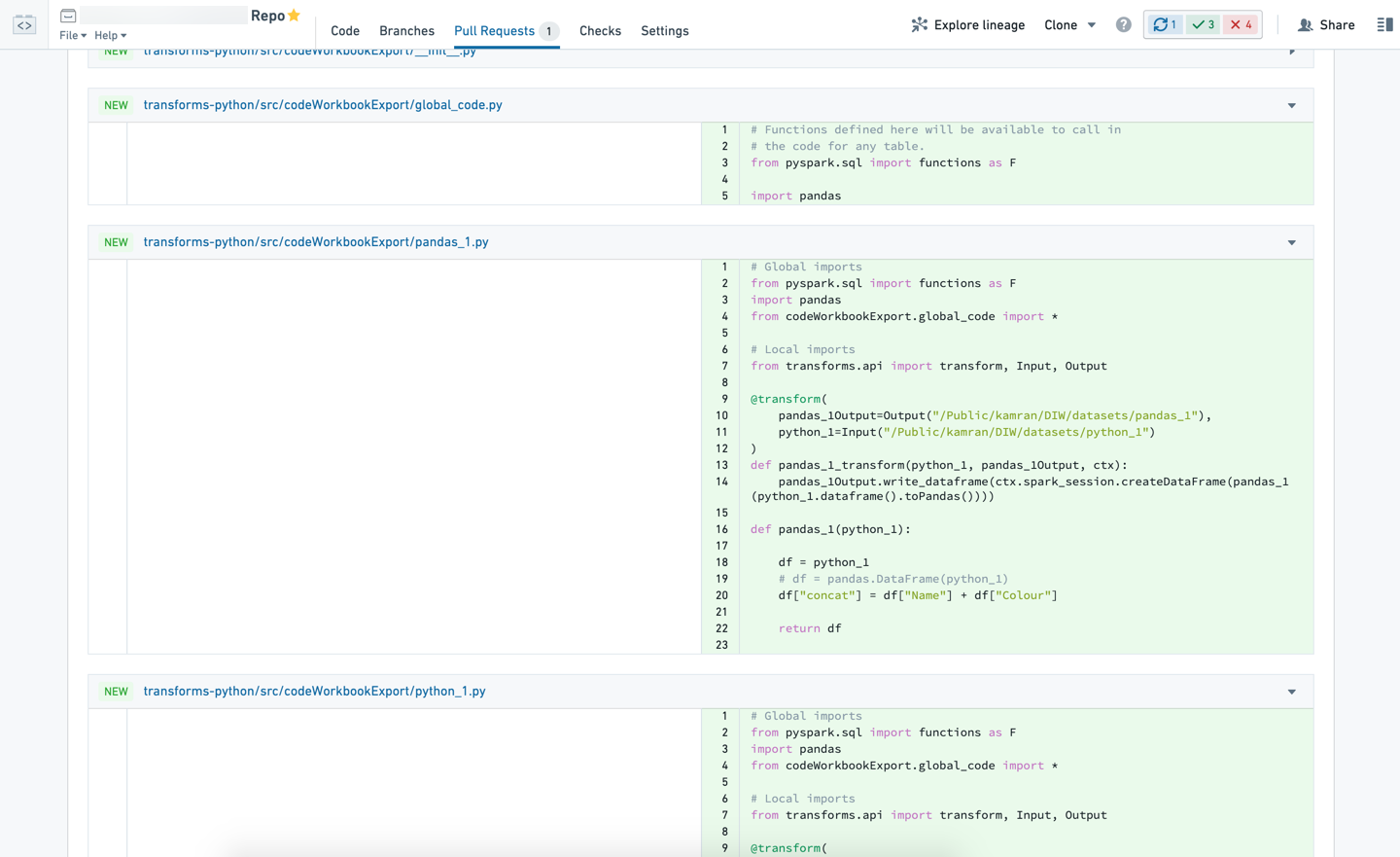
Verify the exported datasets in transforms-python/src/codeWorkbookExport have been imported and added to your pipeline in transforms-python/src/myproject/pipeline.py as desired.

Any custom package versions in the Code Workbook will be added to transforms-python/conda_recipe/meta.yml.
:::callout{theme="neutral"} Code Workbook and Code Repositories do not support the exact same set of packages. While the majority of packages should work correctly, some may fail to pass repository checks. :::
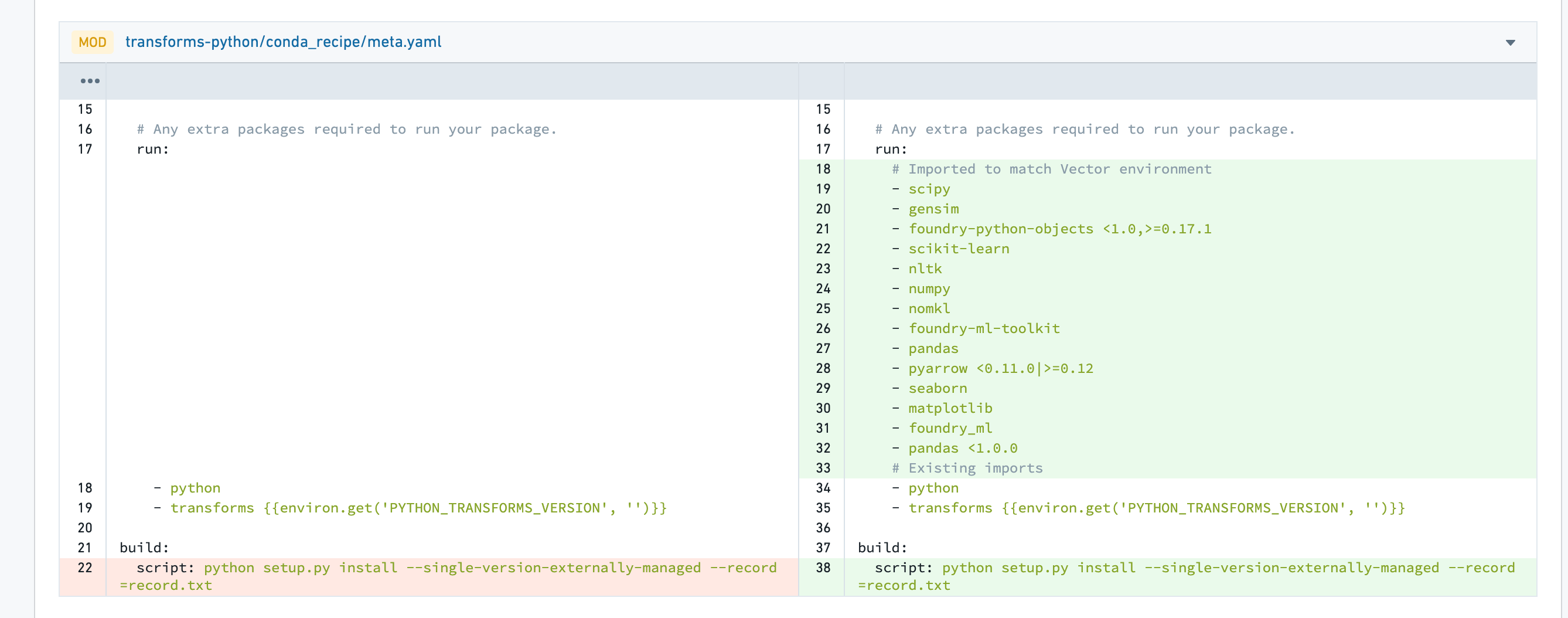
Once ready, the PR can be created and the usual process followed to merge the exported code into the pipeline.
Writing to the same datasets
By default, exporting to Code Repository will write to new datasets. If you would prefer to write to the same datasets as the Code Workbook, follow these steps below:
- Navigate to the branch created in repository by the Export to Code Repository action. Change the output dataset paths to those of the desired dataset.
- For each of the datasets, navigate to the
Detailstab of the dataset page, and delete the dataset's job spec. This is necessary to allow the repository to take ownership of the dataset. - Create the PR and follow the usual process to merge the code into the pipeline. When the CI checks run in the repository, new job specs will be created on the target dataset.
Note that by transferring these datasets to the repository, you will no longer be able to use the original Code Workbook to write to the datasets. You may wish to delete the exported nodes to avoid confusion.
中文翻译
导出到代码仓库(Code Repository)
Python和SQL代码可以从代码工作簿(Code Workbook)导出到代码仓库(Code Repository)。将代码迁移到代码仓库对于生产流水线非常有用,因为它提供了完整的git版本控制和多种高级流水线工具。了解更多关于代码仓库的信息。
导出时,将在仓库中创建一个新分支,其中代码工作簿的代码会被转换为代码仓库的等效代码。由于这是尽力而为的转换,您可能需要调整这些代码来移动文件、更改数据集名称和路径、调整导入的包等。
:::callout{theme="neutral"} 导出是一次性、单向的导出。对代码工作簿的进一步编辑不会自动推送到代码仓库,也不支持将相同数据集后续导出到同一仓库。代码无法从代码仓库导出到代码工作簿。此外,执行导出的用户必须对目标代码仓库至少拥有编辑者(Editor)权限。 :::
支持的类型(Supported Types)
目前仅支持SQL节点或使用Pandas或Spark数据框(DataFrame)输入和输出的Python代码节点。导出的节点集必须相互连接,且根节点为导入的数据集。
不支持输入类型为Python转换输入(Python transform input)或对象(object)的节点。
:::callout{theme="neutral"} 在将代码导出到代码仓库之前,请确保代码仓库支持所需的语言。例如,如果您同时导出SQL和Python节点,可能需要向仅支持SQL或仅支持Python的仓库添加新的子项目。 :::
如何导出(How to Export)
要导出,请从代码工作簿中转到设置齿轮图标 > 导出到代码仓库助手(Export to Code Repository Helper):
点击选择仓库(Select Repository)并选择一个代码仓库:
使用左侧面板中的复选框选择要导出的数据集。
图表显示哪些数据集可用于导出(白色),哪些不可用(灰色)。导出必须是一个连通图,因此向选择中添加节点可能会使更多节点可用于导出。将鼠标悬停在禁用的节点上会解释为什么无法选择它们。
准备导出时,点击创建拉取请求(Create pull request)
将在所选代码仓库中创建一个新分支,其中包含从代码工作簿导出的代码。点击"查看拉取请求(View pull request)"以在代码仓库中打开拉取请求。
在此处,您可以检查导出的代码并进行任何必要的编辑,例如数据集路径和名称。
验证transforms-python/src/codeWorkbookExport中导出的数据集已按需导入并添加到transforms-python/src/myproject/pipeline.py的流水线中。
代码工作簿中的任何自定义包版本都将添加到transforms-python/conda_recipe/meta.yml中。
:::callout{theme="neutral"} 代码工作簿和代码仓库不支持完全相同的包集合。虽然大多数包应该能正常工作,但有些可能无法通过仓库检查。 :::
准备就绪后,可以创建PR并按照常规流程将导出的代码合并到流水线中。
写入相同的数据集(Writing to the same datasets)
默认情况下,导出到代码仓库会写入新的数据集。如果您希望写入与代码工作簿相同的数据集,请按照以下步骤操作:
- 导航到通过"导出到代码仓库"操作在仓库中创建的分支。将输出数据集路径更改为所需数据集的路径。
- 对于每个数据集,导航到数据集页面的
详情(Details)选项卡,并删除数据集的作业规范(job spec)。这是必要的,以便让仓库接管数据集的所有权。 - 创建PR并按照常规流程将代码合并到流水线中。当仓库中运行CI检查时,将在目标数据集上创建新的作业规范。
请注意,通过将这些数据集转移到仓库,您将无法再使用原始代码工作簿写入这些数据集。 您可能希望删除已导出的节点以避免混淆。