Batch builds and interactive builds(批处理构建(Batch builds)和交互式构建(Interactive builds))
When using Code Workbook interactively by running jobs from within the workbook interface, all jobs will use the Spark module associated with the workbook. As seen in the image below, you can view the Spark module ID in the session history dialog for any session.

Because each user is assigned one Spark module that is used across workbooks in the same project with the same environment, your interactive job may queue on other jobs from a different workbook completing. For example, up to five Python jobs can run simultaneously on the same module. The sixth job will appear as "Queueing in Code Workbook."
Within a batch build (for example, a scheduled build or a build from Dataset Preview), one build will use one Spark module per environment in the build. For example, if a scheduled build contains datasets created within multiple Code Workbooks, and these Code Workbooks all use the same environment, the build will use the same Spark module for all jobs. No interactive jobs will be routed to that Spark module.
We recommend using batch builds when the desired outputs are saved as datasets, and you are not running transforms one-by-one to iterate on code. This may include the following cases:
- You would like to build some long-running transforms in the same workbook or other workbooks using the same interactive Spark module.
- You want the datasets to be updated on some regular cadence. For example, if you'd like to see updated data when there is new input data, or daily at 9AM, you should use a scheduled batch build.
From a workbook, use Open Dataset to view a dataset in Dataset Preview and build using the Build button in the top right of the screen. To build multiple datasets, navigate to the cog at the top of the page, then choose Explore Data Lineage. Then, select the datasets you want to build and choose to build them in the right sidebar.
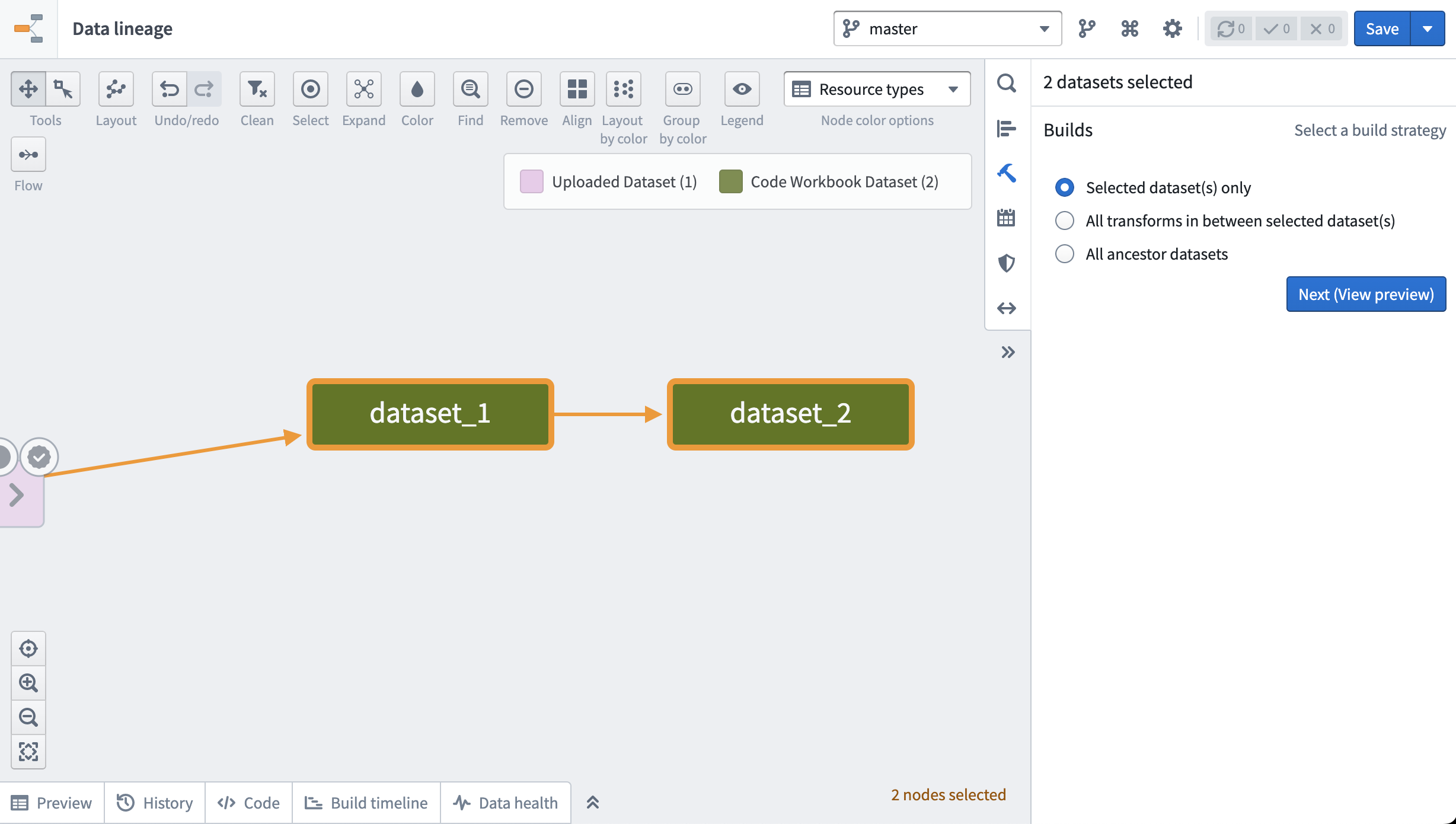
Alternately, use the same sidebar and click on the calendar icon to set up a recurring schedule to build the datasets. Learn more about setting up schedules.
To tell if a job is being built in batch build or interactive mode, navigate to the Builds application and click on the "Details" button.
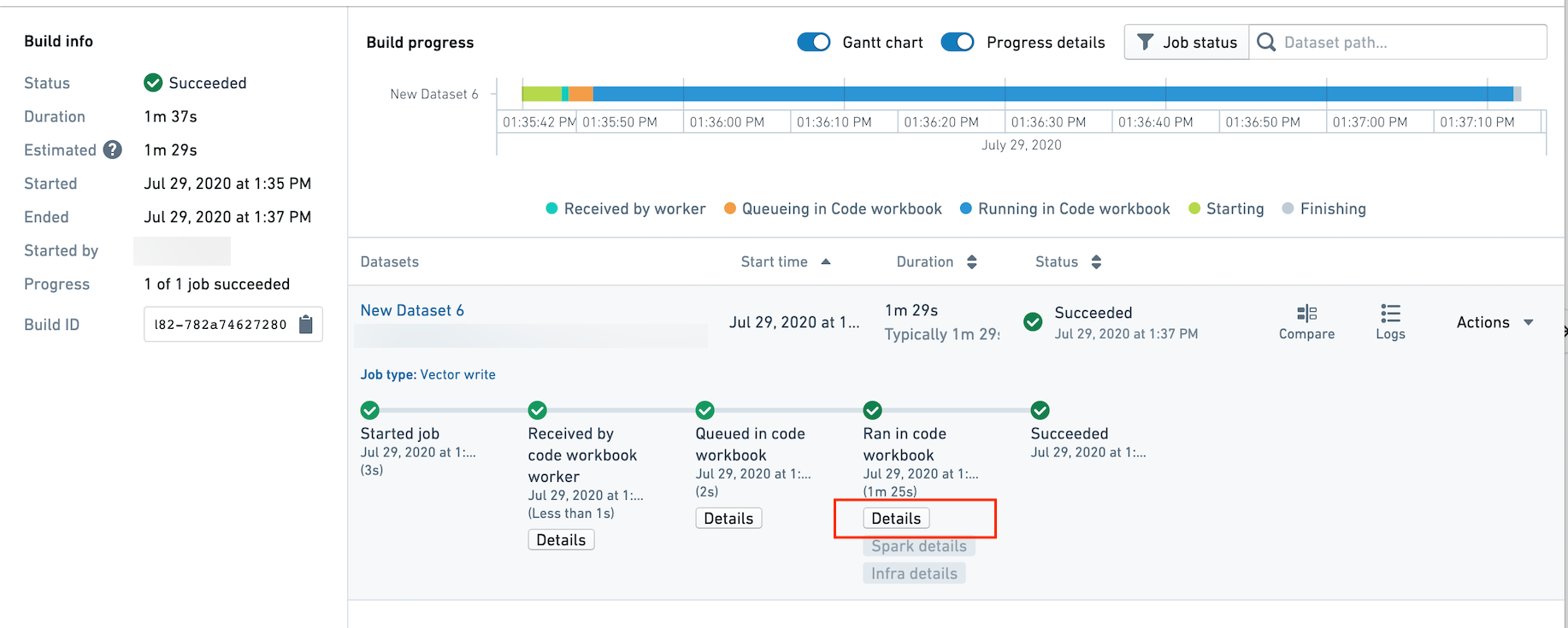
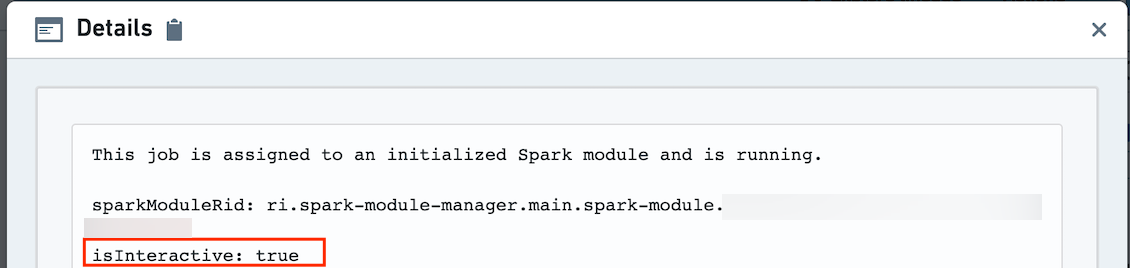
The details will list the ID of the Spark module, and whether isInteractive is true. If true, the job is running in interactive mode. If false, the job is running in batch build mode and does not share a Spark module with any interactive jobs.
中文翻译
批处理构建(Batch builds)和交互式构建(Interactive builds)
当你在代码工作簿(Code Workbook)界面内运行作业以交互式使用Code Workbook时,所有作业都会使用与该工作簿关联的Spark模块(Spark module)。如下图所示,你可以在任意会话的会话历史(session history)对话框中查看Spark模块ID。
由于系统会为每个用户分配一个Spark模块,供同一项目内使用相同环境的所有工作簿共享,因此你的交互式作业可能需要排队等待其他工作簿的作业完成后才能运行。例如,同一模块最多可同时运行5个Python作业,第6个作业将显示为“在Code Workbook中排队(Queueing in Code Workbook)”。
在批处理构建场景下(例如定时构建(scheduled build)或从数据集预览(Dataset Preview)触发的构建),单次构建会为其用到的每个环境分配一个Spark模块。例如,如果某一定时构建包含多个Code Workbook中创建的数据集,且这些Code Workbook都使用相同环境,那么该构建的所有作业都会使用同一个Spark模块,且不会有任何交互式作业被路由到该Spark模块上。
如果你需要的输出会保存为数据集,且不需要逐次运行转换(Transform)来迭代代码,我们推荐使用批处理构建。适用场景包括:
- 你需要在同一工作簿或使用同一交互式Spark模块的其他工作簿中运行一些耗时较长的转换。
- 你需要定期更新数据集。例如,你希望有新输入数据时自动更新数据,或者每天上午9点更新数据,那么你应该使用定时批处理构建。
在工作簿中,点击打开数据集(Open Dataset)即可在数据集预览中查看数据集,再点击页面右上角的构建(Build)按钮即可触发构建。如果需要构建多个数据集,请点击页面顶部的齿轮图标,选择探索数据血缘(Explore Data Lineage),然后选中你想要构建的数据集,在右侧边栏中选择构建即可。
你也可以在同一边栏中点击日历图标,为数据集设置周期性构建计划。了解更多关于设置计划的内容。
如果想要判断作业是通过批处理构建还是交互式模式运行,请前往构建应用(Builds application),点击详情(Details)按钮。
详情页会列出Spark模块的ID,以及isInteractive字段的取值。如果该字段为true,说明作业运行在交互式模式下;如果为false,说明作业运行在批处理构建模式下,不会与任何交互式作业共享Spark模块。