Environments(环境(Environments))
Each Code Workbook is associated with an environment. An environment includes a set of Conda packages and Spark settings installed on the Spark module backing computation in the Workbook. On opening a Workbook, you may see Waiting for resources or Initializing Environment as the Workbook obtains a Spark module. You will not be able to use the console or run transforms until a Spark module is acquired.
Each user is assigned one Spark module that is used across workbooks in the same project with the same environment. Spark modules are never shared between users.
Select a profile
You can configure your environment by clicking on Environment and then Customize Spark environment. You will see a list of predefined profiles. These have been configured by your administrator as useful sets of defaults for particular workflows or user groups.
To use a predefined profile, select it in the left-hand panel, then click Update Spark environment.
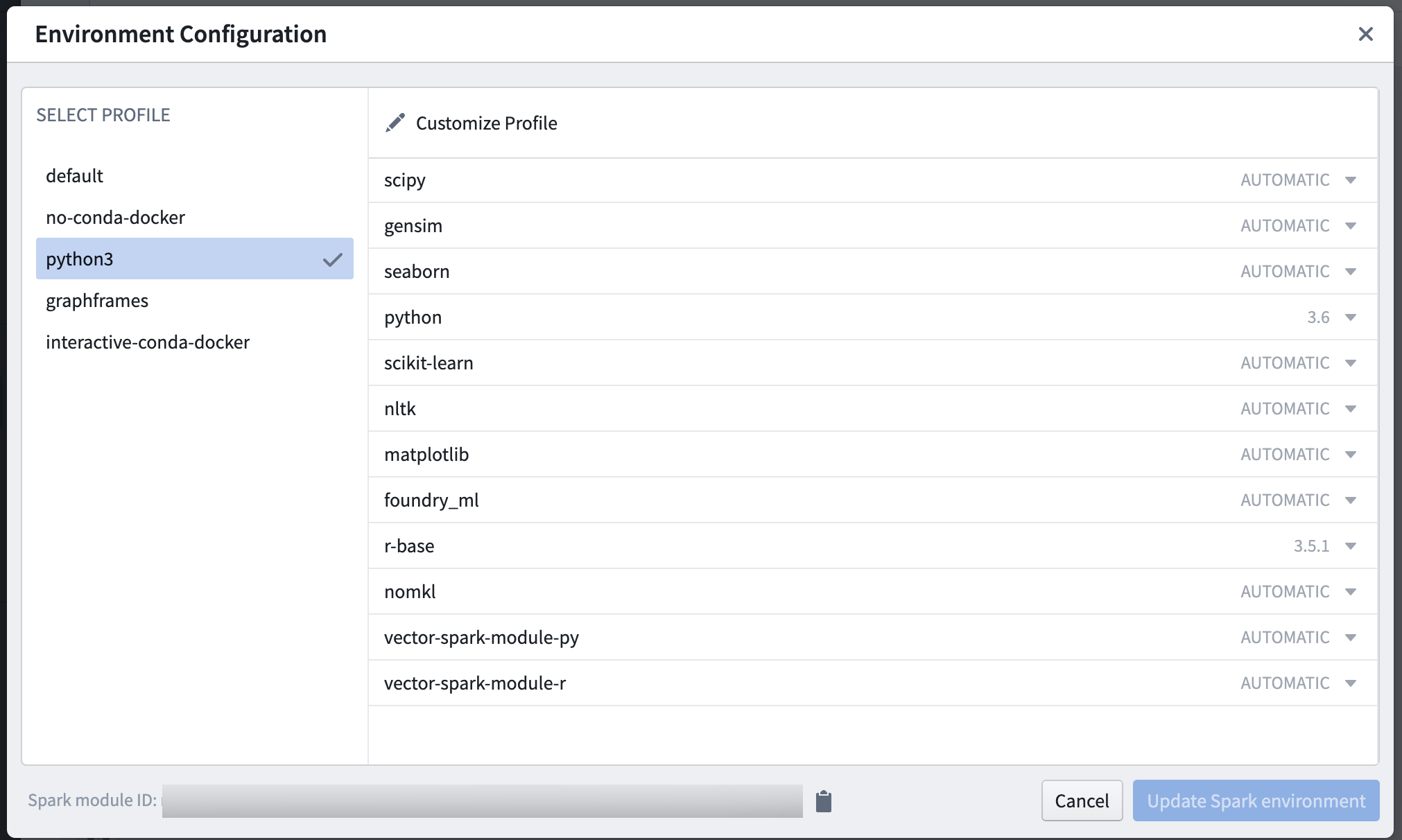
Modify a profile
If none of the predefined profiles suit your use case, you can add or remove packages to modify a profile by editing the predefined profile in Control Panel or customizing the predefined profile in a workbook. The main difference between these options is the scope of your changes. If you edit a predefined profile in Control Panel, packages installed for all workbooks with that profile will change accordingly. Conversely, if you customize a predefined profile in a workbook, only the packages installed for that particular workbook will change.
To edit a predefined profile in Control Panel, you can configure the packages for a Code Workbook profile.
To customize a predefined profile in a workbook, open the desired workbook, click on Environment, select Configure environment, and click on the Customize profile button. In the customization view, you can remove existing packages by clicking the minus sign, or change their requested versions. To add a new package, search for it in the Packages sidebar and click on the plus sign. Once it’s added to the profile, you can choose a specific version, choose AUTOMATIC, or specify a custom Conda version.
:::callout{theme="warning"} Customized environments will be slower to initialize than predefined profiles. :::
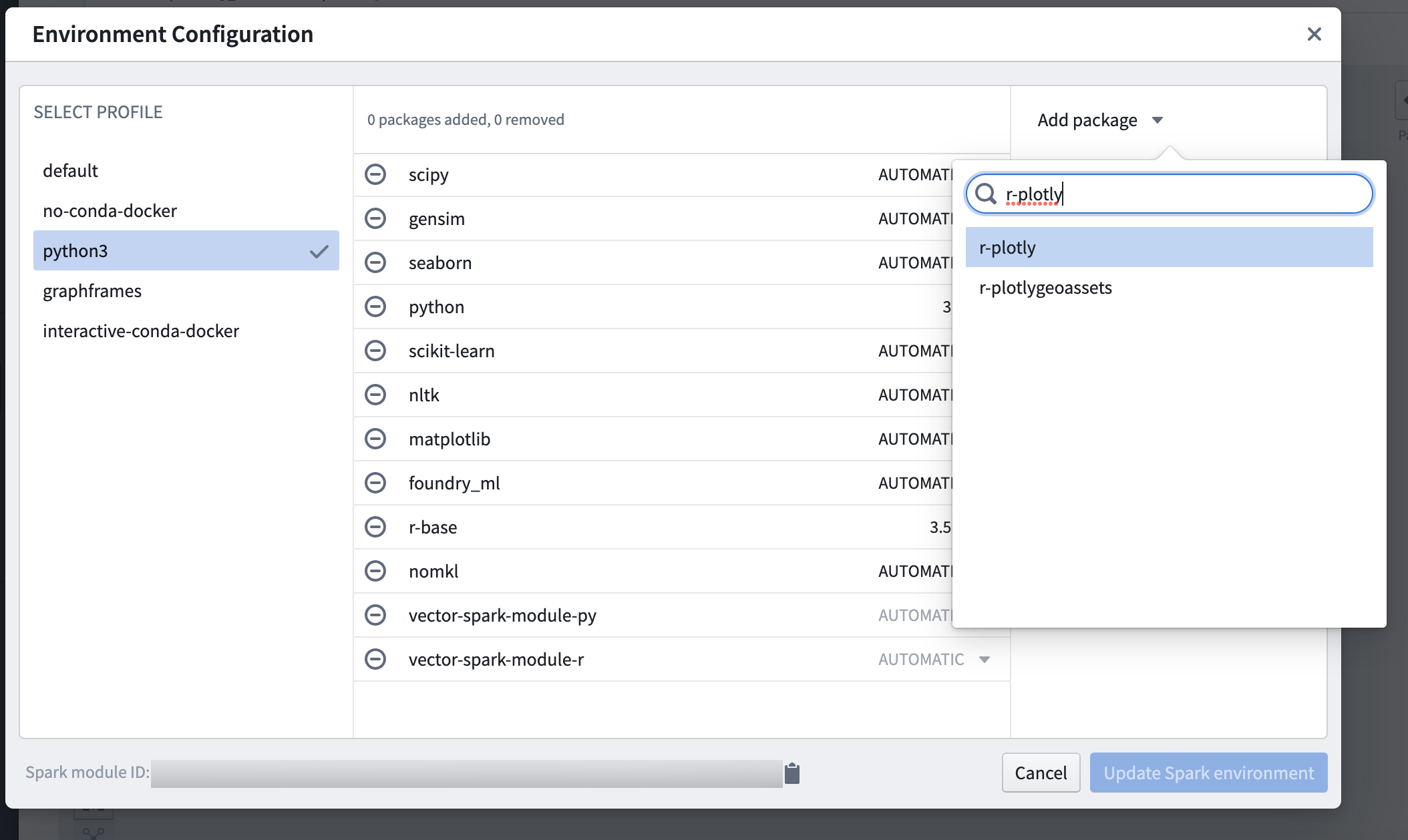
Add a profile
To create a new predefined profile for use across workbooks, you can configure Code Workbook profiles in Control Panel.
Custom Conda Versions
A Custom Conda Version can be:
- A version (such as
3.6) - A comparison operation and a version (such as
>=3.6) (Accepted comparison operators are=,==,>=,>,<=and<) For more details, see the Conda package specification ↗.
中文翻译
环境(Environments)
每个代码工作簿(Code Workbook)都关联一个环境。环境包含一组安装在为工作簿提供计算支撑的Spark模块(Spark Module)上的Conda包与Spark配置。打开工作簿时,如果工作簿正在申请Spark模块,你可能会看到等待资源或初始化环境的提示。在成功获取Spark模块前,你无法使用控制台或运行转换(Transform)。
每个用户都会被分配一个独立的Spark模块,同一项目下使用相同环境的所有工作簿会共用该模块。Spark模块永远不会在不同用户之间共享。
选择配置文件(Profile)
你可以通过依次点击环境 > 自定义Spark环境来配置你的环境,页面会展示预定义配置文件列表。这些配置文件由你的管理员预先配置,是适配特定工作流或用户组的常用默认配置集。
要使用某个预定义配置文件,只需在左侧面板选中它,再点击更新Spark环境即可。
修改配置文件
如果没有预定义配置文件适配你的使用场景,你可以通过两种方式修改配置增删软件包:一是在控制面板(Control Panel)中编辑预定义配置文件,二是在单份工作簿内自定义预定义配置文件。两种方式的核心区别是修改的生效范围不同:如果在控制面板中编辑预定义配置文件,所有使用该配置文件的工作簿的安装包都会同步变更;反之,如果你在单份工作簿中自定义预定义配置文件,仅该工作簿的安装包会变更。
如需在控制面板中编辑预定义配置文件,可参考为代码工作簿配置文件配置Conda环境。
如需在工作簿中自定义预定义配置文件,打开目标工作簿后,依次点击环境 > 配置环境,再点击自定义配置文件按钮。在自定义视图中,你可以点击减号移除已有包,或是修改包的指定版本。如需添加新包,在包侧边栏中搜索对应包并点击加号即可。包添加到配置文件后,你可以选择指定具体版本、选择AUTOMATIC,或是指定自定义Conda版本。
:::callout{theme="warning"} 自定义环境的初始化速度会慢于预定义配置文件。 :::
添加配置文件
如需创建可在多份工作簿中使用的全新预定义配置文件,你可以在控制面板中配置代码工作簿配置文件。
自定义Conda版本
自定义Conda版本支持以下格式:
* 具体版本号(例如3.6)
* 比较运算符加版本号(例如>=3.6),支持的比较运算符包括=, ==, >=, >, <= 和 <。更多详情请参考Conda package specification ↗。