Code Workbook FAQ(代码工作簿(Code Workbook)常见问题解答)
The following are some frequently asked questions about Code Workbook.
For general information, view our Code Workbook documentation.
- Can I easily move all of my work from one workbook to another?
- Can I set a transformation node to be a variable?
- Why does each transformation node need to return a table or a dataframe?
- Can Code Workbook handle merging and merge conflicts?
- How long does it take to initialize my environment?
- How do I restore code I previously deleted from my code workbook?
- Spark environment and custom libraries
- Cannot find required Python library
- Trouble importing Python libraries
- Failed to create environment
- Python code is failing
- Retryer error
- Failed to save as dataset
- Workbook not automatically recomputing after updating input dataset preview
- Unable to merge my branch into master
- Make cell computation faster
- 1. Refactoring
- 2. Caching
- 3. Function calls
- 4. Downsampling
- 5. Summary
Can I easily move all of my work from one workbook to another?
Yes. You can copy-paste nodes (elements on the graph of a workbook) between workbooks.
- Hold
Ctrlwhile selecting the nodes you would like to copy from one workbook. Copy-pasting Contour board nodes is not supported. - Copy the selected nodes using the right-click context menu.
- Select the graph of your target workbook and paste the nodes using the combination
Cmd+V(macOS) orCtrl+V(Windows). The new nodes will be imported into your new workbook.
Can I set a transformation node to be a variable?
No. Each transformation node on a code workbook graph must return a table or a dataframe (such as a two-dimensional data structure with columns).
Why does each transformation node need to return a table or a dataframe?
The atomic unit of artifacts within Foundry is the dataset. Each transformation node needs to return a table or a dataframe (such as a two-dimensional data structure with columns) so that each node can be registered as a Foundry dataset and therefore available throughout the rest of Foundry. Moreover, the tables or dataframes in Code Workbook must be returned with a valid schema such that they will produce datasets (for example, at least one column exists, column names are not duplicated, column names do not contain invalid letters, and so on.).
Can Code Workbook handle merging and merge conflicts?
Yes. For more information, view the documentation on branching and merging.
How long does it take to initialize my environment?
Code Workbook’s default configuration has an average initialization time of 3-5 minutes. However, if you have added additional packages to your Code Workbook profile, initialization times may range from 20-30 minutes, depending on the complexity and interdependencies of these packages. Initialization time tends to increase significantly as the number of packages in the environment increases.
Slow initialization generally indicates that the environment definition is too large or too complex. Initialization time tends to increase superlinearly with the number of packages in the environment, so you may want to simplify any custom environments. In some cases, Code Workbook may pre-initialize commonly-used environments to speed up initialization. If you have created a custom environment based on a default profile, the slower initialization time may be due to the lack of pre-initialization. Learn more about optimizing the initialization time of a custom environment
If the browser tab is inactive for more than 30 minutes, the environment may be lost due to inactivity.
How do I restore code I previously deleted from my Code Workbook?
If these transforms were built into a dataset, you can use the Compare feature of the resulting Dataset Preview to view the code at that time. From there you can copy-paste the relevant transforms. Unfortunately, if this code was in an intermediate transform, it cannot be recovered.
Code Workbook is a more iterative platform than Code Repositories, the latter of which has a full git commit and publish functionality. If you have any other branches available, we recommend checking them for the deleted transform.
Spark environment and custom libraries
Cannot find required Python library
By default, any Python package available in Conda Forge ↗ is available to add to a custom environment for your workbook. If the Python library is included in Conda Forge, then you can customize your environment to include it directly.
To troubleshoot, perform the following steps:
- Select Environment > Customize Environment in the top-right.
- Search for the desired library and add either automatic (which will take upgrades, but may leave you vulnerable to unintentional breaks if the module upgrades) or a specific version of this library.
- Select Update Spark environment.
Note that it might take a while for the environment to reload, working with custom environments in general will be slower than with the stock environment, since a pool of stock environments is kept "warmed" whereas each custom environment is spun up from scratch.
Trouble importing Python libraries
Sometimes it may be required to use a library that is not already available within Code Workbook. It is possible to have these added to your available list, but this requires some hands-on work.
To troubleshoot, perform the following steps:
- Confirm that the Python library is not available in the workbook custom Spark environment list.
- If it does not exist, then vet whether another available library might provide the same functionality.
- If necessary to include this library, contact Palantir Support.
- Once the library is available, you can refer to the previous troubleshooting steps to add a library.
Failed to create environment
I am trying to update my workbook environment, and it states "Waiting for Spark / Initializing environment" for a while and then errors out with a “Failed to create environment” message.
To troubleshoot, perform the following steps:
- Confirm whether there were any updates to customize the workbook's Spark environment. If there have been, then your investigation should center on any custom libraries added.
- Ensure none of the modules were pinned to a specific version. It is generally good practice to use the latest version of a module.
- Remove any custom libraries and see if the Spark environment loads.
- If a particular library is preventing your Spark environment to load, escalate to Palantir Support.
Python code is failing
This section discusses failures that are generally specific to Code Workbook.
For additional information, you may also refer to our guidance on Builds and checks errors.
Retryer error
Running an import package or any basic command returns the following error: "com.github.rholder.retry.RetryException: Retrying failed to complete successfully after 3 attempts. at com.github.rholder.retry.Retryer.call(Retryer.java:174)". When using a workbook in Pandas, the Code Workbook application will still convert from a Spark dataframe to a Pandas dataframe before your transformation, which consumes significantly more memory on the driver and is likely making it OOM.
To troubleshoot, perform the following steps:
- Verify that your transformation cell is using Pandas and that this problem is exhibited for code that specifically runs Pandas.
- If this computation is possible in Spark, we strongly recommend re-configuring your code to use Spark since it is parallel and more scalable.
- As a last resort when this computation must be done on the driver, we recommend using a profile that increases driver memory.
Failed to save as dataset
This issue could occur for a variety of reasons, but the most common circumstance is with returning a table or dataframe that contains a valid schema. If none of the below steps help identify the particular error you are seeing, refer to our guidance on Builds and checks errors.
To troubleshoot, perform the following steps:
- Ensure the transformation node is returning a table or dataframe.
- Confirm the table or dataframe conforms to the basic requirements of being written to Foundry as a dataset: For example:
- There is at least one column.
- All column names are valid (such as they do not contain spaces or invalid characters).
- There are no duplicate column names.
- If you are confident this transformation node should be capable of being written out as a dataset, then try running another transformation node or building a new, very simple transformation node.
- This can help identify if it is a local issue (something unexpected happening with that particular transformation node, for example) or a more systemic issue (such as transformation nodes in general are failing to save to Foundry).
- If it is a local issue, continue to debug the code being used to create this table / dataframe.
- If it is systemic, escalate the issue to Palantir Support providing all the relevant information from your investigation.
Workbook not automatically recomputing after updating input dataset preview
When opting to Update table preview for input tables, only the view for the input datasets is updated and the underlying dataset in Foundry is not automatically refreshed.
To troubleshoot, perform the following steps:
- If the input datasets do not refresh after selecting Update table preview for input tables, then:
- Open these datasets and see if they have been failing to build.
- If the input datasets have been failing to build, then this would explain why you are not seeing any updated information in your workbook. Continue debugging from here.
- If the input datasets have been building as expected, and there is a mismatch with what you are seeing as the preview in the code workbook, then:
- Try deleting the input table from the code workbook and adding it back in.
- If this does not work, and there is still a discrepancy between the preview and the actual table, then contact Palantir Support.
- If the transformation nodes are not updating when selecting Update table preview, then this is expected behavior as these are not impacted by this operation. To update all the transformation nodes within the code workbook, select
run -> run all. This will run all the transformation nodes in your code workbook while respecting build dependencies.
Unable to merge my branch into master
The most common issue when you find yourself unable to merge your branch back into main is that the master branch is protected. There may be issues around merge conflicts, but that is covered in another section.
To troubleshoot, perform the following steps:
- Determine whether the branch is protected.
- If the branch is protected then identify the owner and request that they merge your branch.
- For a given workbook, turn on branch protection on
master, and ensure that the users you want to restrict from merging branches only havecompass:editpermissions on the Workbook. - Internally, Code Workbook has four permission levels related to branches:
view,edit,maintain, andmanage. By default,compass:readexpands toview,compass:editexpands toedit, andcompass:manageexpands tomaintainandmanage. - Creating a branch and preparing a merge into a parent branch always requires only
editpermissions. Merging into a protected branch requiresmaintainpermissions. Changing branch protection settings requiresmanagepermissions. - More information is available in our Branching overview.
- If the branch is not protected, then you run into merge conflicts, where this is non-additive code that conflicts with the code in the
masterbranch. - In these instances, resolve these merge conflicts before merging your branch back into
master. - More information is available in our Merging branches documentation.
- If the
masterbranch is not protected, and there are no merge conflicts, and you are still unable to merge your branch intomaster, contact Palantir Support.
Make cell computation faster
Assuming I have dataset inputs of (1000 rows * 30 columns) + (1 million rows * 30 columns), and a transformation with a lot of windowing / column derivation steps, how can I make the computation run faster?
To troubleshoot, perform the following steps:
1. Refactoring
For experimentation or fast iteration, it is often a good idea to refactor your code into several smaller steps instead of a single large step.
This way, you compute the upstream cells first, write the data back to Foundry, and use this pre-computed data in later steps. If you were to keep re-computing without changing the logic of these early steps, this creates excessive work.
Concretely:
workbook_1:
  cell_A:
    work_1 : input -> df_1
      (takes 4 iterations to get right): 4 * df_1
    work_2: df_1 -> df_2
      (takes 4 iterations to get right): 4 * df_2 + 4 * df_1
        = 4 df_2 + 4 df_1
    work_3: df_2 -> df_3
      (takes 4 iterations to get right): 4 * df_3 + 4 * df_2 + 4 * df_1
  total work:
    cell_A
     = work_1 + work_2 + work_3
     = 4 * df_1 + (4 * df_2 + 4 * df_1) + (4 * df_3 + 4 * df_2 + 4 * df_1)
     = 12 * df_1 + 8 * df_2 + 4 * df_3
Instead, if you wrote work_1 and work_2 into their own cells, the work you perform would instead look like:
workbook_2:
  cell_A:
    work_1: input -> df_1
      (takes 4 iterations to get right): 4 * df_1
  cell_B:
    work_2: df_1 -> df_2
      (takes 4 iterations to get right): 4 * df_2
  cell_C:
    work:3: df_2 -> df_3
      (takes 4 iterations to get right): 4 * df_3
  total_work:
    cell_A + cell_B + cell_C
       = work_1 + work_2 + work_3
       = 4 * df_1 + 4 * df_2 + 4 * df_3
If you assume df_1, df_2, and df_3 all cost the same amount to compute, workbook_1.total_work = 24 * df_1, whereas workbook_2.total_work = 12 * df_1, so you can expect closer to the order of a 2x speed improvement on iteration.
2. Caching
For any "small" datasets, you should cache them by selecting the workbook, then choosing Actions > Cache.
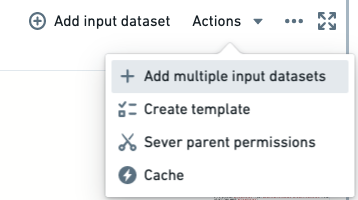
This will keep the rows in-memory for your workbook and not require fetching from the written-back dataset. "Small" is an arbitrary judgment given several factors that must be considered, but Code Workbook does a good job of trying to cache it and will warn you if it is too big.
3. Function calls
You should stick to native PySpark methods as much as possible and never user Python methods directly on data (such as looping over individual rows, executing a UDF). PySpark methods call the underlying Spark methods that are written in Scala and run directly against the data instead of the Python runtime; if you simply use Python as the layer to interact with this system instead of being the system that interacts with the data, you will get all the performance benefits of Spark itself.
4. Downsampling
If you can derive your own accurate sample of a large input dataset, this can be used as the mock input for your transformations, until such time you perfect your logic and want to test it against the full set.
Consider downsampling and caching datasets above one million rows before ever writing a line of PySpark code; you may experience faster turnaround times without catching syntax bugs slowly due to large dataset sizes.
5. Summary
A good code workbook looks like the following:
- Discrete chunks of code that do particular materializations you expect to re-use later but do not need to be recomputed over and over again.
- Down-sampled to "small" sizes.
- Cached "small" datasets for very fast fetching.
- Only native PySpark code that exploits the fast, underlying Spark libraries.
中文翻译
代码工作簿(Code Workbook)常见问题解答
以下是关于代码工作簿(Code Workbook)的一些常见问题解答。
如需了解常规信息,请查看我们的代码工作簿文档。
- 能否轻松地将所有工作从一个工作簿移动到另一个工作簿?
- 能否将转换节点设置为变量?
- 为什么每个转换节点都需要返回表或数据框?
- 代码工作簿能否处理合并和合并冲突?
- 初始化环境需要多长时间?
- 如何恢复之前从代码工作簿中删除的代码?
- Spark 环境和自定义库
- 找不到所需的 Python 库
- 导入 Python 库时遇到问题
- 创建环境失败
- Python 代码执行失败
- Retryer 错误
- 无法保存为数据集
- 更新输入数据集预览后工作簿未自动重新计算
- 无法将我的分支合并到 master
- 加快单元格计算速度
- 1. 重构
- 2. 缓存
- 3. 函数调用
- 4. 降采样
- 5. 总结
能否轻松地将所有工作从一个工作簿移动到另一个工作簿?
可以。您可以在不同工作簿之间复制粘贴节点(工作簿图上的元素)。
- 按住
Ctrl键,同时选择要从某个工作簿中复制的节点。不支持复制粘贴 Contour 面板节点。 - 使用右键单击上下文菜单复制所选节点。
- 选择目标工作簿的图,并使用组合键
Cmd+V(macOS)或Ctrl+V(Windows)粘贴节点。新节点将被导入到您的新工作簿中。
能否将转换节点(Transformation node)设置为变量?
不能。代码工作簿图上的每个转换节点都必须返回一个表或数据框(Dataframe)(例如带有列的二维数据结构)。
为什么每个转换节点都需要返回表或数据框?
Foundry 中工件的原子单位是数据集(Dataset)。每个转换节点都需要返回一个表或数据框(例如带有列的二维数据结构),以便每个节点都可以注册为 Foundry 数据集,从而在 Foundry 的其余部分中可用。此外,代码工作簿中的表或数据框必须返回有效的模式(Schema),以便它们能够生成数据集(例如,至少存在一列,列名不重复,列名不包含无效字符等)。
代码工作簿能否处理合并和合并冲突?
可以。有关更多信息,请查看关于分支和合并的文档。
初始化环境需要多长时间?
代码工作簿的默认配置平均初始化时间为 3-5 分钟。但是,如果您在代码工作簿配置文件中添加了额外的包,初始化时间可能会延长至 20-30 分钟,具体取决于这些包的复杂性和相互依赖性。随着环境中包数量的增加,初始化时间往往会显著延长。
初始化缓慢通常表明环境定义过大或过于复杂。初始化时间往往随着环境中包数量的增加而呈超线性增长,因此您可能需要简化任何自定义环境。在某些情况下,代码工作簿可能会预初始化常用环境以加快初始化速度。如果您基于默认配置文件创建了自定义环境,较慢的初始化时间可能是由于缺乏预初始化造成的。了解有关优化自定义环境初始化时间的更多信息
如果浏览器标签页处于非活动状态超过 30 分钟,环境可能会因不活动而丢失。
如何恢复之前从代码工作簿中删除的代码?
如果这些转换已构建到数据集中,您可以使用生成的数据集预览的比较(Compare)功能来查看当时的代码。然后,您可以复制粘贴相关的转换。遗憾的是,如果此代码位于中间转换中,则无法恢复。
代码工作簿是一个比代码库(Code Repositories)更具迭代性的平台,后者具有完整的 git 提交和发布功能。如果您还有其他可用的分支,我们建议检查它们以寻找被删除的转换。
Spark 环境(Spark environment)和自定义库
找不到所需的 Python 库
默认情况下,Conda Forge ↗ 中提供的任何 Python 包都可以添加到工作簿的自定义环境中。如果 Python 库包含在 Conda Forge 中,则您可以自定义环境以直接包含它。
要进行故障排除,请执行以下步骤:
- 在右上角选择环境 > 自定义环境。
- 搜索所需的库,并添加自动(这将接受升级,但如果模块升级,可能会使您面临意外中断的风险)或该库的特定版本。
- 选择更新 Spark 环境。
请注意,环境重新加载可能需要一些时间,使用自定义环境通常比使用默认环境慢,因为系统会保留一个“预热”的默认环境池,而每个自定义环境都是从头开始启动的。
导入 Python 库时遇到问题
有时可能需要使用代码工作簿中尚未提供的库。可以将这些库添加到您的可用列表中,但这需要一些手动操作。
要进行故障排除,请执行以下步骤:
- 确认该 Python 库不在工作簿自定义 Spark 环境列表中。
- 如果不存在,请评估是否有其他可用库可以提供相同的功能。
- 如果必须包含此库,请联系 Palantir 支持团队。
- 库可用后,您可以参考前面的故障排除步骤来添加库。
创建环境失败
我尝试更新我的工作簿环境,它显示“等待 Spark / 正在初始化环境”一段时间,然后报错并显示“创建环境失败”消息。
要进行故障排除,请执行以下步骤:
- 确认是否对自定义工作簿的 Spark 环境进行了任何更新。如果有,则您的调查应集中在添加的任何自定义库上。
- 确保没有将任何模块固定到特定版本。通常,使用模块的最新版本是一种良好的做法。
- 移除所有自定义库,查看 Spark 环境是否能够加载。
- 如果特定库导致您的 Spark 环境无法加载,请将其上报给 Palantir 支持团队。
Python 代码执行失败
本节讨论通常特定于代码工作簿的故障。
有关更多信息,您还可以参考我们关于构建和检查错误的指南。
Retryer 错误
运行导入包或任何基本命令时返回以下错误:“com.github.rholder.retry.RetryException: Retrying failed to complete successfully after 3 attempts. at com.github.rholder.retry.Retryer.call(Retryer.java:174)”。在 Pandas 中使用工作簿时,代码工作簿应用程序仍会在您的转换之前将 Spark 数据框转换为 Pandas 数据框,这会消耗驱动节点(Driver)上多得多的内存,并很可能导致内存溢出(OOM)。
要进行故障排除,请执行以下步骤:
- 验证您的转换单元格是否正在使用 Pandas,并且此问题是否出现在专门运行 Pandas 的代码中。
- 如果此计算可以在 Spark 中完成,我们强烈建议重新配置您的代码以使用 Spark,因为它是并行的且更具可扩展性。
- 作为最后的手段,当此计算必须在驱动节点上完成时,我们建议使用增加驱动节点内存的配置文件。
无法保存为数据集
此问题可能由多种原因引起,但最常见的情况是返回包含有效模式的表或数据框。如果以下步骤均无助于确定您看到的具体错误,请参考我们关于构建和检查错误的指南。
要进行故障排除,请执行以下步骤:
- 确保转换节点正在返回表或数据框。
- 确认表或数据框符合写入 Foundry 作为数据集的基本要求:例如:
- 至少有一列。
- 所有列名均有效(例如,不包含空格或无效字符)。
- 没有重复的列名。
- 如果您确信此转换节点应该能够作为数据集写出,请尝试运行另一个转换节点或构建一个新的、非常简单的转换节点。
- 这有助于确定是局部问题(例如,该特定转换节点发生了意外情况)还是更系统性的问题(例如,转换节点通常无法保存到 Foundry)。
- 如果是局部问题,请继续调试用于创建此表/数据框的代码。
- 如果是系统性问题,请将问题上报给 Palantir 支持团队,并提供您调查中的所有相关信息。
更新输入数据集预览后工作簿未自动重新计算
当选择为输入表更新表预览时,只会更新输入数据集的视图,Foundry 中的底层数据集不会自动刷新。
要进行故障排除,请执行以下步骤:
- 如果在为输入表选择更新表预览后输入数据集未刷新,则:
- 打开这些数据集,查看它们是否构建失败。
- 如果输入数据集一直构建失败,这就解释了为什么您在工作簿中看不到任何更新的信息。请从此处继续调试。
- 如果输入数据集已按预期构建,并且与您在代码工作簿中看到的预览不匹配,则:
- 尝试从代码工作簿中删除输入表,然后重新添加。
- 如果这不起作用,并且预览和实际表之间仍然存在差异,请联系 Palantir 支持团队。
- 如果在选择更新表预览时转换节点未更新,这是预期行为,因为它们不受此操作的影响。要更新代码工作簿中的所有转换节点,请选择
run -> run all。这将在遵循构建依赖关系的同时运行代码工作簿中的所有转换节点。
无法将我的分支合并到 master
当您发现自己无法将分支合并回 main 时,最常见的问题是 master 分支受到保护。可能存在围绕合并冲突的问题,但这在另一节中介绍。
要进行故障排除,请执行以下步骤:
- 确定该分支是否受到保护。
- 如果分支受到保护,请确定所有者并请求他们合并您的分支。
- 对于给定的工作簿,在
master上开启分支保护,并确保您希望限制合并分支的用户仅对工作簿具有compass:edit权限。 - 在内部,代码工作簿具有与分支相关的四个权限级别:
view、edit、maintain和manage。默认情况下,compass:read扩展为view,compass:edit扩展为edit,compass:manage扩展为maintain和manage。 - 创建分支并准备合并到父分支始终只需要
edit权限。合并到受保护的分支需要maintain权限。更改分支保护设置需要manage权限。 - 更多信息可在我们的分支概述中找到。
- 如果分支未受保护,那么您会遇到合并冲突,即存在与
master分支中的代码冲突的非累加性代码。 - 在这些情况下,请在将分支合并回
master之前解决这些合并冲突。 - 更多信息可在我们的合并分支文档中找到。
- 如果
master分支未受保护,并且没有合并冲突,但您仍然无法将分支合并到master,请联系 Palantir 支持团队。
加快单元格计算速度
假设我的数据集输入为(1000 行 * 30 列)+(100 万行 * 30 列),并且转换包含大量窗口/列派生步骤,如何使计算运行得更快?
要进行故障排除,请执行以下步骤:
1. 重构
对于实验或快速迭代,将代码重构为几个较小的步骤而不是单个大步骤通常是个好主意。
这样,您可以先计算上游单元格,将数据写回 Foundry,并在后续步骤中使用这些预计算的数据。如果您在不更改这些早期步骤逻辑的情况下不断重新计算,这会产生过多的工作量。
具体来说:
workbook_1:
  cell_A:
    work_1 : input -> df_1
      (takes 4 iterations to get right): 4 * df_1
    work_2: df_1 -> df_2
      (takes 4 iterations to get right): 4 * df_2 + 4 * df_1
        = 4 df_2 + 4 df_1
    work_3: df_2 -> df_3
      (takes 4 iterations to get right): 4 * df_3 + 4 * df_2 + 4 * df_1
  total work:
    cell_A
     = work_1 + work_2 + work_3
     = 4 * df_1 + (4 * df_2 + 4 * df_1) + (4 * df_3 + 4 * df_2 + 4 * df_1)
     = 12 * df_1 + 8 * df_2 + 4 * df_3
相反,如果您将 work_1 和 work_2 写入它们自己的单元格中,您执行的工作将如下所示:
workbook_2:
  cell_A:
    work_1: input -> df_1
      (takes 4 iterations to get right): 4 * df_1
  cell_B:
    work_2: df_1 -> df_2
      (takes 4 iterations to get right): 4 * df_2
  cell_C:
    work:3: df_2 -> df_3
      (takes 4 iterations to get right): 4 * df_3
  total_work:
    cell_A + cell_B + cell_C
       = work_1 + work_2 + work_3
       = 4 * df_1 + 4 * df_2 + 4 * df_3
如果您假设 df_1、df_2 和 df_3 的计算成本相同,workbook_1.total_work = 24 * df_1,而 workbook_2.total_work = 12 * df_1,因此您可以预期迭代速度提升接近 2 倍。
2. 缓存
对于任何“小型”数据集,您应该通过选择工作簿,然后选择操作 > 缓存来缓存它们。
这会将行保留在工作簿的内存中,而无需从写回的数据集中获取。“小型”是一个主观判断,需要考虑多个因素,但代码工作簿在尝试缓存它方面做得很好,如果它太大,会向您发出警告。
3. 函数调用
您应尽可能坚持使用原生 PySpark 方法,切勿直接在数据上使用 Python 方法(例如循环遍历各个行、执行 UDF)。PySpark 方法调用底层用 Scala 编写的 Spark 方法,并直接针对数据而不是 Python 运行时运行;如果您只是将 Python 作为与该系统交互的层,而不是作为与数据交互的系统本身,您将获得 Spark 本身的所有性能优势。
4. 降采样
如果您可以派生自己的大型输入数据集的准确样本,这可以用作转换的模拟输入,直到您完善逻辑并希望针对完整数据集进行测试。
在编写任何 PySpark 代码之前,请考虑对超过一百万行的数据集进行降采样和缓存;您可能会体验到更快的周转时间,而不会因为数据集过大而缓慢地发现语法错误。
5. 总结
一个优秀的代码工作簿应如下所示:
- 离散的代码块,执行您期望稍后重用但不需要反复重新计算的特定物化。
- 降采样至“小型”大小。
- 缓存“小型”数据集以实现极快的获取。
- 仅使用原生 PySpark 代码,以利用快速、底层的 Spark 库。