Session history and session pinning(会话历史(Session history)与会话固定(Session pinning))
Sessions
When you initialize a Code Workbook environment within a Spark module, a series of metadata is attributed to the module. This metadata can be divided in two categories: the compute information and the environment information. A session is an instantiation of these settings as part of a Spark module lifecycle or, informally, “what was true about a given Spark module during its lifetime”.
The compute information includes details about the Spark settings attributed to the Spark module, as well as other relevant information such as jar dependencies, resource identifiers, and the type of module being launched. On the other hand, the environment information can be further broken down into two categories: the requested and resolved environments. A requested environment is a set of conda specifications, such as requesting pandas=2.* or python<3.10, while the resolved environment is a set of resolved packages that satisfy the constraints established by the requested environment. It is important to note that a requested environment is non-deterministic, while a resolved environment, by definition, is a permanent solution of a given requested environment. As a result, two identical requested environments may lead to different resolved environments. For example, requesting python>=3.6 in 2017 would likely resolve to Python 3.6, while the same request today could lead to Python 3.10.
Session history
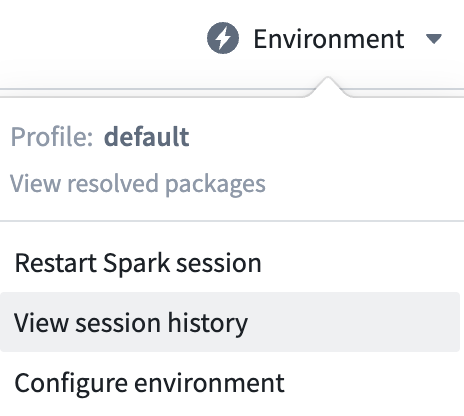
Code Workbook provides information about all the recent sessions of a Workbook. To consult the session history of a Workbook, select the Environment dropdown of Code Workbook and select View session history.
The Session history window provides information through three different tabs: Compute information, Requested environment, and Resolved environment. The left pane provides the ID of the session as well as the timestamp at which the session was initialized. The icon to the left of the session ID will indicate whether it successfully initialized (green), failed (red), or other (blue). A blue session typically means that the session has not finished initializing and therefore reached neither failed or success states.
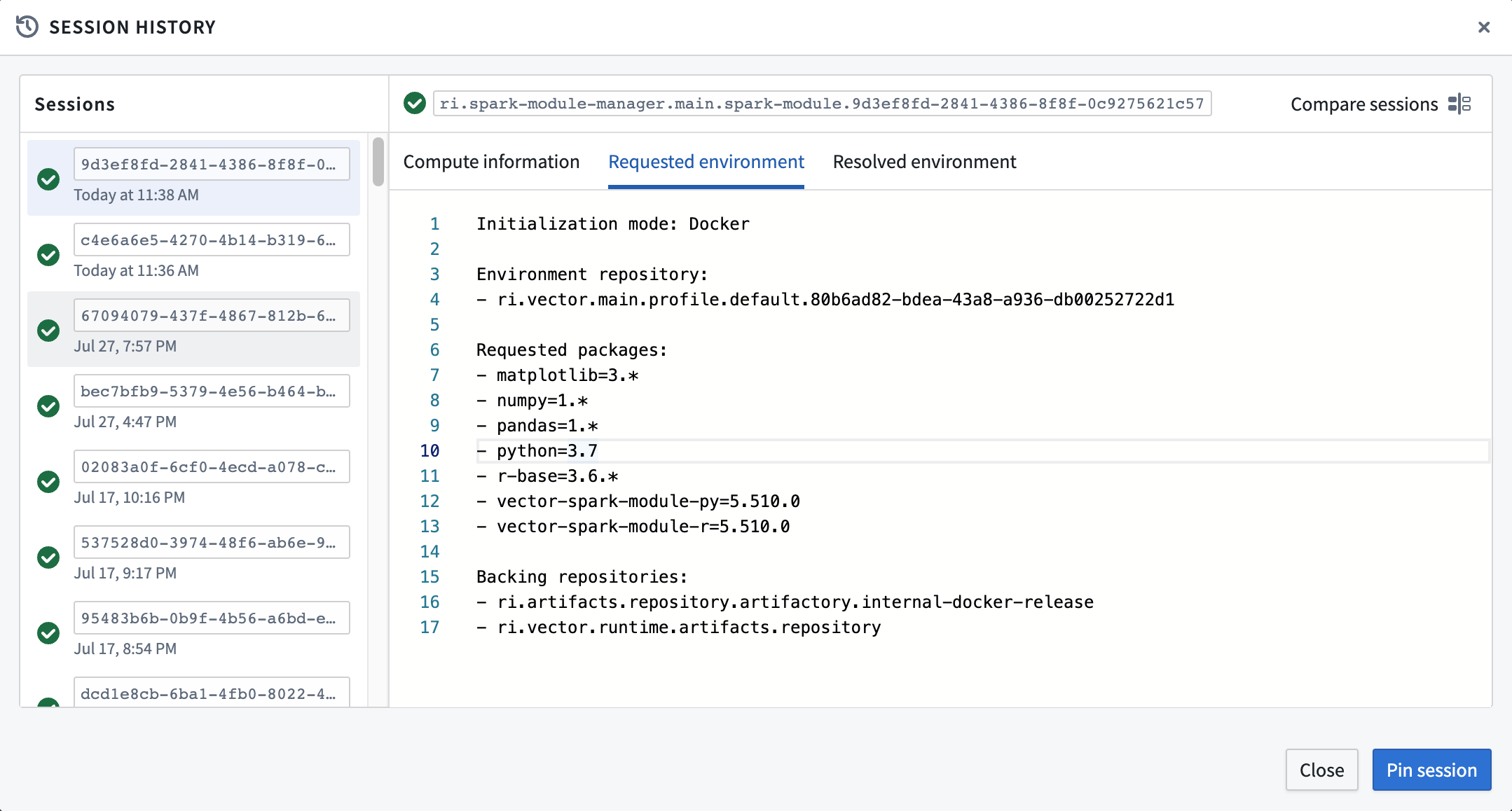
Compute information
The Compute information tab offers information about the type of Spark module that was requested for a given session:
- moduleAssignmentInfo: General information about whether an environment was spun up by a specific user for interactive Workbook usage or by a background job, such as a scheduled build. For more information about the difference between an interactive and a build module, see batch builds and interactive builds.
- moduleLaunchInfo: Metadata about the properties assigned to the Spark module itself. This includes the following fields:
- sparkModuleRid: The unique identifier of the Spark module. Given that there is a 1:1 mapping between a module and a session, you will notice that the
sparkModuleRidand thesessionIdwill share the same unique identifier - profileRid: The unique identifier of the profile with which the Spark module was initialized.
- isCustomEnv: Whether that session was initialized using a custom environment. Recall that a custom environment in Code Workbook is defined as any standard profile that was modified directly in the Environment configuration menu of the Code Workbook interface.
- jarDependencies: A list of all jar dependencies manually added to the profile in Control Panel.
- moduleLaunchType: Can either be
WARM_MODULEorON_DEMAND_MODULE. Indicates whether the session used an already initialized module from the warm module queue, or requested a fresh module to start its initialization process. - moduleResources: All the compute information tied to the module, including driver and executor memory, amount of executors, and more.
Requested environment
The Requested Environment tab offers information about the desired environment settings before the start of its initialization:
- Initialization Mode: The type of Code Workbook initialization to be performed for that session. It can either be
solve,file, ordocker. For more information on the types of initializations in Code Workbook, see documentation about environment optimizations. - Environment repository: The key under which the environment in question is stored. For non-custom environments, this will be the
profileRidused for the session. For custom environments, this will be theworkbookRidof the workbook in which the profile was customized. - Requested packages: The list of requested packages submitted for the initialization process. This list will include both the packages specifically requested by the profile, as well as any additional packages automatically requested by Code Workbook for it to function.
- Backing repositories: The list of channels from which the installed packages were sourced.
Resolved environment
The Resolved Environment tab offers information about the environment packages used as part of the initialization. This includes the time it took the initialize environment, as well as the packages and their versions that ultimately got installed onto the module. This information is particularly important, as the session rollback feature of Code Workbook borrows the resolved environment of a previous session rather than a requested environment.
Compare sessions
It is often helpful to compare two given sessions to understand how a given environment may have changed. The Session history window allows you to compare your current session with any historical session. You can access the session history comparison tab by selecting Compare sessions at the top right of the session history window.
The session comparison menu will provide two windows next to each other. On the right, the information of the current session is displayed. On the left, any session from the Sessions list can be displayed for comparison. To switch the session to be compared on the left, select any session from the Sessions list. You can exit the comparison view at any time by selecting Exit comparison at the top right of the window. The left selected session will remain selected.
Sessions can be compared across all three available tabs. Comparing the Compute information of two sessions may be helpful in understanding changes in the memory available of the module. Comparing the Requested environment is helpful to understand what was manually changed between the environments of two given sessions, while comparing the Resolved environment may help understand the different versions installed between two sessions.
In the examples below, using the various tabs of session comparison reveals the following information about two sessions:
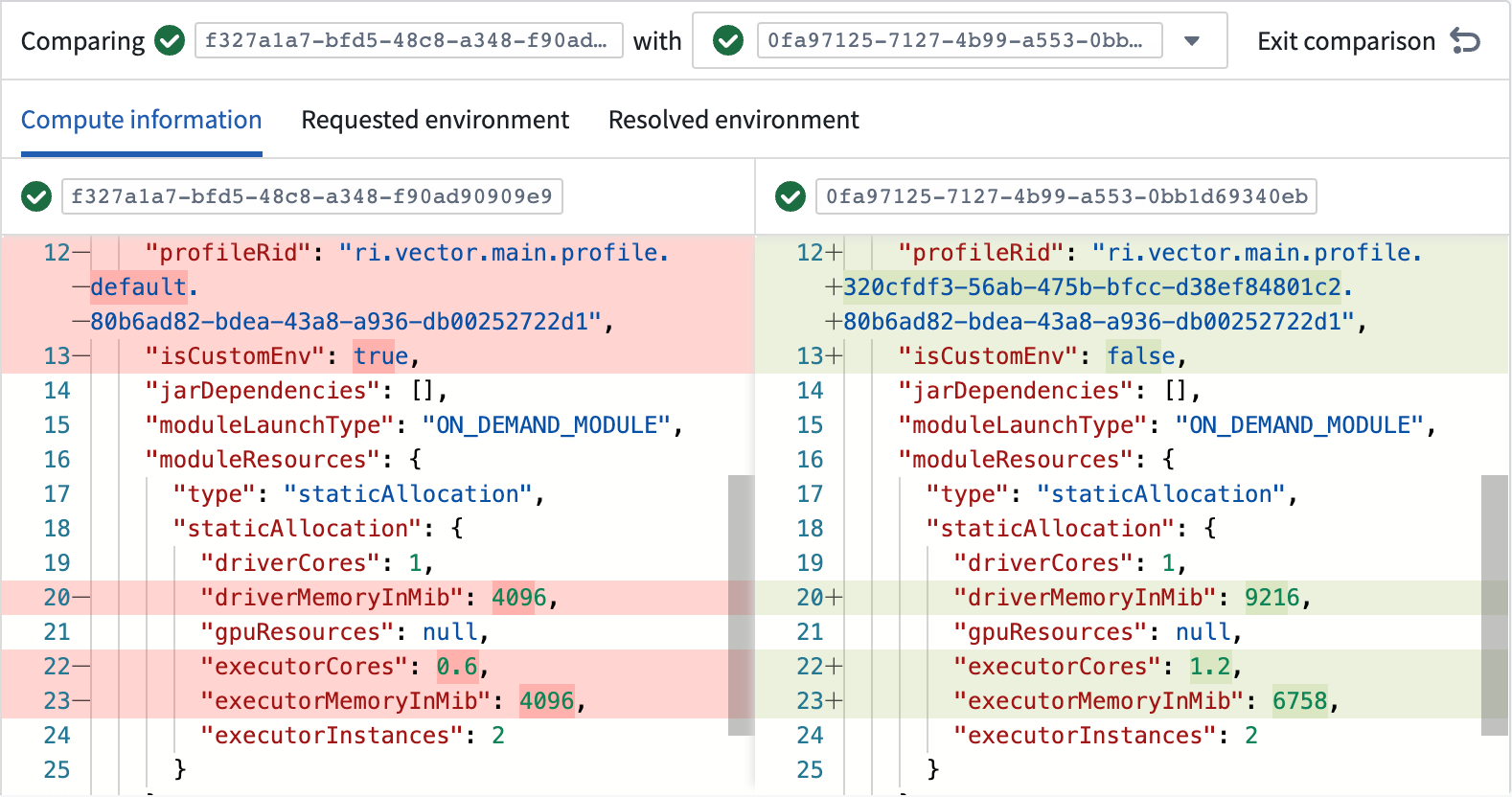
- A different profile was used.
- The profile was customized.
- Smaller memory settings were employed on the module.
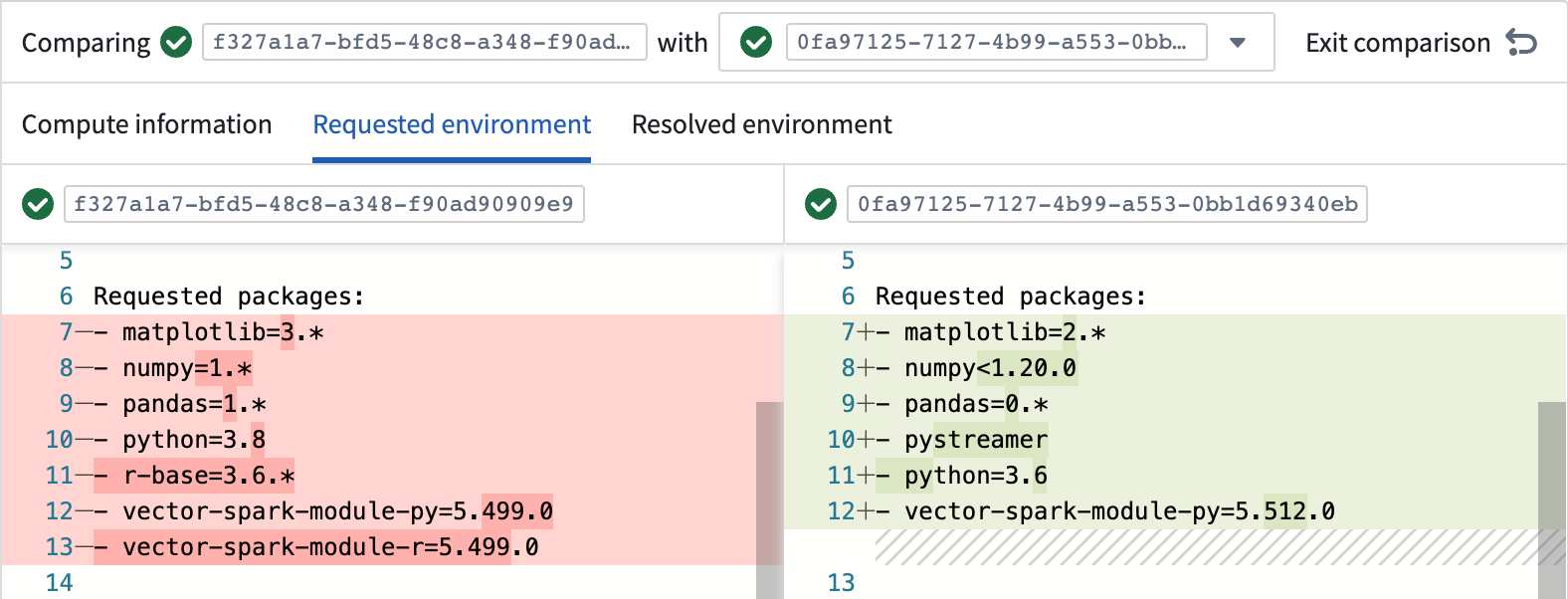
- More recent package versions of Python and pandas were requested, amongst others.
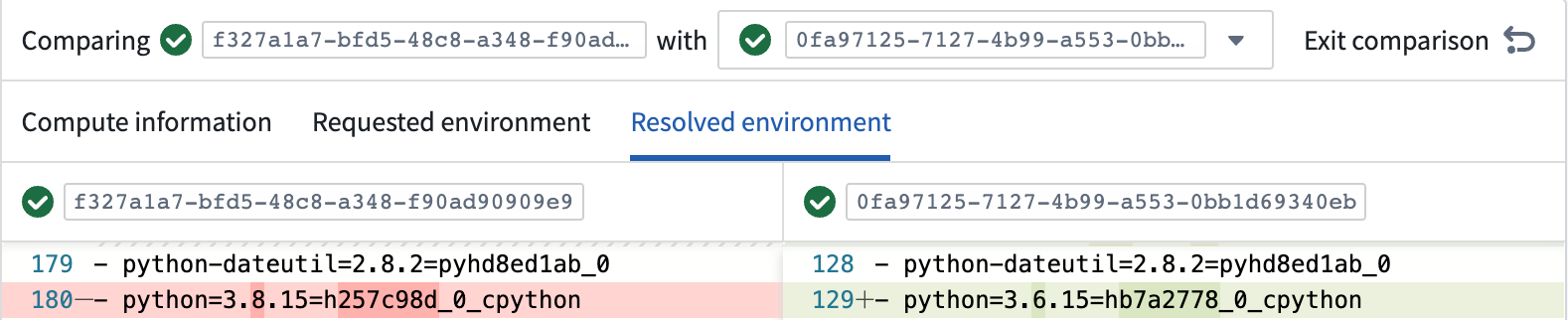
- Different versions of Python ended up being installed on the environment.
Session pinning
In certain cases, you may want to temporarily rollback to the exact same settings of a historical session. Code Workbook allows this behavior by providing the opportunity to pin a session. Pinning a session means initializing a brand new session and Spark module using the same metadata as a historical session to reproduce a seemingly identical environment. A pinned session will borrow the resolved information from a historical session to initialize a fresh module. This is particularly important, because using the same resolved environment guarantees the installed packages to be the same, while using the same requested environment does not. As a result, pinning a session simulates the effect of rolling back to a previously working environment. A select few pieces of metadata, such as the initialization mode, are not borrowed from the historical session.
How to pin a session
To pin a session, navigate to the Session history window and select the session you want to pin. Then select Pin session at the bottom right of the panel. The current branch of the Workbook will have a pinned session override that will last up to for 24 hours. A banner will display the remaining time of the override, as well as an option to remove the pin. During that period, every subsequent interactive environment initialization will borrow the pinned session’s information. When the period expires or when the session is manually unpinned, the Workbook will revert back to using its currently configured environment.
:::callout{theme="neutral"} Session pinning is designed for debugging purposes, and should not be relied on for long-term, production-ready pipelines. For that reason, a pinned session will only affect interactive environments. Builds executed outside of the Code Workbook interface, such as scheduled builds, will not be affected by the pinned session override. We recommend that you restrict session pinning to occasional troubleshooting and experimentation. Instead, use the session history feature to understand the differences between various sessions, and edit the environment definition directly. :::
Restrictions of session pinning
Certain limitations apply when pinning a session. Pinned sessions do not last infinitely, not every session can be pinned, and not every initialization will be affected by a pinned session. Find below a list of restrictions to be mindful of when considering pinning a session:
- A session pin may last up to 24 hours. To extend this time further, you will need to re-pin the session. Re-pinning a session will cause a new module to be spun up and all local state on the module will be lost.
- A pinned session does not borrow all of the metadata from its attached historical session. Settings such as the initialization mode may differ.
- Only previously successful sessions can be pinned. Unfinished or unsuccessful sessions are disallowed. Additionally, Code Workbook may defensively prevent you from selecting a version for pinning due to incompatible versions, blacklisted package versions, API breaks, and so on. A red banner will inform you of sessions that cannot be pinned.
- Pinned sessions only affect interactive jobs - not build jobs.
- Only sessions using Artifacts Profiles can be pinned
For the reasons above, pinning a session is a debug feature that should not be relied on for long-term, production-ready pipelines.
Troubleshooting environments using session history
The session history, session comparison, and session pinning features mentioned above can be instrumental in troubleshooting failing environments. Particularly, they help address failures of previously working environments. Follow these steps to remediate such cases:
- Has the environment worked in the past?
- If no, refer to the Environment Troubleshooting Guide.
-
If yes but it is now failing, proceed to the next step.
-
Using the Compare sessions feature, select the currently failed session with a previously succeeding and observe the differences in the environment.
- If there are changes in the compute information details, the module settings may not contain sufficient memory for the module to correctly initialize.
- If there are changes in the requested environment details, a manual breaking change was introduced to the environment which led to the failure.
- If there are no changes in the requested environment details, but changes in the resolved environments that led to a failure, a new version of one of the packages used may contain a breaking change. These packages generally come from open source. You can investigate the issue in the faulty package directly or modify your environment to avoid requesting the package or version in question.
-
If there are no apparent changes in the environment or the steps above did not help, consult the Environment Troubleshooting Guide or reach out to Palantir support for further assistance.
-
(Optional) While troubleshooting during the previous step, use the Session pinning feature to first ensure that the pinned version of the environment works, and to temporarily unblock the functionality of the Workbook while a more permanent solution is found.
-
After discovering the root cause of the environment failing, adjust your profile's settings accordingly to permanently remediate the situation.
中文翻译
会话历史(Session history)与会话固定(Session pinning)
会话(Sessions)
当你在Spark模块中初始化Code Workbook环境时,系统会为该模块赋予一系列元数据。这些元数据可分为两类:计算信息与环境信息。会话(Session) 是这些设置在Spark模块生命周期中的实例化,通俗来说就是「某一Spark模块运行期间的全部属性状态」。
计算信息包含Spark模块对应的Spark配置详情,以及其他相关信息,比如jar包依赖、资源标识符、待启动的模块类型等。而环境信息可以进一步细分为两类:请求环境与解析后环境。请求环境(Requested environment) 是一组conda配置规范,比如请求pandas=2.*或python<3.10;而解析后环境(Resolved environment) 是满足请求环境约束的一组已解析完成的软件包。需要注意的是,请求环境的解析结果是非确定性的,而解析后环境根据定义就是对应请求环境的固定解决方案。因此,两个完全相同的请求环境可能会生成不同的解析后环境。例如,2017年提交python>=3.6的请求,解析结果大概率是Python 3.6,而现在提交同样的请求,可能会得到Python 3.10。
会话历史
Code Workbook会存储工作簿所有近期会话的相关信息。要查看工作簿的会话历史,点击Code Workbook的环境(Environment) 下拉菜单,选择查看会话历史(View session history) 即可。
会话历史(Session history) 窗口通过三个不同的标签页展示信息:计算信息(Compute information)、请求环境(Requested environment) 和解析后环境(Resolved environment)。左侧面板展示会话ID以及会话初始化的时间戳。会话ID左侧的图标会标识会话的状态:初始化成功(绿色)、初始化失败(红色)、其他状态(蓝色)。蓝色会话通常意味着会话尚未完成初始化,既没有进入失败状态也没有进入成功状态。
计算信息
计算信息 标签页提供指定会话对应的Spark模块类型的相关信息:
* moduleAssignmentInfo: 通用信息,说明该环境是由特定用户为交互式使用工作簿启动的,还是由定时构建等后台任务启动的。如需了解交互式模块与构建模块的区别,请参考批处理构建与交互式构建。
* moduleLaunchInfo: Spark模块本身的配置属性元数据,包含以下字段:
* sparkModuleRid: Spark模块的唯一标识符。由于模块与会话是一一对应的,你会发现sparkModuleRid和sessionId的唯一标识符是相同的
* profileRid: 初始化Spark模块所用配置的唯一标识符。
* isCustomEnv: 该会话是否使用自定义环境初始化。请注意,Code Workbook中的自定义环境指的是在Code Workbook界面的环境配置菜单中直接修改过的任意标准配置。
* jarDependencies: 在Control Panel中手动添加到配置的所有jar包依赖列表。
* moduleLaunchType: 取值为WARM_MODULE或ON_DEMAND_MODULE,标识该会话是使用热模块队列中已初始化完成的模块,还是请求了一个全新的模块来启动初始化流程。
* moduleResources: 与模块关联的所有计算信息,包括驱动程序与执行器内存、执行器数量等。
请求环境
请求环境 标签页提供初始化开始前的预期环境设置相关信息:
* 初始化模式(Initialization Mode): 该会话采用的Code Workbook初始化类型,取值为solve、file或docker。如需了解Code Workbook的初始化类型详情,请参考环境优化文档。
* 环境仓库(Environment repository): 存储对应环境的密钥。对于非自定义环境,该值为会话使用的profileRid;对于自定义环境,该值为自定义配置所属工作簿的workbookRid。
* 请求的包(Requested packages): 提交给初始化流程的请求软件包列表。该列表既包含配置指定请求的包,也包含Code Workbook运行所需自动请求的额外包。
* 底层仓库(Backing repositories): 安装包的源渠道列表。
解析后环境
解析后环境 标签页提供初始化过程中使用的环境包相关信息,包括环境初始化耗时,以及最终安装到模块上的软件包及其版本。该信息尤为重要,因为Code Workbook的会话回滚功能会复用历史会话的解析后环境,而非请求环境。
会话对比
对比两个会话来了解环境的变化通常会很有帮助。会话历史 窗口支持你将当前会话与任意历史会话进行对比。点击会话历史窗口右上角的对比会话(Compare sessions) 即可进入会话对比标签页。
会话对比菜单会并排展示两个窗口:右侧展示当前会话的信息,左侧可以展示会话列表中的任意会话用于对比。如需切换左侧待对比的会话,直接从会话列表中选择对应会话即可。你随时可以点击窗口右上角的退出对比(Exit comparison) 退出对比视图,左侧选中的会话会保持选中状态。
你可以在全部三个标签页中对比会话。对比两个会话的计算信息有助于理解模块可用内存的变化;对比请求环境有助于了解两个会话的环境之间发生了哪些手动修改;对比解析后环境则有助于了解两个会话安装的包版本差异。
在下方示例中,通过会话对比的不同标签页,可以得到两个会话的如下信息:
* 使用了不同的配置
* 配置被自定义修改过
* 模块采用了更小的内存配置
* 除其他包外,还请求了更新版本的Python和pandas
* 最终安装在环境中的Python版本不同
会话固定
在某些场景下,你可能需要临时回滚到与历史会话完全一致的设置。Code Workbook提供了会话固定功能来支持该操作。固定会话指的是使用与历史会话相同的元数据初始化一个全新的会话和Spark模块,以复现几乎完全相同的环境。固定会话会复用历史会话的解析后信息来初始化新模块,这一点非常重要,因为使用相同的解析后环境可以保证安装的包完全一致,而使用相同的请求环境则无法保证这一点。因此,固定会话可以模拟回滚到之前可用环境的效果。有少量元数据(比如初始化模式)不会复用历史会话的配置。
如何固定会话
要固定会话,请打开会话历史窗口,选择你要固定的会话,然后点击面板右下角的固定会话(Pin session)。工作簿的当前分支会应用固定会话覆盖,有效期最长为24小时。界面会显示一个横幅,展示覆盖的剩余有效期以及取消固定的选项。在有效期内,所有后续的交互式环境初始化都会复用被固定会话的信息。有效期到期或手动取消固定后,工作簿会恢复使用当前配置的环境。
:::callout{theme="neutral"} 会话固定是为调试目的设计的,不应用于长期生产就绪流水线。因此,固定会话只会影响交互式环境,在Code Workbook界面外执行的构建(比如定时构建)不会受固定会话覆盖的影响。我们建议你仅在临时故障排查和实验时使用会话固定功能,你应该使用会话历史功能了解不同会话之间的差异,直接修改环境定义。 :::
会话固定的限制
固定会话存在部分限制:固定会话不会永久生效,不是所有会话都可以被固定,也不是所有初始化流程都会受固定会话的影响。在考虑固定会话时,请注意以下限制: * 会话固定的有效期最长为24小时。如需延长有效期,你需要重新固定会话。重新固定会话会启动一个新的模块,原有模块上的所有本地状态都会丢失。 * 固定会话不会复用关联历史会话的所有元数据,初始化模式等配置可能会不同。 * 仅之前初始化成功的会话可以被固定,未完成或初始化失败的会话无法固定。此外,由于版本不兼容、包版本被加入黑名单、API中断等原因,Code Workbook可能会主动阻止你选择某个版本进行固定,此时会出现红色横幅提示你该会话无法被固定。 * 固定会话仅影响交互式任务,不影响构建任务。 * 仅使用Artifacts Profiles的会话可以被固定。
基于上述原因,会话固定是一个调试功能,不应用于长期生产就绪流水线。
使用会话历史排查环境问题
上文提到的会话历史、会话对比和会话固定功能可以帮助你高效排查环境故障,尤其适用于之前可用的环境出现故障的场景。你可以按照以下步骤解决这类问题:
- 该环境之前是否正常运行?
- 否,请参考环境故障排查指南。
-
是但现在出现故障,请进入下一步。
-
使用会话对比功能,选择当前失败的会话与之前运行成功的会话,对比环境的差异。
- 如果计算信息详情有变化,说明模块配置的内存可能不足,无法正常完成初始化。
- 如果请求环境详情有变化,说明对环境进行了手动破坏性修改,导致了故障。
- 如果请求环境详情没有变化,但解析后环境的变化导致了故障,说明你使用的某个包的新版本引入了破坏性变更,这类包通常来自开源社区。你可以直接排查故障包的问题,或者修改环境配置,不再请求对应的包或版本。
-
如果环境没有明显变化,或者上述步骤无法解决问题,请参考环境故障排查指南或联系Palantir技术支持获取进一步帮助。
-
(可选)在上一步的排查过程中,可以先使用会话固定功能确保固定版本的环境可以正常运行,在找到永久解决方案之前临时恢复工作簿的可用状态。