Templates(模板)
Code templates enable users with a range of technical experience to collaborate by abstracting code away behind a simple form-based interface. Values selected by users are substituted into a code template, which can then be run like any other transform in the Workbook.
Any transform that can be created with code, including Matplotlib or Plotly visualizations, can be created with code templates. To try using templates hands-on, follow the Templates tutorial.
Search and discovery
All available templates can be found in the template browser. To open the template browser, click + New Transform at the top left of the screen and select Templates, or select the + button on hover of an existing transform and select Templates.
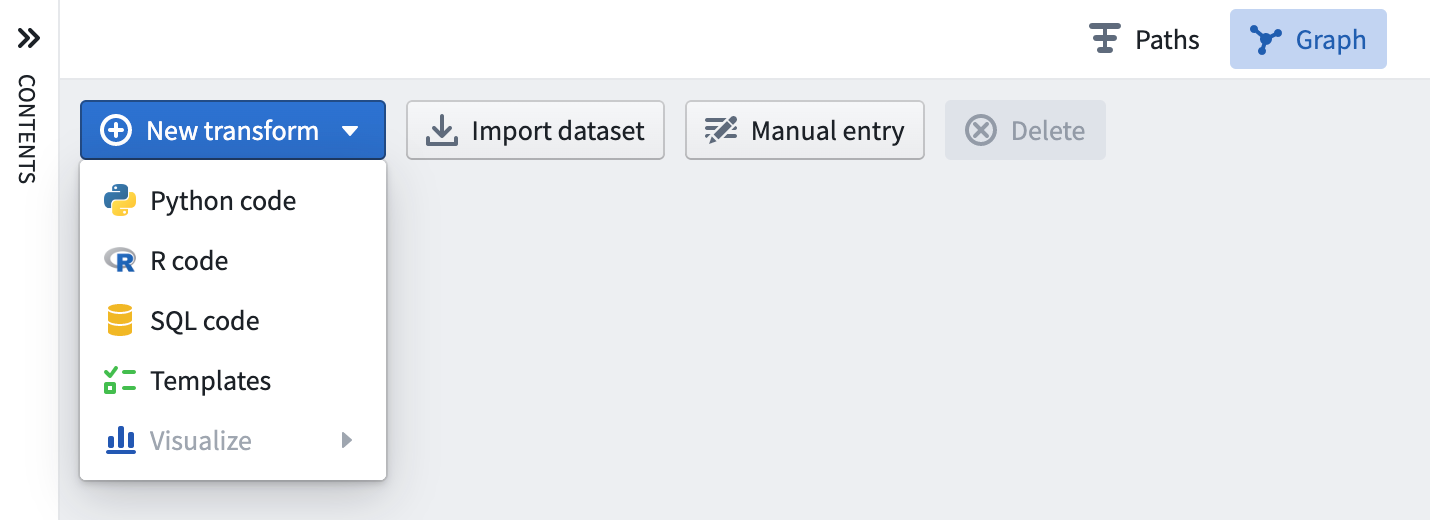
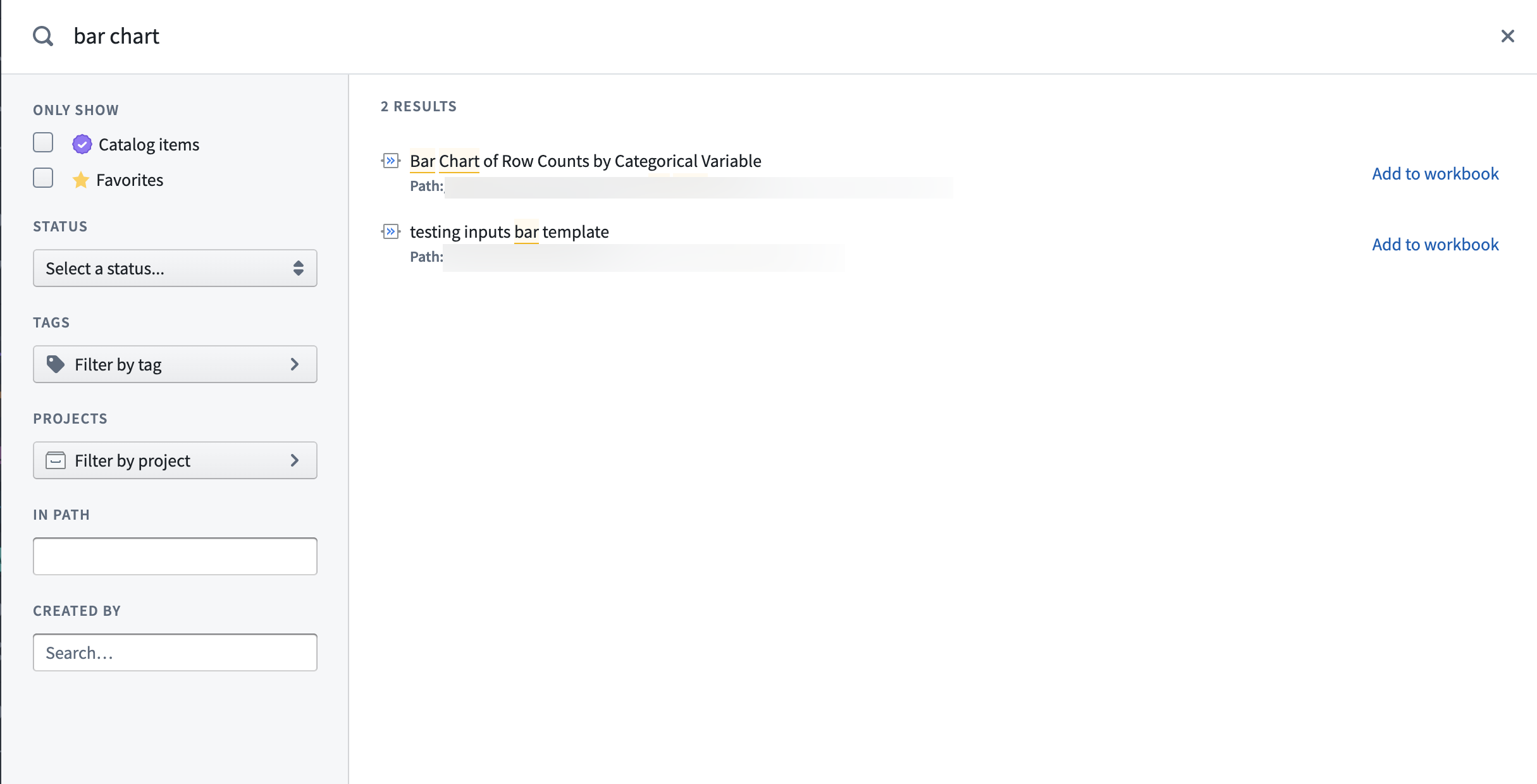
The template browser displays recently used templates, and provides the ability to search based on keyword, template author, tags, and more.
Using code templates
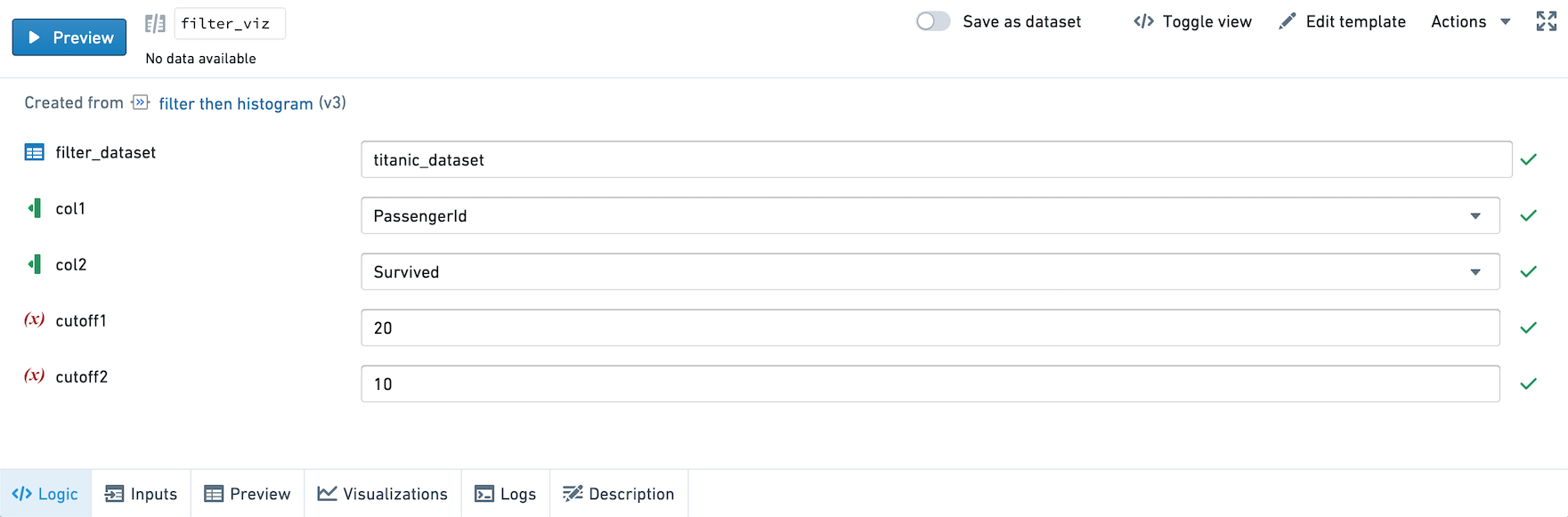
When a code template is selected on the graph, the user is presented with a simple form input on the bottom of the screen rather than a code editor. Parameters in the template code are rendered as inputs to be filled in by the user.
Input types
- Dataset: The value for a dataset field must be a valid dataset in the current workbook. When a user clicks the dataset input field, they will be prompted to select an input dataset from the graph. Dataset inputs can also be configured to always map to the same input dataset; for example, a code template might always rely on a particular ontology dataset. For more, see the Creating and editing templates section below.
- Column: The user is prompted to select one or more columns from one of the input datasets. Column parameters can be configured to select a single column or a list of columns.
- Text: A text input field that allows users to enter free text values.
- Number: An input field that must be filled by a numerical value.
- Select: Allows users to choose from a pre-defined list of possible values.
- Multiselect: Allows users to choose any number of values from a pre-defined list of possible values.
- Boolean: A switch that lets users toggle a value between True and False.
- List: Allows users to enter any number of values, which are passed to the underlying code as a list of values.
Once the input fields have been filled, a template transform can be run in the same way as a code transform: by selecting the Run button, or by opening the context menu on the graph and selecting Run.
Use Toggle View to preview the underlying code generated by the template.
Creating and editing templates
Any code transformation can be turned into a code template to allow the same transformation to be applied without re-writing any code. To create a code template or edit an existing one, select the Create/Edit template option on the code editor header.
Code templates are created by designating values within a code transformation as parameters, and adding metadata about what types of input a user should be allowed to enter. When you choose to create a template, you will be brought into a split-screen view in the Full Screen Editor. On the left-hand side of the screen, the code editor allows you to select pieces of code to parameterize. On the right-hand side of the screen, the template editor allows you to configure metadata about each parameter.
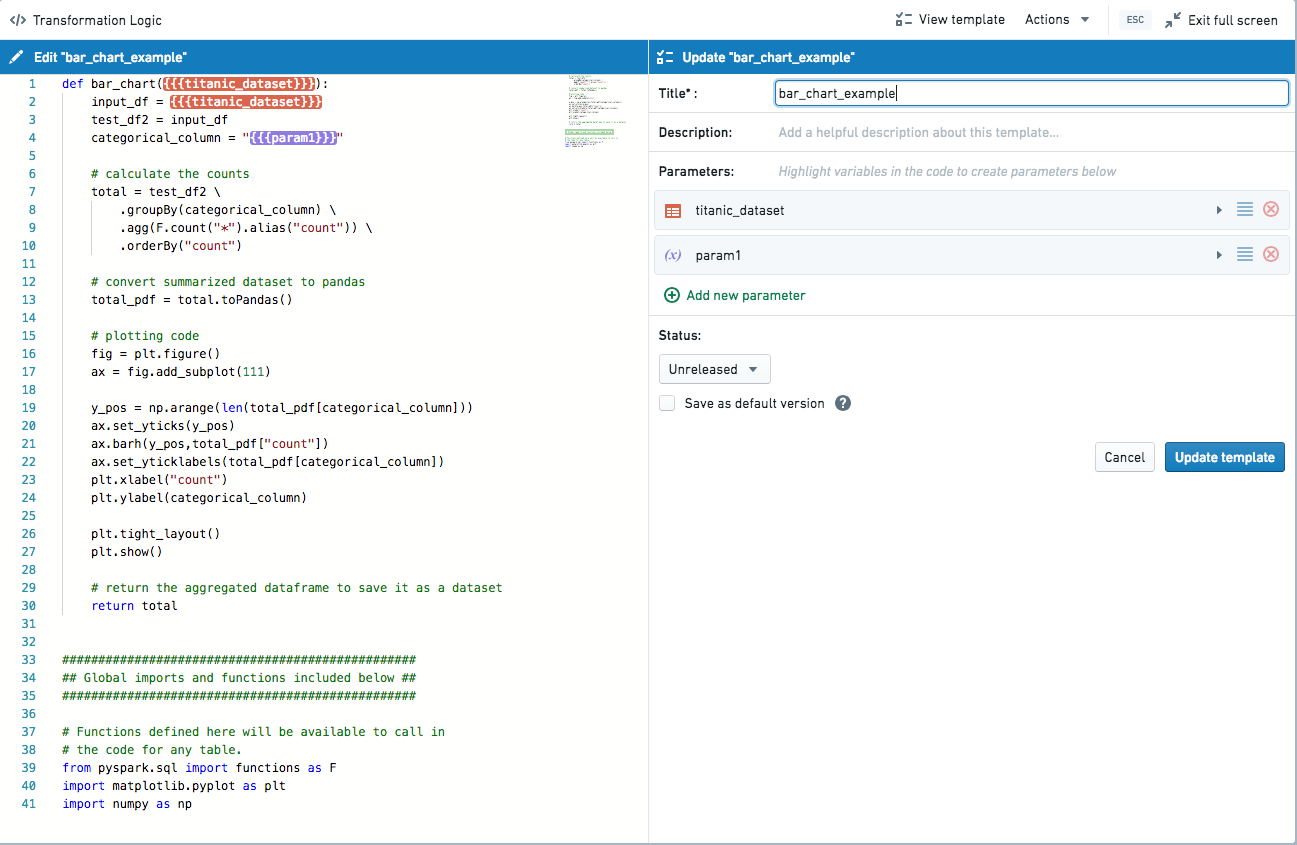
By default, when a new template is created, the inputs are converted into dataset-type parameters. These parameters can be edited to give more descriptive names and descriptions. The template itself should also be given a title and detailed description.
To create new parameters, select the Add new parameter option on either the template editor or the code editor. You will be prompted to highlight a portion of text to be substituted by the input value of the parameter. If you wish to add multiple instances of the same parameter, you can do so by selecting the Add button next to the list of instances in the code on the template editor.
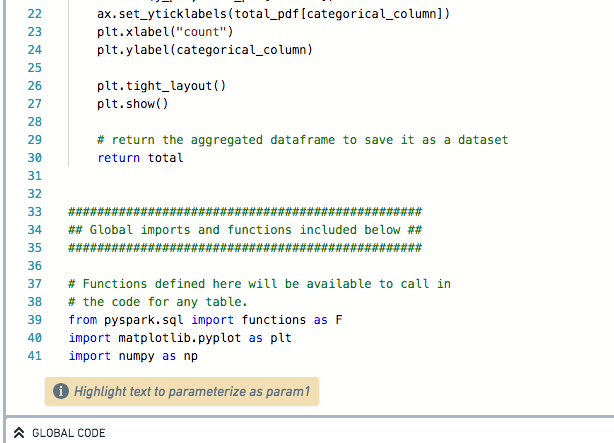
Once a parameter has been added, you must select the parameter type: dataset, column, or variable. If variable is selected, you should also select a param type for that variable: text, number, select, multiselect, boolean, or list. Column inputs can optionally be configured to create a list of multiple columns, and datasets can be configured to use a specific input dataset by default. We recommend that you include descriptions for all parameters and default values for all variable-type parameters.
The global functions that are available in the Workbook where a template is first created will be automatically appended to the content of the template code so that it will be available in other Workbooks. Templates do not have access to global code in Workbooks where they are applied.
The version history of templates is saved, and new edits to a template are always saved as a new version of that template. Edits to a template do not automatically update instances of that template; each instance of the template will include a prompt to update to the latest version if they are using an outdated version of the template.
Best practices
- Include default values whenever possible.
- Create detailed descriptions for templates and for template parameters.
- Find an organizational scheme that makes it easy for users to find the most relevant templates for their workflows. This likely means creating a dedicated public folder with high-quality, vetted templates. Templates may be grouped in folders by workflow. A default template folder can be configured.
中文翻译
模板
代码模板(Code Template)允许具有不同技术经验的用户通过将代码抽象到简单的表单界面背后进行协作。用户选择的值会被替换到代码模板中,然后可以像工作簿(Workbook)中的任何其他转换一样运行。
任何可以用代码创建的转换,包括Matplotlib或Plotly可视化,都可以用代码模板创建。要动手尝试使用模板,请遵循模板教程。
搜索与发现
所有可用的模板都可以在模板浏览器(Template Browser)中找到。要打开模板浏览器,请点击屏幕左上角的+ 新建转换(+ New Transform)并选择模板(Templates),或者将鼠标悬停在现有转换上时点击+按钮并选择模板(Templates)。
模板浏览器会显示最近使用的模板,并提供基于关键词、模板作者、标签等进行搜索的功能。
使用代码模板
当在图表上选择一个代码模板时,屏幕底部会向用户显示一个简单的表单输入,而不是代码编辑器。模板代码中的参数会呈现为用户需要填写的输入项。
输入类型
- 数据集(Dataset): 数据集字段的值必须是当前工作簿中的有效数据集。当用户点击数据集输入字段时,系统会提示他们从图表中选择一个输入数据集。数据集输入也可以配置为始终映射到同一个输入数据集;例如,代码模板可能始终依赖于特定的本体论(Ontology)数据集。更多信息请参见下面的创建和编辑模板部分。
- 列(Column): 系统会提示用户从某个输入数据集中选择一个或多个列。列参数可以配置为选择单个列或列列表。
- 文本(Text): 允许用户输入自由文本值的文本输入字段。
- 数字(Number): 必须填写数值的输入字段。
- 选择(Select): 允许用户从预定义的可能值列表中进行选择。
- 多选(Multiselect): 允许用户从预定义的可能值列表中选择任意数量的值。
- 布尔值(Boolean): 允许用户在True和False之间切换值的开关。
- 列表(List): 允许用户输入任意数量的值,这些值会作为值列表传递给底层代码。
输入字段填写完毕后,模板转换可以像代码转换一样运行:通过选择运行(Run)按钮,或打开图表上的上下文菜单并选择运行(Run)。
使用切换视图(Toggle View)可以预览模板生成的底层代码。
创建和编辑模板
任何代码转换都可以转换为代码模板,以便在不重写任何代码的情况下应用相同的转换。要创建代码模板或编辑现有模板,请选择代码编辑器标题上的创建/编辑模板(Create/Edit template)选项。
代码模板的创建方式是将代码转换中的值指定为参数,并添加关于允许用户输入何种类型的元数据。当您选择创建模板时,您将进入全屏编辑器(Full Screen Editor)的分屏视图。在屏幕左侧,代码编辑器允许您选择要参数化的代码片段。在屏幕右侧,模板编辑器允许您配置每个参数的元数据。
默认情况下,创建新模板时,输入会被转换为数据集类型的参数。这些参数可以编辑,以赋予更具描述性的名称和说明。模板本身也应赋予标题和详细描述。
要创建新参数,请在模板编辑器或代码编辑器上选择添加新参数(Add new parameter)选项。系统会提示您高亮一段文本,该文本将被参数的输入值替换。如果您想添加同一参数的多个实例,可以通过在模板编辑器的代码中点击实例列表旁边的添加(Add)按钮来实现。
添加参数后,您必须选择参数类型:数据集(dataset)、列(column)或变量(variable)。如果选择了变量(variable),您还应为该变量选择参数类型:文本(text)、数字(number)、选择(select)、多选(multiselect)、布尔值(boolean)或列表(list)。列输入可以选择配置为创建多列列表,数据集可以配置为默认使用特定的输入数据集。我们建议您为所有参数添加说明,并为所有变量类型的参数添加默认值。
首次创建模板的工作簿中可用的全局函数(Global Functions)会自动附加到模板代码的内容中,以便在其他工作簿中也可用。模板无法访问应用它们的工作簿中的全局代码。
模板的版本历史会被保存,对模板的新编辑始终会保存为该模板的新版本。对模板的编辑不会自动更新该模板的实例;如果模板实例使用的是旧版本,每个实例都会包含更新到最新版本的提示。
最佳实践
- 尽可能包含默认值。
- 为模板和模板参数创建详细说明。
- 找到一种组织方案,使用户能够轻松找到与其工作流最相关的模板。这通常意味着创建一个专用的公共文件夹,其中包含高质量、经过审核的模板。模板可以按工作流分组到文件夹中。可以配置默认模板文件夹。