Access unstructured files(访问非结构化文件)
In addition to operating over Foundry datasets that have a defined tabular schema, Code Workbook supports accessing unstructured files in a dataset. This can be useful for analyzing and transforming unstructured data such as images and other types of media, semi-structured formats such as XML or JSON, compressed formats such as GZ or ZIP files, or R data formats like RDA and RDS.
Unstructured files in Python
Reading files
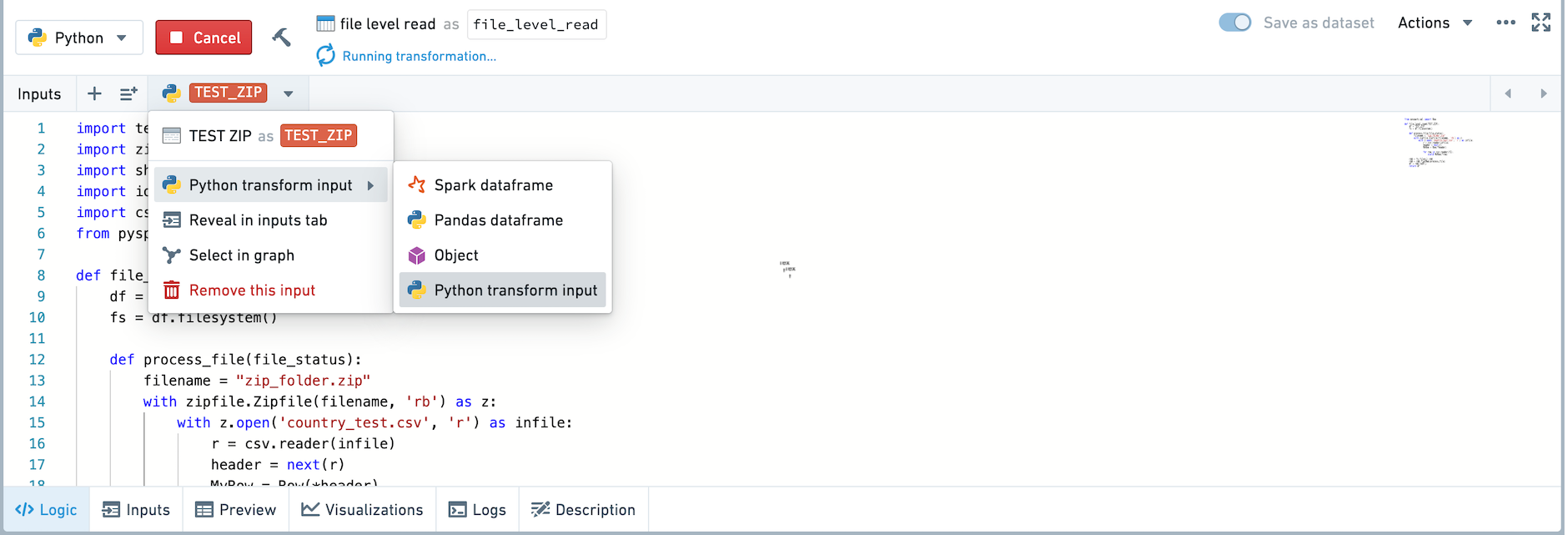
You can read files in a Python transform by reading an upstream dataset as a Python transform input. This API exposes a FileSystem object that allows file access based on the path of a file within the Foundry dataset, abstracting away the underlying storage. Learn more about the FileSystem.. Other information, including the branch and RID (as detailed in the transform input documentation), is also exposed.
Change the type of your input using the input helper bar, or in the inputs tab.
:::callout{theme="neutral"} Only imported datasets and persisted datasets can be read in as Python transform inputs. Transforms that are not saved as a dataset cannot be read in as Python transform inputs.
Datasets with no schema should be read in as a transform input automatically. :::
Example: Reading CSVs inside a ZIP file
For example, the following code will read the CSVs inside of a ZIP file and return the CSV contents as a dataframe.
import tempfile
import zipfile
import shutil
import io
from pyspark.sql import Row

# datasetOfZippedFiles is a dataset with a single zipped file that contains 3 CSVs with the same schema: ["id", name"].
def sample(datasetOfZippedFiles):
    df = datasetOfZippedFiles
    fs = df.filesystem() # This is the FileSystem object.
    MyRow = Row("id", "name")
    def process_file(file_status):
        with fs.open(file_status.path, 'rb') as f:
            with tempfile.NamedTemporaryFile() as tmp:
                shutil.copyfileobj(f, tmp)
                tmp.flush()
                with zipfile.ZipFile(tmp) as archive:
                    for filename in archive.namelist():
                        with archive.open(filename) as f2:
                            br = io.BufferedReader(f2)
                            tw = io.TextIOWrapper(br)
                            tw.readline() # Skip the first line of each CSV
                            for line in tw:
                                yield MyRow(*line.split(","))
    rdd = fs.files().rdd
    rdd = rdd.flatMap(process_file)
    df = rdd.toDF()
    return df
Writing Files
It is possible to write to an output FileSystem. This can be useful to write non-tabular data formats including images, PDFs, text files, etc.
Call Transforms.get_output() to instantiate a TransformOutput. Learn more about the TransformOutput API.
:::callout{theme="neutral"} You can only write files using TransformOutput in nodes that are saved as datasets. You cannot write files using TransformOutput in the console. :::
:::callout{theme="neutral"} Once you have instantiated a TransformOutput and used it by calling filesystem() or other methods, returning anything other than the TransformOutput object will be ignored. :::
Example: Writing a text file or dataset
The following code is an example of how to write a text file:
def write_text_file():
    output = Transforms.get_output()
    output_fs = output.filesystem()

    with output_fs.open('my text file.txt', 'w') as f:
        f.write("Hello world")
        f.close()
The following code is an example of how to write a dataset and specify partitioning and output format.
def write_dataset(input_dataset):
    output = Transforms.get_output()
    output.write_dataframe(input_dataset, partition_cols = ["colA", "colB"], output_format = 'csv')
Unstructured files in R
Reading files
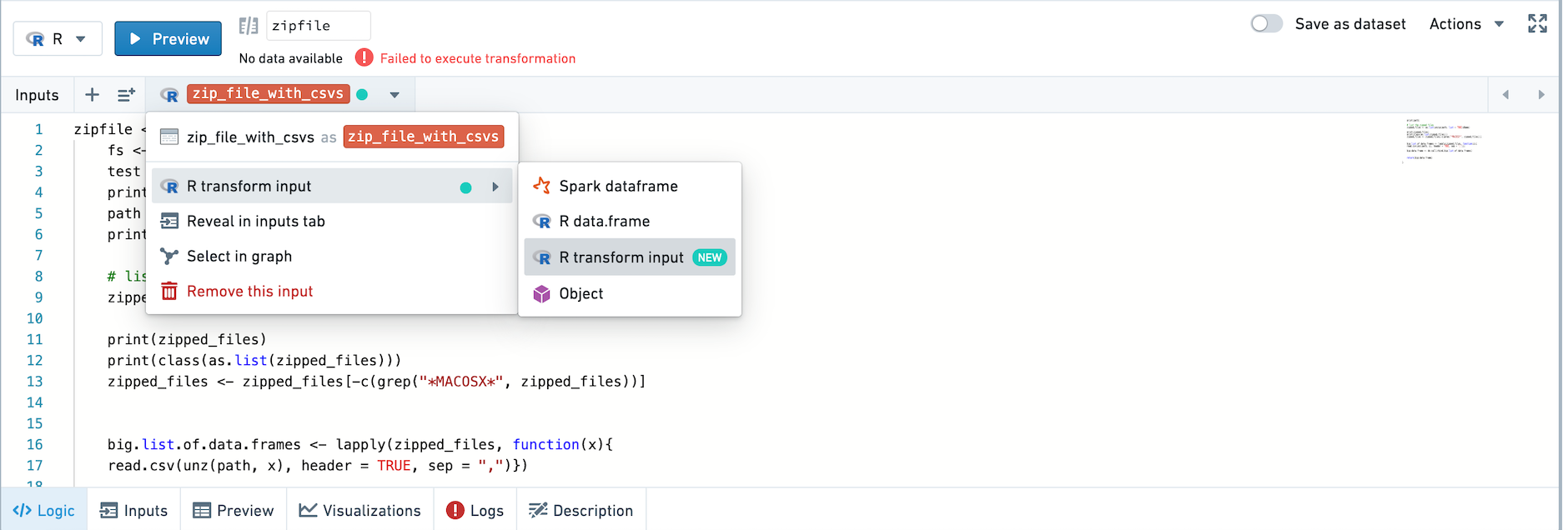
You can read files in an R transform by reading an upstream dataset as an R transform input. The TransformInput object is exposed which allows file access based on the path of a file within the Foundry dataset. Learn more about the FileSystem API.
Change the type of your input using the input helper bar, or in the inputs tab.
:::callout{theme="neutral"} Only imported datasets and persisted datasets can be read in as R transform inputs. Transforms that are not saved as a dataset cannot be read in as R transform inputs.
By default, datasets without schemas should be set to input type R transform input already. :::
Example: Loading an RDS
Use the code below to load an RDS that is a file in an imported dataset. The RDS contains an R data.frame.
RDS_reader <- function(RDS_dataset) {
    fs <- RDS_dataset$fileSystem()

    ## The name of the file is test_loading_RDS.rds

    path <- fs$get_path("test_loading_RDS.rds", 'r')
    rds <- readRDS(path)
    return(rds)
}
Example: Using rbind on the contents of a set of zipped CSVs
Use the code below to rbind the contents of a set of zipped CSVs.
result <- function(zip_file_with_csvs) {
    fs <- zip_file_with_csvs$fileSystem()

    ## Get the remote path (name) of the zipfile
    zipfile_name <- fs$ls()[[1]]$path

    ## Get the local path of the zipfile
    path <- fs$get_path(zipfile_name, 'r')

    # List the zipped files
    zipped_files <- as.list(unzip(path, list = TRUE)$Name)

    # For every element on the list, return a dataframe
    list_of_data_frames <- lapply(zipped_files, function(x){read.csv(unz(path, x), header = TRUE, sep = ",")})

    # Bind all of the dataframes together
    rbind_df <- do.call(rbind,list_of_data_frames)

    return(rbind_df)

}
Writing files
It is possible to write to an output FileSystem. This can be useful to write non-tabular data formats including images, PDFs, text files, and so on.
Call new.output() to instantiate a TransformOutput. Learn more about the FileSystem API.
:::callout{theme="neutral"} You can only write files using TransformOutput in nodes that are saved as datasets. You cannot write files using TransformOutput in the console. :::
Example: Saving an R data.frame to an RDS file
Use the code below to save an R data.frame to an RDS file.
write_rds_file <- function(r_dataframe) {
    output <- new.output()
    output_fs <- output$fileSystem()
    saveRDS(r_dataframe, output_fs$get_path("my_RDS_file.rds", 'w'))

}
Example: Saving a plot to a PDF
Use the code below to save a plot to a PDF.
plot_pdf <- function() {
    library(ggplot2)
    theme_set(theme_bw())  # pre-set the bw theme
    data("midwest", package = "ggplot2")

    # Scatterplot
    gg <- ggplot(midwest, aes(x=area, y=poptotal)) +
        geom_point(aes(col=state, size=popdensity)) +
        geom_smooth(method="loess", se=F) +
        xlim(c(0, 0.1)) +
        ylim(c(0, 500000)) +
        labs(subtitle="Area Vs Population",
            y="Population",
            x="Area",
            title="Scatterplot",
            caption = "Source: midwest")

    output <- new.output()
    output_fs <- output$fileSystem()
    pdf(output_fs$get_path("my pdf example.pdf", 'w'))
    plot(gg)
}
Example: Writing a TXT file using a connection
Use the code below to write a TXT file using a connection.
write_txt_file <- function() {
    output <- new.output()
    output_fs <- output$fileSystem()
    conn <- output_fs$open("my file.txt", 'w')
    writeLines(c("Hello", "world"), conn)
}
Example: Uploading a TXT file to a remote path
Use the code below to take the text file at the local path output.txt, and upload it to the remote path output_test.txt. In the saved dataset, you will see one file named output_test.txt
upload <- function() {
    output <- new.output()
    output_fs <- output$fileSystem()
    fileConn<-file("output.txt")
    writeLines(c("Header 1"), fileConn)
    close(fileConn)

    output_fs$upload("output.txt", "output_test.txt")
}
write_txt_file <- function() {
    output <- new.output()
    output_fs <- output$fileSystem()
    conn <- output_fs$open("my file.txt", 'w')
    writeLines(c("Hello", "world"), conn)
}
Example: Writing a Spark dataframe with partitions
Use the code below to write a Spark dataframe that is partitioned by columns A and B.
write_partitioned_df <- function(spark_df) {
    output <- new.output()

    # partition on colA and colB
    output$write.spark.df(spark_df, partition_cols=list("colA", "colB"))
}
中文翻译
访问非结构化文件
除了对具备已定义表格模式的Foundry数据集(Foundry dataset)进行操作之外,代码工作簿(Code Workbook)还支持访问数据集中的非结构化文件。这一能力可用于分析转换非结构化数据(比如图像及其他类型的媒体文件)、半结构化格式(比如XML或JSON)、压缩格式(比如GZ或ZIP文件),或是R数据格式(如RDA和RDS)。
Python中的非结构化文件操作
读取文件
你可以在Python转换(Python transform)中将上游数据集读取为Python transform input,以此读取文件。该API对外暴露一个文件系统(FileSystem)对象,支持基于文件在Foundry数据集内的路径访问文件,对底层存储做了抽象。了解更多关于FileSystem的内容。。同时还会暴露其他信息,包括分支和资源ID(RID),详情请见转换输入文档。
你可以通过输入辅助栏或者输入标签页修改输入的类型。
:::callout{theme="neutral"} 只有导入的数据集和持久化数据集可以作为Python转换输入读取。未保存为数据集的转换无法作为Python转换输入读取。
没有模式的数据集会自动作为转换输入读取。 :::
示例:读取ZIP文件内的CSV文件
举例来说,以下代码会读取ZIP文件中的CSV文件,并将CSV内容作为数据帧(dataframe)返回。
import tempfile
import zipfile
import shutil
import io
from pyspark.sql import Row

# datasetOfZippedFiles is a dataset with a single zipped file that contains 3 CSVs with the same schema: ["id", name"].
def sample(datasetOfZippedFiles):
    df = datasetOfZippedFiles
    fs = df.filesystem() # This is the FileSystem object.
    MyRow = Row("id", "name")
    def process_file(file_status):
        with fs.open(file_status.path, 'rb') as f:
            with tempfile.NamedTemporaryFile() as tmp:
                shutil.copyfileobj(f, tmp)
                tmp.flush()
                with zipfile.ZipFile(tmp) as archive:
                    for filename in archive.namelist():
                        with archive.open(filename) as f2:
                            br = io.BufferedReader(f2)
                            tw = io.TextIOWrapper(br)
                            tw.readline() # Skip the first line of each CSV
                            for line in tw:
                                yield MyRow(*line.split(","))
    rdd = fs.files().rdd
    rdd = rdd.flatMap(process_file)
    df = rdd.toDF()
    return df
写入文件
你可以向输出文件系统(FileSystem)写入内容,适用于写入非表格数据格式,包括图像、PDF、文本文件等。
调用Transforms.get_output()来实例化一个转换输出(TransformOutput)对象。了解更多关于TransformOutput API的内容。
:::callout{theme="neutral"} 你仅能在保存为数据集的节点中使用TransformOutput写入文件,无法在控制台中使用TransformOutput写入文件。 :::
:::callout{theme="neutral"} 在你实例化TransformOutput并调用filesystem()或其他方法使用该对象后,返回TransformOutput对象之外的任何内容都会被忽略。 :::
示例:写入文本文件或数据集
以下代码是写入文本文件的示例:
def write_text_file():
    output = Transforms.get_output()
    output_fs = output.filesystem()

    with output_fs.open('my text file.txt', 'w') as f:
        f.write("Hello world")
        f.close()
以下代码是写入数据集并指定分区和输出格式的示例:
def write_dataset(input_dataset):
    output = Transforms.get_output()
    output.write_dataframe(input_dataset, partition_cols = ["colA", "colB"], output_format = 'csv')
R中的非结构化文件操作
读取文件
你可以在R转换(R transform)中将上游数据集读取为R transform input,以此读取文件。该操作会暴露转换输入(TransformInput)对象,支持基于文件在Foundry数据集内的路径访问文件。了解更多关于FileSystem API的内容。
你可以通过输入辅助栏或者输入标签页修改输入的类型。
:::callout{theme="neutral"} 只有导入的数据集和持久化数据集可以作为R转换输入读取。未保存为数据集的转换无法作为R转换输入读取。
默认情况下,无模式的数据集的输入类型已经被设置为R转换输入。 :::
示例:加载RDS文件
使用以下代码加载导入数据集中的RDS文件,该RDS文件包含一个R数据帧(R data.frame)。
RDS_reader <- function(RDS_dataset) {
    fs <- RDS_dataset$fileSystem()

    ## The name of the file is test_loading_RDS.rds

    path <- fs$get_path("test_loading_RDS.rds", 'r')
    rds <- readRDS(path)
    return(rds)
}
示例:对一组压缩CSV文件的内容执行rbind操作
使用以下代码对一组压缩CSV文件的内容执行rbind操作。
result <- function(zip_file_with_csvs) {
    fs <- zip_file_with_csvs$fileSystem()

    ## Get the remote path (name) of the zipfile
    zipfile_name <- fs$ls()[[1]]$path

    ## Get the local path of the zipfile
    path <- fs$get_path(zipfile_name, 'r')

    # List the zipped files
    zipped_files <- as.list(unzip(path, list = TRUE)$Name)

    # For every element on the list, return a dataframe
    list_of_data_frames <- lapply(zipped_files, function(x){read.csv(unz(path, x), header = TRUE, sep = ",")})

    # Bind all of the dataframes together
    rbind_df <- do.call(rbind,list_of_data_frames)

    return(rbind_df)

}
写入文件
你可以向输出文件系统(FileSystem)写入内容,适用于写入非表格数据格式,包括图像、PDF、文本文件等。
调用new.output()来实例化一个转换输出(TransformOutput)对象。了解更多关于FileSystem API的内容。
:::callout{theme="neutral"} 你仅能在保存为数据集的节点中使用TransformOutput写入文件,无法在控制台中使用TransformOutput写入文件。 :::
示例:将R data.frame保存为RDS文件
使用以下代码将R data.frame保存为RDS文件。
write_rds_file <- function(r_dataframe) {
    output <- new.output()
    output_fs <- output$fileSystem()
    saveRDS(r_dataframe, output_fs$get_path("my_RDS_file.rds", 'w'))

}
示例:将图表保存为PDF
使用以下代码将图表保存为PDF。
plot_pdf <- function() {
    library(ggplot2)
    theme_set(theme_bw())  # pre-set the bw theme
    data("midwest", package = "ggplot2")

    # Scatterplot
    gg <- ggplot(midwest, aes(x=area, y=poptotal)) +
        geom_point(aes(col=state, size=popdensity)) +
        geom_smooth(method="loess", se=F) +
        xlim(c(0, 0.1)) +
        ylim(c(0, 500000)) +
        labs(subtitle="Area Vs Population",
            y="Population",
            x="Area",
            title="Scatterplot",
            caption = "Source: midwest")

    output <- new.output()
    output_fs <- output$fileSystem()
    pdf(output_fs$get_path("my pdf example.pdf", 'w'))
    plot(gg)
}
示例:使用连接写入TXT文件
使用以下代码通过连接写入TXT文件。
write_txt_file <- function() {
    output <- new.output()
    output_fs <- output$fileSystem()
    conn <- output_fs$open("my file.txt", 'w')
    writeLines(c("Hello", "world"), conn)
}
示例:将TXT文件上传到远程路径
使用以下代码读取本地路径output.txt下的文本文件,将其上传到远程路径output_test.txt。在保存的数据集中,你会看到一个名为output_test.txt的文件。
upload <- function() {
    output <- new.output()
    output_fs <- output$fileSystem()
    fileConn<-file("output.txt")
    writeLines(c("Header 1"), fileConn)
    close(fileConn)

    output_fs$upload("output.txt", "output_test.txt")
}
write_txt_file <- function() {
    output <- new.output()
    output_fs <- output$fileSystem()
    conn <- output_fs$open("my file.txt", 'w')
    writeLines(c("Hello", "world"), conn)
}
示例:写入带分区的Spark数据帧
使用以下代码写入按列A和列B分区的Spark数据帧(Spark dataframe)。
write_partitioned_df <- function(spark_df) {
    output <- new.output()

    # partition on colA and colB
    output$write.spark.df(spark_df, partition_cols=list("colA", "colB"))
}

write_partitioned_df <- function(spark_df) {
output <- new.output()
# partition on colA and colB
output$write.spark.df(spark_df, partition_cols=list("colA", "colB"))
}