Branch settings(分支设置)
This page will walk you through the various branch settings in Code Repositories:
- Setting the default branch
- Selecting pull-request merge modes
- Protecting branches
- Configuring branch fallbacks
Default branch
In Code Repositories with more than one branch, a default branch can be configured as the base branch. By default, all pull requests and commits will be made against that branch unless chosen otherwise. Usually, the default branch is the master branch.
You can choose the main branch of your Code Repository by navigating to Settings > Branches > Default branch.
Merge modes
There are several strategies to merge code changes proposed in a pull request. In the Settings tab you can select one or more merge-modes to be available to code authors in the pull request page.
- Squash and merge - Squash-and-merge mode will create a single commit to the target branch incorporating all the changes that the pull request introduces. This will result in a more condensed commit-history on the default branch.
- Merge - When you use Merge in a pull request, all the individual commits created on the branch will be added to the target branch alongside a merge-commit. Note that in the target branch commit history, all the individual commits will appear with their original timestamp, signaling the time they were created on the development branch.
- Merge with fast-forward - When there is a direct path from the target branch to your branch (there are no additional changes on the target branch), merge-with-fast-forward advances the target branch to the front of the development branch and combines their commit history.
All the selected merge modes will appear as options in the pull request page. If “Squash-and-merge” mode is selected, it will appear as the main option, with the other selected modes available in a menu.
Protected branches
When there are multiple authors contributing to the same code repository, or when the repository backs critical data assets, you can protect your branch to achieve a greater level of governance and defense against unintentional changes. A protected branch can only be modified via a pull request and must satisfy a pre-defined set of requirements.
:::callout{theme="neutral"} By default, only the Code Repository’s owners can change the branch protection settings, while both Owners and Editors can merge pull requests to protected branches. Regardless of permissions, all code authors need to abide to the protected branch policy. :::
You can set the following requirements in the branch settings panel:
- Require ci/foundry-publish to run successfully
- Require code reviews
- Require specific reviewers
- Require security approval
- Restrict stable version tags (Functions repositories only)
Require ci/foundry-publish to run successfully
In order to publish changes to your data, the continuous integration process ci/foundry-publish must run and finish successfully. There are no guarantees that changes will take effect if you merge changes before it finishes successfully so it is highly recommended to make this a requirement for your protected branch.
Require code reviews
One benefit of protecting critical branches is the ability to receive a collaborator’s review on code changes before merging them to a production environment. Anyone with permissions to merge changes can submit a review on a pull request (by default: Owners and Editors of a repository).
You can enforce the following review policies:
- Require no rejections before merging - This will block the pull request from merging if at least one of the reviewers rejected the code changes.
- Require at least one approval before merging - This will ensure the code is reviewed and approved before changes are merged.
Require specific reviewers
You can require approval from a specific user or group before pull requests can be merged. To satisfy the Group requirement, at least one member of the group needs to approve the pull request. Note that on its own, this policy allows rejections as long as an approval was received. For example, if one member of a group rejected the changes and another member approved, the approval will supersede the rejection unless "Require no rejections" policy applies.
:::callout{theme="warning" title="Warning"} Requiring users/groups approval does not give them permission to review the pull request. Always assure that required reviewers also have access to the Code Repository. :::
Configure advanced approval policies
Advanced pull request approval policies determine the users and groups required for review based on the files modified in a pull request. In the branch settings of a protected branch, select Edit, then Advanced approval policy to start configuring a policy.
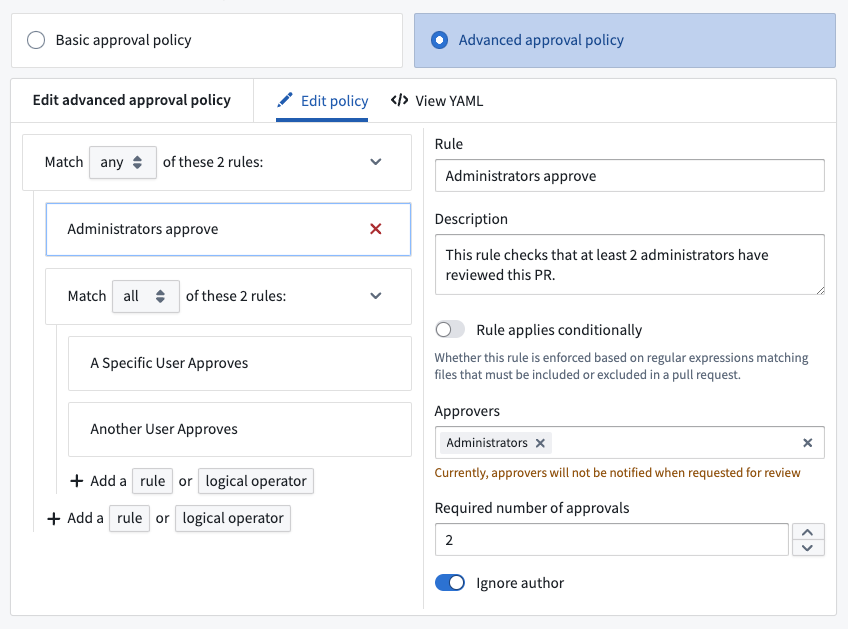
The Edit policy tab provides a form-based editor. The advanced approval policy groups logical operators of a rule, such as ALL or ANY. Select a rule to provide metadata, such as the name or description of the rule. Toggle on Rule applies conditionally to only apply this rule if the files modified in a pull request match some regular expression. For example, in the typical folder structure for a Python transform, ["transforms-python/src/myproject/datasets/.*\\.py"] will match all Python files within the datasets folder.
Within the View YAML tab, you can directly modify, copy, and paste the YAML representation of the policy. This can be useful for making bulk edits to a policy, such as finding and replacing a search term.
Require security approval
To stop propagating security Markings on a branch, the branch must be protected. Once security changes are enabled on a repository, it will automatically and immutably require security checks and approval (if necessary) before merging a pull request. Read more about removing inherited Markings.
Restrict stable version tags
In Functions repositories, you can enforce restrictions on the release of stable versions of your Functions. Once at least one protected branch has been configured for the repository, an additional toggle will be available to Only allow stable versions to be tagged from protected branches.

If Only allow stable versions to be tagged from protected branches is enabled, tagging from feature branches (non-protected branches) of the repository will block users from being able to submit a stable Semantic Version string. For example, 1.2.3 is a stable Semantic Version, whereas 1.2.3-rc1 denotes a prerelease version that will be allowed from feature branches.
Applications that invoke your Functions may be configured to reference a version range; for example, a Workshop module might call a Function foo at versions >=1.2.3 <2.0.0, so if you release version 1.3.0, the Workshop module will now invoke this version (1.3.0).
To prevent unexpected behavior from new versions, we recommend that code changes go through review and testing before they are released in a new stable version. The Only allow stable versions to be tagged from protected branches toggle ensures that all changes must be reviewed before being released in a stable version, since changes must go through code review before they can merge into a protected branch.
Since version ranges ignore prerelease versions, you can publish a prerelease version like 1.3.0-test to prevent downstream applications from invoking the new release. Enabling the Only allow stable versions to be tagged from protected branches toggle allows prerelease versions to be released from feature branches, so that versions can be tested in downstream applications without causing issues in production.
Unprotect branches
Owners can unprotect branches from Code Repository settings. However, branches with active security changes, like stopped propagation of markings, cannot be unprotected until the branch is free of security changes. To unprotect a branch with active security changes, the changes should be removed through a pull request. The branch can then be unprotected from Code Repository settings.
Fallback branches
Code Repositories allow you to build datasets on any branch and view the affect your transforms have on the data. If an input dataset to your transform has not been built on the current branch, an attempt will be made to locate a built version from a list of fallback branches instead. The default branch will automatically be set as the fallback branch unless configured otherwise. You can set different fallback branches to each branch and have more than one fallback if needed.
:::callout{theme="neutral"} This configuration only applies to builds and actions taken in the Code Repository on which it is set. It has no effect on other Foundry applications or builds triggered outside of the repository (for example, using a scheduled build). :::
You can also configure a Pipeline Builder branch with the same name as a Code Repositories branch so that Pipeline Builder transforms read input datasets from that matching branch. Pipeline Builder supports fallback branch configuration as well, allowing you to control which branch is used when an input dataset has not been built on the current branch.
中文翻译
分支设置
本页将引导您了解代码仓库中的各种分支设置:
默认分支
在包含多个分支的代码仓库中,可以配置一个默认分支作为基础分支。默认情况下,除非另行选择,所有拉取请求和提交都将针对该分支进行。通常,默认分支是 master 分支。
您可以通过导航至 设置 > 分支 > 默认分支 来选择代码仓库的主分支。
合并模式
有几种策略可以合并拉取请求中提出的代码更改。在"设置"选项卡中,您可以选择一种或多种合并模式,供代码作者在拉取请求页面中使用。
- 压缩合并 - 压缩合并模式将在目标分支上创建一个单一提交,整合拉取请求引入的所有更改。这将使默认分支上的提交历史更加简洁。
- 合并 - 在拉取请求中使用合并时,分支上创建的所有单独提交将与一个合并提交一起添加到目标分支。请注意,在目标分支提交历史中,所有单独提交将显示其原始时间戳,即它们在开发分支上创建的时间。
- 快进合并 - 当从目标分支到您的分支存在直接路径时(目标分支上没有其他更改),快进合并会将目标分支推进到开发分支的前端,并合并它们的提交历史。
所有选定的合并模式将作为选项出现在拉取请求页面中。如果选择了"压缩合并"模式,它将作为主要选项显示,其他选定的模式则可在菜单中找到。
保护分支
当多个作者共同贡献同一个代码仓库,或者仓库支持关键数据资产时,您可以保护分支以实现更高级别的治理,并防止意外更改。受保护分支只能通过拉取请求进行修改,并且必须满足一组预定义的要求。
:::callout{theme="neutral"} 默认情况下,只有代码仓库的所有者可以更改分支保护设置,而所有者和编辑者都可以将拉取请求合并到受保护分支。无论权限如何,所有代码作者都必须遵守受保护分支策略。 :::
您可以在分支设置面板中设置以下要求:
要求 ci/foundry-publish 成功运行
为了将更改发布到您的数据,持续集成过程 ci/foundry-publish 必须运行并成功完成。如果在成功完成之前合并更改,则无法保证更改会生效,因此强烈建议将此作为受保护分支的要求。
要求代码审查
保护关键分支的一个好处是能够在将代码更改合并到生产环境之前获得协作者的审查。任何有权合并更改的人都可以对拉取请求提交审查(默认情况下:仓库的所有者和编辑者)。
您可以强制执行以下审查策略:
- 合并前要求无拒绝 - 如果至少有一位审查者拒绝了代码更改,这将阻止拉取请求合并。
- 合并前要求至少一个批准 - 这将确保代码在合并更改之前经过审查和批准。
要求特定审查者
您可以要求特定用户或组在拉取请求合并之前进行批准。要满足组要求,组中至少需要一名成员批准拉取请求。请注意,此策略本身允许拒绝,只要收到了批准即可。例如,如果组中一名成员拒绝了更改而另一名成员批准了,则批准将覆盖拒绝,除非适用"要求无拒绝"策略。
:::callout{theme="warning" title="警告"} 要求用户/组批准并不授予他们审查拉取请求的权限。请始终确保所需的审查者也有权访问代码仓库。 :::
配置高级审批策略
高级拉取请求审批策略根据拉取请求中修改的文件来确定需要审查的用户和组。在受保护分支的分支设置中,选择编辑,然后选择高级审批策略开始配置策略。
编辑策略选项卡提供了一个基于表单的编辑器。高级审批策略对规则的逻辑运算符进行分组,例如 ALL 或 ANY。选择一条规则以提供元数据,例如规则的名称或描述。开启规则有条件适用,以便仅在拉取请求中修改的文件匹配某个正则表达式时才应用此规则。例如,在 Python 转换的典型文件夹结构中,["transforms-python/src/myproject/datasets/.*\\.py"] 将匹配 datasets 文件夹中的所有 Python 文件。
在查看 YAML 选项卡中,您可以直接修改、复制和粘贴策略的 YAML 表示形式。这对于对策略进行批量编辑非常有用,例如查找和替换搜索词。
要求安全审批
要停止在分支上传播安全标记,必须保护该分支。一旦在仓库上启用了安全更改,它将自动且不可变地要求在合并拉取请求之前进行安全检查并获取批准(如有必要)。了解更多关于移除继承标记的信息。
限制稳定版本标签
在函数仓库中,您可以对函数稳定版本的发布施加限制。一旦为仓库配置了至少一个受保护分支,将出现一个额外的开关,用于仅允许从受保护分支标记稳定版本。
如果启用了仅允许从受保护分支标记稳定版本,则从仓库的功能分支(非受保护分支)进行标记将阻止用户提交稳定的语义版本字符串。例如,1.2.3 是一个稳定的语义版本,而 1.2.3-rc1 表示一个预发布版本,允许从功能分支发布。
调用您的函数的应用程序可以配置为引用版本范围;例如,Workshop 模块可能调用版本为 >=1.2.3 <2.0.0 的函数 foo,因此如果您发布版本 1.3.0,Workshop 模块现在将调用此版本(1.3.0)。
为防止新版本导致意外行为,我们建议在发布新稳定版本之前,代码更改应经过审查和测试。仅允许从受保护分支标记稳定版本开关确保所有更改在发布为稳定版本之前必须经过审查,因为更改必须经过代码审查才能合并到受保护分支。
由于版本范围会忽略预发布版本,您可以发布像 1.3.0-test 这样的预发布版本,以防止下游应用程序调用新版本。启用仅允许从受保护分支标记稳定版本开关允许从功能分支发布预发布版本,以便在下游应用程序中测试版本,而不会在生产环境中引起问题。
取消保护分支
所有者可以从代码仓库设置中取消保护分支。但是,具有活动安全更改的分支(例如停止标记传播)在分支清除安全更改之前无法取消保护。要取消保护具有活动安全更改的分支,应通过拉取请求移除这些更改。然后可以从代码仓库设置中取消保护该分支。
回退分支
代码仓库允许您在任何分支上构建数据集,并查看您的转换对数据的影响。如果转换的输入数据集尚未在当前分支上构建,系统将尝试从回退分支列表中查找已构建的版本。除非另行配置,否则默认分支将自动设置为回退分支。您可以为每个分支设置不同的回退分支,并在需要时设置多个回退分支。
:::callout{theme="neutral"} 此配置仅适用于在其上设置的代码仓库中的构建和操作。它对其他 Foundry 应用程序或在仓库外部触发的构建(例如,使用计划构建)没有影响。 :::
您还可以配置一个管道构建器分支,其名称与代码仓库分支相同,以便管道构建器转换从该匹配分支读取输入数据集。管道构建器也支持回退分支配置,允许您控制在输入数据集尚未在当前分支上构建时使用哪个分支。