Configure Code Repositories settings in Control Panel(在控制面板中配置代码仓库设置)
You can configure many Organization-wide Code Repositories settings within Control Panel. To modify these settings, you will need the User Experience Administrator role.
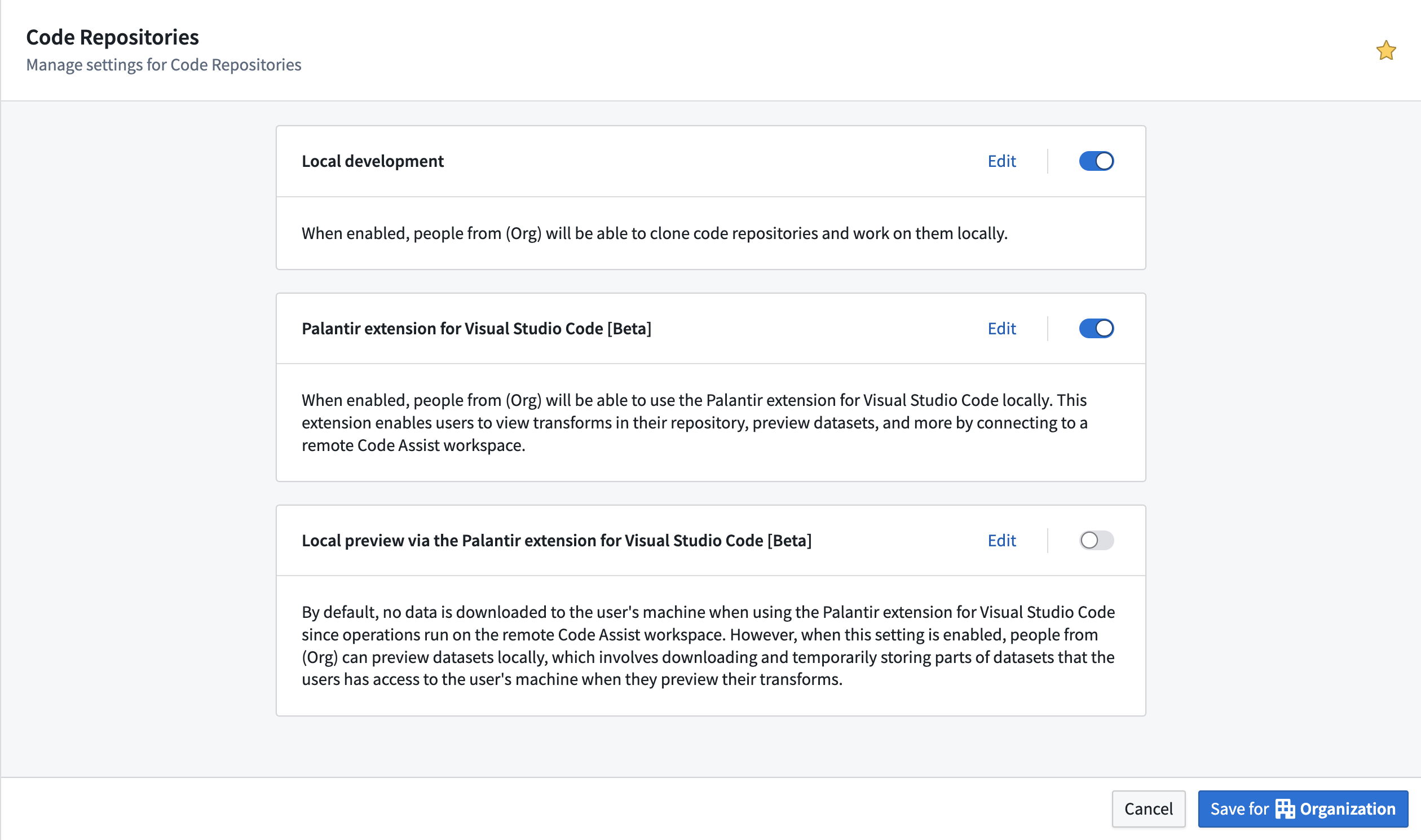
Available settings
- Local development with the Palantir extension for Visual Studio Code: When enabled, users from your organization will be able to clone code repositories and work on them locally using the Palantir extension for VS Code. This setting is enabled by default.
- Local preview through the Palantir extension for Visual Studio Code: When this setting is enabled, users from your organization can preview datasets locally. Local dataset preview involves downloading and temporarily storing parts of datasets to a user's machine. This setting is disabled by default. This setting is deprecated and is superseded by secure streaming preview via the Palantir extension for Visual Studio Code.
- Secure streaming preview via the Palantir extension for Visual Studio Code: When this setting is enabled, users from your organization can preview datasets locally using the secure streaming preview implementation. Local dataset preview involves streaming parts of datasets to the system memory of a user's machine. This setting is enabled by default. This setting does not yet take effect and it will become effective after a platform intervention.
- Local development with the Palantir MCP Server: Using Palantir MCP in your local IDE, such as Claude Code, GitHub Copilot, or Cursor, enables external AI systems to read data and metadata from Foundry and interact via AI-friendly API endpoints, using the permissions of the configured user token. Once data is accessed by an external system through Palantir MCP, the governance of its use shifts from Palantir to the external system. Data security will depend on your relationship with that external system. Using the Palantir MCP does not imply that a Palantir AI model will be used; the AI model provider is determined by the external system you connect to (for example, Microsoft for GitHub Copilot, Cursor for Cursor).
:::callout{theme="warning"}
To preview locally, users must be allowed to do so through the above local preview settings and have Download operations on the previewed inputs. These are privileged operations that allow users to download entire datasets locally, and should be granted with caution. In cases where users cannot be granted this permission, the VS Code developer experience is still available through Code Workspaces, which guarantees stricter data control. For more details, see the security considerations for local preview.
:::
You can learn more about local development, previewing and debugging Python transforms, and using the Palantir extension in our documentation.
中文翻译
在控制面板中配置代码仓库设置
您可以在控制面板中配置多项组织级别的代码仓库(Code Repositories)设置。要修改这些设置,您需要拥有用户体验管理员(User Experience Administrator)角色。
可用设置
- 使用 Palantir Visual Studio Code 扩展进行本地开发: 启用后,您组织的用户将能够克隆代码仓库并使用Palantir VS Code 扩展在本地进行开发。此设置默认启用。
- 通过 Palantir Visual Studio Code 扩展进行本地预览: 启用此设置后,您组织的用户可以在本地预览数据集。本地数据集预览涉及将部分数据集下载并临时存储到用户机器上。此设置默认禁用。此设置已弃用,已被通过 Palantir Visual Studio Code 扩展的安全流式预览所取代。
- 通过 Palantir Visual Studio Code 扩展进行安全流式预览: 启用此设置后,您组织的用户可以使用安全流式预览实现来在本地预览数据集。本地数据集预览涉及将部分数据集流式传输到用户机器的系统内存中。此设置默认启用。此设置尚未生效,将在平台干预后生效。
- 使用 Palantir MCP 服务器进行本地开发: 在本地 IDE(如 Claude Code、GitHub Copilot 或 Cursor)中使用 Palantir MCP,可使外部 AI 系统通过配置的用户令牌权限,读取 Foundry 中的数据与元数据,并通过 AI 友好的 API 端点进行交互。一旦外部系统通过 Palantir MCP 访问数据,其使用治理权将从 Palantir 转移到该外部系统。数据安全将取决于您与该外部系统的关系。使用 Palantir MCP 并不意味着将使用 Palantir AI 模型;AI 模型提供商由您连接的外部系统决定(例如,GitHub Copilot 对应 Microsoft,Cursor 对应 Cursor)。
:::callout{theme="warning"}
要进行本地预览,用户必须通过上述本地预览设置获得许可,并且对预览的输入拥有下载(Download)操作权限。这些是特权操作,允许用户将整个数据集下载到本地,应谨慎授予。在无法授予用户此权限的情况下,仍可通过代码工作台(Code Workspaces)使用 VS Code 开发者体验,该方案能保证更严格的数据控制。更多详情,请参阅本地预览的安全注意事项。
:::
您可以在我们的文档中了解更多关于本地开发、预览和调试 Python 转换以及使用Palantir 扩展的信息。