Pin Spark modules in-platform(在平台内固定Spark模块)
Code Repositories allows you to pin a Spark module for a repository. This enforces the usage of a specific version of Spark. You can pin a Spark module for both new and existing builds.
:::Callout{theme="neutral"} We recommend that you always use the newest version of Spark for the most up-to-date performance and security features. Pinning a Spark module should be a temporary measure. :::
How to pin a Spark module
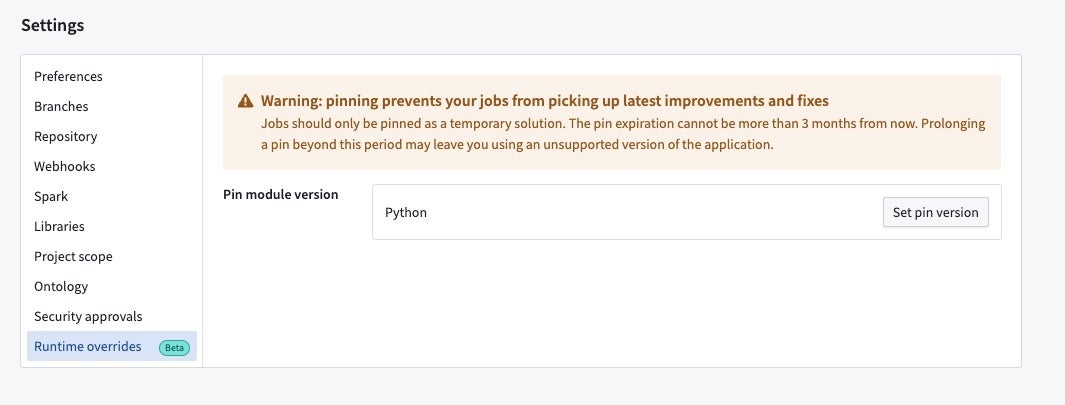
Navigate to the Settings tab in Code Repositories, then select Runtime overrides.
Create a pin
From the Runtime overrides tab, select Set pin.

You can create pins on all branches or on specific branches. You can select a Spark module version (for each module type available in the given repository) you want to pin and also specify an expiration date. The expiration date cannot be more than 90 days beyond the current date. The pin expires at the end of the 90-day period or the expiration date you specify, whichever is earlier. After the expiration date, your builds may fail.
Create a pin on all branches
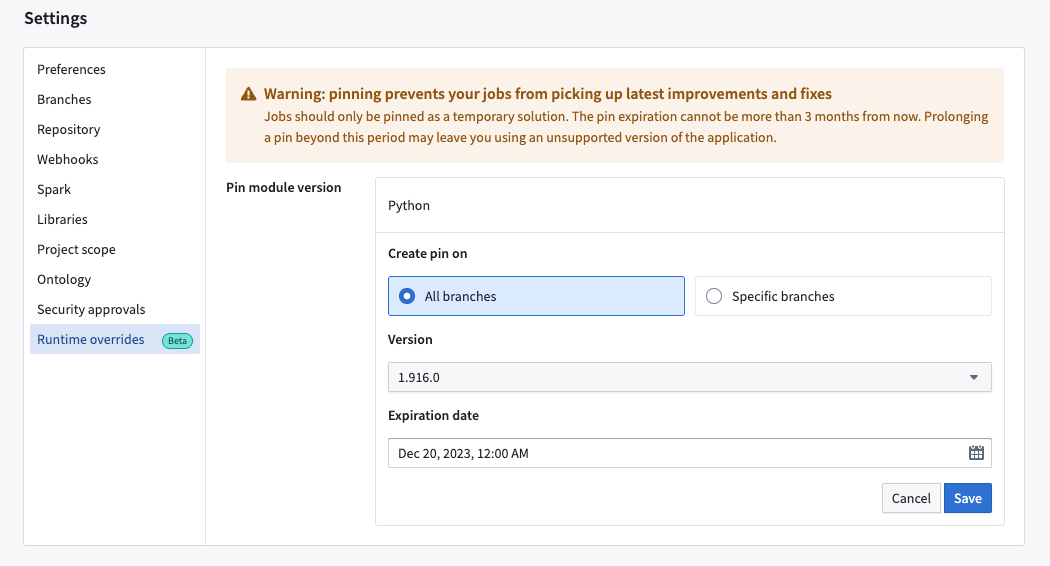
First specify the Spark version you want to pin and the expiration date.

:::callout{theme="neutral"} Unstable and non-recommended versions have a warning sign prefixed as we do not recommend using them unless absolutely necessary. :::
When you are finished, select Save to set the pin.
Create a pin on specific branches
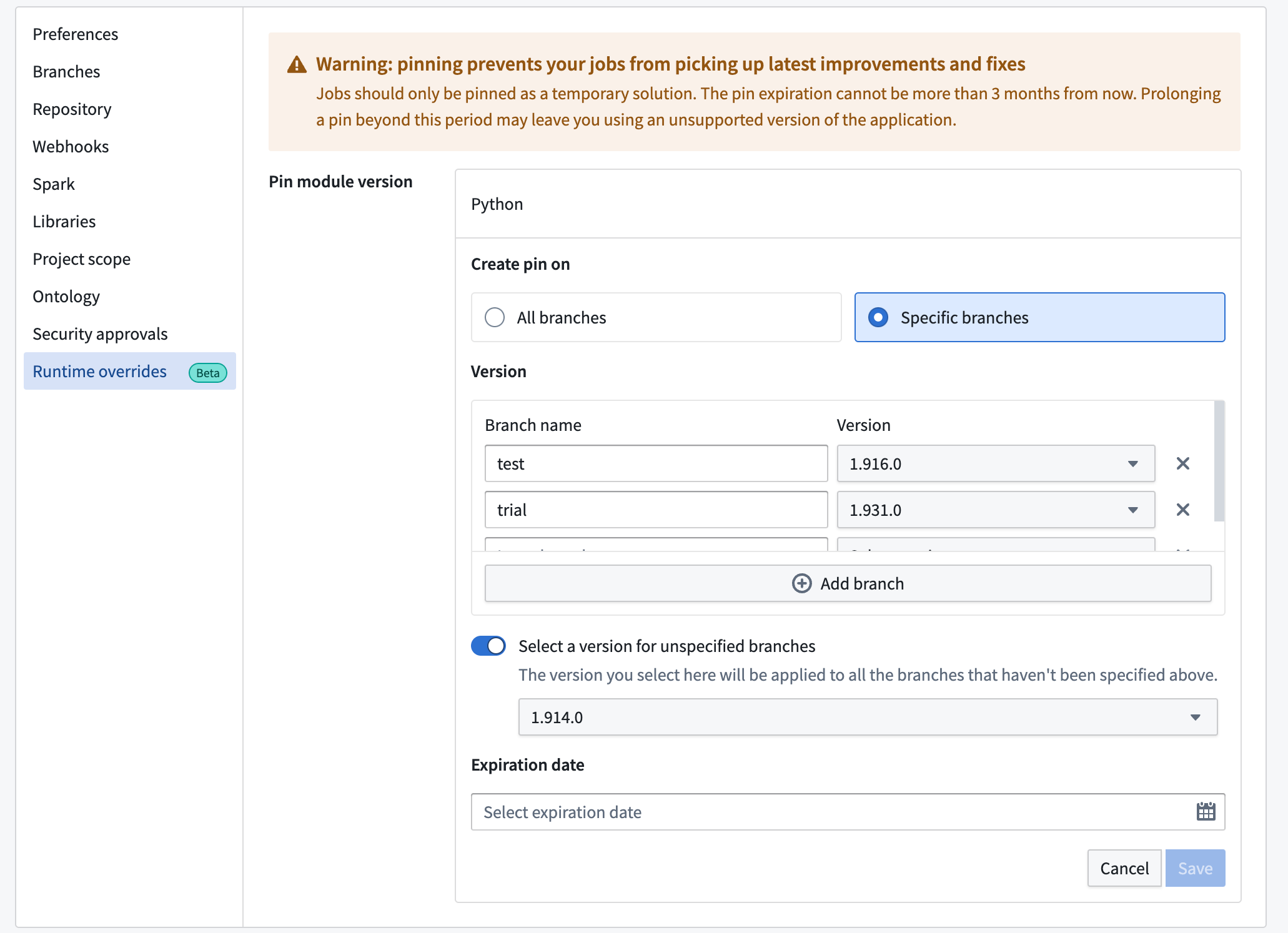
You can pin versions for each branch. You can also select versions for unspecified branches.
When you are finished, select Save to set the pin. In the below sample screenshot, we create a pin on all branches for version 1.916.0, which is set to expire on December 20, 2023 at 12:00 AM.
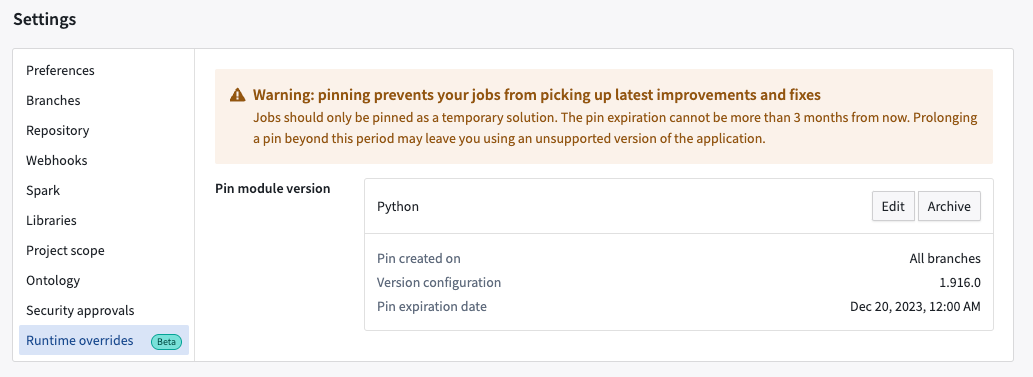
After setting the pin, you can view a confirmation that the pin was created.
Edit existing pins
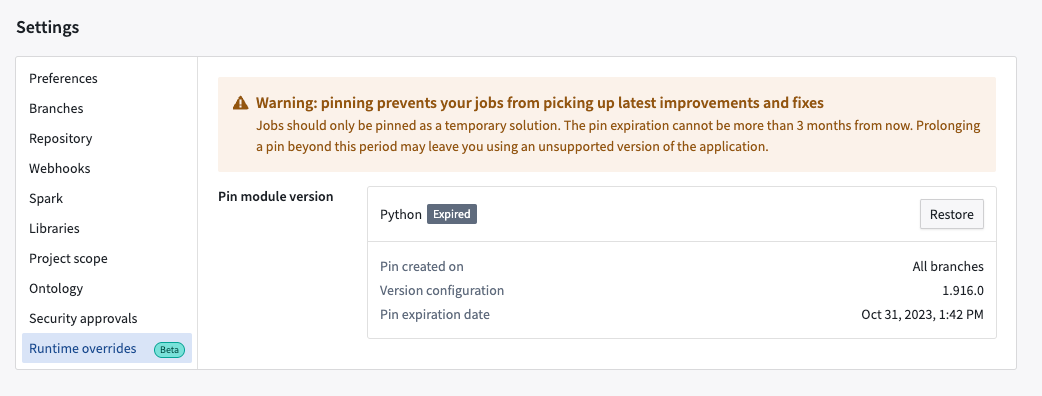
Selecting Edit lets you modify a pin. You can change the branch, version, and expiration date using the same workflow for creating a pin. Selecting Archive will remove the pin and add the Expired label to the pins you previously set.
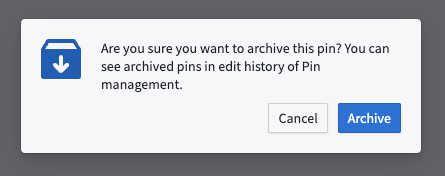
You can select Restore to re-create the pins you archived.
View your pin
On the Build Preview > view details page, you can view the version you pinned for the repository.

Use pins to control transforms versions in Code Repositories CI
When running continuous integration (CI) for a build in Code Repositories, a version of the transforms library is chosen based on the current version of the repository template. If a pin is applied, CI will instead use the pin's version of the library if it is higher than the minimum version declared by the template. Users can leverage pins for faster access to new versions of the API and new features for code assist and local development.
FAQ
1. Why does the pin expire in 90 days? Why can I not use it for longer periods?
We recommend that you always use the newest version of Spark. Not doing so means that you may be missing out on performance and security fixes and improvements which may have adverse impact on your builds.
That said, we understand that there may be specific use-cases that make pinning necessary and therefore offering this functionality with the caveat that it should be used on a temporary basis. Prior to the expiration date, we recommend that you make changes required on your end to be compatible with the newest version of Spark.
2. Can I get notifications via the UI when my pin is about to expire?
This feature is in development.
3. Can I pin individual builds via the Job Tracker UI?
This feature is in development.
4. Do I have to upgrade or make changes on my side to use this feature?
No upgrades or actions are needed from your side.
5. Is this feature available for new builds, or can I apply it to existing builds?
You can use this feature for both new and existing builds.
6. What happens if my job is already pinned in cdconfig?
The in-platform pin will always take precedence.
中文翻译
在平台内固定Spark模块
代码仓库(Code Repositories)支持你为仓库固定Spark模块,以此强制使用特定版本的Spark。你可以为新构建和已有构建固定Spark模块。
:::Callout{theme="neutral"} 我们建议你始终使用最新版本的Spark,以获得最新的性能和安全特性。固定Spark模块应当是临时措施。 :::
如何固定Spark模块
进入代码仓库的设置标签页,选择运行时覆盖(Runtime overrides)。
创建固定规则
在运行时覆盖标签页,选择设置固定(Set pin)。
你可以为全部分支或特定分支创建固定规则,选择所需固定的Spark模块版本(对应给定仓库内可用的每种模块类型),还可以指定过期日期。过期日期最多只能设置为当前日期之后90天,固定规则会在90天周期结束时或你指定的过期日期到期(以较早的时间为准)。过期后,你的构建可能会失败。
为全部分支创建固定规则
首先指定你要固定的Spark版本和过期日期。
:::callout{theme="neutral"} 不稳定版本和不推荐使用的版本前会带有警告标识,我们不建议使用这类版本,除非万不得已。 :::
设置完成后,选择保存(Save)完成固定规则设置。
为特定分支创建固定规则
你可以为每个分支单独固定版本,也可以为未指定的分支选择通用版本。
设置完成后,选择保存(Save)即可完成固定。下方示例截图中,我们为全部分支固定了1.916.0版本,设置的过期时间为2023年12月20日0点。
固定规则设置完成后,你可以看到规则已创建的确认提示。
编辑已有固定规则
选择编辑(Edit)即可修改固定规则,你可以按照创建固定规则的相同流程修改分支、版本和过期日期。选择归档(Archive)会移除该固定规则,并为你之前设置的固定规则添加Expired(已过期)标签。
你可以选择恢复(Restore)重新创建你已归档的固定规则。
查看你的固定规则
在构建预览(Build Preview) > 查看详情页面,你可以查看为该仓库固定的版本。
利用固定规则控制代码仓库CI中的转换版本
在代码仓库中运行构建的持续集成(continuous integration,CI)任务时,系统会根据仓库模板的当前版本选择转换库(transforms library)的版本。如果设置了固定规则,且固定的库版本高于模板声明的最低版本,CI会优先使用固定的版本。用户可以利用固定规则更快用上新版本API,以及代码补全和本地开发(local development)的新特性。
常见问题
1. 为什么固定规则最多90天过期?我不能使用更长的有效期吗?
我们建议你始终使用最新版本的Spark,不更新版本意味着你可能无法获得性能、安全相关的修复和优化,这可能会对你的构建产生不利影响。
尽管如此,我们也理解部分特定场景下确实需要固定版本,因此我们提供了该功能,但仍需提醒你这应当仅用于临时场景。我们建议你在过期日期前完成所需的适配修改,以兼容最新版本的Spark。
2. 固定规则即将过期时,我能通过UI收到通知吗?
该功能正在开发中。
3. 我可以通过任务跟踪器(Job Tracker) UI为单个构建设置固定吗?
该功能正在开发中。
4. 使用该功能我是否需要升级或在本地做修改?
你不需要进行任何升级或操作。
5. 该功能适用于新构建,还是也可以应用到已有构建?
新构建和已有构建都可以使用该功能。