Spark profiles(Spark 配置文件)
Repository settings are used to specify Spark profiles for use in the repository. After configuring the Spark profile in repository settings, you can use the profile in code.
Before a given profile can be applied, it must be imported into the project. There are two types of profiles:
- Unrestricted Profiles: Profiles that can be imported to a repository by all users.
- Restricted Profiles: Profiles that can only be imported by administrators.
Spark profiles that are already available for use in a repository are found in the Spark section under the Settings tab in Enabled profiles.
Importing Spark Profiles
In order to use a Spark profile in a transforms job, the profile must first be imported into the Project containing the job, or else Checks will fail when attempting to publish transforms.
Spark profiles may be browsed and imported to a Project using the Spark configuration tab in the Code Repositories editor.
To import a profile to a project, go to the Settings tab and select Spark. Click on Add profiles to find the desired profile in the dropdown. Hover over the profile that you need:
- If the profile is unrestricted, you can click on Import to import the profile to the Project.
- If the profile is restricted, you may see a lock next to it.
By default, any Resource Management Administrator has the necessary permissions to import restricted Spark profiles. Additionally, there may be a user group named spark-profile-admins which also has the necessary permissions. Regular users must ask an administrator to import a profile to their project before they can use it.
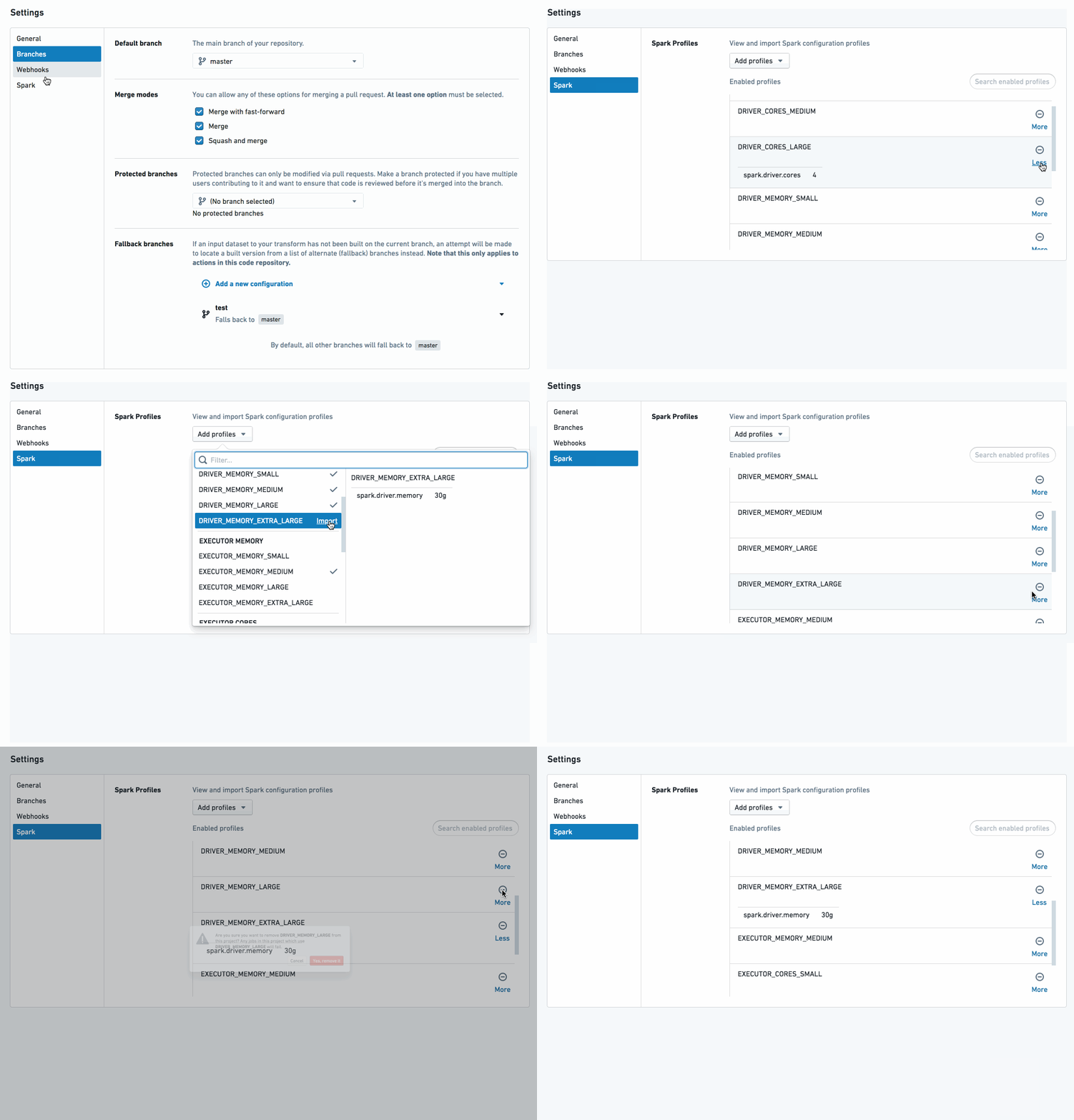
Spark Profiles enabled
All profiles already enabled in a Project are discoverable in the References panel of the Summary sidebar in the project. When imported to a repository, profiles are automatically added as references for the entire Project and made available as “enabled profiles” for all repos in the Project.
中文翻译
Spark 配置文件
代码库设置用于指定在代码库中使用的 Spark 配置文件(Spark profiles)。在代码库设置中配置好 Spark 配置文件后,您可以在代码中使用该配置文件。
在应用特定配置文件之前,必须先将其导入到项目中。配置文件分为两种类型:
- 无限制配置文件(Unrestricted Profiles):所有用户均可导入到代码库的配置文件。
- 受限配置文件(Restricted Profiles):仅管理员可导入的配置文件。
代码库中已可供使用的 Spark 配置文件,位于设置选项卡下 Spark 部分的已启用配置文件中。
导入 Spark 配置文件
要在转换作业中使用 Spark 配置文件,必须先将其导入到包含该作业的项目中,否则在尝试发布转换时检查(Checks)将会失败。
您可以使用 Code Repositories 编辑器中的 Spark 配置选项卡,浏览 Spark 配置文件并将其导入到项目中。
要将配置文件导入项目,请前往设置选项卡并选择 Spark。点击添加配置文件,在下拉菜单中找到所需的配置文件。将鼠标悬停在您需要的配置文件上:
- 如果该配置文件不受限制,您可以点击导入将其导入到项目中。
- 如果该配置文件受限,您可能会在其旁边看到一个锁定图标。
默认情况下,任何 Resource Management 管理员都拥有导入受限 Spark 配置文件所需的权限。此外,可能还存在一个名为 spark-profile-admins 的用户组,该组同样具有相应权限。普通用户必须先请求管理员将配置文件导入其项目,然后才能使用。
已启用的 Spark 配置文件
项目中已启用的所有配置文件均可在项目摘要侧边栏的引用面板中找到。导入代码库后,配置文件会自动添加为整个项目的引用,并作为“已启用配置文件”供项目中的所有代码库使用。