Compute usage with Code Workspaces(代码工作区(Code Workspaces)计算用量统计)
With Code Workspaces, users can securely connect to existing internal systems and build analyses, models, applications, or entire workflows on data with Foundry’s access controls and data permissioning.
Code workspaces spin up dedicated Foundry computation modules for execution, which utilizes Foundry compute-seconds while in use.
Pricing
Code workspace usage is tracked as Foundry compute-seconds (see usage types). Compute seconds are measured as long as the workspace is starting or active. There are a few factors to determine compute seconds used:
- The number of virtual CPUs (vCPUs).
- The gibibits (GiB) of RAM.
- The workspace being used.
- The number and the type of GPUs.
When paying for Foundry usage, the default rates are as follows:
| Workspace | GPU Type | Usage Rate |
|---|---|---|
| VS Code (default profile) | No GPU | 0 |
| VS Code | No GPU | 0.1 |
| JupyterLab® | No GPU | 0.1 |
| RStudio® | No GPU | 0.1 |
| Dash | No GPU | 0.1 |
| Streamlit | No GPU | 0.1 |
| Shiny® | No GPU | 0.1 |
| Any workspace | T4 GPU | 1.2 |
| Any workspace | A100 GPU | 1.3 |
| Any workspace | A10G GPU | 1.5 |
| Any workspace | L4 GPU | 2.1 |
| Any workspace | V100 GPU | 3.0 |
| Any workspace | H100 GPU | 4.7 |
If you have an enterprise contract with Palantir, contact your Palantir representative before proceeding with compute usage calculations.
vcpu_compute_seconds = max(vCPUs, GiB_RAM/ 7.5) * vcpu_usage_rate * time_active_in_seconds
The following formula measures GPU compute seconds:
gpu_compute_seconds = GPUs * gpu_usage_rate * time_active_in_seconds
:::callout{theme="neutral"} Each code workspace comes with a Foundry sidecar that introduces a small overhead of 0.25 vCPUs and 3 GiB of RAM :::
| Workspace | Compute Profile | Duration | Incurred Usage |
|---|---|---|---|
| VS Code | Default profile (0.75 CPUs/6 GiB) |
1 hour | 0 compute-seconds |
| VS Code | 4 CPUs/32 GiB | 1 hour | 1680 compute-seconds |
| JupyterLab® | 1 CPU/8 GiB | 1 hour | 528 compute-seconds |
| Any workspace | 1 T4 GPU | 1 hour | 4320 compute-seconds |
| Any workspace | 1 A10G GPU | 1 hour | 5400 compute-seconds |
| Any workspace | 1 V100 GPU | 1 hour | 10800 compute-seconds |
VS Code Usage Pricing
By default, new VS Code workspaces are provisioned with 0.75 CPU and 6 GB memory. This default profile is free of charge and not subject to usage-based pricing (UBP). You can adjust these resources when creating a workspace using the Advanced configuration section, or later by using the Compute resources slider in the settings side panel. If you increase memory, CPU, or add GPUs to your workspace, standard UBP pricing will apply for those upgrades.
View workspace utilization
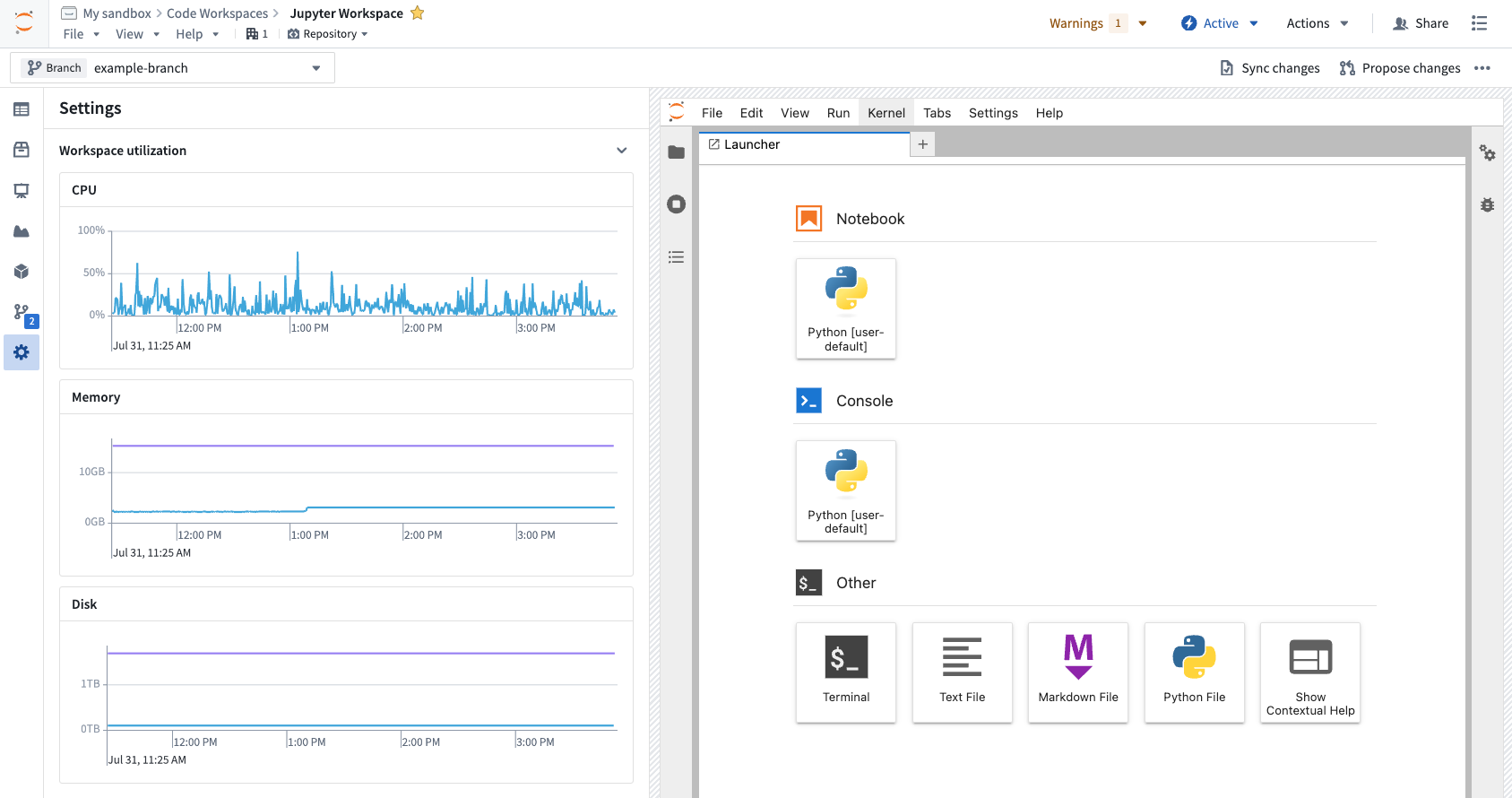
Live workspace utilization metrics are available for CPU, memory and disk usage. To view these metrics, expand the Workspace utilization section of the Settings side panel.
Measuring Foundry compute
When a Code Workspace is opened, Foundry will launch a dedicated compute session for the workspace. The session's status is STARTING until the session is available, becomes INITIALIZING, and then RUNNING. When the user manually stops the session, or when no user interaction is detected for longer than the auto-shutdown timeout, the session will become STOPPING and then IDLE. Foundry compute seconds are only used when the session is INITIALIZING or RUNNING.
All the possible states for a workspace are listed below. The states when the code workspace uses compute are indicated with right arrows (→).
STARTING: a new session was requested- →
INITIALIZING: the session is available and is being config - →
RUNNING: the session is available and usable STOPPING: the session is stoppingIDLE: the session is stoppedFAILED: an error occurredTERMINATING: the session is being deleted permanentlyNOT STARTED: no session available for this workspace
Code Workspaces measure compute seconds in the same manner as other scaling compute in the platform. Review the general Foundry Compute documentation for a description of how it is measured.
Investigating Foundry compute usage with Code Workspaces
Foundry Code Workspaces attribute all associated compute to the workspace resource in the filesystem. You can always view the usage of all sessions in the Resource Management Application.
Understanding drivers of Foundry compute usage in Code Workspaces
The compute usage of a Code Workspace session is directly proportional to the dedicated computational resources available to session and the length of the session.
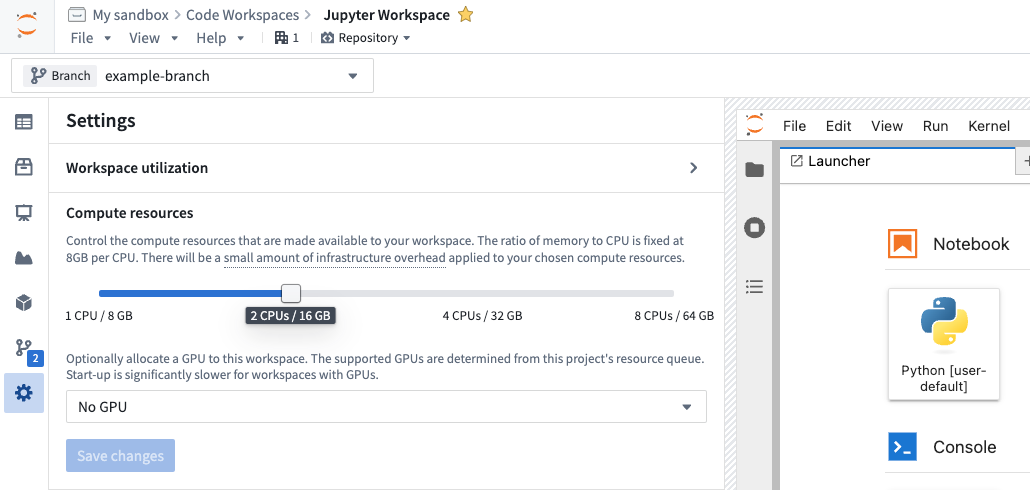
To manage the hardware size of your session, go to Settings > Compute Resources. You can choose from a variety of different session sizes. Refer to the screenshot below for an indication of how you can choose sizes and optionally allocate GPUs to your workspace. The resource queue in the project containing your workspace determines available GPUs. Learn more about using GPUs in projects and leveraging GPUs for model training.
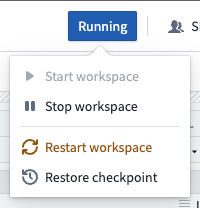
Long-running sessions utilize more compute than short-running sessions. Be sure to tune your auto-shutdown time to be consistent with your working style to not use more compute than necessary. You should manually stop sessions when you know you are done.
中文翻译
代码工作区(Code Workspaces)计算用量统计
借助Code Workspaces,用户可以安全连接现有内部系统,依托Foundry的访问控制(access control)和数据权限(data permissioning)能力,基于数据构建分析报告、模型、应用甚至完整工作流。
代码工作区会启动专用的Foundry计算模块执行任务,运行期间将消耗Foundry计算秒(compute-seconds)。
定价
代码工作区的用量按Foundry计算秒统计(参见用量类型)。只要工作区处于启动中或活跃状态,就会统计计算秒消耗。计算秒的用量由以下几个因素决定: * 虚拟CPU(vCPU)数量 * 内存的吉字节(GiB)数 * 所使用的工作区类型 * GPU的数量与类型
如果采用按用量付费的模式,默认费率如下:
| 工作区 | GPU 类型 | 用量费率 |
|---|---|---|
| VS Code (默认配置) | 无GPU | 0 |
| VS Code | 无GPU | 0.1 |
| JupyterLab® | 无GPU | 0.1 |
| RStudio® | 无GPU | 0.1 |
| Dash | 无GPU | 0.1 |
| Streamlit | 无GPU | 0.1 |
| Shiny® | 无GPU | 0.1 |
| 任意工作区 | T4 GPU | 1.2 |
| 任意工作区 | A100 GPU | 1.3 |
| 任意工作区 | A10G GPU | 1.5 |
| 任意工作区 | L4 GPU | 2.1 |
| 任意工作区 | V100 GPU | 3.0 |
| 任意工作区 | H100 GPU | 4.7 |
如果你与Palantir签订了企业合同,请在计算用量前联系你的Palantir客户代表。
vcpu_compute_seconds = max(vCPUs, GiB_RAM/ 7.5) * vcpu_usage_rate * time_active_in_seconds
GPU计算秒的计算公式如下:
gpu_compute_seconds = GPUs * gpu_usage_rate * time_active_in_seconds
:::callout{theme="neutral"} 每个代码工作区都附带一个Foundry边车(sidecar)进程,会产生0.25 vCPU和3 GiB内存的小幅开销 :::
| 工作区 | 计算配置 | 时长 | 产生用量 |
|---|---|---|---|
| VS Code | 默认配置 (0.75 CPUs/6 GiB) |
1小时 | 0 compute-seconds |
| VS Code | 4 CPUs/32 GiB | 1小时 | 1680 compute-seconds |
| JupyterLab® | 1 CPU/8 GiB | 1小时 | 528 compute-seconds |
| 任意工作区 | 1 T4 GPU | 1小时 | 4320 compute-seconds |
| 任意工作区 | 1 A10G GPU | 1小时 | 5400 compute-seconds |
| 任意工作区 | 1 V100 GPU | 1小时 | 10800 compute-seconds |
VS Code 用量定价
默认情况下,新建VS Code工作区会分配0.75 CPU和6 GB内存,该默认配置完全免费,不计入按用量计费(usage-based pricing, UBP)。你可以在创建工作区时通过高级(Advanced)配置板块调整资源,也可以后续在设置侧边栏的计算资源(Compute resources)滑块处调整。如果你调高内存、CPU配置或为工作区添加GPU,升级的部分将按标准UBP定价计费。
查看工作区利用率
你可以查看CPU、内存、磁盘使用率的实时工作区利用率指标。如需查看这些指标,请展开设置(Settings)侧边栏的工作区利用率(Workspace utilization)板块。
Foundry计算用量统计规则
打开代码工作区时,Foundry会为该工作区启动一个专用计算会话。会话可用前状态为STARTING(启动中),之后变为INITIALIZING(初始化中),再变为RUNNING(运行中)。当用户手动停止会话,或超过自动关闭超时时间未检测到用户交互时,会话将变为STOPPING(停止中),之后变为IDLE(空闲)。仅当会话处于INITIALIZING或RUNNING状态时,才会消耗Foundry计算秒。
以下列出了工作区的所有可能状态,代码工作区消耗计算资源的状态以右箭头(→)标注:
* STARTING:已发起新会话请求
* → INITIALIZING:会话已可用,正在配置
* → RUNNING:会话已可用,可正常使用
* STOPPING:会话正在停止
* IDLE:会话已停止
* FAILED:出现错误
* TERMINATING:会话正在被永久删除
* NOT STARTED:该工作区暂无可用会话
代码工作区的计算秒统计规则与平台上其他弹性计算资源一致。如需了解统计规则的详细说明,请查阅通用的Foundry Compute文档。
查询代码工作区的Foundry计算用量
Foundry代码工作区的所有关联计算用量都会归属到文件系统中对应的工作区资源下。你随时可以在资源管理应用(Resource Management Application)中查看所有会话的用量。
了解代码工作区Foundry计算用量的影响因素
代码工作区会话的计算用量与会话分配的专用计算资源规模、会话运行时长成正比。
如需管理会话的硬件配置,请前往设置 > 计算资源。你可以选择多种不同的会话规格。你可以参考下方截图选择规格,也可选择为工作区分配GPU。工作区所属项目的资源队列(resource queue)决定了可用的GPU类型。了解更多关于在项目中使用GPU和利用GPU训练模型的内容。
长时间运行的会话会比短时间会话消耗更多计算资源。请根据你的工作习惯调整自动关闭时长,避免产生不必要的计算用量。工作结束后建议手动停止会话。