Use Palantir-provided language models within Jupyter® notebooks(在 Jupyter® 笔记本中使用 Palantir 提供的语言模型)
:::callout{theme="neutral" title="Prerequisites"} To use Palantir-provided language models, AIP must first be enabled on your enrollment. :::
Palantir provides a set of language and embedding models which can be used within Jupyter® notebooks. The models can be used through the palantir_models library. This library provides a set of classes that provide bindings to interact with the models.
Palantir-provided model setup in Code Workspaces
To add language model support to your notebook, open the packages search panel on the left side of your Code Workspace. Search for palantir_models, then choose Latest. This will copy an install command to your clipboard, which you can then paste into an empty cell and run.
Add a Palantir-provided model to your notebook
To add a language model to your notebook, open the Models panel on the left side of your Code Workspace. If you haven't already imported a model, click Import a Palantir-provided model. If you have already imported a model, you can import additional models by selecting the + icon at the top of the panel.
The panel will then show you a searchable list of models that are available to you. Models are listed in two categories: chat completion models and embedding models. Select the desired model to import it into your Code Workspace.
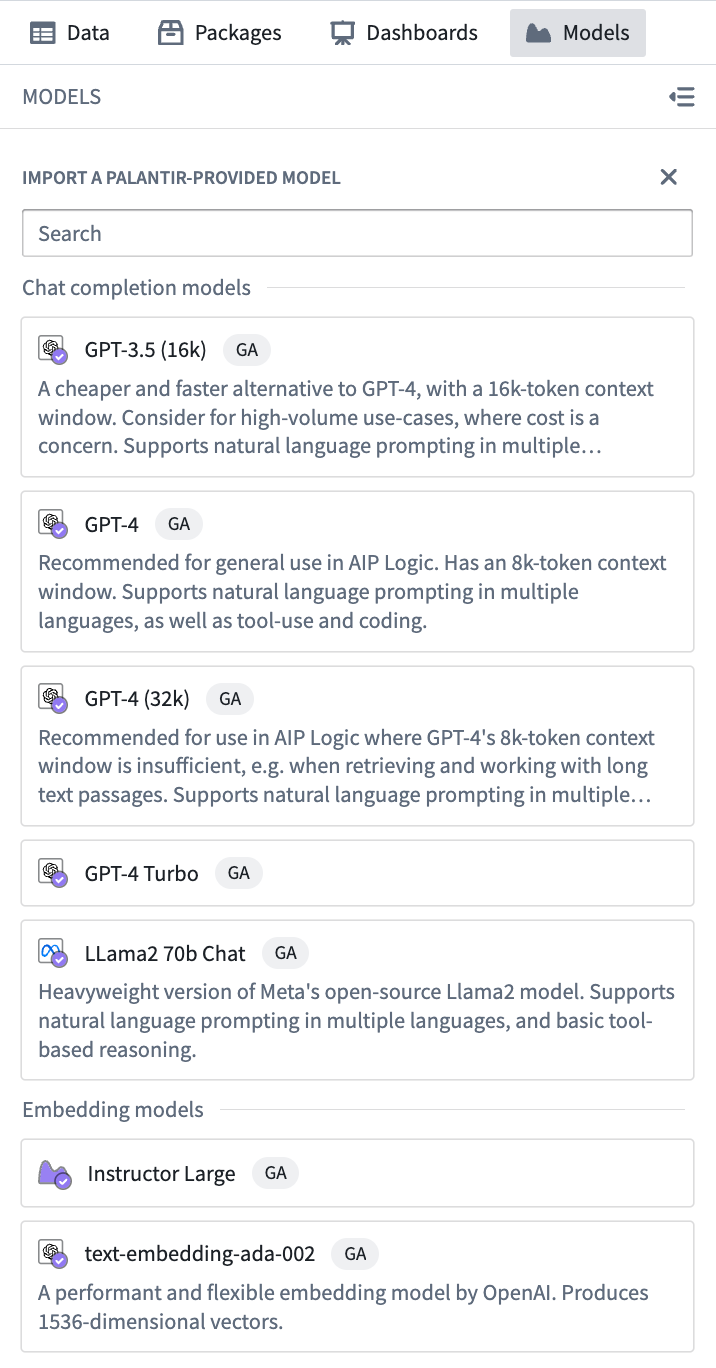
:::callout{theme="neutral"} Model availability may differ between customers. For more information, contact your Palantir representative. :::
After import, your model will appear in the Models panel. Selecting the model in the Models panel will display a code snippet demonstrating basic functionality for the model.
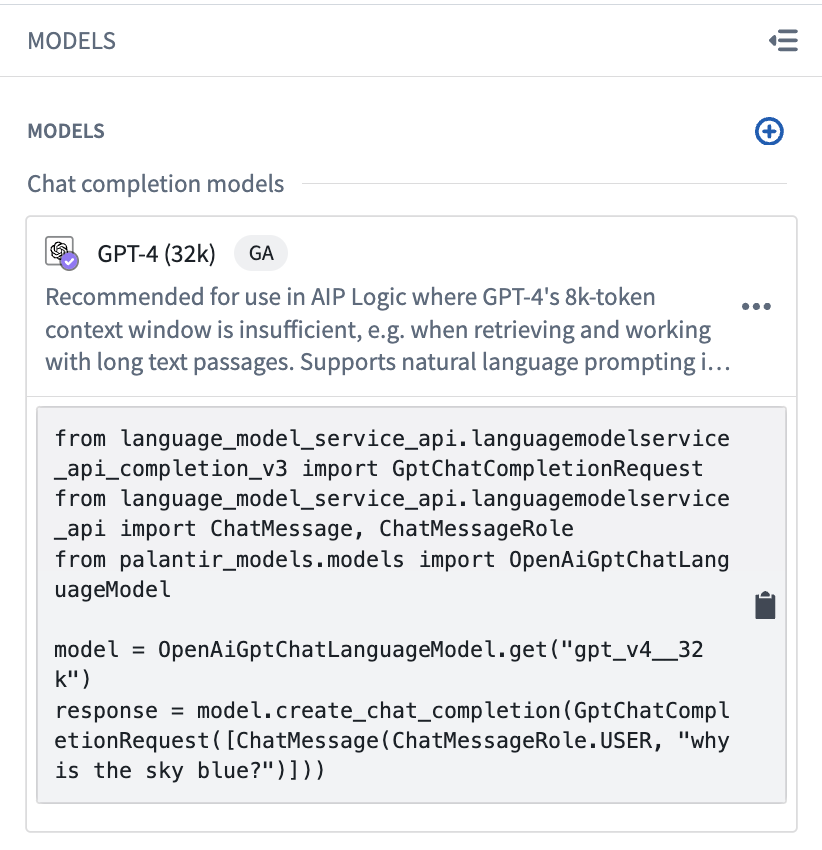
To get started with the model, click the snippet to copy the code and paste into any cell in your notebook.
Using the language model to generate completions
In this example, we will use an OpenAI model to answer a question. Assuming you have already imported a model, you can copy the code snippet below into any cell to proceed.
from language_model_service_api.languagemodelservice_api_completion_v3 import GptChatCompletionRequest
from language_model_service_api.languagemodelservice_api import ChatMessage, ChatMessageRole
from palantir_models.models import OpenAiGptChatLanguageModel

model = OpenAiGptChatLanguageModel.get("gpt_v4")
response = model.create_chat_completion(GptChatCompletionRequest([ChatMessage(ChatMessageRole.USER, "why is the sky blue?")]))
Embeddings
Along with generative language models, Palantir also provides embedding models. The following example shows how we can use an embedding model to calculate embeddings for a list of words, and plot the embeddings to visualize them. Each code block below should be treated as its own cell.
First, add the dependencies needed for this example:
!mamba install -y "palantir_models>=0.1795.0" matplotlib numpy scikit-learn
Then make sure you have imported an embedding model in the Models panel. In this example, we will use OpenAI's text-embedding-ada-002 model.
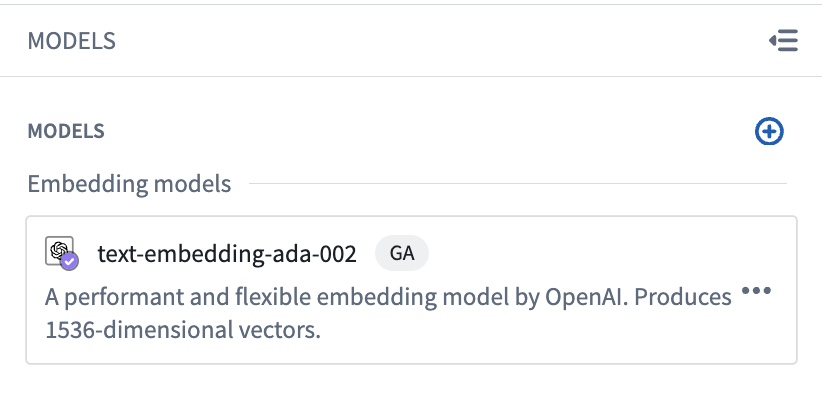
To generate the desired embeddings, we start with a copy of the model snippet and make some modifications as shown below:
from language_model_service_api.languagemodelservice_api_embeddings_v3 import GenericEmbeddingsRequest
from palantir_models.models import GenericEmbeddingModel

fruits = [
    "apple", "banana", "orange", "melon", "kiwi", "pear", "grape", "strawberry", "lemon", "lime",
    "blueberry", "berry", "mango", "watermelon"
]
animals = [
    "dog", "cat", "cow", "eagle", "mouse", "horse", "squirrel", "lion", "deer", "goose", "chicken", "pig"
]
words = fruits + animals

model = GenericEmbeddingModel.get("text-embedding-ada-002")
embeddings = model.create_embeddings(GenericEmbeddingsRequest(inputs=words)).embeddings
Finally, we can use scikit-learn and Matplotlib to visualize our embeddings:
from sklearn.decomposition import PCA
import matplotlib.pyplot as plt
import numpy as np

pca = PCA(n_components=2, random_state=0)
embeddings_2d = pca.fit_transform(np.array(embeddings))

plt.figure(figsize=(8, 4), dpi=100)
for i, word in enumerate(words):
    x, y = embeddings_2d[i, 0], embeddings_2d[i, 1]
    plt.scatter(x, y)
    plt.annotate(word, xy=(x, y), xytext=(5, 2), textcoords='offset points', ha='right', va='bottom')
plt.show()
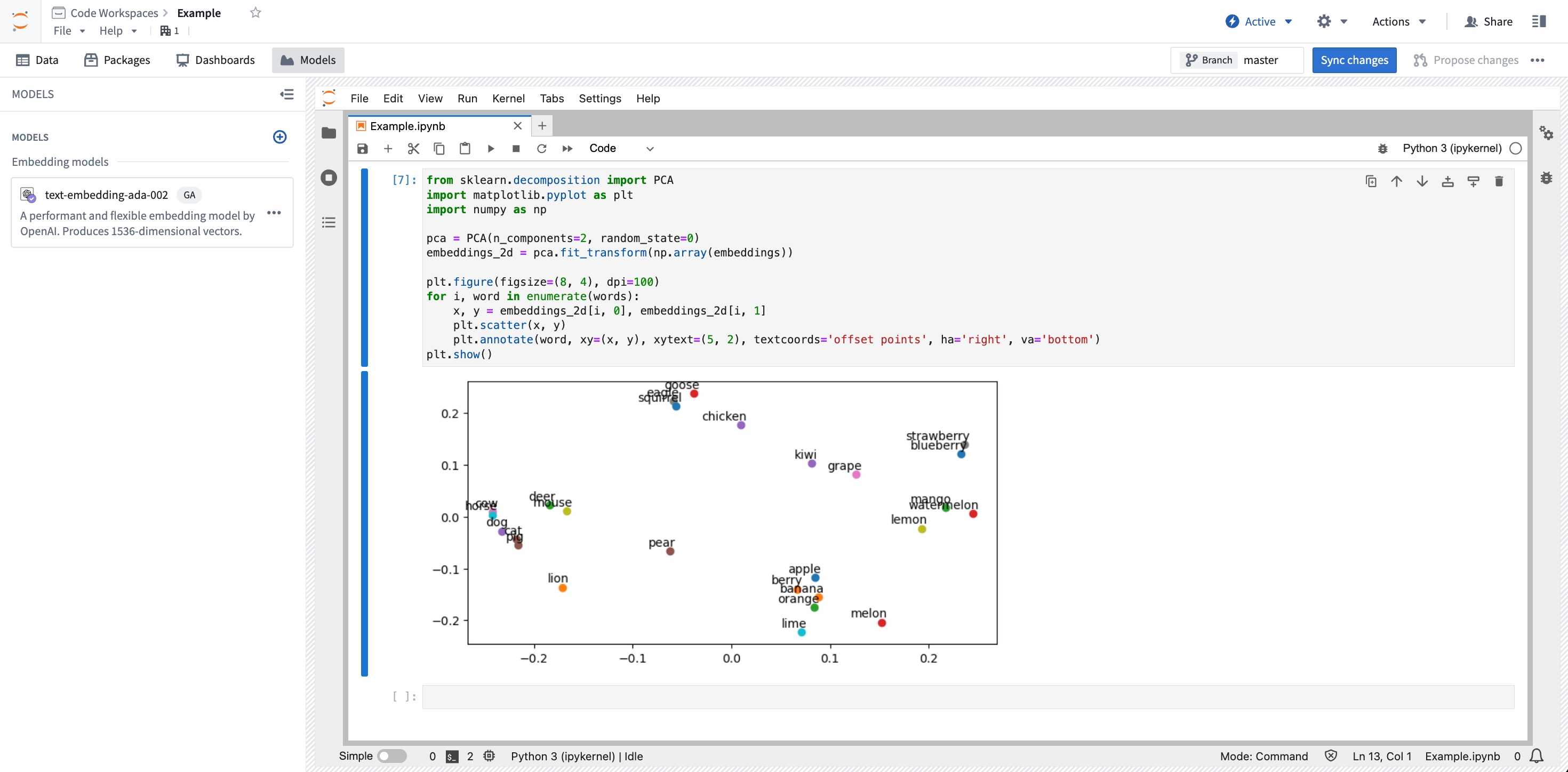
After running the notebook, you will be presented with a graph of the embeddings:
Jupyter®, JupyterLab®, and the Jupyter® logos are trademarks or registered trademarks of NumFOCUS.
All third-party trademarks (including logos and icons) referenced remain the property of their respective owners. No affiliation or endorsement is implied.
中文翻译
在 Jupyter® 笔记本中使用 Palantir 提供的语言模型
:::callout{theme="neutral" title="前提条件"} 要使用 Palantir 提供的语言模型,必须首先在您的注册环境中启用 AIP。 :::
Palantir 提供了一组语言模型和嵌入模型(embedding models),可在 Jupyter® 笔记本中使用。这些模型可通过 palantir_models 库进行调用。该库提供了一系列类,为与模型交互提供了绑定(bindings)。
在 Code Workspaces 中设置 Palantir 提供的模型
要为您的笔记本添加语言模型支持,请打开 Code Workspace 左侧的包搜索面板。搜索 palantir_models,然后选择 最新版本(Latest)。这将把安装命令复制到您的剪贴板,您可以将其粘贴到一个空白单元格中并运行。
向笔记本添加 Palantir 提供的模型
要向笔记本添加语言模型,请打开 Code Workspace 左侧的模型(Models)面板。如果您尚未导入模型,请点击导入 Palantir 提供的模型(Import a Palantir-provided model)。如果您已经导入了模型,可以通过选择面板顶部的 + 图标来导入更多模型。
随后,面板将显示一个可供您使用的模型列表,并支持搜索。模型分为两类列出:聊天补全模型(chat completion models)和嵌入模型(embedding models)。选择所需的模型以将其导入您的 Code Workspace。
:::callout{theme="neutral"} 不同客户可用的模型可能有所不同。如需更多信息,请联系您的 Palantir 代表。 :::
导入后,您的模型将出现在模型(Models)面板中。在模型(Models)面板中选择该模型,将显示一段演示该模型基本功能的代码片段。
要开始使用该模型,请点击代码片段以复制代码,然后粘贴到笔记本中的任意单元格中。
使用语言模型生成补全(completions)
在此示例中,我们将使用 OpenAI 模型来回答问题。假设您已导入模型,可以将以下代码片段复制到任意单元格中继续操作。
from language_model_service_api.languagemodelservice_api_completion_v3 import GptChatCompletionRequest
from language_model_service_api.languagemodelservice_api import ChatMessage, ChatMessageRole
from palantir_models.models import OpenAiGptChatLanguageModel

model = OpenAiGptChatLanguageModel.get("gpt_v4")
response = model.create_chat_completion(GptChatCompletionRequest([ChatMessage(ChatMessageRole.USER, "为什么天空是蓝色的?")]))
嵌入(Embeddings)
除了生成式语言模型,Palantir 还提供嵌入模型(embedding models)。以下示例展示了如何使用嵌入模型计算一组单词的嵌入向量,并通过绘图将其可视化。每个代码块应视为独立的单元格。
首先,添加此示例所需的依赖项:
!mamba install -y "palantir_models>=0.1795.0" matplotlib numpy scikit-learn
然后确保您已在模型(Models)面板中导入了一个嵌入模型。在此示例中,我们将使用 OpenAI 的 text-embedding-ada-002 模型。
要生成所需的嵌入向量,我们从复制模型代码片段开始,并按下图所示进行一些修改:
from language_model_service_api.languagemodelservice_api_embeddings_v3 import GenericEmbeddingsRequest
from palantir_models.models import GenericEmbeddingModel

fruits = [
    "apple", "banana", "orange", "melon", "kiwi", "pear", "grape", "strawberry", "lemon", "lime",
    "blueberry", "berry", "mango", "watermelon"
]
animals = [
    "dog", "cat", "cow", "eagle", "mouse", "horse", "squirrel", "lion", "deer", "goose", "chicken", "pig"
]
words = fruits + animals

model = GenericEmbeddingModel.get("text-embedding-ada-002")
embeddings = model.create_embeddings(GenericEmbeddingsRequest(inputs=words)).embeddings
最后,我们可以使用 scikit-learn 和 Matplotlib 将嵌入向量可视化:
from sklearn.decomposition import PCA
import matplotlib.pyplot as plt
import numpy as np

pca = PCA(n_components=2, random_state=0)
embeddings_2d = pca.fit_transform(np.array(embeddings))

plt.figure(figsize=(8, 4), dpi=100)
for i, word in enumerate(words):
    x, y = embeddings_2d[i, 0], embeddings_2d[i, 1]
    plt.scatter(x, y)
    plt.annotate(word, xy=(x, y), xytext=(5, 2), textcoords='offset points', ha='right', va='bottom')
plt.show()
运行笔记本后,您将看到嵌入向量的图表:
Jupyter®、JupyterLab® 以及 Jupyter® 标识是 NumFOCUS 的商标或注册商标。
所有引用的第三方商标(包括标识和图标)均归其各自所有者所有。不暗示任何关联或认可。