Troubleshooting(故障排除)
This page contains troubleshooting tips for errors that you may encounter while using Code Workspaces. If you have other issues or are unable to resolve your issue with this guide, contact your Palantir representative.
Error messages and suggested resolution
Error: Unauthorized - Session is no longer valid. It may have timed out. Please refresh the page.
If you encounter the “Unauthorized” error stating that your session may have timed out, follow these steps for remediation:
- Refresh the page.
- Ensure that you are using Google Chrome to access Code Workspaces. The Safari browser is not supported.
- If data with security markings was previously loaded in this Code Workspace and you lose access to the marked data, you may receive this error. If this is the case, select Running and then Restart workspace to get a fresh session with no data.
- If this is your first time using Code Workspaces, you may need to contact an IT administrator to ensure that Code Workspaces is properly whitelisted.
Error: The content is blocked. Contact the site owner to fix the issue.
Foundry applies a strict Content Security Policy to ensure the content rendered in Code Workspaces is properly controlled. For instance, Code Workspaces does not allow loading arbitrary JavaScript from CDNs, as is the case with some Python packages like folium.
If you receive this error for a critical workflow, contact your Palantir representative to discuss potential support for the workflow. Some workflows are already supported, but may require you to run a slightly different command:
Error: package or namespace load failed
You may encounter a package or namespace load failure error as below:
> library("hdf5r")
Error: package or namespace load failed for 'hdf5r' in dyn.load(file, DLLpath = DLLpath, ...):
 unable to load shared object '/home/user/libs/r/hdf5r/libs/hdf5r.so':
  libhdf5_serial_hl.so.100: cannot open shared object file: No such file or directory
This can occur since Foundry limits the number of Linux packages that are pre-installed on the server in order to reduce the exposure to potential vulnerabilities. However, some R libraries rely on specific system Linux libraries which may not be pre-installed on the server.
Note that some packages are not supported by Code Workspaces
Contact your Palantir representative to discuss the availability of required Linux package(s).
Error: Failed building wheel when installing a pip package
Pip may expect some system dependencies to be pre-installed, while conda bundles all requirements for the Python package to run. The general recommendation is to:
- Always install from conda instead of pip if possible.
- If possible, conda-build the pip package and publish it to an Artifacts repository.
- Otherwise, try installing from pip using the following command:
maestro env pip install <package>
- If the pip package fails to install, the error will generally indicate which system dependency or file is missing. First find the conda package that supplies the required dependency, and install it using the following command:
maestro env conda install <package>
- Repeat steps 3 and 4 until the installation succeeds
Example
The octis package exists in Pypi but not in conda.
When running maestro env pip install octis, we encounter the following error:
...
ERROR       g++ -pthread -B /home/user/envs/default/compiler_compat -Wno-unused-result -Wsign-compare -DNDEBUG -g -fwrapv -O2 -Wall -fPIC -O2 -isystem /home/user/envs/default/include -fPIC -O2 -isystem /home/user/envs/default/include -fPIC -I/home/user/envs/default/include/python3.10 -c src/libsvm/svm.cpp -o build/temp.linux-x86_64-cpython-310/src/libsvm/svm.o
ERROR       error: command 'g++' failed: No such file or directory
ERROR       [end of output]
ERROR
ERROR   note: This error originates from a subprocess, and is likely not a problem with pip.
ERROR   ERROR: Failed building wheel for libsvm
 INFO   Running setup.py clean for libsvm
 INFO Failed to build libsvm
ERROR ERROR: ERROR: Failed to build installable wheels for some pyproject.toml based projects (libsvm)
 INFO Installing pip environment
ERROR   ❌ Failed to install environment, exit status: "1"
In this case, a dependency (libsvm) seems to require a compiler to build the wheel, so we will need to first install the compiler via the corresponding conda package.
The above error indicates that the missing dependency is g++, therefore we should install the corresponding conda package (in this case, gxx_linux-64), using maestro:
maestro env conda install gxx_linux-64
We can now try installing the pip package by running this command again:
maestro env pip install octis
This time the command should succeed.
Error: Attempting to sync data to Code Repository failed
This error occurs when the git commit that is being synced is too large. This can happen if the commit contains non-code files, such as output data. Large files are not supported by version control within Code Workspaces. Instead, data can be interactively written back to Foundry, enabling you to easily use and share the outputs of your code workspace.
To find out which files are causing this error, open a terminal within your workspace and execute the following command:
git rev-list --objects --all |
   git cat-file --batch-check='%(objecttype) %(objectname) %(objectsize) %(rest)' |
   sed -n 's/^blob //p' |
   awk '{sum[$3]+=$2} END {for (i in sum) print sum[i], i}' |
   sort --numeric-sort --key=1 |
   $(command -v gnumfmt || echo numfmt) --field=1 --to=iec-i --suffix=B --padding=7 --round=nearest
To resolve this error, remove any large files from the git history. For instance, to delete all files larger than 10 MB, you can run the terminal command: git filter-repo --strip-blobs-bigger-than 10M. Alternatively, to delete a specific file from the git history, use git filter-repo --path path/to/file.ext --invert-paths.
To prevent this error happening again, update the .gitignore file with the paths or extensions of any large files that should not be synced. For example, to prevent any output CSV files from being synced, add *.csv. Note that you may need to ensure that hidden files are visible in your IDE to view the .gitignore file.
To apply these changes, run git push --force in a terminal. After following these steps, the Sync changes process should now work as expected.
File download or upload errors
For security reasons, Foundry generally restricts file downloads and uploads to ensure that these activities occur in a proper data governance framework. This means users cannot add a “download” button or equivalent in a Shiny® or Streamlit application.
To download data from a Jupyter® or RStudio® Workspace, write the data to an output dataset in Foundry first. You can download data from the output dataset using Foundry’s built-in processes, which ensure the application of appropriate data governance restrictions.
File load errors
A file load error can occur if a user enforced limits on the amount of data that can be downloaded or rendered in the browser. In such scenarios, try running the command jupyter nbconvert --clear-output --inplace notebook.ipynb, replacing notebook.ipynb with the name of the file shown in the error message:
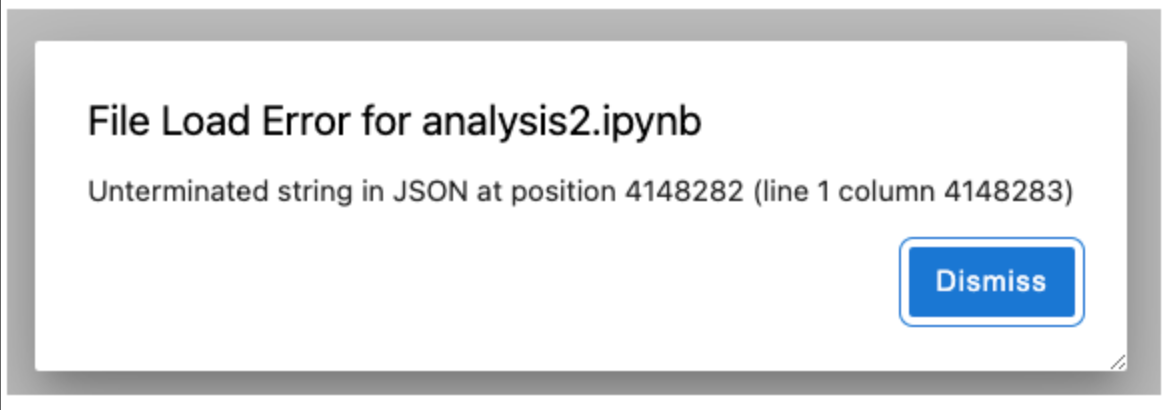
However, note that this command will clear all the cell outputs, including charts.
RStudio® and Shiny® are trademarks of Posit™.
Jupyter®, JupyterLab®, and the Jupyter® logos are trademarks or registered trademarks of NumFOCUS.
TensorBoard and any related marks are trademarks of Google Inc.
All third-party trademarks (including logos and icons) referenced remain the property of their respective owners. No affiliation or endorsement is implied.
中文翻译
故障排除
本页面包含使用 Code Workspaces 时可能遇到的错误故障排除提示。如果您遇到其他问题或无法通过本指南解决问题,请联系您的 Palantir 代表。
错误消息及建议解决方案
错误:未授权 - 会话已失效。可能已超时。请刷新页面。
如果您遇到提示会话可能已超时的"未授权"错误,请按照以下步骤进行修复:
- 刷新页面。
- 确保您正在使用 Google Chrome 浏览器访问 Code Workspaces。Safari 浏览器不受支持。
- 如果此前在此 Code Workspace 中加载了带有安全标记的数据,并且您失去了对该标记数据的访问权限,则可能会收到此错误。如果是这种情况,请选择 Running,然后选择 Restart workspace 以获取一个不含数据的新会话。
- 如果您是首次使用 Code Workspaces,可能需要联系 IT 管理员,确保 Code Workspaces 已被正确列入白名单。
错误:内容被阻止。请联系网站所有者解决此问题。
Foundry 应用严格的内容安全策略(Content Security Policy),以确保 Code Workspaces 中呈现的内容得到适当控制。例如,Code Workspaces 不允许从 CDN 加载任意 JavaScript,某些 Python 包(如 folium)就属于这种情况。
如果您在关键工作流中收到此错误,请联系您的 Palantir 代表,讨论对该工作流的潜在支持。某些工作流已受支持,但可能需要您运行略有不同的命令:
错误:包或命名空间加载失败
您可能会遇到如下所示的包或命名空间加载失败错误:
> library("hdf5r")
Error: package or namespace load failed for 'hdf5r' in dyn.load(file, DLLpath = DLLpath, ...):
 unable to load shared object '/home/user/libs/r/hdf5r/libs/hdf5r.so':
  libhdf5_serial_hl.so.100: cannot open shared object file: No such file or directory
出现此错误的原因是,Foundry 限制了服务器上预安装的 Linux 包数量,以减少潜在漏洞的暴露。然而,某些 R 库依赖于特定的系统 Linux 库,而这些库可能未预装在服务器上。
请注意,某些包不受 Code Workspaces 支持。
请联系您的 Palantir 代表,讨论所需 Linux 包的可用性。
错误:安装 pip 包时构建 wheel 失败
Pip 可能期望某些系统依赖项已预安装,而 conda 则捆绑了 Python 包运行所需的所有依赖项。一般建议如下:
- 如果可能,始终优先从 conda 安装,而不是 pip。
- 如果可能,将 pip 包进行 conda-build 并发布到 Artifacts 仓库。
- 否则,尝试使用以下命令从 pip 安装:
maestro env pip install <package>
- 如果 pip 包安装失败,错误通常会指示缺少哪个系统依赖项或文件。首先找到提供所需依赖项的 conda 包,并使用以下命令安装:
maestro env conda install <package>
- 重复步骤 3 和 4,直到安装成功
示例
octis 包存在于 Pypi 中,但不在 conda 中。
运行 maestro env pip install octis 时,我们遇到以下错误:
...
ERROR       g++ -pthread -B /home/user/envs/default/compiler_compat -Wno-unused-result -Wsign-compare -DNDEBUG -g -fwrapv -O2 -Wall -fPIC -O2 -isystem /home/user/envs/default/include -fPIC -O2 -isystem /home/user/envs/default/include -fPIC -I/home/user/envs/default/include/python3.10 -c src/libsvm/svm.cpp -o build/temp.linux-x86_64-cpython-310/src/libsvm/svm.o
ERROR       error: command 'g++' failed: No such file or directory
ERROR       [end of output]
ERROR
ERROR   note: This error originates from a subprocess, and is likely not a problem with pip.
ERROR   ERROR: Failed building wheel for libsvm
 INFO   Running setup.py clean for libsvm
 INFO Failed to build libsvm
ERROR ERROR: ERROR: Failed to build installable wheels for some pyproject.toml based projects (libsvm)
 INFO Installing pip environment
ERROR   ❌ Failed to install environment, exit status: "1"
在这种情况下,一个依赖项(libsvm)似乎需要编译器来构建 wheel,因此我们需要先通过相应的 conda 包安装编译器。
上述错误表明缺少的依赖项是 g++,因此我们应该使用 maestro 安装相应的 conda 包(此处为 gxx_linux-64):
maestro env conda install gxx_linux-64
现在我们可以再次运行以下命令尝试安装 pip 包:
maestro env pip install octis
这次命令应该会成功。
错误:尝试将数据同步到 Code Repository 失败
当正在同步的 git 提交过大时,会出现此错误。如果提交包含非代码文件(如输出数据),则可能发生此情况。Code Workspaces 中的版本控制不支持大文件。相反,数据可以交互式地写回 Foundry,使您能够轻松使用和共享代码工作区的输出。
要找出导致此错误的文件,请在工作区内打开终端并执行以下命令:
git rev-list --objects --all |
   git cat-file --batch-check='%(objecttype) %(objectname) %(objectsize) %(rest)' |
   sed -n 's/^blob //p' |
   awk '{sum[$3]+=$2} END {for (i in sum) print sum[i], i}' |
   sort --numeric-sort --key=1 |
   $(command -v gnumfmt || echo numfmt) --field=1 --to=iec-i --suffix=B --padding=7 --round=nearest
要解决此错误,请从 git 历史记录中删除任何大文件。例如,要删除所有大于 10 MB 的文件,可以运行终端命令:git filter-repo --strip-blobs-bigger-than 10M。或者,要从 git 历史记录中删除特定文件,请使用 git filter-repo --path path/to/file.ext --invert-paths。
为防止此错误再次发生,请更新 .gitignore 文件,添加不应同步的大文件的路径或扩展名。例如,要防止同步任何输出 CSV 文件,请添加 *.csv。请注意,您可能需要确保 IDE 中隐藏文件可见,才能查看 .gitignore 文件。
要应用这些更改,请在终端中运行 git push --force。完成这些步骤后,Sync changes 过程现在应能正常工作。
文件下载或上传错误
出于安全原因,Foundry 通常会限制文件下载和上传,以确保这些活动在适当的数据治理框架内进行。这意味着用户无法在 Shiny® 或 Streamlit 应用程序中添加"下载"按钮或等效功能。
要从 Jupyter® 或 RStudio® 工作区下载数据,请先将数据写入 Foundry 中的输出数据集。您可以使用 Foundry 的内置流程从输出数据集下载数据,这些流程可确保应用适当的数据治理限制。
文件加载错误
如果用户对可在浏览器中下载或呈现的数据量施加了限制,则可能发生文件加载错误。在这种情况下,请尝试运行命令 jupyter nbconvert --clear-output --inplace notebook.ipynb,将 notebook.ipynb 替换为错误消息中显示的文件名:
但请注意,此命令将清除所有单元格输出,包括图表。
RStudio® 和 Shiny® 是 Posit™ 的商标。
Jupyter®、JupyterLab® 和 Jupyter® 徽标是 NumFOCUS 的商标或注册商标。
TensorBoard 及任何相关标志是 Google Inc. 的商标。
所有引用的第三方商标(包括徽标和图标)仍归其各自所有者所有。不暗示任何隶属关系或认可。