Discover and use Python libraries(发现并使用 Python 库)
Code Repositories allow you to import and use public libraries as well as Foundry-generated libraries. The information below only applies to Python libraries.
Discover Python libraries
To search for Python libraries, click on the package tab on the left panel of your Code Repository environment. Use the search box to search for available libraries.
Click on the library name to expose the library details and the option to Add Library, which adds the recommended version of the library to your branch.
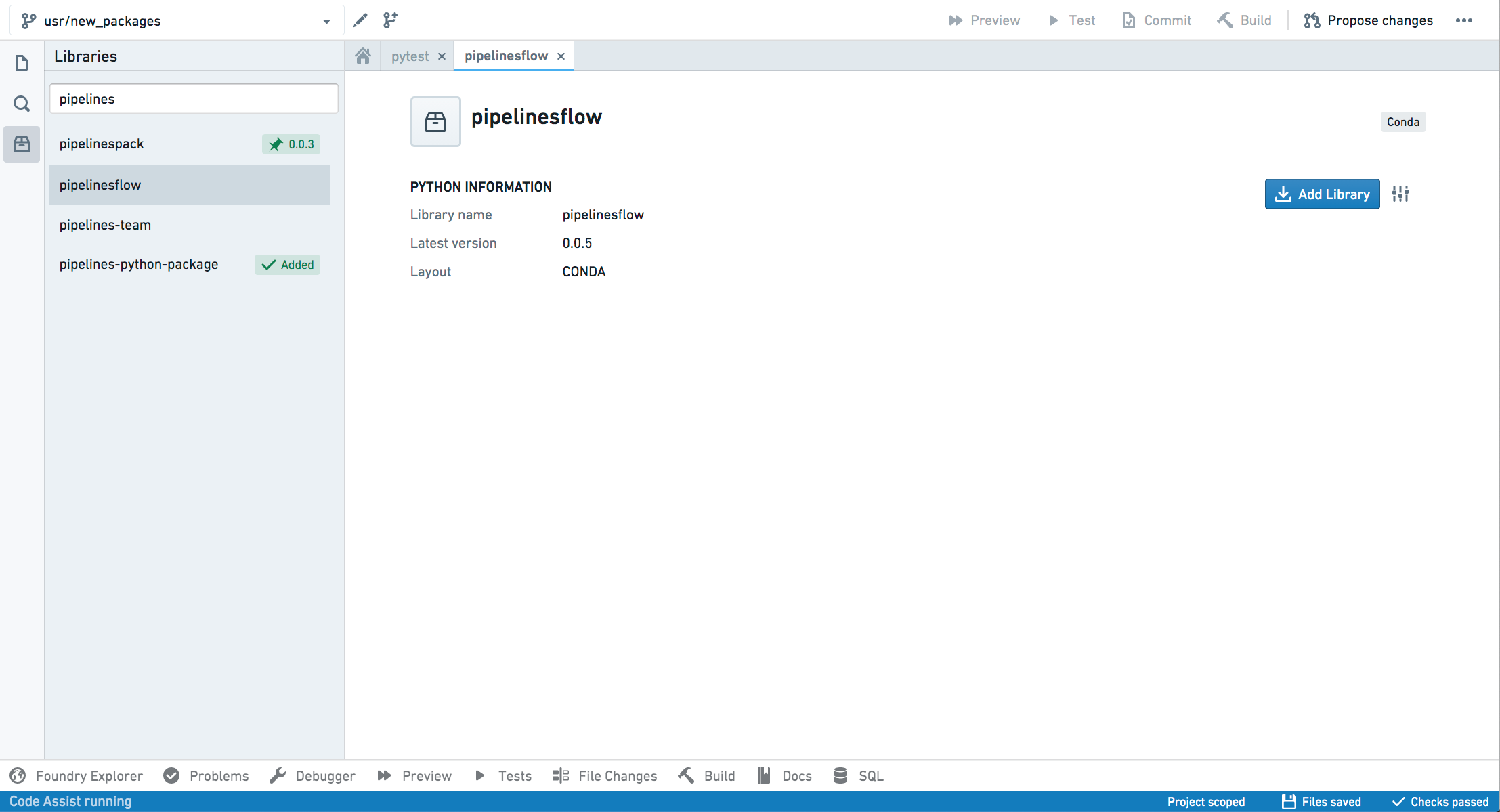
Once you add your library, Code Assist dependencies will be refreshed and you will be able to import modules from packages available in the library.
Adding exceptional dependencies
Adding Python libraries will sometimes require essential artifact repositories to be added to your code repository and to be referenced in the Project. In this case, a dialog will appear requesting you to confirm this action.
The dependencies dialog will highlight any required repositories to which you don't have access. You will need to have access to these repositories to use the library.

Code Repositories will attempt to find available backing repositories for your library and automatically use them. In cases where you require a specific backing repository, you can set it directly in the repository's Artifact Settings page.
Pinning specific library versions
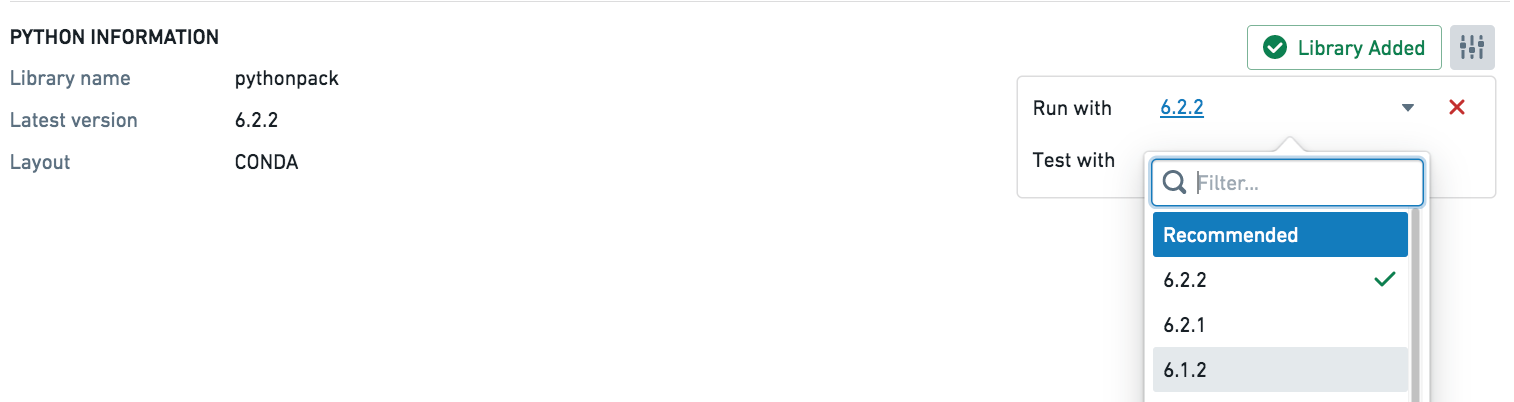
If you require a specific version, you can pin it by clicking on the settings button and selecting the required version from the list. This lets you set different versions with which to run your transform and tests.
Note that after pinning a specific version of a library, it will be added to your meta.yaml file but it will not be installed using Task Runner. Verify that checks pass successfully and then restart Code Assist to apply the changes to your meta.yaml file. You can then begin using the selected version of the library in your repository.
:::callout{theme="warning" title="Warning"} Be mindful when pinning specific versions. Having a pinned version can prevent your code from getting important updates. Always make sure you review and update your dependencies. :::
Reviewing library changes
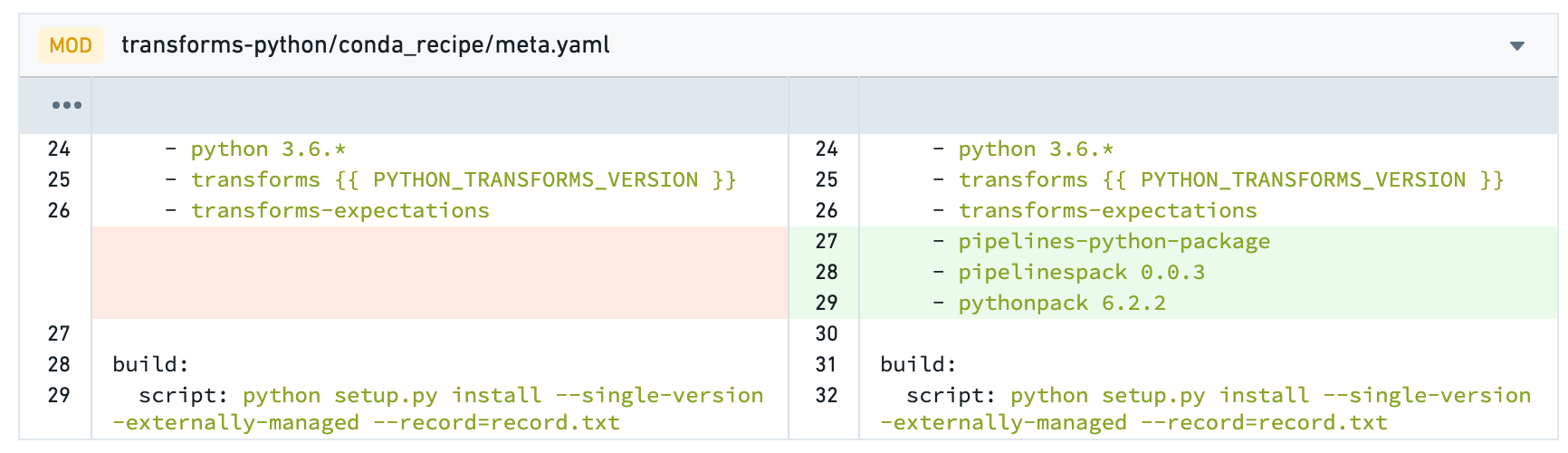
The actions of adding and removing Python libraries from your repository behave like any other code change. You should commit your changes and merge them to protected branches. In pull requests, library changes will appear as changes in the meta.yaml file.
:::callout{theme="neutral"}
Occasionally, when you create a pull request you will see merge conflicts on files of type .lock. This happens when updates occur while you are working on your branch. In this case, accept both changes and proceed with your pull request.
:::
Using libraries published to the shared channel [Deprecated]
:::callout{theme="warning" title="Warning"} This is a deprecated feature and may not be available in your environment. :::
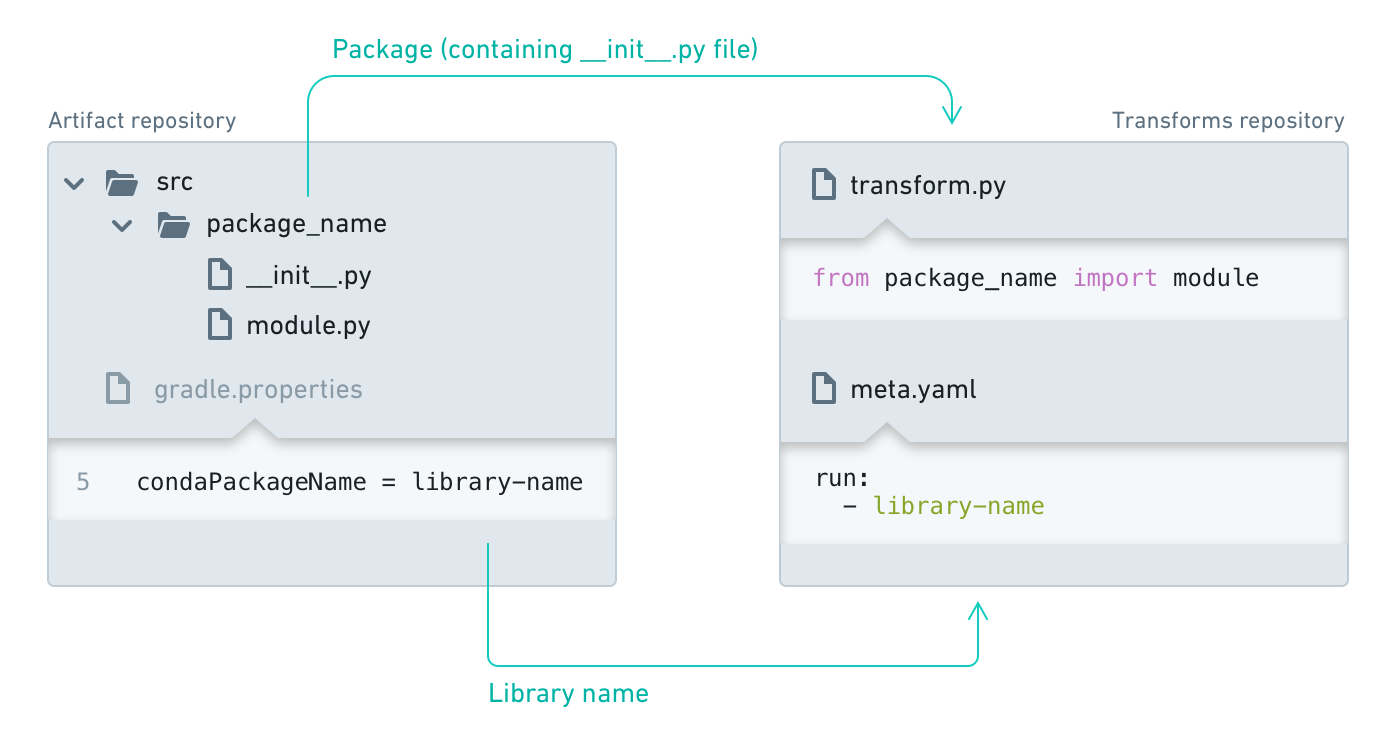
If your library is published to the shared channel (see Publishing a Python Library), you must edit the Python subproject's build.gradle. You will be modifying hidden files, so make sure to select "Show hidden files" before moving on. Your Python transforms project needs to have access to the channel where your shared library is published. In the build.gradle file in your Python transforms subproject folder, add the following:
 transformsPython {
     sharedChannels  "libs"
}
:::callout
You must edit the build.gradle file that is in your Python subproject folder rather than the one at the root of your repository. Make sure to add to the end of the file so that apply plugin: has been executed before and processes it correctly.
:::
Artifact repositories settings
:::callout{theme="neutral"} Normally, there is no need to access the repository settings when working with Python libraries. The required artifact repositories will be added automatically when you add Python packages. You should avoid editing the list of referenced python repositories directly in the settings tab. :::
When using shared libraries, a reference to the relevant repository is added to the Project. You can view the list of referenced repositories by accessing the "Artifacts" section of the repository settings tab.
If you added your shared library dependency manually and not via the artifacts package search, you will have to add the library repository to the backing repositories of your consuming repository via artifacts settings. Note that this is discouraged, as the package search will do this operation for you.
Task Runner
:::callout{theme="neutral"}
Task Runner is only available on newer repositories. You can check the version of your repository by showing the hidden files and checking the templateConfig.json file.
- If your repository has a
parentTemplateIdthat istransforms, ensure thatparentTemplateVersionis on 8.220.0 or higher, and the Python child template is on 1.484.0 or higher. - If your repository has a
parentTemplateIdthat ispython-library, ensure thatparentTemplateVersionis on1.497.0or higher.
You can upgrade your repository to enable this feature. :::
When the Task Runner is enabled, adding a package from the Libraries tab in the left panel will no longer provision a new Code Assist workspace, and will instead begin installing the package requested on top of your current environment as it sends back all the logs from the underlying process.
If the installation was successful, the lockfile will be updated with the new environment. If the installation was unsuccessful, an error message will be presented in the Task Runner bottom panel which can be used to dig further into the issue.
Task Runner will only update the run environment, and currently does not support installing test-only dependencies.
Advanced settings
:::callout{theme="warning" title="Warning"} The information below is aimed for administrators and advanced users only. :::
The meta.yaml file
:::callout{theme="warning" title="Warning"}
You should avoid editing the meta.yaml file, since this is prone to errors. Instead, bias towards adding libraries via the library search interface.
:::
For a Python library to be used in a code repository, it must be included in the conda_recipe/meta.yaml file. This occurs automatically when adding a library through the repository library search interface.
requirements:
...
run:
    - python
    ...
    - {LIBRARY NAME} # Replace this with the name of your shared library.
After adding the library, click on "Refresh dependencies" at the top of the meta.yaml file. This will ensure that Code Assist is updated with new dependencies, allowing you to proceed with importing the modules from available packages.
See more information on meta.yaml file.
Conda resolution of Python packages
Conda is an open-source language-agnostic package and environment manager and is used in Code Repositories to resolve package dependencies and install sets of packages into independent environments. For more information, consult the official Conda documentation ↗ or the Introduction to Environment Creation.
Conda lock files
When checks are run in Code Repositories, we resolve the Conda environment for the list of packages stated in the meta.yaml file and produce hidden Conda lock files with the .lock extension; these lock files save the Conda environment. This pre-resolved environment makes Conda resolution faster for subsequent checks when you commit your code.
We re-resolve the Conda environment and write new lock files in the following cases:
- There has been a change to the list of packages in the
meta.yamlfile. - The repository has upgraded to a newer template version.
- A recalled package was found in your lock file.
- The hidden Conda lock files have been deleted or edited.
When we re-resolve the environment and write new lock files, the initial commit hash is SUPERSEDED followed by another commit hash, which re-writes the lock files. Checks may take longer to run when we need to re-resolve the environment.
Downloading a published Python library outside of the platform
It is possible to download a library published within Palantir Foundry, from outside Foundry:
- Obtain a user token. In Foundry, navigate to your user account settings and select Tokens. Select Create token, input a name and a description for your token, and select Generate. Copy your token.
:::callout{theme="warning" title="Warning"} Do not share your token with other applications or users; a malicious actor could use it to impersonate you. :::
- Find the
<identifier>of your Python library. Navigate to the Code Repository of the Python library of interest. The browser URL should now have a similar form to:https://<my-foundry-url>/workspace/data-integration/code/repos/<identifier>/contents/refs%2Fheads%2F<branch>. In the URL, locate the<identifier>, which looks likeri.stemma.main.repository.XXXXXXXX-XXXX-XXXX-XXXX-XXXXXXXXXXXX. - Obtain the index of packages of the library. Open a terminal on your local machine and run the following command:
curl -H "Authorization: Bearer $TOKEN" https://$STACK_URL/artifacts/api/repositories/$IDENTIFIER/contents/release/conda/$PLATFORM/repodata.jsonwhere$TOKENis your user token,$STACK_URLis the same as the<stack-url>in the previous step,$IDENTIFIERis the<identifier>from the previous step, and$PLATFORMis the repository platform (e.g.noarch,linux-64). The output of the above command is an index for the contents of the library (that is, the packages it has). Each package has the form<name>-<version>-<build-string>.tar.bz2. - Download a specific package. You can download a particular package from the Python library by running in your terminal:
curl -H "Authorization: Bearer $TOKEN" https://$STACK_URL/artifacts/api/repositories/$IDENTIFIER/contents/release/conda/$PLATFORM/$PACKAGEwhere$PLATFORMis the package platform (e.g.noarch,linux-64) and$PACKAGEis of the form<name>-<version>-<build-string>.tar.bz2.
Run tasks in the Task Runner
You can manually trigger package installations from the Task Runner by manually specifying the command.
For example, to install pandas, select the Task Runner tab in the bottom panel, then input the following command:
install --packageSpecs=pandas
Task Runner also supports the following commands:
uninstall: Uninstalls packages from the run environment.- Note: This command will also uninstall any package that depends on the specified package. This command is only available on newer repositories. If your repository has a
parentTemplateIdthat istransforms, ensure that the Python child template is on1.525.0or higher. Similarly, if your repository has aparentTemplateIdthat ispython-library, ensure thatparentTemplateVersionis on1.525.0or higher. - Usage:
uninstall --packageSpecs=<eg.numpy>for Conda packages. formatCode: Formats the files in the repository. Uses Black to format the code andpyproject.tomlfor custom formatter configuration. See the Black formatter configuration file documentation ↗ for more information.whoneeds: Shows the tree of packages that require the installation of a package in the current run environment.- Note: This command is only available on newer repositories. If your repository has a
parentTemplateIdthat istransforms, ensure that the Python child template is on1.522.0or higher. Similarly, if your repository has aparentTemplateIdthat ispython-library, ensure thatparentTemplateVersionis on1.522.0or higher. - Usage:
whoneeds --packageSpec=<eg.transforms> tasks: Lists all the available tasks to run.
中文翻译
发现并使用 Python 库
代码库(Code Repositories) 允许您导入并使用公共库以及 Foundry 生成的库。以下信息仅适用于 Python 库。
发现 Python 库
要搜索 Python 库,请单击代码库环境左侧面板上的包选项卡。使用搜索框搜索可用的库。
单击库名称以展开库详细信息和添加库(Add Library)选项,该操作会将库的推荐版本添加到您的分支中。
添加库后,Code Assist 依赖项将被刷新,您便可以导入该库中可用包的模块。
添加特殊依赖项
添加 Python 库有时需要将重要的构件库(artifact repositories)添加到您的代码库中,并在项目(Project)中引用它们。在这种情况下,将出现一个对话框要求您确认此操作。
依赖项对话框将突出显示您无权访问的任何必需库。您需要拥有这些库的访问权限才能使用该库。
代码库将尝试为您的库查找可用的后备库(backing repositories)并自动使用它们。如果您需要特定的后备库,可以直接在库的构件设置(Artifact Settings)页面中进行设置。
固定特定库版本
如果您需要特定版本,可以通过单击设置按钮并从列表中选择所需版本来固定(pin)它。这允许您设置不同的版本来运行转换(transform)和测试。
请注意,固定库的特定版本后,它将被添加到您的 meta.yaml 文件中,但不会使用 Task Runner 进行安装。请验证检查是否成功通过,然后重启 Code Assist 以将更改应用到您的 meta.yaml 文件。随后,您便可以在代码库中开始使用所选版本的库。
:::callout{theme="warning" title="警告"} 固定特定版本时请务必谨慎。固定版本可能会阻碍您的代码获取重要更新。请始终确保审查并更新您的依赖项。 :::
审查库更改
从代码库中添加和移除 Python 库的操作与任何其他代码更改的行为一致。您应该提交更改并将其合并到受保护的分支。在拉取请求中,库的更改将显示为 meta.yaml 文件中的更改。
:::callout{theme="neutral"}
有时,在创建拉取请求时,您会看到 .lock 类型文件的合并冲突。这通常发生在您处理分支时出现了更新。在这种情况下,请接受这两项更改并继续处理您的拉取请求。
:::
使用发布到共享通道的库 [已弃用]
:::callout{theme="warning" title="警告"} 这是一项已弃用的功能,在您的环境中可能不可用。 :::
如果您的库已发布到共享通道(shared channel)(请参阅发布 Python 库),则必须编辑 Python 子项目的 build.gradle。您将修改隐藏文件,因此在继续之前请确保选择“显示隐藏文件”。您的 Python 转换项目需要有权访问发布共享库的通道。在 Python 转换子项目文件夹中的 build.gradle 文件中,添加以下内容:
 transformsPython {
     sharedChannels  "libs"
}
:::callout
您必须编辑 Python 子项目文件夹中的 build.gradle 文件,而不是代码库根目录下的文件。请确保将其添加到文件末尾,以便 apply plugin: 已执行并正确处理它。
:::
构件库设置
:::callout{theme="neutral"} 通常情况下,使用 Python 库时无需访问代码库设置。添加 Python 包时,所需的构件库将自动添加。您应避免在设置选项卡中直接编辑引用的 Python 库列表。 :::
使用共享库时,相关库的引用会被添加到项目中。您可以通过访问代码库设置选项卡的“构件(Artifacts)”部分来查看引用的库列表。
如果您是手动添加共享库依赖项而不是通过构件包搜索添加的,则必须通过构件设置将该库添加到消费库的后备库中。请注意,不建议这样做,因为包搜索会自动为您执行此操作。
Task Runner
:::callout{theme="neutral"}
Task Runner 仅适用于较新的代码库。您可以通过显示隐藏文件并检查 templateConfig.json 文件来查看代码库的版本。
- 如果您的代码库的
parentTemplateId为transforms,请确保parentTemplateVersion为 8.220.0 或更高版本,且 Python 子模板为 1.484.0 或更高版本。 - 如果您的代码库的
parentTemplateId为python-library,请确保parentTemplateVersion为1.497.0或更高版本。
您可以升级您的代码库以启用此功能。 :::
启用 Task Runner 后,从左侧面板的库(Libraries)选项卡添加包将不再配置新的 Code Assist 工作区,而是开始在当前环境之上安装请求的包,同时返回底层进程的所有日志。
如果安装成功,锁文件(lockfile)将使用新环境进行更新。如果安装失败,Task Runner 底部面板将显示错误消息,您可以利用该消息进一步排查问题。
Task Runner 仅更新 run 环境,目前不支持安装仅用于测试的依赖项。
高级设置
:::callout{theme="warning" title="警告"} 以下信息仅面向管理员和高级用户。 :::
meta.yaml 文件
:::callout{theme="warning" title="警告"}
您应避免编辑 meta.yaml 文件,因为这容易出错。相反,请尽量通过库搜索界面添加库。
:::
要在代码库中使用 Python 库,必须将其包含在 conda_recipe/meta.yaml 文件中。通过代码库的库搜索界面添加库时,此操作会自动完成。
requirements:
...
run:
    - python
    ...
    - {LIBRARY NAME} # Replace this with the name of your shared library.
添加库后,单击 meta.yaml 文件顶部的“刷新依赖项”。这将确保 Code Assist 使用新的依赖项进行更新,从而允许您继续从可用包中导入模块。
有关 meta.yaml 文件的更多信息,请参阅相关文档。
Python 包的 Conda 解析
Conda 是一个开源的、与语言无关的包和环境管理器,在代码库中用于解析包依赖项并将包集安装到独立环境中。有关更多信息,请参阅 Conda 官方文档 ↗ 或环境创建简介。
Conda 锁文件
在代码库中运行检查时,我们会解析 meta.yaml 文件中列出的包列表的 Conda 环境,并生成带有 .lock 扩展名的隐藏 Conda 锁文件;这些锁文件会保存 Conda 环境。这种预解析的环境使得后续提交代码时的 Conda 解析速度更快。
在以下情况下,我们会重新解析 Conda 环境并写入新的锁文件:
meta.yaml文件中的包列表发生了更改。- 代码库已升级到较新的模板版本。
- 在您的锁文件中发现了被召回的包。
- 隐藏的 Conda 锁文件已被删除或编辑。
当我们重新解析环境并写入新的锁文件时,初始提交哈希为 SUPERSEDED,后跟另一个提交哈希,该哈希会重写锁文件。当我们需要重新解析环境时,检查可能需要更长的时间。
在平台外下载已发布的 Python 库
您可以从 Foundry 外部下载在 Palantir Foundry 中发布的库:
- 获取用户令牌。在 Foundry 中,导航到您的用户帐户设置并选择令牌(Tokens)。选择创建令牌(Create token),输入令牌的名称和描述,然后选择生成(Generate)。复制您的令牌。
:::callout{theme="warning" title="警告"} 请勿与其他应用程序或用户共享您的令牌;恶意行为者可能会利用它来冒充您。 :::
- 查找 Python 库的
<identifier>。导航到目标 Python 库的代码库。浏览器 URL 现在的格式应类似于:https://<my-foundry-url>/workspace/data-integration/code/repos/<identifier>/contents/refs%2Fheads%2F<branch>。在 URL 中找到<identifier>,其格式类似于ri.stemma.main.repository.XXXXXXXX-XXXX-XXXX-XXXX-XXXXXXXXXXXX。 - 获取库的包索引。在本地计算机上打开终端并运行以下命令:
curl -H "Authorization: Bearer $TOKEN" https://$STACK_URL/artifacts/api/repositories/$IDENTIFIER/contents/release/conda/$PLATFORM/repodata.json其中$TOKEN是您的用户令牌,$STACK_URL与上一步中的<stack-url>相同,$IDENTIFIER是上一步中的<identifier>,$PLATFORM是代码库平台(例如noarch、linux-64)。上述命令的输出是库内容的索引(即它包含的包)。每个包的格式为<name>-<version>-<build-string>.tar.bz2。 - 下载特定包。您可以通过在终端中运行以下命令从 Python 库下载特定包:
curl -H "Authorization: Bearer $TOKEN" https://$STACK_URL/artifacts/api/repositories/$IDENTIFIER/contents/release/conda/$PLATFORM/$PACKAGE,其中$PLATFORM是包平台(例如noarch、linux-64),$PACKAGE的格式为<name>-<version>-<build-string>.tar.bz2。
在 Task Runner 中运行任务
您可以通过手动指定命令从 Task Runner 手动触发包安装。
例如,要安装 pandas,请在底部面板中选择 Task Runner 选项卡,然后输入以下命令:
install --packageSpecs=pandas
Task Runner 还支持以下命令:
uninstall:从运行环境中卸载包。- 注意:此命令还将卸载任何依赖于指定包的包。此命令仅适用于较新的代码库。如果您的代码库的
parentTemplateId为transforms,请确保 Python 子模板为1.525.0或更高版本。同样,如果您的代码库的parentTemplateId为python-library,请确保parentTemplateVersion为1.525.0或更高版本。 - 用法:对于 Conda 包,使用
uninstall --packageSpecs=<eg.numpy>。 formatCode:格式化代码库中的文件。使用 Black 格式化代码,并使用pyproject.toml进行自定义格式化程序配置。有关更多信息,请参阅 Black 格式化程序配置文件文档 ↗。whoneeds:显示在当前运行环境中需要安装某个包的包依赖树。- 注意:此命令仅适用于较新的代码库。如果您的代码库的
parentTemplateId为transforms,请确保 Python 子模板为1.522.0或更高版本。同样,如果您的代码库的parentTemplateId为python-library,请确保parentTemplateVersion为1.522.0或更高版本。 - 用法:
whoneeds --packageSpec=<eg.transforms> tasks:列出所有可运行的任务。