Limit batch size of incremental inputs(限制增量输入的批次大小)
Typically, when an output dataset is built incrementally, all unprocessed transactions of each input dataset are processed in the same job. However, in some situations, the number of transactions processed by a job can vary significantly:
- An incremental transform is built in
SNAPSHOTmode and the entire input is read from the beginning (for example, the semantic version of the transform was increased). - An input dataset has accumulated many transactions of data, so a downstream incremental transform now has to process many transactions in a single job.
You can configure a transaction limit on each incremental input of a transform to constrain the amount of data read in each job.
The example below configures an incremental transform to use the following:
- Two incremental inputs, each with a different transaction limit
- An incremental input that does not use a transaction limit
- A snapshot input
from transforms.api import transform, Input, Output, incremental

@incremental(
    v2_semantics=True,
    strict_append=True,
    snapshot_inputs=["snapshot_input"]
)
@transform(
    # Incremental input configured to read a maximum of 3 transactions
    input_1=Input("/examples/input_1", transaction_limit=3),

    # Incremental input configured to read a maximum of 2 transactions
    input_2=Input("/examples/input_2", transaction_limit=2),

    # Incremental input without a transaction limit
    input_3=Input("/examples/input_3"),

    # Snapshot input whose entire view is read each time
    snapshot_input=Input("/examples/input_4"),

    output=Output("/examples/output")
)
def compute(input_1, input_2, input_3, snapshot_input, output):
    ...
Create a build schedule to keep outputs up to date
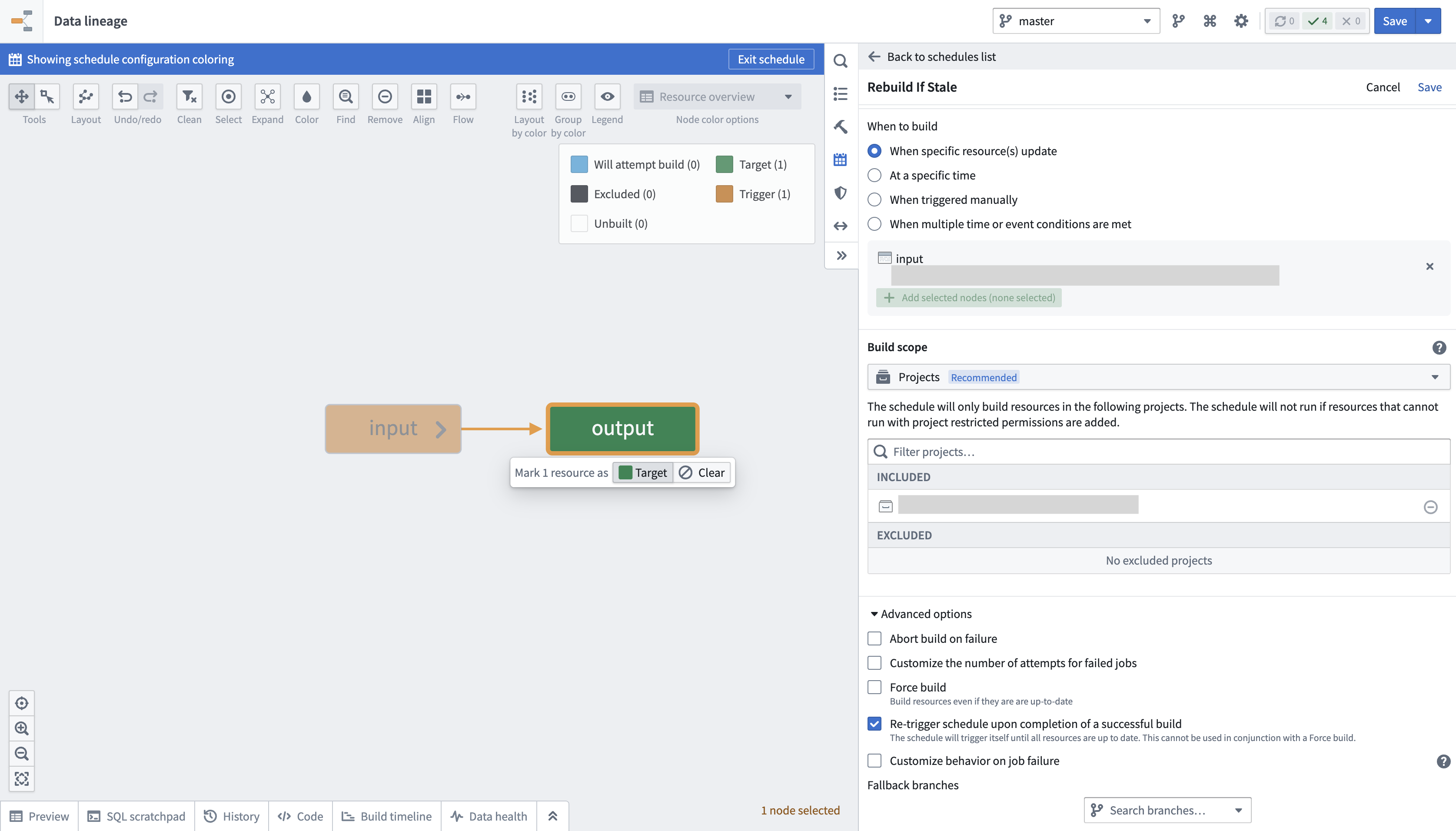
When transaction limits are enabled, a dataset may still be out of date with the latest upstream data after a successful build since only a portion of the data would have been processed. You can configure a schedule to keep building the output dataset until it is up to date with its inputs by following the below steps:
- Navigate to Data Lineage.
- Open the Manage schedule tab in the panel to the right and choose to Create new schedule.
- Set the target resource as the output dataset of the incremental transform configured with transaction limits.
-
In the When to build section, choose an option and configure any additional frequency details:
-
When specific resource(s) update
- At a specific time
- When triggered manually
-
When multiple time or event conditions are met
-
Scroll down to and expand the Advanced options section at the bottom of the panel.
- Enable the option to Re-trigger schedule upon completion of a successful build.
- Select Save at the top right of your screen to save the schedule configuration.
:::callout{neutral} * It is not possible to configure a schedule with both the Re-trigger schedule upon completion of a successful build and Force build options enabled, as the logic of one option will contradict the other. A re-triggered build only occurs until the dataset is no longer stale, while a forced build will occur whether or not the data is stale. Consequently, the schedule will never stop prompting rebuilds if both options are enabled. * If new transactions arrive at a high frequency on the input dataset, the schedule will prompt continuous rebuilding. * The Re-trigger schedule upon completion of a successful build option will only be visible in a schedule's configuration when at least one of its target resources is configured to use a transaction limit. :::
View job transaction ranges
You can verify the ranges of transactions read per input in an incremental job by following the steps below:
- Navigate to the Spark details page of the job you want to inspect.
- Select the Snapshot/Incremental tab.
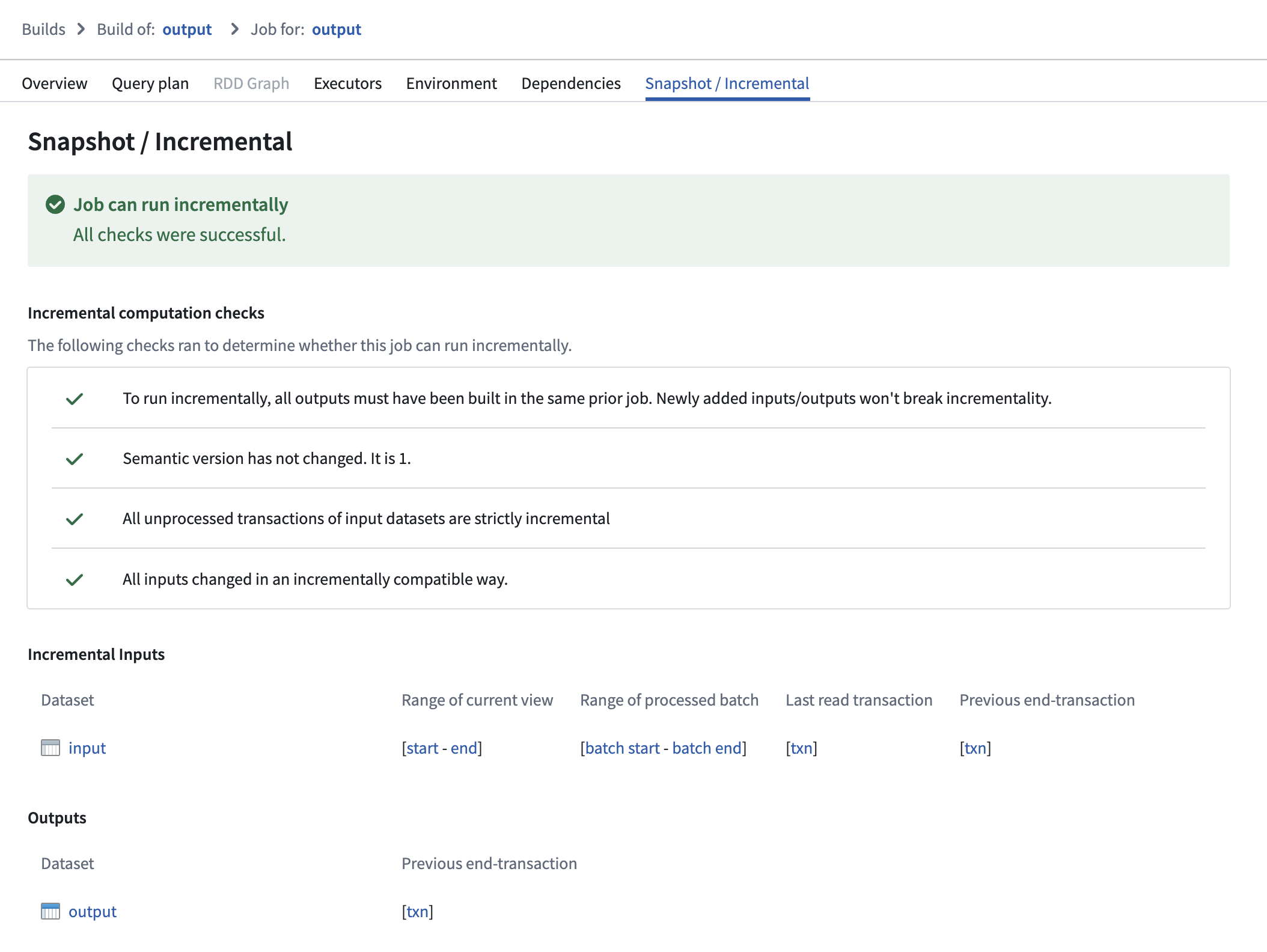
On this page, ranges of transactions are reported per input, displaying which part of each input was processed in both the current and previous job:
- Range of current view: This range represents the start and end transactions of the input’s view that were read in the current job.
- Range of processed batch: This range represents the start and end transactions of the batch within the "range of current view" that was processed in the current job.
- Previous end transaction: This transaction indicates the final transaction of the input’s view from the previous job.
- Last read transaction: This transaction indicates the last transaction of the input that was processed in the previous job. This transaction will be one of the following:
- The same as the "previous end transaction", if one of the following is true:
- The input was processed without a transaction limit in the previous job.
- The input was a configured to use a transaction limit in the previous job, and the processed batch was the final batch of the input.
- A transaction before the "previous end transaction"; this happens when the input used a transaction limit, and the batch that was processed was not the final batch of the input.
Select a transaction to navigate to the History page of the input, where the corresponding transaction will be highlighted.
Understand read ranges for inputs with transaction limits
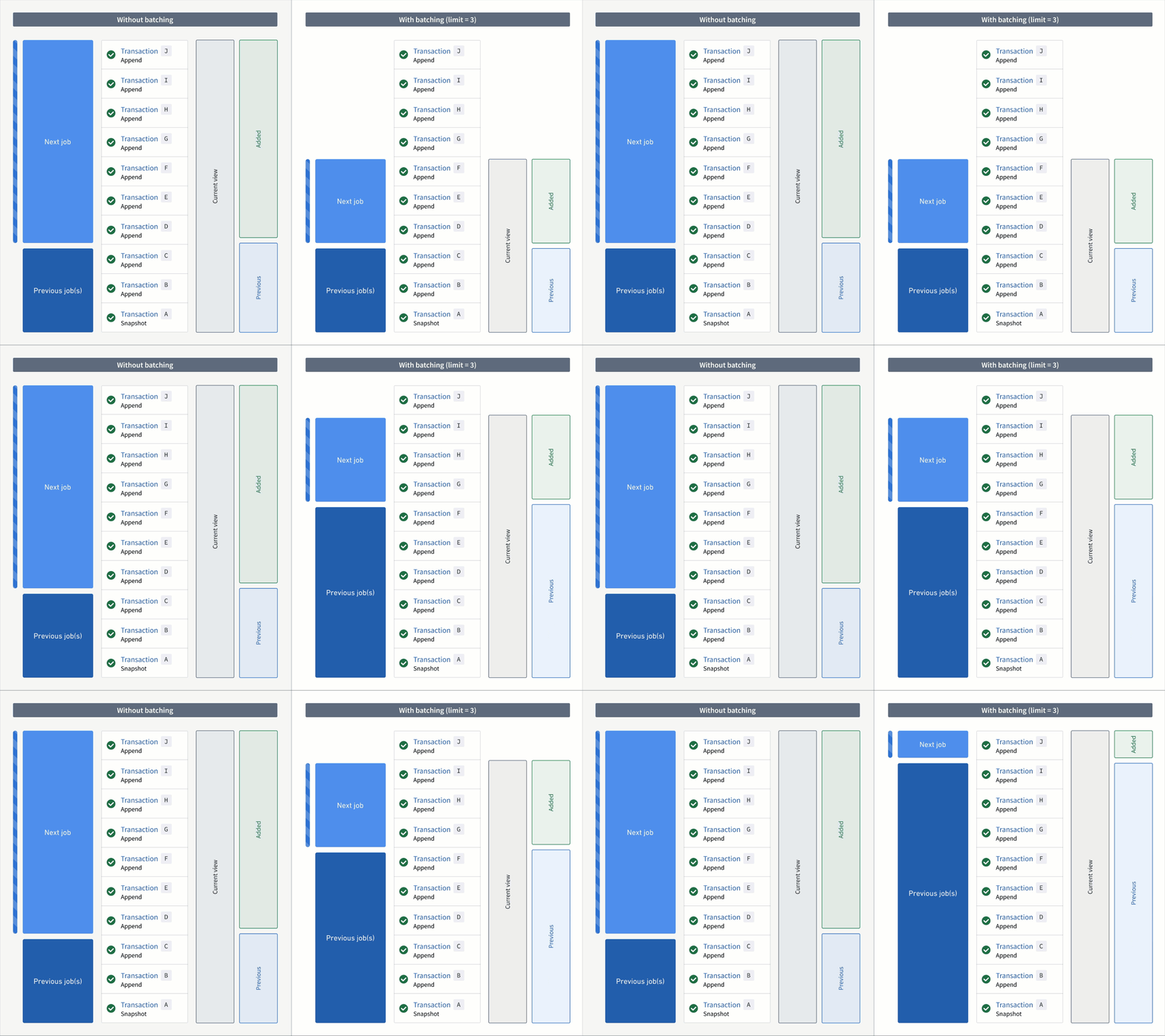
Though the same added, current, and previous read ranges are offered when the input is configured with or without transaction limits, they behave slightly differently.
In the example below, consider an incremental transform where you already processed transactions A to C. Now, assume that a relatively large number of transactions, D to J, are added to the input.
If you read the input without a transaction limit, the range of transactions for each read mode in the next job would be as follows:
- Added:
DtoJ - Previous:
AtoC - Current:
AtoJ
However, if you read the input with a transaction limit of three, you would need three jobs to catch up to the input. The range of transactions for each read mode per job would be as follows:
First job:
- Added:
DtoF(the next three unprocessed transactions) - Previous:
AtoC(all transactions that were processed in the previous job) - Current:
AtoF(all transactions that were processed up to and including this batch)
Second job:
- Added:
GtoI - Previous:
AtoF - Current:
AtoI
Third job:
- Added:
J - Previous:
AtoI - Current:
AtoJ
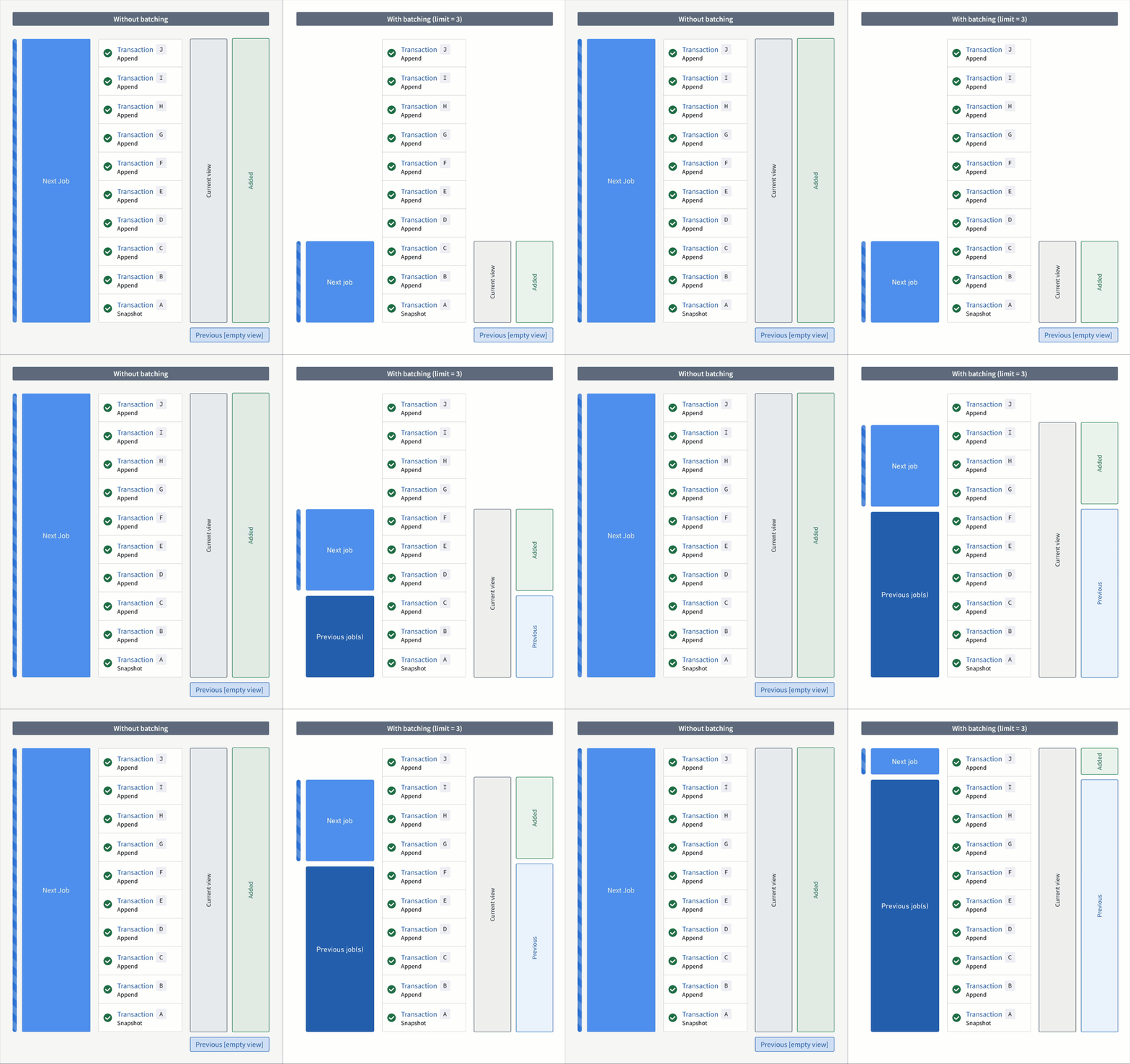
Now, if the output was snapshotted (for example, if the semantic version was changed), transactions would be processed again from the start transaction of the input and result in the resolved ranges below:
Without a transaction limit:
- Added:
AtoJ(all transactions are now "unprocessed") - Previous: none
- Current:
AtoJ
With a incremental input:
First job:
- Added:
AtoC - Previous: none
- Current:
AtoC(all transactions that were processed up to and including this batch)
Second job:
- Added:
DtoF - Previous:
AtoC - Current:
AtoF
Third job:
- Added:
GtoI - Previous:
AtoF - Current:
AtoI
Fourth job:
- Added:
J - Previous:
AtoI - Current:
AtoJ
Requirements and limitations
To use transaction limits in an incremental transform, ensure you have access to the necessary tools and services and that the transforms and datasets meet the requirements below.
The transform must meet the following conditions:
- The incremental decorator is used and the
v2_semanticsargument is set toTrue. - It is configured to use Python transforms version
3.25.0or higher. Configure a job with module pinning to use a specific version of Python transforms. - It cannot be a lightweight transform.
:::callout{theme="warning"}
Enabling v2_semantics on an existing incremental transform will cause the subsequent build to run as SNAPSHOT. This only happens once.
:::
Input datasets must meet the following conditions to be configured with a transaction limit:
- It must be a transactional dataset input.
- In the current view of the dataset, it must have only
APPENDtransactions; however, the starting transaction can be aSNAPSHOT. - It cannot be a snapshot input.
:::callout{theme="warning"}
If any transaction in the current view is a DELETE or UPDATE transaction, the job will fail with a Build2:InvalidTransactionTypeForBatchInputResolution error.
:::
中文翻译
限制增量输入的批次大小
通常情况下,当输出数据集以增量方式构建时,每个输入数据集的所有未处理事务会在同一个作业中被处理。然而,在某些情况下,作业处理的事务数量可能会有显著变化:
您可以在转换的每个增量输入上配置事务限制(transaction limit),以限制每个作业中读取的数据量。
下面的示例配置了一个增量转换,使用以下内容:
- 两个增量输入,每个具有不同的事务限制
- 一个不使用事务限制的增量输入
- 一个快照输入
from transforms.api import transform, Input, Output, incremental

@incremental(
    v2_semantics=True,
    strict_append=True,
    snapshot_inputs=["snapshot_input"]
)
@transform(
    # 配置为最多读取3个事务的增量输入
    input_1=Input("/examples/input_1", transaction_limit=3),

    # 配置为最多读取2个事务的增量输入
    input_2=Input("/examples/input_2", transaction_limit=2),

    # 没有事务限制的增量输入
    input_3=Input("/examples/input_3"),

    # 每次读取完整视图的快照输入
    snapshot_input=Input("/examples/input_4"),

    output=Output("/examples/output")
)
def compute(input_1, input_2, input_3, snapshot_input, output):
    ...
创建构建计划以保持输出更新
当启用事务限制时,数据集在成功构建后可能仍然与最新的上游数据不同步,因为只处理了部分数据。您可以按照以下步骤配置一个计划,持续构建输出数据集,直到其与输入保持同步:
- 导航至数据血缘(Data Lineage)。
- 在右侧面板中打开管理计划(Manage schedule)选项卡,并选择创建新计划(Create new schedule)。
- 将目标资源(target resource)设置为配置了事务限制的增量转换的输出数据集。
-
在何时构建(When to build)部分,选择一个选项并配置任何额外的频率详情:
-
当特定资源更新时
- 在特定时间
- 手动触发时
-
当多个时间或事件条件满足时
-
向下滚动并展开面板底部的高级选项(Advanced options)部分。
- 启用成功构建完成后重新触发计划(Re-trigger schedule upon completion of a successful build)选项。
- 选择屏幕右上角的保存(Save)以保存计划配置。
:::callout{neutral} * 无法同时启用成功构建完成后重新触发计划和强制构建(Force build)选项来配置计划,因为这两个选项的逻辑会相互矛盾。重新触发的构建仅在数据集不再过时时发生,而强制构建无论数据是否过时都会发生。因此,如果同时启用这两个选项,计划将永远不会停止提示重新构建。 * 如果新事务以高频率到达输入数据集,计划将提示持续重新构建。 * 成功构建完成后重新触发计划选项仅在计划配置中至少有一个目标资源配置了事务限制时才会显示。 :::
查看作业事务范围
您可以按照以下步骤验证增量作业中每个输入读取的事务范围:
- 导航至您要检查的作业的Spark详情(Spark details)页面。
- 选择快照/增量(Snapshot/Incremental)选项卡。
在此页面上,每个输入都会报告事务范围,显示当前和先前作业中处理了每个输入的哪一部分:
- 当前视图范围(Range of current view): 此范围表示当前作业中读取的输入视图的起始和结束事务。
- 处理批次范围(Range of processed batch): 此范围表示当前作业中处理的"当前视图范围"内批次的起始和结束事务。
- 先前结束事务(Previous end transaction): 此事务表示先前作业中输入视图的最终事务。
- 最后读取事务(Last read transaction): 此事务表示先前作业中处理的输入的最后一个事务。该事务将是以下之一:
- 与"先前结束事务"相同,如果满足以下任一条件:
- 输入在先前作业中没有事务限制的情况下被处理。
- 输入在先前作业中配置了事务限制,并且处理的批次是输入的最终批次。
- 在"先前结束事务"之前的事务;当输入使用了事务限制,并且处理的批次不是输入的最终批次时,会发生这种情况。
选择一个事务以导航至输入的历史(History)页面,其中相应的事务将被高亮显示。
理解具有事务限制的输入的读取范围
尽管在输入配置了事务限制或不配置事务限制时,提供了相同的added、current和previous读取范围,但它们的行为略有不同。
在下面的示例中,考虑一个增量转换,您已经处理了事务A到C。现在,假设有相对大量的事务D到J被添加到输入中。
如果您没有事务限制地读取输入,下一个作业中每种读取模式的事务范围将如下所示:
- Added:
D到J - Previous:
A到C - Current:
A到J
然而,如果您使用事务限制为三来读取输入,则需要三个作业才能赶上输入。每个作业中每种读取模式的事务范围将如下所示:
第一个作业:
- Added:
D到F(接下来的三个未处理事务) - Previous:
A到C(先前作业中处理的所有事务) - Current:
A到F(截至并包括此批次处理的所有事务)
第二个作业:
- Added:
G到I - Previous:
A到F - Current:
A到I
第三个作业:
- Added:
J - Previous:
A到I - Current:
A到J
现在,如果输出被快照处理(例如,语义版本被更改),事务将从输入的起始事务开始重新处理,并产生以下解析范围:
没有事务限制:
- Added:
A到J(所有事务现在都是"未处理的") - Previous: 无
- Current:
A到J
使用增量输入:
第一个作业:
- Added:
A到C - Previous: 无
- Current:
A到C(截至并包括此批次处理的所有事务)
第二个作业:
- Added:
D到F - Previous:
A到C - Current:
A到F
第三个作业:
- Added:
G到I - Previous:
A到F - Current:
A到I
第四个作业:
- Added:
J - Previous:
A到I - Current:
A到J
要求与限制
要在增量转换中使用事务限制,请确保您有权访问必要的工具和服务,并且转换和数据集满足以下要求。
转换必须满足以下条件:
- 使用了增量(incremental)装饰器,并且
v2_semantics参数设置为True。 - 配置为使用Python转换版本
3.25.0或更高版本。使用模块锁定(module pinning)配置作业以使用特定版本的Python转换。 - 不能是轻量级转换(lightweight transform)。
:::callout{theme="warning"}
在现有增量转换上启用v2_semantics将导致后续构建以SNAPSHOT模式运行。这仅会发生一次。
:::
输入数据集必须满足以下条件才能配置事务限制:
- 必须是事务性数据集(transactional dataset)输入。
- 在数据集的当前视图(current view of the dataset)中,只能有
APPEND事务;但是,起始事务可以是SNAPSHOT。 - 不能是快照输入(snapshot input)。
:::callout{theme="warning"}
如果当前视图中的任何事务是DELETE或UPDATE事务,作业将失败,并显示Build2:InvalidTransactionTypeForBatchInputResolution错误。
:::