Spark sidecar transforms(Spark 边车转换(Spark sidecar transforms))
:::callout{theme="warning" title="Prerequisites"} The following documentation assumes the following prerequisite working knowledge:
Spark sidecar transforms allows you to deploy containerized code while leveraging the existing infrastructure provided by Spark and transforms.
Containerizing code allows you to package any code and any dependencies to run in Foundry. The containerization workflow is integrated with transforms, meaning scheduling, branching, and data health are all seamlessly integrated. Since containerized logic runs alongside Spark executors, you can scale your containerized logic with your input data.
In short, any logic that can run in a container can be used to process, generate, or consume data in Foundry.
If you are familiar with containerization concepts, use the sections below to learn more about using the Spark sidecar transforms:
Learn more about containerization in Foundry.
Architecture
Transforms in Foundry can send data to and from datasets using a Spark driver to distribute processing across multiple executors, as shown in the diagram below:
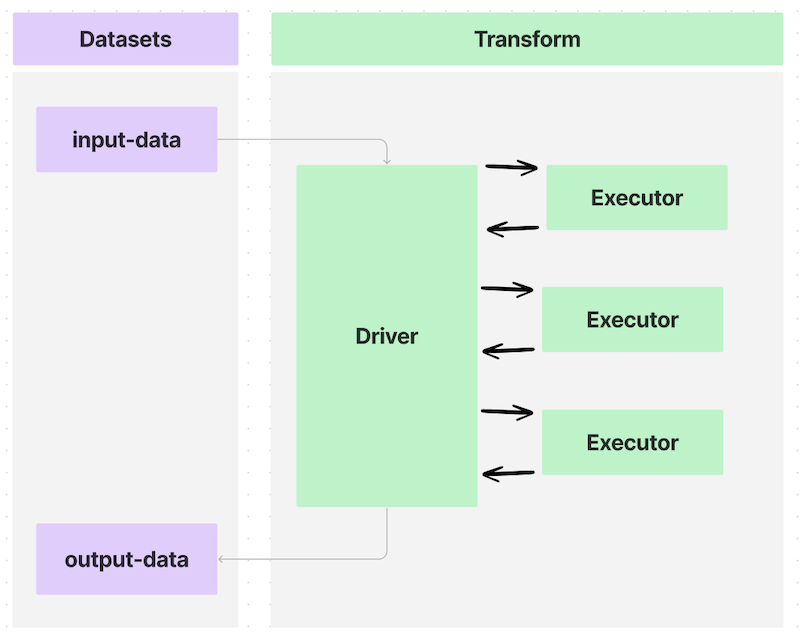
Annotating a transform using the @sidecar decorator (provided in the transforms-sidecar library) allows you to specify exactly one container that launches alongside each executor in a PySpark transform. The user-provided container, made with custom logic and running with each executor, is called the sidecar container.
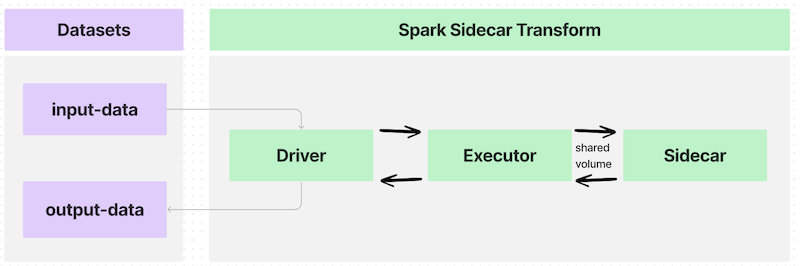
In a simple use case with one executor, the data flow would look like the following:
If you write a transform that partitions an input dataset across many executors, the data flow would look like this:
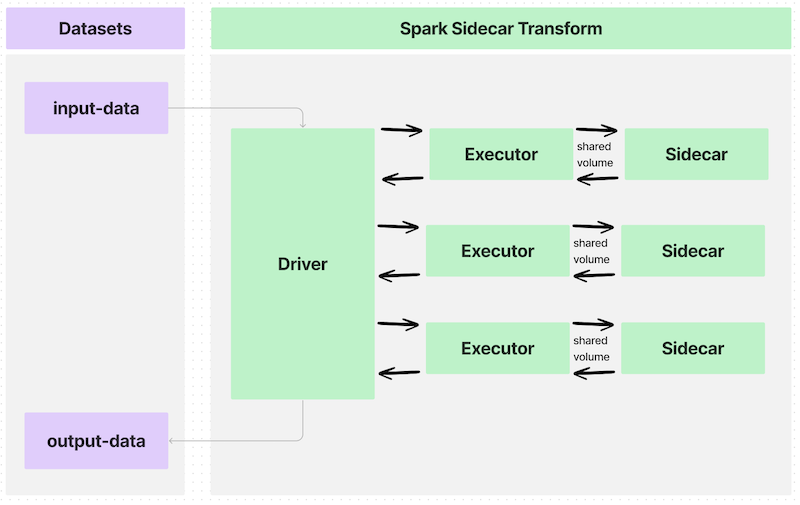
The interface between each executor and the sidecar container is a shared volume, or a directory, to communicate information such as the following:
- When to begin execution of containerized logic
- What input data to process in the container
- What output data to pull out of the container
- When to end execution of the containerized logic
These shared volumes are specified using the Volume argument to the @sidecar decorator and will be subfolders within the path /opt/palantir/sidecars/shared-volumes/.
The next sections will guide you through preparing for and writing your Spark sidecar transforms.
Build an image
To build an image compatible with Spark sidecar transforms, the image must meet the image requirements. The image must also include the critical components described below and included in the example Docker image. To build this example image, you will need the Python script entrypoint.py.
You will need Docker installed on your local computer and must have access to the docker CLI command (official documentation ↗).
Push an image
To push an image, create a new Artifacts repository and follow the instructions to tag and push your image to the relevant Docker repository.
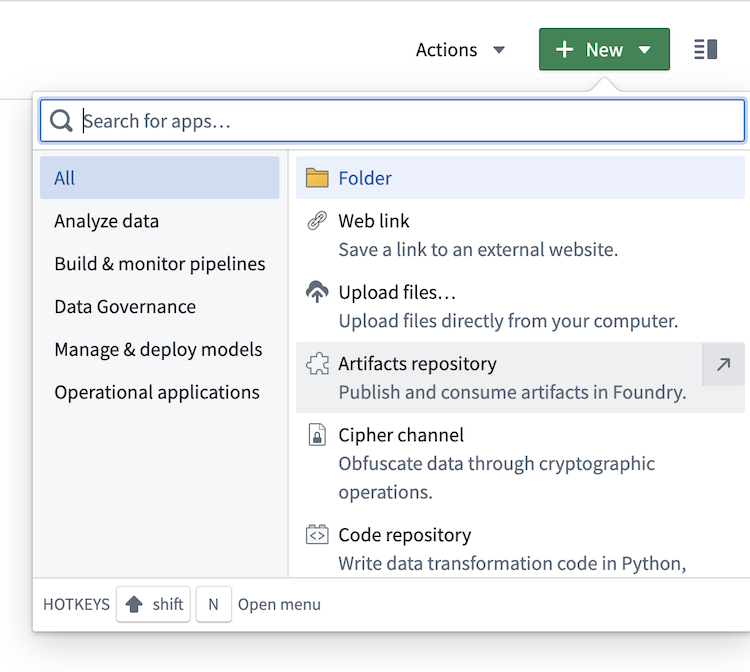
- Change the type to
Docker.
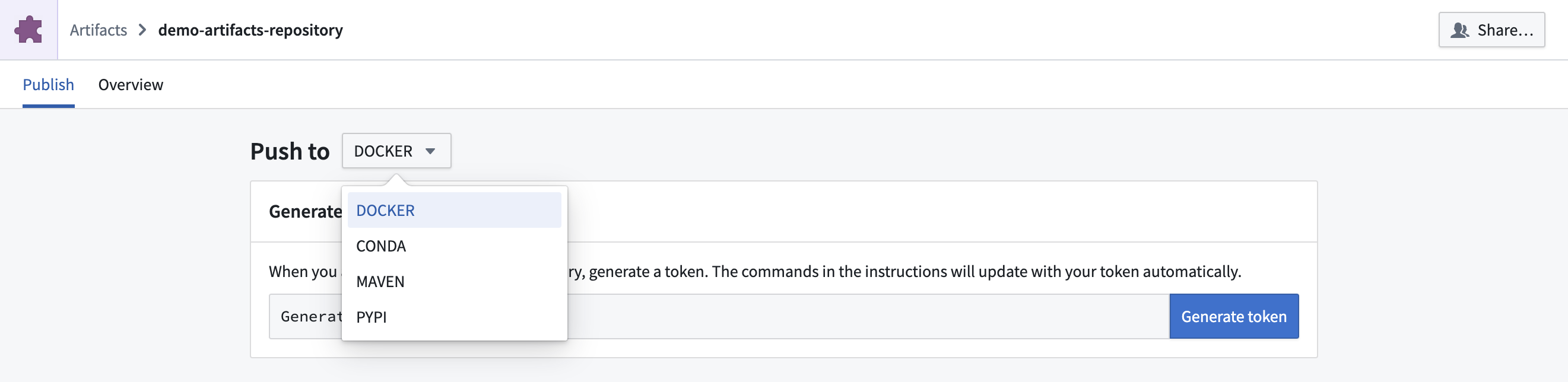
- Follow the on-screen instructions to generate a token.
- Build your example image with the following command pattern:
docker build . --tag <container_registry>/<image_name>:<image_tag> --platform linux/amd64where the following is true: container_registryrepresents the address of your Foundry instance container registry, which you can locate as part of the last command in the instructions for pushing a Docker image to an Artifact repository.image_nameandimage_tagare at your discretion. This example usessimple_example:0.0.1.- Copy and paste the instructions from the Artifacts repository to push the locally built image. Ensure that you replace the
<image_name>:<image_version>in the last command with theimage_nameandimage_versionused in the image building step above.
Write a Spark sidecar transform
- Create a Python data transform repository in the Code Repositories application.
- Under the Libraries tab on the left, add
transforms-sidecarand commit the change. - Under Settings > Libraries, add your Artifact repository.
- Author the transform.
Example 1: Sidecar running as a server
Dockerfile
In a folder on your local computer, add the following contents to a file called Dockerfile:
# Use the official Python image from the Docker Hub
FROM python:3.8-slim

# Set the working directory
WORKDIR /usr/src/app

# Copy application dependency manifest
COPY requirements.txt ./

# Install application dependencies
RUN pip install --no-cache-dir -r requirements.txt

# Copy the application code
COPY . .

# Expose the port the app runs on
EXPOSE 1234

# Run the application
CMD ["python", "app.py"]

USER 1234
In the same folder, add a new file called requirements.txt and list the required Python dependencies:
flask
Server logic
In the same local folder as your Dockerfile, copy the following code snippet into a file named app.py.
from flask import Flask

app = Flask(__name__)

@app.route('/hello')
def hello():
    return 'Hello World'

if __name__ == '__main__':
    app.run(host='0.0.0.0', port=1234)
Server logic
In your Foundry Python code repository, write the following example transform to call the /hello endpoint on the sidecar and save the response to the output:
import requests

from transforms.api import Output, transform_df
from transforms.sidecar import sidecar


@sidecar(image='simple-example', tag='0.0.1')
@transform_df(
    Output("<output dataset rid>"),
)
def compute(ctx):
    response = requests.get('http://localhost:1234/hello')

    data = [(response.text,)]

    columns = ["response_text"]
    return ctx.spark_session.createDataFrame(data, columns)
Example 2: Sidecar wrapping a CLI
Dockerfile
In a folder on your local computer, add the following contents to a file called Dockerfile:
FROM fedora:38

ADD entrypoint.py /usr/bin/entrypoint
RUN chmod +x /usr/bin/entrypoint

RUN mkdir -p /opt/palantir/sidecars/shared-volumes/shared/
RUN chown 5001 /opt/palantir/sidecars/shared-volumes/shared/
ENV SHARED_DIR=/opt/palantir/sidecars/shared-volumes/shared

USER 5001

ENTRYPOINT entrypoint -c "dd if=$SHARED_DIR/infile.csv of=$SHARED_DIR/outfile.csv"
Customized Dockerfile
You can build your own Dockerfile, as above, but make sure to cover the following:
-
Specify a numeric non-root user on line 10. This is one of the image requirements and helps to maintain a proper security posture where containers are not given privileged execution.
-
Place the creation of a shared volume on lines 6-8. As discussed in the architecture section above, shared volumes that are subdirectories within
/opt/palantir/sidecars/shared-volumes/are the primary method in which the input data and output data are shared from the PySpark transform to the sidecar container. -
Line 6 creates the directory.
- Line 7 ensures the directory is permissioned to the created user.
-
Line 8 stores the path to this shared directory as an environment variable for reference elsewhere.
-
Add a simple
entrypointscript to the container on line 3 and set as theENTRYPOINTon line 12. This step is critical, as Spark sidecar transforms do not natively instruct the sidecar container to wait for input data to be available before the container launches. Additionally, sidecar transforms do not tell the container to stay alive and wait for the output data to be copied off. The providedentrypointscript uses Python to tell the container to wait for astart_flagfile to be written to the shared volume before the specified logic executes. When the specified logic finishes, it writes adone_flagto the same directory. The container will wait for aclose_flagto be written to the shared volume before it will stop itself and be automatically cleaned up.
As shown in the example above, the containerized logic uses the POSIX Disk Dump (dd) utility to copy and input CSV files from the shared directory to an output file stored in the same directory. This “command”, which is passed into the entrypoint script, could be any logic that can execute in the container.
Entrypoint
In the same local folder as your Dockerfile, copy the following code snippet into a file named entrypoint.py.
#!/usr/bin/env python3

import os
import time
import subprocess
from datetime import datetime

import argparse

parser = argparse.ArgumentParser()
parser.add_argument("-c", "--command", type=str, help="model command to execute")
args = parser.parse_args()
the_command = args.command.split(" ")


def run_process(exe):
    "Define a function for running commands and capturing stdout line by line"
    p = subprocess.Popen(exe, stdout=subprocess.PIPE, stderr=subprocess.STDOUT)
    return iter(p.stdout.readline, b"")


start_flag_fname = "/opt/palantir/sidecars/shared-volumes/shared/start_flag"
done_flag_fname = "/opt/palantir/sidecars/shared-volumes/shared/done_flag"
close_flag_fname = "/opt/palantir/sidecars/shared-volumes/shared/close_flag"

# Wait for start flag
print(f"{datetime.utcnow().isoformat()}: waiting for start flag")
while not os.path.exists(start_flag_fname):
    time.sleep(1)
print(f"{datetime.utcnow().isoformat()}: start flag detected")

# Execute model, logging output to file
with open("/opt/palantir/sidecars/shared-volumes/shared/logfile", "w") as logfile:
    for item in run_process(the_command):
        my_string = f"{datetime.utcnow().isoformat()}: {item}"
        print(my_string)
        logfile.write(my_string)
        logfile.flush()
print(f"{datetime.utcnow().isoformat()}: execution finished writing output file")

# Write out the done flag
open(done_flag_fname, "w")
print(f"{datetime.utcnow().isoformat()}: done flag file written")

# Wait for close flag before allowing the script to finish
while not os.path.exists(close_flag_fname):
    time.sleep(1)
print(f"{datetime.utcnow().isoformat()}: close flag detected. shutting down")
The following examples will review the key information required to get started with sidecar transforms. Both examples use the same utilities file found here that you can add to your code repository and import as shown below.
Example 1: Single execution
The transform below imports the @sidecar decorator and the Volume primitive from the transforms-sidecar library.
The transform uses both items for annotation so that one instance of the simple-example:0.0.1 container is launched with each executor. Each executor/sidecar pair will have a shared volume at /opt/palantir/sidecars/shared-volumes/shared.
This first example launches one instance of the container with one executor and follows the architecture shown in the image below:
The transform then uses the utility function lanch_udf_once to launch one instance of the user_defined_function. That user-defined function will run on one executor and communicate with one instance of the sidecar container. The user-defined function will invoke the imported utility functions to do the following:
- Copy the input files to the shared directory so they are accessible to the sidecar container.
- Copy the start flag so the sidecar container knows to execute.
- Wait for the containerized logic to finish.
- Copy out the files created by the containerized logic.
- Copy a close flag so the container can stop and be cleaned up.
from transforms.api import transform, Input, Output
from transforms.sidecar import sidecar, Volume
from myproject.datasets.utils import copy_files_to_shared_directory, copy_start_flag, wait_for_done_flag
from myproject.datasets.utils import copy_output_files, copy_close_flag, launch_udf_once


@sidecar(image='simple-example', tag='0.0.1', volumes=[Volume("shared")])
@transform(
    output=Output("<output dataset rid>"),
    source=Input("<input dataset rid>"),
)
def compute(output, source, ctx):
    def user_defined_function(row):
        # Copy files from source to shared directory.
        copy_files_to_shared_directory(source)
        # Send the start flag so the container knows it has all the input files
        copy_start_flag()
        # Iterate till the stop flag is written or we hit the max time limit
        wait_for_done_flag()
        # Copy out output files from the container to an output dataset
        output_fnames = [
            "start_flag",
            "outfile.csv",
            "logfile",
            "done_flag",
        ]
        copy_output_files(output, output_fnames)
        # Write the close flag so the container knows you have extracted the data
        copy_close_flag()
        # The user defined function must return something
        return (row.ExecutionID, "success")
    # This spawns one task, which maps to one executor, and launches one "sidecar container"
    launch_udf_once(ctx, user_defined_function)
Example 2: Parallel execution
This example launches many instances of the sidecar container, each processing a subset of the input data. The information is then collected and saved to output datasets. This example more closely resembles the architecture shown below:
The following transform uses different utility functions to partition the input data and send individual files to each container, performing the same execution on different chunks of input data. The utility functions are written to save the output files as both individual files and as a tabular output dataset.
You will see the same parameters configured for the @sidecar decorator and Volume specification, as in Example 1.
An @configure flag is set to ensure that only one task launches per executor and that exactly four total executors can launch. This configuration, combined with the fact that the input dataset has exactly four rows of data and the input repartition is set to 4, means that four instances of the user-defined function will launch on four executors. Therefore, exactly four instances of the sidecar container will launch and process their segment of the input data.
Ensure that your repository has the two Spark profiles imported under Settings > Spark.
from transforms.api import transform, Input, Output, configure
from transforms.sidecar import sidecar, Volume
import uuid
from myproject.datasets.utils import copy_start_flag, wait_for_done_flag, copy_close_flag
from myproject.datasets.utils import write_this_row_as_a_csv_with_one_row
from myproject.datasets.utils import copy_output_files_with_prefix, copy_out_a_row_from_the_output_csv


@configure(["EXECUTOR_CORES_EXTRA_SMALL", "NUM_EXECUTORS_4"])
@sidecar(image='simple-example', tag='0.0.1', volumes=[Volume("shared")])
@transform(
    output=Output("<first output dataset rid>"),
    output_rows=Output("<second output dataset rid>"),
    source=Input("<input dataset rid>"),
)
def compute(output, output_rows, source, ctx):

    def user_defined_function(row):
        # Copy files from source to shared directory
        write_this_row_as_a_csv_with_one_row(row)

        # Send the start flag so the container knows it has all the input files.
        copy_start_flag()

        # Iterate until the stop flag is written or you hit the maximum time limit.
        wait_for_done_flag()

        # Copy output files from the container to the output datasets
        output_fnames = [
            "start_flag",
            "infile.csv",
            "outfile.csv",
            "logfile",
            "done_flag",
        ]
        random_unique_prefix = f'{uuid.uuid4()}'[:8]
        copy_output_files_with_prefix(output, output_fnames, random_unique_prefix)

        outdata1, outdata2, outdata3 = copy_out_a_row_from_the_output_csv()

        # Write the close flag so the container knows you have extracted the data.
        copy_close_flag()

        # The user-defined function must return something.
        return (row.data1, row.data2, row.data3, "success", outdata1, outdata2, outdata3)

    results = source.dataframe().repartition(4).rdd.map(user_defined_function)
    columns = ["data1", "data2", "data3", "success", "outdata1", "outdata2", "outdata3"]
    output_rows.write_dataframe(results.toDF(columns))
Example utilities
utils.py
import os
import shutil
import time
import csv
import pyspark.sql.types as T

VOLUME_PATH = "/opt/palantir/sidecars/shared-volumes/shared"
MAX_RUN_MINUTES = 10


def write_this_row_as_a_csv_with_one_row(row):
    in_path = "/opt/palantir/sidecars/shared-volumes/shared/infile.csv"
    with open(in_path, 'w', newline='') as csvfile:
        writer = csv.writer(csvfile, delimiter=',')
        writer.writerow(['data1', 'data2', 'data3'])
        writer.writerow([row.data1, row.data2, row.data3])


def copy_out_a_row_from_the_output_csv():
    out_path = "/opt/palantir/sidecars/shared-volumes/shared/outfile.csv"
    with open(out_path, newline='') as csvfile:
        reader = csv.reader(csvfile, delimiter=',', quotechar='|')
        values = "", "", ""
        for myrow in reader:
            values = myrow[0], myrow[1], myrow[2]
        return values


def copy_output_files_with_prefix(output, output_fnames, prefix):
    for file_path in output_fnames:
        output_fs = output.filesystem()
        out_path = os.path.join(VOLUME_PATH, file_path)
        try:
            with open(out_path, "rb") as shared_file:
                with output_fs.open(f'{prefix}_{file_path}', "wb") as output_file:
                    shutil.copyfileobj(shared_file, output_file)
        except FileNotFoundError as err:
            print(err)


def copy_files_to_shared_directory(source):
    source_fs = source.filesystem()
    for item in source_fs.ls():
        file_path = item.path
        with source_fs.open(file_path, "rb") as source_file:
            dest_path = os.path.join(VOLUME_PATH, file_path)
            with open(dest_path, "wb") as shared_file:
                shutil.copyfileobj(source_file, shared_file)


def copy_start_flag():
    open(os.path.join(VOLUME_PATH, 'start_flag'), 'w')
    time.sleep(1)


def wait_for_done_flag():
    i = 0
    while i < 60 * MAX_RUN_MINUTES and not os.path.exists(os.path.join(VOLUME_PATH, 'done_flag')):
        i += 1
        time.sleep(1)


def copy_output_files(output, output_fnames):
    for file_path in output_fnames:
        output_fs = output.filesystem()
        out_path = os.path.join(VOLUME_PATH, file_path)
        try:
            with open(out_path, "rb") as shared_file:
                with output_fs.open(file_path, "wb") as output_file:
                    shutil.copyfileobj(shared_file, output_file)
        except FileNotFoundError as err:
            print(err)


def copy_close_flag():
    time.sleep(5)
    open(os.path.join(VOLUME_PATH, 'close_flag'), 'w')  # send the close flag


def launch_udf_once(ctx, user_defined_function):
    # Using a dataframe with a single row, launch user_defined_function once on that row
    schema = T.StructType([T.StructField("ExecutionID", T.IntegerType())])
    ctx.spark_session.createDataFrame([{"ExecutionID": 1}], schema=schema).rdd.foreach(user_defined_function)
Resource profiles
The @sidecar decorator supports a resource_profile parameter that allows you to specify the computational resources allocated to each sidecar container. This parameter controls the CPU, memory, and GPU resources available to your containerized workload.
Available resource profiles
The following resource profiles are available:
| Profile | CPU Cores | Memory | GPU | Shared Memory |
|---|---|---|---|---|
SMALL_CPU_SMALL_MEMORY |
1 | 3GB | None | None |
MEDIUM_CPU_MEDIUM_MEMORY |
2 | 6GB | None | None |
MEDIUM_CPU_MEDIUM_MEMORY_SMALL_SHARED_MEMORY |
2 | 6GB | None | 2GB |
LARGE_CPU_LARGE_MEMORY |
4 | 13GB | None | None |
LARGE_CPU_LARGE_MEMORY_GPU_ENABLED |
4 | 13GB | 1x NVIDIA | None |
X_LARGE_CPU_X_LARGE_MEMORY |
8 | 27GB | None | None |
X_LARGE_CPU_X_LARGE_MEMORY_GPU_ENABLED |
8 | 27GB | 1x NVIDIA | None |
XX_LARGE_CPU_XX_LARGE_MEMORY |
16 | 54GB | None | None |
中文翻译
Spark 边车转换(Spark sidecar transforms)
:::callout{theme="warning" title="先决条件"} 以下文档假定您具备以下先决基础知识:
Spark 边车转换允许您在利用 Spark 和转换提供的现有基础设施的同时部署容器化代码。
代码容器化使您能够打包任意代码及其依赖项并在 Foundry 中运行。容器化工作流与转换深度集成,这意味着调度、分支和数据健康度等功能均可无缝衔接。由于容器化逻辑与 Spark 执行器并行运行,您可以根据输入数据规模扩展容器化逻辑。
简而言之,任何可在容器中运行的逻辑均可用于在 Foundry 中处理、生成或消费数据。
如果您熟悉容器化概念,请使用以下章节了解有关使用 Spark 边车转换的更多信息:
架构
Foundry 中的转换可以使用 Spark 驱动程序在多个执行器之间分配处理任务,从而实现数据集之间的数据收发,如下图所示:
使用 transforms-sidecar 库提供的 @sidecar 装饰器注解转换,可以精确指定一个与 PySpark 转换中每个执行器一同启动的容器。这个由用户提供、包含自定义逻辑并与每个执行器一同运行的容器称为边车容器(Sidecar container)。
在只有一个执行器的简单用例中,数据流如下所示:
如果您编写的转换将输入数据集分区并分配到多个执行器,数据流将如下所示:
每个执行器与边车容器之间的接口是一个共享卷(Shared volume)或目录,用于传递以下等信息:
- 何时开始执行容器化逻辑
- 容器中要处理哪些输入数据
- 从容器中提取哪些输出数据
- 何时结束容器化逻辑的执行
这些共享卷通过 @sidecar 装饰器的 Volume 参数指定,并将作为 /opt/palantir/sidecars/shared-volumes/ 路径下的子文件夹。
接下来的章节将指导您准备并编写 Spark 边车转换。
构建镜像
要构建与 Spark 边车转换兼容的镜像,该镜像必须满足镜像要求。此外,镜像还必须包含下文所述及示例 Docker 镜像中包含的关键组件。要构建此示例镜像,您需要 Python 脚本 entrypoint.py。
您需要在本地计算机上安装 Docker,并且必须有权访问 docker CLI 命令(官方文档 ↗)。
推送镜像
要推送镜像,请创建一个新的 Artifacts 仓库,并按照说明为镜像打标签并将其推送到相关的 Docker 仓库。
- 将类型更改为
Docker。
- 按照屏幕上的说明生成令牌。
- 使用以下命令模式构建示例镜像:
docker build . --tag <container_registry>/<image_name>:<image_tag> --platform linux/amd64,其中: container_registry代表您的 Foundry 实例容器注册表的地址,您可以在将 Docker 镜像推送到 Artifacts 仓库的说明中的最后一条命令里找到该地址。image_name和image_tag由您自行决定。本示例使用simple_example:0.0.1。- 复制并粘贴 Artifacts 仓库中的说明以推送本地构建的镜像。确保将最后一条命令中的
<image_name>:<image_version>替换为上述镜像构建步骤中使用的image_name和image_version。
编写 Spark 边车转换
- 在 Code Repositories 应用中创建一个 Python 数据转换仓库。
- 在左侧的 Libraries 选项卡下,添加
transforms-sidecar并提交更改。 - 在 Settings > Libraries 下,添加您的 Artifacts 仓库。
- 编写转换代码。
示例 1:作为服务器运行的边车
Dockerfile
在本地计算机的某个文件夹中,将以下内容添加到名为 Dockerfile 的文件中:
# Use the official Python image from the Docker Hub
FROM python:3.8-slim

# Set the working directory
WORKDIR /usr/src/app

# Copy application dependency manifest
COPY requirements.txt ./

# Install application dependencies
RUN pip install --no-cache-dir -r requirements.txt

# Copy the application code
COPY . .

# Expose the port the app runs on
EXPOSE 1234

# Run the application
CMD ["python", "app.py"]

USER 1234
在同一文件夹中,添加一个名为 requirements.txt 的新文件,并列出所需的 Python 依赖项:
flask
服务器逻辑
在与 Dockerfile 相同的本地文件夹中,将以下代码片段复制到名为 app.py 的文件中。
from flask import Flask

app = Flask(__name__)

@app.route('/hello')
def hello():
    return 'Hello World'

if __name__ == '__main__':
    app.run(host='0.0.0.0', port=1234)
服务器逻辑
在您的 Foundry Python 代码仓库中,编写以下示例转换,以调用边车上的 /hello 端点并将响应保存到输出:
import requests

from transforms.api import Output, transform_df
from transforms.sidecar import sidecar


@sidecar(image='simple-example', tag='0.0.1')
@transform_df(
    Output("<output dataset rid>"),
)
def compute(ctx):
    response = requests.get('http://localhost:1234/hello')

    data = [(response.text,)]

    columns = ["response_text"]
    return ctx.spark_session.createDataFrame(data, columns)
示例 2:封装 CLI 的边车
Dockerfile
在本地计算机的某个文件夹中,将以下内容添加到名为 Dockerfile 的文件中:
FROM fedora:38

ADD entrypoint.py /usr/bin/entrypoint
RUN chmod +x /usr/bin/entrypoint

RUN mkdir -p /opt/palantir/sidecars/shared-volumes/shared/
RUN chown 5001 /opt/palantir/sidecars/shared-volumes/shared/
ENV SHARED_DIR=/opt/palantir/sidecars/shared-volumes/shared

USER 5001

ENTRYPOINT entrypoint -c "dd if=$SHARED_DIR/infile.csv of=$SHARED_DIR/outfile.csv"
自定义 Dockerfile
您可以像上面一样构建自己的 Dockerfile,但请确保涵盖以下内容:
-
在第 10 行指定数字非 root 用户。这是镜像要求之一,有助于维持适当的安全态势,防止容器获得特权执行权限。
-
在第 6-8 行放置共享卷的创建。正如上文架构部分所述,作为
/opt/palantir/sidecars/shared-volumes/子目录的共享卷是 PySpark 转换与边车容器共享输入和输出数据的主要方法。 -
第 6 行创建目录。
- 第 7 行确保该目录的权限归属于创建的用户。
-
第 8 行将此共享目录的路径存储为环境变量,以便在其他地方引用。
-
在第 3 行向容器添加一个简单的
entrypoint脚本,并在第 12 行将其设置为ENTRYPOINT。此步骤至关重要,因为 Spark 边车转换本身不会指示边车容器在启动前等待输入数据就绪。此外,边车转换也不会通知容器保持运行并等待输出数据被复制走。提供的entrypoint脚本使用 Python 通知容器在执行指定逻辑前等待start_flag文件写入共享卷。当指定逻辑完成时,它会向同一目录写入done_flag。容器将等待close_flag写入共享卷,然后才会自行停止并被自动清理。
如上例所示,容器化逻辑使用 POSIX Disk Dump (dd) 实用程序将输入 CSV 文件从共享目录复制到存储在同一目录中的输出文件。这个传递到 entrypoint 脚本的“命令”可以是任何能在容器中执行的逻辑。
Entrypoint
在与 Dockerfile 相同的本地文件夹中,将以下代码片段复制到名为 entrypoint.py 的文件中。
#!/usr/bin/env python3

import os
import time
import subprocess
from datetime import datetime

import argparse

parser = argparse.ArgumentParser()
parser.add_argument("-c", "--command", type=str, help="model command to execute")
args = parser.parse_args()
the_command = args.command.split(" ")


def run_process(exe):
    "Define a function for running commands and capturing stdout line by line"
    p = subprocess.Popen(exe, stdout=subprocess.PIPE, stderr=subprocess.STDOUT)
    return iter(p.stdout.readline, b"")


start_flag_fname = "/opt/palantir/sidecars/shared-volumes/shared/start_flag"
done_flag_fname = "/opt/palantir/sidecars/shared-volumes/shared/done_flag"
close_flag_fname = "/opt/palantir/sidecars/shared-volumes/shared/close_flag"

# Wait for start flag
print(f"{datetime.utcnow().isoformat()}: waiting for start flag")
while not os.path.exists(start_flag_fname):
    time.sleep(1)
print(f"{datetime.utcnow().isoformat()}: start flag detected")

# Execute model, logging output to file
with open("/opt/palantir/sidecars/shared-volumes/shared/logfile", "w") as logfile:
    for item in run_process(the_command):
        my_string = f"{datetime.utcnow().isoformat()}: {item}"
        print(my_string)
        logfile.write(my_string)
        logfile.flush()
print(f"{datetime.utcnow().isoformat()}: execution finished writing output file")

# Write out the done flag
open(done_flag_fname, "w")
print(f"{datetime.utcnow().isoformat()}: done flag file written")

# Wait for close flag before allowing the script to finish
while not os.path.exists(close_flag_fname):
    time.sleep(1)
print(f"{datetime.utcnow().isoformat()}: close flag detected. shutting down")
以下示例将回顾开始使用边车转换所需的关键信息。这两个示例都使用此处提供的同一个实用工具文件,您可以将其添加到代码仓库中并按如下所示导入。
示例 1:单次执行
下面的转换从 transforms-sidecar 库导入 @sidecar 装饰器和 Volume 基元。
该转换使用这两个项目进行注解,以便每个执行器启动一个 simple-example:0.0.1 容器实例。每个执行器/边车对将在 /opt/palantir/sidecars/shared-volumes/shared 处拥有一个共享卷。
第一个示例使用一个执行器启动一个容器实例,并遵循下图所示的架构:
然后,该转换使用实用工具函数 lanch_udf_once 启动一个 user_defined_function 实例。该用户定义函数将在一个执行器上运行,并与一个边车容器实例通信。用户定义函数将调用导入的实用工具函数来执行以下操作:
- 将输入文件复制到共享目录,以便边车容器可以访问。
- 复制启动标志,以便边车容器知道开始执行。
- 等待容器化逻辑完成。
- 复制出由容器化逻辑创建的文件。
- 复制关闭标志,以便容器停止并被清理。
from transforms.api import transform, Input, Output
from transforms.sidecar import sidecar, Volume
from myproject.datasets.utils import copy_files_to_shared_directory, copy_start_flag, wait_for_done_flag
from myproject.datasets.utils import copy_output_files, copy_close_flag, launch_udf_once


@sidecar(image='simple-example', tag='0.0.1', volumes=[Volume("shared")])
@transform(
    output=Output("<output dataset rid>"),
    source=Input("<input dataset rid>"),
)
def compute(output, source, ctx):
    def user_defined_function(row):
        # Copy files from source to shared directory.
        copy_files_to_shared_directory(source)
        # Send the start flag so the container knows it has all the input files
        copy_start_flag()
        # Iterate till the stop flag is written or we hit the max time limit
        wait_for_done_flag()
        # Copy out output files from the container to an output dataset
        output_fnames = [
            "start_flag",
            "outfile.csv",
            "logfile",
            "done_flag",
        ]
        copy_output_files(output, output_fnames)
        # Write the close flag so the container knows you have extracted the data
        copy_close_flag()
        # The user defined function must return something
        return (row.ExecutionID, "success")
    # This spawns one task, which maps to one executor, and launches one "sidecar container"
    launch_udf_once(ctx, user_defined_function)
示例 2:并行执行
此示例启动多个边车容器实例,每个实例处理输入数据的一个子集。然后收集信息并保存到输出数据集。此示例更贴近下图所示的架构:
以下转换使用不同的实用工具函数对输入数据进行分区,并将单独的文件发送到每个容器,对不同的输入数据块执行相同的操作。这些实用工具函数旨在将输出文件既保存为单独的文件,也保存为表格形式的输出数据集。
您将看到与示例 1 中相同的 @sidecar 装饰器参数和 Volume 规范配置。
设置 @configure 标志以确保每个执行器仅启动一个任务,并且总共恰好启动四个执行器。此配置结合输入数据集恰好包含四行数据且输入重分区设置为 4 的事实,意味着将在四个执行器上启动四个用户定义函数实例。因此,将恰好启动四个边车容器实例并处理其各自的输入数据分段。
确保您的仓库在 Settings > Spark 下导入了两个 Spark 配置文件。
from transforms.api import transform, Input, Output, configure
from transforms.sidecar import sidecar, Volume
import uuid
from myproject.datasets.utils import copy_start_flag, wait_for_done_flag, copy_close_flag
from myproject.datasets.utils import write_this_row_as_a_csv_with_one_row
from myproject.datasets.utils import copy_output_files_with_prefix, copy_out_a_row_from_the_output_csv


@configure(["EXECUTOR_CORES_EXTRA_SMALL", "NUM_EXECUTORS_4"])
@sidecar(image='simple-example', tag='0.0.1', volumes=[Volume("shared")])
@transform(
    output=Output("<first output dataset rid>"),
    output_rows=Output("<second output dataset rid>"),
    source=Input("<input dataset rid>"),
)
def compute(output, output_rows, source, ctx):

    def user_defined_function(row):
        # Copy files from source to shared directory
        write_this_row_as_a_csv_with_one_row(row)

        # Send the start flag so the container knows it has all the input files.
        copy_start_flag()

        # Iterate until the stop flag is written or you hit the maximum time limit.
        wait_for_done_flag()

        # Copy output files from the container to the output datasets
        output_fnames = [
            "start_flag",
            "infile.csv",
            "outfile.csv",
            "logfile",
            "done_flag",
        ]
        random_unique_prefix = f'{uuid.uuid4()}'[:8]
        copy_output_files_with_prefix(output, output_fnames, random_unique_prefix)

        outdata1, outdata2, outdata3 = copy_out_a_row_from_the_output_csv()

        # Write the close flag so the container knows you have extracted the data.
        copy_close_flag()

        # The user-defined function must return something.
        return (row.data1, row.data2, row.data3, "success", outdata1, outdata2, outdata3)

    results = source.dataframe().repartition(4).rdd.map(user_defined_function)
    columns = ["data1", "data2", "data3", "success", "outdata1", "outdata2", "outdata3"]
    output_rows.write_dataframe(results.toDF(columns))
示例实用工具
utils.py
import os
import shutil
import time
import csv
import pyspark.sql.types as T

VOLUME_PATH = "/opt/palantir/sidecars/shared-volumes/shared"
MAX_RUN_MINUTES = 10


def write_this_row_as_a_csv_with_one_row(row):
    in_path = "/opt/palantir/sidecars/shared-volumes/shared/infile.csv"
    with open(in_path, 'w', newline='') as csvfile:
        writer = csv.writer(csvfile, delimiter=',')
        writer.writerow(['data1', 'data2', 'data3'])
        writer.writerow([row.data1, row.data2, row.data3])


def copy_out_a_row_from_the_output_csv():
    out_path = "/opt/palantir/sidecars/shared-volumes/shared/outfile.csv"
    with open(out_path, newline='') as csvfile:
        reader = csv.reader(csvfile, delimiter=',', quotechar='|')
        values = "", "", ""
        for myrow in reader:
            values = myrow[0], myrow[1], myrow[2]
        return values


def copy_output_files_with_prefix(output, output_fnames, prefix):
    for file_path in output_fnames:
        output_fs = output.filesystem()
        out_path = os.path.join(VOLUME_PATH, file_path)
        try:
            with open(out_path, "rb") as shared_file:
                with output_fs.open(f'{prefix}_{file_path}', "wb") as output_file:
                    shutil.copyfileobj(shared_file, output_file)
        except FileNotFoundError as err:
            print(err)


def copy_files_to_shared_directory(source):
    source_fs = source.filesystem()
    for item in source_fs.ls():
        file_path = item.path
        with source_fs.open(file_path, "rb") as source_file:
            dest_path = os.path.join(VOLUME_PATH, file_path)
            with open(dest_path, "wb") as shared_file:
                shutil.copyfileobj(source_file, shared_file)


def copy_start_flag():
    open(os.path.join(VOLUME_PATH, 'start_flag'), 'w')
    time.sleep(1)


def wait_for_done_flag():
    i = 0
    while i < 60 * MAX_RUN_MINUTES and not os.path.exists(os.path.join(VOLUME_PATH, 'done_flag')):
        i += 1
        time.sleep(1)


def copy_output_files(output, output_fnames):
    for file_path in output_fnames:
        output_fs = output.filesystem()
        out_path = os.path.join(VOLUME_PATH, file_path)
        try:
            with open(out_path, "rb") as shared_file:
                with output_fs.open(file_path, "wb") as output_file:
                    shutil.copyfileobj(shared_file, output_file)
        except FileNotFoundError as err:
            print(err)


def copy_close_flag():
    time.sleep(5)
    open(os.path.join(VOLUME_PATH, 'close_flag'), 'w')  # send the close flag


def launch_udf_once(ctx, user_defined_function):
    # Using a dataframe with a single row, launch user_defined_function once on that row
    schema = T.StructType([T.StructField("ExecutionID", T.IntegerType())])
    ctx.spark_session.createDataFrame([{"ExecutionID": 1}], schema=schema).rdd.foreach(user_defined_function)
资源规格
@sidecar 装饰器支持 resource_profile 参数,允许您指定分配给每个边车容器的计算资源。此参数控制容器化工作负载可用的 CPU、内存和 GPU 资源。
可用资源规格
以下资源规格可用:
| 规格 | CPU 核心数 | 内存 | GPU | 共享内存 |
|---|---|---|---|---|
SMALL_CPU_SMALL_MEMORY |
1 | 3GB | None | None |
MEDIUM_CPU_MEDIUM_MEMORY |
2 | 6GB | None | None |
MEDIUM_CPU_MEDIUM_MEMORY_SMALL_SHARED_MEMORY |
2 | 6GB | None | 2GB |
LARGE_CPU_LARGE_MEMORY |
4 | 13GB | None | None |
LARGE_CPU_LARGE_MEMORY_GPU_ENABLED |
4 | 13GB | 1x NVIDIA | None |
X_LARGE_CPU_X_LARGE_MEMORY |
8 | 27GB | None | None |
X_LARGE_CPU_X_LARGE_MEMORY_GPU_ENABLED |
8 | 27GB | 1x NVIDIA | None |
XX_LARGE_CPU_XX_LARGE_MEMORY |
16 | 54GB | None | None |