Preview transforms in local development(本地开发中的转换(Transform)预览)
There are two main ways to preview transforms in local development with VS Code:
- Preview transforms with the Palantir extension for Visual Studio Code for Python
- Preview transforms with Gradle-based local preview for Java
Preview with the Palantir extension for Visual Studio Code (Python only)
The Palantir extension for Visual Studio Code supports local preview functionality. Refer to the extension documentation for installation instructions. Once the extension has been installed and the environment is ready for preview, your transforms should be automatically discovered in the Preview tab as shown below.
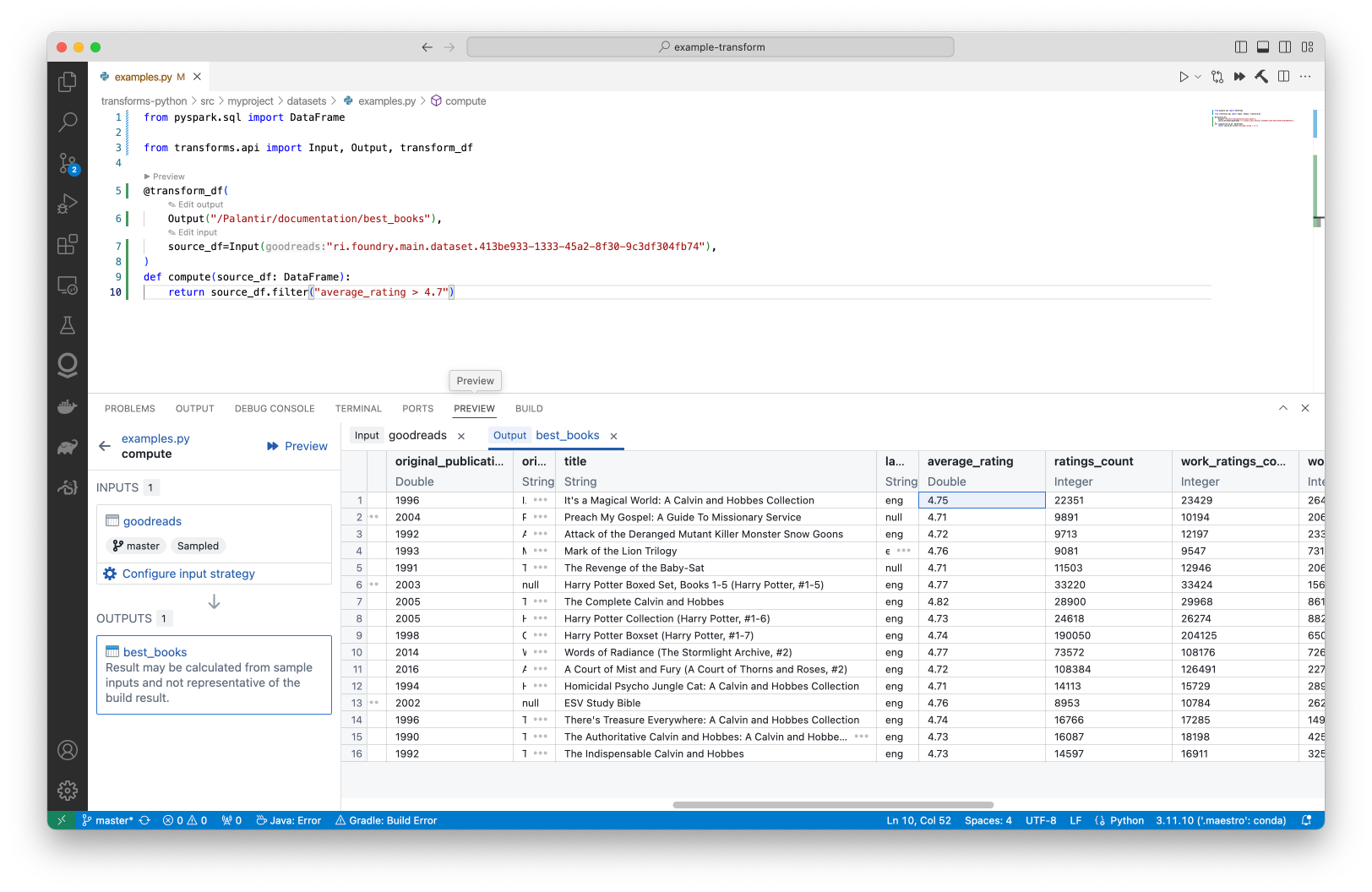
You can also run local preview for Python transforms. When running preview locally, parts of the datasets are streamed to your machine. For more information, review the documentation for transforms preview.
Gradle-based local preview for Java
This section details the steps required to preview Python and Java transforms in local development. For additional context, review our documentation for Java local development. You can also learn more about how to preview transforms. Gradle-based local preview executes the preview remotely, inside of Foundry.
Prerequisites and limitations
Local preview support requires that the local branch must be tracking a remote branch such that the local branch needs to be pushed at least once, on top of existing prerequisites for local development. Note the following additional limitations:
- The preview URI can only be accessed by the user who ran the preview and is available on a temporary basis.
Run dataset preview
Before running the preview, you must set up the environment for local development and ensure that your repository is upgraded to the latest template version.
-
Run
./gradlew displayTransformsListwhich will return a list of all available transforms.
-
Run
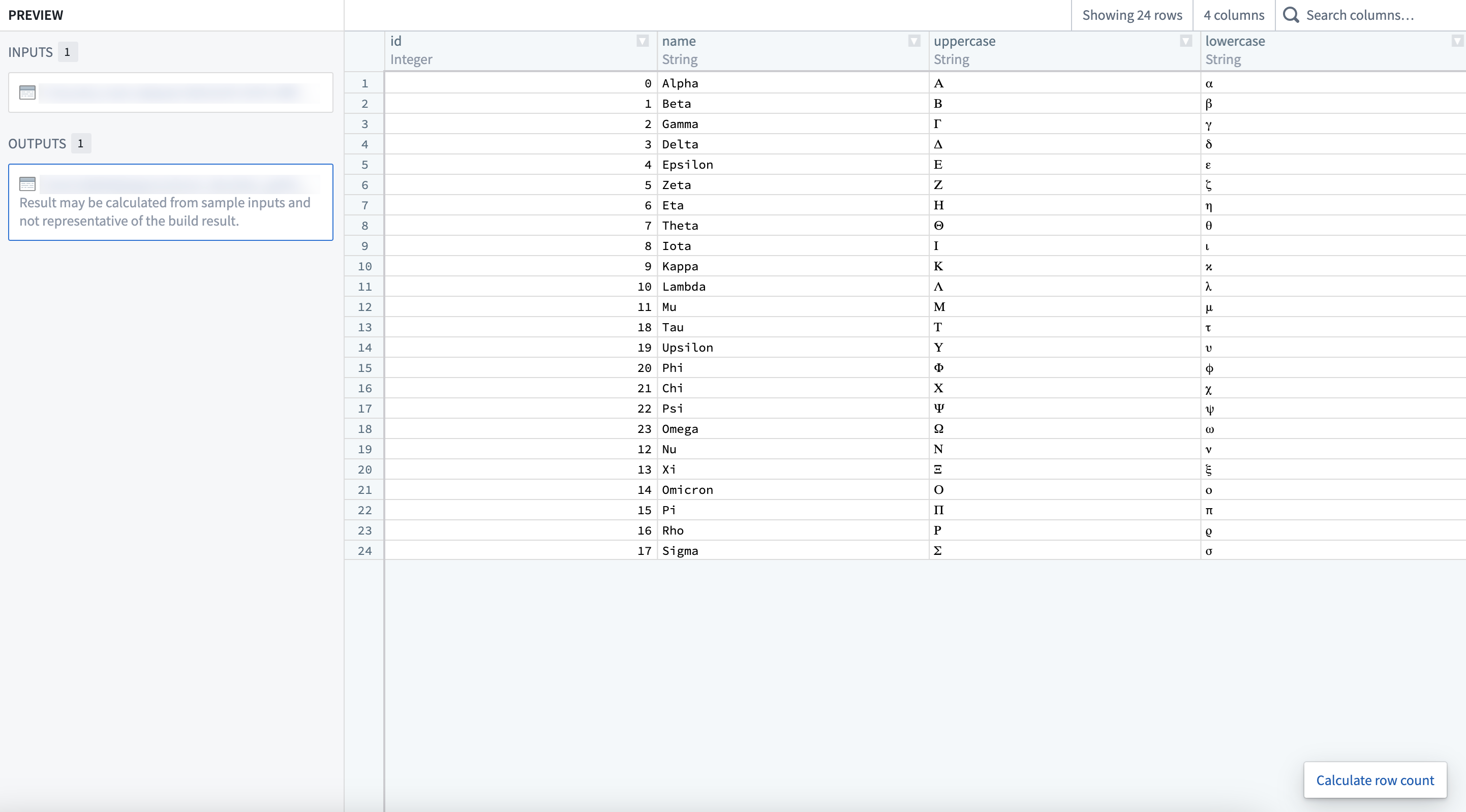
./gradlew datasetPreview --transformId=<transformId>with<transformId>replaced by one of the transform ids (blue text on the screenshot above), which will return a link to Foundry where the already-computed preview can be accessed.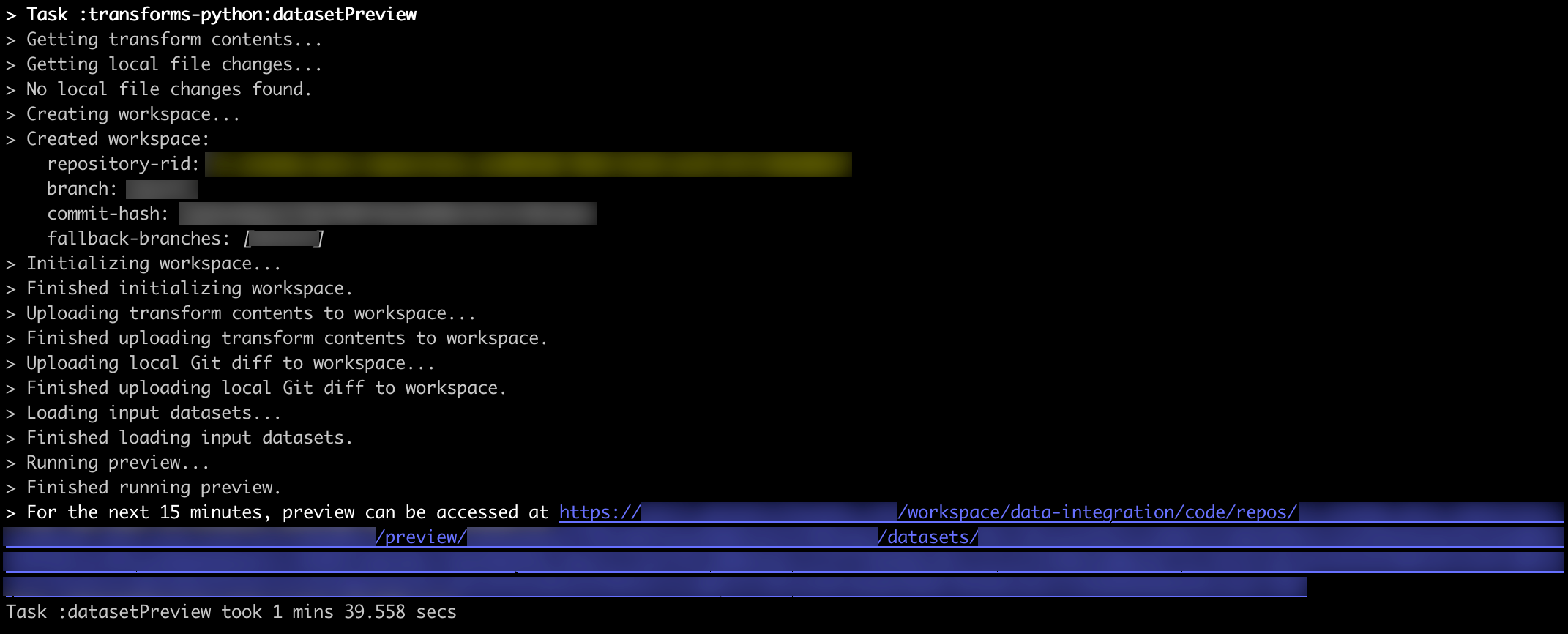
-
(Optional) Add
--printMode=tableflag to the command above to print the first 10 rows of all previewed datasets directly in your terminal instead of being provided a link to the preview.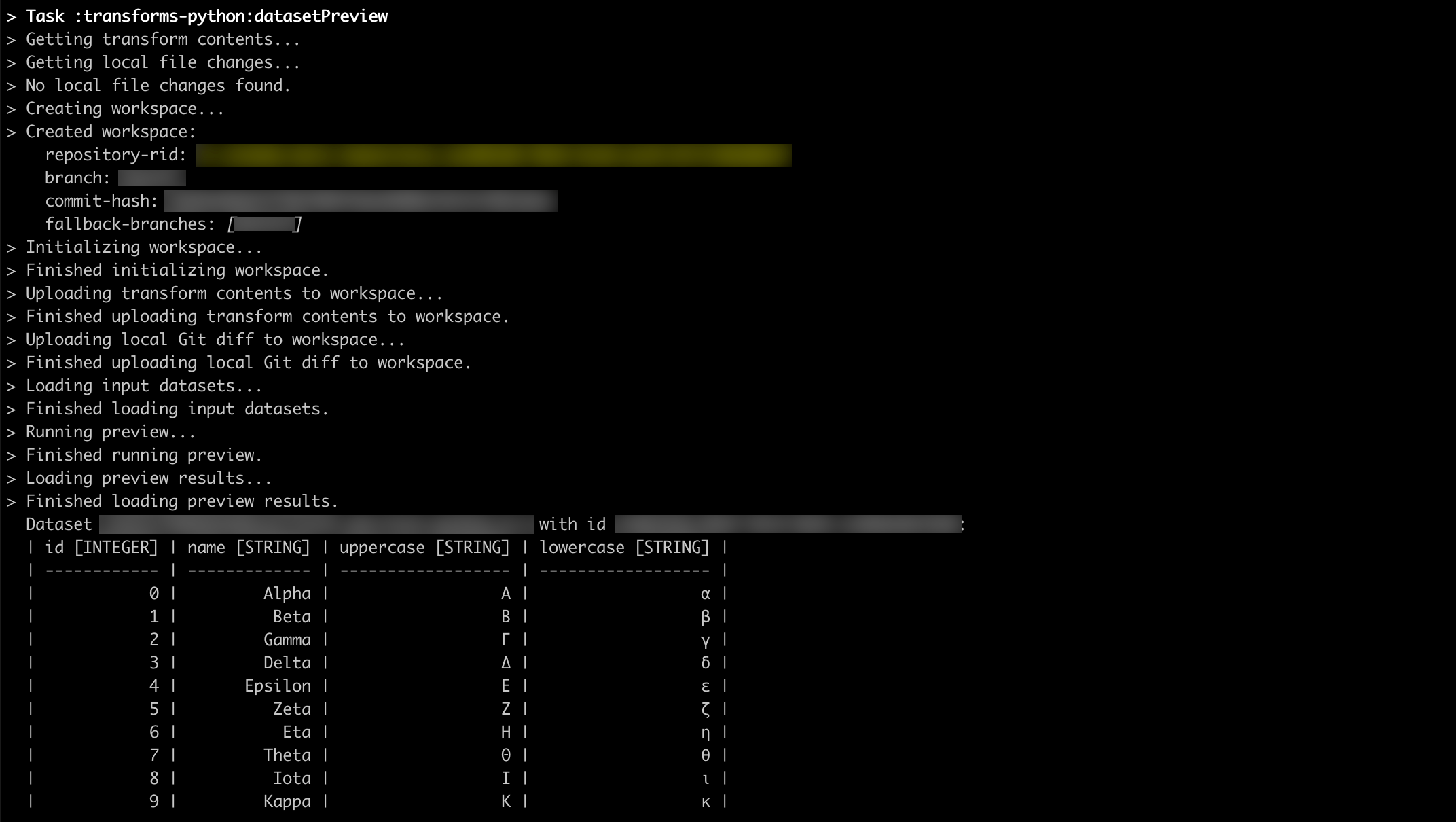
-
(Optional) To include input files in the preview, add
--inputFiles=<datasetAlias>:<path>where<datasetAlias>is one of the input datasets from the selected transform function and<path>is the file path within the input dataset.
-
(Optional) To include output files in the preview, add
--outputFiles=<datasetAlias>:<path>where<datasetAlias>is one of the output datasets from the selected transform function and<path>is the file path within the output dataset.
中文翻译
本地开发中的转换(Transform)预览
在VS Code中进行本地开发时,有两种主要方式可预览转换: * 通过适用于Visual Studio Code的Palantir扩展预览(仅支持Python) * 面向Java的基于Gradle的本地预览
通过适用于Visual Studio Code的Palantir扩展预览(仅支持Python)
适用于Visual Studio Code的Palantir扩展支持本地预览功能。请参考扩展文档获取安装指引。完成扩展安装且预览环境就绪后,你编写的转换会自动在Preview选项卡中被识别,如下图所示。
你也可以为Python转换运行本地预览。本地运行预览时,部分数据集(Dataset)会流式传输到你的设备上。如需了解更多信息,请查看转换预览文档。
面向Java的基于Gradle的本地预览
本节将详细介绍在本地开发中预览Python和Java转换的步骤。如需了解更多背景信息,请查看我们的Java本地开发文档,你也可以进一步了解如何预览转换。基于Gradle的本地预览会在Foundry内部远程执行预览任务。
前置条件与限制
除了本地开发已有的前置条件外,本地预览还要求本地分支必须跟踪一个远程分支,因此本地分支至少需要完成一次推送。请注意以下额外限制: * 预览URI仅对执行预览操作的用户开放,且仅临时有效。
运行数据集预览
运行预览前,你必须完成本地开发的环境搭建,并确保你的代码库(Repository)已升级到最新模板版本。
-
运行
./gradlew displayTransformsList,该命令会返回所有可用转换的列表。 -
运行
./gradlew datasetPreview --transformId=<transformId>,将<transformId>替换为上一步返回的转换ID之一(上一张截图中的蓝色文本),命令会返回一个Foundry链接,你可以通过该链接访问已计算完成的预览结果。
-
(可选)在上述命令中添加
--printMode=table标志,可直接在终端中打印所有预览数据集的前10行数据,无需跳转预览链接。 -
(可选)如果需要在预览中包含输入文件,可添加
--inputFiles=<datasetAlias>:<path>参数,其中<datasetAlias>是所选转换函数的输入数据集之一的别名,<path>是该输入数据集内的文件路径。 -
(可选)如果需要在预览中包含输出文件,可添加
--outputFiles=<datasetAlias>:<path>参数,其中<datasetAlias>是所选转换函数的输出数据集之一的别名,<path>是该输出数据集内的文件路径。