Import resources into Code Repositories(将资源导入代码仓库(Code Repositories))
:::callout{theme="warning"} The following documentation is specific to TypeScript v1 functions. For more robust capabilities, including support for Ontology SDK and configurable resource requests, we recommend migrating to TypeScript v2. :::
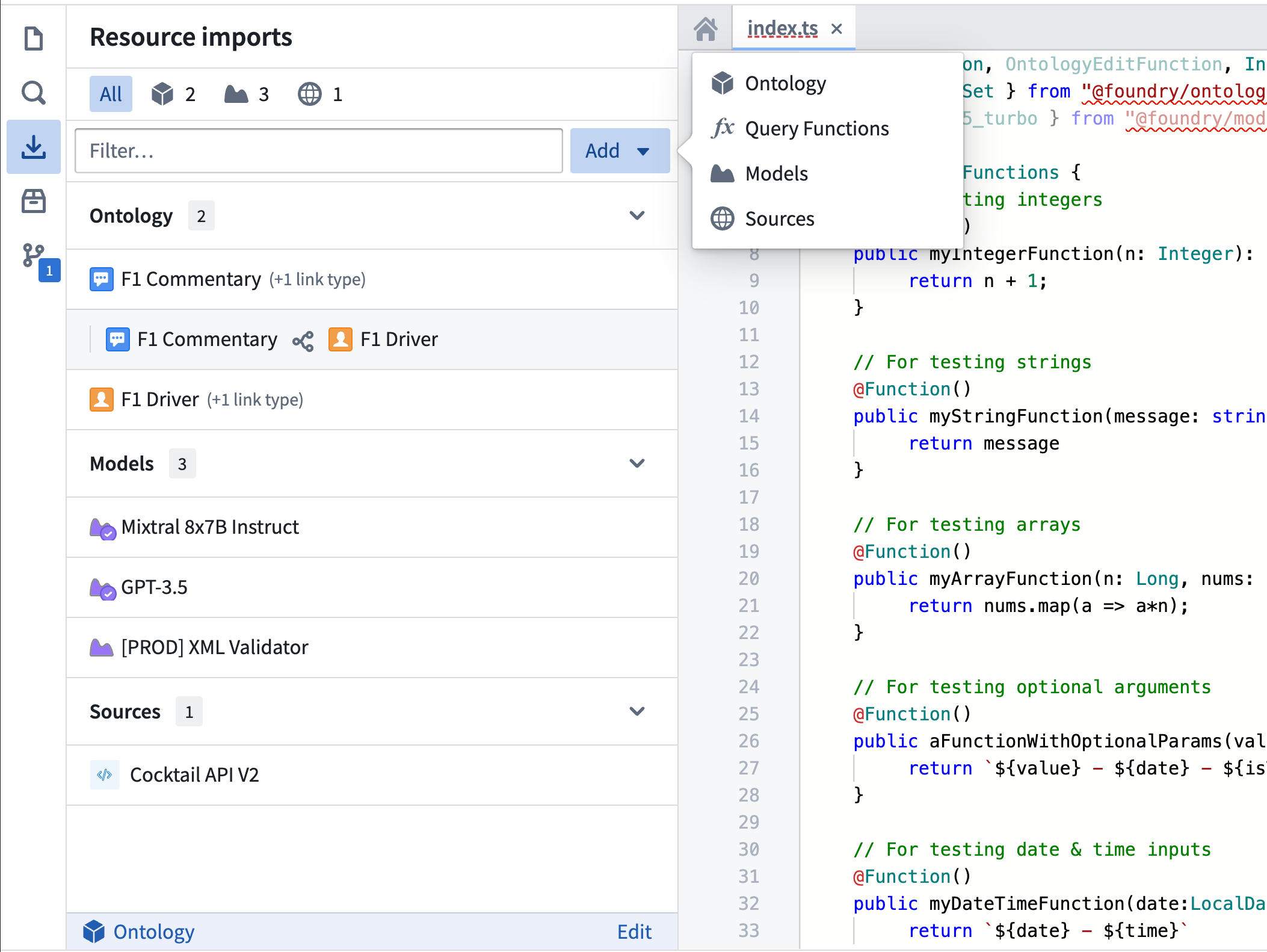
The Resource imports sidebar in Code Repositories offers a centralized interface to manage imported Foundry resources within your TypeScript functions repository. The sidebar allows you to import, remove, and view details of various resources, including Ontology types, LMS language models, live deployments, and external systems such as REST APIs.
Select an Ontology
An Ontology is required to import object and link types. To choose an Ontology:
- Choose Add to open the resource selector menu, and then choose Ontology to begin importing Ontology types. If no Ontology is selected, this will automatically open the Ontology selector dialog.
If you have already imported at least one Ontology type, that type's Ontology is automatically selected. To change the Ontology, choose the Edit button next to the selected Ontology's name to open the Ontology selector dialog.
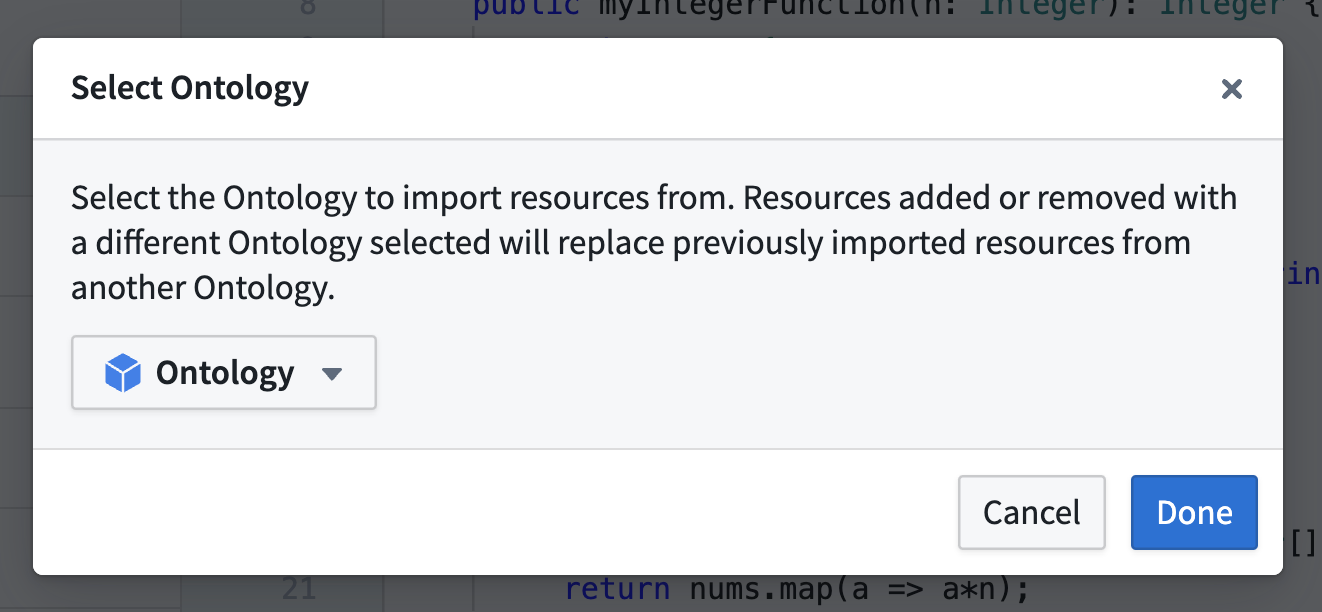
All imported resources within your repository must be associated with the same Ontology. Note that importing resources after changing the Ontology will overwrite any existing imports from other Ontologies.
Import resources
:::callout{theme="warning"}
Modern versions of the TypeScript v1 template maintain the current state of repository imports in a resources.json file checked into your repository.
If you encounter warnings about an unresolvable file in the sidebar, see the file-based ontology imports section for information about the expected file format and troubleshooting steps for resolving the issue. :::
To import resources using the sidebar:
- Use the Add button in the top right of the sidebar and select the desired resource type. This will open the selector dialog for that resource.
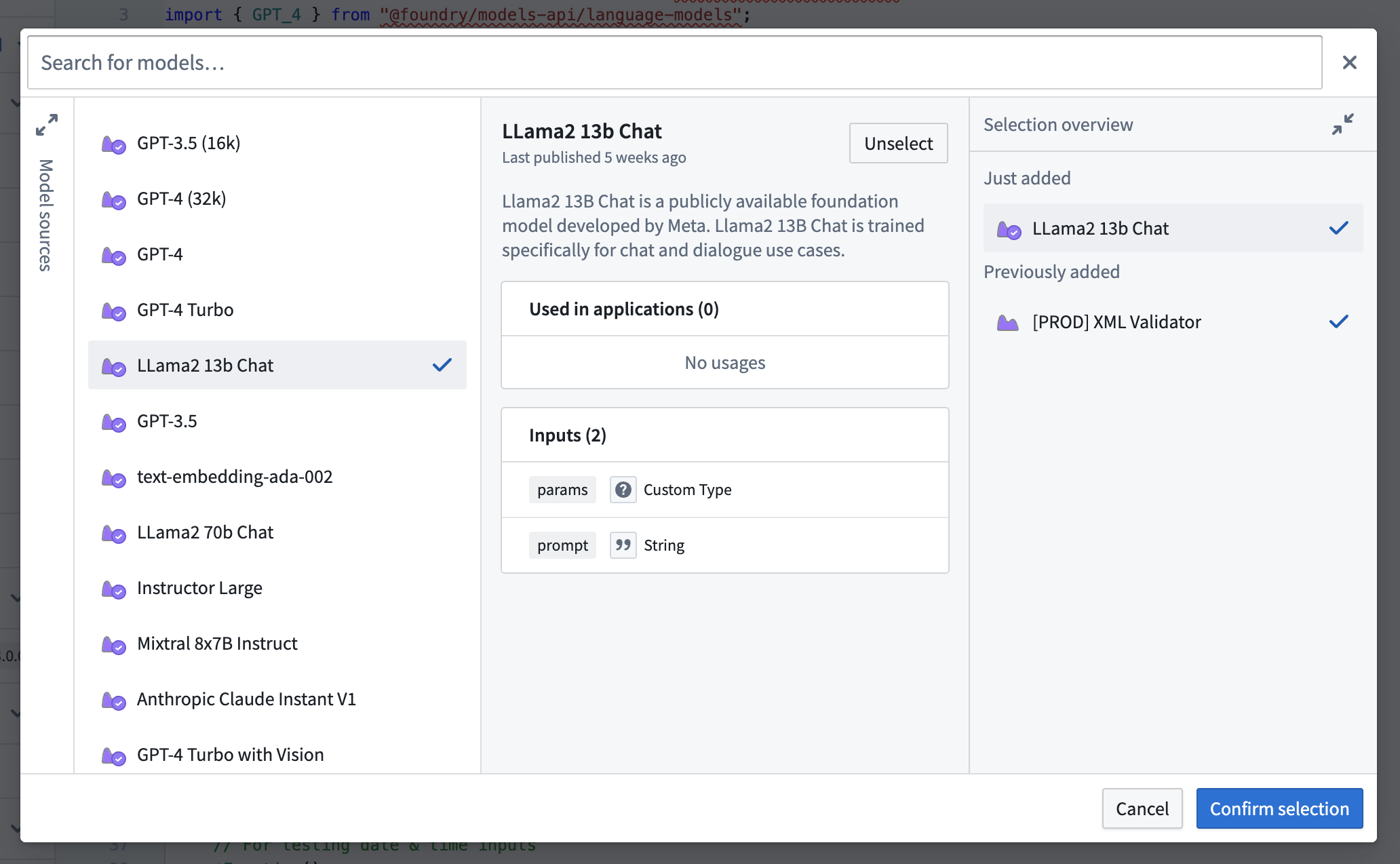
- Use the search bar and filters to locate the resources you want to import.
- Choose a resource to display its preview panel with detailed information.
- Use the Select button to add resources to your selection.
- Expand the cart panel to review your selection and confirm by choosing Confirm selection.
After confirming your selection, Code Assist will be restarted to re-run the necessary code generation tasks to apply your changes.
Learn more about importing resources of a specific type:
Manage imported resources
Resources are categorized by type in the sidebar:
- Ontology: Object, interface, and link types
- Models: LMS models and live deployments
- Sources: External systems such as REST APIs
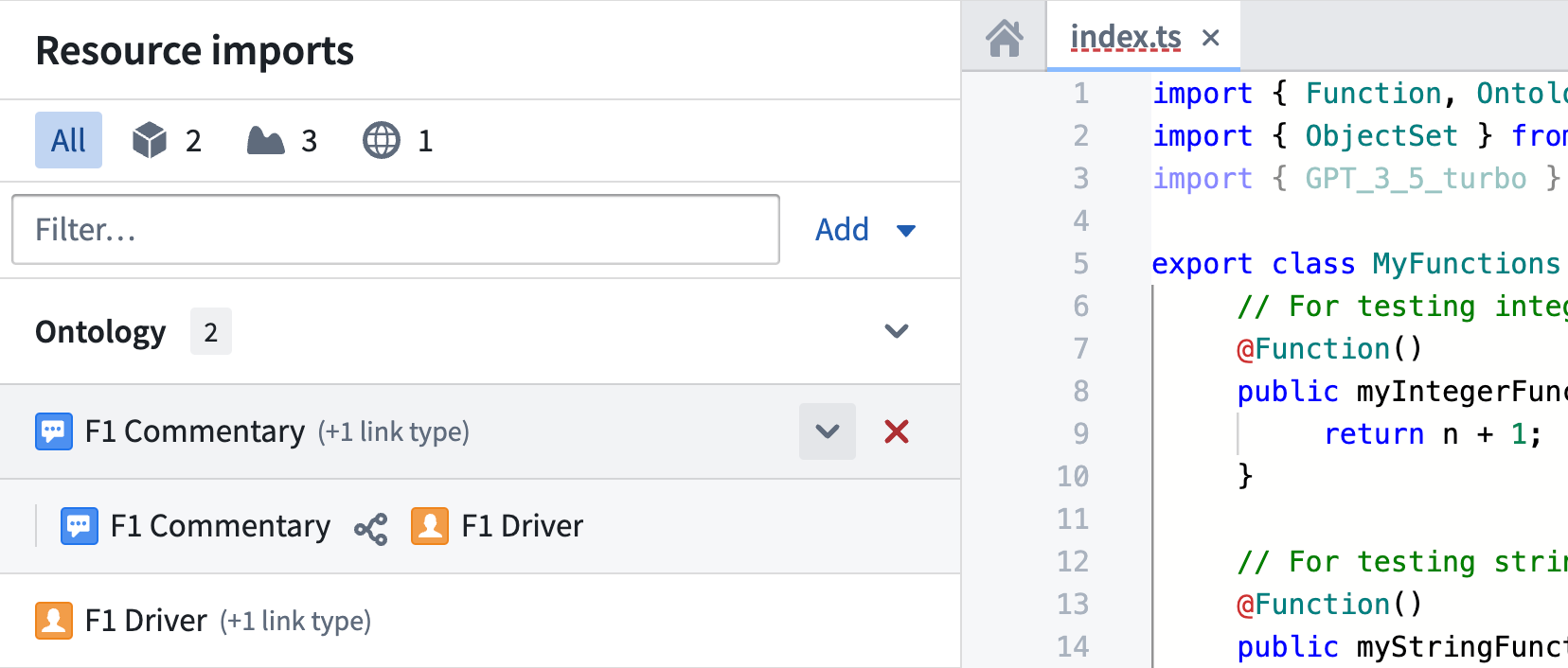
Choose the corresponding resource icon at the top of the sidebar to filter by type or use the text input to search by name. To remove a resource, hover over the resource icon and choose the Remove button. To add or remove multiple resources simultaneously, use a selector dialog. To view more details, select an imported resource to open its preview panel.
Some resource types may have dependencies between other resources. For instance, link types are organized under their respective object types. If an imported resource has dependencies, a message like "(1 link type)" will be displayed next to the resource title. To view a resource's dependencies, hover over the resource icon and select the chevron that appears.
Importing resources without API names
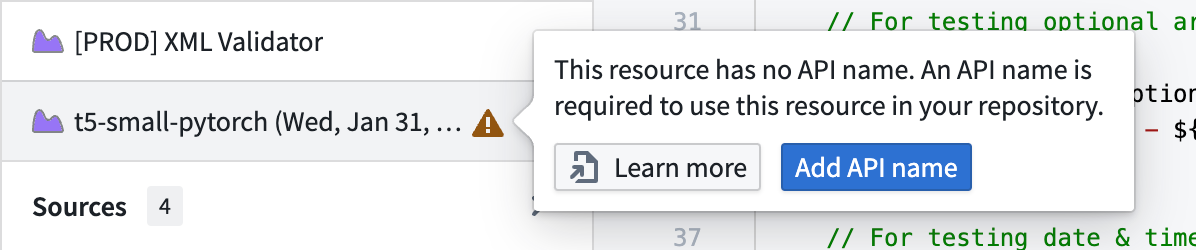
Resources must have an API name to be referenced within code in TypeScript functions repositories. If a resource lacks an API name, a warning is displayed. Hover over the warning sign to learn more or easily configure an API name by choosing Add API name. Alternatively, choose Learn more to see documentation about adding an API name tailored to the specific resource type.
Import resources with value type dependencies
Some resources depend on value types to define the datatypes used to interact with them, for example, function interfaces. For these resources, their value type dependencies are imported into the repository automatically so that they are available to use along with the resource.
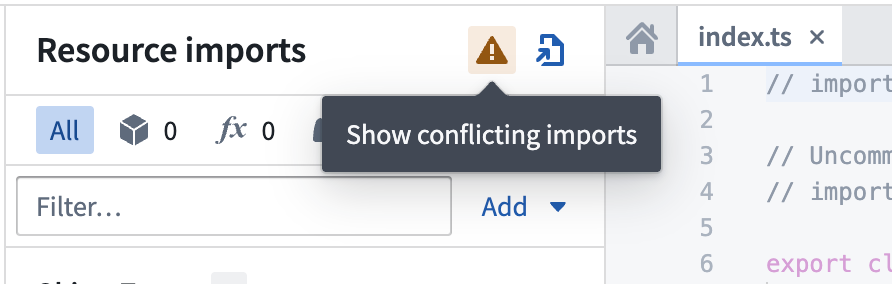
In some cases, importing a combination of such resources can result in a value type dependency conflict. This occurs when different resources have a common value type they depend on at differing versions. It is not possible to have both versions of the same value type imported, and this causes a compilation error. This error is accompanied by a warning in the sidebar, allowing you to view the resources with conflicting dependencies.
File-based repository imports
Modern versions of the TypeScript v1 template maintain the current state of repository imports using a resources.json file checked into your repository. This gives you full Git semantics, allowing you to review, branch, and revert changes to your imports. The resource import sidebar helps you update this file by automatically inserting entries into the resources.json file.
If the resources.json file is in an invalid state, a warning will appear in the sidebar informing you that the file cannot be processed. If you encounter this error, ensure that your file contains a single JSON object with the following data:
| Field | Type |
|---|---|
objectTypes |
Array of { rid: string } |
linkTypes |
Array of { rid: string } |
sources |
Array of { rid: string } |
functions |
Array of { rid: string, version: string } |
valueTypes |
Array of { rid: string, version: string } |
functionInterfaces |
Array of { rid: string, version: string } |
_comment |
String |
version[1] |
Integer |
[1] The version field is used to express the version and format of the resources.json file. Currently only version: 1 is supported. version: 0 is used to indicate that your repository must undergo a migration from the prior, repository-wide imports workflow. This migration is handled automatically with a patch applied to your repository when a commit with version: 0 is made.
Note that because the resources.json file is checked into your repository, you can view the commit history and use the history to revert the file back to a working state.
Enable resource types
By default, some resource types may not be enabled for use in your repository. The enabled resource types are determined by your functions.json file. This is the contents of a typical default functions.json file.
{
  "useOntologyApiNames" : true,
  "enableModelFunctions" : false,
  "enableModelGraphFunctions" : false,
  "enableDiscoverImproperOntologyAccess": false,
  "enableQueries": false,
  "enableModelMetadata": false,
  "useDeploymentApiNames": true,
  "enableVectorProperties": true,
  "enableTimeSeriesProperties": false,
  "enableExternalSystems": false,
  "enableMediaReferenceProperties": false
}
Importing resources without enabling the corresponding flag in your functions.json file may cause checks to fail in your repository. To use imported live deployments, set enableModelFunctions to true. To use imported sources, set enableExternalSystems to true.
中文翻译
将资源导入代码仓库(Code Repositories)
:::callout{theme="warning"} 以下文档专门针对 TypeScript v1 函数。如需更强大的功能,包括对本体论 SDK(Ontology SDK)和可配置资源请求的支持,我们建议迁移至 TypeScript v2。 :::
代码仓库(Code Repositories)中的资源导入(Resource imports)侧边栏提供了一个集中式界面,用于管理 TypeScript 函数仓库中导入的 Foundry 资源。该侧边栏允许您导入、移除和查看各种资源的详细信息,包括本体论类型(Ontology types)、LMS 语言模型(LMS language models)、实时部署(live deployments)以及外部系统(如 REST API)。
选择本体论(Ontology)
导入对象和链接类型需要本体论(Ontology)。选择本体论的步骤如下:
- 选择添加(Add)打开资源选择器菜单,然后选择本体论(Ontology)开始导入本体论类型。如果尚未选择本体论,此操作将自动打开本体论选择器对话框。
如果您已导入至少一个本体论类型,则该类型所属的本体论会被自动选中。要更改本体论,请点击所选本体论名称旁的编辑(Edit)按钮,打开本体论选择器对话框。
仓库中所有导入的资源必须关联到同一个本体论。请注意,更改本体论后导入资源将覆盖来自其他本体论的现有导入。
导入资源
:::callout{theme="warning"}
现代版本的 TypeScript v1 模板会将仓库导入的当前状态维护在一个签入仓库的 resources.json 文件中。
如果您在侧边栏中遇到关于无法解析文件的警告,请参阅基于文件的本体论导入部分,了解预期文件格式以及解决该问题的故障排除步骤。 :::
使用侧边栏导入资源的步骤如下:
- 点击侧边栏右上角的添加(Add)按钮,选择所需的资源类型。这将打开该资源的选择器对话框。
- 使用搜索栏和筛选条件查找要导入的资源。
- 选择某个资源以显示其预览面板,查看详细信息。
- 使用选择(Select)按钮将资源添加到您的选择中。
- 展开购物车面板查看您的选择,并通过选择确认选择(Confirm selection)进行确认。
确认选择后,代码助手(Code Assist)将重新启动,以重新运行必要的代码生成任务来应用您的更改。
了解更多关于导入特定类型资源的信息:
管理已导入的资源
侧边栏中的资源按类型分类:
- 本体论(Ontology):对象、接口和链接类型
- 模型(Models):LMS 模型和实时部署
- 来源(Sources):外部系统,如 REST API
点击侧边栏顶部的相应资源图标可按类型筛选,或使用文本输入框按名称搜索。要移除资源,请将鼠标悬停在资源图标上并选择移除(Remove)按钮。要同时添加或移除多个资源,请使用选择器对话框。要查看更多详细信息,请选择已导入的资源以打开其预览面板。
某些资源类型可能与其他资源存在依赖关系。例如,链接类型会组织在其对应的对象类型下。如果导入的资源存在依赖关系,资源标题旁会显示类似"(1 个链接类型)"的消息。要查看资源的依赖项,请将鼠标悬停在资源图标上,然后选择出现的箭头图标。
导入没有 API 名称的资源
资源必须具有 API 名称才能在 TypeScript 函数仓库的代码中被引用。如果资源缺少 API 名称,则会显示警告。将鼠标悬停在警告标志上可了解更多信息,或通过选择添加 API 名称(Add API name)轻松配置 API 名称。或者,选择了解更多(Learn more)查看关于为特定资源类型添加 API 名称的文档。
导入具有值类型依赖关系的资源
某些资源依赖于值类型(value types)来定义与其交互所使用的数据类型,例如函数接口。对于这些资源,其值类型依赖项会自动导入到仓库中,以便与资源一起使用。
在某些情况下,导入此类资源的组合可能导致值类型依赖冲突。当不同资源依赖于同一值类型的不同版本时,就会发生这种情况。无法同时导入同一值类型的两个版本,这会导致编译错误。此错误会伴随侧边栏中的警告出现,使您可以查看存在冲突依赖关系的资源。
基于文件的本体论导入
现代版本的 TypeScript v1 模板使用签入仓库的 resources.json 文件来维护仓库导入的当前状态。这为您提供了完整的 Git 语义,允许您审查、分支和回滚对导入的更改。资源导入侧边栏通过自动将条目插入 resources.json 文件来帮助您更新此文件。
如果 resources.json 文件处于无效状态,侧边栏中将出现警告,提示该文件无法处理。如果您遇到此错误,请确保您的文件包含一个包含以下数据的 JSON 对象:
| 字段(Field) | 类型(Type) |
|---|---|
objectTypes |
{ rid: string } 数组 |
linkTypes |
{ rid: string } 数组 |
sources |
{ rid: string } 数组 |
functions |
{ rid: string, version: string } 数组 |
valueTypes |
{ rid: string, version: string } 数组 |
functionInterfaces |
{ rid: string, version: string } 数组 |
_comment |
字符串(String) |
version[1] |
整数(Integer) |
[1] version 字段用于表示 resources.json 文件的版本和格式。目前仅支持 version: 1。version: 0 表示您的仓库必须从之前的仓库范围导入工作流进行迁移。当提交包含 version: 0 时,此迁移将通过应用于仓库的补丁自动处理。
请注意,由于 resources.json 文件已签入您的仓库,您可以查看提交历史记录,并使用该历史记录将文件恢复到正常工作状态。
启用资源类型
默认情况下,某些资源类型可能未在您的仓库中启用。启用的资源类型由您的 functions.json 文件决定。以下是典型的默认 functions.json 文件内容。
{
  "useOntologyApiNames" : true,
  "enableModelFunctions" : false,
  "enableModelGraphFunctions" : false,
  "enableDiscoverImproperOntologyAccess": false,
  "enableQueries": false,
  "enableModelMetadata": false,
  "useDeploymentApiNames": true,
  "enableVectorProperties": true,
  "enableTimeSeriesProperties": false,
  "enableExternalSystems": false,
  "enableMediaReferenceProperties": false
}
在未启用 functions.json 文件中相应标志的情况下导入资源,可能导致仓库中的检查失败。要使用导入的实时部署,请将 enableModelFunctions 设置为 true。要使用导入的来源,请将 enableExternalSystems 设置为 true。