Getting started with TypeScript v1 functions(TypeScript v1 函数入门指南)
:::callout{theme="warning"} The following documentation is specific to TypeScript v1 functions. For more robust capabilities, including support for Ontology SDK and configurable resource requests, we recommend migrating to TypeScript v2. :::
Create a TypeScript v1 functions repository
Navigate to a project of your choice and create a new code repository by selecting + New > Repository. Select the TypeScript functions template to initialize your repository.
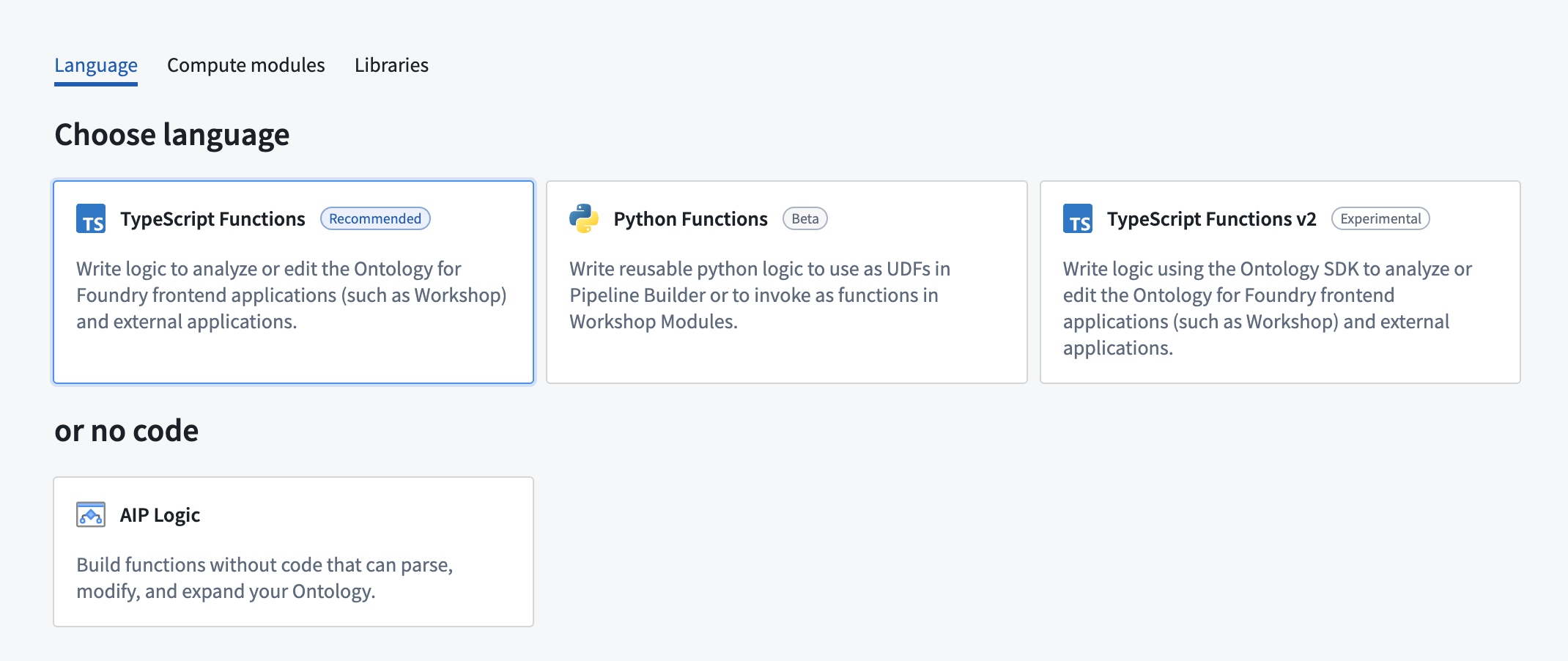
Once the repository is created, navigate to the functions-typescript/src/index.ts file.
Write a function
Functions in this repository must be defined within a TypeScript class, and that class must be exported from the functions-typescript/src/index.ts file. You can either write your function in the prepopulated examples in index.ts, or create a new file. If you create a new file, ensure that you export your class from index.ts.
Below is a basic example:
```typescript tab="TypeScript v1" import { Function, Integer } from "@foundry/functions-api";
export class ExampleFunctions {
@Function()
public addIntegers(a: Integer, b: Integer): Integer {
     return a + b;
}
}
If the above code is written in a file called `exampleFunctions.ts`, it must be exported from the index file as shown below:typescript tab="TypeScript v1"
// in functions-typescript/src/index.ts
export * from "./relative/path/to/exampleFunctions";
```
Test in live preview
After you add the new function, you can run it in the functions helper. Open the Functions helper and select Live Preview. Choose the range function, enter input values, and select Run to run the code.
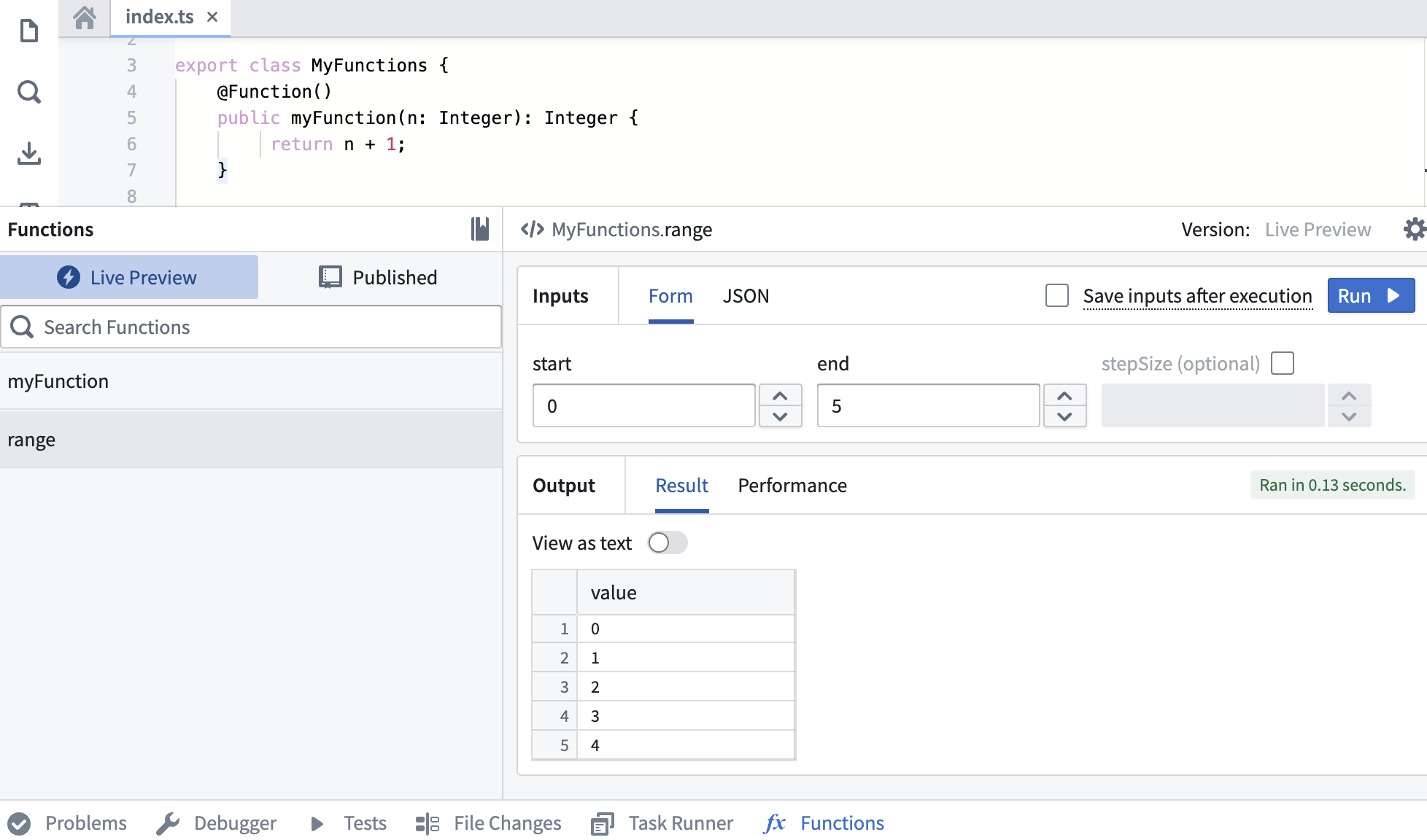
Select Commit in the upper right to commit your changes onto the master branch of your repository.
Publish a function
After committing your work, you will see the Tag version option. This will publish all of the functions in your repository.

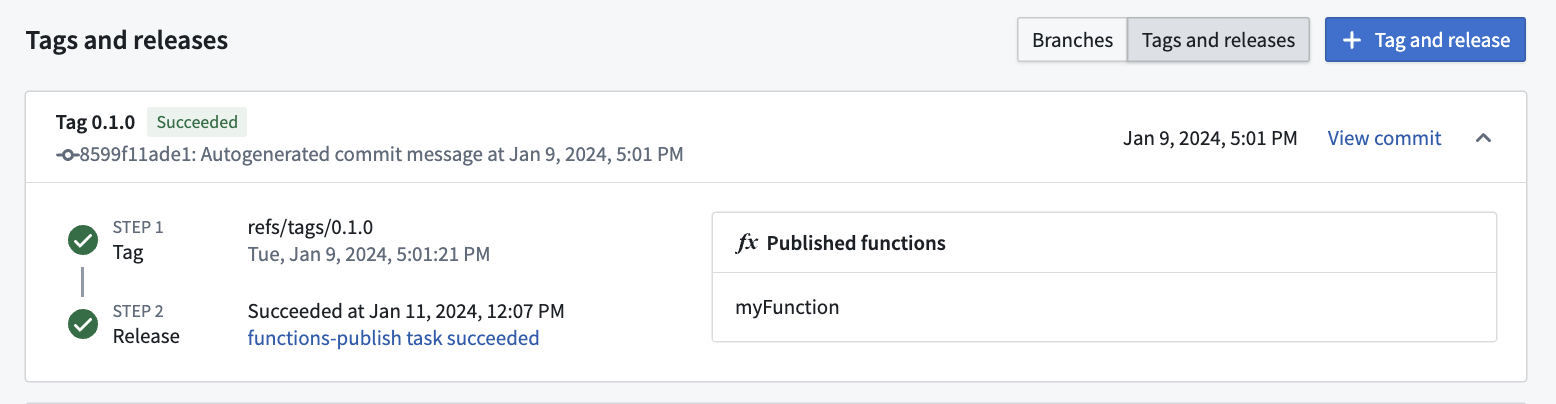
Select Tag version to tag a release off the master branch. Set the tag name based on the extent of your changes, then choose Tag and release.

To view the progress as your functions are tagged and released, select the View pop-up or navigate to the Tags tab. Once Step 2: Release is completed, select the published functions to view them in the function registry.
:::callout{theme="warning"} Functions may not be immediately searchable by name in Workshop or the function registry while permissions propagate. :::
Use a new function
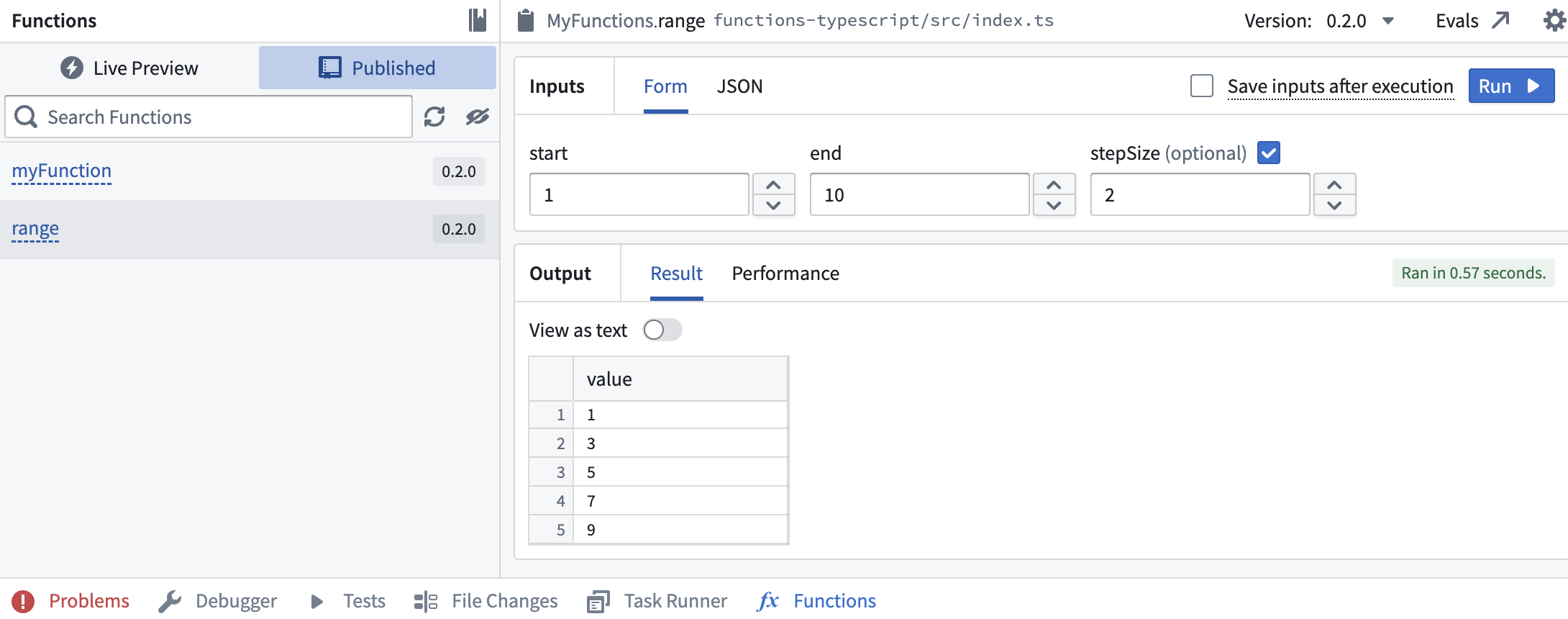
After the checks for your tag have passed, navigate back to the Code tab in Code Repositories and select the Functions helper. You should now be able to see your new range function under the Published section. Select and run the function.
Next steps
In this tutorial, you learned how to use Code Repositories to write, publish, and test a TypeScript v1 function from a repository. Next, we recommend learning how to author functions on objects.
中文翻译
TypeScript v1 函数入门指南
:::callout{theme="warning"} 以下文档仅适用于 TypeScript v1 函数。如需更强大的功能(包括对本体论 SDK 和可配置资源请求的支持),我们建议迁移至 TypeScript v2。 :::
创建 TypeScript v1 函数代码仓库
导航至您选择的项目,通过选择 + 新建 > 仓库 来创建新的代码仓库。选择 TypeScript 函数模板以初始化您的仓库。
仓库创建完成后,导航至 functions-typescript/src/index.ts 文件。
编写函数
此仓库中的函数必须在 TypeScript 类中定义,并且该类必须从 functions-typescript/src/index.ts 文件中导出。您可以在 index.ts 中预置的示例中编写函数,也可以创建新文件。如果创建新文件,请确保从 index.ts 中导出您的类。
以下是一个基本示例:
```typescript tab="TypeScript v1" import { Function, Integer } from "@foundry/functions-api";
export class ExampleFunctions {
@Function()
public addIntegers(a: Integer, b: Integer): Integer {
     return a + b;
}
}
如果上述代码写在名为 `exampleFunctions.ts` 的文件中,则必须按如下方式从索引文件中导出:typescript tab="TypeScript v1"
// 在 functions-typescript/src/index.ts 中
export * from "./relative/path/to/exampleFunctions";
```
在实时预览中测试
添加新函数后,您可以在函数助手中运行它。打开函数助手并选择实时预览。选择 range 函数,输入值,然后选择运行来执行代码。
选择右上角的提交,将更改提交到仓库的 master 分支。
发布函数
提交工作后,您将看到标记版本选项。这将发布仓库中的所有函数。
选择标记版本以从 master 分支标记发布版本。根据更改范围设置标签名称,然后选择标记并发布。
要查看函数标记和发布过程中的进度,请选择查看弹出窗口或导航至标签选项卡。步骤 2:发布完成后,选择已发布的函数以在函数注册表中查看。
:::callout{theme="warning"} 在权限传播期间,函数可能无法立即通过名称在 Workshop 或函数注册表中搜索到。 :::
使用新函数
标签检查通过后,导航回代码仓库中的代码选项卡,然后选择函数助手。您现在应该能够在已发布部分看到新的 range 函数。选择并运行该函数。
后续步骤
在本教程中,您学习了如何使用代码仓库编写、发布和测试 TypeScript v1 函数。接下来,我们建议学习如何编写基于对象的函数。