Getting started with TypeScript v2 functions(TypeScript v2 函数入门指南)
TypeScript v2 allows users to take advantage of several key improvements over TypeScript v1, including a Node.js runtime and first-class OSDK support. Review the sections below to get started.
Create a TypeScript v2 functions repository
Navigate to a project of your choice and create a new code repository by selecting + New > Repository. Select the TypeScript v2 functions template to initialize your repository.
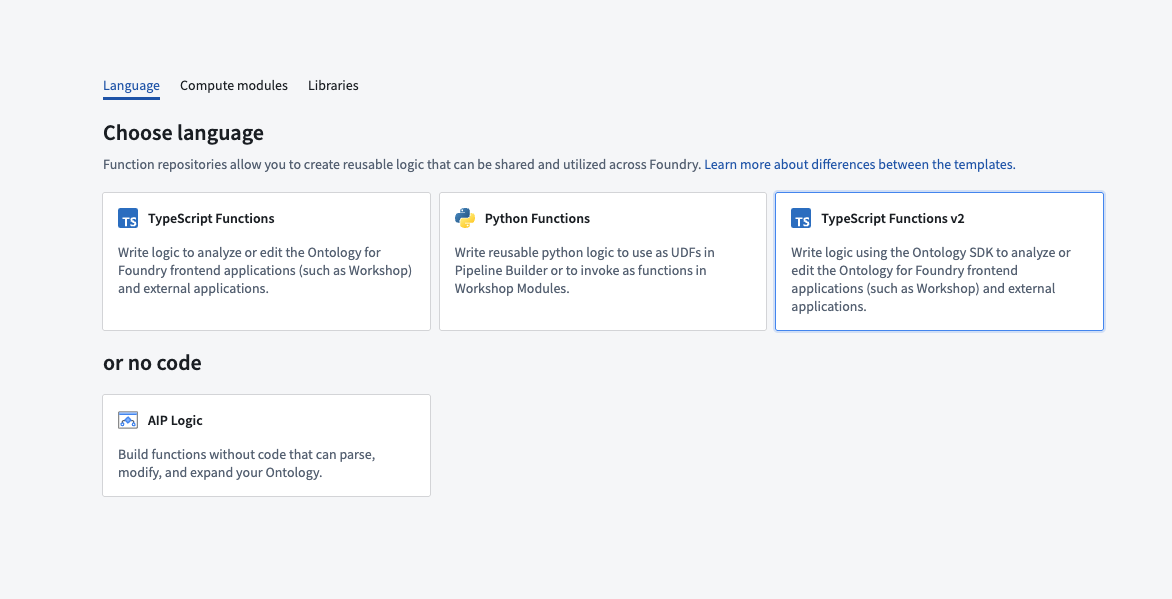
Once the repository has been created, navigate to the typescript-functions/src/functions/helloWorld.ts file.
Write a function
To write a new function, create a new file in the typescript-functions/src/functions directory of your repository and give it a descriptive name, for example, helloWorld.ts. Write your function using export default for Foundry to detect it.
```typescript tab="TypeScript v2" export default function helloWorld(): string { return "Hello World!"; }
You must satisfy the following conditions for your function to be published to Foundry:
1. Define your function in a `.ts` file in the `typescript-functions/src/functions` directory. In this directory, you can also group related functions in subdirectories.
2. The name of your file must match the name of your function. For a function called `myFunction` to be published, it must be defined in a file called `myFunction.ts` within the `typescript-functions/src/functions` directory.
3. The TypeScript function must be the default export of your file.
4. Your function's input and output types must follow the supported function types, as detailed in the [type reference](https://palantir.com/docs/foundry/functions/types-reference/).
Your function's file path is used to uniquely identify the function that gets published from it. Note that a change in your function's file path will therefore result in a new function being published.
## Test in live preview
To test your function in live preview, open the **Functions** helper and select **Live preview**. Choose your function and select **Run** to execute.
<img src="./media/tsv2-functions-helper-preview-run.png" alt="Run your new function in the functions helper." width="900">
## Commit and publish a function
Select **Commit** at the upper right corner of the window to commit your changes to the `master` branch of your repository. To view your function's checks, open the **Checks** tab at the top of the page. Here, after making a commit, you should see a running check.
<img src="./media/tsv2-functions-publish.png" alt="Select the check to view progress." width="500">
After committing your work, you will see the **Tag version** option. This will publish all of the functions in your repository.

Select **Tag version** to tag a release off of the `master` branch. Set the tag name based on the extent of your changes, and then select **Tag and release**.
<img src="./media/new-functions-tag.png" alt="Choose the version type to tag for the new release." width="500">
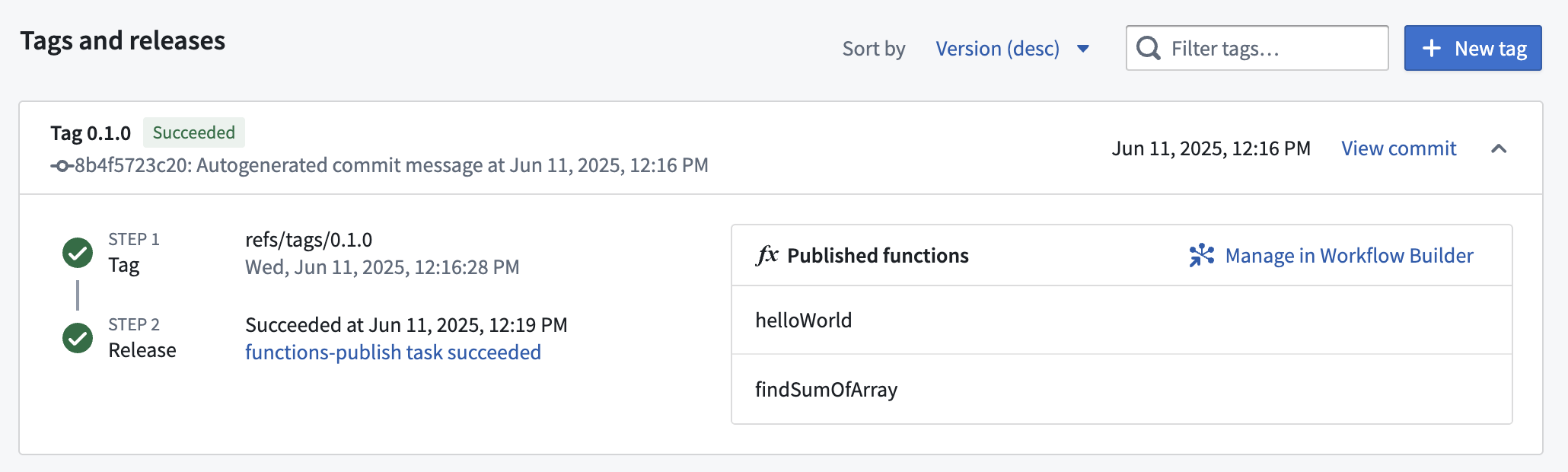
To view the progress as your functions are tagged and released, select the **View** pop-up or navigate to the **Tags** tab. Once **Step 2: Release** is completed, select the published functions to view them in the function registry.
:::callout{theme="warning"}
Functions may not be immediately searchable by name in Workshop or the function registry while permissions propagate.
:::
## Use a new function
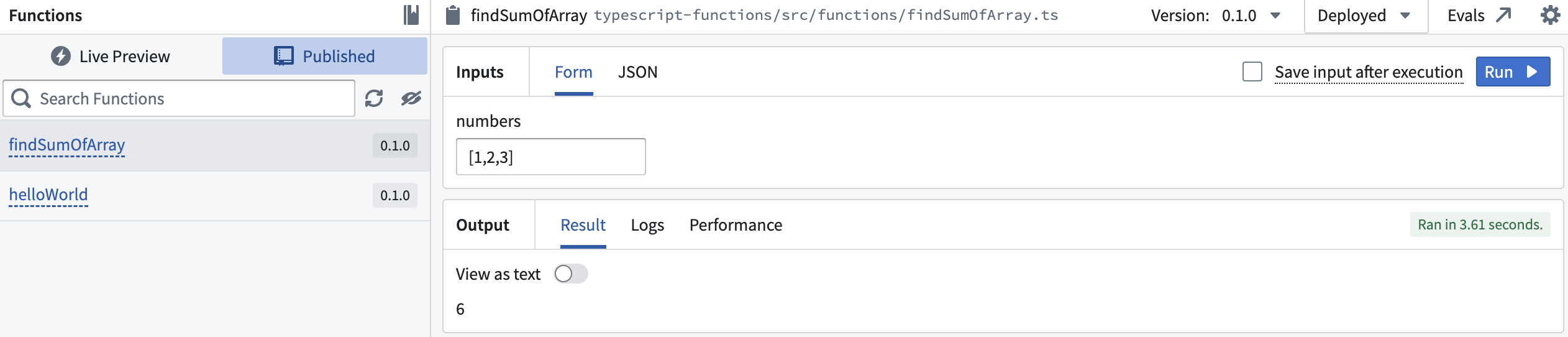
After the checks for your tag have passed, navigate back to the **Code** tab in **Code Repositories** and select the **Functions** helper. You should now be able to see your functions under the **Published** section. Select it and run the new function:
---
# 中文翻译
# TypeScript v2 函数入门指南
TypeScript v2 允许用户利用多项相较于 TypeScript v1 的关键改进([TypeScript v1 与 TypeScript v2 对比](https://palantir.com/docs/foundry/functions/language-feature-support/#typescript-v1-vs-typescript-v2)),包括 Node.js 运行时和一级 OSDK 支持。请阅读以下各节内容开始使用。
## 创建 TypeScript v2 函数仓库
导航至您选择的项目,通过选择 **+ 新建 > 仓库** 来创建新的代码仓库。选择 TypeScript v2 函数模板来初始化您的仓库。

仓库创建完成后,导航至 `typescript-functions/src/functions/helloWorld.ts` 文件。
## 编写函数
要编写新函数,请在仓库的 `typescript-functions/src/functions` 目录中创建新文件,并为其指定描述性名称,例如 `helloWorld.ts`。使用 `export default` 编写函数,以便 Foundry 能够检测到它。
```typescript tab="TypeScript v2"
export default function helloWorld(): string {
return "Hello World!";
}
要使函数发布到 Foundry,必须满足以下条件:
- 在
typescript-functions/src/functions目录的.ts文件中定义函数。在此目录中,您还可以将相关函数分组到子目录中。 - 文件名必须与函数名匹配。对于名为
myFunction的函数,它必须定义在typescript-functions/src/functions目录下名为myFunction.ts的文件中。 - TypeScript 函数必须是文件的默认导出。
- 函数的输入和输出类型必须遵循支持的函数类型,详见类型参考。
函数的文件路径用于唯一标识从中发布的函数。请注意,函数文件路径的更改将导致发布新函数。
在实时预览中测试
要在实时预览中测试函数,请打开 函数 助手并选择 实时预览。选择您的函数,然后点击 运行 来执行。

提交并发布函数
选择窗口右上角的 提交 将更改提交到仓库的 master 分支。要查看函数的检查状态,请打开页面顶部的 检查 选项卡。在此处提交后,您应该会看到正在运行的检查。

提交工作后,您将看到 标记版本 选项。这将发布仓库中的所有函数。

选择 标记版本 以从 master 分支标记发布版本。根据更改范围设置标签名称,然后选择 标记并发布。

要查看函数标记和发布过程中的进度,请选择 查看 弹出窗口或导航至 标签 选项卡。一旦 步骤 2:发布 完成,选择已发布的函数即可在函数注册表中查看它们。
:::callout{theme="warning"} 在权限传播期间,函数可能无法立即在 Workshop 或函数注册表中按名称搜索到。 :::

使用新函数
标签检查通过后,导航回 代码仓库 中的 代码 选项卡,并选择 函数 助手。您现在应该能够在 已发布 部分看到您的函数。选择它并运行新函数:
