Getting started(入门指南)
To get started with compute modules, you can use your preferred developer environment. In a few minutes, you will be able to create and deploy a compute module and test it in Foundry.
In Foundry, choose a folder and select + New > Compute Module, then follow the steps in the dialog to start with an empty compute-module backed function or pipeline. Follow the documentation below for next steps depending on your execution mode, or, for a more seamless experience, select the Documentation tab within your compute module to follow along with in-platform guidance.
Build a compute module-backed function
Compute modules support multiple languages through open-source SDKs. Choose the language that best fits your team and use case:
- Python: Use the open-source Python library ↗.
- Java: Use the open-source Java library ↗ with the
com.palantir.computemodules:libdependency. - Node.js: Use the open-source TypeScript library ↗.
:::callout{theme="neutral"} Review the following SDK guides for detailed API documentation, authentication patterns, type systems, and code examples:
- Python SDK: Includes
@functiondecorator, typed functions, streaming, authentication, OSDK integration, and logging - Java SDK: Includes
ComputeModulebuilder, type definitions, authentication, OSDK integration, and logging - TypeScript/Node.js SDK: Includes function registration, TypeBox schema definitions, streaming, and SLS logging :::
If you prefer to create your own client or implement your compute module in another language not supported by the SDKs, review the documentation on how to implement the custom compute module client.
Prerequisites:
- Install Docker Desktop
- Install one of the following:
- Python 3.9 or higher
- Java 21 or higher
- Node.js 18 or higher
Write the compute module locally
- Begin by creating a new directory for your compute module.
- Create a file called
Dockerfilein the directory. - Copy and paste the following into the
Dockerfile:
```dockerfile tab="Python"
Change the platform based on your Foundry resource queue
FROM --platform=linux/amd64 python:3.12
COPY requirements.txt . RUN pip install -r requirements.txt COPY src .
USER is required to be non-root and numeric for running compute modules in Foundry
USER 5000 CMD ["python", "app.py"]
```dockerfile tab="Java"
# Build stage
FROM --platform=linux/amd64 gradle:jdk21 AS build
COPY . /home/gradle/src
WORKDIR /home/gradle/src
RUN gradle shadowJar --no-daemon

# Run stage
FROM --platform=linux/amd64 eclipse-temurin:21-jre-alpine

RUN mkdir /app
COPY --from=build /home/gradle/src/build/libs/*.jar /app/app.jar

# USER is required to be non-root and numeric for running compute modules in Foundry
USER 5000
CMD ["java", "-jar", "/app/app.jar"]
```dockerfile tab="Node.js"
Change the platform based on your Foundry resource queue
FROM --platform=linux/amd64 node:18-alpine
WORKDIR /app COPY package.json package-lock.json ./ RUN npm ci --production COPY src .
USER is required to be non-root and numeric for running compute modules in Foundry
USER 5000 CMD ["node", "index.js"]
4. Create the dependency file for your language:

```text tab="Python"
# requirements.txt
foundry-compute-modules
```groovy tab="Java" // build.gradle plugins { id 'java' id 'com.gradleup.shadow' version '9.4.1' }
repositories { mavenCentral() }
dependencies { implementation 'com.palantir.computemodules:lib:0.6.0' }
jar { manifest { attributes 'Main-Class': 'com.example.App' } }
```json tab="Node.js"
{
  "name": "my-compute-module",
  "version": "1.0.0",
  "dependencies": {
    "@palantir/compute-module": "^0.2.12"
  }
}
- Create the directory structure for your application code:
```text tab="Python" MyComputeModule ├── Dockerfile ├── requirements.txt └── src └── app.py
```text tab="Java"
MyComputeModule
├── Dockerfile
├── build.gradle
└── src
    └── main
        └── java
            └── com
                └── example
                    └── App.java
```text tab="Node.js" MyComputeModule ├── Dockerfile ├── package.json └── src └── index.js
6. Inside your application file, copy and paste the following code:

```python tab="Python"
from compute_modules.annotations import function

@function
def add(context, event):
    return str(event['x'] + event['y'])

@function
def hello(context, event):
    return 'Hello' + event['name']
```java tab="Java" package com.example;
import com.palantir.computemodules.ComputeModule; import com.palantir.computemodules.functions.Context;
public class App { public static void main(String[] args) { ComputeModule.builder() .add(App::add, AddEvent.class, Integer.class, "add") .add(App::hello, HelloEvent.class, String.class, "hello") .build() .start(); }
record AddEvent(int x, int y) {}
record HelloEvent(String name) {}

static Integer add(Context context, AddEvent event) {
    return event.x() + event.y();
}

static String hello(Context context, HelloEvent event) {
    return "Hello, " + event.name();
}
}
javascript tab="Node.js"
const { ComputeModule } = require("@palantir/compute-module");
const computeModule = new ComputeModule();
computeModule.register("add", (context, event) => {
return String(event.x + event.y);
});
computeModule.register("hello", (context, event) => {
return "Hello" + event.name;
});
computeModule.start();
```
:::callout{theme="neutral"} Learn how to add type inference and automatically register a compute module function with the function registry. :::
:::callout{theme="neutral" title="Typed Python example"} For production use, consider using typed inputs and outputs with the Python SDK. This enables automatic schema inference and function registration:
from dataclasses import dataclass
from typing import TypedDict
from compute_modules.annotations import function

class HelloInput(TypedDict):
    planet: str

@dataclass
class AddPayload:
    x: int
    y: int

@function
def hello(context, event: HelloInput) -> str:
    return "Hello " + event["planet"] + "!"

@function
def add(context, event: AddPayload) -> int:
    return event.x + event.y
Review the documentation on automatic function schema inference for more details on supported type patterns. :::
Understand your function code
When working with compute module functions, your function will always receive two parameters: event objects and context objects.
Context object: An object parameter containing metadata and credentials that your function may need. Examples include user tokens, source credentials, and other necessary data. For example, if your function needs to call the OSDK to get an Ontology object, the context object includes the necessary token for the user to access that Ontology object.
Event object: An object parameter containing the data that your function will process. Includes all parameters passed to the function, such as x and y in the add function, and name in the hello function. In Python, this is a dict; in Java, this is a JSON node object; in Node.js, this is a plain JavaScript object.
:::callout{theme="warning"} If you use static typing for the event/return object, the library will convert the payload/result into that statically-typed object. Review documentation on automatic function schema inference for more information. :::
:::callout{theme="warning"} The function result will be wired as a JSON blob, so be sure the function is able to be serialized into JSON. :::
Create your first container
Now, you can publish your code to Foundry using an Artifact repository, which will be used to store your Docker images.
- Create or select an Artifact repository to publish your code to Foundry. To do this, navigate to the Documentation tab of your compute module. Then, find the corresponding in-platform documentation section to this external documentation page: Build a compute module-backed function > Create your first container. There, you can Create or select repository.
- On the next page, select the dropdown menu to choose Publish to DOCKER and follow the instructions on the page to push your code.
- In the Configure tab of your compute module, select Add Container. Then, select your Artifact repository and the image you pushed.
- Select Update configuration to save your edits.
- Once the configuration is updated, you can start the compute module from the Overview page, test it using the bottom Query panel, and view the logs.
Build using Code Repositories
As an alternative to developing locally, you can build a Python compute module directly within the Foundry platform using Code Repositories. This approach provides an integrated development experience with built-in version control, dependency management, and container image publishing.
Prerequisites
- Understand function execution mode and its configuration.
- Familiarity with Code Repositories.
Create a Python compute module code repository
- In Foundry, navigate to a folder and select + New > Code Repository.
- Select Python Compute Module as the repository type.
- Name your repository and select Create.
The code repository will be pre-configured with the necessary project structure for a compute module, including a src/ directory and default configuration files.
Write functions in your code repository
Inside the src/ directory, open the app.py file and define your functions using the @function decorator:
from compute_modules.annotations import function

@function
def add(context, event):
    return str(event['x'] + event['y'])

@function
def hello(context, event):
    return 'Hello ' + event['name']
For typed inputs and outputs that enable automatic schema inference, use TypedDict or dataclass types as described in the automatic function schema inference documentation.
Add Python libraries
You can add Python libraries to your compute module code repository in two ways:
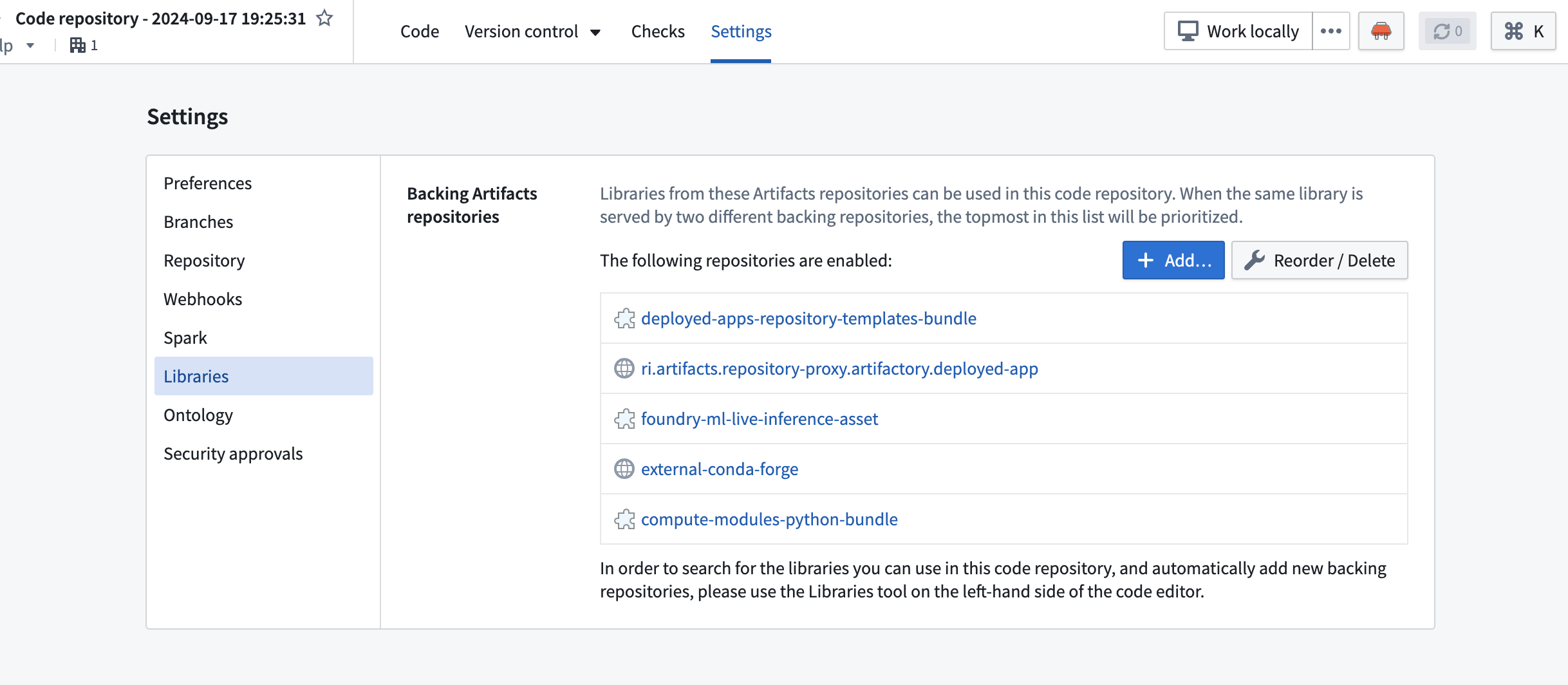
- Using the Settings panel: Navigate to Settings > Libraries in your code repository and add the libraries you need.
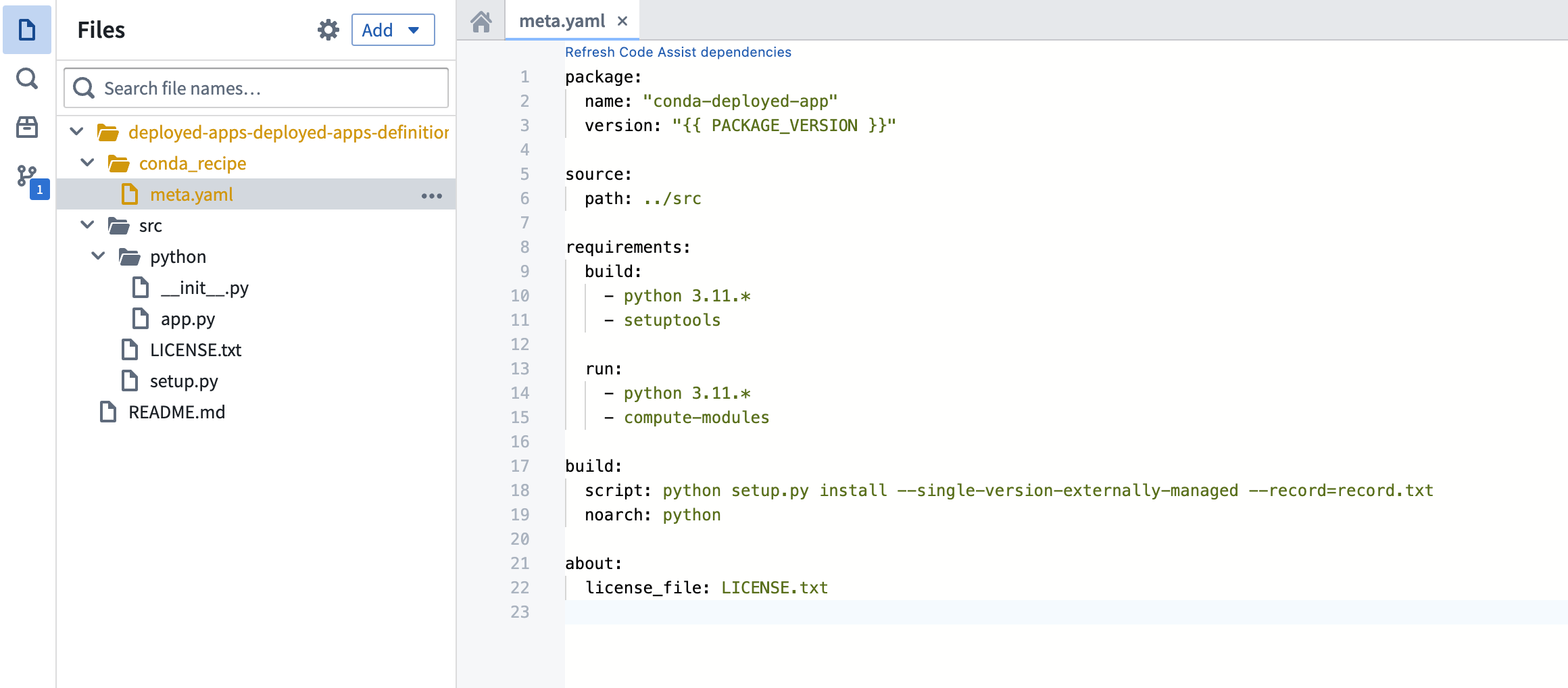
- Using
meta.yaml: Add dependencies directly in themeta.yamlconfiguration file in your repository root.
Tag a version
Once your code is ready, tag a version in your code repository to create an image:
- Select Tag version from the repository toolbar.
- Enter a version number (for example,
0.0.1). - Select Tag to create the version.
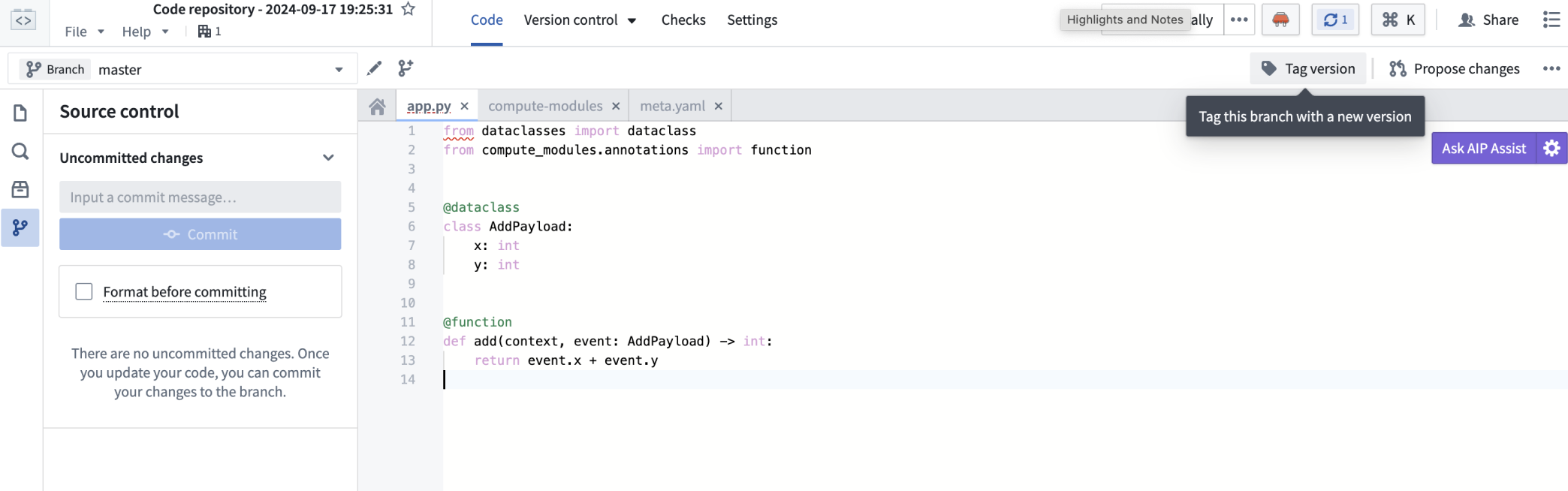
This creates a container image that can be linked to your compute module.
Link the image to your compute module
- Navigate to the Configure tab of your compute module.
- Select Add Container.
- Select your code repository and the tagged version you created.
- Select Update configuration to save your edits.
Import functions
After the compute module is running, you can import your functions:
- Navigate to the Functions tab in the Compute Module application.
- Select Import to view the list of detected functions from your running compute module.
- Select the functions you want to register and confirm the import.
Your functions are now available to use across the Foundry platform, including in Workshop and Slate applications.
Build a compute module-backed pipeline
Compute modules can operate as a connector between inputs and outputs of a data pipeline in a containerized environment. In this example, you will build a simple use case with streaming datasets as inputs and outputs to the compute module, define a function that doubles the input data, and write it to the output dataset. You will use notional data to simulate a working data pipeline.
Prerequisites
- Understand pipeline execution mode and its configuration.
- Set up an input and output stream.
- Install Docker Desktop.
- Install Python 3.9 or higher
Write the compute module to your local machine
- Create a new directory for your compute module.
- Create a file called
Dockerfilein the directory. - Copy and paste the following into the
Dockerfile:
# Change the platform based on your Foundry resource queue
FROM --platform=linux/amd64 python:3.12

COPY requirements.txt .
RUN pip install -r requirements.txt
COPY src .

# USER is required to be non-root and numeric for running compute modules in Foundry
USER 5000
CMD ["python", "app.py"]
- Create a new file called
requirements.txt. Store your dependencies for your Python application in this file. For example:
requests == 2.31.0
- Create a new subdirectory called
src. This is where you will put your Python application. - Inside the
srcdirectory, create a file calledapp.py. - Your directory should now look like the following:
MyComputeModule
├── Dockerfile
├── requirements.txt
└── src
    └── app.py
- Add the following code to
app.py. This complete example reads from an input stream, doubles the values, writes to an output stream, and repeats every 60 seconds:
import os
import json
import time
import requests

# Read the bearer token for input and output access
with open(os.environ['BUILD2_TOKEN']) as f:
    bearer_token = f.read()

# Read input and output resource information
with open(os.environ['RESOURCE_ALIAS_MAP']) as f:
    resource_alias_map = json.load(f)

input_info = resource_alias_map['identifier you put in the config']
output_info = resource_alias_map['identifier you put in the config']

input_rid = input_info['rid']
input_branch = input_info['branch'] or "master"
output_rid = output_info['rid']
output_branch = output_info['branch'] or "master"

FOUNDRY_URL = "yourenrollment.palantirfoundry.com"

def get_stream_latest_records():
    url = f"https://{FOUNDRY_URL}/stream-proxy/api/streams/{input_rid}/branches/{input_branch}/records"
    response = requests.get(url, headers={"Authorization": f"Bearer {bearer_token}"})
    return response.json()

def process_record(record):
    # Assume input stream has schema 'x': Integer
    x = record['value']['x']
    # Assume output stream has schema 'twice_x': Integer
    return {'twice_x': x * 2}

def put_record_to_stream(record):
    url = f"https://{FOUNDRY_URL}/stream-proxy/api/streams/{output_rid}/branches/{output_branch}/jsonRecord"
    requests.post(url, json=record, headers={"Authorization": f"Bearer {bearer_token}"})

# Run the pipeline autonomously
while True:
    records = get_stream_latest_records()
    processed_records = list(map(process_record, records))
    [put_record_to_stream(record) for record in processed_records]
    time.sleep(60)
Deploy your compute module
- Build a Docker image and publish it to the Artifact repository.
- Finally, deploy the compute module using pipeline execution mode after selecting the relevant container image.
You can now view the results streamed live in the output dataset.
Understand your pipeline code
To interact with inputs and outputs, we provide a bearer token and input/output information.
You can then write code to interact with the inputs and outputs and perform computations. The code snippets provide a simple example of pipelining two stream datasets:
- It reads the latest records from the input stream dataset using the bearer token and input info by calling the
stream-proxyservice. - It then performs computations (in the above example, doubling the data). The data format depends on your own input data.
- Next, it writes results to the output stream dataset using the bearer token and output info.
- Finally, as you cannot query a pipeline mode compute module, the code runs the pipeline autonomously at the end of the script, which will be executed on container start.
Create your first container
Now, you can publish your code to Foundry using an Artifact repository, which will be used to store your Docker images.
- Create or select an Artifact repository to publish your code to Foundry. To do this, navigate to the Documentation tab of your compute module. Then, find the corresponding in-platform documentation section to this external documentation page: Build a compute module-backed function > Create your first container. There, you can Create or select repository.
- On the next page, select the dropdown menu to choose Publish to DOCKER and follow the instructions on the page to push your code.
- In the Configure tab of your compute module, select Add Container. Then, select your Artifact repository and the image you pushed.
- Select Update configuration to save your edits.
- Once the configuration is updated, you can start the compute module from the Overview page, test it using the bottom Query panel, and view the logs.
中文翻译
入门指南
要开始使用计算模块(compute module),您可以使用自己偏好的开发环境。只需几分钟,您就能创建并部署一个计算模块,并在 Foundry 中进行测试。
在 Foundry 中,选择一个文件夹,然后点击 + New > Compute Module,按照对话框中的步骤操作,即可从一个空的计算模块支持的函数或管道开始。根据您的执行模式,请参考以下文档进行后续操作;或者,为了获得更流畅的体验,您可以选择计算模块中的 Documentation 选项卡,跟随平台内的指导进行操作。
构建计算模块支持的函数
计算模块通过开源 SDK 支持多种语言。请选择最适合您团队和用例的语言:
- Python: 使用开源 Python 库 ↗。
- Java: 使用开源 Java 库 ↗,并添加
com.palantir.computemodules:lib依赖。 - Node.js: 使用开源 TypeScript 库 ↗。
:::callout{theme="neutral"} 请查阅以下 SDK 指南,了解详细的 API 文档、认证模式、类型系统和代码示例:
- Python SDK:包含
@function装饰器、类型化函数、流式处理、认证、OSDK 集成和日志记录 - Java SDK:包含
ComputeModule构建器、类型定义、认证、OSDK 集成和日志记录 - TypeScript/Node.js SDK:包含函数注册、TypeBox 模式定义、流式处理和 SLS 日志记录 :::
如果您希望创建自己的客户端,或者使用 SDK 不支持的其他语言实现计算模块,请查阅关于如何实现自定义计算模块客户端的文档。
前提条件:
- 安装 Docker Desktop
- 安装以下之一:
- Python 3.9 或更高版本
- Java 21 或更高版本
- Node.js 18 或更高版本
在本地编写计算模块
- 首先,为您的计算模块创建一个新目录。
- 在该目录中创建一个名为
Dockerfile的文件。 - 将以下内容复制并粘贴到
Dockerfile中:
```dockerfile tab="Python"
根据您的 Foundry 资源队列更改平台
FROM --platform=linux/amd64 python:3.12
COPY requirements.txt . RUN pip install -r requirements.txt COPY src .
USER 必须为非 root 用户且为数字 ID,以便在 Foundry 中运行计算模块
USER 5000 CMD ["python", "app.py"]
```dockerfile tab="Java"
# 构建阶段
FROM --platform=linux/amd64 gradle:jdk21 AS build
COPY . /home/gradle/src
WORKDIR /home/gradle/src
RUN gradle shadowJar --no-daemon

# 运行阶段
FROM --platform=linux/amd64 eclipse-temurin:21-jre-alpine

RUN mkdir /app
COPY --from=build /home/gradle/src/build/libs/*.jar /app/app.jar

# USER 必须为非 root 用户且为数字 ID,以便在 Foundry 中运行计算模块
USER 5000
CMD ["java", "-jar", "/app/app.jar"]
```dockerfile tab="Node.js"
根据您的 Foundry 资源队列更改平台
FROM --platform=linux/amd64 node:18-alpine
WORKDIR /app COPY package.json package-lock.json ./ RUN npm ci --production COPY src .
USER 必须为非 root 用户且为数字 ID,以便在 Foundry 中运行计算模块
USER 5000 CMD ["node", "index.js"]
4. 为您的语言创建依赖文件:

```text tab="Python"
# requirements.txt
foundry-compute-modules
```groovy tab="Java" // build.gradle plugins { id 'java' id 'com.gradleup.shadow' version '9.4.1' }
repositories { mavenCentral() }
dependencies { implementation 'com.palantir.computemodules:lib:0.6.0' }
jar { manifest { attributes 'Main-Class': 'com.example.App' } }
```json tab="Node.js"
{
  "name": "my-compute-module",
  "version": "1.0.0",
  "dependencies": {
    "@palantir/compute-module": "^0.2.12"
  }
}
- 为您的应用程序代码创建目录结构:
```text tab="Python" MyComputeModule ├── Dockerfile ├── requirements.txt └── src └── app.py
```text tab="Java"
MyComputeModule
├── Dockerfile
├── build.gradle
└── src
    └── main
        └── java
            └── com
                └── example
                    └── App.java
```text tab="Node.js" MyComputeModule ├── Dockerfile ├── package.json └── src └── index.js
6. 在您的应用程序文件中,复制并粘贴以下代码:

```python tab="Python"
from compute_modules.annotations import function

@function
def add(context, event):
    return str(event['x'] + event['y'])

@function
def hello(context, event):
    return 'Hello' + event['name']
```java tab="Java" package com.example;
import com.palantir.computemodules.ComputeModule; import com.palantir.computemodules.functions.Context;
public class App { public static void main(String[] args) { ComputeModule.builder() .add(App::add, AddEvent.class, Integer.class, "add") .add(App::hello, HelloEvent.class, String.class, "hello") .build() .start(); }
record AddEvent(int x, int y) {}
record HelloEvent(String name) {}

static Integer add(Context context, AddEvent event) {
    return event.x() + event.y();
}

static String hello(Context context, HelloEvent event) {
    return "Hello, " + event.name();
}
}
javascript tab="Node.js"
const { ComputeModule } = require("@palantir/compute-module");
const computeModule = new ComputeModule();
computeModule.register("add", (context, event) => {
return String(event.x + event.y);
});
computeModule.register("hello", (context, event) => {
return "Hello" + event.name;
});
computeModule.start();
```
:::callout{theme="neutral"} 了解如何添加类型推断并自动将计算模块函数注册到函数注册表。 :::
:::callout{theme="neutral" title="类型化 Python 示例"} 对于生产环境,建议使用 Python SDK 的类型化输入和输出。这可以实现自动模式推断和函数注册:
from dataclasses import dataclass
from typing import TypedDict
from compute_modules.annotations import function

class HelloInput(TypedDict):
    planet: str

@dataclass
class AddPayload:
    x: int
    y: int

@function
def hello(context, event: HelloInput) -> str:
    return "Hello " + event["planet"] + "!"

@function
def add(context, event: AddPayload) -> int:
    return event.x + event.y
请查阅关于自动函数模式推断的文档,了解支持的类型模式的更多详情。 :::
理解您的函数代码
在使用计算模块函数时,您的函数将始终接收两个参数:事件对象(event objects) 和 上下文对象(context objects)。
上下文对象: 一个包含您的函数可能需要的元数据和凭据的对象参数。示例包括用户令牌、源凭据和其他必要数据。例如,如果您的函数需要调用 OSDK 来获取本体对象(Ontology object),上下文对象将包含用户访问该本体对象所需的令牌。
事件对象: 一个包含您的函数将要处理的数据的对象参数。包括传递给函数的所有参数,例如 add 函数中的 x 和 y,以及 hello 函数中的 name。在 Python 中,这是一个 dict;在 Java 中,这是一个 JSON 节点对象;在 Node.js 中,这是一个普通的 JavaScript 对象。
:::callout{theme="warning"} 如果您对事件/返回对象使用静态类型,库会将负载/结果转换为该静态类型对象。请查阅关于自动函数模式推断的文档以获取更多信息。 :::
:::callout{theme="warning"} 函数结果将以 JSON blob 的形式进行传输,因此请确保函数能够序列化为 JSON。 :::
创建您的第一个容器
现在,您可以使用 Artifact 仓库(Artifact repository)将代码发布到 Foundry,该仓库将用于存储您的 Docker 镜像。
- 创建或选择一个 Artifact 仓库,用于将代码发布到 Foundry。为此,请导航到计算模块的 Documentation 选项卡。然后,找到与此外部文档页面对应的平台内文档部分:构建计算模块支持的函数 > 创建您的第一个容器。在那里,您可以 创建或选择仓库。
- 在下一页,选择下拉菜单中的 Publish to DOCKER,并按照页面上的说明推送您的代码。
- 在计算模块的 Configure 选项卡中,选择 Add Container。然后,选择您的 Artifact 仓库和您推送的镜像。
- 选择 Update configuration 以保存您的编辑。
- 配置更新后,您可以从 Overview 页面启动计算模块,使用底部的 Query 面板进行测试,并查看日志。
使用代码仓库进行构建
作为本地开发的替代方案,您可以直接在 Foundry 平台内使用代码仓库(Code Repositories)构建 Python 计算模块。这种方法提供了集成的开发体验,内置版本控制、依赖管理和容器镜像发布功能。
前提条件
创建 Python 计算模块代码仓库
- 在 Foundry 中,导航到一个文件夹,选择 + New > Code Repository。
- 选择 Python Compute Module 作为仓库类型。
- 为您的仓库命名,然后选择 Create。
该代码仓库将预先配置好计算模块所需的项目结构,包括 src/ 目录和默认配置文件。
在代码仓库中编写函数
在 src/ 目录中,打开 app.py 文件,并使用 @function 装饰器定义您的函数:
from compute_modules.annotations import function

@function
def add(context, event):
    return str(event['x'] + event['y'])

@function
def hello(context, event):
    return 'Hello ' + event['name']
对于启用自动模式推断的类型化输入和输出,请使用 TypedDict 或 dataclass 类型,如自动函数模式推断文档中所述。
添加 Python 库
您可以通过两种方式向计算模块代码仓库添加 Python 库:
- 使用设置面板: 导航到代码仓库中的 Settings > Libraries,然后添加您需要的库。
- 使用
meta.yaml: 直接在仓库根目录的meta.yaml配置文件中添加依赖项。
标记版本
代码准备就绪后,在代码仓库中标记一个版本以创建镜像:
- 从仓库工具栏中选择 Tag version。
- 输入版本号(例如
0.0.1)。 - 选择 Tag 以创建版本。
这将创建一个容器镜像,可以链接到您的计算模块。
将镜像链接到计算模块
- 导航到计算模块的 Configure 选项卡。
- 选择 Add Container。
- 选择您的代码仓库和您创建的标记版本。
- 选择 Update configuration 以保存您的编辑。
导入函数
计算模块运行后,您可以导入您的函数:
- 导航到计算模块应用程序中的 Functions 选项卡。
- 选择 Import 以查看从运行中的计算模块检测到的函数列表。
- 选择您要注册的函数,并确认导入。
您的函数现在可以在整个 Foundry 平台中使用,包括在 Workshop 和 Slate 应用程序中。
构建计算模块支持的管道
计算模块可以在容器化环境中作为数据管道输入和输出之间的连接器运行。在此示例中,您将构建一个简单的用例,使用流式数据集作为计算模块的输入和输出,定义一个将输入数据加倍的函数,并将其写入输出数据集。您将使用模拟数据来模拟一个工作的数据管道。
前提条件
- 了解管道执行模式及其配置。
- 设置输入和输出流。
- 安装 Docker Desktop。
- 安装 Python 3.9 或更高版本
在本地机器上编写计算模块
- 为您的计算模块创建一个新目录。
- 在该目录中创建一个名为
Dockerfile的文件。 - 将以下内容复制并粘贴到
Dockerfile中:
# 根据您的 Foundry 资源队列更改平台
FROM --platform=linux/amd64 python:3.12

COPY requirements.txt .
RUN pip install -r requirements.txt
COPY src .

# USER 必须为非 root 用户且为数字 ID,以便在 Foundry 中运行计算模块
USER 5000
CMD ["python", "app.py"]
- 创建一个名为
requirements.txt的新文件。将您的 Python 应用程序的依赖项存储在此文件中。例如:
requests == 2.31.0
- 创建一个名为
src的新子目录。这是您放置 Python 应用程序的地方。 - 在
src目录中,创建一个名为app.py的文件。 - 您的目录现在应如下所示:
MyComputeModule
├── Dockerfile
├── requirements.txt
└── src
    └── app.py
- 将以下代码添加到
app.py中。这个完整的示例从输入流中读取数据,将值加倍,写入输出流,并每 60 秒重复一次:
import os
import json
import time
import requests

# 读取用于输入和输出访问的 bearer 令牌
with open(os.environ['BUILD2_TOKEN']) as f:
    bearer_token = f.read()

# 读取输入和输出资源信息
with open(os.environ['RESOURCE_ALIAS_MAP']) as f:
    resource_alias_map = json.load(f)

input_info = resource_alias_map['您在配置中输入的标识符']
output_info = resource_alias_map['您在配置中输入的标识符']

input_rid = input_info['rid']
input_branch = input_info['branch'] or "master"
output_rid = output_info['rid']
output_branch = output_info['branch'] or "master"

FOUNDRY_URL = "yourenrollment.palantirfoundry.com"

def get_stream_latest_records():
    url = f"https://{FOUNDRY_URL}/stream-proxy/api/streams/{input_rid}/branches/{input_branch}/records"
    response = requests.get(url, headers={"Authorization": f"Bearer {bearer_token}"})
    return response.json()

def process_record(record):
    # 假设输入流具有模式 'x': Integer
    x = record['value']['x']
    # 假设输出流具有模式 'twice_x': Integer
    return {'twice_x': x * 2}

def put_record_to_stream(record):
    url = f"https://{FOUNDRY_URL}/stream-proxy/api/streams/{output_rid}/branches/{output_branch}/jsonRecord"
    requests.post(url, json=record, headers={"Authorization": f"Bearer {bearer_token}"})

# 自主运行管道
while True:
    records = get_stream_latest_records()
    processed_records = list(map(process_record, records))
    [put_record_to_stream(record) for record in processed_records]
    time.sleep(60)
部署您的计算模块
- 构建 Docker 镜像并将其发布到 Artifact 仓库。
- 最后,在选择相关容器镜像后,使用管道执行模式部署计算模块。
您现在可以在输出数据集中实时查看结果流。
理解您的管道代码
为了与输入和输出进行交互,我们提供了 bearer 令牌和输入/输出信息。
然后,您可以编写代码与输入和输出进行交互并执行计算。代码片段提供了一个简单的管道化两个流数据集的示例:
- 它使用 bearer 令牌和输入信息,通过调用
stream-proxy服务从输入流数据集中读取最新记录。 - 然后执行计算(在上述示例中,将数据加倍)。数据格式取决于您自己的输入数据。
- 接下来,它使用 bearer 令牌和输出信息将结果写入输出流数据集。
- 最后,由于您无法查询管道模式的计算模块,代码在脚本末尾自主运行管道,该脚本将在容器启动时执行。
创建您的第一个容器
现在,您可以使用 Artifact 仓库将代码发布到 Foundry,该仓库将用于存储您的 Docker 镜像。
- 创建或选择一个 Artifact 仓库,用于将代码发布到 Foundry。为此,请导航到计算模块的 Documentation 选项卡。然后,找到与此外部文档页面对应的平台内文档部分:构建计算模块支持的函数 > 创建您的第一个容器。在那里,您可以 创建或选择仓库。
- 在下一页,选择下拉菜单中的 Publish to DOCKER,并按照页面上的说明推送您的代码。
- 在计算模块的 Configure 选项卡中,选择 Add Container。然后,选择您的 Artifact 仓库和您推送的镜像。
- 选择 Update configuration 以保存您的编辑。
- 配置更新后,您可以从 Overview 页面启动计算模块,使用底部的 Query 面板进行测试,并查看日志。