Compute module history(计算模块历史记录)
The History tab provides a chronological record of all changes and runs for your compute module, which is useful for debugging. Use this view to understand how your compute module's configuration has evolved over time and to investigate past deployments.
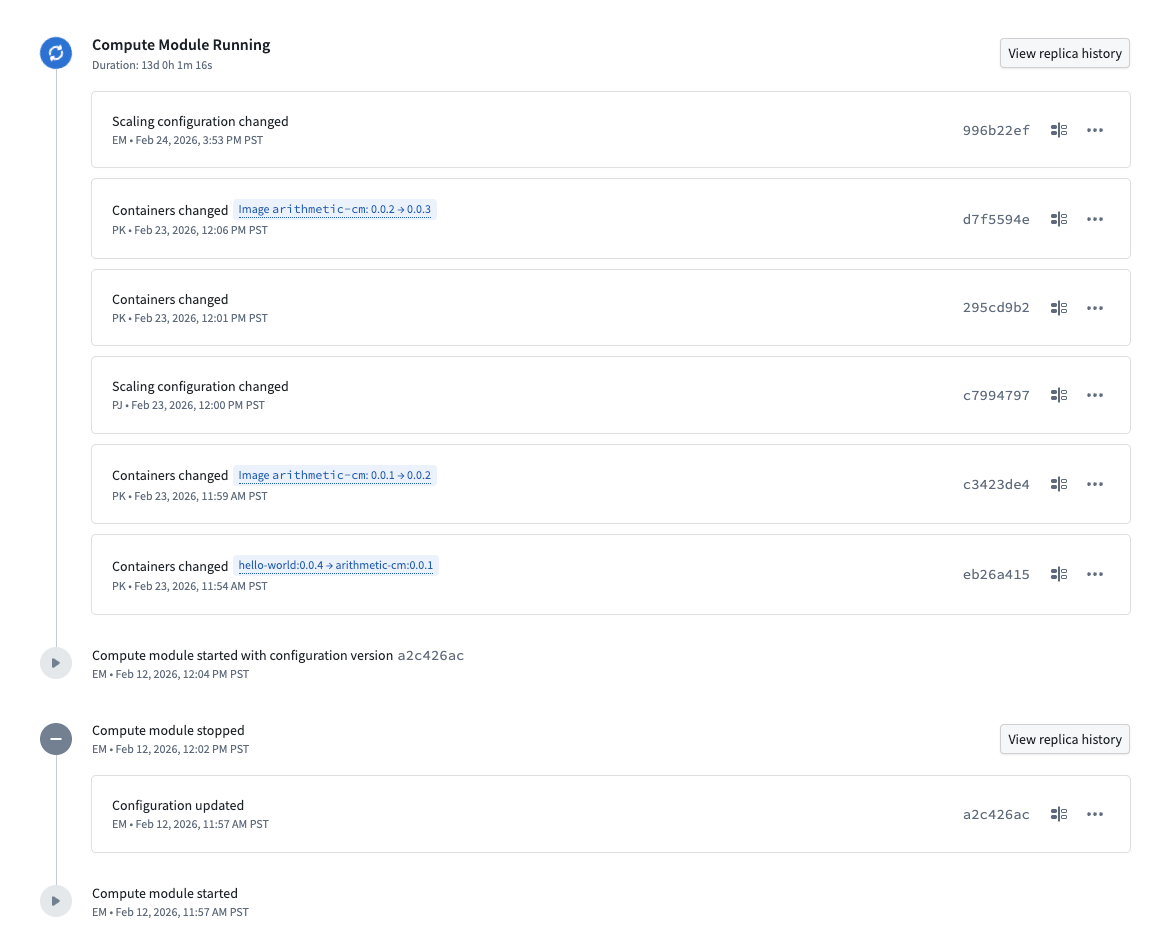
The history tab displays events in reverse chronological order, including the following:
-
Configuration changes: Each change is labeled with the type of modification, such as Containers changed or Scaling configuration changed. When container images are updated, the history shows the specific version transition (for example,
image arithmetic-cm: 0.0.1 → 0.0.2). Hovering over this tag will display the impacted container.

Each configuration change is associated with a unique configuration version identifier. You can use these identifiers to review and compare specifications across changes. -
To view the full specification for a configuration version, select the tag containing the version identifier.
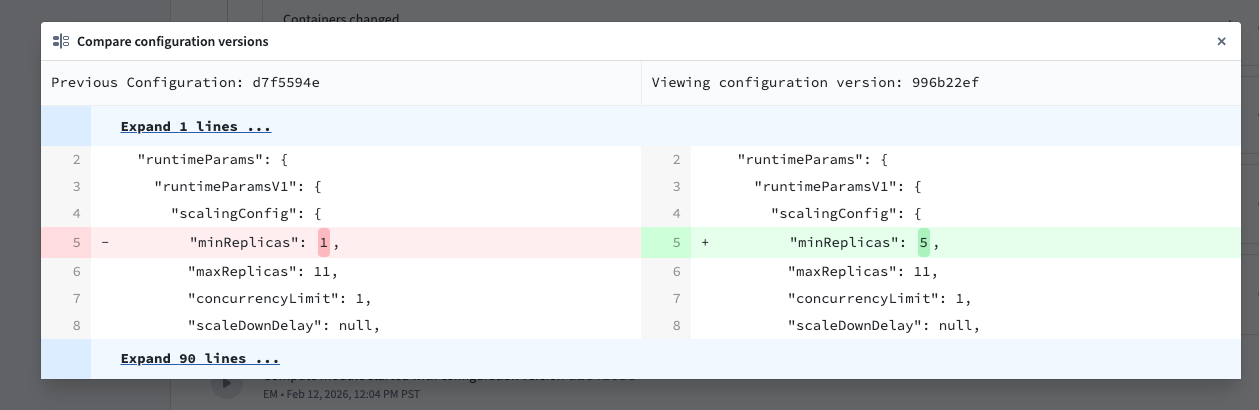
- To compare a configuration version against the previous saved version, select the compare icon next to a configuration entry. This opens a side-by-side diff view that shows the previous configuration on the left and the selected configuration on the right. Additions and removals are highlighted, making it straightforward to identify exactly what changed between versions.
- Run events: The history tab tracks when a compute module was started or stopped, along with who initiated the action and when it occurred.
Replica history
For any given compute module run, you can view the replica history by selecting View replica history next to a stopped run or an in-progress run. The replica history provides a detailed view of all replicas created during that run.
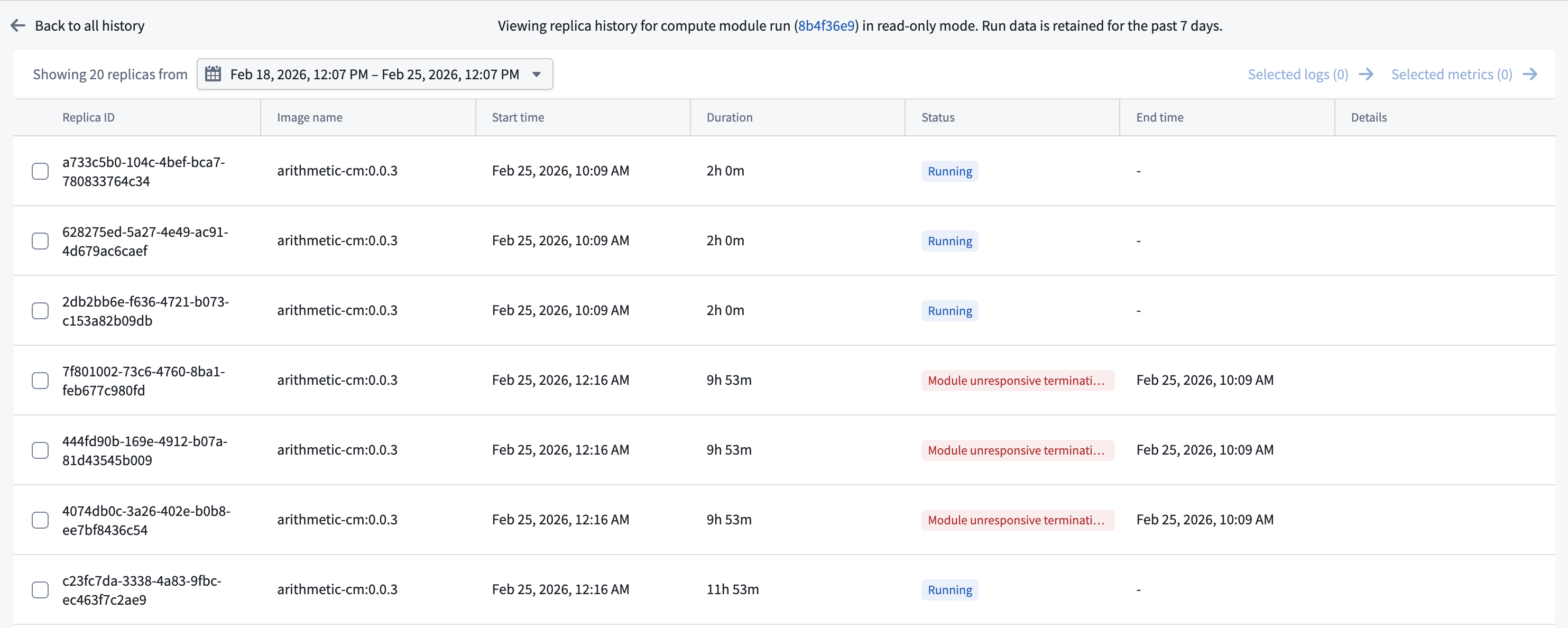
The banner at the top of the replica history page displays the run identifier as a link. Select this link to open the run in Job Tracker, where you can view additional information about the compute module run.
The replica history table displays the following information for each replica:
- Replica ID: The unique identifier for the replica.
- Image name: The container image and version used by the replica.
- Start time: When the replica was created.
- Duration: How long the replica has been running, or its total run time if the run has completed.
- Status: The current or final state of the replica, such as whether it is still running, whether it reached its maximum lifetime, or if it was terminated early. If a replica was terminated early, the status indicates the reason, such as an unresponsive termination strategy.
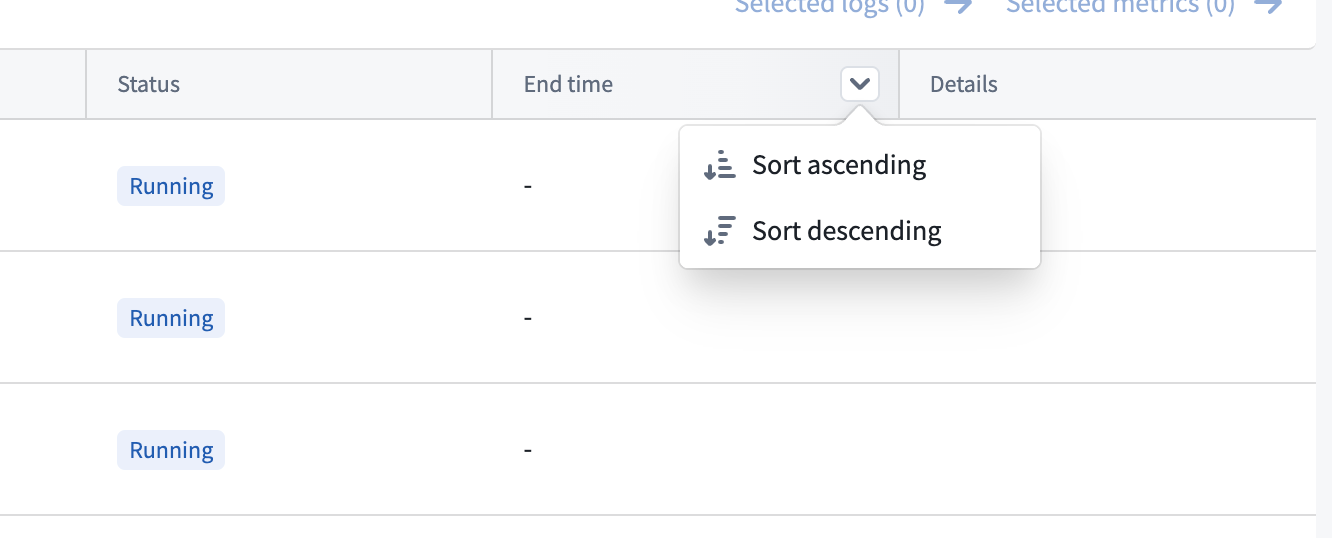
- End time: When the replica stopped, if applicable. You can filter replicas by end time by hovering over the End time column header.
To view logs or metrics for an individual replica, hover over its row to reveal the Logs and Metrics buttons in the Details column, then select the desired option.

To view logs or metrics for multiple replicas at once, select the replicas using the checkboxes and then use the Selected logs or Selected metrics links at the top of the table.
:::callout{theme="neutral"} Replica history is read-only. Replica details are only retained for 7 days. :::
中文翻译
计算模块历史记录
历史记录(History) 选项卡按时间顺序记录了计算模块的所有变更和运行记录,对调试非常有用。通过此视图,您可以了解计算模块配置的演变过程,并调查过去的部署情况。
历史记录选项卡按时间倒序显示事件,包括以下内容:
-
配置变更: 每次变更都会标注修改类型,例如容器已更改(Containers changed) 或扩缩容配置已更改(Scaling configuration changed)。当容器镜像更新时,历史记录会显示具体的版本变更(例如,
image arithmetic-cm: 0.0.1 → 0.0.2)。将鼠标悬停在此标签上,将显示受影响的容器。
每次配置变更都关联一个唯一的配置版本标识符。您可以使用这些标识符来查看和比较不同变更之间的规格。 -
要查看某个配置版本的完整规格,请选择包含版本标识符的标签。
- 要将某个配置版本与之前保存的版本进行比较,请选择配置条目旁边的比较图标。这将打开一个并排差异视图,左侧显示之前的配置,右侧显示所选配置。新增和删除的内容会高亮显示,使您可以轻松识别版本之间的具体变化。
- 运行事件: 历史记录选项卡会跟踪计算模块的启动和停止时间,以及执行操作的人员和具体时间。
副本历史记录(Replica history)
对于任何给定的计算模块运行,您可以通过选择已停止运行或正在运行旁边的查看副本历史记录(View replica history) 来查看副本历史记录。副本历史记录提供了该次运行期间创建的所有副本的详细视图。
副本历史记录页面顶部的横幅将运行标识符显示为链接。选择此链接可在作业跟踪器(Job Tracker)中打开该运行,您可以在其中查看有关计算模块运行的更多信息。
副本历史记录表为每个副本显示以下信息:
- 副本 ID (Replica ID): 副本的唯一标识符。
- 镜像名称 (Image name): 副本使用的容器镜像和版本。
- 启动时间 (Start time): 副本创建的时间。
- 持续时间 (Duration): 副本已运行的时间,如果运行已完成,则为总运行时间。
- 状态 (Status): 副本的当前或最终状态,例如是否仍在运行、是否达到最大生命周期,或者是否提前终止。如果副本提前终止,状态会指明原因,例如无响应终止策略。
- 结束时间 (End time): 副本停止的时间(如适用)。您可以通过将鼠标悬停在结束时间(End time) 列标题上来按结束时间筛选副本。
要查看单个副本的日志或指标,请将鼠标悬停在其行上,详细信息(Details) 列中会显示日志(Logs) 和指标(Metrics) 按钮,然后选择所需选项。
要同时查看多个副本的日志或指标,请使用复选框选择副本,然后使用表格顶部的所选日志(Selected logs) 或所选指标(Selected metrics) 链接。
:::callout{theme="neutral"} 副本历史记录为只读。副本详细信息仅保留 7 天。 :::