Using Palantir-provided models to create a semantic search workflow(使用 Palantir 提供的模型创建语义搜索工作流)
:::callout{theme="neutral"} To use Palantir-provided language models, AIP must first be enabled on your enrollment. You also must have permissions to use AIP developer capabilities. Using a custom model? Review Using custom models to create a semantic search workflow instead. :::
This page illustrates the process of building a notional end-to-end semantic search workflow using a Palantir-provided embedding model.
Instructions
To begin, you need to generate embeddings and store them in an object type with a vector type. Then, you can set up a semantic search workflow in Workshop, build an AIP Chatbot Workshop widget solution, or create a custom semantic search function for use in Workshop and AIP Logic.
Prerequisite:
Options:
- Create a simple semantic search workflow within workshop using a KNN object set (no-code)
- Enable an AIP Chatbot to semantic search for objects (no-code)
- Create a function to semantically search across objects for use in Workshop and/or AIP Logic
Generate embeddings and create object type
We will use Pipeline Builder to embed text in the dataset as vectors with the Text to Embeddings expression. The expression takes a string and converts it to a vector using one of the Palantir-provided models - in our case the text-embedding-ada-002 embedding model.

These embeddings can then be added to the Ontology as a vector property.
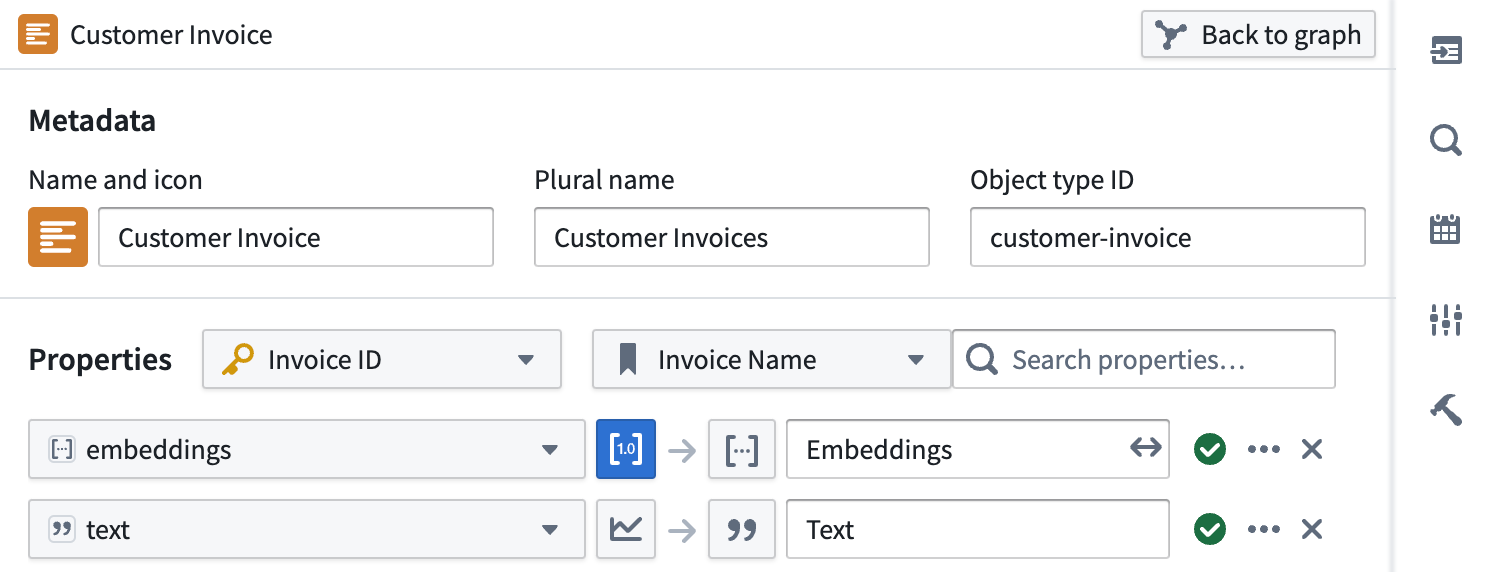
If you would like more control around the generation of embeddings using Palantir-provided models, see Language models within Python Transforms.
Create a simple semantic search workflow within workshop using a KNN object set (no-code)
:::callout{theme="neutral"} The KNN object set cannot be sorted by relevancy. If you need ordered results, use the function approach. :::
Configuring a KNN object set within Workshop is an easy no-code way to build a semantic search workflow.
- Create an object set variable and select the object type that contains an embedding property.
- Select the filter
+ On a propertyoption, then from the list of properties in the menu, select your embedding property. - Once selected, the K-nearest-neighbors configuration should appear. If this configuration does not appear, verify that the property you selected is an embedding property.
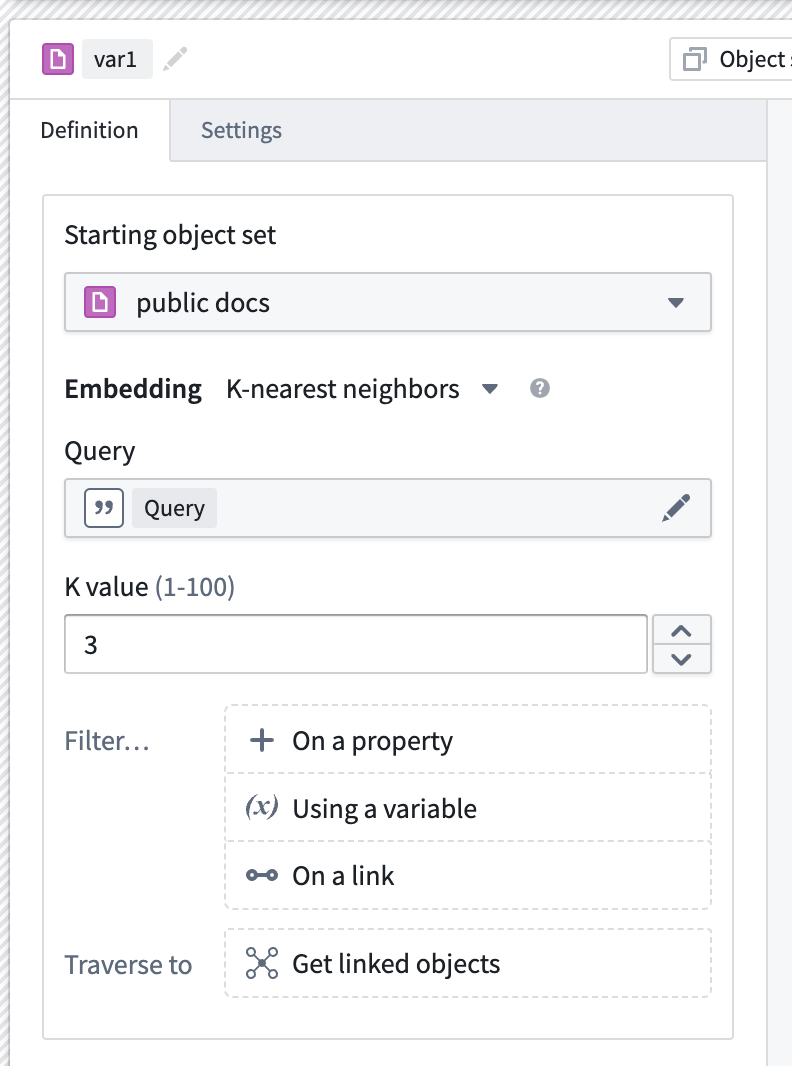
Within this panel, you can configure:
- K-value: A number between 1-100 for how many objects to return in the semantic search.
-
Query: The string variable to use as a query when performing the semantic search.
-
Next, create a string selector widget and add its output variable to the KNN query option seen above.
- Lastly, add an object table widget and configure its input variable to be the newly created KNN object set.
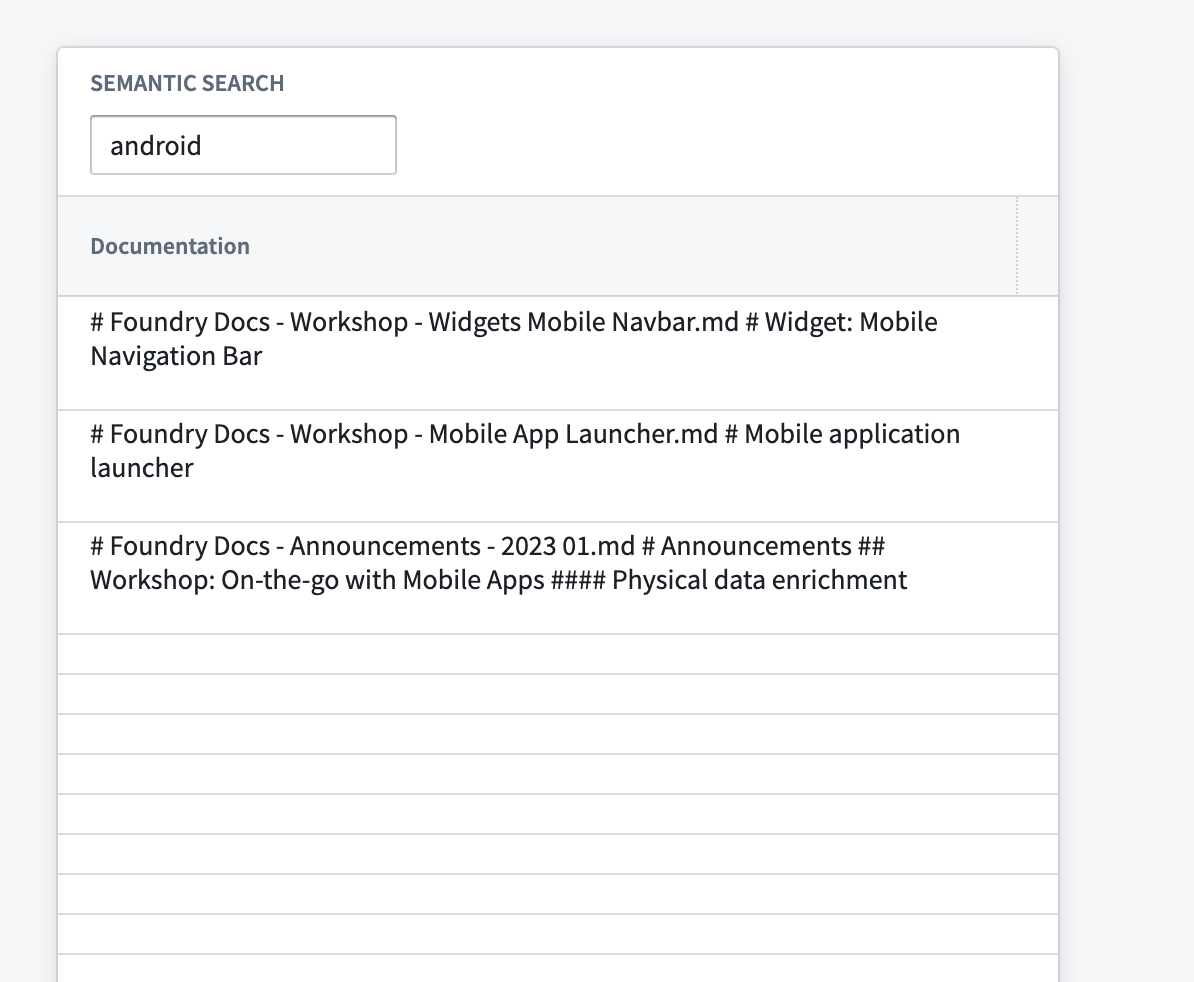
For more customized semantic search logic, see the section on functions.
Use AIP Chatbot (no-code)
AIP Chatbots (formerly AIP Agents) created in AIP Chatbot Studio are good for beginning semantic searches across your objects because they do not require any code. Learn more about incorporating semantic search with more control over the functionality.
Follow the instructions on the getting started guide to create an AIP Chatbot and either add Ontology context or an Ontology semantic search tool. This initial setup will enable you to ask the AIP Chatbot to semantically search the objects.
Create a function to semantically search across objects for use in Workshop and/or AIP Logic
We can create a typescript repository and create a function to query our object type. The overall goal is to be able to take some user input, generate a vector using the same Palantir-provided model used earlier, and then do a KNN search over our object type. For more information on how to import Palantir-provided models, review Language models within Functions.
:::callout{theme="success" title="Substitutions"}
In the code snippet below, replace every instance of ObjectApiName for your unique ObjectType. Note that the identifier may sometimes appear as objectApiName with the first letter in lowercase.
:::
:::callout{theme="warning" title="Enabling vector properties for functions"}
Before proceeding, ensure that the entry "enableVectorProperties": true is present in the functions.json file in your Functions code repository. If this entry is not present, add it to functions.json and commit the change to proceed. Contact your Palantir representative if you need further assistance.
:::
functions-typescript/src/index.ts
import { Function, Integer } from "@foundry/functions-api";
import { Objects, ObjectApiName } from "@foundry/ontology-api";
import { TextEmbeddingAda_002 } from "@foundry/models-api/language-models"

export class MyFunctions {
    @Function()
    public async findRelevantObjects(
        query: string,
        kValue: Integer,
    ): Promise<ObjectApiName[]> {
        if (query.length < 1) {
            return []
        }
        const embedding = await TextEmbeddingAda_002.createEmbeddings({inputs: [query]}).then(r => r.embeddings[0]);

        return Objects.search()
                    .objectApiName()
                    .nearestNeighbors(obj => obj.embeddings.near(embedding, {kValue: kValue}))
                    .orderByRelevance()
                    .take(kValue);
    }
}
At this point, we have a function that can run semantic search to query objects with natural language. Remember to publish the function so the function can be used anywhere within Foundry.
Use semantic search functions in Workshop
- Start by creating a Workshop application.
- Add a text input widget, which will be used as an input to the published KNN document fetch function.
- Add an object list widget with an input object set generated from the function and the selected inputs as shown below:

- Set the
kValueto however many results you want returned, subject to the specified limits.
Use Semantic Search functions in AIP Logic
Add the published function as a tool within AIP Logic. Instruct the language model to use the tool with a prompt similar to this:
Use the fetchRelevantObjects tool with a kValue of 5 to find the most related objects. Remember to add quotes around query when using the tool.
中文翻译
使用 Palantir 提供的模型创建语义搜索工作流
:::callout{theme="neutral"} 要使用 Palantir 提供的语言模型,必须先在您的注册环境中启用 AIP。您还需要拥有使用 AIP 开发者能力的权限。使用自定义模型?请参阅使用自定义模型创建语义搜索工作流。 :::
本页面演示了使用 Palantir 提供的嵌入模型(embedding model)构建一个概念性的端到端语义搜索工作流的过程。
操作说明
首先,您需要生成嵌入向量(embeddings)并将其存储在具有 vector 类型的对象类型(object type)中。然后,您可以在 Workshop 中设置语义搜索工作流,构建 AIP Chatbot Workshop 组件解决方案,或创建自定义语义搜索函数供 Workshop 和 AIP Logic 使用。
前提条件:
可选方案:
- 在 Workshop 中使用 KNN 对象集创建简单的语义搜索工作流(无需编码)
- 让 AIP Chatbot 能够语义搜索对象(无需编码)
- 创建函数以在对象间进行语义搜索,供 Workshop 和/或 AIP Logic 使用
生成嵌入向量并创建对象类型
我们将使用 Pipeline Builder 通过 文本到嵌入向量(Text to Embeddings) 表达式将数据集中的文本嵌入为向量。该表达式接收一个字符串,并使用 Palantir 提供的模型之一(在本例中为 text-embedding-ada-002 嵌入模型)将其转换为向量。
这些嵌入向量随后可以作为向量属性(vector property)添加到本体论(Ontology)中。
如果您希望对使用 Palantir 提供的模型生成嵌入向量有更多控制,请参阅 Python 转换中的语言模型。
在 Workshop 中使用 KNN 对象集创建简单的语义搜索工作流(无需编码)
:::callout{theme="neutral"} KNN 对象集(object set)无法按相关性排序。如果您需要有序结果,请使用函数方法。 :::
在 Workshop 中配置 KNN 对象集是一种简单的无需编码的构建语义搜索工作流的方法。
- 创建一个对象集变量(variable),并选择包含嵌入属性(embedding property)的对象类型。
- 选择筛选条件
+ 按属性(On a property)选项,然后从菜单中的属性列表中选择您的嵌入属性。 - 选择后,应显示 K-最近邻(K-nearest-neighbors)配置。如果此配置未显示,请验证您选择的属性是否为嵌入属性。
在此面板中,您可以配置:
- K 值(K-value):1-100 之间的数字,用于指定语义搜索返回的对象数量。
-
查询(Query):执行语义搜索时用作查询的字符串变量。
-
接下来,创建一个字符串选择器(string selector)组件,并将其输出变量添加到上述 KNN 查询选项中。
- 最后,添加一个对象表格(object table)组件,并将其输入变量配置为新创建的 KNN 对象集。
如需更自定义的语义搜索逻辑,请参阅关于函数的章节。
使用 AIP Chatbot(无需编码)
在 AIP Chatbot Studio 中创建的 AIP Chatbot(原 AIP Agents)非常适合开始对您的对象进行语义搜索,因为它们不需要任何代码。了解更多关于以更可控的方式整合语义搜索的信息。
按照入门指南中的说明创建 AIP Chatbot,并添加本体论上下文(Ontology context)或本体论语义搜索(Ontology semantic search) 工具(tool)。此初始设置将使您能够要求 AIP Chatbot 对对象进行语义搜索。
创建函数以在对象间进行语义搜索,供 Workshop 和/或 AIP Logic 使用
我们可以创建一个 TypeScript 仓库并创建一个函数来查询我们的对象类型。总体目标是能够接收用户输入,使用之前相同的 Palantir 提供的模型生成向量,然后对我们的对象类型执行 KNN 搜索。有关如何导入 Palantir 提供的模型的更多信息,请参阅 Functions 中的语言模型。
:::callout{theme="success" title="替换"}
在下面的代码片段中,将每个 ObjectApiName 实例替换为您唯一的 ObjectType。请注意,标识符有时可能以小写字母开头显示为 objectApiName。
:::
:::callout{theme="warning" title="为函数启用向量属性"}
在继续之前,请确保您的 Functions 代码仓库中的 functions.json 文件中包含条目 "enableVectorProperties": true。如果此条目不存在,请将其添加到 functions.json 中并提交更改以继续。如需进一步帮助,请联系您的 Palantir 代表。
:::
functions-typescript/src/index.ts
import { Function, Integer } from "@foundry/functions-api";
import { Objects, ObjectApiName } from "@foundry/ontology-api";
import { TextEmbeddingAda_002 } from "@foundry/models-api/language-models"

export class MyFunctions {
    @Function()
    public async findRelevantObjects(
        query: string,
        kValue: Integer,
    ): Promise<ObjectApiName[]> {
        if (query.length < 1) {
            return []
        }
        const embedding = await TextEmbeddingAda_002.createEmbeddings({inputs: [query]}).then(r => r.embeddings[0]);

        return Objects.search()
                    .objectApiName()
                    .nearestNeighbors(obj => obj.embeddings.near(embedding, {kValue: kValue}))
                    .orderByRelevance()
                    .take(kValue);
    }
}
至此,我们拥有了一个可以使用自然语言查询对象进行语义搜索的函数。请记住发布该函数,以便在 Foundry 中的任何地方使用它。
在 Workshop 中使用语义搜索函数
- 首先创建一个 Workshop 应用程序。
- 添加一个文本输入组件(text input widget),它将用作已发布的 KNN 文档获取函数的输入。
- 添加一个对象列表组件(object list widget),其输入为从函数生成的对象集,并选择如下所示的输入:
- 将
kValue设置为您希望返回的结果数量,需遵守指定限制。
在 AIP Logic 中使用语义搜索函数
将已发布的函数作为工具(tool)添加到 AIP Logic 中。使用类似以下的提示词指示语言模型使用该工具:
使用 fetchRelevantObjects 工具,kValue 设为 5,查找最相关的对象。使用该工具时,请记得在查询(query)周围加上引号。