Ontology Manager(本体论管理器(Ontology Manager))
Ontology Manager (sometimes called the Ontology Management Application, or OMA) enables you to build and maintain your organization’s Ontology. You can use Ontology Manager for a wide range of activities related to your Ontology, from creating a new object type and defining a new action type, to connecting data to the Ontology, and investigating whether data is updating in user applications.
Accessing the application
You can access the application in three different ways, by either:
- Selecting the Ontology Manager icon from the Workspace sidebar’s Apps section;
- Right-clicking on an object type in Data Lineage and selecting Configure object type; or
- Adding
/workspace/ontologyto the end of your Foundry home page URL (for instance,https://example.website.com/workspace/ontology).
User interface
The Ontology Manager interface is divided into the following elements that you will see referenced throughout the documentation:
- Ontology Manager navigation
- Discover view
- Object type view
- Property editor view
- Link type view
- Action type view
- Function type view
Ontology Manager navigation
The two persisting elements of Ontology Manager are the top bar and the sidebar. The top bar and sidebar serve as navigation elements, providing intuitive access to various features, functionalities, and sections within the application.
The top bar has three main functionalities. It allows users to search for Ontology resources, create new Ontology resources, and navigate between or create new branches.
The sidebar provides easy navigation to different resources, pages, or applications within Ontology Manager.
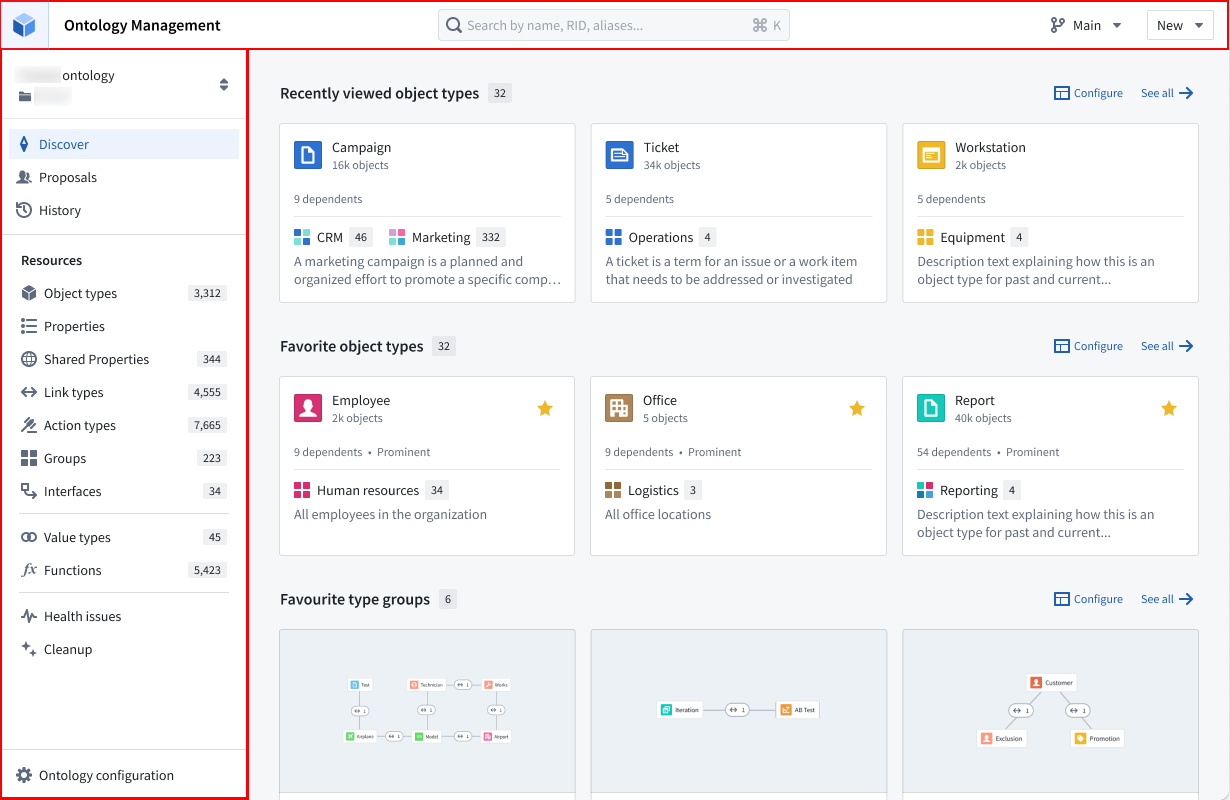
Discover
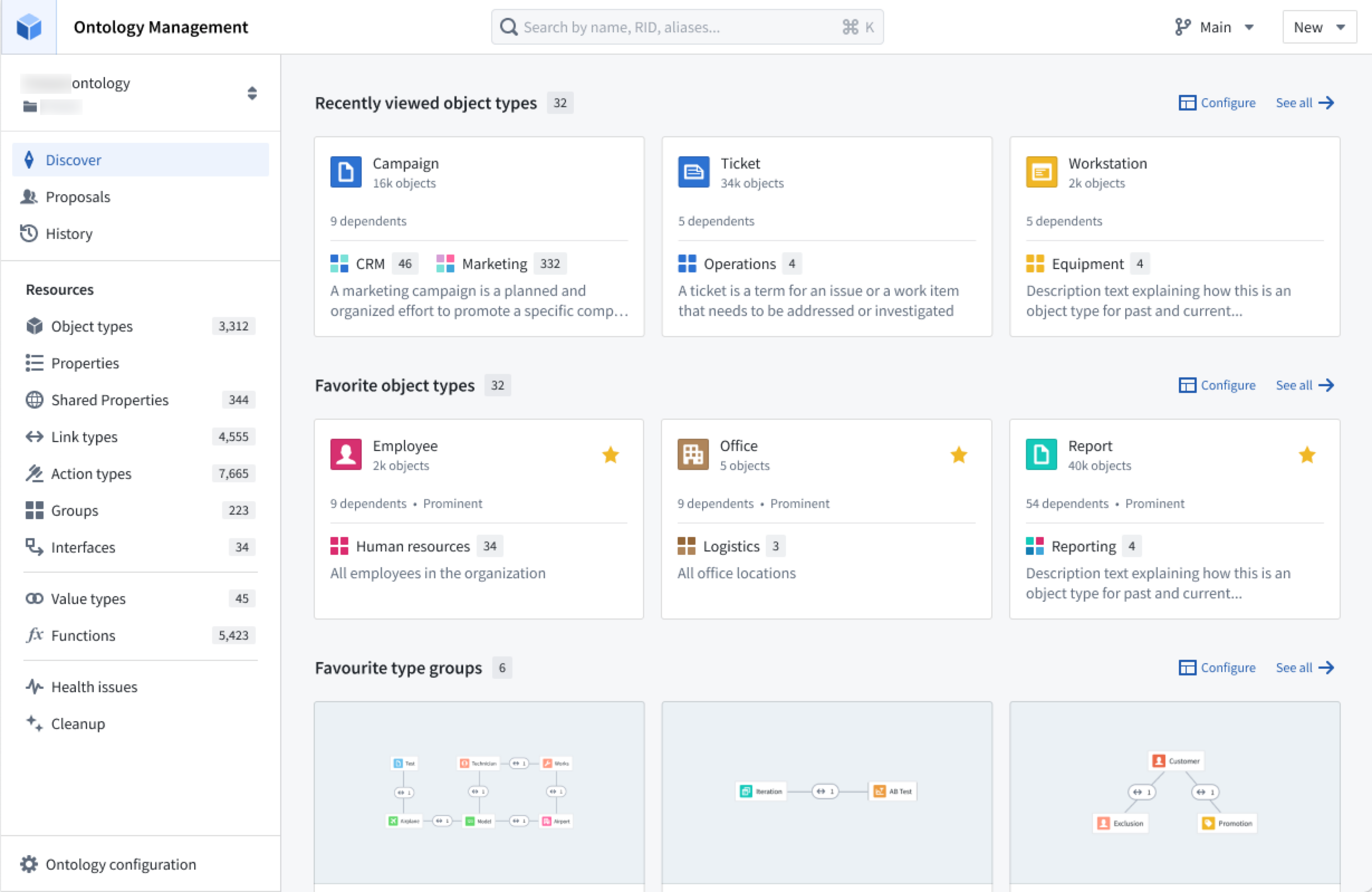
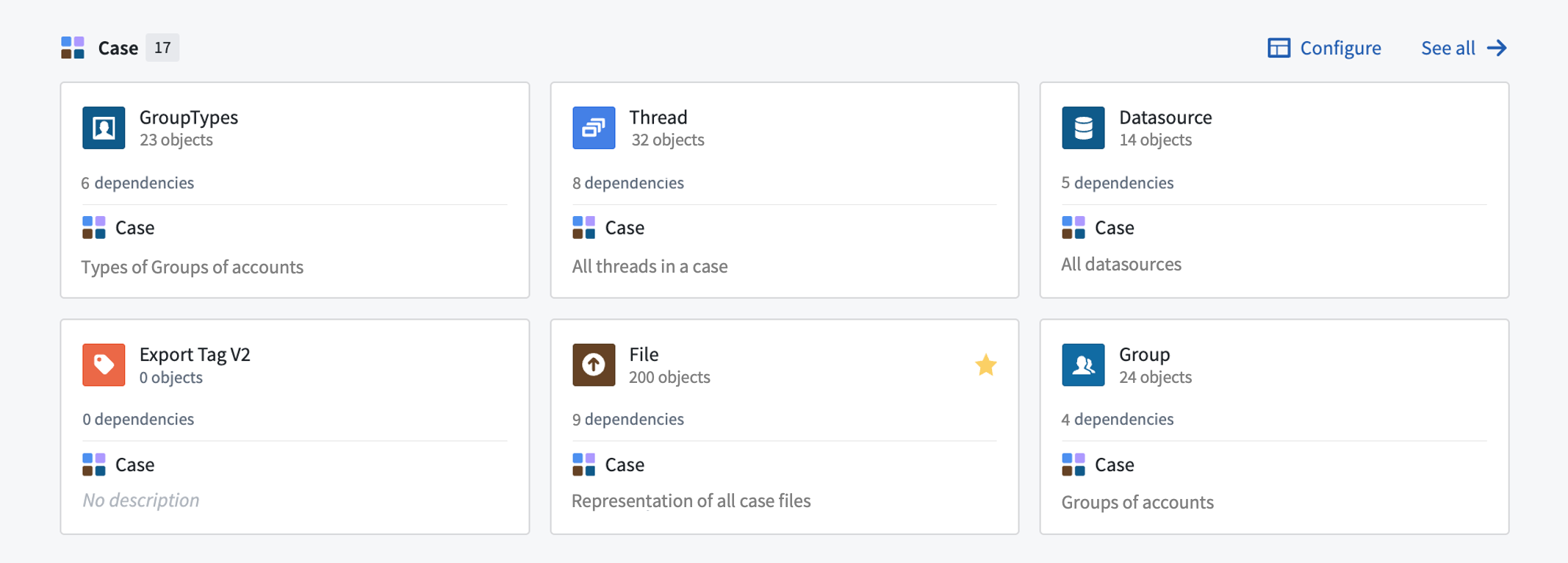
The Discover view offers a highly customizable landing page tailored to your preferences. By default, the Discover view showcases favorite object types, recently-viewed object types, and favorite groups.
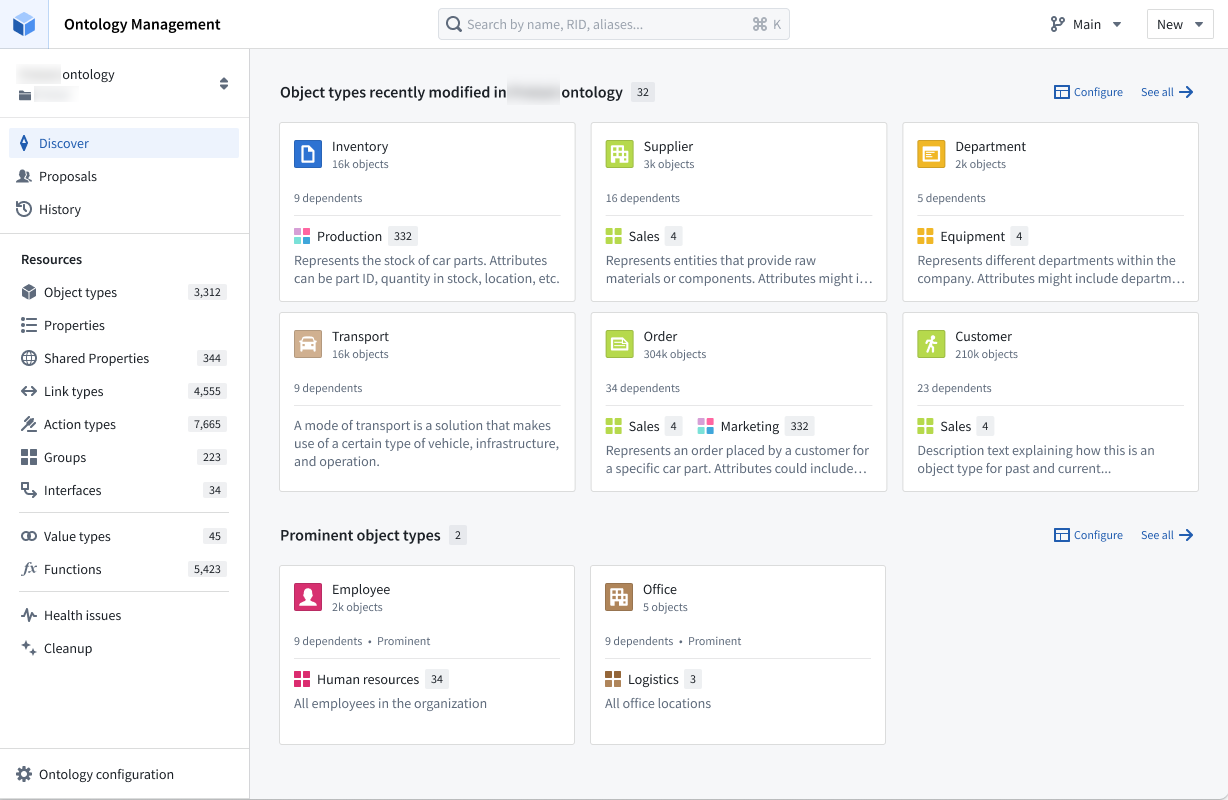
In case the user is new to the Ontology, two specialized sections will be presented: one which displays all object types that were recently modified within that Ontology, and one for all prominent object types.
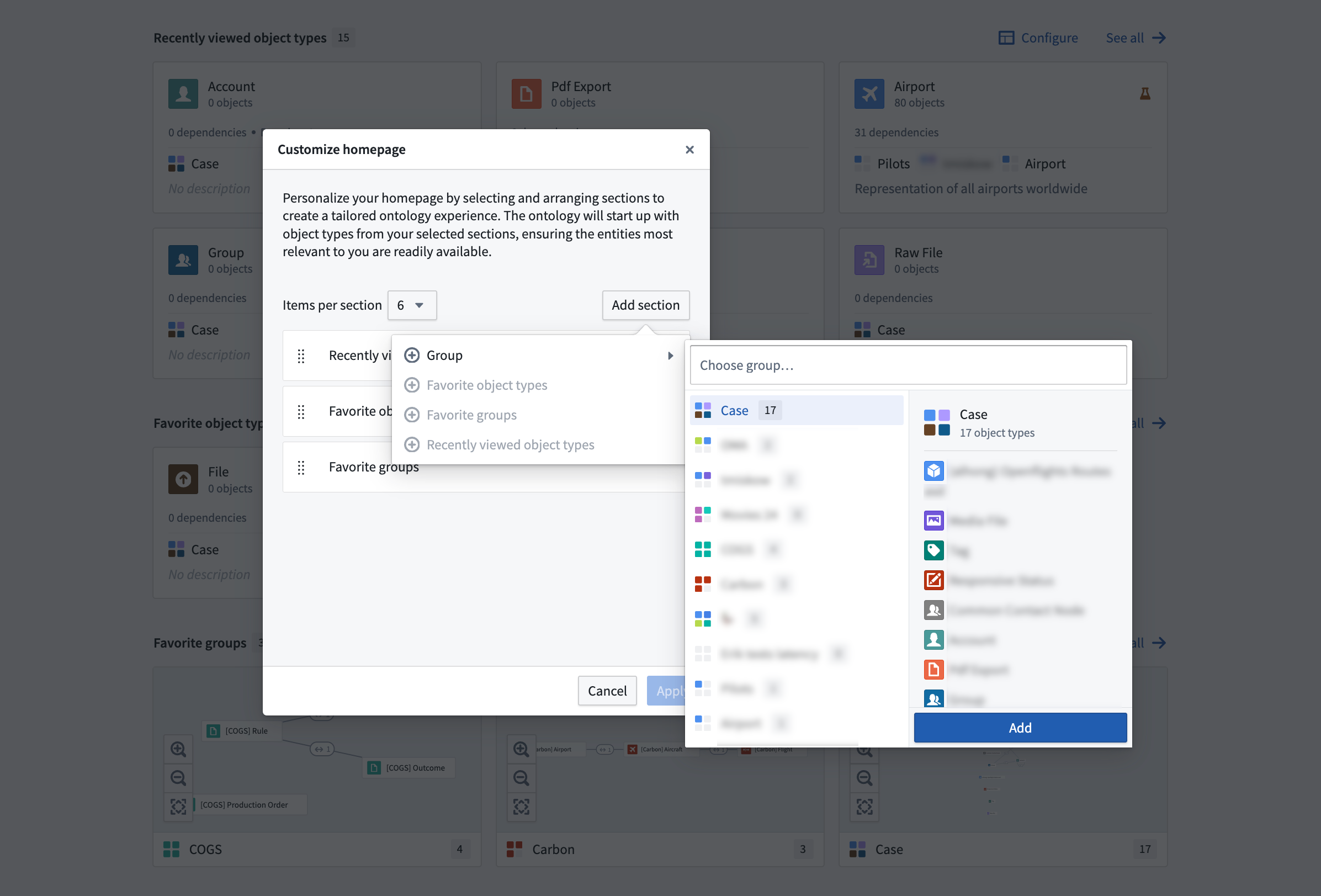
The Discover view provides the flexibility to configure the sections that appear on the page and control the number of items displayed within each section. The available sections include "Recently viewed object types," "Favorite object types," and "Favorite groups." Additionally, you have the option to add a separate section for a specific group, allowing you to explore all object types within that group.
Object type view
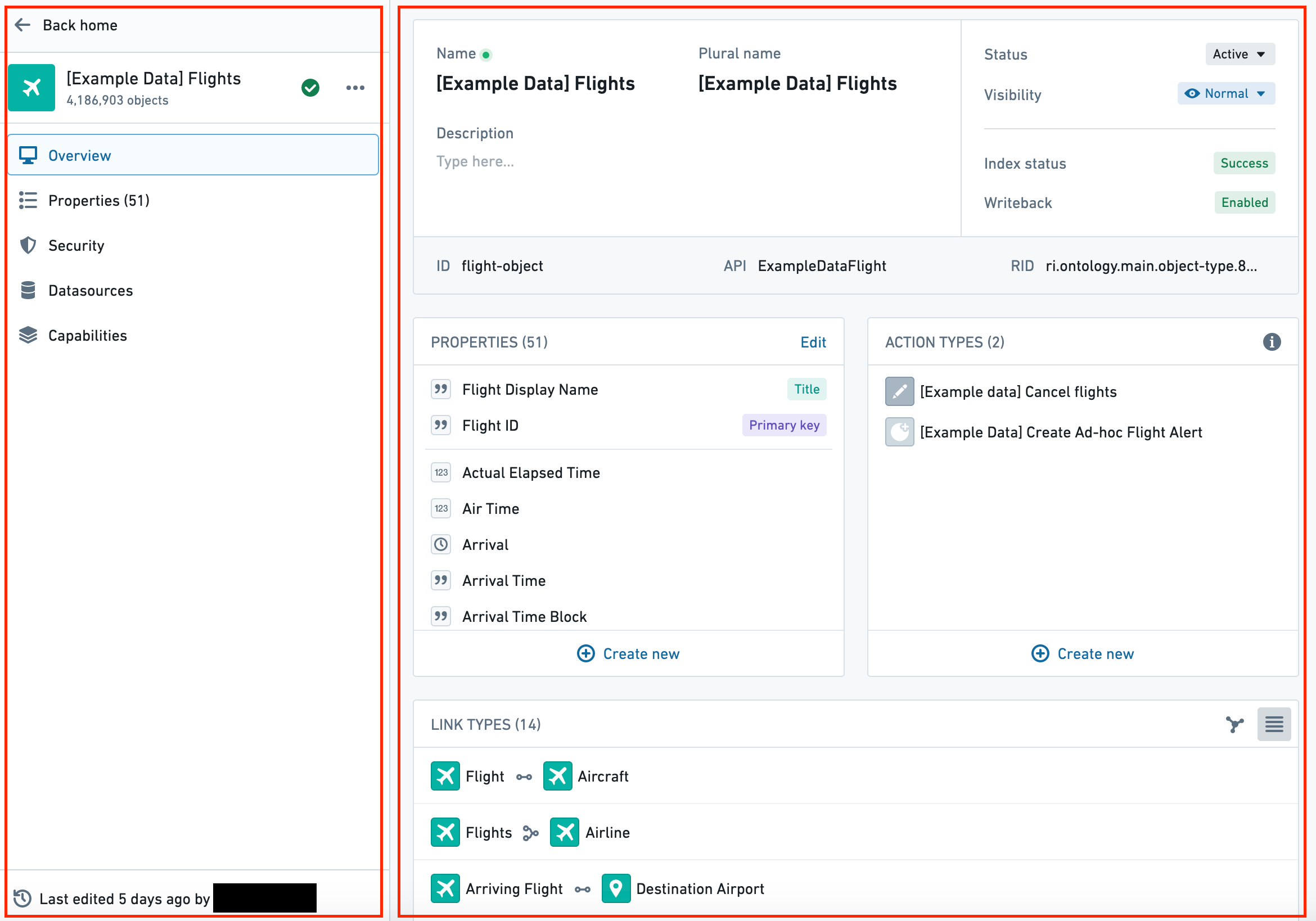
Selecting an object type brings up the object type view, which has the following components:
- Sidebar with page selections (on the left in the image below)
- Selected page (on the right in the image below)
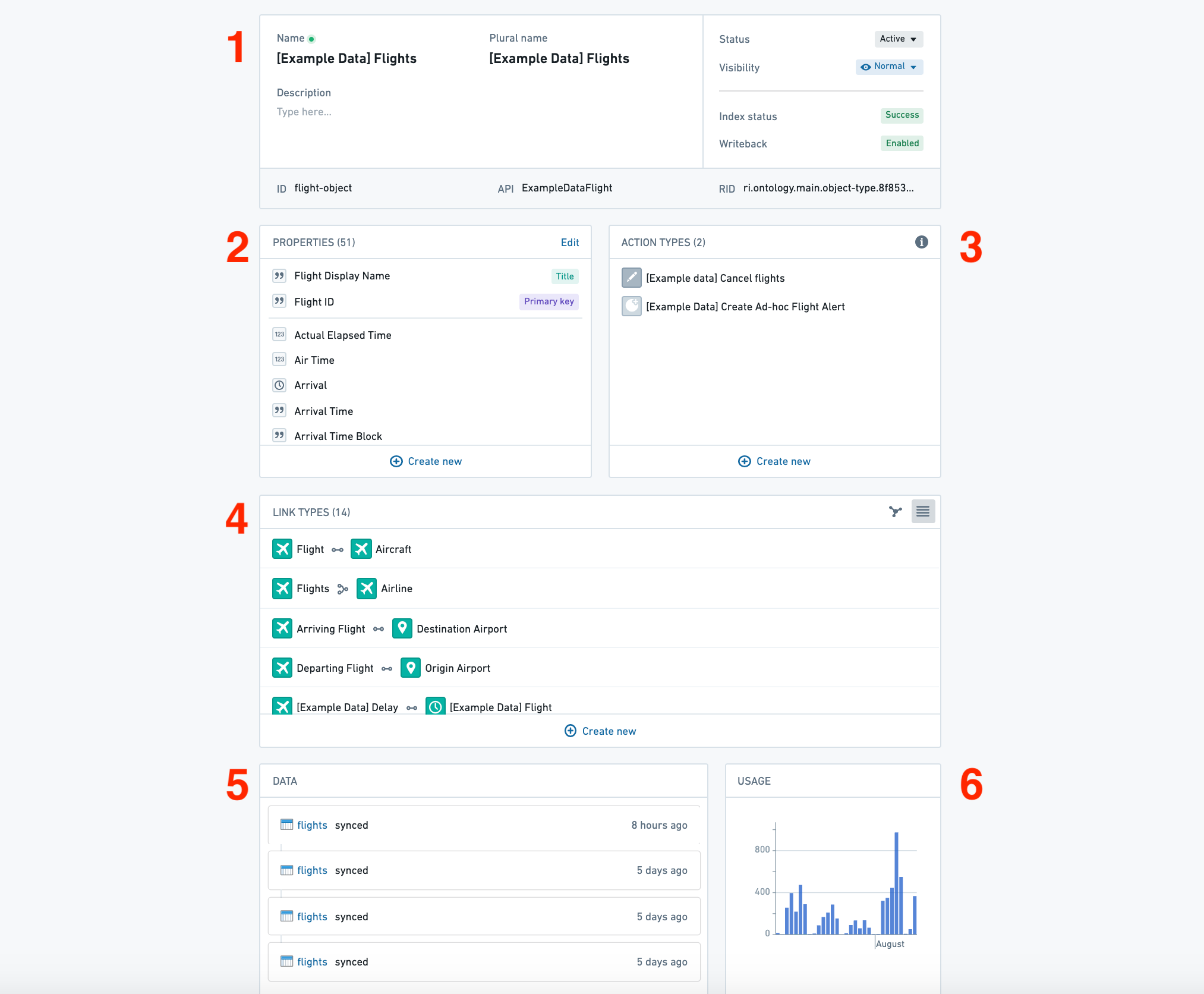
The Overview page of an object type has the following sections, as numbered in the image below:
- Object type metadata
- Properties
- Action types
- Link type graph
- Dependents
- Data
- Usage
Property editor view
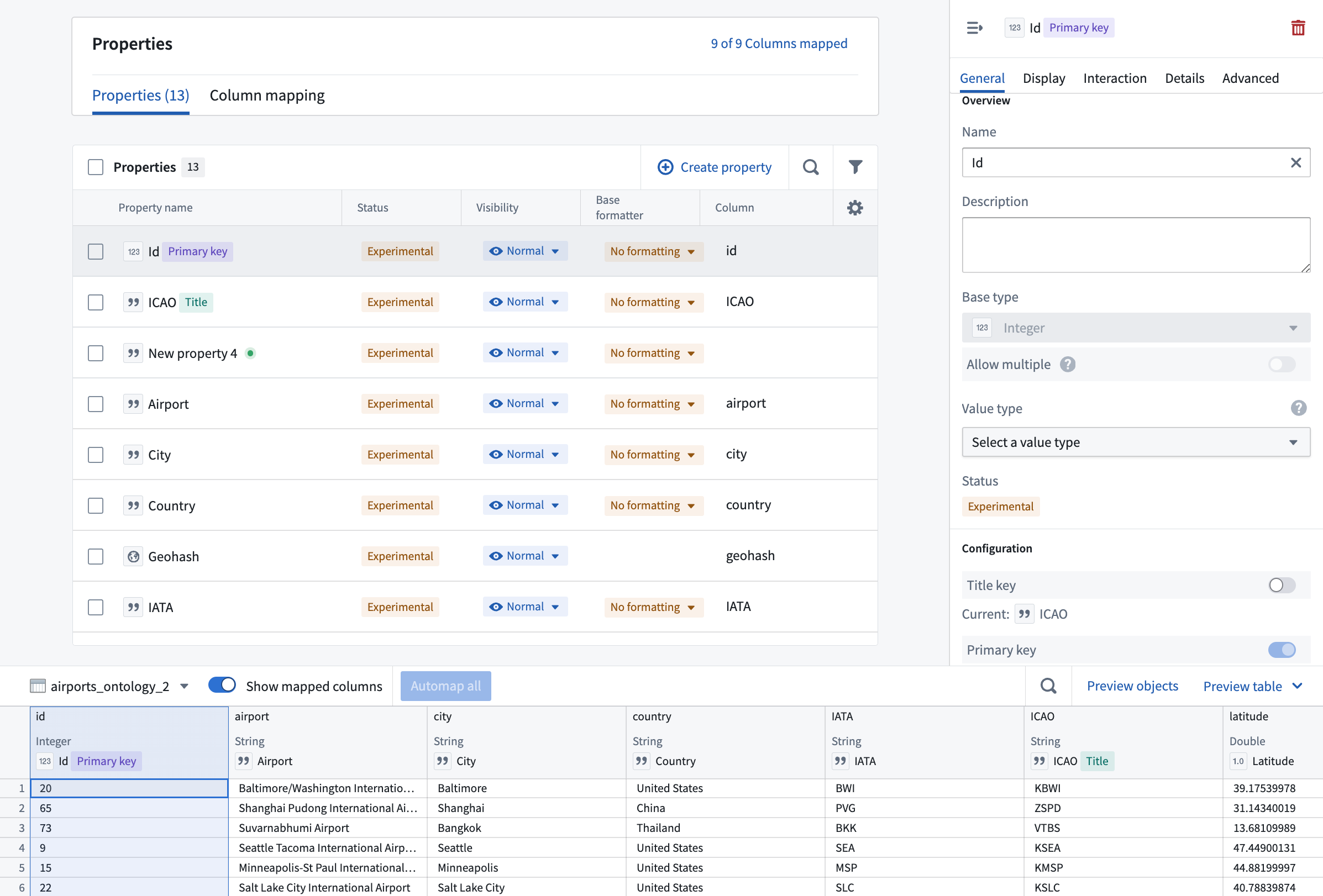
Select a property from the Properties section of an object type’s Overview page to open the property editor view of the application.
Link type view
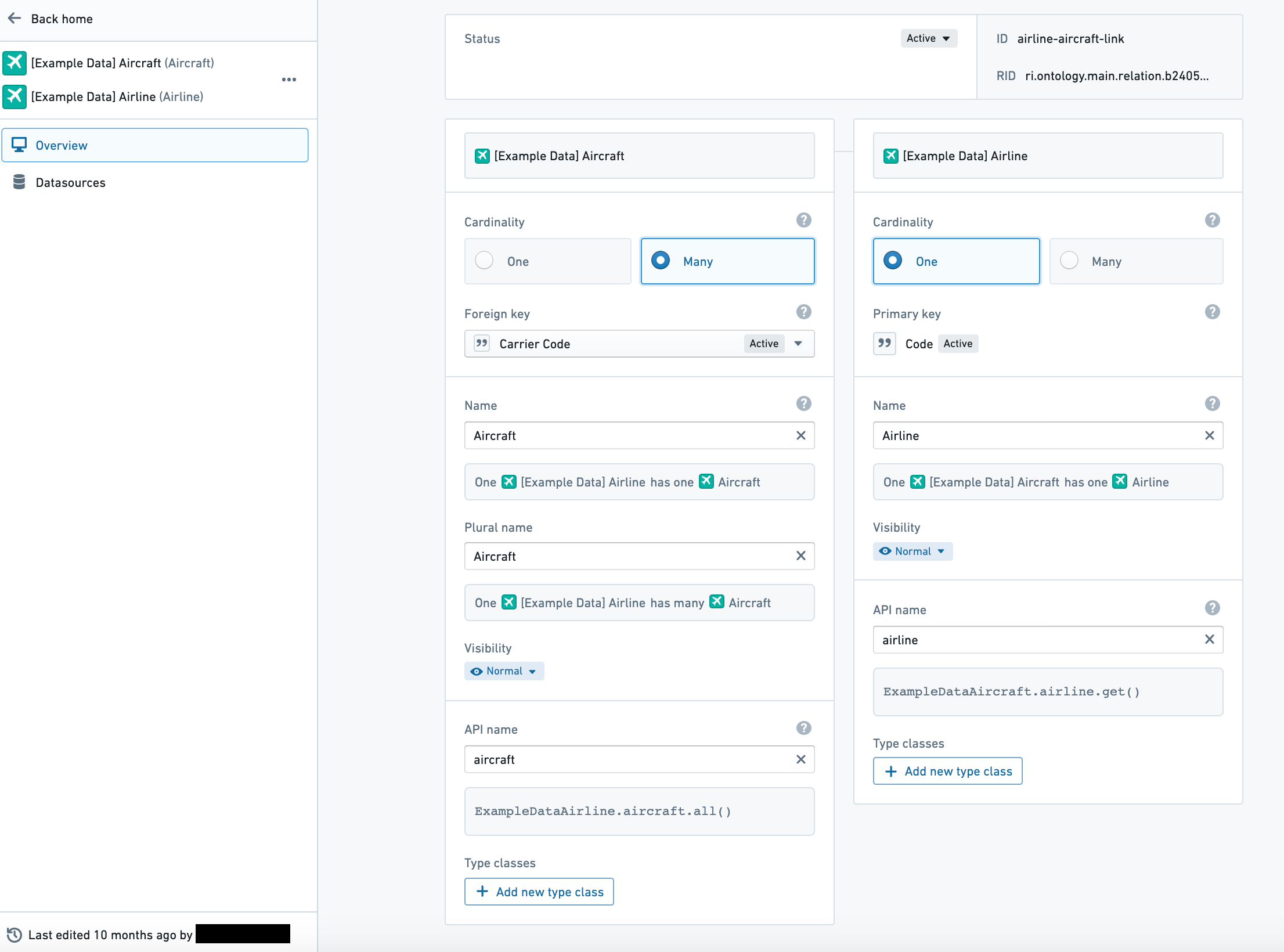
Selecting a link type from the link type graph of an object type’s Overview tab (see image below) opens the link type view (with Overview and Datasources pages).
Action type view
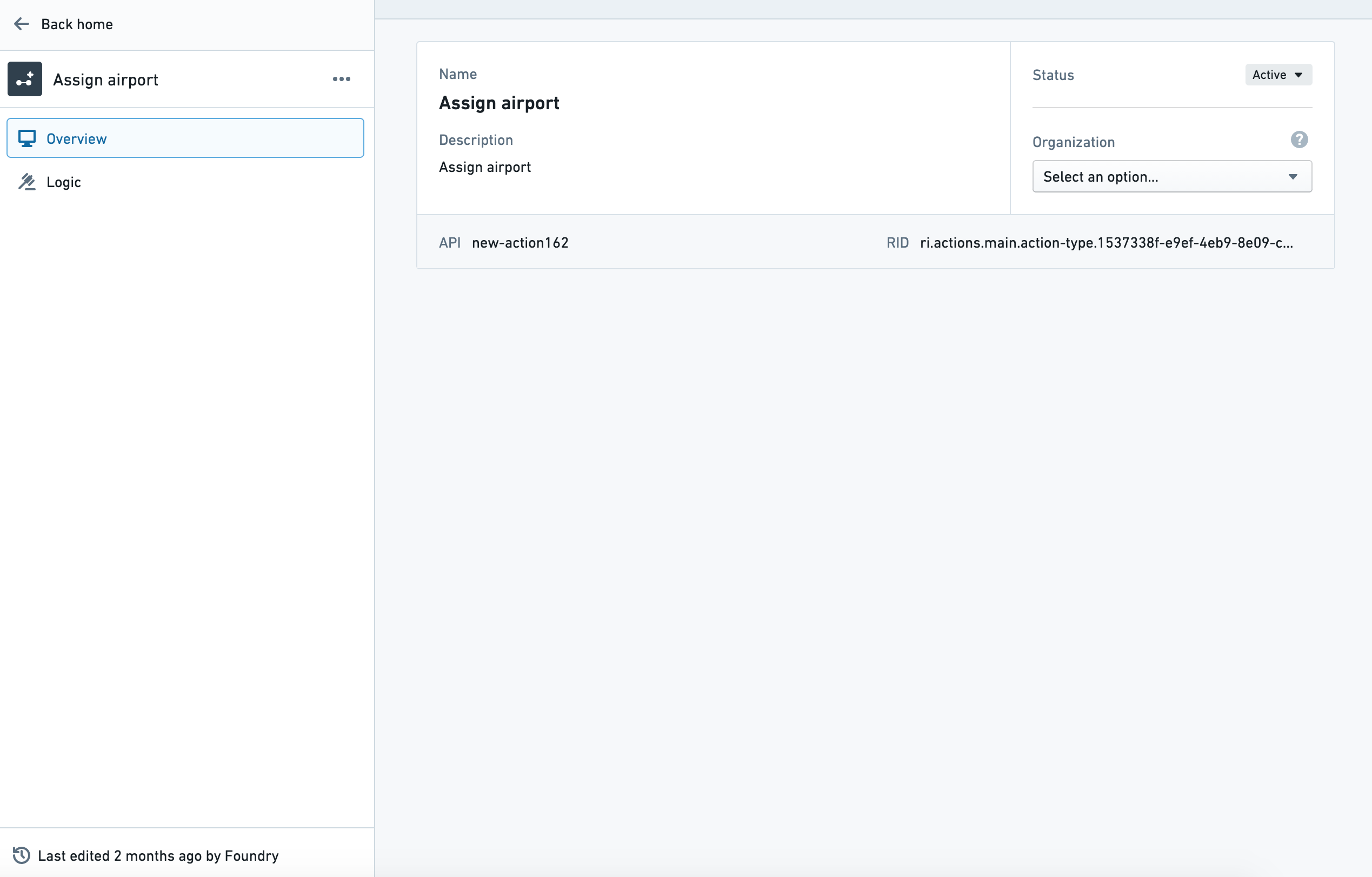
Selecting an action type from the action type section of an object type’s Overview tab opens the action type view, with further access to the Overview, Logic and Observability pages.
View action metrics and monitoring rules
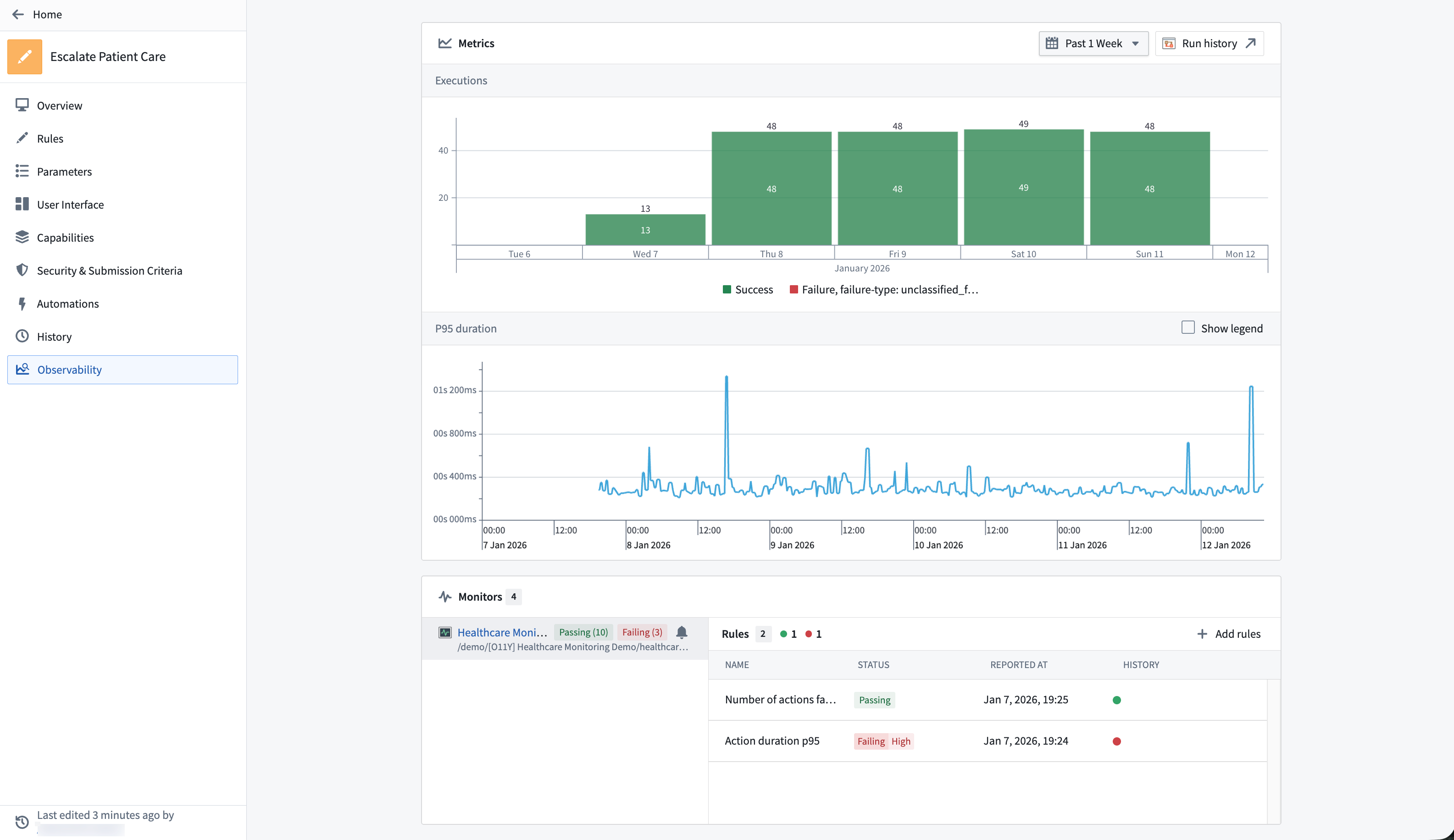
The Observability tab shows the near real-time usage of the action over the last 30 days as well as any monitoring rules and their status defined for the action. Review action rules for detailed action monitoring rule configuration options.
Function type view
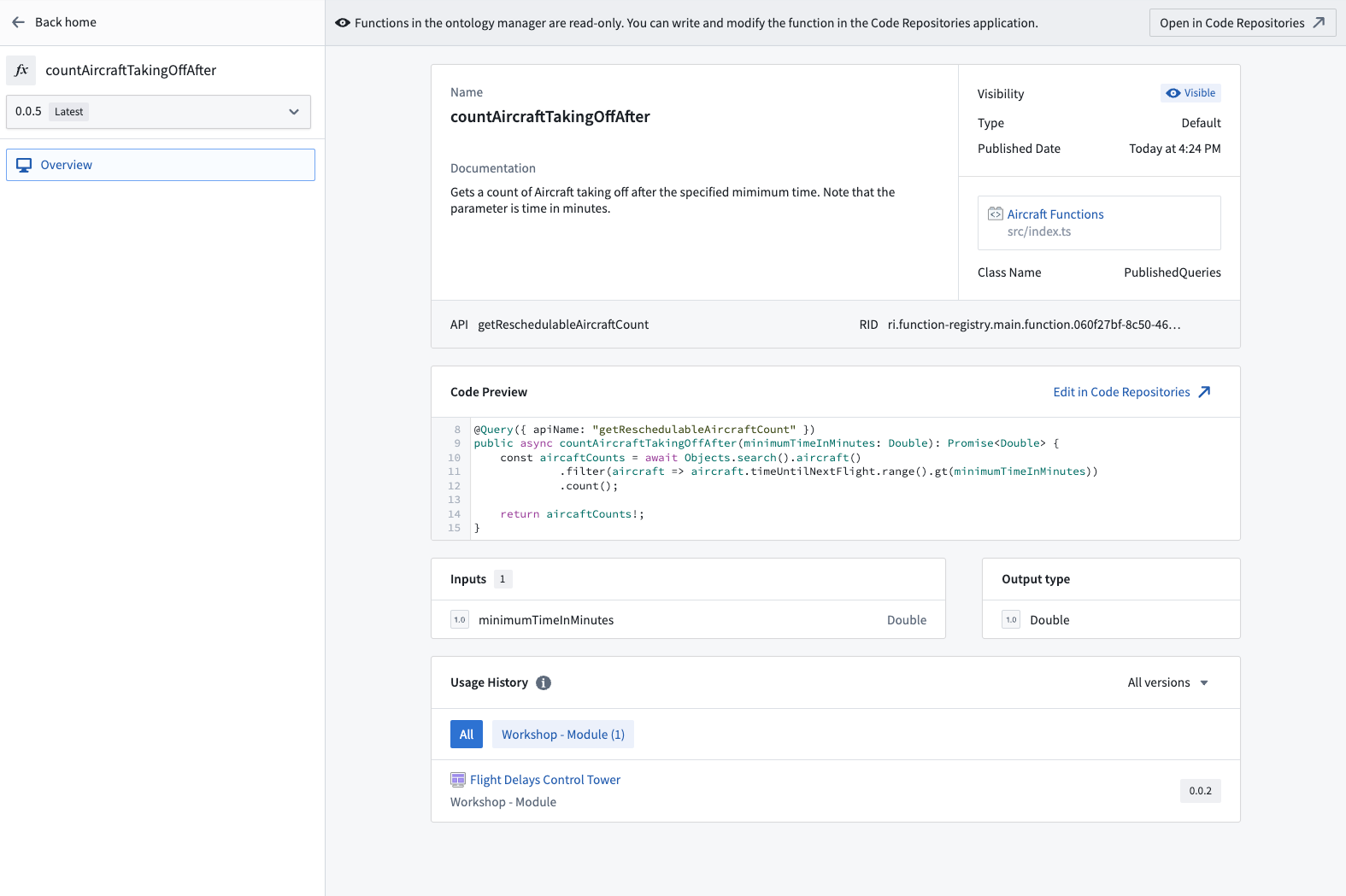
Selecting a function type from the function type section of an object type’s Overview tab opens the function type view, with further access to the Overview, Configuration and Observability pages.
Usage history of a function
The Usage History panel records the applications which have used any version of a function, along with the respective version information. From this panel, you can navigate to these applications in order to upgrade the version of a function.
View previous versions of a function
By default, the latest version of the function is displayed. To view other versions, use the version dropdown selector located in the left panel.
Navigate to the Functions Code Repository
Modifications to the function can only be made within the Functions Code Repository. To navigate to the repository, use the Open in Code Repository button found in the top right-hand corner of the entity view.
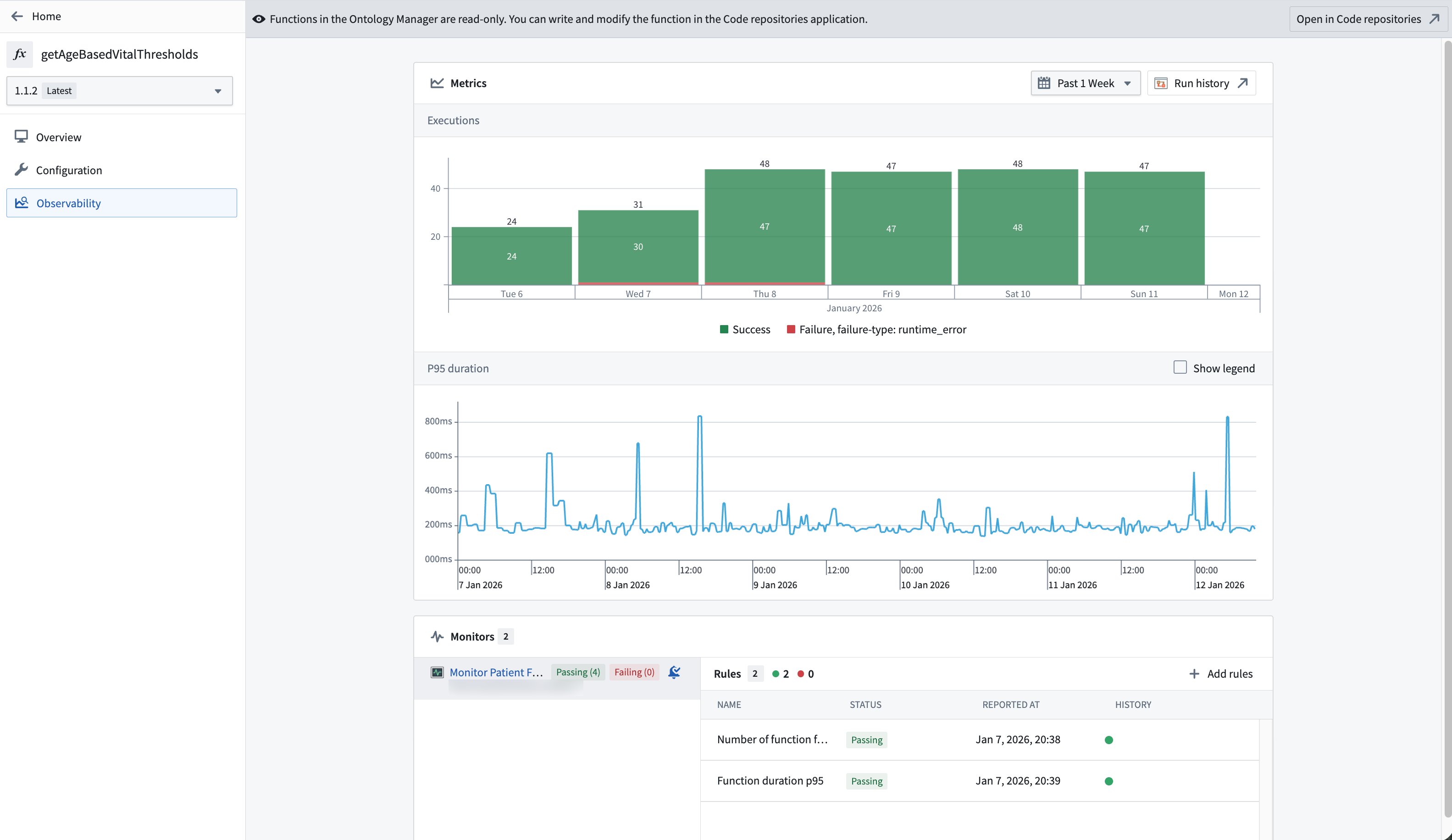
View function metrics and monitoring rules
The Observability tab shows the near real-time usage of the function over the last 30 days as well as any monitoring rules and their status defined for the function. Review function rules for detailed function monitoring rule configuration options.
中文翻译
本体论管理器(Ontology Manager)
本体论管理器(Ontology Manager)(有时也称为本体论管理应用,简称OMA)使您能够构建和维护组织的本体论(Ontology)。您可以使用本体论管理器(Ontology Manager)执行与本体论(Ontology)相关的各种活动,从创建新的对象类型(Object Type)和定义新的操作类型(Action Type),到将数据连接到本体论(Ontology),以及调查数据是否在用户应用程序中更新。
访问应用
您可以通过以下三种方式访问该应用:
- 从工作区(Workspace)侧边栏的应用(Apps)部分选择本体论管理器(Ontology Manager)图标;
- 在数据沿袭(Data Lineage)中右键单击对象类型(Object Type),然后选择配置对象类型(Configure object type);或
- 在Foundry主页URL末尾添加
/workspace/ontology(例如,https://example.website.com/workspace/ontology)。
用户界面
本体论管理器(Ontology Manager)界面分为以下元素,您将在整个文档中看到对这些元素的引用:
本体论管理器导航(Ontology Manager navigation)
本体论管理器(Ontology Manager)的两个持久化元素是顶部栏和侧边栏。顶部栏和侧边栏作为导航元素,提供对应用内各种功能、特性和部分的直观访问。
顶部栏具有三个主要功能。它允许用户搜索本体论(Ontology)资源、创建新的本体论(Ontology)资源,以及在分支之间导航或创建新分支。
侧边栏提供对本体内不同资源、页面或应用的便捷导航。
发现视图(Discover)
发现视图(Discover)提供了一个高度可定制的登录页面,可根据您的偏好进行调整。默认情况下,发现视图(Discover)展示收藏的对象类型(Object Type)、最近查看的对象类型(Object Type)以及收藏的组。
如果用户是本体论(Ontology)的新用户,将显示两个专门的部分:一个显示该本体论(Ontology)中最近修改的所有对象类型(Object Type),另一个显示所有重要的对象类型(Object Type)。
发现视图(Discover)提供了配置页面上显示的部分以及控制每个部分中显示项目数量的灵活性。可用部分包括"最近查看的对象类型"、"收藏的对象类型"和"收藏的组"。此外,您还可以选择为特定组添加单独的部分,从而探索该组中的所有对象类型(Object Type)。
对象类型视图(Object type view)
选择对象类型(Object Type)将打开对象类型视图(Object type view),该视图包含以下组件:
- 带有页面选择的侧边栏(下图中左侧)
- 所选页面(下图中右侧)
对象类型(Object Type)的概览(Overview)页面包含以下部分,如下图中编号所示:
- 对象类型元数据(Object type metadata)
- 属性(Properties)
- 操作类型(Action types)
- 链接类型图(Link type graph)
- 依赖项(Dependents)
- 数据(Data)
- 使用情况(Usage)
属性编辑器视图(Property editor view)
从对象类型(Object Type)的概览(Overview)页面的属性(Properties)部分选择一个属性,以打开应用的属性编辑器视图(Property editor view)。
链接类型视图(Link type view)
从对象类型(Object Type)的概览(Overview)选项卡的链接类型图中选择一个链接类型(见下图),将打开链接类型视图(Link type view)(包含概览(Overview)和数据源(Datasources)页面)。
操作类型视图(Action type view)
从对象类型(Object Type)的概览(Overview)选项卡的操作类型部分选择一个操作类型,将打开操作类型视图(Action type view),并可进一步访问概览(Overview)、逻辑(Logic)和可观测性(Observability)页面。
查看操作指标和监控规则
可观测性(Observability)选项卡显示过去30天内该操作的近实时使用情况,以及为该操作定义的任何监控规则及其状态。请查看操作规则以了解详细的操作监控规则配置选项。
函数类型视图(Function type view)
从对象类型(Object Type)的概览(Overview)选项卡的函数类型部分选择一个函数类型,将打开函数类型视图(Function type view),并可进一步访问概览(Overview)、配置(Configuration)和可观测性(Observability)页面。
函数的使用历史
使用历史面板记录了使用过函数任何版本的应用程序,以及相应的版本信息。从该面板,您可以导航到这些应用程序以升级函数的版本。
查看函数的先前版本
默认情况下,显示函数的最新版本。要查看其他版本,请使用左侧面板中的版本下拉选择器。
导航到函数代码仓库
对函数的修改只能在函数代码仓库(Functions Code Repository)中进行。要导航到该仓库,请使用实体视图右上角的在代码仓库中打开(Open in Code Repository)按钮。
查看函数指标和监控规则
可观测性(Observability)选项卡显示过去30天内该函数的近实时使用情况,以及为该函数定义的任何监控规则及其状态。请查看函数规则以了解详细的函数监控规则配置选项。