Review and restore changes(查看与恢复变更)
Review changes made to the Ontology globally
Review unsaved changes made to the Ontology globally:
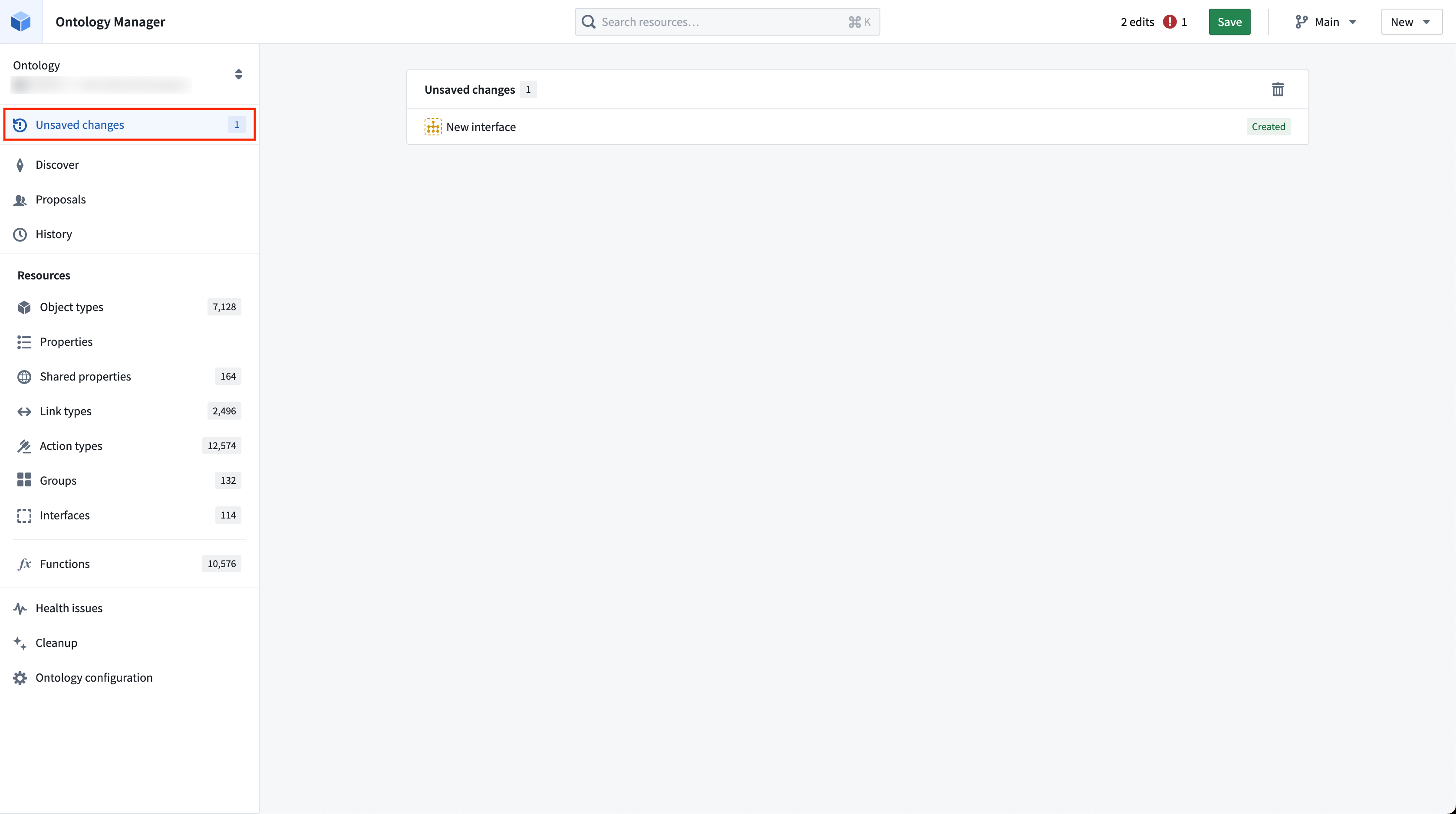
From the homepage sidebar, select Unsaved changes to view a list of all unsaved changes made by you.
Review saved changes made to the Ontology globally:
Select the History tab in the homepage sidebar to view a list of all saved Ontology changes with details on when the changes were made and the user who applied them.

By default, the list of changes are collapsed. You can select the  (down arrow) on any change to view details.
Filter changes made to the Ontology globally
In the Ontology history page, you have the option to hide changes to object and link types that you do not have access to view. If this option is not enabled, you will be able to see that a change was made to the Ontology but will not be able to view additional details.

Each entry in the edits history corresponds to a single instance of a user saving changes. You also have the option to consolidate the view by merging changes that have been made by the same author into a single entry.
Review changes made to a single Ontology resource
To review changes made to an Ontology resource, select the History tab in the Ontology resource's page. A page will be shown with the list of edits made to the resource, including the following details:
- The unsaved changes you made to the resource.
- All saved changes that were made to the resource with details on when the changes were made and the user who applied them.

At the bottom left of an Ontology resource view, a footer states when the resource was last edited and by which user.
Restore changes made to a single object type
Follow the steps below to restore an object type to an older version:
- Select the restore button
 (anti-clockwise arrow)
 - Select Confirm.
:::callout{theme="warning" title="Warning"} After restoring an object type to a previous version, any changes that were made after the entry you selected will be undone. The changes will be added to your working state and you will need to save your changes to the Ontology for your restore to take effect. Learn more about saving to the Ontology. :::
中文翻译
查看与恢复变更
全局查看对本体论(Ontology)的变更
查看全局范围内对本体论(Ontology)的未保存变更: 从首页侧边栏选择未保存的变更,即可查看你做出的所有未保存变更列表。
查看全局范围内对本体论(Ontology)的已保存变更: 在首页侧边栏选择历史记录标签页,即可查看所有已保存的本体论(Ontology)变更列表,包含变更的提交时间、操作用户等详细信息。
默认情况下变更列表为折叠状态,你可以点击任意变更旁的(向下箭头)查看详情。
全局过滤本体论(Ontology)变更
在本体论历史记录页面,你可以选择隐藏你无权限查看的对象类型(object type)和链接类型(link type)相关变更。如果未开启该选项,你仅能知晓本体论(Ontology)存在对应变更,但无法查看更多详情。
编辑历史中的每条记录对应用户的一次变更保存操作。你也可以选择将同一作者提交的变更合并为单条记录,简化展示视图。
查看单个本体论(Ontology)资源的变更
若要查看对某个本体论(Ontology)资源的变更,在该资源页面选择历史记录标签页即可。页面会展示该资源的所有编辑记录,包含以下信息: * 你对该资源做出的未保存变更 * 该资源的所有已保存变更,包含变更提交时间、操作用户等详细信息
在本体论(Ontology)资源视图的左下角,页脚会标注该资源的最近编辑时间与编辑用户。
恢复单个对象类型的变更
按照以下步骤将某个对象类型回滚到历史版本:
1. 点击恢复按钮(逆时针箭头)
2. 选择确认。
:::callout{theme="warning" title="警告"} 将对象类型恢复到历史版本后,你所选版本之后提交的所有变更都会被撤销。这些变更会同步到你的工作状态中,你需要将变更保存到本体论(Ontology)后,恢复操作才会生效。了解更多关于保存至本体论(Ontology)的说明。 :::