Getting started(开始使用)
To enable Ontology MCP (OMCP) for your application:
- Navigate to your application in Developer Console.
- Select the MCP page on the left side menu.
- Toggle the button on the top right to enable MCP server for your application.
- Use the configuration details listed on the page based on your selected agent framework.
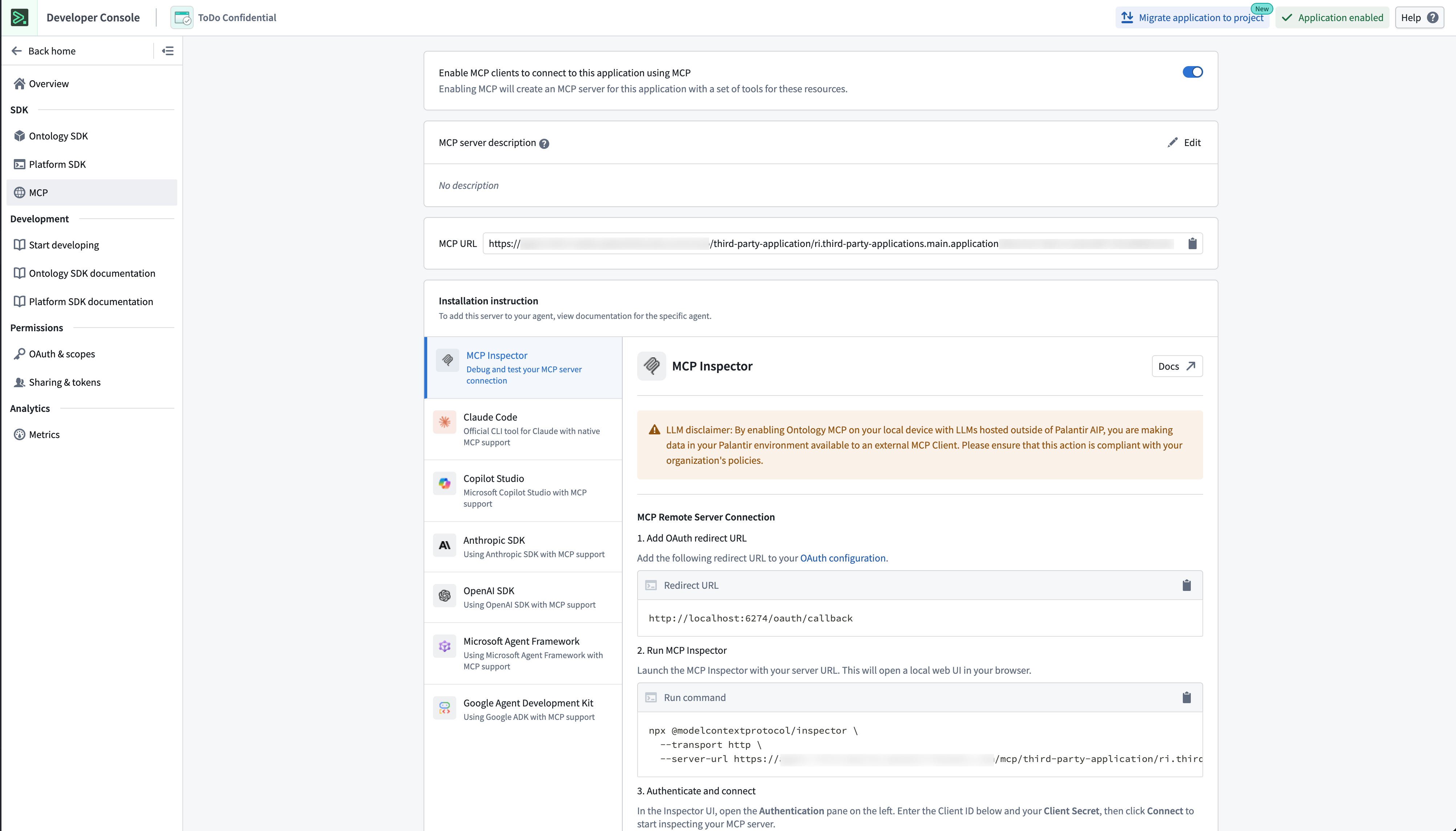
:::callout{theme="neutral"} Even if your framework of choice is not listed, the configuration is likely similar assuming your framework can act as an MCP client. :::
Once enabled, your application will expose its ontology resources as MCP tools. External MCP clients can connect to your application using the connection details shown in the settings panel.
:::callout{theme="neutral"} Ensure your application has the appropriate application restrictions configured to control which ontology resources are accessible through MCP. :::
Discover Ontology MCP servers in MCP Hub
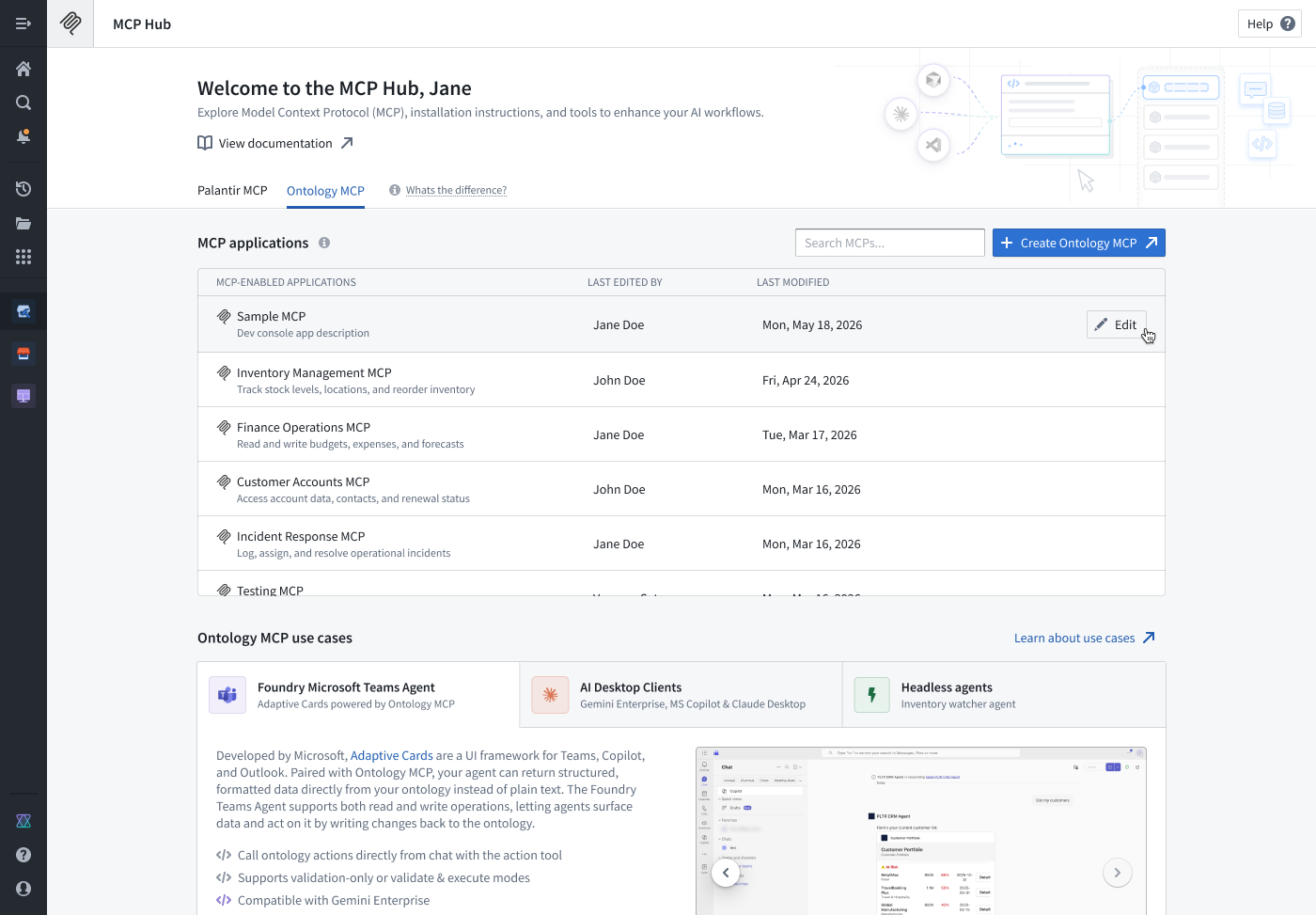
Ontology MCP servers are discoverable through the MCP Hub application. Open MCP Hub and navigate to the Ontology MCP tab to see a list of all MCP servers configured on your enrollment. Select any row to view the full configuration details for that server. From there, you can also jump directly into the corresponding Developer Console application to add or modify resources without leaving your workflow.
中文翻译
开始使用
要为您的应用程序启用 Ontology MCP(OMCP):
- 在 Developer Console 中导航至您的应用程序。
- 在左侧菜单中选择 MCP 页面。
- 切换右上角的按钮,为您的应用程序启用 MCP 服务器。
- 根据您选择的代理框架(agent framework),使用页面上列出的配置详情。
:::callout{theme="neutral"} 即使您选择的框架未在列表中列出,只要该框架能够充当 MCP 客户端(MCP client),其配置方式很可能类似。 :::
启用后,您的应用程序将把其本体资源(ontology resources)作为 MCP 工具(MCP tools)暴露出来。外部 MCP 客户端可以使用设置面板中显示的连接详情连接到您的应用程序。
:::callout{theme="neutral"} 请确保您的应用程序已配置适当的应用程序限制,以控制哪些本体资源可以通过 MCP 访问。 :::
在 MCP Hub 中发现 Ontology MCP 服务器
Ontology MCP 服务器可通过 MCP Hub 应用程序发现。打开 MCP Hub,导航至 Ontology MCP 标签页,即可查看您的注册环境中配置的所有 MCP 服务器列表。选择任意一行可查看该服务器的完整配置详情。您还可以从那里直接跳转到相应的 Developer Console 应用程序,添加或修改资源,而无需中断当前工作流程。