MCP tools and agent configuration(MCP 工具与智能体配置)
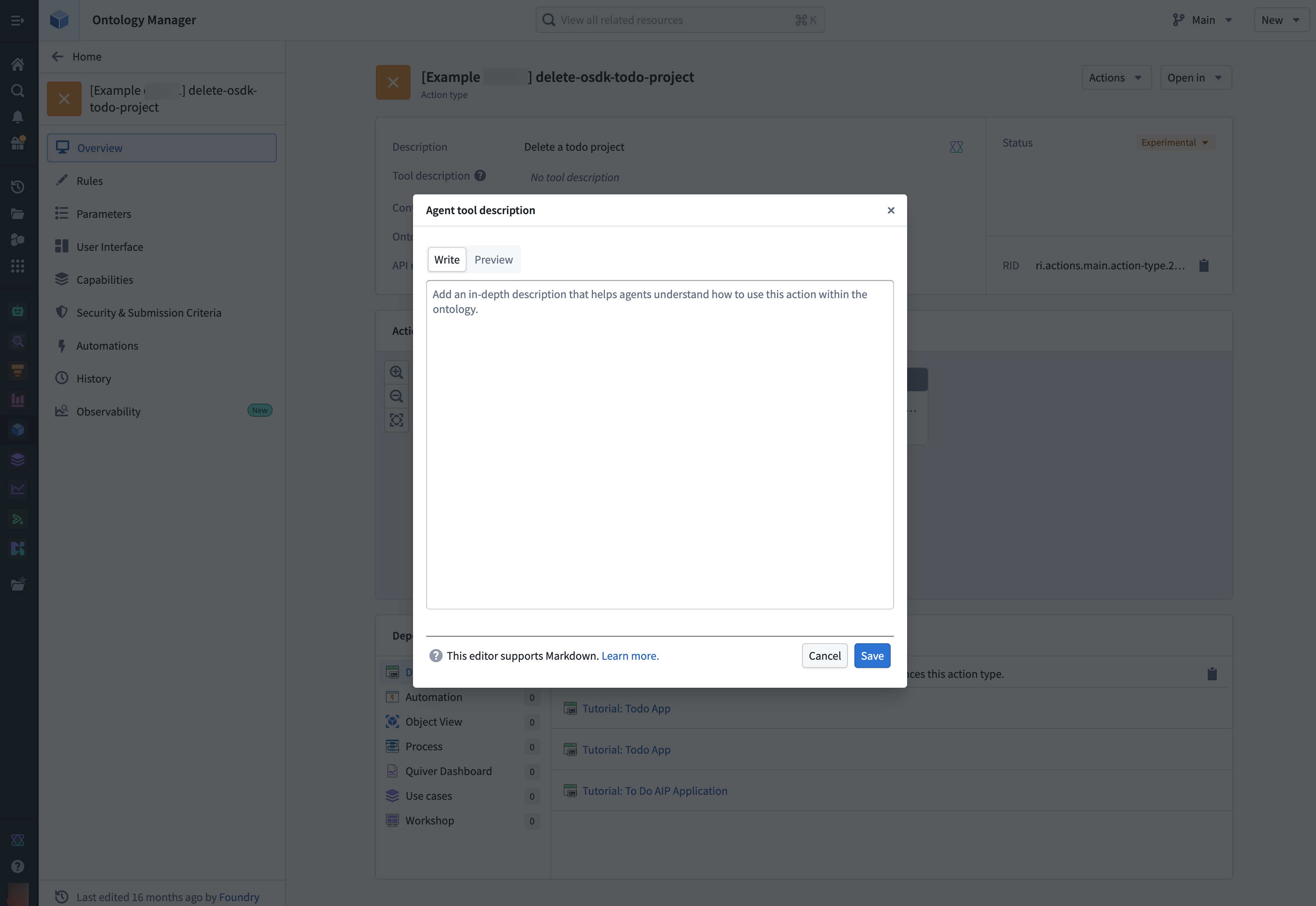
Action tool description
Use the Agent tool description field in the Ontology Manager application to update the description the agent sees when using the action as a tool. This allows you to provide specific guidance to AI agents about when and how to use each action. For example, an action that creates a new task and gets the project ID for linking the tasks could include instructions on how to obtain the project ID.
Using Ontology MCP with Claude skills
Claude skills ↗ are reusable instruction sets that extend what Claude can do. You can integrate Ontology MCP (OMCP) tools with your skills to encode more complex business logic into your agent.
In the example below, a skill named get-or-create-task guides the agent on how to use both the search tool and the create task action tool in combination. This prevents duplicate tasks from being created by first searching for an existing task before creating a new one.
---
name: get-or-create-task
description: Searches for a task by title in a project, returns it if found, or creates a new task if not found
---

# Get or create task

Find an existing task by title within a project, or create a new task if no match is found.

## Instructions

1. Search for the task by title using the search tool:
   - Tool: `search-osdk-todo-task`
   - Filter results by `project_id` if provided

2. Evaluate results:
   - If a match is found, return the existing task details
   - If multiple matches are found, use the first match
   - If no matches are found, proceed to create a new task

3. Create a new task using the create task action tool:
   - Tool: `create-osdk-todo-task`
   - Required parameters: `title`, `project_id`
   - Optional parameters: `description`, `status`, `assigned_to`, `start_date`, `due_date`

4. Return the task details including ID, title, project, status, and assignee
Microsoft Copilot Studio integration
Microsoft Copilot Studio integration only supports authorization code grant in a Confidential Client. This means that when creating the Developer Console application for your Ontology MCP integration with Microsoft Copilot Studio, you should choose Backend service and User's permissions. This will create the required service user that Copilot Studio uses to issue the token on behalf of your users.
Using Adaptive Cards to format and display Ontology MCP data
Developed by Microsoft, Adaptive Cards ↗ are a versatile UI framework for Teams, Copilot, and Outlook integrations. When paired with Ontology MCP tools, Adaptive Cards let your agent return structured data from your ontology and display it as a formatted card rather than plain text.
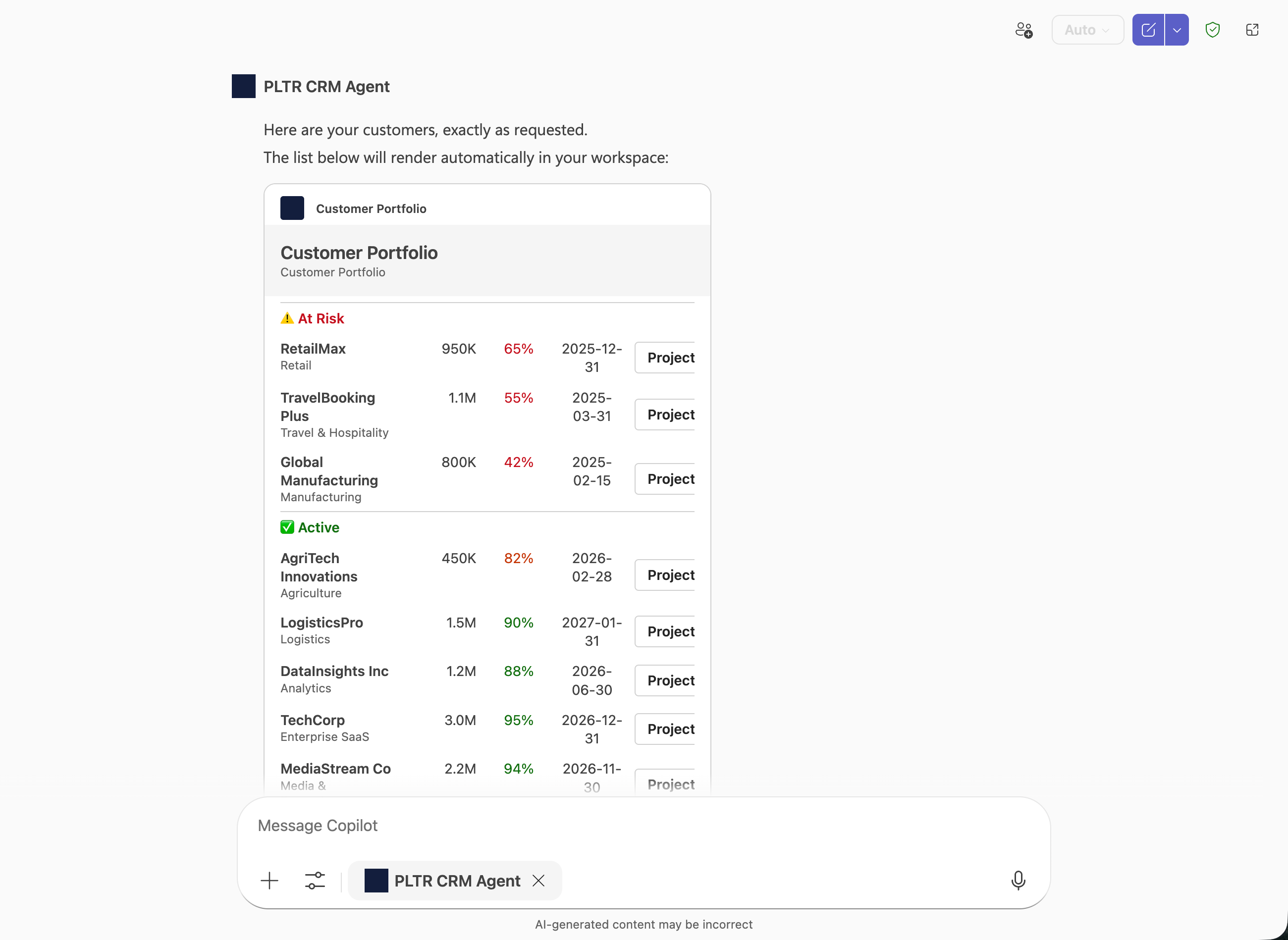
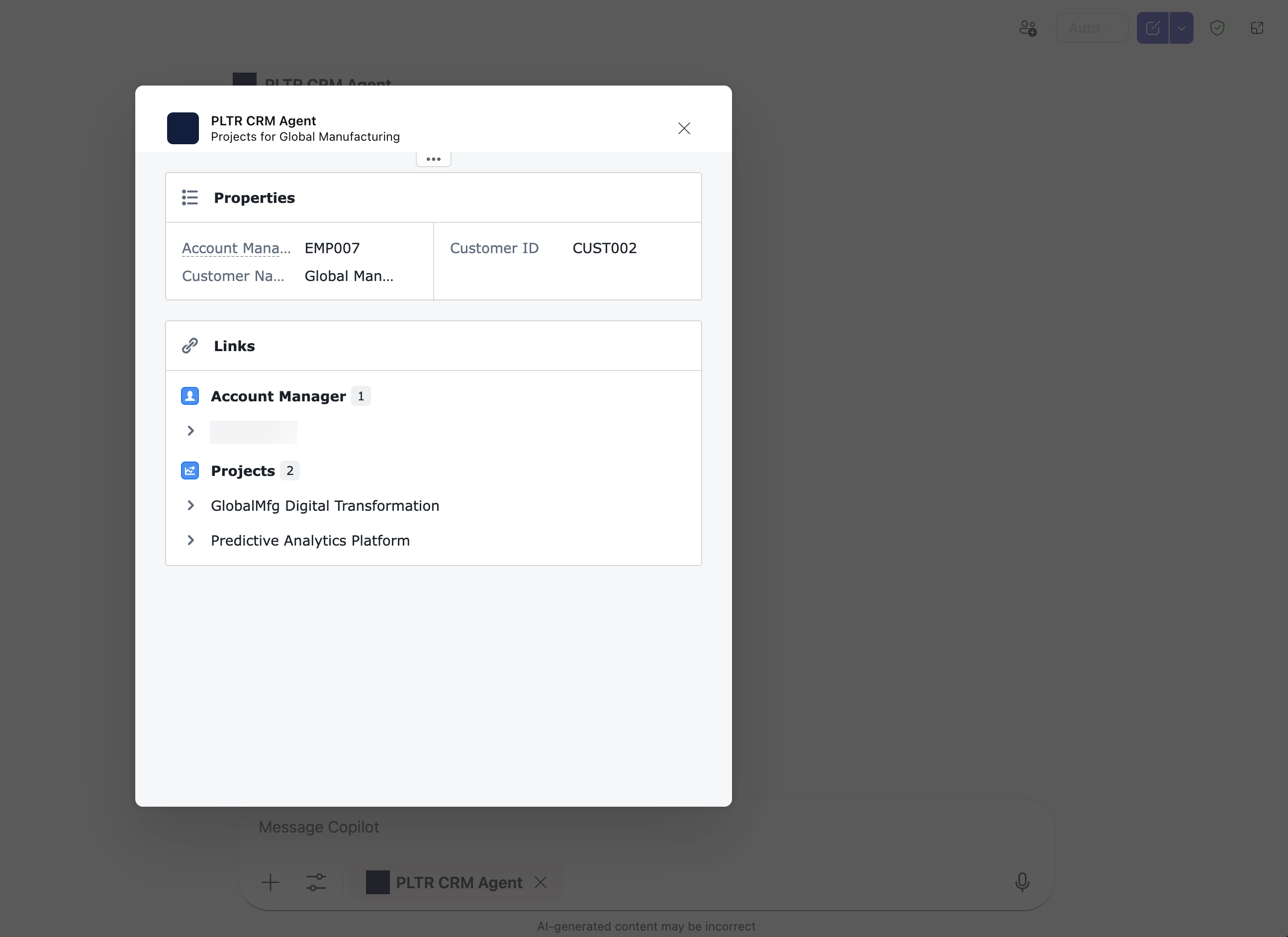
Additionally, you can use Action.OpenUrlDialog in your Adaptive Cards to trigger a URL that opens a custom dialog in Teams or Copilot, allowing users to interact with the data returned from your Ontology MCP tools.
Prerequisites
Before you begin, install the following VS Code extensions:
Configure your Ontology MCP server in VS Code
Create a .vscode/mcp.json file in your project to connect VS Code to your Ontology MCP server:
{
  "inputs": [],
  "servers": {
    "todo-confidential": {
      "type": "http",
      "url": "<your-ontology-mcp-server-url>",
      "headers": {
        "Authorization": "Bearer ${env:FOUNDRY_TOKEN}",
        "Accept": "application/json, text/event-stream"
      }
    }
  }
}
Replace <your-ontology-mcp-server-url> with your Ontology MCP server's URL, which you can find in your Developer Console application.
Create an adaptive agent
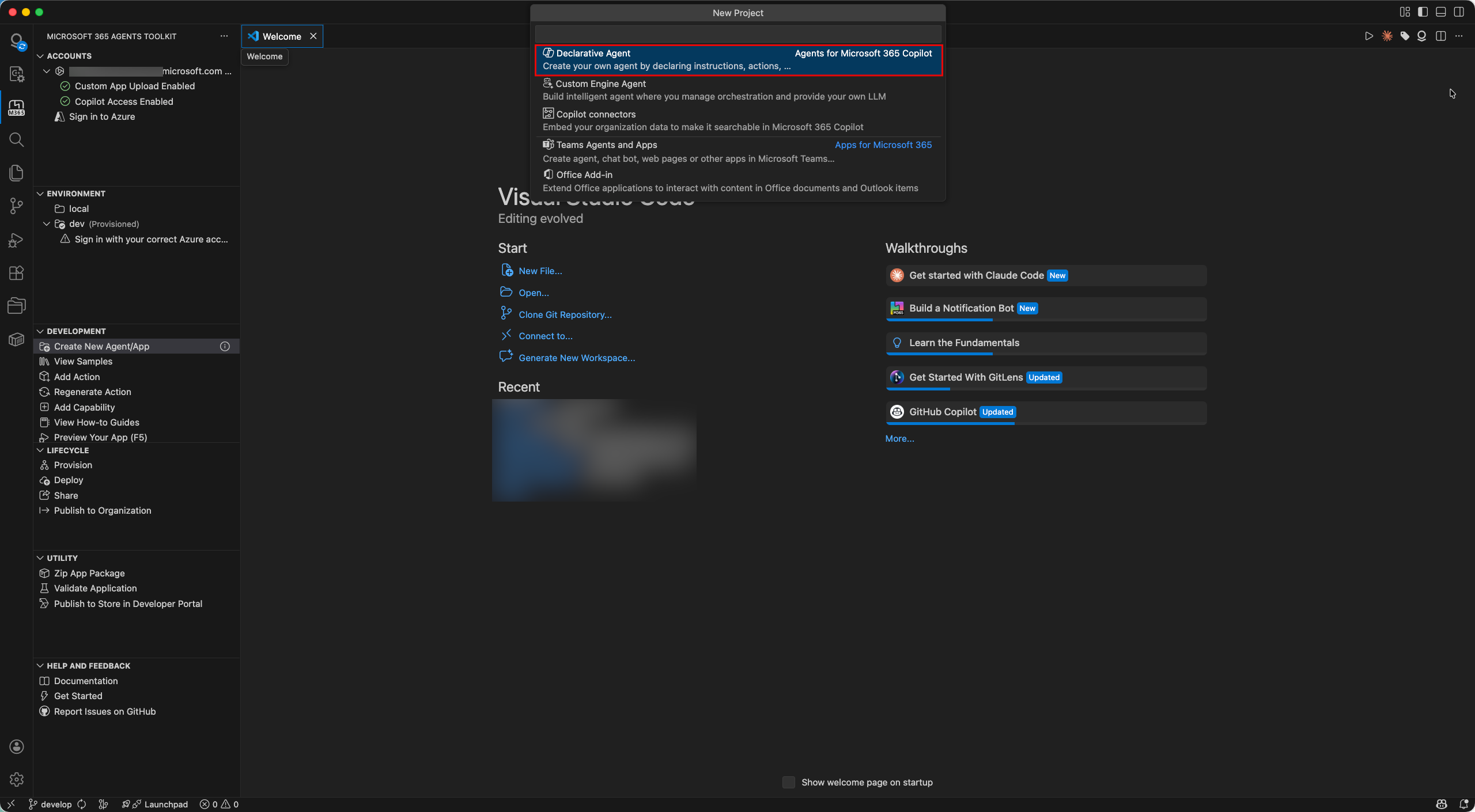
- Select Start in the Microsoft 365 Agents Toolkit panel and connect to your Ontology MCP server.
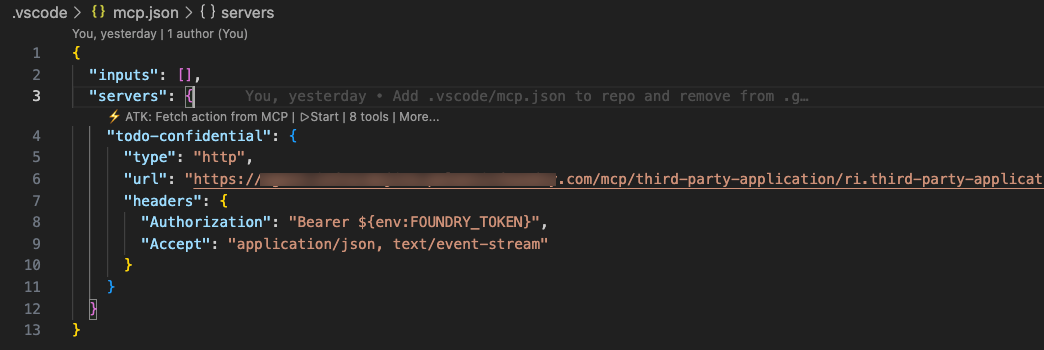
- Follow the guided steps in the Microsoft 365 Agents Toolkit to create a new adaptive agent.
Add capabilities to your agent
To render an Adaptive Card from the Ontology MCP tool output, add a capabilities block to your agent's tool definition. The static_template property points to an Adaptive Card template file that defines how the returned data is displayed.
The following example configures a GetCustomerList tool to render its response using an Adaptive Card:
{
    "name": "GetCustomerList",
    "description": "List all customers.\n\n    Returns:\n        A list of CustomerSummary objects with key customer properties.",
    "parameters": {
        "type": "object",
        "properties": {},
        "required": []
    },
    "capabilities": {
        "response_semantics": {
            "data_path": "$",
            "static_template": {
                "file": "adaptiveCards/customerList.json"
            }
        }
    }
}
The data_path property specifies the JSON path to the data in the tool response, and static_template.file points to the Adaptive Card template that renders the data.
Optional: Generate Adaptive Cards with a Claude skill
You can create a Claude skill that automatically generates Adaptive Card templates based on the schema of your Ontology MCP tools. First, follow the instructions on the Developer Console MCP page to connect your Ontology MCP server to Claude Code. Then, save the following skill file to your project's .claude/skills directory, such as the .claude/skills/build-adaptive-card.md example below:
---
name: build-adaptive-card
description: Build an Adaptive Card for a specific MCP tool connected to Claude Code
---

# Build Adaptive Card for MCP Tool

You are helping the user build an Adaptive Card for a specific MCP tool that is connected
to Claude Code in this session.

## Instructions

Follow these steps precisely:

### Step 1: Identify the target tool

Ask the user which MCP tool they want to build an Adaptive Card for. List the available
MCP tools you know about from the connected MCP server. If the user has already named the
tool, skip asking.

### Step 2: Call the tool to get a real response sample

Call the named MCP tool with minimal or sample arguments to get a real response. If the
tool requires arguments, use the most minimal and representative ones possible. Capture the
full JSON response.

If the tool requires arguments you cannot guess, ask the user for sample argument values
before calling.

### Step 3: Validate the response shape

Inspect each property of the returned object. If any property value is a string that is
itself valid JSON (starts with `[` or `{` and parses as JSON), the tool is double-serializing
its output. Stop and tell the user:

> The tool is returning its data as a JSON-encoded string instead of a native JSON
> object or array. Adaptive Card templates cannot bind to a string. Fix the MCP server
> tool implementation to return a native Python dict or list instead of `json.dumps(...)`.

Do not proceed until the user confirms the tool has been fixed.

If the response is valid JSON, determine:
- Is the top-level response an object with a `value` array? (MCP envelope pattern)
- Or is it a flat array or a single object?
- What are the field names, types, and which fields are nullable?
- Which fields are numeric and might benefit from formatting (currency, percentages)?

### Step 4: Generate the Adaptive Card JSON

Create an Adaptive Card (version 1.5) following these rules:

**Template binding:**
- If response is `{"value": [...]}`, use `"$data": "${value}"` on the repeating Container
- If response is a flat array, use `"$data": "${$root}"` on the repeating Container
- If response is a single object, bind fields directly with `${fieldName}`

**Card structure:**
- Start with a header Container (`style: "emphasis"`, `bleed: true`) with a title TextBlock
- For list responses: use a repeating Container with a ColumnSet inside
- For single-object responses: use a FactSet or labeled rows
- Use `"wrap": true` on all TextBlocks
- For nullable fields, add `"$when": "${field != null}"` guards
- For currency fields: use `formatNumber` for display formatting
- For status color coding: use conditional `if()` expressions
- Do NOT use `.length` on arrays (not supported in template language)
- Do NOT use date functions, structs, arrays, or window functions

**File naming:** `appPackage/adaptiveCards/<toolName>.json` (camelCase the tool name)

Write the card JSON to `appPackage/adaptiveCards/<toolName>.json`.

Next, write a companion `.data.json` file at `appPackage/adaptiveCards/<toolName>.data.json`
containing the actual sample response for design-time preview data.

### Step 5: Wire up response_semantics in ai-plugin.json

Read `appPackage/ai-plugin.json`. Find the function entry matching the tool name. Add or
update the `capabilities` block:

```json
"capabilities": {
    "response_semantics": {
        "data_path": "$",
        "static_template": {
            "file": "adaptiveCards/<toolName>.json"
        }
    }
}
```

### Step 6: Report to the user

Print a summary of the card file created, the data sample file created, the function updated
in `ai-plugin.json`, the `data_path` used, and key design decisions made.

## Key constraints

- `response_semantics` must be inside `capabilities`, not directly on the function
- `static_template` uses `"file": "adaptiveCards/foo.json"` (the toolkit inlines at build time)
- Adaptive Card template language does not support `.length`
- `$schema` for the card: `"http://adaptivecards.io/schemas/adaptive-card.json"`
- Card version: `"1.5"`
Save your skill and invoke it in Claude Code with a prompt like Build a card for the GetCustomerList tool. The skill calls the MCP tool, inspects the response shape, generates the Adaptive Card template, and wires it into your agent configuration. Learn more about how to create and use Claude skills with Ontology MCP.
:::callout{theme="info"} See the Palantir DevCon4 presentation and demo ↗ for additional examples and guidance on using Ontology MCP. :::
中文翻译
MCP 工具与智能体配置
操作工具描述(Action tool description)
在 Ontology Manager 应用程序中使用 Agent tool description(智能体工具描述)字段,更新智能体在将操作作为工具使用时看到的描述。这使您能够为 AI 智能体提供关于何时以及如何使用每个操作的具体指导。例如,一个创建新任务并获取项目 ID 以关联任务的操作,可以包含如何获取项目 ID 的说明。
将 Ontology MCP 与 Claude skills 结合使用
Claude skills ↗ 是可重用的指令集,用于扩展 Claude 的功能。您可以将 Ontology MCP(OMCP)工具与您的 skills 集成,从而将更复杂的业务逻辑编码到您的智能体中。
在下面的示例中,一个名为 get-or-create-task 的 skill 指导智能体如何组合使用搜索工具和创建任务操作工具。这通过先搜索现有任务再创建新任务,防止创建重复任务。
---
name: get-or-create-task
description: 在项目中按标题搜索任务,找到则返回,未找到则创建新任务
---

# 获取或创建任务

在项目中按标题查找现有任务,如果未找到匹配项则创建新任务。

## 操作说明

1. 使用搜索工具按标题搜索任务:
   - 工具:`search-osdk-todo-task`
   - 如果提供了 `project_id`,则按此过滤结果

2. 评估结果:
   - 如果找到匹配项,返回现有任务详情
   - 如果找到多个匹配项,使用第一个匹配项
   - 如果未找到匹配项,继续创建新任务

3. 使用创建任务操作工具创建新任务:
   - 工具:`create-osdk-todo-task`
   - 必需参数:`title`、`project_id`
   - 可选参数:`description`、`status`、`assigned_to`、`start_date`、`due_date`

4. 返回任务详情,包括 ID、标题、项目、状态和负责人
Microsoft Copilot Studio 集成
Microsoft Copilot Studio 集成仅支持机密客户端(Confidential Client)中的授权码授权。这意味着在为您的 Ontology MCP 与 Microsoft Copilot Studio 集成创建开发者控制台应用程序时,您应选择 Backend service(后端服务)和 User's permissions(用户权限)。这将创建 Copilot Studio 用于代表用户颁发令牌所需的服务用户。
使用自适应卡片(Adaptive Cards)格式化和显示 Ontology MCP 数据
由 Microsoft 开发的 Adaptive Cards ↗ 是一个适用于 Teams、Copilot 和 Outlook 集成的多功能 UI 框架。与 Ontology MCP 工具配合使用时,Adaptive Cards 让您的智能体能够从本体中返回结构化数据,并以格式化卡片而非纯文本的形式显示。
此外,您可以在自适应卡片中使用 Action.OpenUrlDialog 触发一个 URL,在 Teams 或 Copilot 中打开自定义对话框,使用户能够与从 Ontology MCP 工具返回的数据进行交互。
前提条件
开始之前,请安装以下 VS Code 扩展:
在 VS Code 中配置 Ontology MCP 服务器
在项目中创建 .vscode/mcp.json 文件,将 VS Code 连接到您的 Ontology MCP 服务器:
{
  "inputs": [],
  "servers": {
    "todo-confidential": {
      "type": "http",
      "url": "<your-ontology-mcp-server-url>",
      "headers": {
        "Authorization": "Bearer ${env:FOUNDRY_TOKEN}",
        "Accept": "application/json, text/event-stream"
      }
    }
  }
}
将 <your-ontology-mcp-server-url> 替换为您的 Ontology MCP 服务器 URL,您可以在开发者控制台应用程序中找到该 URL。
创建自适应智能体(adaptive agent)
- 在 Microsoft 365 Agents Toolkit 面板中选择 Start,并连接到您的 Ontology MCP 服务器。
- 按照 Microsoft 365 Agents Toolkit 中的引导步骤创建新的自适应智能体。
为智能体添加功能
要从 Ontology MCP 工具输出渲染自适应卡片,请在智能体的工具定义中添加 capabilities 块。static_template 属性指向一个自适应卡片模板文件,该文件定义了返回数据的显示方式。
以下示例配置了一个 GetCustomerList 工具,使用自适应卡片渲染其响应:
{
    "name": "GetCustomerList",
    "description": "列出所有客户。\n\n    返回:\n        包含关键客户属性的 CustomerSummary 对象列表。",
    "parameters": {
        "type": "object",
        "properties": {},
        "required": []
    },
    "capabilities": {
        "response_semantics": {
            "data_path": "$",
            "static_template": {
                "file": "adaptiveCards/customerList.json"
            }
        }
    }
}
data_path 属性指定工具响应中数据的 JSON 路径,static_template.file 指向渲染数据的自适应卡片模板。
可选:使用 Claude skill 生成自适应卡片
您可以创建一个 Claude skill,根据 Ontology MCP 工具的 schema 自动生成自适应卡片模板。首先,按照开发者控制台 MCP 页面上的说明,将您的 Ontology MCP 服务器连接到 Claude Code。然后,将以下 skill 文件保存到项目的 .claude/skills 目录中,例如下面的 .claude/skills/build-adaptive-card.md 示例:
---
name: build-adaptive-card
description: 为连接到 Claude Code 的特定 MCP 工具构建自适应卡片
---

# 为 MCP 工具构建自适应卡片

您正在帮助用户为本次会话中连接到 Claude Code 的特定 MCP 工具构建自适应卡片。

## 操作说明

请精确遵循以下步骤:

### 步骤 1:确定目标工具

询问用户要为哪个 MCP 工具构建自适应卡片。列出您从连接的 MCP 服务器了解到的可用 MCP 工具。如果用户已经指定了工具名称,则跳过此步骤。

### 步骤 2:调用工具获取真实响应样本

使用最小或示例参数调用指定的 MCP 工具,以获取真实响应。如果工具需要参数,请使用最精简且最具代表性的参数。捕获完整的 JSON 响应。

如果工具需要您无法猜测的参数,请在调用前向用户询问示例参数值。

### 步骤 3:验证响应结构

检查返回对象的每个属性。如果任何属性值是本身为有效 JSON 的字符串(以 `[` 或 `{` 开头且可解析为 JSON),则说明工具对其输出进行了双重序列化。请停止并告知用户:

> 该工具将其数据作为 JSON 编码的字符串返回,而非原生 JSON 对象或数组。自适应卡片模板无法绑定到字符串。请修复 MCP 服务器工具的实现,使其返回原生的 Python dict 或 list,而不是 `json.dumps(...)`。

在用户确认工具已修复之前,请勿继续。

如果响应是有效的 JSON,请确定:
- 顶层响应是否是包含 `value` 数组的对象?(MCP 信封模式)
- 或者是扁平数组或单个对象?
- 字段名称、类型以及哪些字段可为空?
- 哪些字段是数值类型,可能受益于格式化(货币、百分比)?

### 步骤 4:生成自适应卡片 JSON

按照以下规则创建自适应卡片(版本 1.5):

**模板绑定:**
- 如果响应为 `{"value": [...]}`,在重复的 Container 上使用 `"$data": "${value}"`
- 如果响应为扁平数组,在重复的 Container 上使用 `"$data": "${$root}"`
- 如果响应为单个对象,直接使用 `${fieldName}` 绑定字段

**卡片结构:**
- 以标题 Container(`style: "emphasis"`、`bleed: true`)开头,包含标题 TextBlock
- 对于列表响应:使用包含 ColumnSet 的重复 Container
- 对于单个对象响应:使用 FactSet 或带标签的行
- 在所有 TextBlock 上使用 `"wrap": true`
- 对于可为空的字段,添加 `"$when": "${field != null}"` 保护
- 对于货币字段:使用 `formatNumber` 进行显示格式化
- 对于状态颜色编码:使用条件 `if()` 表达式
- 不要在数组上使用 `.length`(模板语言不支持)
- 不要使用日期函数、structs、arrays 或 window 函数

**文件命名:** `appPackage/adaptiveCards/<toolName>.json`(工具名称使用驼峰命名法)

将卡片 JSON 写入 `appPackage/adaptiveCards/<toolName>.json`。

接下来,在 `appPackage/adaptiveCards/<toolName>.data.json` 中编写配套的 `.data.json` 文件,包含用于设计时预览的实际样本响应数据。

### 步骤 5:在 ai-plugin.json 中配置 response_semantics

读取 `appPackage/ai-plugin.json`。找到与工具名称匹配的函数条目。添加或更新 `capabilities` 块:

```json
"capabilities": {
    "response_semantics": {
        "data_path": "$",
        "static_template": {
            "file": "adaptiveCards/<toolName>.json"
        }
    }
}
```

### 步骤 6:向用户报告

打印创建的卡片文件摘要、创建的数据样本文件摘要、在 `ai-plugin.json` 中更新的函数、使用的 `data_path` 以及关键设计决策。

## 关键约束

- `response_semantics` 必须位于 `capabilities` 内部,而不是直接放在函数上
- `static_template` 使用 `"file": "adaptiveCards/foo.json"`(工具包在构建时内联)
- 自适应卡片模板语言不支持 `.length`
- 卡片的 `$schema`:`"http://adaptivecards.io/schemas/adaptive-card.json"`
- 卡片版本:`"1.5"`
保存您的 skill,并在 Claude Code 中使用类似 Build a card for the GetCustomerList tool 的提示词调用它。该 skill 会调用 MCP 工具、检查响应结构、生成自适应卡片模板,并将其接入您的智能体配置。了解如何创建和使用带有 Ontology MCP 的 Claude skills 的更多信息。
:::callout{theme="info"} 请参阅 Palantir DevCon4 演示和展示 ↗,获取关于使用 Ontology MCP 的更多示例和指导。 :::