Compare object sets(比较对象集(Compare object sets))
Comparison Views provide users with the option to compare two filtered object sets. The objects may be derived from dynamic filtering of objects or from explorations saved previously.
Entering Comparison Mode
To use Comparison Mode:
- Go to Object Explorer, open an object type, and filter down to the set of objects of that type you want to compare. In the example below, we’ve filtered to flights leaving New York City.
- Select the Compare button below the search bar. After selecting Compare, you can choose a comparison set of objects, for instance:
- An existing saved exploration,
- All objects of the given type (such as All Flights), or
- You can define a new set of objects for comparison.
Below, we are comparing flights from New York City to an existing exploration for all flights departing California.
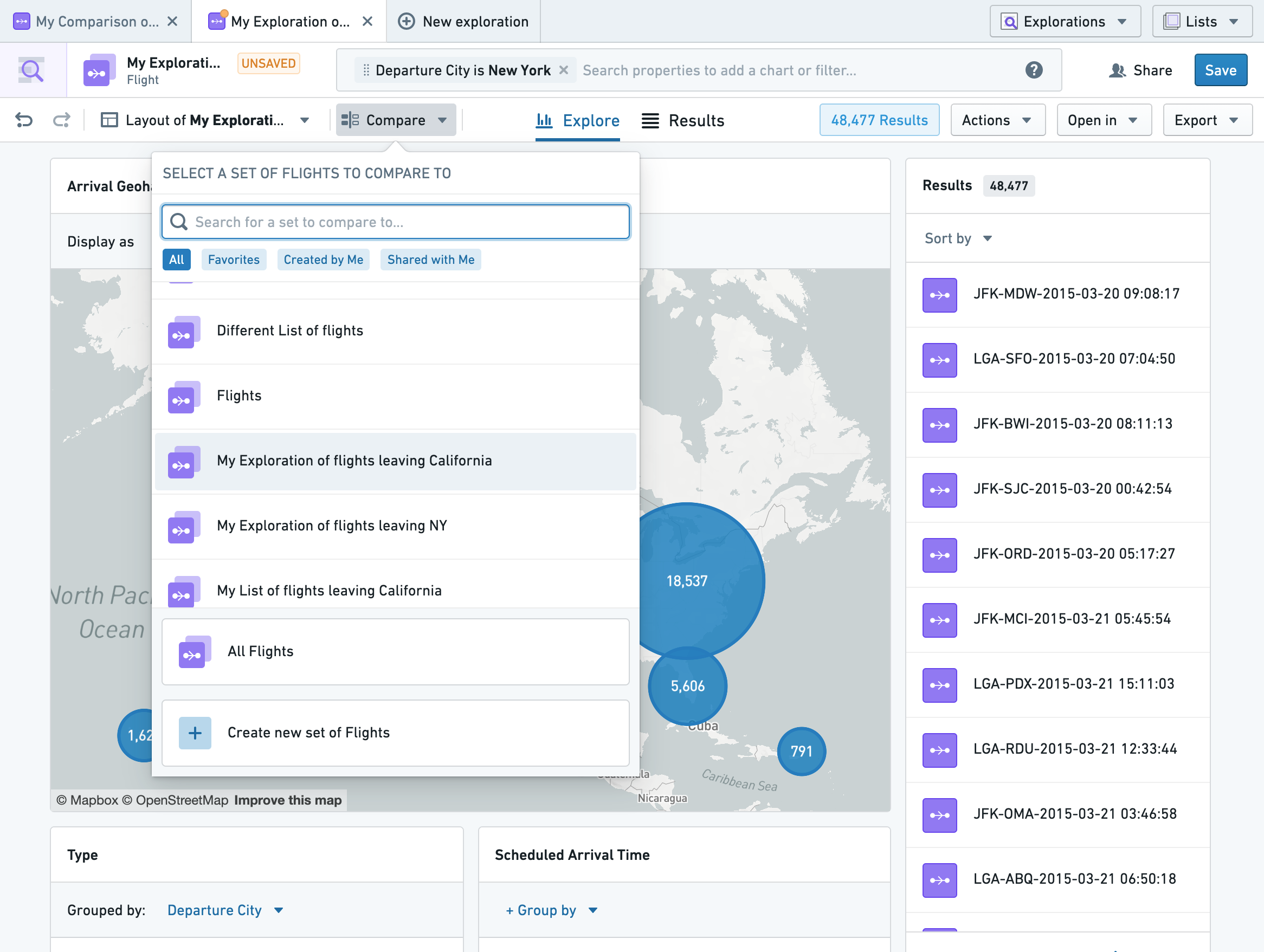
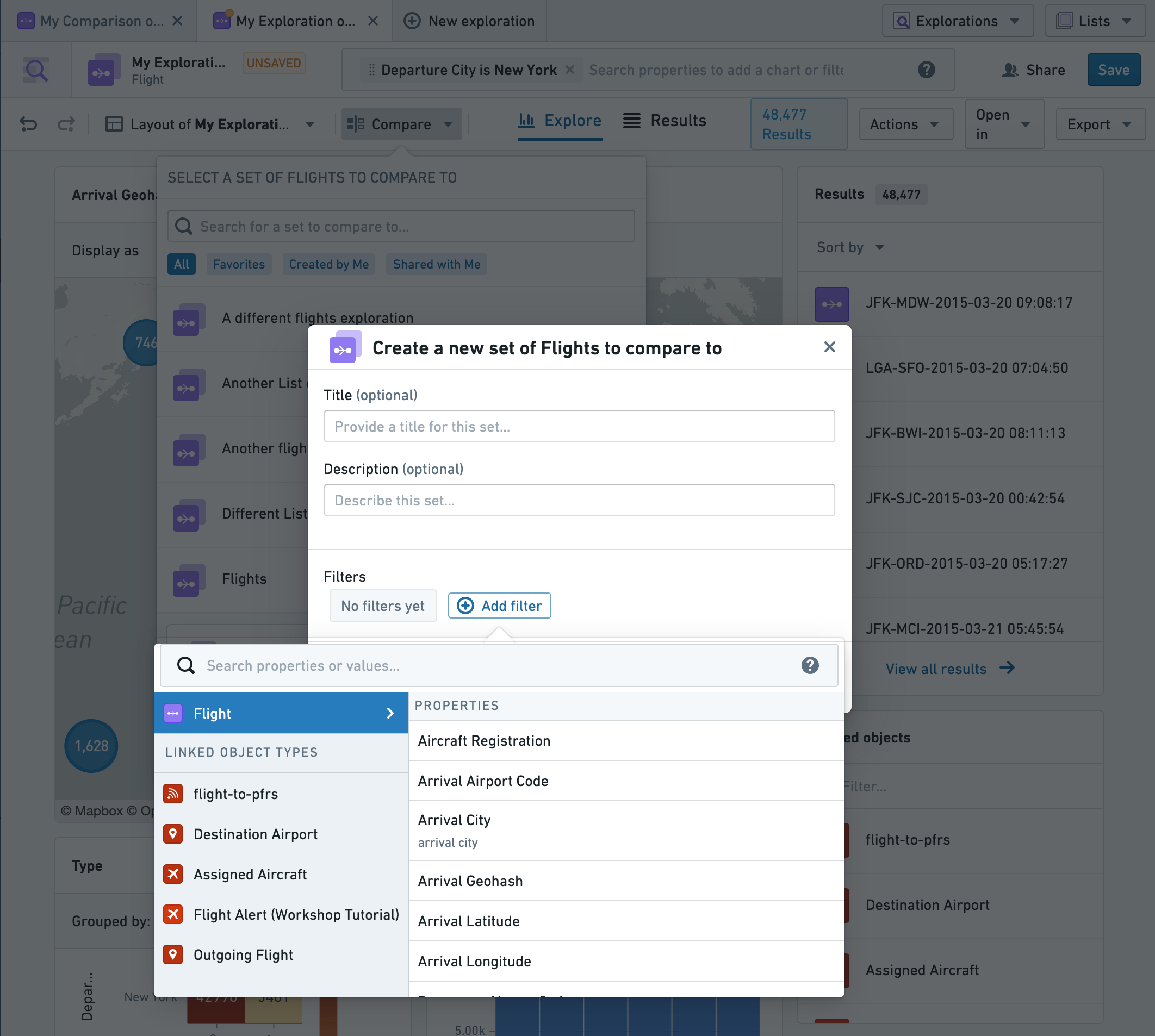
To define a new object set on-the-fly for comparison (a process known as "dynamic filtering"), select Create new set of Flights as seen in the comparison dropdown in the image above.
This brings up a view that allows us to define and edit the object set, or change the color used for the comparison set:
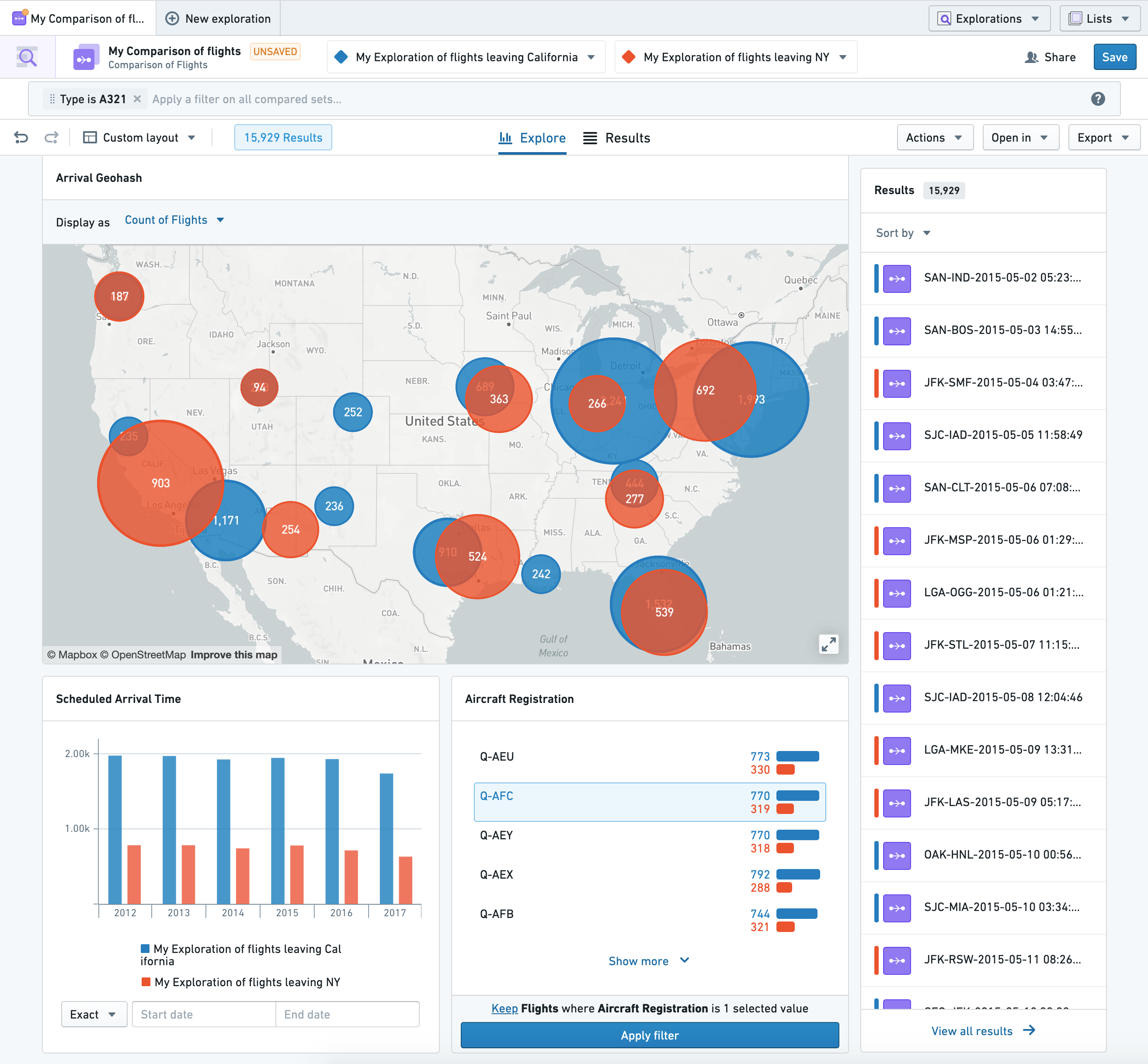
Once you enter the comparison mode, all of the charts in the layout will change to show the results from each of the compared sets side-by-side. This allows us to see how things compare, such as the most common arrival airports for flights from NYC versus CA, or aircraft registrations. All the functionality of OE is retained in this comparison view, for instance the ability to filter using the charts, the ability to see the results in the table view, actions, export, and so on.
Filtering
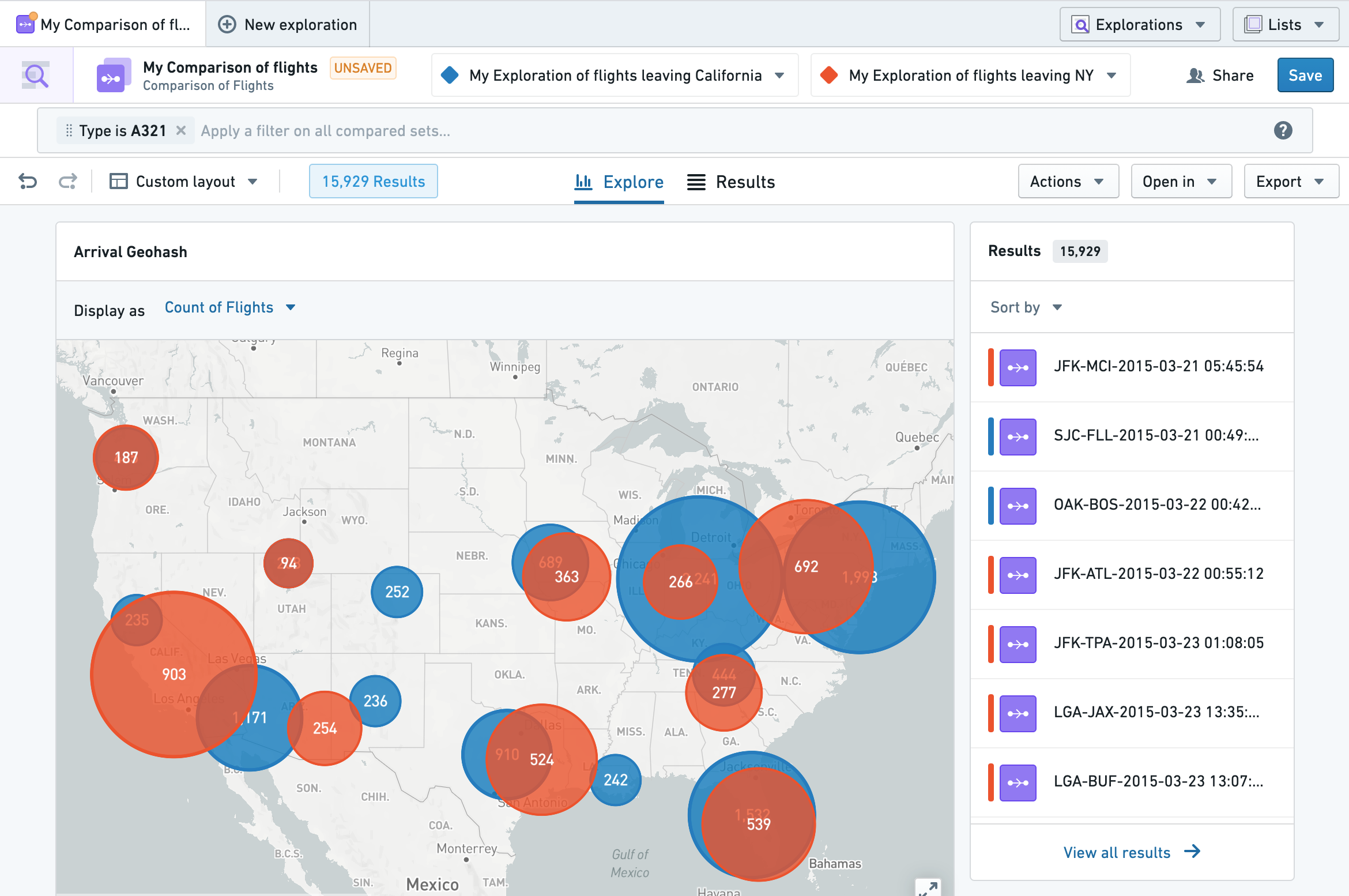
As mentioned above, you can jointly apply filters on these compared sets to narrow down the comparison view. For example, you may only want to see flights on an A321 airplane in the comparison in order to see how New York’s cancelled flights compare to those from California. This can be done in the same way as you normally would in OE by applying the filter from the search bar (as shown below) or directly from the chart.
Collaboration
Saving Comparison Views
These Comparison Views can be saved and shared just like Explorations by clicking the Save button in the top-right. When saving the view, you will be prompted for a name, and you can also provide an optional description and/or a custom save location.

Sharing Comparison Views
To share your comparison, simply select the Share button to the left of the Save button. You will be prompted to decide which users or groups you want to share this comparison with, what access level you want to grant them, and whether you want the comparison to have a default role for all users. Sharing your comparison will not share access to the linked explorations and/or underlying objects, so any given viewer will need to have the appropriate role for the data in addition to having access to the saved comparison itself.
Searching for Comparison Views
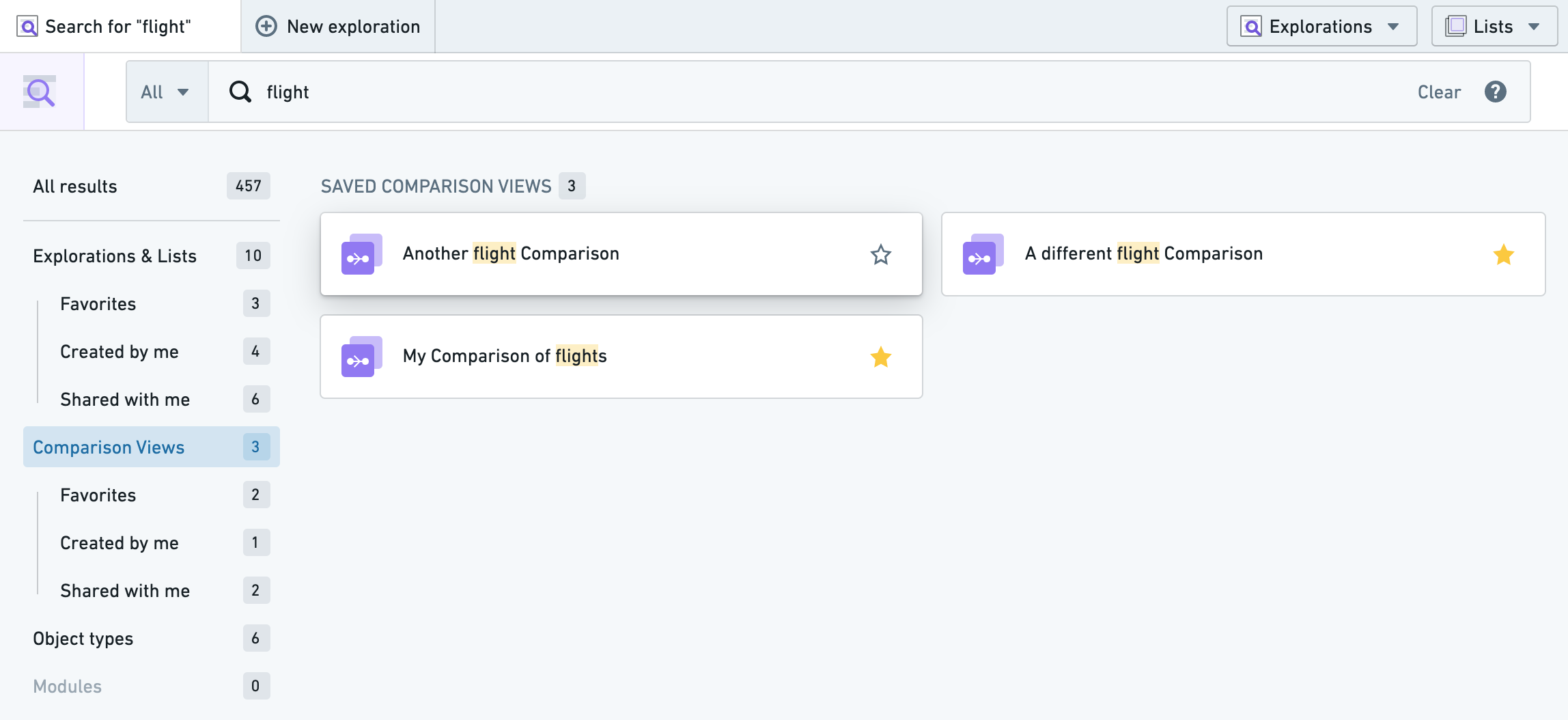
These saved Comparisons can be searched for using the main OE search bar on the home page.
中文翻译
比较对象集(Compare object sets)
比较视图(Comparison Views)为用户提供了比较两个已筛选对象集的选项。这些对象可以来自对象的动态筛选,也可以来自之前保存的探索(explorations)。
进入比较模式
要使用比较模式:
- 前往对象浏览器(Object Explorer),打开一个对象类型,并筛选出您想要比较的该类型对象集。在下面的示例中,我们筛选出了从纽约市出发的航班。
- 选择搜索栏下方的比较(Compare)按钮。选择比较后,您可以选择一个用于比较的对象集,例如:
- 一个已保存的探索,
- 给定类型的所有对象(例如所有航班(All Flights)),或
- 您可以定义一个新的对象集进行比较。
下面,我们将从纽约市出发的航班与一个已保存的、包含所有从加利福尼亚州起飞航班的探索进行比较。
要即时定义一个新的对象集进行比较(这一过程称为"动态筛选"),请选择上图中比较下拉菜单中的创建新的航班集(Create new set of Flights)。
这将打开一个视图,允许我们定义和编辑对象集,或更改比较集使用的颜色:
一旦进入比较模式,布局中的所有图表都将发生变化,并排显示每个比较集的结果。这使我们能够看到各项数据的对比情况,例如从纽约市与加利福尼亚州出发的航班最常见的到达机场,或飞机注册号。对象浏览器的所有功能在此比较视图中均得以保留,例如使用图表进行筛选、在表格视图中查看结果、执行操作、导出等。
筛选
如上所述,您可以对这些比较集联合应用筛选条件,以缩小比较视图的范围。例如,您可能只想查看比较中涉及 A321 飞机的航班,以便了解纽约取消的航班与加利福尼亚州取消的航班之间的对比情况。这可以通过与对象浏览器中相同的方式实现,即从搜索栏应用筛选条件(如下所示),或直接从图表中应用。
协作
保存比较视图
这些比较视图可以像探索一样保存和共享,只需点击右上角的保存(Save)按钮即可。保存视图时,系统会提示您输入名称,您还可以选择提供描述和/或自定义保存位置。
共享比较视图
要共享您的比较,只需选择保存按钮左侧的共享(Share)按钮。系统会提示您选择要与哪些用户或群组共享此比较、授予他们何种访问级别,以及是否希望为所有用户设置默认角色。共享您的比较不会共享对关联探索和/或底层对象的访问权限,因此任何查看者除了需要拥有已保存比较本身的访问权限外,还需要拥有相应数据的适当角色。
搜索比较视图
这些已保存的比较可以通过主页上的对象浏览器主搜索栏进行搜索。