Explore with charts(使用图表探索)
Once you have selected an object type to explore, the Explore perspective displays charts for search and filtering.
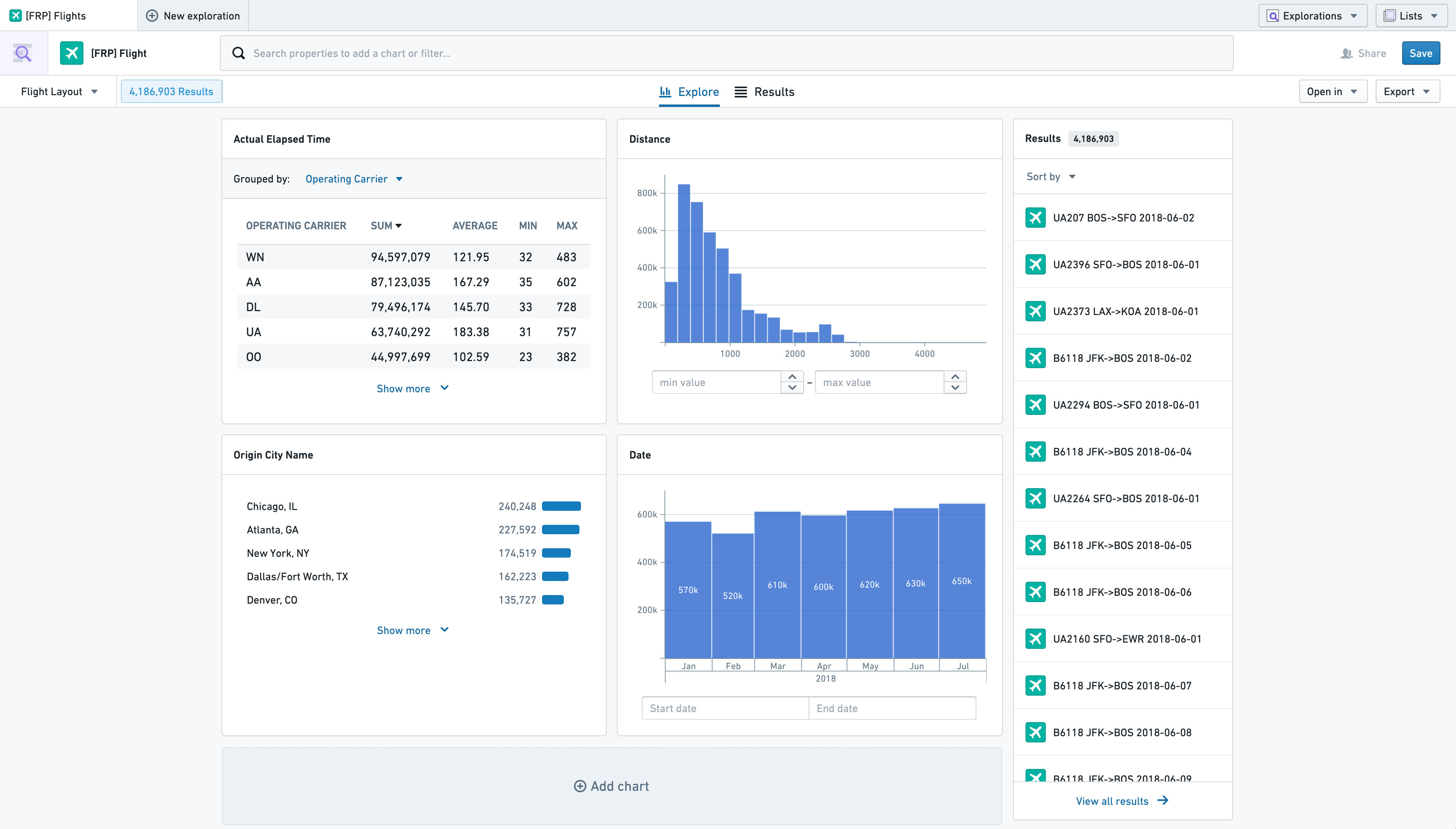
Charts
Charts are the main point of interaction for users filtering within Object Explorer. Each chart represents an aggregation of a property field on the main object type, or linked object types. By default, there will be one chart shown for each prominent property on the selected object type; however, users can customize and save their own default layouts, and administrators are able to save global default layouts for all users.
Adding, Removing, and Ordering Charts
Add a chart to your exploration by clicking the Add chart card at the bottom of your current view. This opens a search bar for properties on the selected object type and linked objects. After selecting a property to aggregate, the chart will appear on your exploration and the Add chart card shifts one position down.
Alternatively, a chart can be added from filters in the exploration’s search bar. While adding a new filter in the search bar, an Add chart to view button will appear. Selecting this adds the chart to the first position in your exploration layout.

To remove a chart, hover over its header in your exploration. An X icon appears: clicking this removes the chart from your view but does not remove any filters from your search.

Charts can be reordered and resized by dragging and dropping. Click and hold empty space in the chart header to show the interface for reordering charts. Moving a chart in your layout will shift the others to fill its now empty space.

To resize a chart horizontally, click and hold on one of its edges and drag to shrink or expand it. Each chart can fill one or both of the columns in the exploration layout.

If a Listogram chart has more than five values, clicking Show more and Show less will resize the chart vertically.

Charts on Linked Objects
To filter on properties of linked objects, select a linked object type from the left hand side of the search menu.

In the exploration view, the chart header will indicate that it is filtering on the properties of a linked object. In the attached example the top two charts filter on the properties of the selected type, and the bottom two filter on properties of linked objects.

Types of Charts
Object Explorer supports several types of charts for different property types. Below is a summary and example of each type.
Listogram
Listograms display aggregations on non-numeric properties. This applies to String, Boolean, and Array properties. In this example, the chart lists all First Names for Employees alongside the count of Employees with that first name.

Listograms can also display properties with aggregations of numeric properties - for example, the average revenue of each franchise of a business by state.
Configuration for a listogram includes:
- Aggregation type
- For example, instead of showing the number of *flights *for each airport, show the *average *of flight time
- Sort type and direction
- For example, sort by the count ascending, or sort alphabetically by the property values

To filter on a listogram, click on the values you would like to filter. Selected values can be kept or excluded by using the dropdown at the bottom of the chart.

Pie Chart
Non-numeric properties (booleans and strings) can also be displayed using pie charts. Select the Pie Chart option using the chart configuration options.


Histogram
Histograms display bar chart aggregations on numeric or date properties.

The histogram chart will scale to fit all relevant data and automatically bucket to allow for easier selection. No additional configuration is needed. To filter, either select a particular bucket (pictured left) or click and drag to select a range of your own choosing (pictured right). Edit the range’s start and end points with the inputs at the bottom of the chart.

Grid Plots
Grid plots show color chart of two properties: The selected property on the X-Axis and another Group By property on the Y-Axis.

Open configuration for the chart to modify the axes, sort information, and color scale.

To filter with a Grid Plot, click on a segment of the grid. Hold ctrl or command to click multiple options in a contiguous range.
Single Statistic
Single Statistic charts show an aggregate value on one numerical property for a set of objects. Select a property and a type of aggregation (Sum, Average, Min, Max, Count and Unique Count). This chart cannot be used for filtering.

Statistics Table
Statistics tables show aggregates for numeric properties grouped by another property in a sortable table. Available aggregates are Sum, Min, Max, Average, and Count.

Configuration options include the metrics displayed, the property to group by, and displaying a summary row at the bottom of the table.
To filter, select the row of the desired group by property.
Maps
Cluster Map
The default for any geopoint type property is a Cluster Map with scaled bubbles showing the number of objects, or the result of another aggregation.

Configuration options include the ability to change the type of aggregation performed, and which property that aggregation is on (e.g. instead of the count of airports, show the sum number of the departing flights within each area).

You can filter geospatially by clicking on these bubbles, and then clicking apply filter below the 3map.
Choropleth Map
Some text properties that have been annotated with a typeclass in the ontology may be used to create a choropleth map that looks like the one 3below:

A choropleth can be created for any property type that contains values for geographic regions (e.g. country codes) that can be plotted on a map. The kind of the typeclass necessary is choropleth_map_config_id, and the name depends on what type of region code the property contains. For instance:
- For countries, use
countries - US States →
us_states - US Counties →
us_counties - US Zip Codes →
us_zip_codes
For additional region boundary options, or additional assistance with adding this typeclass, contact your Palantir representative.
Configuration options include changing the type of aggregation as well as the color scale used:

Undoing and redoing changes to your exploration
To undo or redo a change to your exploration, use the buttons on the left side of the perspective bar. Currently, the last 5 exploration states are saved for undo and redo. Actions that can be undone are:
- Editing a filter, either in the search bar or from a chart
- Changing the layout of your charts (adding a new one or reordering existing ones)
- Changing the exploration perspective
- Pivoting the exploration to a linked object type

Saving a Layout
Layouts allow users to create shareable views for a specific object type. The shareable views include charts that have been added, column configurations for the table, and any sorting configuration for the table.
To save a layout, open the layout selector in the top-left corner of the screen (A) and select Save current view (e.g. charts, sorts, etc.) as new layout (B).

In the resulting pop-up, set the Initial Perspective (C), which controls whether the layout will initially open the Explore tab (the charts) or the Results tab (the table). You can also set the layout as your personal default layout for this object type by ticking the For yourself (D) box under Set as default layout for, which means that this layout will be selected by default whenever you start a new exploration on this object type.

If you are an administrative user, by ticking the For all users checkbox (E) under Set as default layout for you can set a layout as the global default layout for all users.
Note that if an individual user sets their own default layout for an object type, that layout will take precedence over any global default layout which has been set.
As a user, you can also set an existing layout as your default for a specific object type by using the sub-menu shown below (F):

Preview Panel
On the right-hand side of the exploration view, a list of up to 20 results shows a preview of your exploration’s contents.

Click a preview card to open the object in an Object View tab. To sort by a single property, use the Sort by option in the preview list subheader. To sort by multiple properties, hover over the header and select the gear icon, pictured here.This opens a dialog to configure sorts by many properties, which are then applied in order.
中文翻译
使用图表探索
选择要探索的对象类型后,"探索"视图将显示用于搜索和筛选的图表。
图表
图表是用户在对象资源管理器(Object Explorer)中进行筛选的主要交互点。每个图表代表主对象类型或关联对象类型(linked object types)上某个属性字段的聚合。默认情况下,所选对象类型上的每个突出属性都会显示一个图表;但用户可以自定义并保存自己的默认布局,管理员则可以为所有用户保存全局默认布局。
添加、移除和排序图表
点击当前视图底部的 添加图表 卡片,即可向探索中添加图表。这将打开一个搜索栏,用于搜索所选对象类型及其关联对象上的属性。选择要聚合的属性后,图表将出现在探索视图中,同时 添加图表 卡片会向下移动一个位置。
或者,也可以通过探索搜索栏中的筛选条件添加图表。在搜索栏中添加新筛选条件时,会出现一个 将图表添加到视图 按钮。点击该按钮,图表将添加到探索布局的第一个位置。
要移除图表,请将鼠标悬停在探索视图中的图表标题上。此时会出现一个 X 图标:点击该图标即可从视图中移除图表,但不会移除搜索中的任何筛选条件。
图表可以通过拖放来重新排序和调整大小。点击并按住图表标题中的空白区域,即可显示图表重新排序的界面。移动布局中的某个图表后,其他图表会移动以填充其空出的位置。
要水平调整图表大小,请点击并按住图表的边缘之一,然后拖动以缩小或放大。每个图表可以占据探索布局中的一列或两列。
如果列表图(Listogram)的值超过五个,点击 显示更多 和 显示更少 可以垂直调整图表大小。
关联对象上的图表
要筛选关联对象的属性,请从搜索菜单左侧选择一个关联对象类型。
在探索视图中,图表标题会指示它正在筛选关联对象的属性。在附带的示例中,顶部两个图表筛选所选类型的属性,底部两个图表筛选关联对象的属性。
图表类型
对象资源管理器支持针对不同属性类型的多种图表。以下是每种类型的摘要和示例。
列表图
列表图显示非数值属性的聚合。这适用于字符串(String)、布尔值(Boolean)和数组(Array)属性。在此示例中,图表列出了所有员工的名字以及拥有该名字的员工数量。
列表图也可以显示数值属性的聚合结果——例如,按州划分的每个企业加盟店的平均收入。
列表图的配置包括:
- 聚合类型
- 例如,不显示每个机场的航班数量,而是显示飞行时间的平均值
- 排序类型和方向
- 例如,按计数升序排序,或按属性值字母顺序排序
要筛选列表图,请点击您想要筛选的值。可以使用图表底部的下拉菜单保留或排除所选值。
饼图
非数值属性(布尔值和字符串)也可以使用饼图显示。使用图表配置选项选择 饼图 选项。
直方图
直方图显示数值或日期属性的柱状图聚合。
直方图会自动缩放以适配所有相关数据,并自动分桶以便于选择。无需额外配置。要筛选,可以选择特定分桶(左图),或点击并拖动以选择自定义范围(右图)。使用图表底部的输入框编辑范围的起点和终点。
网格图
网格图显示两个属性的颜色图表:X轴上的选定属性和Y轴上的另一个 分组依据 属性。
打开图表配置以修改坐标轴、排序信息和颜色刻度。
要使用网格图进行筛选,请点击网格中的一个分段。按住 ctrl 或 command 键可以连续选择多个选项。
单一统计
单一统计图表显示一组对象在某个数值属性上的聚合值。选择一个属性和聚合类型(总和、平均值、最小值、最大值、计数和唯一计数)。此图表不能用于筛选。
统计表
统计表以可排序表格的形式显示按另一个属性分组的数值属性的聚合值。可用的聚合包括总和、最小值、最大值、平均值和计数。
配置选项包括显示的指标、分组依据的属性,以及在表格底部显示汇总行。
要筛选,请选择所需分组属性的行。
地图
聚类地图
任何 地理点 类型属性的默认显示是聚类地图,使用缩放气泡显示对象数量或其他聚合结果。
配置选项包括更改聚合类型以及聚合所基于的属性(例如,不显示机场数量,而是显示每个区域内离港航班的总数)。
您可以通过点击这些气泡,然后点击地图下方的 应用筛选 来进行地理空间筛选。
等值区域图
某些已在本体(ontology)中使用类型类(typeclass)进行注释的文本属性,可用于创建如下所示的等值区域图:
任何包含可在地图上绘制的地理区域值(例如国家代码)的属性类型,都可以创建等值区域图。所需类型类的 kind 为 choropleth_map_config_id,name 取决于属性包含的区域代码类型。例如:
- 国家 → 使用
countries - 美国州 →
us_states - 美国县 →
us_counties - 美国邮政编码 →
us_zip_codes
如需其他区域边界选项,或需要有关添加此类型类的更多帮助,请联系您的 Palantir 代表。
配置选项包括更改聚合类型以及使用的颜色刻度:
撤销和重做探索更改
要撤销或重做对探索的更改,请使用视图栏左侧的按钮。目前,系统会保存最近 5 个探索状态以供撤销和重做。可以撤销的操作包括:
- 编辑筛选条件(在搜索栏或图表中)
- 更改图表布局(添加新图表或重新排序现有图表)
- 更改探索视图
- 将探索转向关联对象类型
保存布局
布局允许用户为特定对象类型创建可共享的视图。可共享的视图包括已添加的图表、表格的列配置以及表格的任何排序配置。
要保存布局,请打开屏幕左上角的布局选择器(A),然后选择 将当前视图(如图表、排序等)保存为新布局(B)。
在弹出的对话框中,设置 初始视图(C),该选项控制布局最初是打开"探索"选项卡(图表)还是"结果"选项卡(表格)。您还可以通过勾选 设置为默认布局 下的 为自己(D)复选框,将此布局设置为您个人针对此对象类型的默认布局,这意味着每当您开始对此对象类型进行新探索时,将默认选择此布局。
如果您是管理员用户,通过勾选 设置为默认布局 下的 为所有用户(E)复选框,您可以将布局设置为所有用户的全局默认布局。
请注意,如果某个用户为自己设置了针对某个对象类型的默认布局,则该布局将优先于任何已设置的全局默认布局。
作为用户,您还可以使用如下所示的子菜单(F),将现有布局设置为特定对象类型的默认布局:
预览面板
在探索视图的右侧,最多显示 20 个结果的列表,用于预览探索的内容。
点击预览卡片可在对象视图(Object View)选项卡中打开该对象。要按单个属性排序,请使用预览列表副标题中的 排序依据 选项。要按多个属性排序,请将鼠标悬停在标题上并选择齿轮图标(如图所示)。这将打开一个对话框,用于配置按多个属性排序,这些排序将按顺序应用。