Filter results(筛选结果)
Once you have started a search, you are taken to an exploration view where you can conduct further filtering.
Search bar
The search bar is the central hub for filtering the current set of objects. Click into the search bar to expose the search menu. From there, a few filtering options are available:

Filtering by properties (of the main object type)
→ You know what property you want to filter on?
Example: “I want to filter on the language of my employees”
In the search menu, you can find a list of all properties (B) (and optionally their descriptions) sorted alphabetically.

Type in the search bar (A) to search for specific property types. When the desired property is selected, a pop-over will you allow to chose values to filter on for that property. The input experience varies based on the type of the property (numeric, text, date, etc.). For text properties (e.g. language), options can be filtered by typing in the pill.
→ You know the value but not which property it belongs to?
Example: “I want to filter for flights to Los Angeles“
Type the value (e.g. “Los Angeles”) in the search bar. If the value exists in the current object set, the option to filter “where Destination City Name is Los Angeles” will be available in the right hand side of the search menu.
Filtering by keywords
Keyword searches are supported across all of an object type's properties or a specific property. To perform a keyword search across any properties that contain your search term, type in the search bar and use the Enter key. Modify the resulting filter by clicking on the filter pill "Has keywords".
To perform a keyword search on a property, select a text property, type your query, and use the Enter key or switch to the "Keyword" tab in the filter chart.
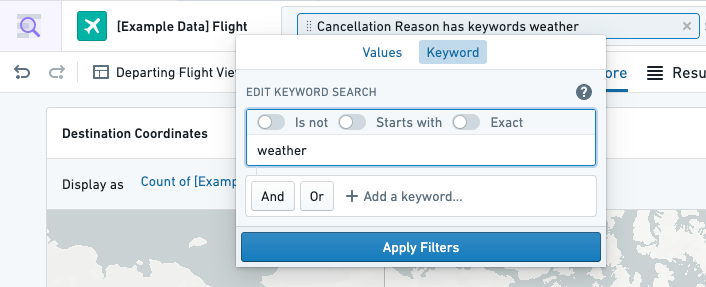
By default, keyword searches match on the exact word or phrase and do not match on prefixes or suffixes. To perform a prefix search, see the "Starts with" modifier below.
Adding Term Modifiers
For a given search term, three options are available to modify the query. For consistency, use the toggles to control these modifiers rather than editing the terms in this dropdown.
- "Is not": Negates the current search term, looking only for objects whose properties do not contain it. Equivalent to typing
NOT term. - "Starts with": Performs a wildcard search, looking for objects with properties that start with the current search term. Equivalent to typing
term*, and will match on both "term" and words like "terminal". For suffix matching (leading wildcard search), the Enable leading wildcards render hint must be enabled on the property. For details and limitations of wildcard search (including why multi-word wildcard queries do not match), see Understanding text search. - "Exact": Performs a search for the entire search term, including spaces in their exact position. Performing an Exact search for "my search term" will look only for the phrase "my search term", not phrases like "my search for a term".
Adding Logical Operators (AND/OR)
Selecting “And” or “Or” will add a new search term to your existing query connected by the corresponding logical operator. After adding a new term, click on a term to edit it.
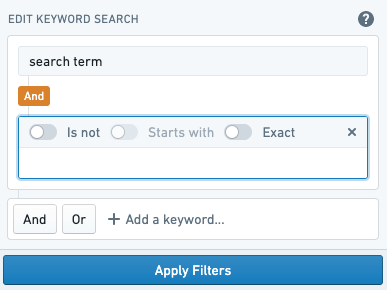
Search terms and logical operators can be nested to perform more complicated queries. See below for an example of a nested AND within an OR. Also note that modifiers for a given search term display in a compact view when not being edited.
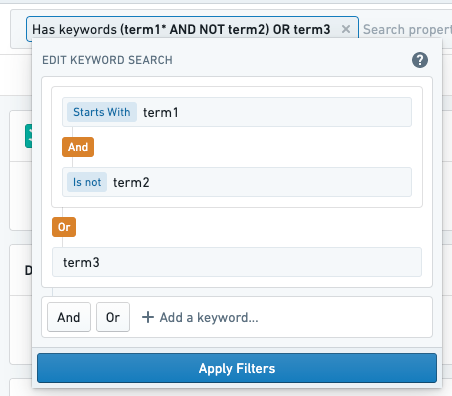
Click on an “And”/“Or" tag to flip the operator. Note that if operators on two adjacent levels become the same, the filter will simplify to a single level of nesting.
Filtering on links
In the same way that filters can be applied directly on current object properties, one can filter objects based on their relations. To choose a relation for filtering, select in the left panel of the search menu.
To search for objects that have a particular link, select the "Has Link" option, highlighted below as "Has Flight Delay Event". This filter can be used to show either objects that have the associated link, or objects that do not have the associated link.
Example: “Flights with an associated delay event.”
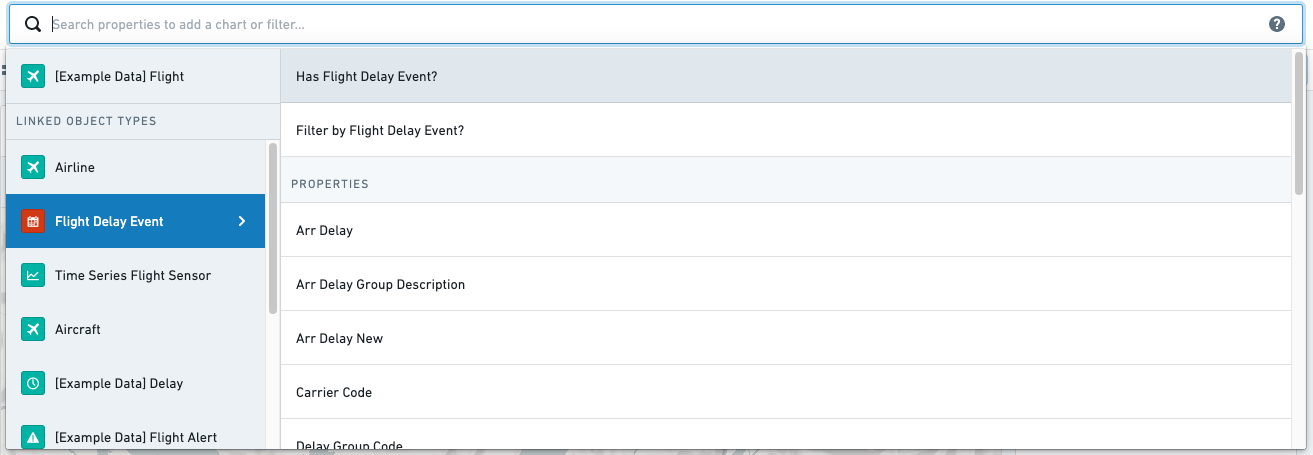
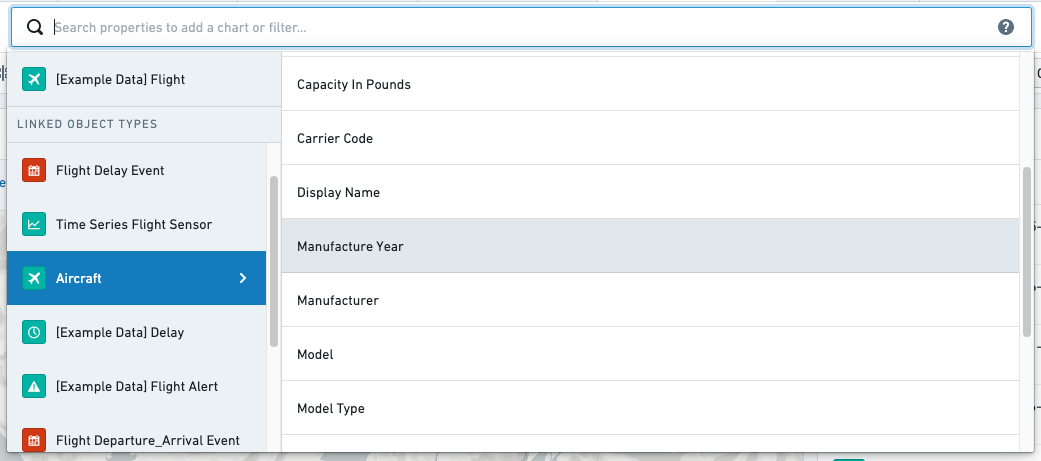
To search for objects whose linked objects have a specific property, select the relation in the left side of the search menu panel. From there, choose a property type to filter.
Example: “Flights on an Aircraft that were manufactured in 2018.”
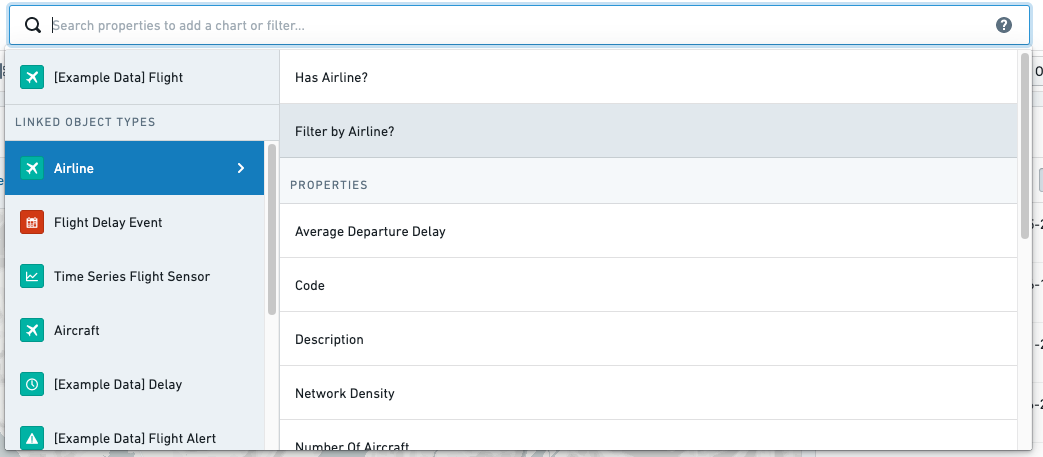
It is also possible to search for objects that have links to other specific objects. For example, after selecting a link choose the option "Filter by Airline". This opens a filter for links to specific objects. Linked objects are displayed by their title in the resulting listogram.
Example: "Flights operated by a particular airline."
中文翻译
筛选结果
开始搜索后,您将进入探索视图,在此可进行进一步筛选。
搜索栏
搜索栏是筛选当前对象集的核心枢纽。点击搜索栏可展开搜索菜单,其中提供以下筛选选项:
按属性筛选(主对象类型)
→ 您知道要按哪个属性进行筛选吗?
示例:"我想按员工的语言进行筛选"
在搜索菜单中,您可以找到按字母顺序排列的所有属性列表 (B)(以及可选的属性描述)。
在搜索栏 (A) 中输入内容可搜索特定属性类型。选中所需属性后,弹出窗口将允许您选择该属性的筛选值。输入体验因属性类型(数值、文本、日期等)而异。对于文本属性(如语言),可通过在标签中输入内容来筛选选项。
→ 您知道值但不知道它属于哪个属性?
示例:"我想筛选飞往洛杉矶的航班"
在搜索栏中输入值(如"Los Angeles")。如果该值存在于当前对象集中,搜索菜单右侧将显示"筛选条件:目的地城市名称为 Los Angeles"的选项。
按关键词筛选
关键词搜索支持跨对象类型的所有属性或特定属性进行。要执行跨任意包含搜索词的属性进行关键词搜索,请在搜索栏中输入内容并按 Enter 键。点击筛选标签"包含关键词"可修改生成的筛选条件。
要对某个属性执行关键词搜索,请选择文本属性,输入查询内容,然后按 Enter 键或切换到筛选图表中的"关键词"选项卡。
默认情况下,关键词搜索匹配确切的单词或短语,不匹配前缀或后缀。要执行前缀搜索,请参见下方的"开头为"修饰符。
添加词条修饰符
对于给定的搜索词,有三种选项可修改查询。为保持一致性,请使用开关控制这些修饰符,而非在此下拉菜单中编辑词条。
- "不是": 否定当前搜索词,仅查找属性中不包含该词的对象。等同于输入
NOT term。 - "开头为": 执行通配符搜索,查找属性以当前搜索词开头的对象。等同于输入
term*,将匹配"term"和"terminal"等词。对于后缀匹配(前导通配符搜索),必须在属性上启用启用前导通配符渲染提示。有关通配符搜索的详细信息及限制(包括多词通配符查询为何不匹配),请参阅理解文本搜索。 - "精确": 执行对整个搜索词的精确搜索,包括空格的确切位置。对"my search term"执行精确搜索将仅查找短语"my search term",而非"my search for a term"等短语。
添加逻辑运算符(AND/OR)
选择"与"或"或"将通过相应的逻辑运算符向现有查询添加新的搜索词。添加新词条后,点击词条可进行编辑。
搜索词和逻辑运算符可以嵌套以执行更复杂的查询。以下为 OR 内嵌套 AND 的示例。另请注意,未编辑时,给定搜索词的修饰符会以紧凑视图显示。
点击"与"/"或"标签可切换运算符。请注意,如果两个相邻级别的运算符相同,筛选条件将简化为单层嵌套。
按链接筛选
与直接对当前对象属性应用筛选条件类似,您也可以基于对象的关系进行筛选。要选择用于筛选的关系,请在搜索菜单的左侧面板中进行选择。
要搜索具有特定链接的对象,请选择"有链接"选项,下方高亮显示为"有航班延误事件"。此筛选条件可用于显示具有关联链接的对象,或不具有关联链接的对象。
示例:"具有关联延误事件的航班。"
要搜索其链接对象具有特定属性的对象,请在搜索菜单面板左侧选择关系,然后选择要筛选的属性类型。
示例:"2018年制造的飞机上的航班。"
还可以搜索具有指向其他特定对象链接的对象。例如,选择链接后,选择"按航空公司筛选"选项。这将打开针对特定对象链接的筛选条件。链接对象在生成的列表图中以其标题显示。
示例:"由特定航空公司运营的航班。"