Search for objects(搜索对象)
The results of a search with the global search bar from the Object Explorer home page will be shown on the search result page:
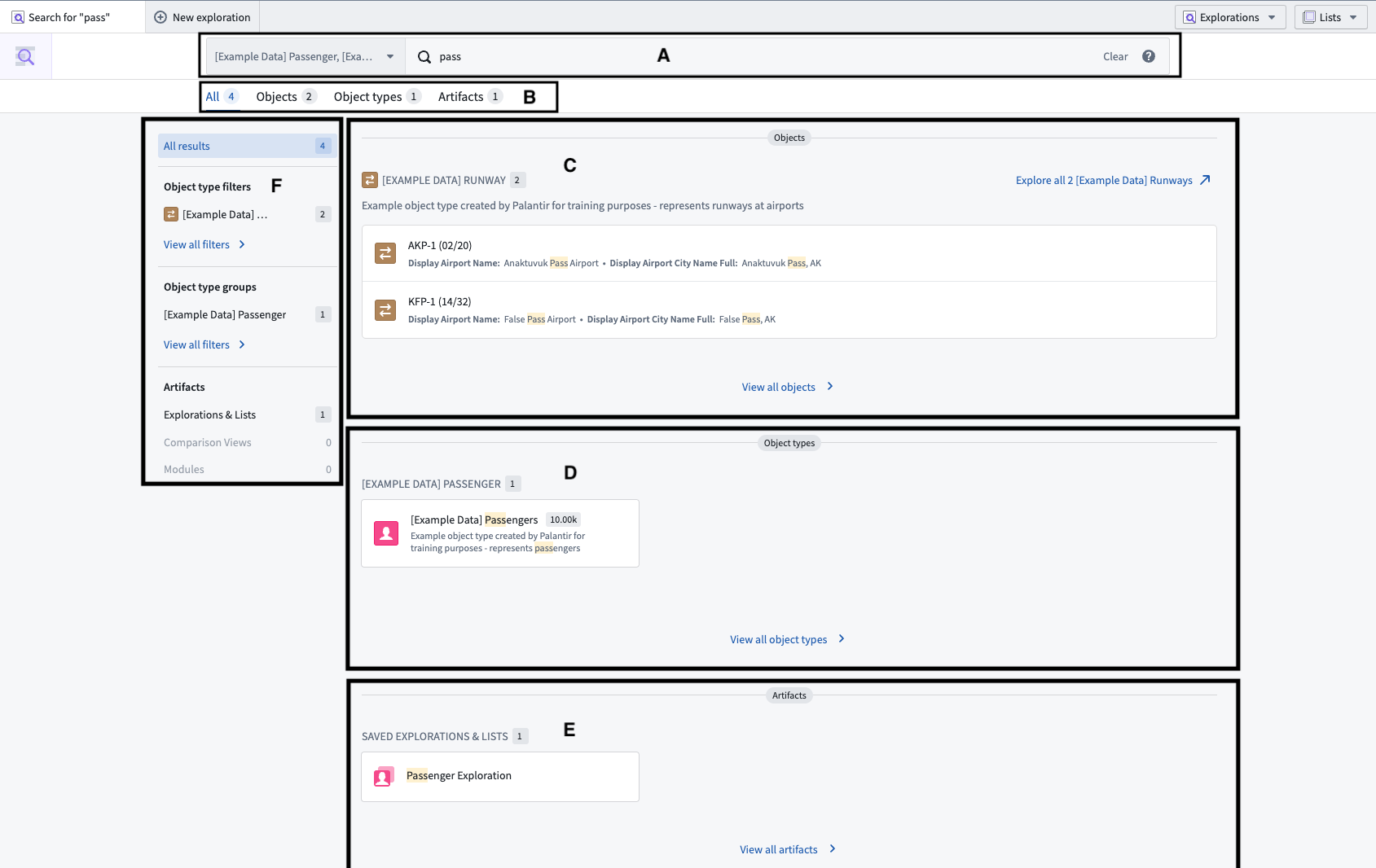
Your query is visible and editable in the search bar (shown as A below).
The page is divided into tabs (B):
- The All tab is displayed by default and contains all results.
- Matching results can be filtered down into separate tabs:
- Objects (C),
- Object types (D), and
- Artifacts (E).
This search results page also contains a sidebar (F below).
Navigate using the sidebar
These results are all categorized by their type. The navigation menu to the left (shown as F in the image above) can help you navigate the different categories.
Selecting the title of any section will also filter you to results of that type. This will also show you all of the results of that type in the event that there are more than the default number shown when in the All results view (indicated by 1 in the image below).

- The first item, All results (shown as 1 in the image above), displays a sample of matches for each category. This is active by default when landing on the page.
- Next are “Object type filters” (2). Clicking on any of them will show a longer list of matches for the specific object type. Clicking on “View X other filters >” at the bottom of the section will switch the tab from “All” to “Objects”, where you can explore the full list of object results and filters.
- “Object type groups” (3) filters the results by the associated group. Click on “View all filters >” at the bottom of the section to switch the tab from “All” to “Object types”, where you can explore the full list of object types results.
- Lastly are matches on “Artifacts” (4), divided into "Explorations & Lists", "Comparison Views", and "Modules". Click on “View all filters >” at the bottom of the section to switch the tab from “All” to “Artifacts”, where you can explore the full list of results.
Types of results
The Object Explorer search bar searches across all Objects in the platform ((C) in the top image), as well as object-related resources such as Object types (D), saved Explorations, Lists, Comparisons, and Modules (E).
Sorting results
Within the individual object results section, the results are sorted as follows:
- All prominent object types are shown before non-prominent object types.
- Within the prominent and non-prominent results, object types are sorted (in ascending order) by the number of individual object results for that type. In other words, the prominent object type with the least results will display first, then prominent object types with more results, then the non-prominent object type with the least results (compared to other non-prominent types), and so on.
:::callout{theme="neutral"} No hidden object or property types will be displayed as search results here or elsewhere in Object Explorer. :::
Exploring objects linked to a particular result
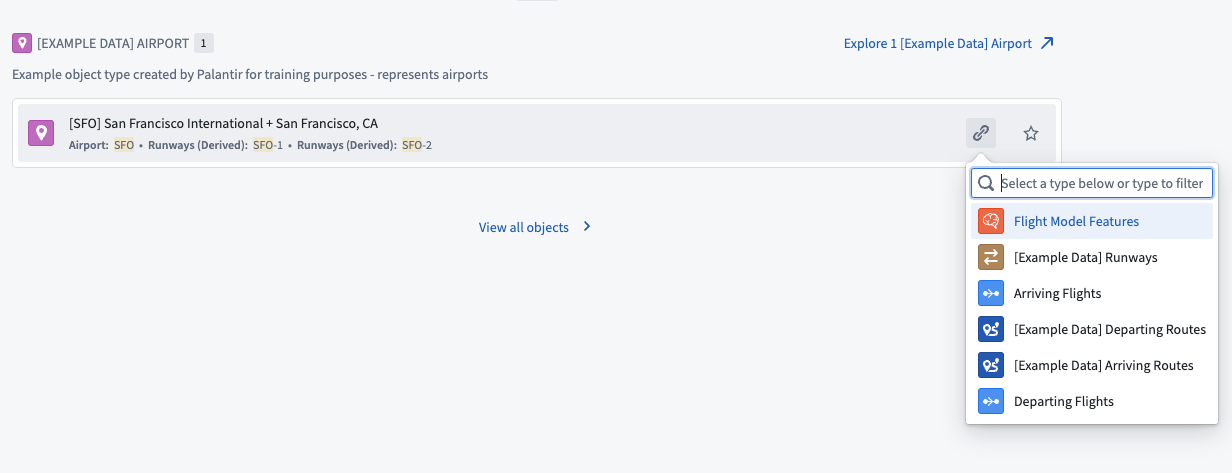
For matches on individual objects (2 in the image above), hovering over the result gives you options for starting an exploration of objects across a particular link to that individual result.
Example: If you search for the airport “SFO”, you can hover over the result and start an exploration on flights arriving at the airport.
中文翻译
搜索对象
在对象浏览器主页上使用全局搜索栏进行搜索后,结果将显示在搜索结果页面上:
您的查询内容在搜索栏中可见且可编辑(如下图中 A 所示)。
页面分为多个标签页 (B):
- 全部标签页默认显示,包含所有结果。
- 匹配的结果可以筛选到单独的标签页中:
- 对象 (C),
- 对象类型 (D),以及
- 制品 (E)。
此搜索结果页面还包含一个侧边栏(如下图中的 F)。
使用侧边栏导航
这些结果均按类型分类。左侧的导航菜单(如上图中的 F 所示)可帮助您浏览不同的类别。
选择任意部分的标题也会将您筛选到该类型的结果。如果某类型的结果数量超过全部结果视图中显示的默认数量(如下图中的 1 所示),此操作还会显示该类型的所有结果。
- 第一项是全部结果(如上图中的 1 所示),显示每个类别的部分匹配示例。进入页面时默认处于激活状态。
- 接下来是“对象类型筛选器” (2)。点击其中任意一个将显示该特定对象类型的更多匹配结果列表。点击该部分底部的“查看 X 个其他筛选器 >”,会将标签页从“全部”切换到“对象”,您可以在其中浏览对象结果和筛选器的完整列表。
- “对象类型组” (3) 按关联组筛选结果。点击该部分底部的“查看所有筛选器 >”,会将标签页从“全部”切换到“对象类型”,您可以在其中浏览对象类型结果的完整列表。
- 最后是“制品” (4) 的匹配结果,分为“探索与列表”、“比较视图”和“模块”。点击该部分底部的“查看所有筛选器 >”,会将标签页从“全部”切换到“制品”,您可以在其中浏览结果的完整列表。
结果类型
对象浏览器搜索栏会搜索平台中的所有对象(如上图中的 (C)),以及与对象相关的资源,例如对象类型 (D)、已保存的探索、列表、比较和模块 (E)。
对结果排序
在单个对象结果部分中,结果按以下方式排序:
- 所有主要对象类型显示在非主要对象类型之前。
- 在主要和非主要结果中,对象类型按该类型的单个对象结果数量(升序)排序。换句话说,结果最少的主要对象类型会首先显示,然后是结果较多的主要对象类型,接着是结果最少的非主要对象类型(与其他非主要类型相比),以此类推。
:::callout{theme="neutral"} 隐藏的对象或属性类型不会作为搜索结果在此处或对象浏览器的其他位置显示。 :::
探索链接到特定结果的对象
对于单个对象的匹配结果(如上图中的 2),将鼠标悬停在结果上会显示选项,用于通过特定链接开始探索与该单个结果相关的对象。
示例:如果您搜索机场“SFO”,可以将鼠标悬停在结果上,然后开始探索抵达该机场的航班。