Edit object type properties(编辑对象类型属性)
Delete a property
From within the property editor, in the properties pane, hover over the property you want to delete and select Delete property.
- Note that the deletion of the property only takes effect after you save your changes, and will break any views or applications referencing the property.
- Properties with an
activestatus cannot be deleted. - Read more about statuses.
Change the column backing a property
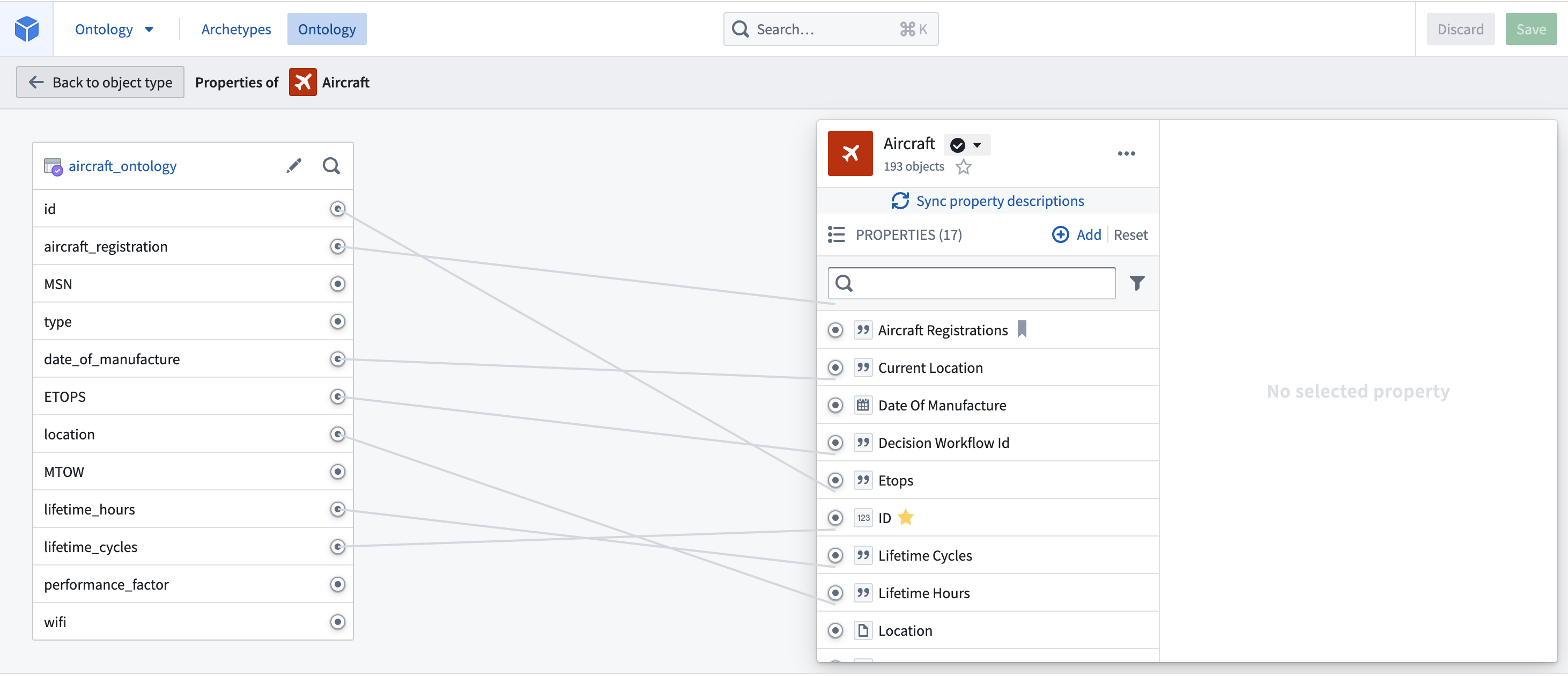
From within the property editor, in the properties pane, hover over the property you want to unmap and select Unlink property. To link the property to a new column, hover over the property and select Map to a column.
Edit a property type’s metadata
You can edit metadata for a property type by selecting the property type, as shown in the image below.

The available options for editing property metadata are clustered into four different tabs which give access to the following configurations:
- Display name and description: Select into the existing display name or description to edit the text.
- Status: Select the existing status to open a dropdown of available statuses. Choose from the
deprecated,experimental, andactivestatuses. - Read more about statuses.
- API name: Select into the existing API name to change its value.
- Note that you cannot change the API name for properties with an
activestatus.- Read more about statuses.
- Read more about valid API names.
- Keys: Indicate whether a property is the object type’s title key or primary key.
- Note that you cannot change the primary key of an object type with an
activestatus. - Value formatting: Apply a special formatter to the values of a property to make them more readable in applications.
- Read more about value formatters.
- Conditional formatting: Apply rules to a property that dictate how it will be rendered in applications.
- Read more about conditional formatting.
- Property base type: Select the property’s base type from the dropdown. The type of the property constrains the possible set of operations that can be done on the property’s values.
- For example, a property with base type
timestampcan be shown in a timeline widget in Object Explorer. - You will receive an error if the type of a property is not compatible with the type of its backing column.
:::callout{theme="warning"} If you make a change to object property types, you must also update the type expected by Actions that interact with property on that object. To do this, open the Action in Ontology Manager and edit the expected type. :::
- Type classes: Apply type classes as additional metadata that can be interpreted by applications.
- See the type classes documentation for a list of available type classes.
- Render hints: Select render hints from the supplied checklist that you want applied to a property in order to improve how a property value is rendered and indexed into Object Storage V1 (Phonograph).
- See the render hints documentation for descriptions of the available render hints.
- Visibility: Select the existing visibility to open a dropdown of available visibilities. A
prominentproperty will lead applications to show this property first to users. Ahiddenproperty will not appear in user applications.
After making a change to property metadata, initiate a re-index of the affected object to update the Ontology.
Bulk edit multiple properties
You can select multiple properties in the property editor by holding the Cmd/Ctrl key while selecting properties. Once multiple properties are selected, the following bulk editing actions become available:
- Changing base type.
- Adding/removing of type classes.
- Changing render hints.
- Changing visibility.
- Adding/removing value formatting.
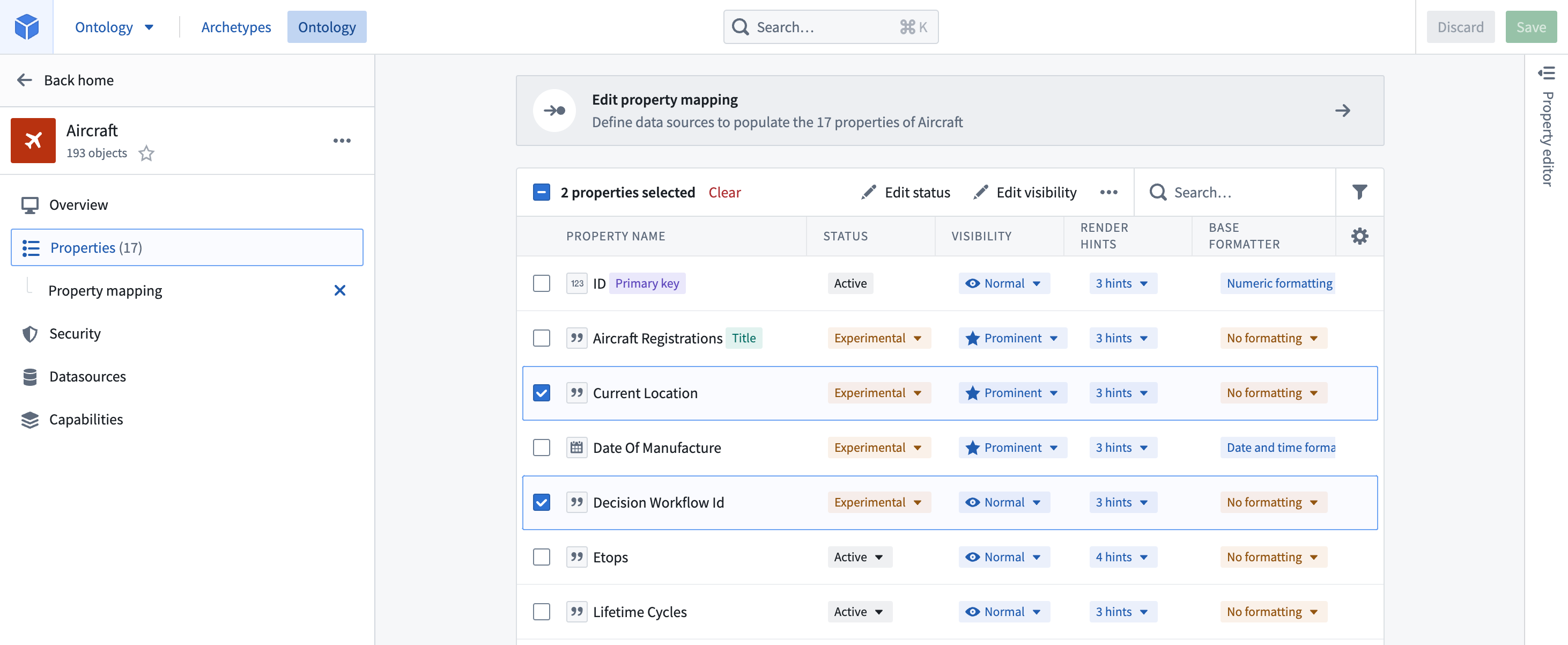
You can also bulk edit some of the above fields from outside of the property editor, by selecting the Properties page from the sidebar of an object type view. Simply select the checkboxes next to the properties you want to edit and a new row will appear at the top of the table with options for bulk editing.
中文翻译
编辑对象类型属性
删除属性
在属性编辑器的属性面板中,将鼠标悬停在要删除的属性上,然后选择 Delete property(删除属性)。
- 请注意,属性删除仅在保存更改后生效,并且会破坏任何引用该属性的视图或应用程序。
- 状态为
active(活跃)的属性无法删除。 - 了解更多关于状态的信息。
更改属性对应的列
在属性编辑器的属性面板中,将鼠标悬停在要取消映射的属性上,然后选择 Unlink property(取消链接属性)。要将属性链接到新列,请将鼠标悬停在属性上并选择 Map to a column(映射到列)。
编辑属性类型的元数据
您可以通过选择属性类型来编辑其元数据,如下图所示。
编辑属性元数据的可用选项分为四个不同的选项卡,提供以下配置:
- Display name and description(显示名称和描述): 点击现有的显示名称或描述以编辑文本。
- Status(状态): 选择现有状态以打开可用状态的下拉菜单。可从
deprecated(已弃用)、experimental(实验性)和active(活跃)状态中选择。 - 了解更多关于状态的信息。
- API name(API名称): 点击现有的API名称以更改其值。
- 请注意,对于状态为
active(活跃)的属性,您无法更改API名称。 - Keys(键): 指示属性是否为对象类型的标题键(title key)或主键(primary key)。
- 请注意,对于状态为
active(活跃)的对象类型,您无法更改其主键。 - Value formatting(值格式化): 对属性值应用特殊格式化器,使其在应用程序中更易读。
- 了解更多关于值格式化器的信息。
- Conditional formatting(条件格式化): 对属性应用规则,规定其在应用程序中的渲染方式。
- 了解更多关于条件格式化的信息。
- Property base type(属性基础类型): 从下拉菜单中选择属性的基础类型。属性的类型限制了可对属性值执行的操作范围。
- 例如,基础类型为
timestamp(时间戳)的属性可以在对象资源管理器(Object Explorer)的时间线小部件中显示。 - 如果属性的类型与其对应列的类型不兼容,您将收到错误提示。
:::callout{theme="warning"} 如果您更改了对象属性类型,还必须更新与该对象属性交互的操作(Actions)所期望的类型。为此,请在本体管理器(Ontology Manager)中打开该操作并编辑期望类型。 :::
- Type classes(类型类): 应用类型类作为可由应用程序解释的附加元数据。
- 请参阅类型类文档以获取可用类型类的列表。
- Render hints(渲染提示): 从提供的清单中选择要应用于属性的渲染提示,以改善属性值的渲染方式及其在对象存储V1(Phonograph)中的索引方式。
- 请参阅渲染提示文档以获取可用渲染提示的描述。
- Visibility(可见性): 选择现有可见性以打开可用可见性的下拉菜单。
prominent(突出)属性将引导应用程序优先向用户显示此属性。hidden(隐藏)属性将不会出现在用户应用程序中。
更改属性元数据后,请对受影响的对象启动重新索引以更新本体。
批量编辑多个属性
您可以在属性编辑器中按住 Cmd/Ctrl 键并选择属性,以同时选中多个属性。选中多个属性后,将出现以下批量编辑操作:
- 更改基础类型。
- 添加/移除类型类。
- 更改渲染提示。
- 更改可见性。
- 添加/移除值格式化。
您还可以在属性编辑器外部,通过从对象类型视图的侧边栏中选择 Properties(属性)页面来批量编辑上述某些字段。只需选中要编辑的属性旁边的复选框,表格顶部就会出现一个新行,其中包含批量编辑选项。