Enable Gotham integration through type mapping(通过类型映射启用 Gotham 集成)
:::callout{theme="neutral" title="Note"}
If your enrollment contains Map Rendering Service (MRS), then you do not need to complete the type mapping process to enable Gotham integration. You can create new ontology objects from or add existing objects to Gotham without additional configuration. Follow the instructions below to check if your enrollment contains MRS.
Contact Palantir Support with questions about MRS availability, installation, or its additional documentation present in Gotham.
:::
How to check if your enrollment contains MRS
- Launch Quicksearch to search for and select Gaia Home.
- Open an existing or create a new Gaia map.
- Select Data sources from the left panel.
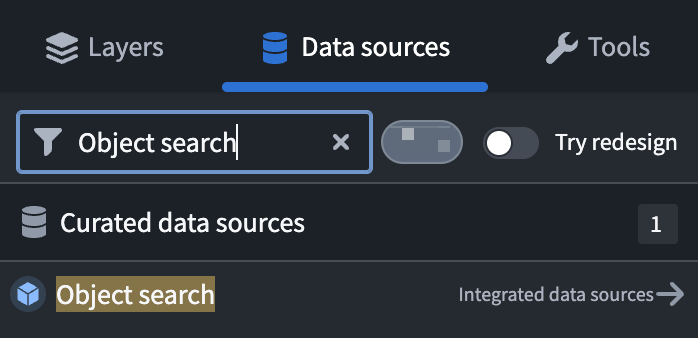
- Search for
Object searchin the Find... search bar.
If you are able to locate and select Object search, then your enrollment contains MRS.
Use type mapping to create a unified representation of your ontology
Type mapping enables a unified representation of your ontology across Foundry and Gotham that you manage within Foundry's Ontology Manager application. You can create new Gotham types based on existing Foundry object types, property types, and shared property types which remain synchronized as your ontology evolves over time. After completing the type mapping process, Gotham will be able to query Foundry object types and their metadata through the Object Set Service - a Foundry backend service which supports object data searching, filtering, aggregating, and loading.
:::callout{theme="neutral" title="Note"} Type mapping is only available for enrollments using both Foundry and Gotham and must be enabled by a platform administrator before use. Once enabled for a Foundry Ontology, type mapping cannot be disabled. Only one Foundry Ontology per Gotham install can have type mapping enabled. Contact Palantir Support for assistance with type mapping enablement. :::
When to type map object types in your ontology
Follow the instructions below and type map object types in Ontology Manager if your enrollment does not contain MRS and any of the conditions below are true:
- You plan to use custom symbology that is not present as a tactical graphic or MIL-STD 2525 symbol. Blueprint ↗ symbols are supported with or without type mapping.
- You plan to use Geotracker to track an entity's location on a Gaia map.
- You plan to configure search templates, a function-backed Enterprise Map Layer (EML), or a versioned object set-backed EML to add data from your ontology to Gaia.
Toggle on type mapping in Foundry's Ontology Manager
To integrate data in your Foundry Ontology with Gotham, you will first need to toggle on type mapping for your object type of interest within Foundry's Ontology Manager by following the steps below:
- Launch Ontology Manager from your home screen.
- Locate and select your object type to type map.
- Select Capabilities within the object type's left-hand panel.
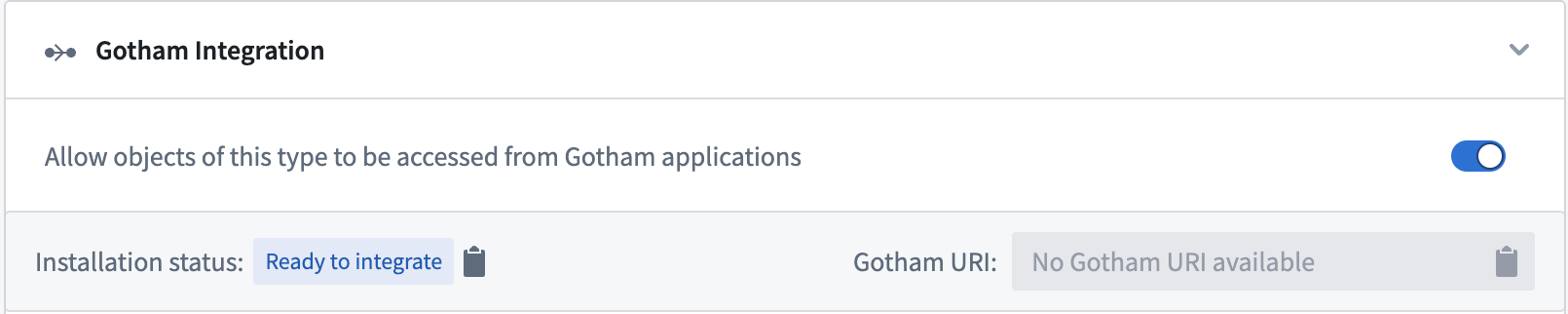
- Scroll down to the Gotham Integration panel and toggle on
Allow objects of this type to be accessed from Gotham applications.
:::callout{theme="neutral" title="Note"}
Type mapped objects must contain a geopoint property to display on a Gaia map. The property can be native to the object type's backing dataset(s) or derived from a latitude/longitude pair or geopoint using Pipeline Builder's create Ontology geopoint transform feature.
:::
Configure an object type's parent category and Gotham property types
Once you toggle on Gotham Integration, you can follow the steps below to create a new Gotham object type derived from an existing Foundry object type, specify the object type's Parent category, and configure its Property types:
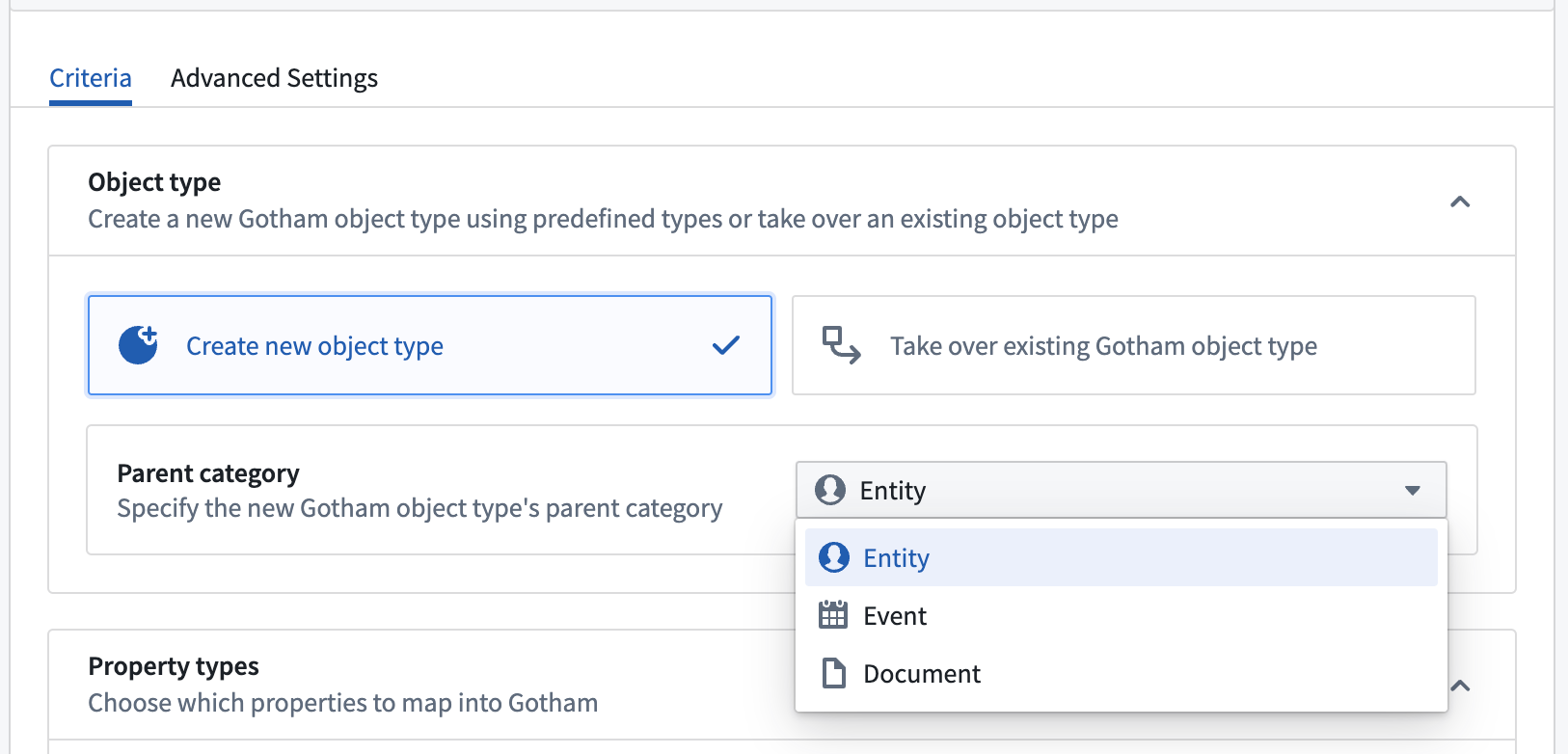
- Select Create a new object type within the Object type section of Gotham Integration to create a new object type in Gotham from an existing Foundry object type.
- Identify the Parent category of the new object type in Gotham by selecting between
Entity(such as a person, organization, or vehicle),Event(such as a flight, meeting, or concert), orDocument(such as a PDF file, text document, or report) based on your use case. - Use the Property types section to map Foundry object type properties to Gotham - a property can be shared or cloned into the Gotham ontology. You will see a blue
Mappedtag next to the property's name once you complete that configuration on a given property. Do not map property to Gothamis the default option - Foundry properties you do not map will not propagate in the Gotham ontology.Assign to shared propertyenables you to select an existing shared property to map against.Promote to shared propertycreates a new shared property for use by other objects.Create a local clone of the property in Gothamcreates a duplicate of the selected property in Gotham that is compatible with its applications.
:::callout{theme="neutral"} Foundry automatically type maps all shared properties to make them available in Gotham. :::
- Select the green Save button on the right side of the top ribbon of your screen and review.
- Review the changes made to your object type and select Save to ontology.
After you save your changes to the Ontology, scroll back up to the Gotham Integration section of the Capabilities page of your object type. You will now see a Gotham URI assigned to the object type and be able to view the Installation status reported by Gotham.
Foundry's Ontology Manager will display one of the following installation statuses:
Ready to integrate: An object type is ready for type mapping to enable Gotham integration.Installation in progress: The object type's installation process is underway.Installation complete: The installation process is complete, so the object type is available for use in Gotham.Installation failed: {failureMessage}: The object type's installation failed at least once and will be retried on the next installation run. The{failureMessage}outlines the reason for failure. Common installation failures include:- Live reindex: If there is a live reindex running on Gotham, the ontology cannot be updated. Instead of staging changes during this time, the installation will fail and rerun automatically once the live reindex finishes.
- Required types are not installed: For an object type's successful installation, all related property installations - or mappings - must be completed, including shared property types.
- Other ontology updates: If there are ontology updates running concurrently, then the type mapper will not be able to update the ontology and will rerun automatically.
Once your object type's installation status reads Installation complete, you will be able to search for and use your object type in Gotham's applications.
To deprecate a type mapped object type in Gotham, you can delete the object type in Foundry's Ontology Manager. Once deleted in Foundry, the corresponding object type and its property types will not be accessible in Gotham or available to its applications.
:::callout{theme="neutral"} Gotham models Foundry dataset security and markings, meaning that Foundry data made available in Gotham through type mapping carries over the same access controls and classification. :::
中文翻译
通过类型映射启用 Gotham 集成
:::callout{theme="neutral" title="注意"}
如果您的注册环境包含地图渲染服务(MRS),则无需完成类型映射过程即可启用 Gotham 集成。您可以直接从 Gaia 创建新的本体对象或添加现有对象到 Gotham,无需额外配置。请按照以下说明检查您的注册环境是否包含 MRS。
如有关于 MRS 可用性、安装或 Gotham 中其他文档的问题,请联系 Palantir 支持团队。
:::
如何检查您的注册环境是否包含 MRS
- 启动快速搜索搜索并选择 Gaia Home。
- 打开现有 Gaia 地图或创建新地图。
- 从左侧面板选择 数据源(Data sources)。
- 在 查找(Find...) 搜索栏中搜索
Object search。
如果您能够找到并选择 对象搜索(Object search),则说明您的注册环境包含 MRS。
使用类型映射创建本体的统一表示
类型映射可在 Foundry 和 Gotham 之间创建本体的统一表示,您可以通过 Foundry 的本体管理器(Ontology Manager)应用程序进行管理。您可以基于现有的 Foundry 对象类型、属性类型和共享属性类型创建新的 Gotham 类型,这些类型将随着本体的演变保持同步。完成类型映射过程后,Gotham 将能够通过对象集服务(Object Set Service)查询 Foundry 对象类型及其元数据——该 Foundry 后端服务支持对象数据搜索、过滤、聚合和加载。
:::callout{theme="neutral" title="注意"} 类型映射仅适用于同时使用 Foundry 和 Gotham 的注册环境,并且必须由平台管理员启用后才能使用。一旦为 Foundry 本体启用,类型映射将无法禁用。每个 Gotham 安装只能为一个 Foundry 本体启用类型映射。请联系 Palantir 支持团队获取类型映射启用方面的帮助。 :::
何时对本体中的对象类型进行类型映射
如果您的注册环境不包含 MRS,且满足以下任一条件,请按照以下说明在本体管理器(Ontology Manager)中对对象类型进行类型映射:
- 您计划使用自定义符号,这些符号不是战术图形或MIL-STD 2525 符号中已有的。无论是否进行类型映射,都支持使用 Blueprint ↗ 符号。
- 您计划使用地理追踪器(Geotracker)在 Gaia 地图上追踪实体的位置。
- 您计划配置搜索模板、函数支持的企业地图层(EML)或版本化对象集支持的企业地图层,以将本体中的数据添加到 Gaia。
在 Foundry 的本体管理器中启用类型映射
要将 Foundry 本体中的数据与 Gotham 集成,您首先需要按照以下步骤在 Foundry 的本体管理器(Ontology Manager)中为您感兴趣的对象类型启用类型映射:
- 从主屏幕启动本体管理器(Ontology Manager)。
- 找到并选择要进行类型映射的对象类型。
- 在对象类型的左侧面板中选择 功能(Capabilities)。
- 向下滚动到 Gotham 集成(Gotham Integration) 面板,然后启用
允许从 Gotham 应用程序访问此类型的对象。
:::callout{theme="neutral" title="注意"}
类型映射的对象必须包含 geopoint 属性才能显示在 Gaia 地图上。该属性可以是对象类型支持数据集的原生属性,也可以使用 Pipeline Builder 的创建本体地理点转换功能从纬度/经度对或 geopoint 派生而来。
:::
配置对象类型的父类别和 Gotham 属性类型
启用 Gotham 集成后,您可以按照以下步骤从现有 Foundry 对象类型创建新的 Gotham 对象类型,指定对象类型的父类别(Parent category),并配置其属性类型(Property types):
- 在 Gotham 集成的 对象类型(Object type) 部分选择 创建新对象类型(Create a new object type),从现有 Foundry 对象类型在 Gotham 中创建新对象类型。
- 根据您的用例,在
实体(Entity)(如人员、组织或车辆)、事件(Event)(如航班、会议或音乐会)或文档(Document)(如 PDF 文件、文本文档或报告)之间选择,以确定 Gotham 中新对象类型的父类别(Parent category)。 - 使用属性类型(Property types)部分将 Foundry 对象类型属性映射到 Gotham——属性可以共享或克隆到 Gotham 本体中。完成某个属性的配置后,您将在属性名称旁边看到蓝色的
已映射(Mapped)标签。 不将属性映射到 Gotham是默认选项——未映射的 Foundry 属性不会在 Gotham 本体中传播。分配给共享属性(Assign to shared property)使您能够选择现有共享属性进行映射。提升为共享属性(Promote to shared property)创建新的共享属性供其他对象使用。在 Gotham 中创建属性的本地克隆(Create a local clone of the property in Gotham)在 Gotham 中创建所选属性的副本,该副本与其应用程序兼容。
:::callout{theme="neutral"} Foundry 会自动类型映射所有共享属性,使其在 Gotham 中可用。 :::
- 选择屏幕顶部功能区右侧的绿色保存(Save)按钮并查看。
- 查看对对象类型所做的更改,然后选择保存到本体(Save to ontology)。
将更改保存到本体后,向上滚动回对象类型功能(Capabilities)页面的 Gotham 集成部分。您现在将看到分配给该对象类型的 Gotham URI,并能够查看 Gotham 报告的安装状态(Installation status)。
Foundry 的本体管理器将显示以下安装状态之一:
准备集成(Ready to integrate):对象类型已准备好进行类型映射以启用 Gotham 集成。安装进行中(Installation in progress):对象类型的安装过程正在进行中。安装完成(Installation complete):安装过程已完成,对象类型可在 Gotham 中使用。安装失败:{failureMessage}(Installation failed: {failureMessage}):对象类型的安装至少失败一次,将在下次安装运行时重试。{failureMessage}概述了失败原因。常见的安装失败包括:- 实时重新索引(Live reindex):如果 Gotham 上正在运行实时重新索引,则无法更新本体。在此期间,更改不会暂存,安装将失败并在实时重新索引完成后自动重新运行。
- 必需类型未安装(Required types are not installed):要成功安装对象类型,必须完成所有相关属性的安装(或映射),包括共享属性类型。
- 其他本体更新(Other ontology updates):如果同时运行本体更新,类型映射器将无法更新本体并将自动重新运行。
一旦对象类型的安装状态显示为安装完成(Installation complete),您就可以在 Gotham 的应用程序中搜索和使用该对象类型。
要弃用 Gotham 中已类型映射的对象类型,您可以在 Foundry 的本体管理器中删除该对象类型。一旦在 Foundry 中删除,相应的对象类型及其属性类型将无法在 Gotham 中访问,也无法供其应用程序使用。
:::callout{theme="neutral"} Gotham 会模拟 Foundry 数据集的安全性和标记,这意味着通过类型映射在 Gotham 中提供的 Foundry 数据会继承相同的访问控制和分类级别。 :::