Branching object views(分支对象视图)
Overview
Object Views integrates with Global Branching to enable safe, isolated development of object view configurations. This documentation covers how to work with object views on branches, including adding and modifying resources, cross-application compatibility, merge requirements, rebasing, and known limitations.
For general information on Global Branching concepts and workflows, refer to the Global Branching documentation.
Adding, removing, and modifying resources
To add an object view to a branch, save an object view version while on a branch in the Object View editor.
Object views support two types of branch-compatible resources:
- OV-managed modules: Capture Workshop content changes made to an object view on a branch. A separate OV-managed module is created for each full object view tab, the object instance panel, and the object set panel. All branch-aware features available in Workshop applications are also available inside object views.
- Full object view tabs: Capture structural changes to object view tabs, including additions, deletions, renames, profile changes, and visibility condition modifications.
The example below shows different resources on a branch for the Museum object type. From top to bottom: the full object view tabs resource, the Museum object type itself, the Museum History tab of the full object view, and the panel object view.
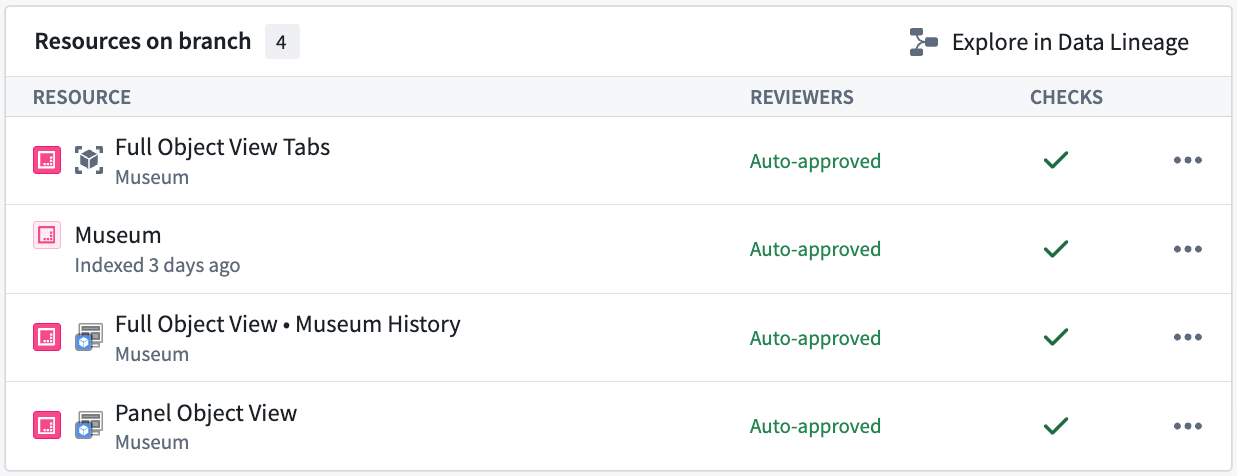
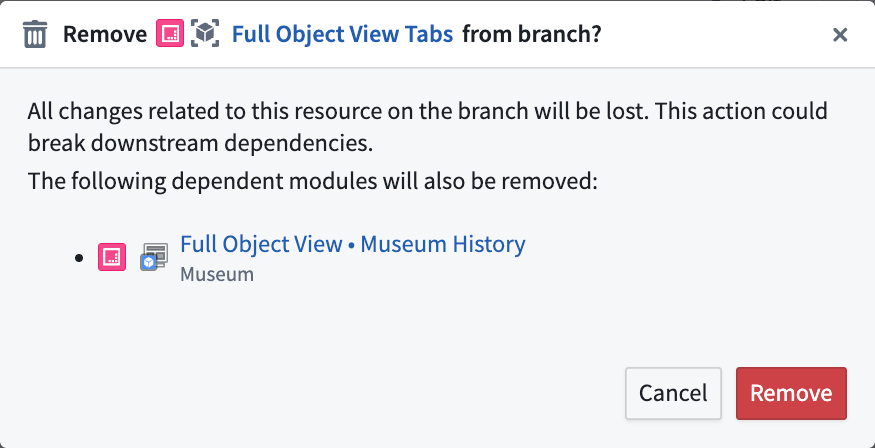
You can remove any object view resource from a branch individually using the branch taskbar. Removing a full object view tabs resource automatically removes all of its associated tabs from the branch.
Cross-application compatibility
Object views can be edited for the latest state of the ontology on a branch, including object types and action types created on a branch. The Object View widget can also be used to embed a branched object view inside a standalone Workshop application. An object view can be previewed on a branch within the Object views tab in Ontology Manager.
Merge requirements
Deployability checks
Before deploying an object view to main from a branch, the following deployability checks must succeed:
-
User has publish permissions: Permissions to edit the object view is required. This is the same permission check that is done when publishing a new object view version on
main. -
Object view must be rebased with main: Before merging, rebase each object view resource on the branch with the latest changes on
main. -
No Legacy fields modified: Verifies that no features unsupported by the new Object View editor have been modified on the branch. This check should always pass. If it fails, contact Palantir Support.
Approvals checks
Object views use approvals to determine whether the user making changes on a branch has the permissions required to merge those changes. The specific permissions required depend on the permission model of the object type that the object view is linked to.
Object type uses datasource-derived permissions
When the object type uses datasource-derived permissions, the contributor or an approving reviewer must have:
Viewaccess on the object type andEditoraccess on all of its backing datasources.- The
Object View Adminapplication permission in Control Panel, which is required to publish object views in Object Explorer. This is the same application permission required when publishing a new object view version onmain.
:::callout{theme="neutral" title="Datasource permissions are stricter at merge time"}
The datasource permission requirement above is stricter than the standard edit-permissions check used outside of branching. Editing an object view on main only requires the Editor role on any of the object type's backing datasources. Merging changes from a branch requires the Editor role on every backing datasource.
:::
Object type uses ontology roles or project-based permissions
When the object type uses ontology roles or project-based permissions, the contributor or an approving reviewer only needs edit access on the object type. This is typically granted through the Ontology Editor role under ontology roles, or through the Editor project role under project-based permissions. Edit access on the object type already covers publishing object views in Object Explorer, so no separate Object View Admin application permission is required.
Inherited project approval policies
Object views and the Workshop modules that make up object view tabs and panels are logical children of the parent object type. If the object type is protected and lives in a project with a project approval policy, that policy applies to the object view and its modules. Approval requests for both must satisfy the policy before the proposal can be merged.
:::callout{theme="neutral" title="Inherited protection from the parent object type"}
Inherited resource protection is under development and will be released soon. Once available, it will prevent direct edits to main for an object view or its modules whenever the parent object type is protected. Until then, an object view and the modules that make up its tabs and panels can still be edited directly on main even if the parent object type is protected.
:::
Rebasing and conflict resolution
Each object view resource on a branch must be rebased with main before being deployed. Object view module resources can be rebased using Workshop rebasing. Tab configuration changes on a full object view tabs resource must be rebased separately from tab content changes. When rebasing is required for full object view, a notification message will appear below the object view section in the Object View editor.
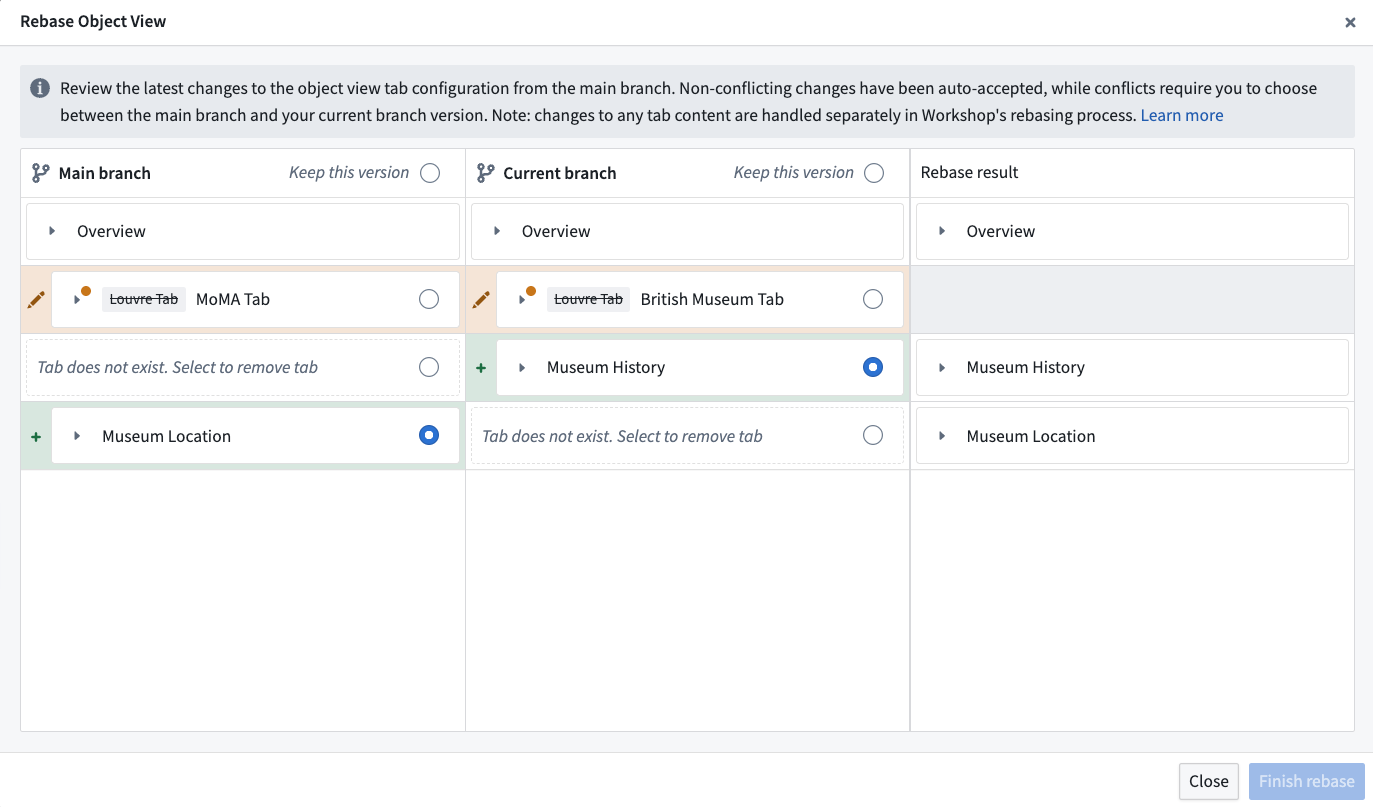
The object view rebase dialog displays three columns:
- The main branch state
- Your branch state
- The proposed rebase result
Non-conflicting changes between main and your branch are automatically accepted and included in the result. If there is a conflict, you must choose whether to keep the version from main or from your branch for each affected tab. The result column shows a preview of the final state after rebasing. You can modify any auto-accepted changes before completing the rebase.
Below is an example of the object view rebase dialog. The example demonstrates two non-conflicting changes that have been auto-accepted. A conflict was detected between the two edits of the Louvre tab.
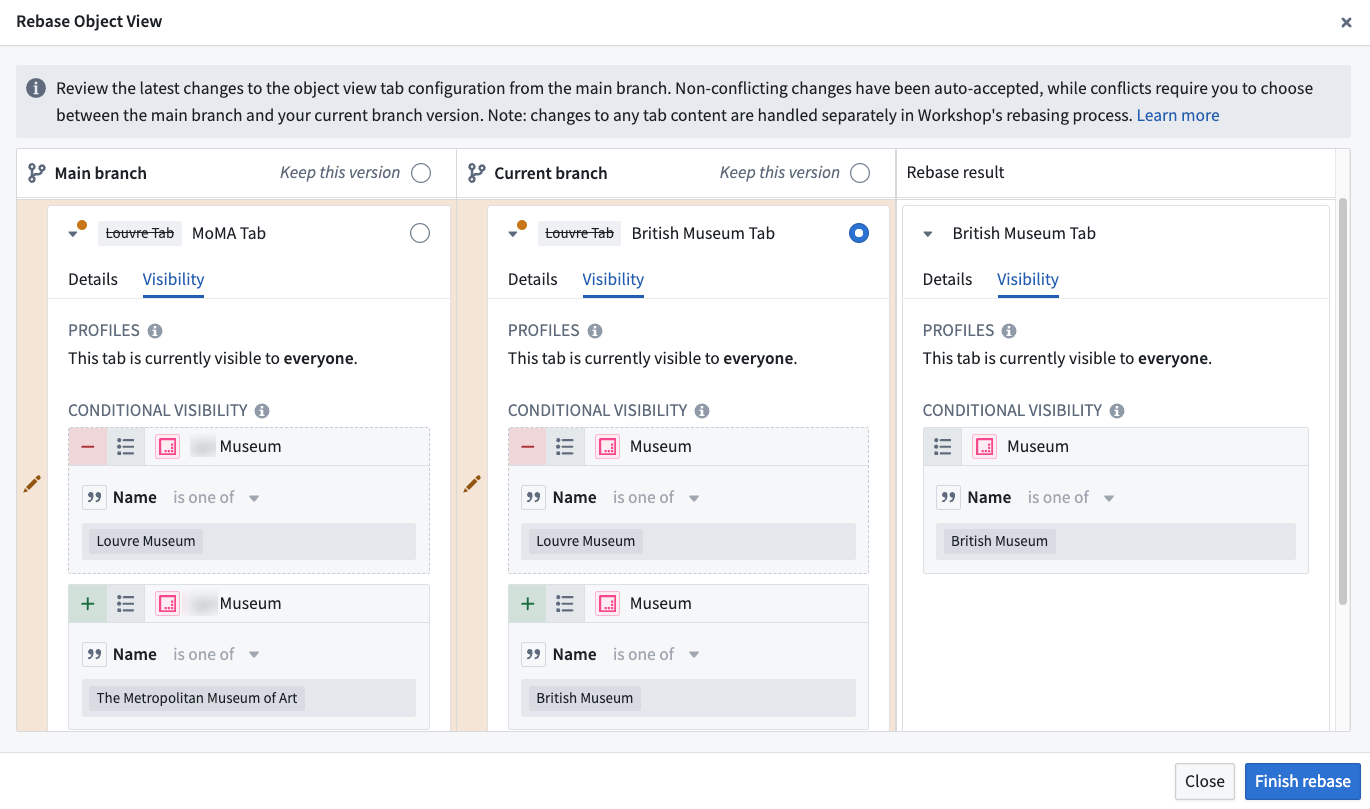
To resolve the conflict, choose either the branch or main version. This enables a successful rebase. You can expand the conflicting row to view visibility details.
Known limitations
Legacy object view tabs cannot be edited on a branch.
中文翻译
分支对象视图
概述
对象视图(Object Views)与全局分支(Global Branching)集成,支持对对象视图配置进行安全、隔离的开发。本文档介绍如何在分支上操作对象视图,包括添加和修改资源、跨应用兼容性、合并要求、变基操作以及已知限制。
有关全局分支概念和工作流程的通用信息,请参阅全局分支文档。
添加、删除和修改资源
要在分支上添加对象视图,请在对象视图编辑器中,在分支上保存一个对象视图版本。
对象视图支持两种类型的分支兼容资源:
- OV管理模块(OV-managed modules): 捕获在分支上对对象视图所做的 Workshop 内容变更。每个完整的对象视图标签页、对象实例面板和对象集面板都会创建一个独立的 OV 管理模块。Workshop 应用中所有支持分支的功能在对象视图内同样可用。
- 完整对象视图标签页(Full object view tabs): 捕获对象视图标签页的结构性变更,包括添加、删除、重命名、配置文件修改和可见性条件变更。
以下示例展示了 Museum 对象类型在分支上的不同资源。从上到下依次为:完整对象视图标签页资源、Museum 对象类型本身、完整对象视图的 Museum History 标签页,以及面板对象视图。
您可以使用分支任务栏单独删除分支上的任何对象视图资源。删除完整对象视图标签页资源会自动从分支中移除其所有关联的标签页。
跨应用兼容性
对象视图可以针对分支上本体(ontology)的最新状态进行编辑,包括在分支上创建的对象类型和操作类型。对象视图小部件(Object View widget)也可用于将分支对象视图嵌入到独立的 Workshop 应用中。在 Ontology Manager 的 Object views 标签页中,可以预览分支上的对象视图。
合并要求
可部署性检查
在将对象视图从分支部署到 main 之前,必须通过以下可部署性检查:
-
用户拥有发布权限: 需要具备编辑对象视图的权限。这与在
main上发布新对象视图版本时执行的权限检查相同。 -
对象视图必须与 main 变基: 在合并之前,将分支上的每个对象视图资源与
main上的最新变更进行变基。 -
未修改遗留字段: 验证分支上未修改新对象视图编辑器不支持的遗留功能。此检查应始终通过。如果失败,请联系 Palantir 支持。
审批检查
对象视图使用审批机制来确定在分支上进行变更的用户是否拥有合并这些变更所需的权限。所需的具体权限取决于对象视图所关联对象类型的权限模型。
对象类型使用数据源派生权限
当对象类型使用数据源派生权限时,贡献者或审批审阅者必须拥有:
- 对该对象类型的
View访问权限,以及对其所有后端数据源的Editor访问权限。 - Control Panel 中的
Object View Admin应用权限,这是在 Object Explorer 中发布对象视图所必需的。这与在main上发布新对象视图版本时所需的应用权限相同。
:::callout{theme="neutral" title="合并时数据源权限要求更严格"}
上述数据源权限要求比分支外使用的标准编辑权限检查更为严格。在 main 上编辑对象视图只需要对对象类型的任一后端数据源拥有 Editor 角色。而从分支合并变更则需要对其每个后端数据源都拥有 Editor 角色。
:::
对象类型使用本体角色或基于项目的权限
当对象类型使用本体角色或基于项目的权限时,贡献者或审批审阅者只需要对该对象类型拥有编辑访问权限。这通常通过本体角色下的 Ontology Editor 角色或基于项目权限下的 Editor 项目角色授予。对对象类型的编辑访问权限已涵盖在 Object Explorer 中发布对象视图的能力,因此无需单独的 Object View Admin 应用权限。
继承的项目审批策略
对象视图以及构成对象视图标签页和面板的 Workshop 模块,是父对象类型的逻辑子项。如果该对象类型受到保护且位于具有项目审批策略的项目中,则该策略适用于对象视图及其模块。在提案可以合并之前,两者的审批请求都必须满足该策略。
:::callout{theme="neutral" title="继承自父对象类型的保护"}
继承的资源保护功能正在开发中,即将发布。一旦可用,当父对象类型受到保护时,将阻止直接对 main 上的对象视图或其模块进行编辑。在此之前,即使父对象类型受到保护,对象视图及其构成标签页和面板的模块仍然可以直接在 main 上编辑。
:::
变基与冲突解决
分支上的每个对象视图资源在部署前必须与 main 进行变基。对象视图模块资源可以使用 Workshop 变基功能进行变基。完整对象视图标签页资源上的标签页配置变更必须与标签页内容变更分开变基。当完整对象视图需要变基时,对象视图编辑器中对象视图部分下方会显示一条通知消息。
对象视图变基对话框显示三列:
- main 分支状态
- 您的分支状态
- 建议的变基结果
main 与您的分支之间无冲突的变更会被自动接受并包含在结果中。如果存在冲突,您必须为每个受影响的标签页选择保留 main 版本还是分支版本。结果列显示变基完成后的最终状态预览。您可以在完成变基前修改任何自动接受的变更。
以下是对象视图变基对话框的示例。该示例展示了两个已被自动接受的无冲突变更。在 Louvre 标签页的两个编辑版本之间检测到了冲突。
要解决冲突,请选择分支版本或 main 版本。这将使变基成功完成。您可以展开冲突行以查看可见性详细信息。
已知限制
遗留对象视图标签页(Legacy object view tabs)无法在分支上进行编辑。