Configure the applications sidebar(配置应用侧边栏)
The applications sidebar is used to display and embed applications, analyses, actions, and other resources related to the current object. The applications sidebar visually differentiates these resources from the main content of that object.
The applications sidebar supports embedding all object-based applications, including Workshop, Quiver, Slate, Action types, and more. Once added to the sidebar, you can open these applications within the context of the object. The sidebar also allows parameterized URLs to link to other apps and external websites.
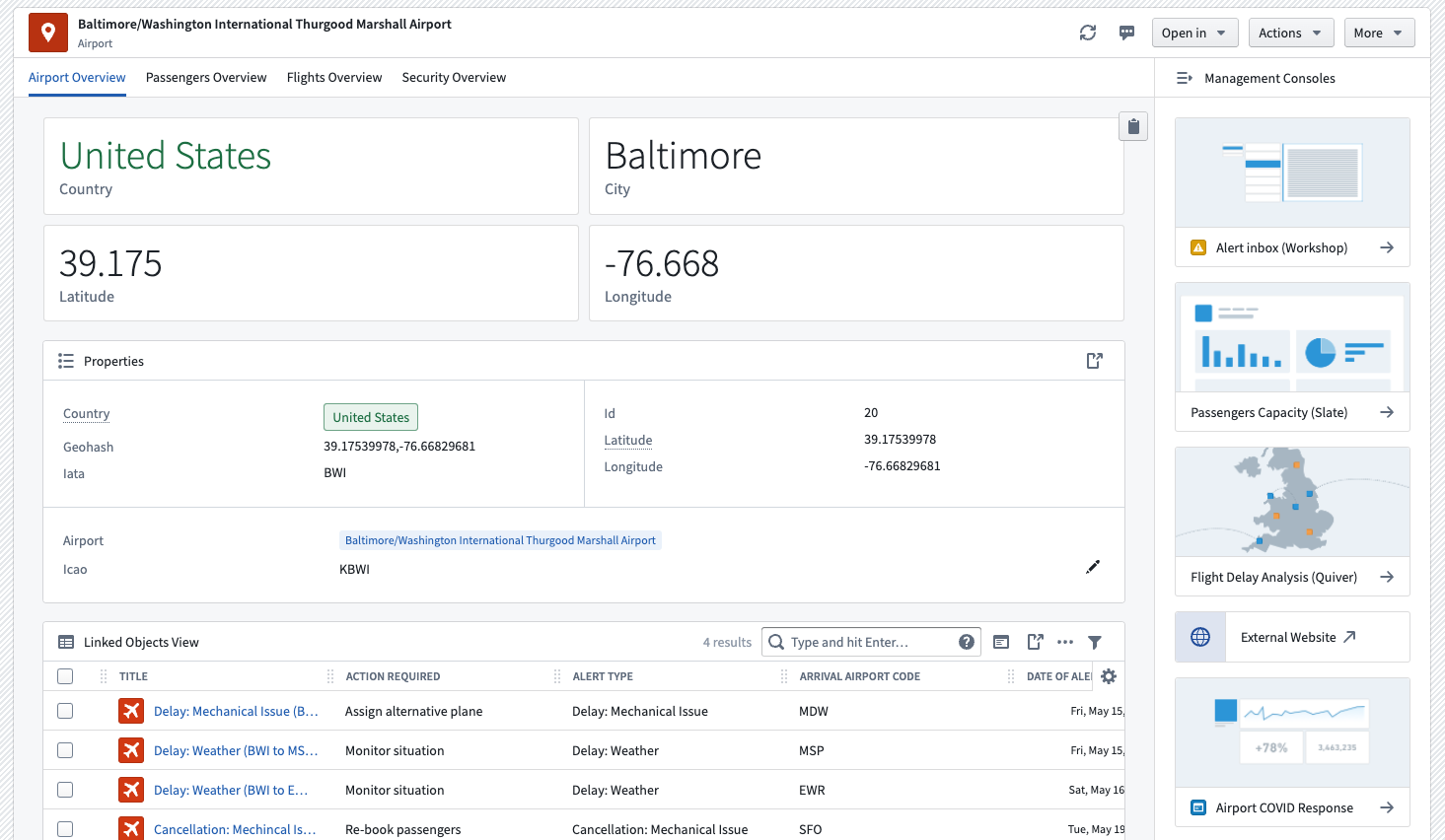
In the example below, you can see an Airport object. The body tab includes primary information about that object, while related applications include:
- A Workshop Alert Inbox on flights delays, used to triage traffic;
- A Slate application used to manage the airport’s passengers capacity; and
- A dedicated application for airport COVID response.
Set up the applications sidebar
The applications sidebar is an optional, opt-in addition per Object View. The sidebar is not visible to users until you add a group to it. The Add new group option can be found under the Sidebar tab or by expanding the sidebar itself (as shown in the image below). Once a builder adds applications and/or actions and publishes that version, the sidebar will be displayed to end users. The sidebar will not be displayed if it only contains an empty group or groups.
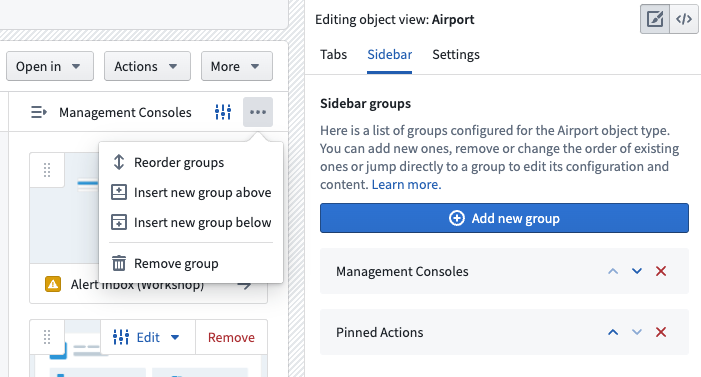
Once you add applications and/or actions and publish your changes, the sidebar will be displayed to users. The sidebar will not be displayed if it only contains an empty group or groups.
Edit the Applications Sidebar
The applications sidebar is modular and configurable. The sidebar can be split into groups with different application cards and actions in each group.
The sidebar has a dedicated configuration for each group and application card in the sidebar. As numbered in the images below, options include:
- Edit the entire group with the following options:
- (a) Configure the group title
- (b) Reorder application cards and actions within the group
- (c) Remove the entire group
-
(d) Edit visibility (make the group visible to only specific user profiles)
-
Edit a specific application card, which opens up a secondary menu enabling you to:
- (A) Add or change the application resource used for a single card (more details below)
- (B) Override the title
- (C) Override the icon
- (D) Use a thumbnail on the card; thumbnails must be uploaded to Foundry and saved in a folder
- (E) Select Card mode or Compact mode
-
(F) Add parameters
-
Edit the backing application (this will open the specific module in the source app, such as Workshop or Slate)
-
Add a new application to a group
-
Add a new action to a group
-
Add new groups

Add/change an application in the sidebar
There are two main ways to add an application to the sidebar:
- For object applications (Workshop, Quiver, Slate, etc.) embedded an Object View:
- Select Add application, choose an application (e.g., Workshop) to open a resource selector, and select the specific resource (e.g., Workshop module) you would like to embed.
- The parameter configuration for Workshop and Slate applications allows you to pass details of the current object's properties, linked objects set, or predefined values into the linked resource.
-
The parameter values are accessible within the embedded Workshop or Slate application as variables with the same name as the parameter name. In Workshop, these must be configured in the variable Settings panel as module interface variables.
-
For other Foundry applications and external websites to open in a new tab:
- Add an Application link to create a new card with a parameterized URL.
- All links on the sidebar are opened in a new browser tab and not embedded like object applications mentioned above.
- These URLs can be used both for Foundry applications (Workshop, Vertex, another Object View, or Foundry documentation, for example) and for external websites.
- The URL card requires a template that combines an address and/or any parameters defined on the parameter configuration. To place parameters in the URL, wrap the parameter name like this:
{{parameterName}}. If the property is an entire URL, check the box for Encode property value to mark it as an entire URL, and include only the{{parameterName}}in the URL text box. - By default, the details of the current object are available using these parameters:
{{objectId}}&{{objectTypeId}}.
:::callout{theme="neutral"} If a user doesn’t have permissions to the embedded application, they would not be able to open it but would still see the application card. Make sure you set up the right permissions on each application in the sidebar. :::
中文翻译
配置应用侧边栏
应用侧边栏(applications sidebar)用于显示和嵌入与当前对象相关的应用、分析、操作及其他资源。应用侧边栏在视觉上将这些资源与对象的主内容区分开来。
应用侧边栏支持嵌入所有基于对象的应用,包括 Workshop、Quiver、Slate、操作类型(Action types)等。一旦添加到侧边栏,您就可以在对象的上下文中打开这些应用。侧边栏还支持使用参数化 URL 链接到其他应用和外部网站。
在下面的示例中,您可以看到一个 Airport 对象。主体标签页(body tab)显示该对象的主要信息,而相关应用包括:
- 用于航班延误分类处理的 Workshop 警报收件箱;
- 用于管理机场旅客容量的 Slate 应用;
- 以及一个专门的机场 COVID 响应应用。
设置应用侧边栏
应用侧边栏是每个对象视图(Object View)的可选功能,需要手动启用。在您向侧边栏添加分组之前,用户将无法看到侧边栏。添加新分组(Add new group)选项可以在侧边栏(Sidebar)标签页中找到,也可以通过展开侧边栏本身来找到(如下图所示)。一旦构建者添加了应用和/或操作并发布该版本,侧边栏将向最终用户显示。如果侧边栏仅包含空分组,则不会显示。
一旦您添加了应用和/或操作并发布更改,侧边栏将向用户显示。如果侧边栏仅包含空分组,则不会显示。
编辑应用侧边栏
应用侧边栏是模块化且可配置的。侧边栏可以分成多个分组,每个分组中包含不同的应用卡片和操作。
侧边栏为每个分组和应用卡片提供了专门的配置。如下图所示,选项包括:
- 编辑整个分组,包含以下选项:
- (a) 配置分组标题
- (b) 重新排列分组内的应用卡片和操作顺序
- (c) 删除整个分组
-
(d) 编辑可见性(使该分组仅对特定用户配置文件可见)
-
编辑特定应用卡片,打开二级菜单,您可以:
- (A) 添加或更改单个卡片使用的应用资源(详见下文)
- (B) 覆盖标题
- (C) 覆盖图标
- (D) 在卡片上使用缩略图;缩略图必须上传到 Foundry 并保存在文件夹中
- (E) 选择卡片模式(Card mode)或紧凑模式(Compact mode)
-
(F) 添加参数
-
编辑底层应用(这将打开源应用中的特定模块,如 Workshop 或 Slate)
-
向分组添加新应用
-
向分组添加新操作
-
添加新分组
在侧边栏中添加/更改应用
向侧边栏添加应用主要有两种方式:
- 对于嵌入对象视图的对象应用(Workshop、Quiver、Slate 等):
- 选择添加应用(Add application),选择一个应用(例如 Workshop)打开资源选择器,然后选择您要嵌入的具体资源(例如 Workshop 模块)。
- Workshop 和 Slate 应用的参数配置允许您将当前对象的属性详情、链接对象集或预定义值传递到链接的资源中。
-
参数值在嵌入的 Workshop 或 Slate 应用中可作为与参数名称相同的变量使用。在 Workshop 中,这些变量需要在变量设置(Settings)面板中配置为模块接口变量(module interface variables)。
-
对于在新标签页中打开的其他 Foundry 应用和外部网站:
- 添加应用链接(Application link)以创建带有参数化 URL 的新卡片。
- 侧边栏上的所有链接都在新的浏览器标签页中打开,不会像上述对象应用那样嵌入。
- 这些 URL 既可用于 Foundry 应用(例如 Workshop、Vertex、另一个对象视图或 Foundry 文档),也可用于外部网站。
- URL 卡片需要一个模板,该模板结合了地址和/或参数配置中定义的任何参数。要将参数放入 URL,请像这样包裹参数名称:
{{parameterName}}。如果属性是一个完整的 URL,请勾选编码属性值(Encode property value)复选框以将其标记为完整 URL,并在 URL 文本框中仅包含{{parameterName}}。 - 默认情况下,当前对象的详情可通过以下参数获取:
{{objectId}}和{{objectTypeId}}。
:::callout{theme="neutral"} 如果用户没有嵌入应用的权限,他们将无法打开该应用,但仍会看到应用卡片。请确保为侧边栏中的每个应用设置了正确的权限。 :::