Configure legacy Object Views(配置传统对象视图(Object View))
:::callout{theme="neutral"} To access legacy Object View configuration, navigate to the Object View editor for an object type, select the Manage tabs cog icon, and hover over a tab to select the Open in legacy editor icon. :::
Configure tabs
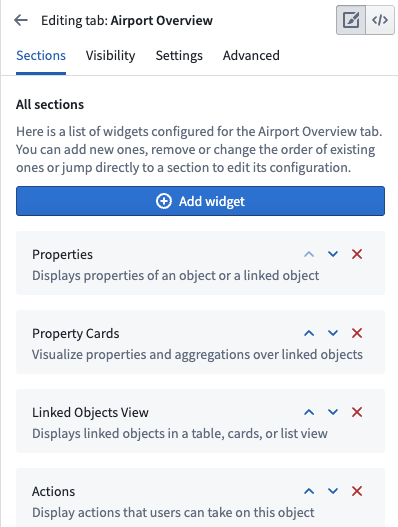
A legacy widget-based tab displays a list of widgets organized into sections. You can add, delete, and re-order widgets or navigate to other settings from within the tab settings.
Configure widgets
The building blocks of legacy Object View tabs are called widgets. Widgets are sometimes referred to as Sections or Plugins. Widgets are the primary way to display some form of data on an Object View. Use them to visualize data as KPIs or charts, arrange the layout of an entire Object View, and manipulate displayed data.
There are a several widget types available in Object View:
Widget-specific settings
Widgets are used to visualize or manipulate data related to an object. Widgets typically access one of the following:
- Properties of the current object
- Objects linked to the current object
- Aggregations on properties of objects linked to the current object
When you configure a widget on an Object View, determine which object and what property you want to visualize. You must set up the relevant objects and define links in advance within the Ontology metadata.
The specific settings for each widget are unique to the functionality it provides. In general, there are two major components to widget-specific configuration:
- The object model configuration requires selecting the object or linked object and which properties should be used. For example, when configuring a chart, you may need to aggregate all Flights in an Airport per Destination.
- The visual configuration requires selecting options such as chart types, colors, formats, text labels, etc.
Widget format settings
All widgets have default format settings:
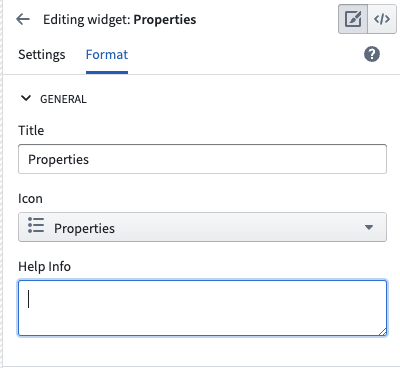
General
- Title: Add a title to display in the widget header. By default, this is either the widget name an empty space. You must add a title to the widget to save it.
- Icon: Choose an icon to display in the top left of the widget header. Each widget has a default icon.
- Help Info: Empty by default, you can add text to explain the widget to users.
Layout
- Alignment: You can choose whether a widget should be the full width of the Object View or have a right or left alignment to place two widgets side-by-side. Alignment is set to full width by default.
- Sizing: The sizing setting does not exist on all widgets. When it is available, you can control the minimum and maximum height of the section within the Object View.
Reuse widget configurations
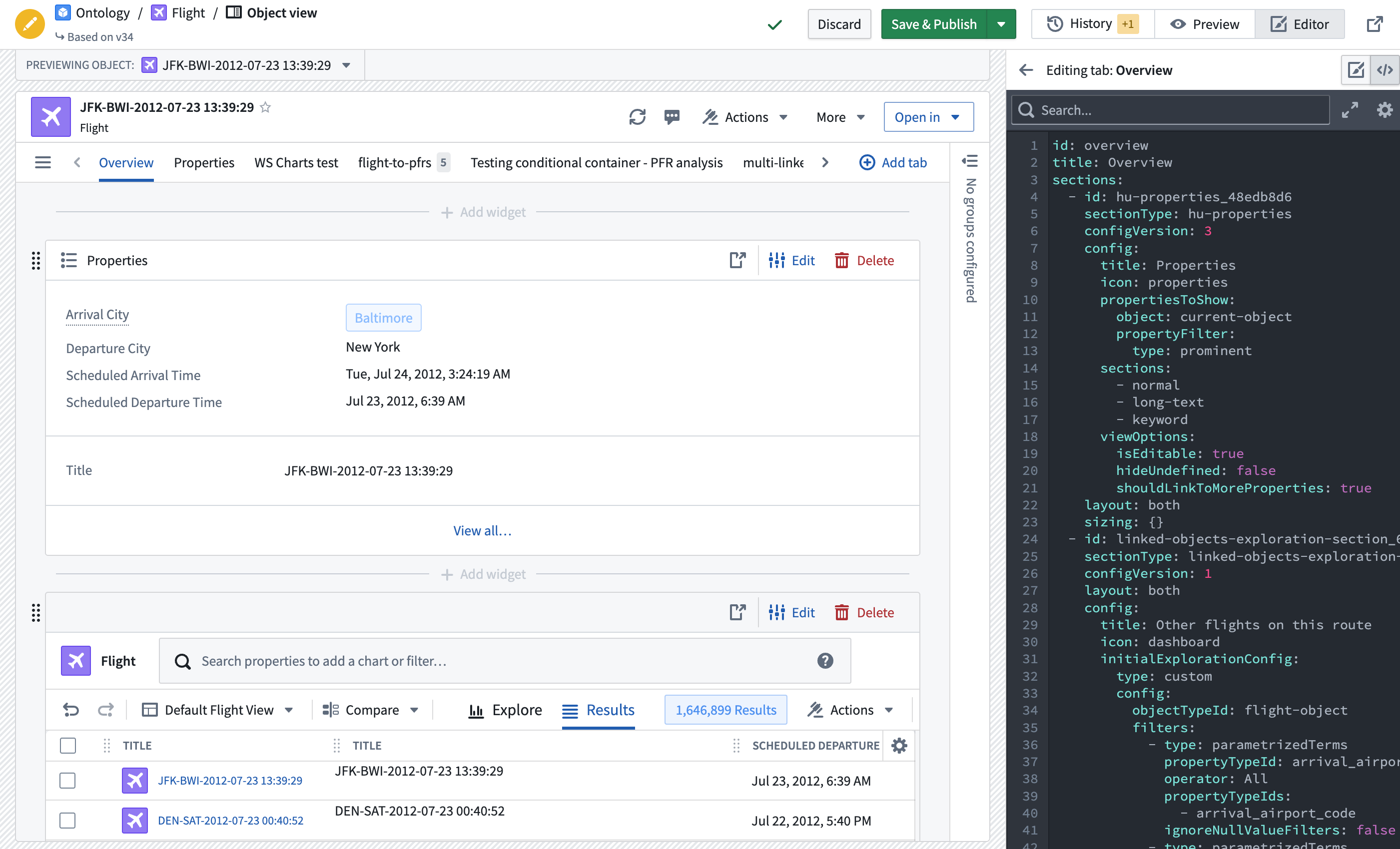
You can reuse the configuration of a previously created widget by copying the YAML configuration. Access the configuration by selecting the code icon in the upper right corner of the Object View editing screen. Then, copy and paste the configuration into the YAML configuration of a new widget.
中文翻译
配置传统对象视图(Object View)
:::callout{theme="neutral"} 要访问传统对象视图(Object View)配置,请导航至某个对象类型的对象视图编辑器,选择管理标签页齿轮图标,悬停在某个标签页上,然后选择在传统编辑器中打开图标。 :::
配置标签页
传统的基于微件(Widget)的标签页会显示按分区(Section)组织的微件列表。您可以在标签页设置中添加、删除和重新排序微件,或导航至其他设置。
配置微件(Widget)
传统对象视图标签页的构建块称为微件(Widget)。微件有时也被称为分区(Section)或插件(Plugin)。微件是在对象视图上展示某种数据的主要方式。您可以使用它们将数据可视化为关键绩效指标(KPI)或图表、安排整个对象视图的布局,以及操作所展示的数据。
对象视图中提供了多种微件类型:
- 属性与链接(Properties and links)
- 可视化(Visualize)
- 筛选器(Filters)
- 布局(Layout)
- 嵌入其他应用和文件(Embed other applications and files)
微件专属设置
微件用于可视化或操作与对象相关的数据。 微件通常访问以下内容之一:
- 当前对象的属性
- 链接到当前对象的对象
- 链接到当前对象的对象属性的聚合结果
在对象视图上配置微件时,需要确定要可视化的对象及其属性。您必须提前在本体论(Ontology)元数据中设置相关对象并定义链接。
每个微件的具体设置因其提供的功能而异。通常,微件专属配置包含两个主要部分:
- 对象模型(Object model)配置:需要选择对象或链接对象以及应使用的属性。例如,配置图表时,您可能需要按目的地聚合机场中的所有航班。
- 视觉(Visual)配置:需要选择图表类型、颜色、格式、文本标签等选项。
微件格式设置
所有微件都有默认的格式设置:
常规(General)
- 标题(Title): 添加在微件标题栏中显示的标题。默认情况下,该标题为微件名称或空白区域。您必须为微件添加标题才能保存。
- 图标(Icon): 选择在微件标题栏左上角显示的图标。每个微件都有默认图标。
- 帮助信息(Help Info): 默认为空,您可以添加文本来向用户解释该微件。
布局(Layout)
- 对齐方式(Alignment): 您可以选择微件占据对象视图的完整宽度,或采用右对齐或左对齐以并排放置两个微件。默认设置为完整宽度。
- 尺寸(Sizing): 并非所有微件都提供尺寸设置。当可用时,您可以控制该分区在对象视图中的最小和最大高度。
复用微件配置
您可以通过复制YAML配置来复用之前创建的微件配置。在对象视图编辑屏幕右上角选择代码图标即可访问该配置。然后,将配置复制并粘贴到新微件的YAML配置中。