Configured Object View overview(配置对象视图概述)
Configured Object Views are customizable, reusable representations of object data. You can build both full and panel Object Views for an object type through Workshop modules, enabling flexibility in how objects are represented across the platform.
Foundry creates a standard Object View for all object types by default. When you create a configured Object View, it becomes the default view for users, though they can switch back to the standard Object View through a toggle button packaged with the Object View. Additionally, users can hover over the ellipsis drawer icon in an Object View rendered in Palantir applications that use their own custom header, such as Gaia or Vertex, to toggle between standard and configured views.
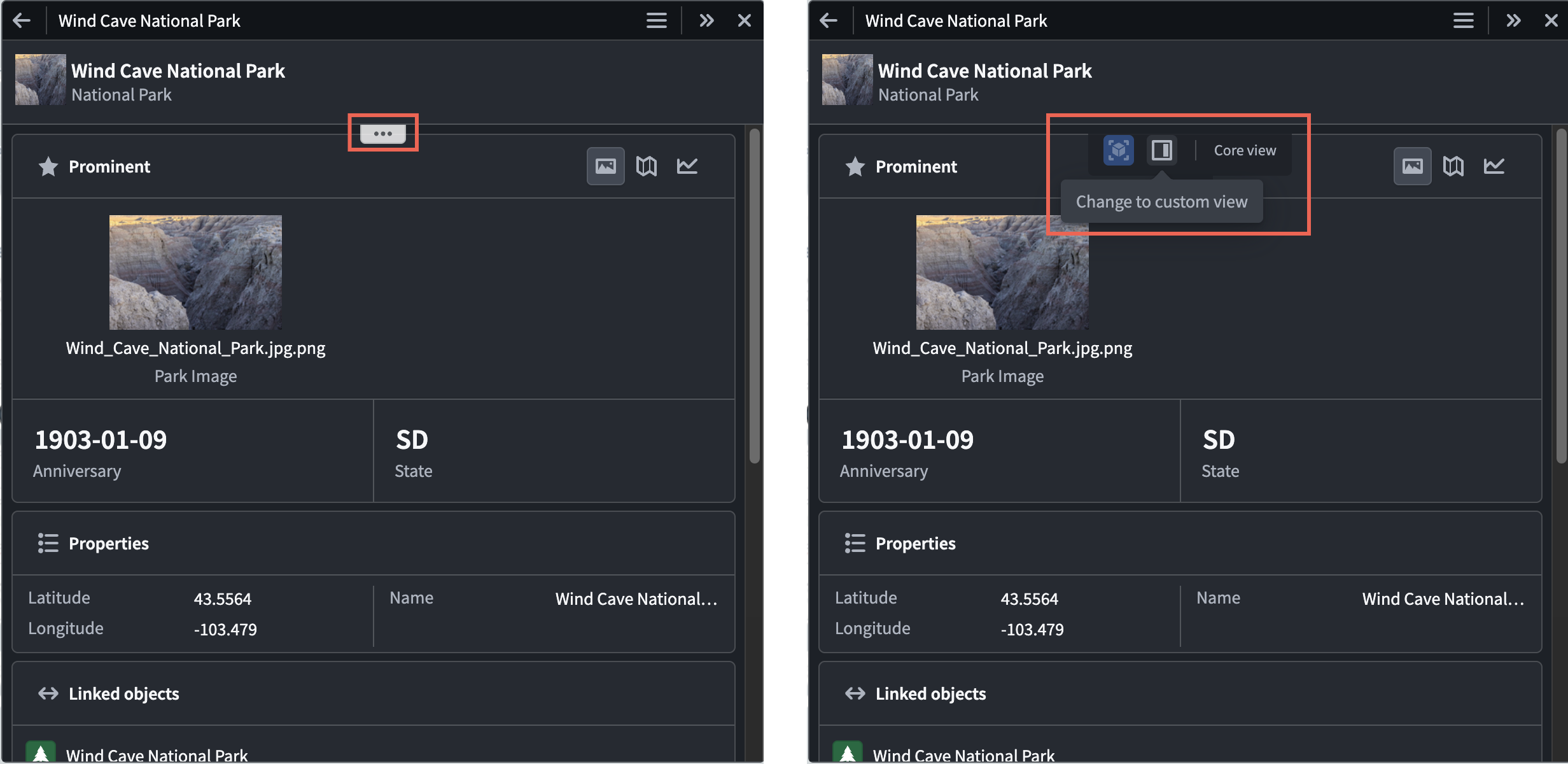
:::callout{theme="neutral"} The ability to toggle between standard and configured Object Views is not yet available in Workshop. :::
Default configurations
Default configured Object Views are automatically created for each object type. The default full Object View contains a list of prominent properties, or all non-hidden properties if none are prominent, and a list of the object's links. The default panel contains the same list of properties. The default views will dynamically update to reflect changes made to the object type, such as new properties or property renames, but once an Object View is edited it becomes user-managed and all further updates must be made manually.
Permissions
The permissions required to edit the Object View for an object type depend on whether the object type uses Ontology roles:
- If the object type does not use Ontology roles, a user must have the
Object View Adminapplication permission in Control Panel, as well as theEditorrole on any of the object type's input datasources. - If the object type uses Ontology roles, the user only requires the
Ontology Editorrole on the object type.
Unless you manually convert the Workshop module for an Object View tab to a standalone module through legacy configuration options, the Workshop module's permissions will be managed by the object type. This ensures that permissions between the module and the object type are kept aligned, so users with permission to edit or view the object type will also be able to edit or view all modules inside the Object View.
Edit configured Object Views
There are many ways to access configured Object View configuration.
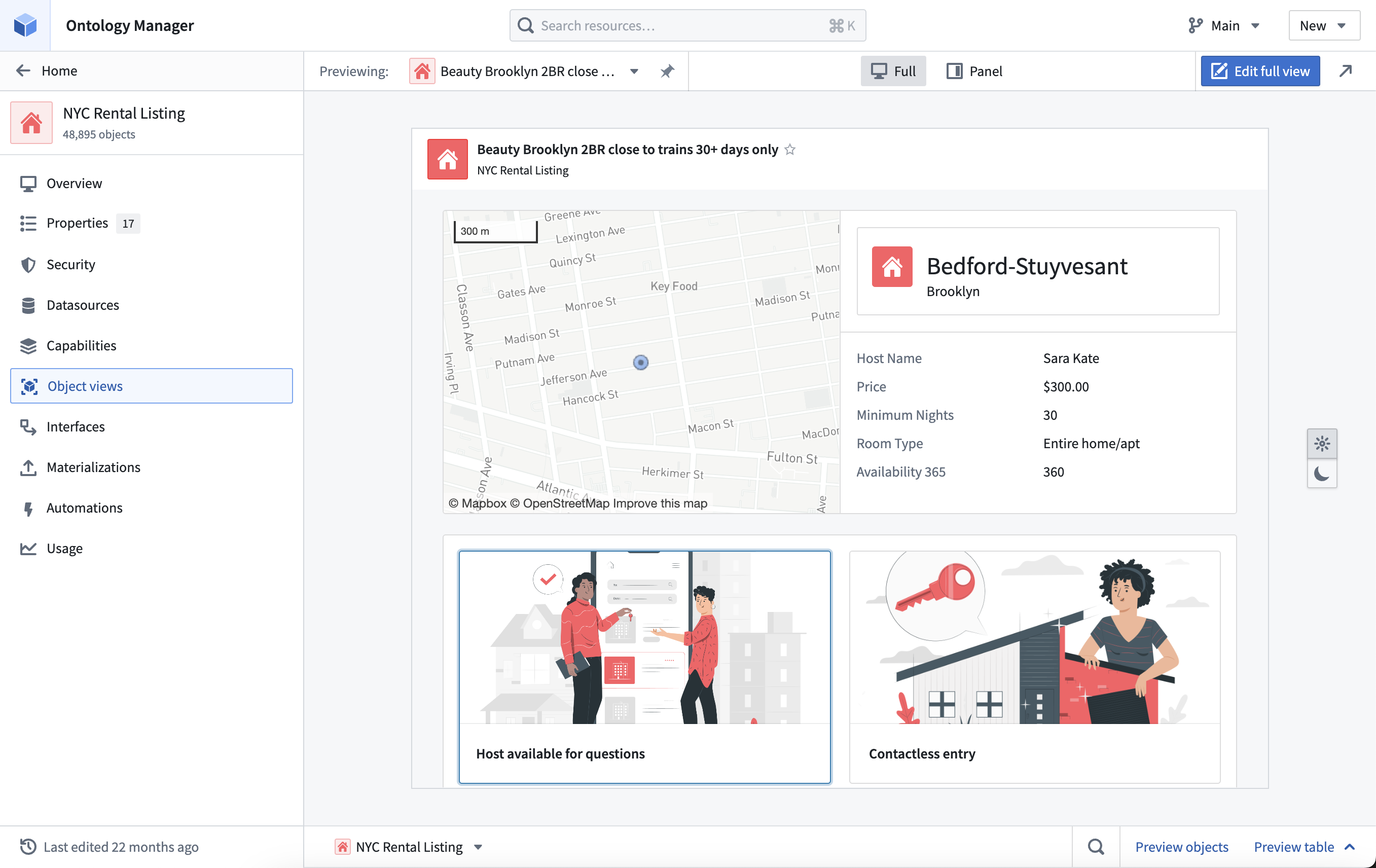
The Object Views for an object type can be previewed in the Object views tab in Ontology Manager. In the header, you can select and pin a default display object to preview. You can also preview the full and panel form factors, and test how the Object View appears in light and dark mode. Editing the configured Object View can be accessed using the Edit option in the right side of the header.
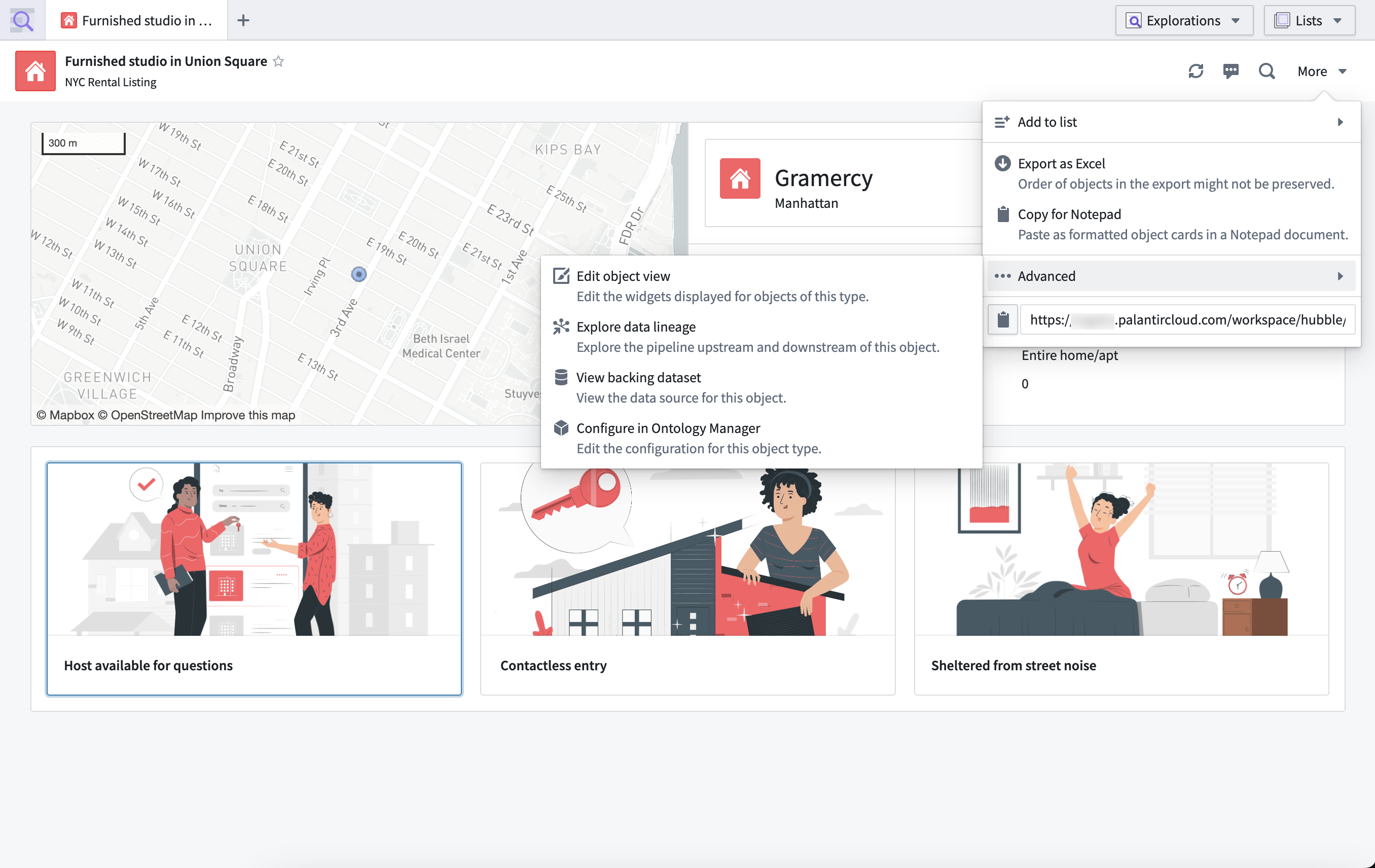
In Object Explorer, an object type's configured Object View can be accessed when viewing an object by selecting More > Advanced > Edit object view.
When viewing a panel Object View within an application, configuration can be accessed by hovering over the dropdown ellipsis and selecting Edit. The dropdown only appears for users with permission to edit the Object View.

These edit entry points lead to the configured Object View editor, where the Object View tabs can be managed, and content can be edited with all the standard features of a Workshop module. Once published, edits will apply to all objects of the object type. For more editing information, refer to the full Object View configuration and panel Object View configuration.
中文翻译
配置对象视图概述
配置对象视图(Configured Object View)是对象数据的可定制、可复用表现形式。您可以通过 Workshop 模块 为对象类型构建完整和面板两种对象视图,从而灵活地在平台中呈现对象。
Foundry 默认为所有对象类型创建标准对象视图。当您创建配置对象视图后,该视图将成为用户的默认视图,但用户仍可通过对象视图附带的切换按钮切换回标准对象视图。此外,在采用自定义页眉的 Palantir 应用程序(如 Gaia 或 Vertex)中,用户可悬停在对象视图中的省略号抽屉图标上,在标准视图与配置视图之间切换。
:::callout{theme="neutral"} Workshop 中暂不支持在标准对象视图与配置对象视图之间切换。 :::
默认配置
系统会为每个对象类型自动创建默认的配置对象视图。默认完整对象视图包含一组突出属性(若无突出属性则显示所有非隐藏属性)以及对象的链接列表。默认面板视图则包含相同的属性列表。默认视图会动态更新以反映对象类型的变更(如新增属性或重命名属性),但一旦对象视图被编辑,其将转为用户管理状态,此后所有更新均需手动完成。
权限
编辑对象类型对象视图所需的权限取决于该对象类型是否使用本体角色:
- 若对象类型未使用本体角色,用户需在控制面板中拥有
对象视图管理员(Object View Admin)应用程序权限,同时对该对象类型的任一输入数据源拥有编辑者(Editor)角色。 - 若对象类型使用本体角色,用户仅需对该对象类型拥有
本体编辑者(Ontology Editor)角色。
除非您通过传统配置选项手动将对象视图标签页的 Workshop 模块转换为独立模块,否则该 Workshop 模块的权限将由对象类型统一管理。这确保了模块与对象类型的权限保持一致,因此拥有对象类型编辑或查看权限的用户,也将能够编辑或查看对象视图内的所有模块。
编辑配置对象视图
访问配置对象视图配置的方式有多种。
在 Ontology Manager 的对象视图标签页中可预览对象类型的对象视图。您可以在页眉中选择并固定默认显示对象进行预览,也可预览完整视图和面板视图两种形态,并测试对象视图在浅色/深色模式下的显示效果。通过页眉右侧的编辑选项可进入配置对象视图的编辑界面。
在 Object Explorer 中查看对象时,可通过选择更多 > 高级 > 编辑对象视图来访问该对象类型的配置对象视图。
在应用程序中查看面板对象视图时,可悬停在下拉省略号上并选择编辑进入配置界面。该下拉菜单仅对拥有对象视图编辑权限的用户显示。
这些编辑入口将引导您进入配置对象视图编辑器,在此可管理对象视图标签页,并利用 Workshop 模块的所有标准功能编辑内容。发布后,编辑内容将应用于该对象类型的所有对象。更多编辑信息,请参阅完整对象视图配置和面板对象视图配置。