Configured panel Object View(配置面板对象视图(Configured panel Object View))
There are two types of configured panel Object Views you can build to display one or multiple objects of an object type: object instance panels display individual objects, while object set panels display multiple objects as an object set. Both types of configured Object Views share the same edit entry points and configuration experience.
Object instance panels
The default object instance panel view shows a single Property List widget that displays prominent properties of a single instance of the object type.
Object set panels
The object set panel displays an aggregated view of multiple instances of the same object type. The default object set panel provides a tabbed layout with two interfaces to explore object collections:
- The Charts tab displays up to five XY Charts that visualize object aggregations grouped by property values.
- The List tab shows an Object List widget displaying up to three properties per object, including the object's title, prominent properties, and media when present.
Edit configured panel Object Views
To make changes to either type of configured panel Object View, use one of the edit entry points to navigate to the configured Object View editor. Once in the editor, you can customize the configured panel Object View's content as you would customize a Workshop module.
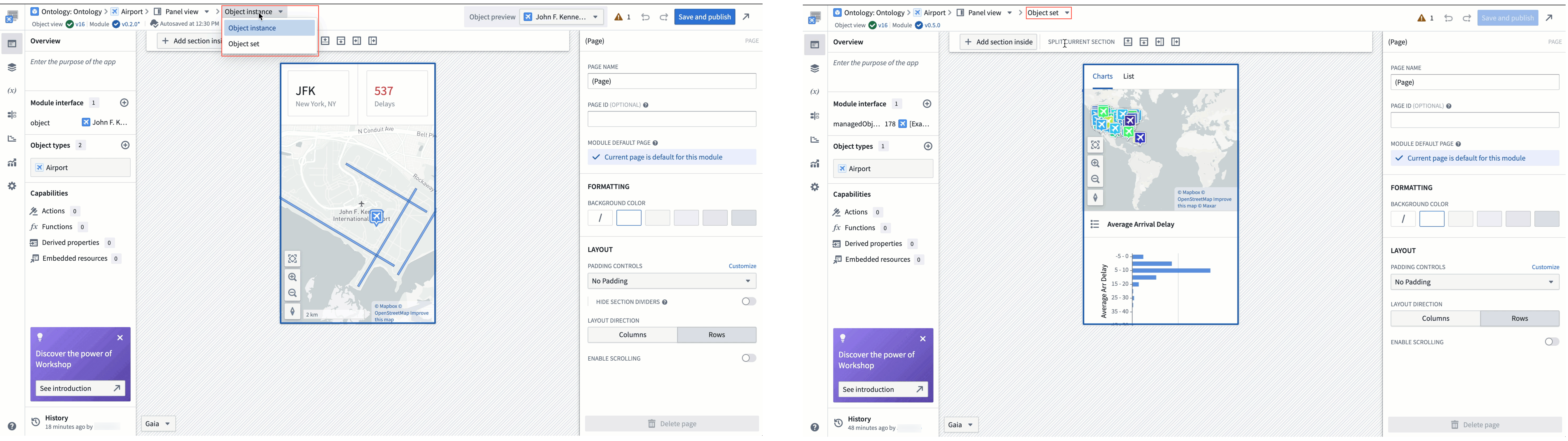
If you are configuring an object instance panel view but want to switch to an object set, select Object instance from the top ribbon before choosing Object set from the dropdown menu. You can use the same menu to switch from Object set to Object instance, as well.
In the settings section of the left-side panel, the Module Type section allows you to configure the size of the editing canvas to ease building a compact module.
- Edit display size: Selecting an option in the dropdown will adjust the preview size of the panel on the canvas. The actual size of the panel will vary between devices and applications, so this is just a tool for builders to use to approximate the available space within different workflows.
- Display options include application presets that match the size of the panel in different platform applications, common resolution presets, and manual entry of the module's height and width in pixels.
- Show resolution picker in canvas: When enabled, a resolution picker will be shown in the bottom left corner of the editor, allowing builders to edit the display size of the module directly on the canvas.
- Fit to canvas: When the resolution size exceeds the canvas size, a button will appear next to the resolution picker that toggles between fitting the entire panel in view or viewing the panel at standard zoom.

中文翻译
配置面板对象视图(Configured panel Object View)
您可以构建两种类型的配置面板对象视图,用于显示对象类型的一个或多个对象:对象实例面板显示单个对象,而对象集面板则作为对象集显示多个对象。这两种配置对象视图共享相同的编辑入口点和配置体验。
对象实例面板(Object instance panels)
默认的对象实例面板视图显示一个属性列表组件(Property List widget),该组件展示对象类型单个实例的突出属性(prominent properties)。
对象集面板(Object set panels)
对象集面板显示同一对象类型多个实例的聚合视图。默认的对象集面板提供带有两个标签页的布局,用于探索对象集合:
- 图表(Charts) 标签页最多显示五个XY图表(XY Charts),这些图表按属性值分组可视化对象聚合。
- 列表(List) 标签页显示一个对象列表组件(Object List widget),每个对象最多展示三个属性,包括对象标题、突出属性以及媒体内容(如有)。
编辑配置面板对象视图
要对任一类型的配置面板对象视图进行更改,请使用编辑入口点导航至配置对象视图编辑器。进入编辑器后,您可以像自定义工作坊模块(Workshop module)一样自定义配置面板对象视图的内容。
如果您正在配置对象实例面板视图但想切换为对象集,请从顶部功能区选择对象实例,然后从下拉菜单中选择对象集。您也可以使用同一菜单从对象集切换到 对象实例。
在左侧面板的设置部分,模块类型(Module Type) 区域允许您配置编辑画布的大小,以便更轻松地构建紧凑型模块。
- 编辑显示尺寸(Edit display size): 在下拉菜单中选择一个选项将调整面板在画布上的预览大小。面板的实际尺寸会因设备和应用程序而异,因此这只是一个供构建者近似估算不同工作流中可用空间的工具。
- 显示选项包括与不同平台应用程序中面板尺寸匹配的应用程序预设(application presets)、常见的分辨率预设(resolution presets),以及手动输入模块高度和宽度的像素值(manual entry)。
- 在画布中显示分辨率选择器(Show resolution picker in canvas): 启用后,编辑器左下角将显示一个分辨率选择器,允许构建者直接在画布上编辑模块的显示尺寸。
- 适应画布(Fit to canvas): 当分辨率尺寸超过画布尺寸时,分辨率选择器旁会出现一个按钮,用于切换将整个面板适配到视图中,或以标准缩放比例查看面板。