Configure profiles(配置配置文件)
Profiles enable you to configure how Object Views should be surfaced to users with different roles. You can use profiles to control the visibility of Object View tabs for different users so they see views specific to their needs.
Configure a profile
Object Explorer is powered by a service called Hubble. To use a group as a profile in Object View, add the following Hubble attributes from within the Groups tab in Platform Settings:
hubble:isProfile:truehubble:displayName:Set a name you want end user to see- [OPTIONAL]
hubble:isDiscoverable:true - Setting the
hubble:isDiscoverableattribute totruewill make the profile visible to users who are not members of the group itself. Omitting this attribute means that only users who are in the group can access views assigned to this specific profile.
:::callout{theme="neutral"} Newly-created profiles may take up to five minutes to become available in the Object View editor. :::

Assign a profile to an Object View
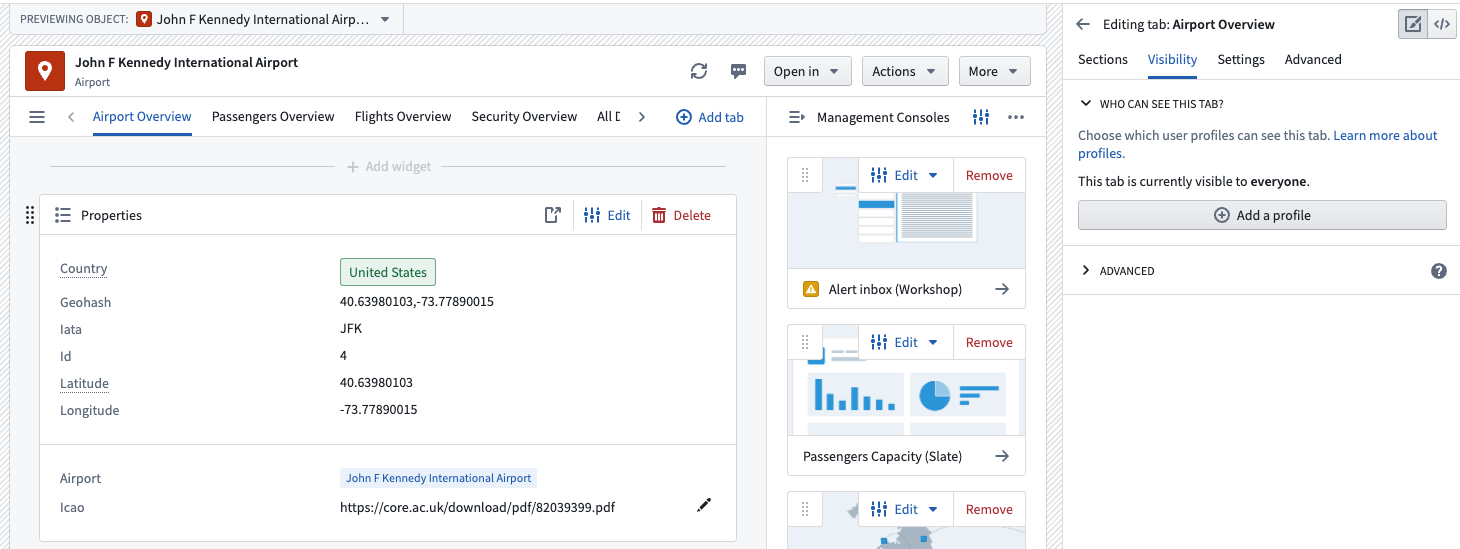
Profiles are assigned on a tab level, meaning that for each tab you can assign specific profiles. To add a profile to a tab, access the editor sidebar, click on a tab in the Tab settings, select Visibility, and click Add a profile.
Switch profiles as a user
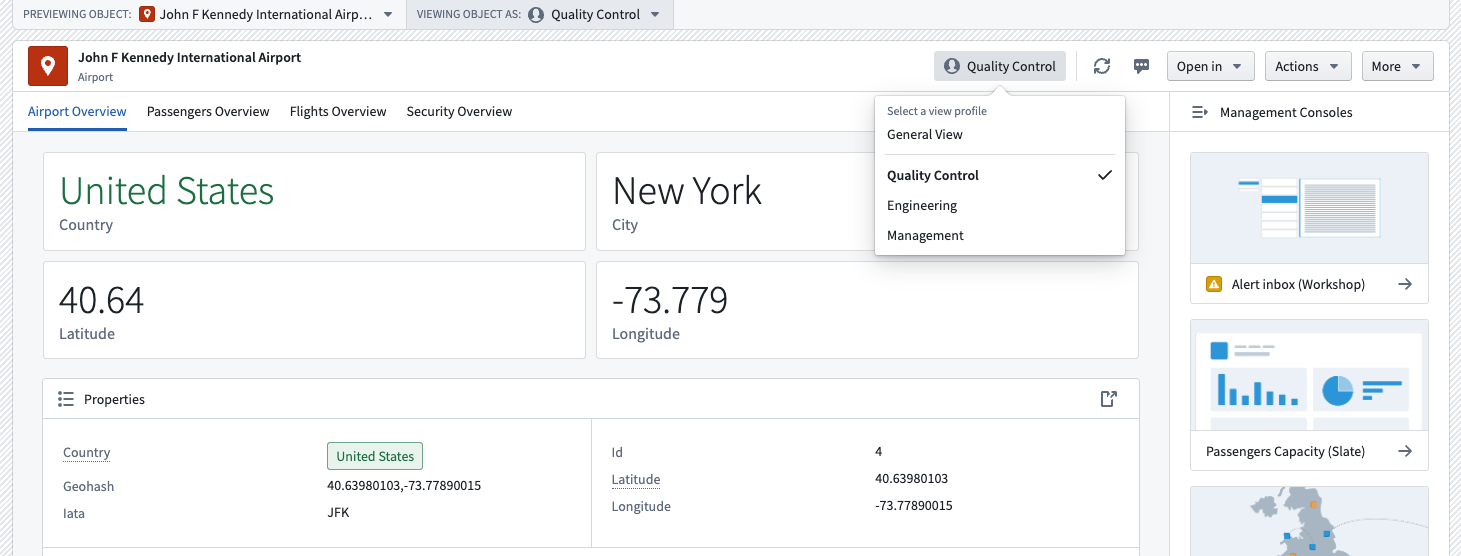
Once you add a profile to an Object View, you can switch between profiles. Select the profile type in the Object View header to access a dropdown menu containing available profiles. You can find the same dropdown menu by clicking Viewing Object As: at the top of the Object View.
Switch profiles as an editor
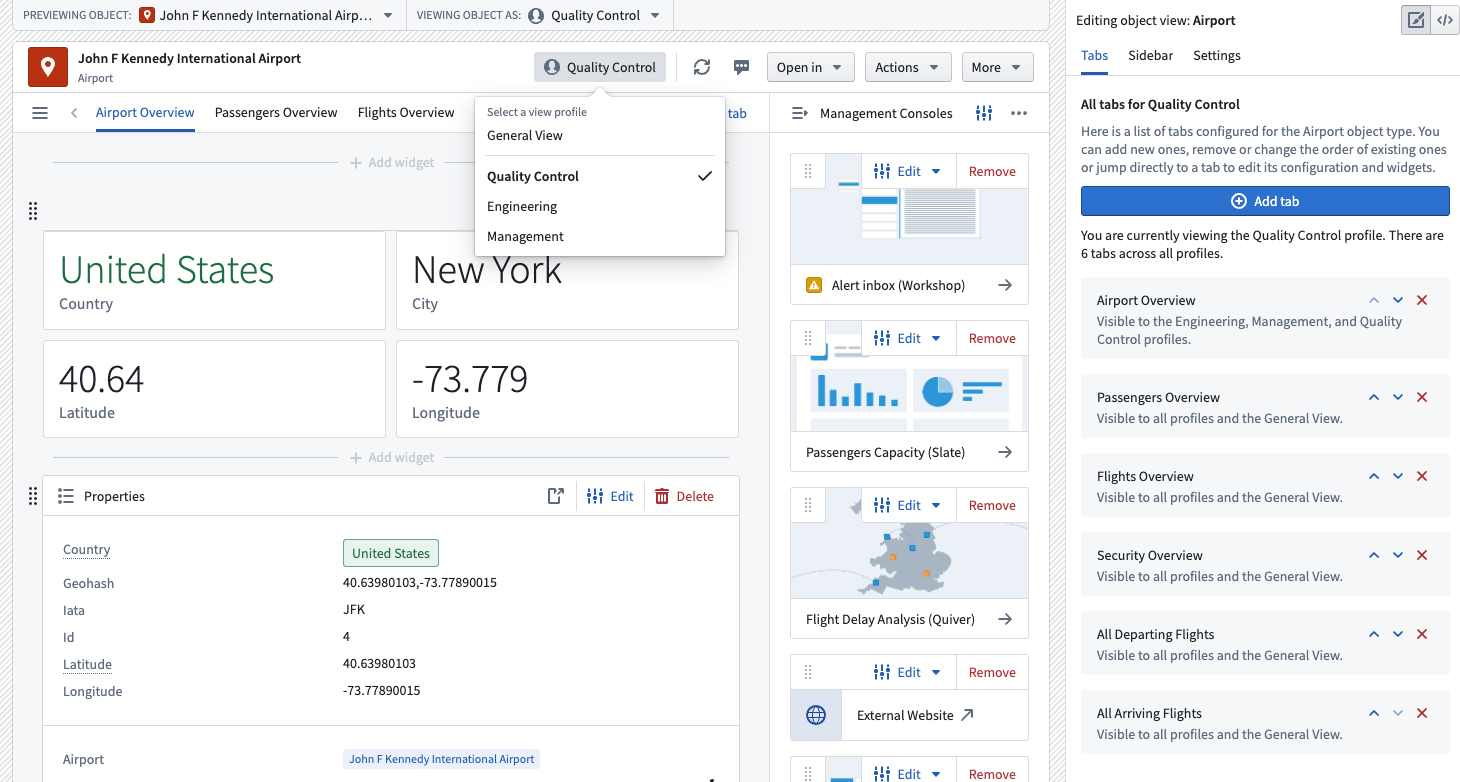
You can also access different profiles when editing an Object View. Doing so will allow you to see which tabs are visible to each profile.
Set a default profile for a user
To set a default profile for a user or user group, add them as a member to the group backing the profile. This action will work only if a user is a member of a single profile.
:::callout{theme="neutral"} You can add a maximum of ten profiles to each Object View. :::
中文翻译
配置配置文件
配置文件(Profiles) 使您能够配置对象视图(Object Views)如何面向不同角色的用户呈现。您可以使用配置文件来控制对象视图标签页(tabs)对不同用户的可见性,从而让他们看到符合自身需求的视图。
配置配置文件
对象浏览器(Object Explorer)由名为 Hubble 的服务驱动。要将某个组用作对象视图中的配置文件,请在平台设置的组(Groups) 标签页中添加以下 Hubble 属性:
hubble:isProfile:truehubble:displayName:设置一个您希望最终用户看到的名称- [可选]
hubble:isDiscoverable:true - 将
hubble:isDiscoverable属性设置为true将使该配置文件对非该组成员的用户可见。省略此属性意味着只有该组内的用户才能访问分配给此特定配置文件的视图。
:::callout{theme="neutral"} 新创建的配置文件可能需要最多五分钟才能在对象视图编辑器中生效。 :::
为对象视图分配配置文件
配置文件是在标签页级别分配的,这意味着您可以为每个标签页分配特定的配置文件。要为标签页添加配置文件,请访问编辑器侧边栏,点击标签页(Tab)设置中的某个标签页,选择可见性(Visibility),然后点击添加配置文件(Add a profile)。
作为用户切换配置文件
一旦您为对象视图添加了配置文件,就可以在不同配置文件之间切换。在对象视图标题中选择配置文件类型,即可访问包含可用配置文件的下拉菜单。您也可以通过点击对象视图顶部的查看对象身份(Viewing Object As:)找到相同的下拉菜单。
作为编辑器切换配置文件
在编辑对象视图时,您也可以访问不同的配置文件。这样做可以让您查看每个配置文件可见的标签页。
为用户设置默认配置文件
要为某个用户或用户组设置默认配置文件,请将他们添加为配置文件对应组的成员。此操作仅在用户属于单个配置文件时有效。
:::callout{theme="neutral"} 每个对象视图最多可以添加十个配置文件。 :::