Apps and Files(应用与文件)
Apps and Files widgets enable embedding, displaying, and linking other Foundry apps within the current Object View. These Embedded Widgets can support assets built in other apps, such as Quiver or Slate. Additionally, they enable the Object View to display media, upload files, add hyperlinks or allow comments and conversations on that object.
If you are interested in building a more sophisticated object view, consider creating a Workshop-backed tab.
Some of the widgets below are not object-aware. This means interaction with other widgets in the Object View is limited. * Example 1: Using the Comments Widget is only saved within that specific Object View, and does not write back to the actual object. If these comments might be useful outside the context of the specific object, consider using Actions to capture them. * Example 2: Adding files using “Linked Files” is saved in Foundry, but it’s not linked to the object. If you wish to have these files re-usable, consider using Actions attachments. * Example 3: Embedding Slate or Contour does allow you to pass parameters, but it doesn’t publish or consume filters and doesn’t allow cross-filtering with other widgets such as the Charts Widget.
Quiver Dashboard
For detailed steps on how to embed a Quiver dashboard in an Object View, see the Quiver dashboards documentation.
Slate Application
This widget displays a Slate application within an object view and supports state sharing and interactivity between the two applications. From the object view to the Slate application, the current object context and the active filter state are made available. From the Slate application to the object view, a set of events are provided within Slate which map to behaviors within Object Explorer, such as opening new Object or Exploration tabs and updating the object view filters.
Configuration
Slate Resource Chose a Slate resource to display. Ensure that all users with permission to view the object can also view the application.
A "responsive" design for the Slate resources will give the best results as the application will resize based on the object view layout and the available screen dimensions.
Default Parameters
By default the IDs of the current object and its object type are passed to the Slate dashboard and can be mapped to variables. These can be toggled off or have their target variables changed. The default variable names are objectId and objectTypeId. In the Slate application, ensure that the matching Variables are manually created in the Variable tab.
Custom Parameters Use additional custom parameters to pass either property values or static, pre-defined values into the Slate application. Create a matching Variable in the Slate application to capture these parameters and use them in the application.
Using Parameters in Slate
The configured parameters are passed into the Slate application when it loads. When configuring your Slate application, each parameter must have a corresponding Variable created in the Variable panel. Learn more about how to use variables. To check the keys and values of the parameters being passed from Object Explorer to Slate, you can select “View parameters” from the debugging toolbar within the object view editor.
Accessing object view filters
The object view filters are shared in the IObjectSetFilter format for easy use with the Object Set APIs available within Slate. They are automatically sent to Slate using a cross-frame postMessage when they change and can also be requested manually using an event sent from Slate to Object Explorer. This request event can be used to trigger sending the filters when your Slate dashboard is first ready to receive them.
To capture the filters within Slate you should configure a slate.getMessage event handler which takes the post message payload, parses it as JSON and then sets the result in a variable. Learn more about events. The following should be enough to capture the filters in a variable:
const payload = {{slEventValue}}["payload"]
return JSON.parse(payload);
There are two formats that the filters can be consumed in. One format contains all filters without the origin object type they may be based on, the other format contains the filters grouped by object type as well as a separate list for filters which are not based on a specific object type.
The payload for all filters has the following shape:
{
    "type": "HUBBLE_SLATE_WIDGET // ACTIVE_FILTERS_UPDATED",
    "payload": <IObjectSetFilter[]>
}
The payload for filters grouped by object type has the following shape:
{
    "type": "HUBBLE_SLATE_WIDGET // ACTIVE_FILTERS_BY_OBJECT_TYPE_ID_UPDATED",
    "payload": {
        "filtersByObjectType": {
            [objectTypeId]: <IObjectSetFilter[]>
        },
        "globalFilters": <IObjectSetFilter[]>
    }
}
Triggering events from Slate
Event types available for Slate to trigger events within Object Explorer include:
- Open a new object tab in Object Explorer (using object RID)
- Open a new object tab in Object Explorer (using object primary key)
- Open a new exploration tab in Object Explorer for a given object set
- Publish object set filters to the object view
- Clear object set filters on the object view
- Refresh the data on the current object view
- Request resending the object view filters to Slate
Trigger these events using the slate.sendMessage action. From this action, return the event message object from the custom logic. Learn more about events. The expected format for each event is listed below. For help debugging your event integrations, use the object view editor’s debugging toolbar. This will show a warning when a post message is captured but the event payload is incorrect in some way.
Open a new object tab in Object Explorer (using object RID)
This event primarily relies on the objectRid parameter but can optionally take a tabId if the object view should be opened on a specific tab.
{
    "type": "HUBBLE_SLATE_WIDGET // OPEN_OBJECT_BY_RID",
    "payload": {
        "objectRid": "...",
    },
}
Open a new object tab in Object Explorer (using object primary key) If the object RID is not known then the object view can also be loaded using the object’s primary key properties along with its object type ID.
{
    "type": "HUBBLE_SLATE_WIDGET // OPEN_OBJECT_BY_PRIMARY_KEY",
    "payload": {
        "objectTypeId": "...",
        "primaryKey": {
            ...
        },
    },
}
Open a new exploration tab in Object Explorer for a given object set A new search/exploration tab can be opened by providing an Object Set. These object sets should be of limited complexity in order to avoid issues with representing them within the exploration UI.
{
    "type": "HUBBLE_SLATE_WIDGET // OPEN_NEW_SEARCH_FOR_OBJECT_SET",
    "payload": {
        "objectSet": {
            ...
        }
    },
}
Publish object set filters to the object view
Many object view widgets can publish filters which effect other widgets in the view. The Slate widget can do this by sending the filters to be published using this event. The latest published filters will replace any filters previously published by the same Slate widget so the state of these filters should be managed internally within Slate. The filters should be filtered as Object Set Filters, the same format used with requests to the Object Set Service APIs. Filters can be provided for specific object types (filtersByObjectType) or for global properties (globalFilters).
{
    "type": "HUBBLE_SLATE_WIDGET // PUBLISH_OBJECT_SET_FILTER",
    "payload": {
        "filtersByObjectType": {
            ...
        },
        "globalFilters": {
            ...
        }
    },
}
Clear object set filters on the object view The published filters present on the object view can be quickly cleared using this event. It requires no payload.
{
    "type": "HUBBLE_SLATE_WIDGET // CLEAR_PUBLISHED_FILTERS"
}
Refresh the data on the current object view If updates have been applied to the data present within the object view it may be required to trigger a refresh of the data. This event can be used to do so. It requires no payload.
{
    "type": "HUBBLE_SLATE_WIDGET // REFRESH_OBJECT_VIEW"
}
Request resending the object view filters to Slate As described above in the “Accessing object view filters” section, the filters present on the object view published by other widgets are sent to Slate using a post message. When the Slate dashboard has initialized and is ready to handle the filters is should fire this event to request them. A separate event will be sent from Hubble containing the filters. There are two types of filters you can request, one format contains all filters regardless of their origin object type, the other contains the filters grouped by their origin object type. These requests require no payload.
For all filters send:
{
    "type": "HUBBLE_SLATE_WIDGET // REQUEST_ACTIVE_FILTERS"
}
For filters grouped by object type send:
{
    "type": "HUBBLE_SLATE_WIDGET // REQUEST_ACTIVE_FILTERS_BY_OBJECT_TYPE"
}
Media Preview
This widget shows a single large inline preview of a media file, given an attachment property or a property that is a URL of some type of media (image, PDF, etc.).
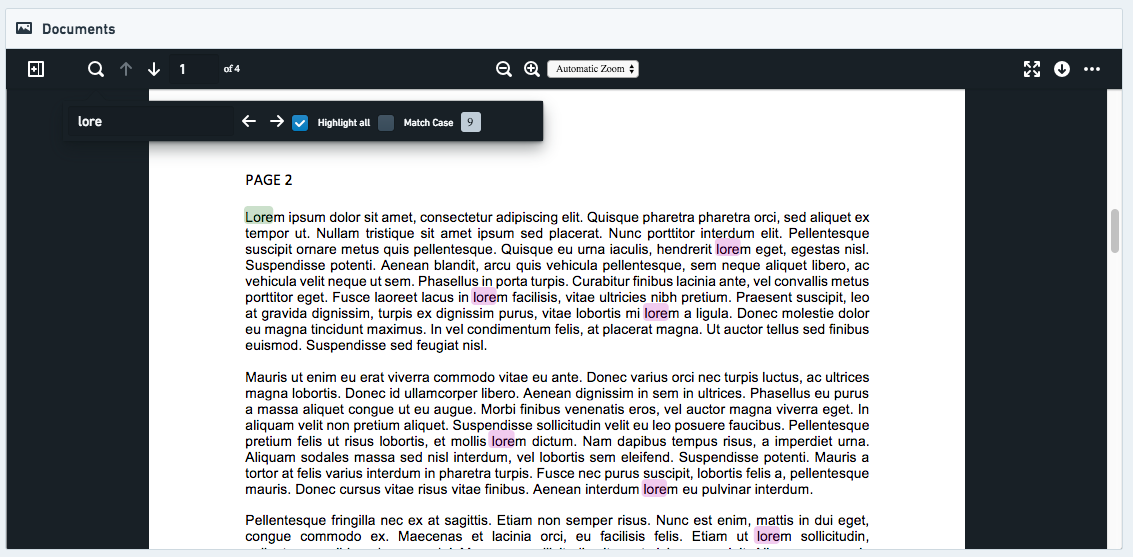
Configuration
To use the Media Preview widget, you will need to configure the current object in view to include an attachment property. Attachment properties store the relevant media within Foundry and ensure that the media is correctly permissioned by inheriting the permissions from the object they have been added to. See this page to learn how to add media to your attachment property.
Alternatively, the Media Preview widget can also be used to display existing media on Foundry using URLs stored in a property. Users viewing the object view will require access to both the object and the location the media is stored. To add media to your object views, follow these steps:
- Upload media to Foundry: Datasets can be used as a way to store a collection of arbitrary files. To create such a dataset, you can begin by uploading the files to a folder and, in the pop-up that appears, selecting Bundle all files as a single dataset. If you're only uploading a single file, this option will appear as Upload to a dataset without a schema.
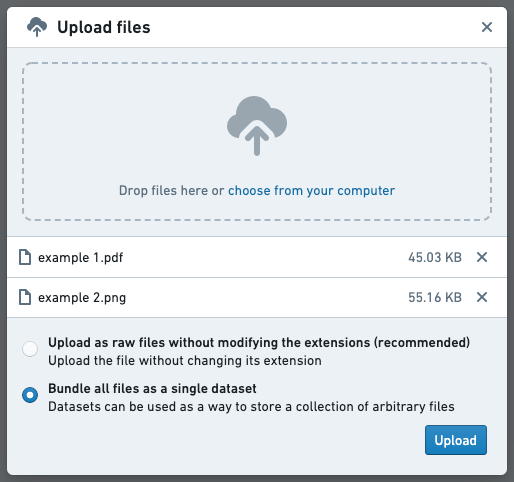
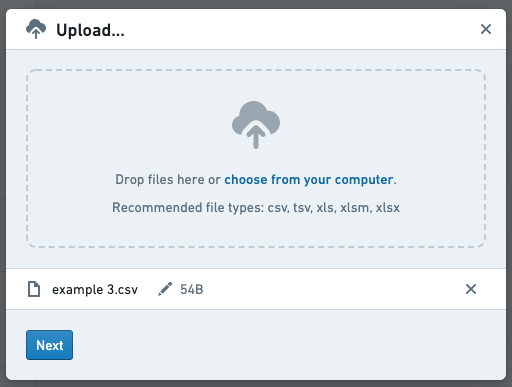
Once this dataset has been created, you can add additional files as needed. To do so, click Import on the top right of the dataset preview.

In the dialog that appears, select additional files to upload.
- Add a URL column: In the backing dataset of the current object in view, add a new column that contains the URL of the media file for each corresponding row. The URL should be of the format:
https://{my-foundry-url}/foundry-data-proxy/api/web/dataproxy/datasets/{dataset rid}/transactions/{transaction rid}/{filename}ORhttps://{my-foundry-url}/foundry-data-proxy/api/web/dataproxy/datasets/{dataset rid}/views/{branch name}/{filename} - Example:
https://{my-foundry-url}/foundry-data-proxy/api/web/dataproxy/datasets/ri.foundry.main.dataset.39ce332b-1d74-40ca-be35-5a5b48459a9a/transactions/ri.foundry.main.transaction.00000000-0000-30d2-8067-4b5d9c819f4c/sample-doc.pdf - Note: If you are using PDFs, the URL should start with
/foundry-data-proxy/api/dataproxyand NOT/foundry-data-proxy/api/web/dataproxy - Mark the column as a
hubble:media_urlin the Ontology: Create a property for the column in the Ontology, and give it a Typeclass with kind =hubbleand name =media_url. - Other Media Typeclasses: Other possibilities are
hubble:iconandhubble:thumbnail. These will use this URL as the icon for an object or as a thumbnail in the search results cards, respectively. - Add a media widget to the object view in Object Explorer: There are currently two types of built-in media widgets: Media Preview and Media Thumbnails. If you edit your object view and click Add Section you can see a description for each type of section. The widget requires set-up of the Media Property, the property containing the URL for the media you wish to preview.
Other parameters to configure:
- Title (required): The title to be displayed on the widget header.
- Icon (required): The header to be displayed on the widget header.
- Help Info: Display additional help information in a tooltip.
- Height: Height (in pixels) to render the media widget.
Hyperlink
The Hyperlinks widget creates a button that works as a simple link to a webpage. You can add any number of links to an object view and each can be either static (that is, the same link for all objects instances) or dynamic per-object link.
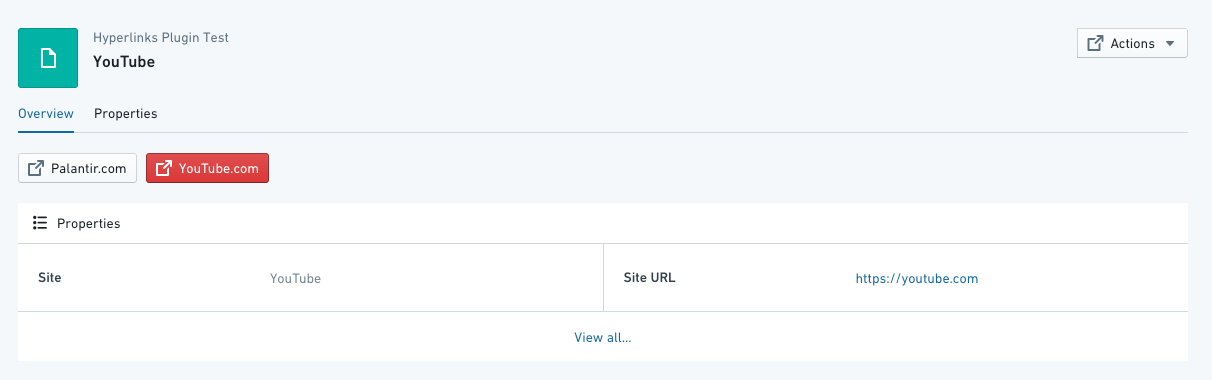
Configuration
- Open Link In - select whether to open on the same tab at the browser (default) on a different tab or in a pop-up window. Pop-ups are less reliable; may cause issues/get blocked depending on browser/installed extensions. This would apply across all objects
- Link Intent - 5 link “intents” to determine the color of the link button. Blueprint Intent ↗ CSS class applied to the button (default is none):
- “None” - grey
- “Primary“ - blue
- “Success” - green
- “Warning” - orange
- “Danger” - red
- URL Type - 3 types of URL configurations:
- Property - a dynamic property containing a URL to use as your hyperlink destination.
- To configure: (1) select the object type (usually the object currently in view); (2) select the property column that the link should be taken from. There is a toggle option to hide the hyperlink button if the value is null.
- For example, you could have 2 "Website" objects, both with the field
site_URLdefined in your ontology, where object 1 has thesite_URLset tohttps://palantir.comand object 2 has thesite_URLset tohttps://palantir.com/uk.
- Hardcoded - a static URL to appear across all objects. Just copy-paste the url, and make sure it has
https:// - Templated - Templated URL allows you to customize the link based on a property of the object. You can bring any property in the URL by encapsulating between single curly brackets
{ }.- For example, if you have a report RID saved as a property
report_rid, you could have a button to open the report associated with each object by using the URL template/workspace/report/{report_rid}.
- For example, if you have a report RID saved as a property
- Link Title - the text label displayed on the hyperlink button. This will be the same for all objects.
Common issues and notes:
- If the hyperlink is broken, the user will be re-directed to the landing page of Object Explorer.
Linked Files
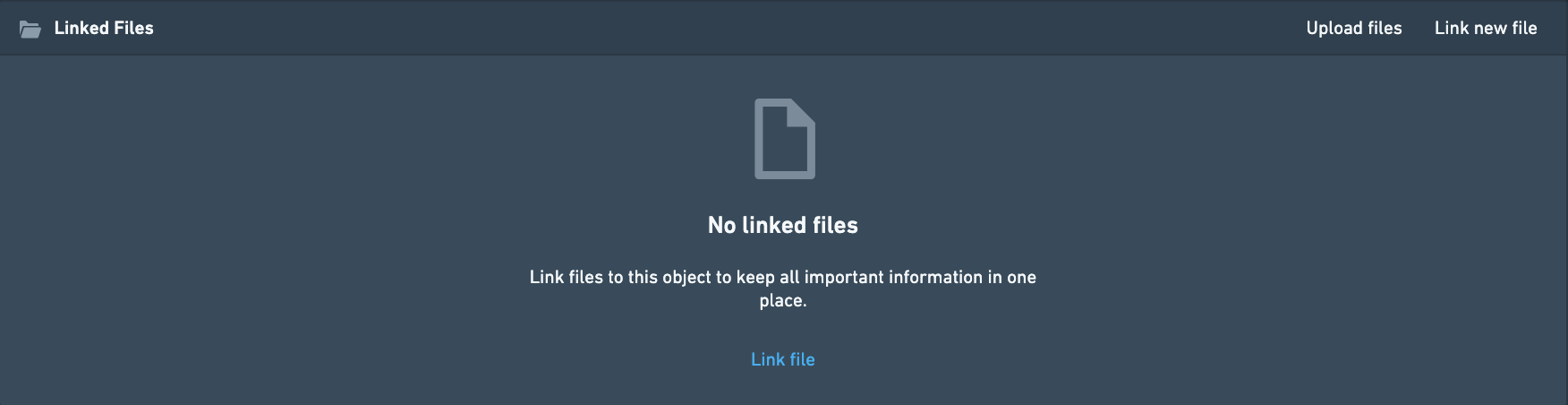
The Linked Files widget enables users to link the object in view to a file, either by browsing with a resource selector to select a file already in Foundry, or by uploading a new file to Foundry from their local machine.
Configuration
This section has no customization options. You can still change the title and other general formatting under the Format tab.
Common issues and notes:
- Files uploaded through this widget are not written-back as a part of the ontology, i.e. they are not saved as a property on the current object. In order to achieve that, consider using Foundry Forms with writeback instead.
- There’s currently no way to hide one of the two options, so it always shows both “Upload files” and “Link new file”.
- There’s currently no way to set up a default destination for file uploads, so the user has to browse for a destination location in Foundry every time they make an upload.
Iframe
You can embed an inline frame of a Slate dashboard or other Foundry application in the Object View as a "webpage within a webpage". Using an iframe enables you to pass values from the current object to filter variables in Slate or parameters in Contour.
Configuration
To embed an iframe, you need to configure the link to the correct Foundry address using Handlebar syntax as described below.
- Required: Copy the full link to the page you wish to embed, and remove all text before
/workspace/. - Report example: For
https://EXAMPLE.palantirfoundry.com/workspace/report/ri.report.main.report.ABCDEF-1234-5678, you should keep/workspace/report/ri.report.main.report.ABCDEF-1234-5678. - Slate example: For
https://EXAMPLE.palantirfoundry.com/workspace/slate/documents/SLATE_DOCUMENT_NAME, you should keep/workspace/slate/documents/SLATE_DOCUMENT_NAME. - Required: Add
embedded=trueto simply show the full view. Add a prefix of/?ifembedded=trueis the only statement, or&ifembedded=trueis attached to other statements. - Report example:
/workspace/report/ri.report.main.report.ABCDEF-1234-5678/?embedded=true - Slate example:
/workspace/slate/documents/SLATE_DOCUMENT_NAME/latest?&embedded=true - Optional: Pass values to Slate to filter for specific variables/parameters. Use the object type ID, a specific object ID, or a specific property ID in Object Explorer. Use
&and state which values you wish to inject to Slate within curly brackets, like{{propertyID}}. This is based on Handlebar syntax. - Report example:
/workspace/report/ri.report.main.report.ABCDEF-1234-5678/?PARAMETER_NAME={{propertyID}}&embedded=true - Slate example:
/workspace/slate/documents/SLATE_DOCUMENT_NAME/latest?VARIABLE_NAME={{propertyID}}&embedded=true
Other configurations
- The difference between a standard iframe and a headerless iframe is that a headerless iframe hides the header of the widget; the widget header normally contains an icon, a title, and the option to add a title to the widget under the Format tab in the configuration.
- The iframe widget enables you to set the height of the widget. The default is 500, and it is adjusted manually.
- Once you set up the iframe, you will see a helper window underneath the widget in the object view (only displayed when in editing mode). The helper window includes object-specific hints and shows which properties and IDs you can pass on to Slate and other Foundry applications.
- Hiding the report header is possible by adding the following to the URL:
&__rp_headerBar=hidden. - Embedding external websites outside of Foundry may be possible subject to security and policy requirements. Contact your Palantir representative if you think this is necessary for your use case.
Comments
This widget enables a local dialog box for users collaborating on an object, with the option to mention other users (by tagging @user_name).
These comments are not captured on the object itself and do not enable any future search or reuse of this conversation across Foundry.
Configuration
This section has no customization options. You can still change the title and other general formatting under the Format tab.
Comment behavior when the source dataset changes
If the source dataset for an object type is changed, the corresponding comment feed will disappear.
Writeback for comments
Comments added through this widget are not written back as part of the Ontology; that is, these comments are not saved as a property on the current object. If your commenting use case includes search, analysis, or learning from comments, consider using Actions.
中文翻译
应用与文件
应用与文件(Apps and Files)小组件支持在当前对象视图中嵌入、显示和链接其他Foundry应用。这些嵌入式小组件可以支持在其他应用中构建的资产,例如Quiver或Slate。此外,它们还使对象视图能够显示媒体、上传文件、添加超链接,或允许对该对象进行评论和对话。
如果您有兴趣构建更复杂的对象视图,请考虑创建基于Workshop的标签页。
以下部分小组件不具备对象感知能力。这意味着它们与对象视图中其他小组件的交互能力有限。 * 示例1:使用评论小组件(Comments Widget)时,评论仅保存在该特定对象视图中,不会写回实际对象。如果这些评论在特定对象上下文之外也可能有用,请考虑使用操作(Actions)来捕获它们。 * 示例2:使用"链接文件(Linked Files)"添加的文件会保存在Foundry中,但不会链接到该对象。如果您希望这些文件可重复使用,请考虑使用操作附件(Actions attachments)。 * 示例3:嵌入Slate或Contour允许您传递参数,但不会发布或消费过滤器,也不允许与图表小组件(Charts Widget)等其他小组件进行交叉过滤。
Quiver仪表板
关于如何在对象视图中嵌入Quiver仪表板的详细步骤,请参阅Quiver仪表板文档。
Slate应用
此小组件在对象视图中显示Slate应用,并支持两个应用之间的状态共享和交互。从对象视图到Slate应用,当前对象上下文和活动过滤器状态均可使用。从Slate应用到对象视图,Slate内提供了一组事件,这些事件映射到对象资源管理器(Object Explorer)中的行为,例如打开新的对象或探索标签页,以及更新对象视图过滤器。
配置
Slate资源(Slate Resource) 选择一个要显示的Slate资源。确保所有有权查看该对象的用户也能查看该应用。
Slate资源的"响应式(responsive)"设计将带来最佳效果,因为应用会根据对象视图布局和可用屏幕尺寸自动调整大小。
默认参数(Default Parameters)
默认情况下,当前对象的ID及其对象类型ID会传递给Slate仪表板,并可映射到变量。这些可以关闭,或更改其目标变量。默认变量名称为objectId和objectTypeId。在Slate应用中,请确保在变量(Variable)标签页中手动创建匹配的变量。
自定义参数(Custom Parameters) 使用额外的自定义参数将属性值或静态预定义值传递给Slate应用。在Slate应用中创建匹配的变量来捕获这些参数,并在应用中使用它们。
在Slate中使用参数
配置的参数会在Slate应用加载时传递给它。配置Slate应用时,每个参数都必须在变量面板中有一个对应的变量。了解更多关于如何使用变量的信息。要检查从对象资源管理器传递到Slate的参数的键和值,您可以在对象视图编辑器中选择调试工具栏中的"查看参数(View parameters)"。
访问对象视图过滤器
对象视图过滤器以IObjectSetFilter格式共享,便于与Slate中可用的对象集API(Object Set APIs)一起使用。当过滤器发生变化时,它们会通过跨框架的postMessage自动发送到Slate,也可以使用从Slate发送到对象资源管理器的事件手动请求。当您的Slate仪表板首次准备好接收过滤器时,可以使用此请求事件来触发发送过滤器。
要在Slate中捕获过滤器,您应该配置一个slate.getMessage事件处理程序,该处理程序接收post消息负载,将其解析为JSON,然后将结果设置到变量中。了解更多关于事件的信息。以下代码足以在变量中捕获过滤器:
const payload = {{slEventValue}}["payload"]
return JSON.parse(payload);
过滤器有两种可消费的格式。一种格式包含所有过滤器,不包含它们可能基于的源对象类型;另一种格式包含按对象类型分组的过滤器,以及一个单独的列表用于不基于特定对象类型的过滤器。
所有过滤器的负载具有以下结构:
{
    "type": "HUBBLE_SLATE_WIDGET // ACTIVE_FILTERS_UPDATED",
    "payload": <IObjectSetFilter[]>
}
按对象类型分组的过滤器的负载具有以下结构:
{
    "type": "HUBBLE_SLATE_WIDGET // ACTIVE_FILTERS_BY_OBJECT_TYPE_ID_UPDATED",
    "payload": {
        "filtersByObjectType": {
            [objectTypeId]: <IObjectSetFilter[]>
        },
        "globalFilters": <IObjectSetFilter[]>
    }
}
从Slate触发事件
Slate可用于在对象资源管理器中触发事件的事件类型包括:
- 在对象资源管理器中打开一个新的对象标签页(使用对象RID)
- 在对象资源管理器中打开一个新的对象标签页(使用对象主键)
- 在对象资源管理器中为给定对象集打开一个新的探索标签页
- 向对象视图发布对象集过滤器
- 清除对象视图上的对象集过滤器
- 刷新当前对象视图上的数据
- 请求将对象视图过滤器重新发送到Slate
使用slate.sendMessage操作触发这些事件。从此操作中,从自定义逻辑返回事件消息对象。了解更多关于事件的信息。每个事件的预期格式如下所列。要调试事件集成,请使用对象视图编辑器的调试工具栏。当捕获到post消息但事件负载存在某种错误时,该工具栏会显示警告。
在对象资源管理器中打开一个新的对象标签页(使用对象RID)
此事件主要依赖于objectRid参数,但如果对象视图应在特定标签页上打开,也可以选择使用tabId。
{
    "type": "HUBBLE_SLATE_WIDGET // OPEN_OBJECT_BY_RID",
    "payload": {
        "objectRid": "...",
    },
}
在对象资源管理器中打开一个新的对象标签页(使用对象主键) 如果对象RID未知,则也可以使用对象的主键属性及其对象类型ID来加载对象视图。
{
    "type": "HUBBLE_SLATE_WIDGET // OPEN_OBJECT_BY_PRIMARY_KEY",
    "payload": {
        "objectTypeId": "...",
        "primaryKey": {
            ...
        },
    },
}
在对象资源管理器中为给定对象集打开一个新的探索标签页 可以通过提供对象集(Object Set)来打开一个新的搜索/探索标签页。这些对象集的复杂度应有限,以避免在探索UI中表示它们时出现问题。
{
    "type": "HUBBLE_SLATE_WIDGET // OPEN_NEW_SEARCH_FOR_OBJECT_SET",
    "payload": {
        "objectSet": {
            ...
        }
    },
}
向对象视图发布对象集过滤器
许多对象视图小组件可以发布过滤器,影响视图中的其他小组件。Slate小组件可以通过使用此事件发送要发布的过滤器来实现这一点。最新发布的过滤器将替换同一Slate小组件先前发布的任何过滤器,因此这些过滤器的状态应在Slate内部进行管理。过滤器应作为对象集过滤器(Object Set Filters)进行过滤,格式与用于对象集服务API(Object Set Service APIs)请求的格式相同。可以为特定对象类型(filtersByObjectType)或全局属性(globalFilters)提供过滤器。
{
    "type": "HUBBLE_SLATE_WIDGET // PUBLISH_OBJECT_SET_FILTER",
    "payload": {
        "filtersByObjectType": {
            ...
        },
        "globalFilters": {
            ...
        }
    },
}
清除对象视图上的对象集过滤器 可以使用此事件快速清除对象视图上存在的已发布过滤器。它不需要负载。
{
    "type": "HUBBLE_SLATE_WIDGET // CLEAR_PUBLISHED_FILTERS"
}
刷新当前对象视图上的数据 如果对象视图中存在的数据已应用更新,则可能需要触发数据刷新。可以使用此事件来实现。它不需要负载。
{
    "type": "HUBBLE_SLATE_WIDGET // REFRESH_OBJECT_VIEW"
}
请求将对象视图过滤器重新发送到Slate 如上述"访问对象视图过滤器"部分所述,由其他小组件发布的对象视图上的过滤器会通过post消息发送到Slate。当Slate仪表板已初始化并准备好处理过滤器时,应触发此事件来请求它们。Hubble将发送一个单独的事件,其中包含过滤器。您可以请求两种类型的过滤器,一种格式包含所有过滤器,无论其源对象类型如何,另一种格式包含按源对象类型分组的过滤器。这些请求不需要负载。
发送所有过滤器:
{
    "type": "HUBBLE_SLATE_WIDGET // REQUEST_ACTIVE_FILTERS"
}
发送按对象类型分组的过滤器:
{
    "type": "HUBBLE_SLATE_WIDGET // REQUEST_ACTIVE_FILTERS_BY_OBJECT_TYPE"
}
媒体预览(Media Preview)
此小组件显示媒体文件的单个大型内联预览,给定一个附件属性或一个包含某种类型媒体(图片、PDF等)URL的属性。
配置
要使用媒体预览小组件,您需要配置当前视图中的对象以包含附件属性。附件属性将相关媒体存储在Foundry中,并通过继承其所属对象的权限来确保媒体具有正确的权限。请参阅此页面了解如何向附件属性添加媒体。
或者,媒体预览小组件也可以用于使用存储在属性中的URL显示Foundry上的现有媒体。查看对象视图的用户需要同时拥有对对象和媒体存储位置的访问权限。要向对象视图添加媒体,请按照以下步骤操作:
- 将媒体上传到Foundry: 数据集可以用作存储任意文件集合的方式。要创建这样的数据集,您可以先将文件上传到一个文件夹,然后在出现的弹出窗口中选择将所有文件捆绑为单个数据集(Bundle all files as a single dataset)。如果您只上传单个文件,此选项将显示为上传到无模式的数据集(Upload to a dataset without a schema)。
创建此数据集后,您可以根据需要添加其他文件。为此,请点击数据集预览右上角的导入(Import)。
在出现的对话框中,选择要上传的其他文件。
- 添加URL列: 在当前视图对象的支持数据集中,添加一个新列,其中包含每个对应行的媒体文件的URL。URL的格式应为:
https://{my-foundry-url}/foundry-data-proxy/api/web/dataproxy/datasets/{dataset rid}/transactions/{transaction rid}/{filename}或https://{my-foundry-url}/foundry-data-proxy/api/web/dataproxy/datasets/{dataset rid}/views/{branch name}/{filename} - 示例:
https://{my-foundry-url}/foundry-data-proxy/api/web/dataproxy/datasets/ri.foundry.main.dataset.39ce332b-1d74-40ca-be35-5a5b48459a9a/transactions/ri.foundry.main.transaction.00000000-0000-30d2-8067-4b5d9c819f4c/sample-doc.pdf - 注意:如果您使用PDF,URL应以
/foundry-data-proxy/api/dataproxy开头,而不是/foundry-data-proxy/api/web/dataproxy - 在本体(Ontology)中将该列标记为
hubble:media_url: 在本体中为该列创建一个属性,并赋予一个类型类(Typeclass),其kind =hubble,name =media_url。 - 其他媒体类型类:其他可能性包括
hubble:icon和hubble:thumbnail。这些将分别使用此URL作为对象的图标或搜索结果卡片中的缩略图。 - 在对象资源管理器中向对象视图添加媒体小组件: 目前有两种类型的内置媒体小组件:媒体预览(Media Preview)和媒体缩略图(Media Thumbnails)。如果您编辑对象视图并点击添加部分(Add Section),您可以查看每种部分类型的描述。该小组件需要设置媒体属性(Media Property),即包含您要预览的媒体URL的属性。
其他可配置参数:
- 标题(Title)(必填):小组件标题上显示的标题。
- 图标(Icon)(必填):小组件标题上显示的标题。
- 帮助信息(Help Info):在工具提示中显示额外的帮助信息。
- 高度(Height):渲染媒体小组件的高度(以像素为单位)。
超链接(Hyperlink)
超链接小组件创建一个按钮,作为指向网页的简单链接。您可以向对象视图添加任意数量的链接,每个链接可以是静态的(即对所有对象实例都是相同的链接)或每个对象动态的链接。
配置
- 打开链接位置(Open Link In) - 选择是在浏览器的同一标签页(默认)、不同标签页还是弹出窗口中打开。弹出窗口可靠性较低;可能会根据浏览器/已安装的扩展程序导致问题或被阻止。此设置适用于所有对象。
- 链接意图(Link Intent) - 5种链接"意图",用于确定链接按钮的颜色。Blueprint Intent ↗ CSS类应用于按钮(默认为无):
- "无(None)" - 灰色
- "主要(Primary)" - 蓝色
- "成功(Success)" - 绿色
- "警告(Warning)" - 橙色
- "危险(Danger)" - 红色
- URL类型(URL Type) - 3种URL配置类型:
- 属性(Property) - 包含要用作超链接目标的URL的动态属性。
- 配置方法:(1) 选择对象类型(通常是当前视图中的对象);(2) 选择应从中获取链接的属性列。有一个切换选项,如果值为空则隐藏超链接按钮。
- 例如,您可能有2个"网站"对象,都在本体中定义了
site_URL字段,其中对象1的site_URL设置为https://palantir.com,对象2的site_URL设置为https://palantir.com/uk。
- 硬编码(Hardcoded) - 在所有对象上显示的静态URL。只需复制粘贴URL,并确保其包含
https://。 - 模板化(Templated) - 模板化URL允许您根据对象的属性自定义链接。您可以通过将属性放在单花括号
{ }中来在URL中引入任何属性。- 例如,如果您有一个报告RID保存为属性
report_rid,您可以使用URL模板/workspace/report/{report_rid}创建一个按钮来打开与每个对象关联的报告。
- 例如,如果您有一个报告RID保存为属性
- 链接标题(Link Title) - 超链接按钮上显示的文本标签。所有对象都相同。
常见问题和注意事项:
- 如果超链接损坏,用户将被重定向到对象资源管理器的登录页面。
链接文件(Linked Files)
链接文件小组件使用户能够将视图中的对象链接到文件,可以通过使用资源选择器浏览以选择Foundry中已有的文件,或从本地机器上传新文件到Foundry。
配置
此部分没有自定义选项。您仍然可以在格式(Format)标签页下更改标题和其他常规格式设置。
常见问题和注意事项:
- 通过此小组件上传的文件不会作为本体的一部分写回,即它们不会保存为当前对象的属性。要实现这一点,请考虑使用带有写回功能的Foundry表单(Foundry Forms)。
- 目前无法隐藏两个选项中的任何一个,因此它始终同时显示"上传文件(Upload files)"和"链接新文件(Link new file)"。
- 目前无法为文件上传设置默认目标位置,因此用户每次上传时都必须浏览Foundry中的目标位置。
Iframe
您可以在对象视图中嵌入Slate仪表板或其他Foundry应用的内联框架,作为"网页中的网页"。使用iframe使您能够将当前对象的值传递给Slate中的过滤器变量或Contour中的参数。
配置
要嵌入iframe,您需要使用如下所述的Handlebars语法配置指向正确Foundry地址的链接。
- 必填: 复制要嵌入的页面的完整链接,并删除
/workspace/之前的所有文本。 - 报告示例:对于
https://EXAMPLE.palantirfoundry.com/workspace/report/ri.report.main.report.ABCDEF-1234-5678,您应保留/workspace/report/ri.report.main.report.ABCDEF-1234-5678。 - Slate示例:对于
https://EXAMPLE.palantirfoundry.com/workspace/slate/documents/SLATE_DOCUMENT_NAME,您应保留/workspace/slate/documents/SLATE_DOCUMENT_NAME。 - 必填: 添加
embedded=true以简单显示完整视图。如果embedded=true是唯一的语句,则添加前缀/?;如果embedded=true附加到其他语句,则添加&。 - 报告示例:
/workspace/report/ri.report.main.report.ABCDEF-1234-5678/?embedded=true - Slate示例:
/workspace/slate/documents/SLATE_DOCUMENT_NAME/latest?&embedded=true - 可选: 将值传递给Slate以过滤特定变量/参数。使用对象资源管理器中的对象类型ID、特定对象ID或特定属性ID。使用
&并在花括号内声明要注入到Slate的值,例如{{propertyID}}。这基于Handlebars语法。 - 报告示例:
/workspace/report/ri.report.main.report.ABCDEF-1234-5678/?PARAMETER_NAME={{propertyID}}&embedded=true - Slate示例:
/workspace/slate/documents/SLATE_DOCUMENT_NAME/latest?VARIABLE_NAME={{propertyID}}&embedded=true
其他配置
- 标准iframe和无头iframe(headerless iframe)之间的区别在于,无头iframe隐藏了小组件的标题;小组件标题通常包含图标、标题,以及在配置的格式(Format)标签页下为小组件添加标题的选项。
- iframe小组件使您能够设置小组件的高度。默认值为500,可手动调整。
- 设置iframe后,您将在对象视图中的小组件下方看到一个辅助窗口(仅在编辑模式下显示)。辅助窗口包含特定于对象的提示,并显示您可以传递给Slate和其他Foundry应用程序的属性和ID。
- 可以通过在URL中添加以下内容来隐藏报告标题:
&__rp_headerBar=hidden。 - 嵌入Foundry外部的网站可能受安全和策略要求的限制。如果您认为您的用例需要这样做,请联系您的Palantir代表。
评论(Comments)
此小组件为协作处理对象的用户提供了一个本地对话框,可以选择提及其他用户(通过标记@user_name)。
这些评论不会在对象本身上捕获,也不允许在Foundry中对此对话进行任何未来的搜索或重用。
配置
此部分没有自定义选项。您仍然可以在格式(Format)标签页下更改标题和其他常规格式设置。
源数据集更改时的评论行为
如果对象类型的源数据集发生更改,相应的评论流将消失。
评论的写回
通过此小组件添加的评论不会作为本体的一部分写回;也就是说,这些评论不会保存为当前对象的属性。如果您的评论用例包括搜索、分析或从评论中学习,请考虑使用操作(Actions)。