Filtering(筛选)
Many Object Views require the user to filter on visual components such as charts, tables, aggregative metrics and KPIs, and so on. Filter Widgets allow users to apply different types of filters in order to drill-down into a specific subset of Linked Objects on that Object View.
This category includes several Filter Widgets:
- Filter by pre-defined properties, including strings, numerical values, and dates by using the Multiselect Filter, Dropdown Filter, Button Filter, or Date Range Filter.
- Use the Linked Object Filter Sidebar for more flexible filtering functionality
- Use the Filter Sandbox Container to have certain filters applied only on part of the current view.
- Use the Filter Container for pre-defined filters applied only on a subset of widgets within the Object View.
- Use the Active Filters for a summary of all filters currently applied on your Object View.
Apart from these core Filtering Widgets, which are dedicated to filtering only, there are additional widgets that are dedicated to visualization, but also allow some filtering, such as Charts. The Conditional Container enables displaying/hiding content according to filters that the user interacts with.
Common Issues and Notes:
-
In order to activate filters to apply across different widgets on a single tab of an Object View, or even across tabs, you have to mark the checkbox of “cross-filtering” on the right-bar editor, under “Settings”. Filters will not apply in tabs that were not marked with this checkbox.

-
In order to have a filter applied across different tabs, make sure that the “filterSet value“ under the tab Settings has an identical text value across all tabs you wish to filter across. This value is case-sensitive.
-
In that case, the filters that use the same filterSet value will be affected by the same active filters. For example, if Tab A and Tab B share the same filterSet value, any filters applied on Tab A will be applied on Tab B and vice versa.

-
In all filter configurations, you will select a Linked Object to the object that you’re currently editing, and not the object that you are editing itself.
- Example: If you’re configuring the Object View of an “Airport”, with “Flights” connected to it, you would probably have different visuals on flights (timelines, charts, list of all flights in a table), and would want to set your filters on different properties of “Flights” (e.g. filter per airline, filter per date, filter per origin city).
-
Therefore, before you configure a filter, your current object needs to be linked to another object. Setting up the links is done in the Ontology Manager.
-
Most Filter Widgets only add an optional functionality that allows the user to apply filters locally for the current view of the object they currently browse.
- Most of the Filter Widgets do not enable you to pre-configure filters to be active by default, such that would narrow down the view for the user (Filter Container is an exception, as it does allow to set up pre-configured filters).
- The user would be able to activate filters on their current view of the current object, but once they move to a different object or refresh, these filters would not apply.
Multiselect Filter
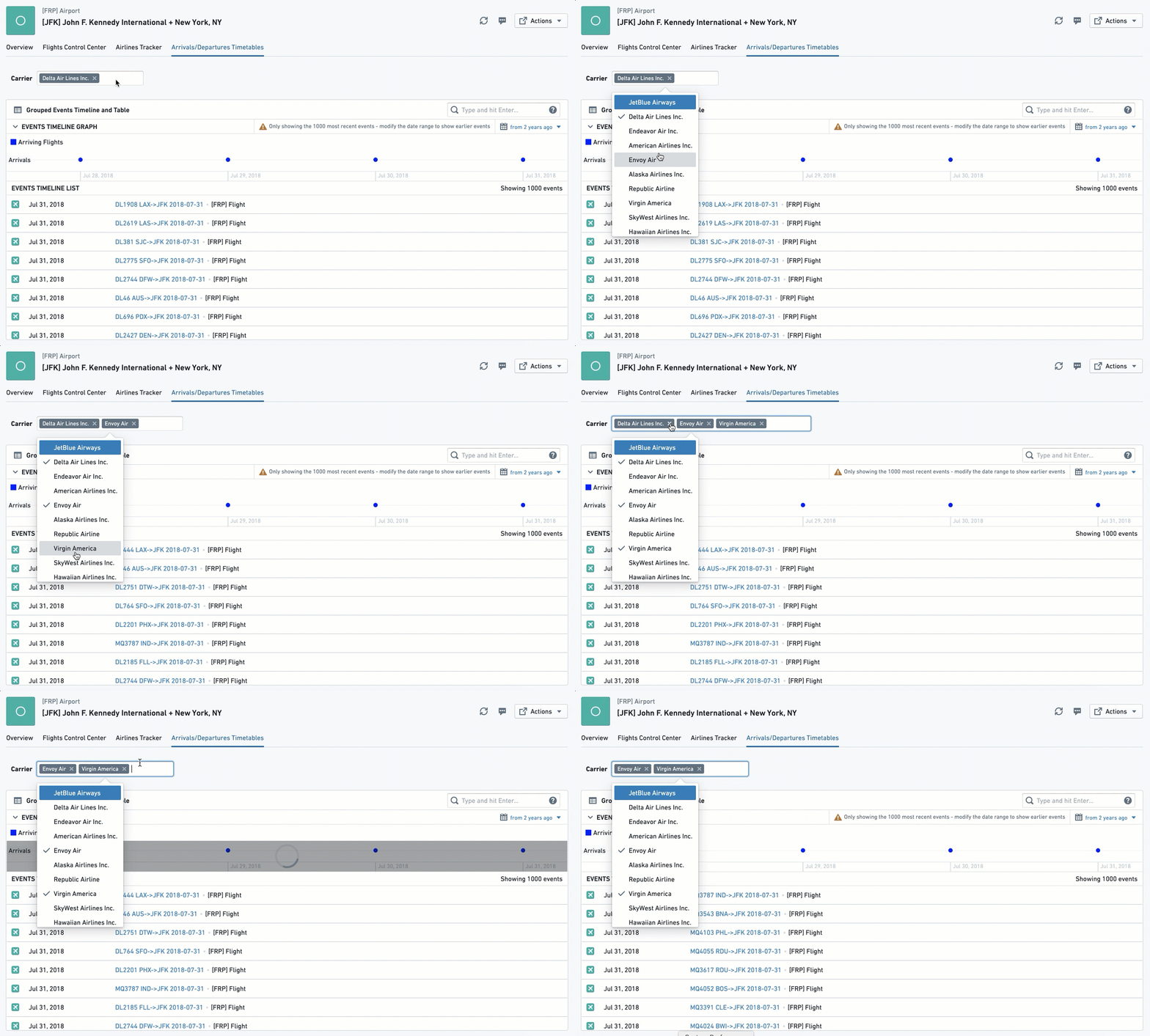
The multiselect filter allows users to filter the Object View by multiple values, with an “OR” statement between them. It keeps all entries that satisfy at least one of the chosen values.
Once configured, this is how it looks:
Configuration
Note: Each setting that is always required is signed with a (*) sign next to it.
- [Required] Linked Object to Filter: Choose the Linked Object for this filter to apply on. The widget configuration would offer you only objects linked to the object you are currently configuring (as defined in the Ontology Manager).
- Example: In an Airport Object View, which includes views of Flights objects, involving both types of links to the Airport: “Arriving Flights” and “Departing Flights”. If you set up the Multiselect Filter with the Linked Object “Arriving Flights”, it would apply to all other widgets that are also involving that same object “Arriving Flights”.
- [Required] Property to Filter: Choose the property you want to filter down by: (1) you first need to choose the object type for the filter; and then (2) choose the property of that object by which you want to filter.
- Once selected, this list of values will be available to users in the Object View, in a filter box with a multi-select dropdown. All other widgets affected by this filter and sharing the object with this filter, would be filtered down to only object instances that have the property values (one or many) chosen.
- Example: Looking at an airport object with arriving flights from 20 origins, a user has an additional widget showing a table of all flights arriving from these origins. The user chooses a multiselect filter for the object
Arriving flights, and then chooses the propertyOrigin Cityfor theFlightsobject. The dropdown filter would present to the user all 20 origins. Once the user chooses a subset of origins, the table widget would only show arriving flights from this subset of origins. - [Optional] Label For Filter: will be displayed to users in the Object View, next to the filter box.
- [Optional] Maximum Number Of Filter Options: determines how many distinct values of the property to filter will be displayed. Set by default to 100.
Common Issues and Notes:
- Once configured, you would need to mark the checkbox “allow cross-filtering” in the configuration editor settings on the right side (see details above) in order for the filter to affect the Object View.
Dropdown Filter
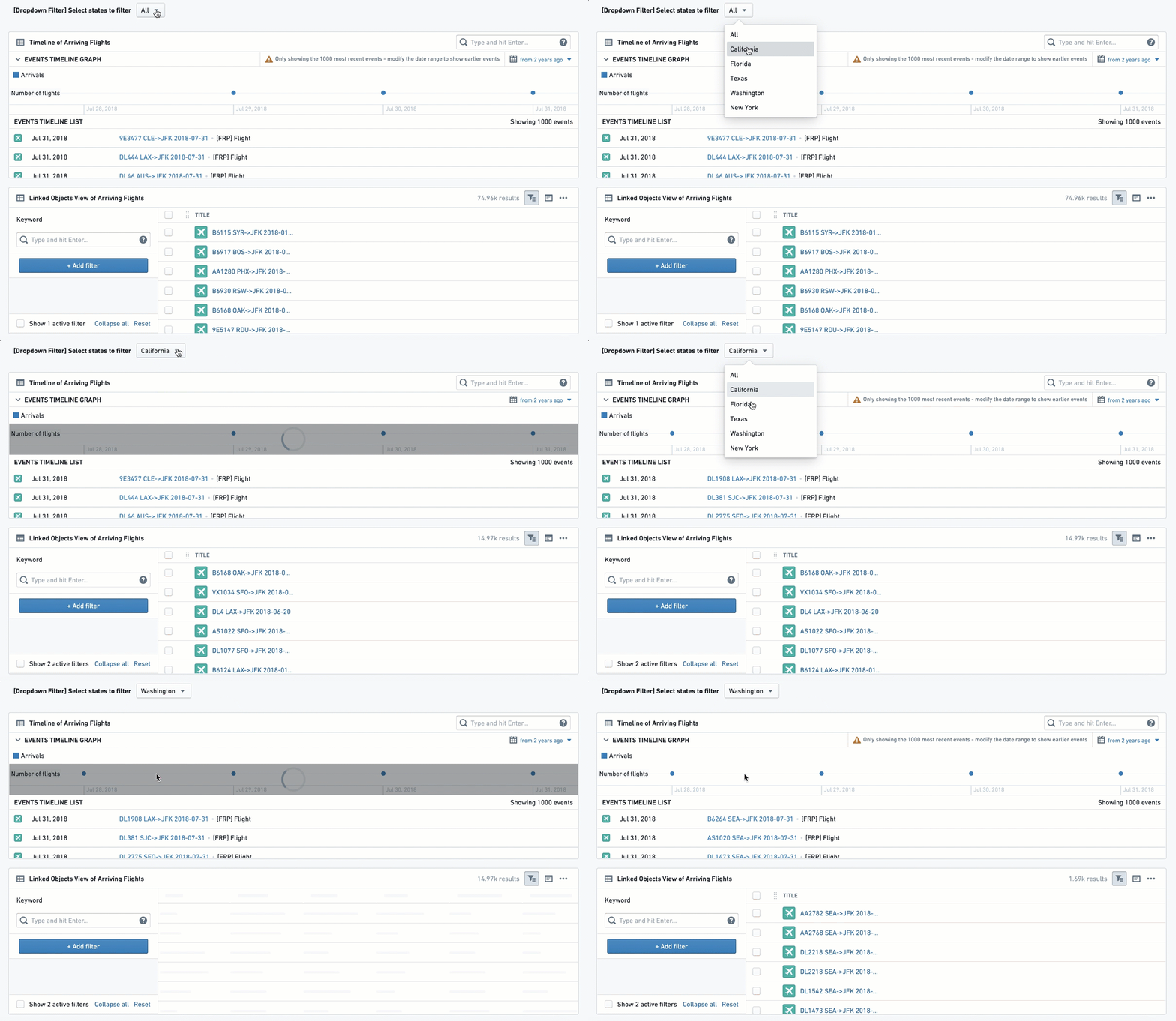
This filter enables having one or more filters with a single-selection dropdown of a single property, allowing the user to filter other widgets in the Object View using a dropdown of values.
Once configured, this is how it looks:
Configuration
For each dropdown filter option you would like to configure, you need to first click on “Add Item”. You will be able to add several dropdown filters under a single widget by just clicking “Add Item” again (they will all appear one next to the other).
Once an item is added, the configuration menu offers two options of "Filter Type":
Option 1 - Dynamic List:
This is the simpler option, allowing an easy selection of an object and a property for the dropdown like most filter widgets:
- [Required] Linked Object to Filter: Select the Linked Object for this filter to apply on. The widget configuration would offer you only objects linked to the object you are currently configuring (as defined in the Ontology Manager).
- [Required] Property to Filter: Select the property you want to filter down by: (I) you first need to select the object type for the filter; and then (II) select the property of that object that you wish to filter by.
- Once selected, all other widgets affected by this filter and related to the same object type as this filter, would filter down from all Linked Objects to only those where their property has the same value as selected in the dropdown.
- [Optional] Label For Filter: Will be displayed to users in the Object View, next to the filter box.
- Enable 'All' filter option toggle: If the filter needs to be mandatory, keep this toggle off, to force users to select one value. If it can have all values selected (do not filter by any of them), turn the toggle on. If you wish to select multiple values, select the Multiselect Filter widget instead.
Option 2 - Value List:
This is the more complex option, specifically for cases where you wish to define an exact list of values to filter from, which would be a sub-list of the full dropdown list. You would need to manually type each and every value you wish to include in the Dropdown Filter for the user. How to configure this:
- [Required] Linked Object to Filter: Select the Linked Object for this filter to apply on.
- [Required] Property to Filter: Select the property you want to filter down by: (I) you first need to select the object type for the filter; and then (II) select the property of that object that you wish to filter by.
- Once selected, all other widgets affected by this filter and related to the same object type as this filter, would filter down from all Linked Objects to only those where their property has the same value as selected in the dropdown.
- [Required] Filter property value(s): You need to manually type down each and every value that you wish to include in this dropdown filter for the user, and click on “Create” to add it.
- Values entered are case-sensitive and will appear in the order they are entered; once entered, values cannot be re-arranged except by removing values (click on the ‘X’) and re-entering them.
- The number of displayed values is limited to 100.
- The ‘All’ option is offered by default. You can remove this option and re-add it if desired (“All”, case-sensitive).
- [Optional] Label For Filter: will be displayed to users in the Object View, next to the filter box.
Common Issues and Notes:
- Consider using the Multiselect filter instead of the Dropdown filter if (a) you want the functionality of selecting more than a single option; (b) you don’t need multiple dropdowns (though this could also be solved with a filter container).
- The interaction of the Dropdown widget with the “Active Widget” is limited. Even if “Enable 'All' filter option” is toggled and enabled, users will still not be able to “Clear filter”, unless they explicitly select “All” under the Multiselect filter.
- Once configured, you would need to mark the checkbox “allow cross-filtering” in the configuration editor settings on the right side (see details above) in order for the filter to affect the Object View.
- There is a limit to the number of dropdown filter boxes the UI is able to present under a single dropdown filter widget (around 7-8 different dropdowns). In the unlikely event that you need more dropdown filters for a single Object View, use an additional Dropdown filter or use a Filter Container.
Button Filter
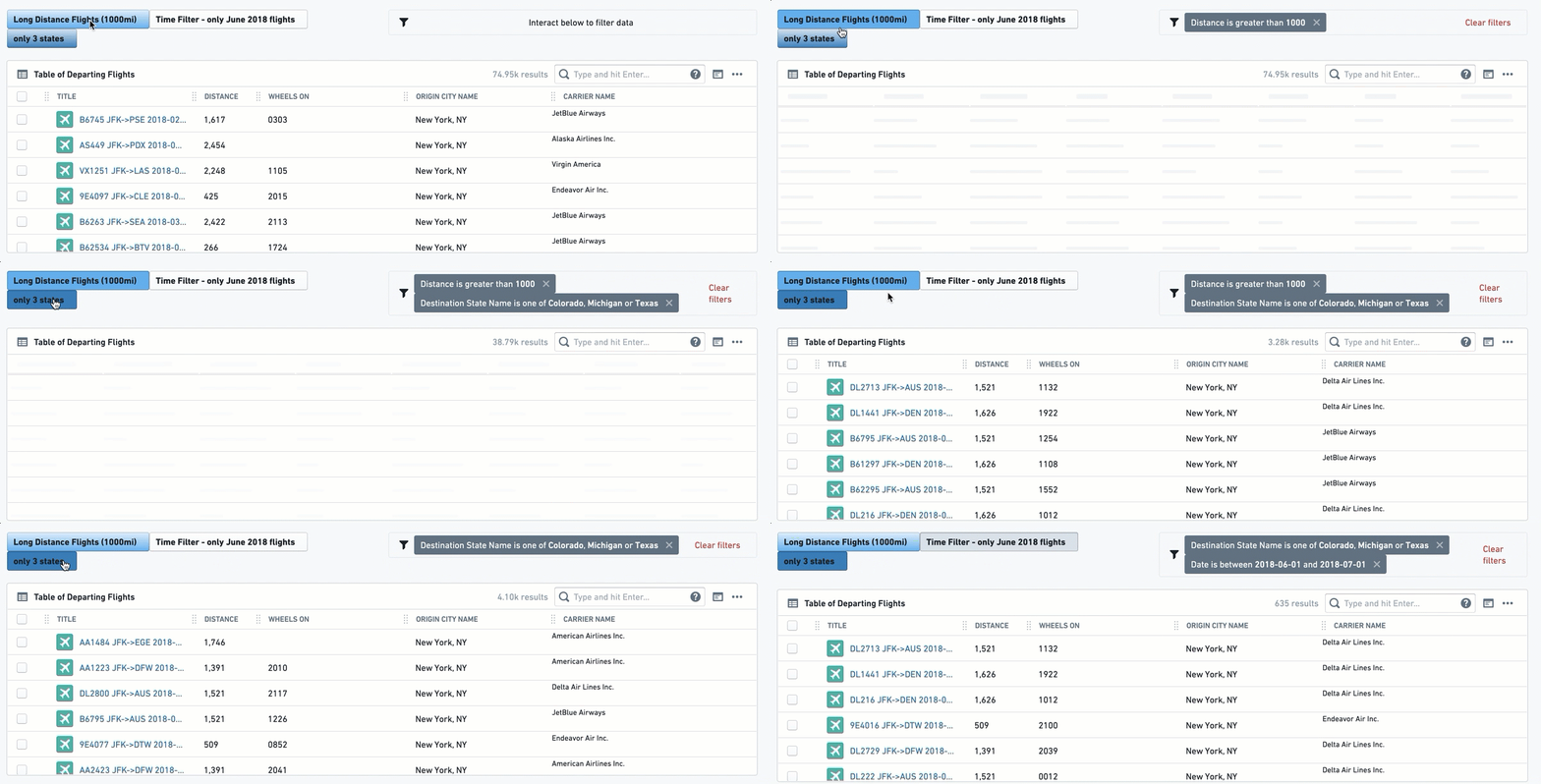
This widget creates a button that with a single click filters to a pre-defined set of values: either text (string) values, a range of numerical values, or a range of dates. A second click on the button un-filters the selection.
This is a rigid filter; once configured by the Object View Editor, there is no configuration choice available to end users.
Note that the button changes color as you select or unselect it. You can add an Active Filters to make the state visually clear.
Once configured, this is how it looks:
Configuration
First, select a button filter type:
- Value List: To filter text properties (strings).
- Range: To filter numerical properties (like integers or doubles).
- Date Range: To filter down to a list of date properties.
For all 3 types of button filters, you will have the following:
-
[Required] Object to Filter: Select the Linked Object for this filter to apply on.
-
[Required] Property to Filter: select the property you want to filter down by: (I) you first need to select the object type for the filter; and then (II) select the property of that object that you wish to filter by.
-
Once selected, all other widgets affected by this filter and related to the same object type as this filter, would filter down from all Linked Objects to only those objects with properties value that the filter condition applies to.
-
[Required] From this point, the setting of the button is different per button type:
- Value List: manually type in the exact list of values you wish to filter by, with an “OR” statement between them. Note that it is case-sensitive and the order cannot be simply re-arranged. The way to re-arrange values is by deleting and re-writing the entire list of values. Note that if you apply both the “All” option as well as another specific value X, then the filter will only apply on value X.
- Range: offers both lower and upper boundary of numerical values. Enter a value to at least one of them:
- Lowerbound = greater or equal to;
- Upperbound = lower or equal to;
- Fill both to have a range filter.
- Make sure to delete the 0 from the Upperbound if you wish to have a “greater than”, and vice versa for “lower than”.
-
Date Range: offers a toggle with 2 options - exact dates (“from 1\1\2019 to 31\12\2019”) or relative to current time (“Last Month” or “Between two years ago and one year ago”). The configuration itself is done with a standard calendar date picker.
-
[Optional] Button Label: the text to display on the button. It’s optional, but it's best practice to create a button with a label.
-
[Optional] Button color: The default color is grey. To select a different color for the button, use the Blueprint standard colors (see https://blueprintjs.com/docs/#core/colors) or use the internal Palantir Blueprint library. Basic colors (“Blue”, “Red”, “Yellow”, etc.) would also work.
- An un-selected button would have a faded color. Only once clicked, it would change to the chosen color.
- The Date Range Button does not have an option to pick a Button Color.
Common Issues and Notes:
- To grant users with more flexibility, consider using:
- “Date Range Filter“ instead of the ”Date Range Button Filter“;
- “Multiselect Filter” or the “Dropdown Filter” instead of the “Value List Button Filter”.
- Note that there are 2 ways to indicate what a button filter does: (I) label the button well; (II) add an “Active Filter” widget, which shows all filters, including the actual values filtered by clicking on the button filters.
- The Button Filter is off by default, so that it has to be clicked for the filter to apply.
- Once configured, you would need to mark the checkbox “allow cross-filtering” in the configuration editor settings on the right side (see details above) in order for the filter to affect the Object View.
Date Range Filter
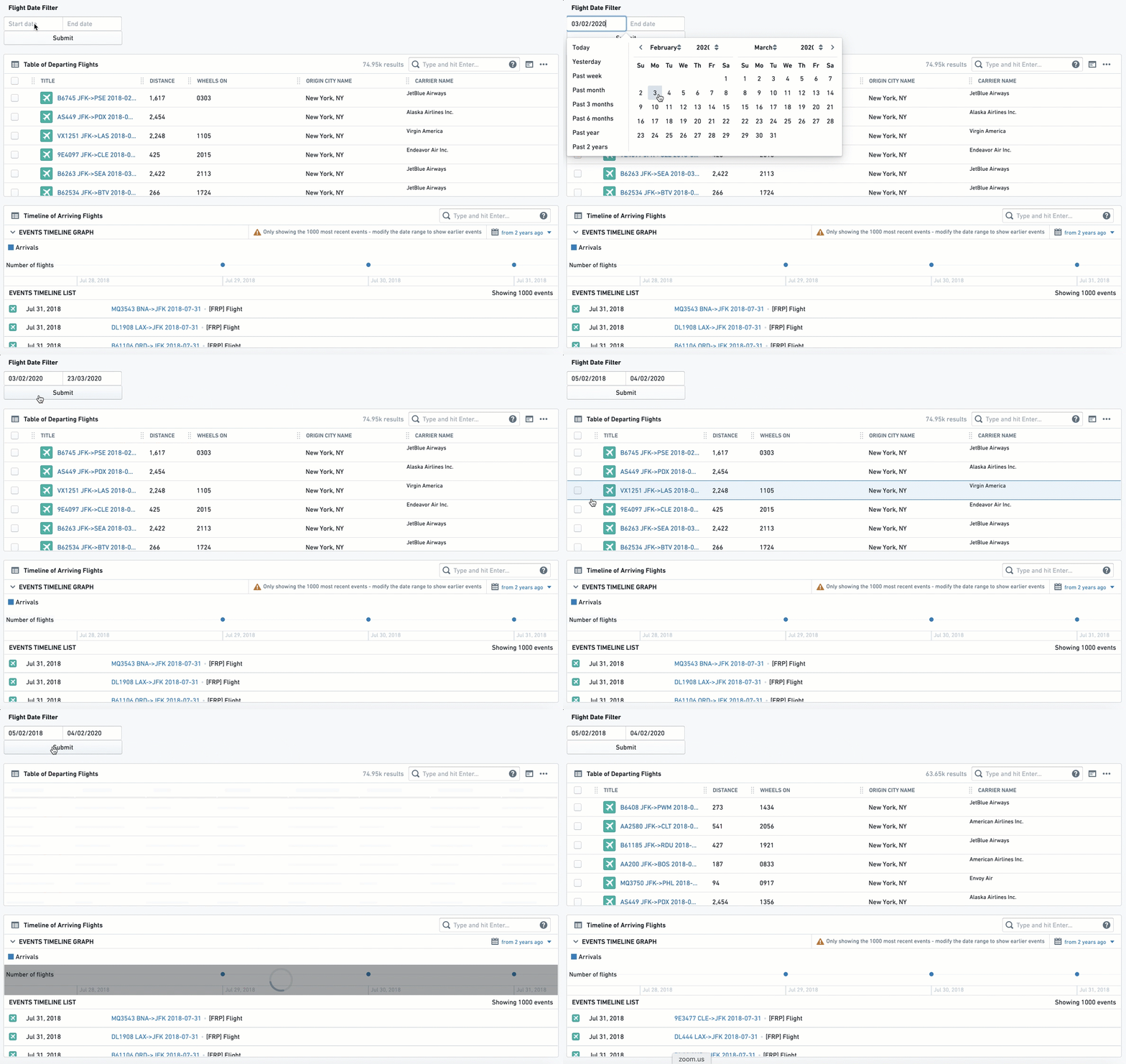
The Date Range Filter allows users to filter down their Object View to a range of dates, based on a specific date property. Once configured, any widget in the Object View is affected once a date range is chosen and the user selects Submit. Views will only display object instances where the date in the chosen date property is within the range.
Note that you should insert the object ID of the object that you want to filter down, which is usually a Linked Object to the object that you are currently configuring.
Once configured, this is how it looks:
Configuration
- [Required] Object to Filter: Select the Linked Object for this filter to apply on.
- [Required] Property to Filter: Select the property you want to filter down by: (I) you first need to select the object type for the filter; and then (II) select the property of that object that you wish to filter by.
- Once selected, all other widgets affected by this filter and related to the same object type as this filter, would filter down from all Linked Objects to only those where the chosen date property is within this dates range.
- [Optional] Label For Filter: will be displayed to users in the Object View, next to the filter box.
Common Issues and Notes:
- Once configured, you would need to mark the checkbox “allow cross-filtering” in the configuration editor settings on the right side (see details above) in order for the filter to affect the Object View.
Linked Object Filter Sidebar
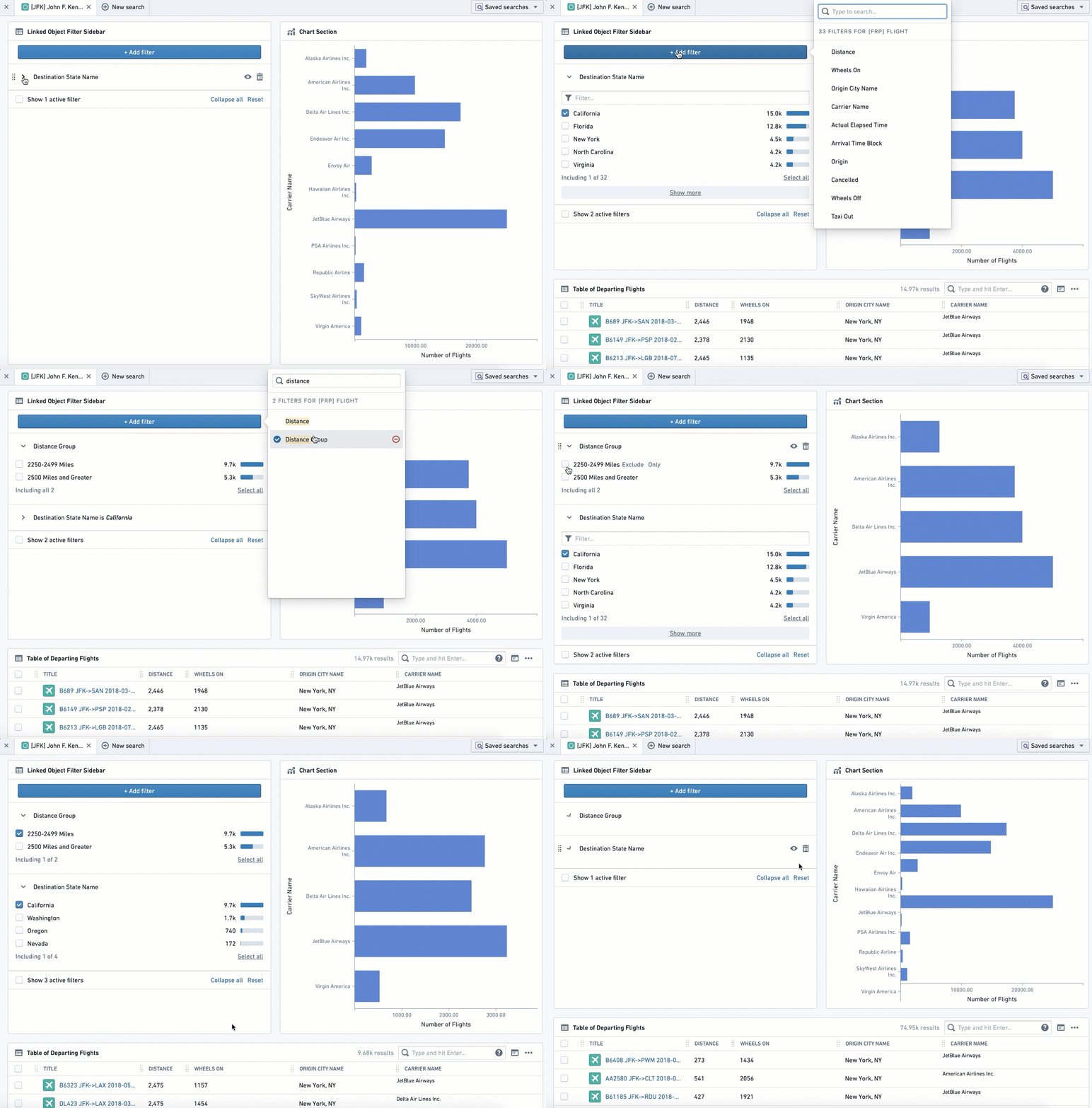
This widget creates a flexible filtering experience, allowing the user to filter the current Object View by any specific set of values out of all properties of that Linked Object.
This widget enables a high degree of choice, but also higher complexity for the user. It requires the user to understand and know the properties of the Linked Object, while all other Filter Widgets (e.g. Dropdown Filter, Button Filter) pre-configure them.
Once configured, this is how it looks:
Configuration
Configuration of this widget only requires selecting the Linked Object that you wish the Object View to filter by. The rest of the configuration, i.e. choosing the specific properties and values to filter by, is completely up to the user and would apply locally on their view only. Once the user refreshes the page or turns to a different object, they would need to re-configure these filters again.
Common Issues and Notes:
- All values chosen for a certain property would have an “OR” statement between them. Values of different properties will have an “AND” statement between them.
- Example: When working with an “Airport” object, the Object View Editor chose to add a Linked Object Filter Sidebar for the Linked Object “Arriving Flights”. A user can select to filter down by Property “Month” and select only January to June; as well as filter by “Carrier Name” and select Delta Airlines and United Airlines. The view would be filtered down to all arriving flights within that airport that are between January and June (January or February ... or June), and are either United or Delta.
Filter Sandbox Container
The Filter Sandbox Container enables you to organize widgets into a container such that all filters inside it are sandboxed, meaning they only affect and are affected by other widgets inside this container.
Configuration
Add the Filter Sandbox Container widget, then add existing widgets into the container by clicking on "Add Item". Select the widget to add from the widget selector.
The other configuration option is the filter set identifier. By default, a new unique value is generated for every new filter sandbox. It can be changed if you want to share filters with:
- Filter Sandbox Container - set the same value of filter set identifier for both of them.
- All widgets on the other tab - enable cross-section filtering on the target tab and set the same value of filter set identifier for it.
Common Issues and Notes:
- Cross-filtering (filters affecting and being affected by other widgets inside the container) is always enabled for this container.
- Use this container over Filter Container widget for sandboxing if you need cross-filtering for widgets inside the container. Use the Filter Container with subscription to filters disabled if you need widgets affected only by predefined filters.
- If you need both cross-filtering inside the sandbox and predefined filters, use Filter Sandbox Container and add a Filter Container inside it with both publishing and subscription to filters enabled.
Filter Container
This widget enables creating a contained subset of widgets with a pre-defined set of filters applied only on them.
This subset of filters can be defined on any combination of the following property types: (1) list of text (string) values; (2) numeric range; and\or (3) date range.
Do not use this widget as a filter sandbox, as it was built to only support pre-defined filters.
Note: To have a filtering sandbox container (that is, to have filters apply only within a container and not be affected by external filters), use the Filter Sandbox Container instead.
Configuration
The Filter Container configuration has two parts:
Part 1 - Apply pre-configured filters on all widgets within the container
These pre-defined filters would be applied by default only to widgets within the container. Pre-defined filters in the container can be any combination of the following three filter types:
- Value List - to filter text properties (i.e. string)
- Range - to filter numerical properties (i.e. integer, double)
- Date Range - to filter down to a list of date properties
For each default filter, you need to configure the following:
- [Required] Linked Object to Filter: Select the Linked Object for this filter to apply on. The widget configuration only offers objects linked to the current object (as defined in the Ontology Manager).
- [Required] Property to Filter: Select the property you want to filter down by: (I) you first need to select the object type for the filter; and then (II) select the property of that object that you wish to filter by.
- Once selected, all other widgets within this container, which are related to the same object type, would filter down from all Linked Objects to only those objects with properties value that the filter condition applies to.
- [Required] From this point, the setting is different per filter type (Text Value List, Numeric Range, Date Range):
- Value List: manually type in the exact list of values you wish to filter by, with an “OR” statement between them. Note that it is case-sensitive and the order cannot be simply re-arranged. The way to re-arrange values is by deleting and re-writing the entire list of values. Note that if you apply both the “All” option as well as another specific value X, then the filter will only apply on value X.
- Range: This allows you to set both the lower and upper boundary of a range of numerical values. Enter a value to at least one of them:
- Lowerbound = greater or equal to;
- Upperbound = lower or equal to;
- Fill both to have a range filter.
- Make sure to delete the 0 from the Upperbound if you wish to have a “greater than”, and vice versa for “lower than”.
- Date Range: offers a toggle with 2 options - exact dates (“from 1\1\2019 to 31\12\2019”) or relative to current time (“Last Month” or “Between two years ago and one year ago”). The configuration itself is done with a standard calendar datepicker.
- [Optional] Filter Label: An internal label for documentation, will not appear anywhere for the user. Optional.

Cross-filtering settings:
- Subscribe to filters for nested sections? If you wish the Filter Container to be affected by filters applied outside the container - both from the tab containing it, as well as other tabs sharing cross-filtering with the current tab. This would also make it consume other filter widgets within the container, e.g. Chart widget with a bar selected, or a multiselect filter.
- Publish filters from nested sections? If you wish the filters inside the Filter Container to apply outside the container - both on the tab containing it, as well as on other tabs sharing cross-filtering with the current tab. This does not apply to the predefined filters, but only to any additional filter widgets within the container.
How to use these toggles?
- Both toggles off - predefined filters apply within the container only, but it neither publishes or consumes any other filters - internal or external to the container.
- Only Subscribe toggle on - the container is affected by external filters, but filtering within the container does not work, unless it is the pre-defined filters.
- Only Publish toggle on - filters widgets within the container apply only outside the container, and not within the container. Only the predefined filters apply within the container.
- Both toggles on - all filters on the tab apply everywhere, except for the pre-defined filters in this container.
Common Issues and Notes:
- The pre-defined filters are only applied within the container and do not apply on any widget outside the container. This is true only for these pre-defined filters, and not for other filter widgets which could be configured within the container. Looking for a sandbox container capability? Try Filter Sandbox Container.
- The pre-defined filters in the “Filter Container” will not be visible for the user in the UI, and will not be possible to remove by users, unless your follow the following steps:
- Add an “Active Filter” widget within the Filter Container to display it.
- Make sure the toggle of “Enable removing default filters” is switched-on (it is on by default). Otherwise, users cannot remove these filters, even with the “Active Filter“ removal option.
- Applying filters inside a filter container will also remove non-matching options in filter widgets, such as Dropdown Filter. If this behavior is not desired, use Filter Sandbox Container instead.
Part 2 - Filter Container as a Container of widgets
Configure views within this container as with any other container. Every widget you add would be subscribed to the pre-defined filters of the Filter Container, as well as any other filter defined to affect it.
Once you click on “Add Section”, you get the same configuration experience as with any other “Add Section” on the main Object View or on other widgets with nested tabs (e.g. any Container widget).
Section layout:
This determines whether widgets within the Filter Container would be stacked vertically (one under the other, this is the default) or horizontally (one next to the other, from left to right).
Active Filters
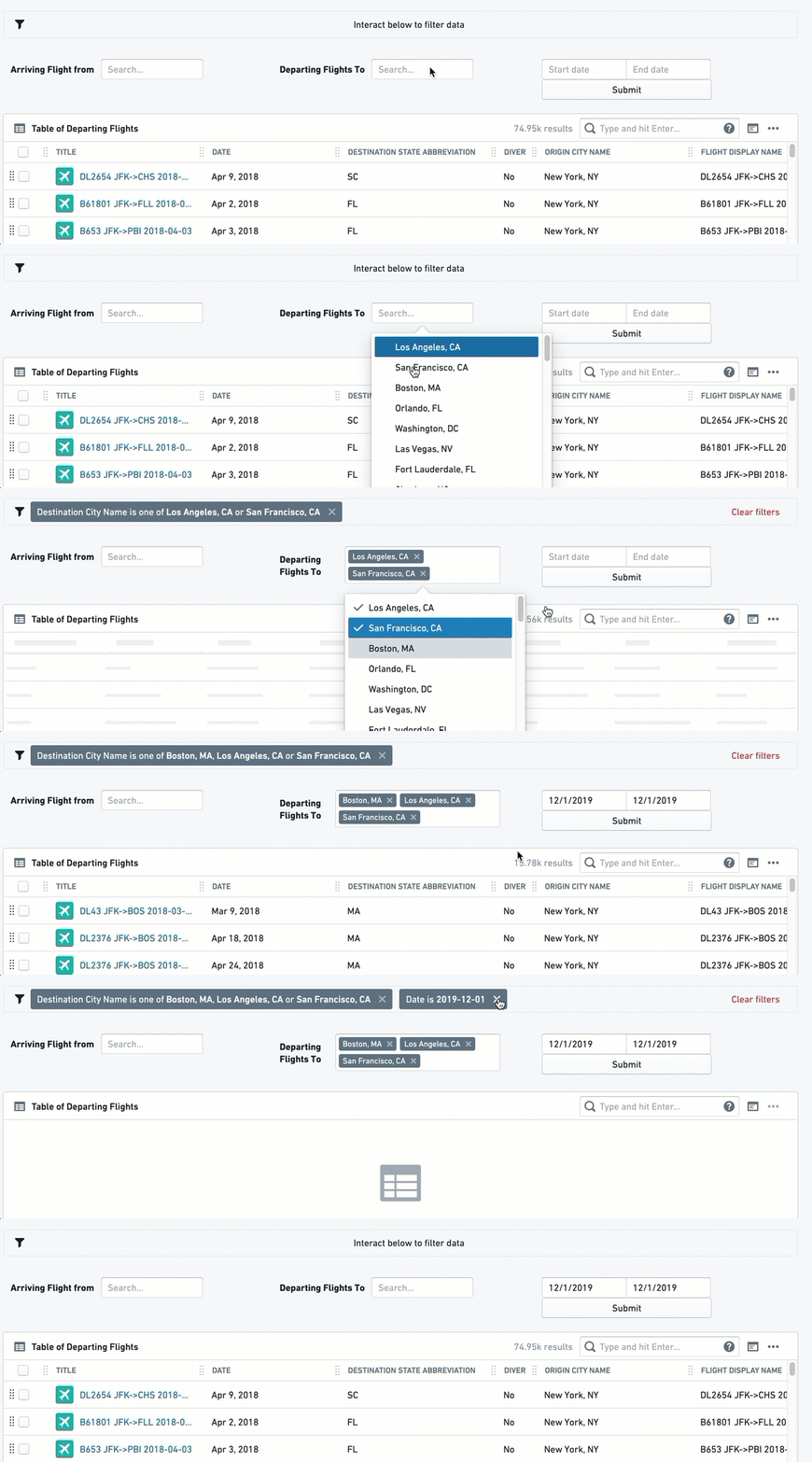
This widget displays a summary of all filters that are currently applied on the Object View, and allows the user to either remove individual filters or clear all filters. There is no configuration required for this filter.
Active Filter is a useful visual indication for the user to understand which filters are currently active on their Object View. Once your Object View contains several filtering widgets (filtering using charts included), and especially if you use Filter Container or Button Filter, the visibility of active filters is important for the user experience.
Once configured, it will look like the interactive widget below, with a filter icon to the left. In this example, it is affected by the different filter widgets:
Configuration
There’s no configuration for the Active Filter widget. Simply add it as a new section.
Common Issues and Notes:
- This widget will display all filters applied from all sections sharing a cross-section and cross-tabs filtering.
- Some filter widgets might not interact with this widget. Currently, it will not remove a filter applied by the Dropdown filter, and users would still need to manually change the value in the dropdown. This makes sense when the Dropdown limits you by default to one value, but it still applies even when the “All” option is enabled.
中文翻译
筛选
许多对象视图要求用户能够对图表、表格、聚合指标和KPI等可视化组件进行筛选。筛选组件允许用户应用不同类型的筛选器,以便深入查看该对象视图上链接对象的特定子集。
此类别包含以下几种筛选组件:
- 通过预定义属性进行筛选,包括字符串、数值和日期,可使用多选筛选器、下拉筛选器、按钮筛选器或日期范围筛选器。
- 如需更灵活的筛选功能,请使用链接对象筛选侧边栏。
- 使用筛选沙箱容器使某些筛选器仅应用于当前视图的一部分。
- 使用筛选容器将预定义的筛选器仅应用于对象视图内的部分组件。
- 使用活动筛选器汇总当前应用于对象视图的所有筛选器。
除了这些专门用于筛选的核心筛选组件外,还有一些专门用于可视化但也允许进行一些筛选的组件,例如图表。条件容器可以根据用户交互的筛选器来显示或隐藏内容。
常见问题与说明:
-
为了使筛选器能够应用于对象视图单个选项卡上的不同组件,甚至跨选项卡应用,您必须在右侧编辑器“设置”下勾选“交叉筛选”复选框。未勾选此复选框的选项卡将不会应用筛选器。
-
为了使筛选器能够跨不同选项卡应用,请确保您希望筛选的所有选项卡的“筛选器集值”具有相同的文本值。此值区分大小写。
-
在这种情况下,使用相同筛选器集值的筛选器将受到相同活动筛选器的影响。例如,如果选项卡A和选项卡B共享相同的筛选器集值,则应用于选项卡A的任何筛选器也将应用于选项卡B,反之亦然。
-
在所有筛选器配置中,您将选择一个链接到当前正在编辑的对象的对象,而不是正在编辑的对象本身。
- 示例:如果您正在配置“机场”的对象视图,并且“航班”链接到该机场,您可能希望拥有关于航班的不同可视化(时间线、图表、所有航班的表格列表),并希望根据“航班”的不同属性(例如,按航空公司筛选、按日期筛选、按始发城市筛选)设置筛选器。
-
因此,在配置筛选器之前,您当前的对象需要链接到另一个对象。设置链接在Ontology Manager中完成。
-
大多数筛选组件仅提供可选功能,允许用户在本地为他们当前浏览的对象视图应用筛选器。
- 大多数筛选组件不允许您预先配置默认激活的筛选器,从而缩小用户的视图范围(筛选容器是一个例外,因为它允许设置预配置的筛选器)。
- 用户可以在当前对象的当前视图上激活筛选器,但一旦他们移动到另一个对象或刷新页面,这些筛选器将不再适用。
多选筛选器
多选筛选器允许用户通过多个值筛选对象视图,这些值之间是“或”的关系。它会保留满足至少一个选定值的所有条目。
配置完成后,效果如下:
配置
注意:每个始终需要的设置旁边都会标有 (*) 符号。
- [必需] 要筛选的链接对象: 选择此筛选器要应用的链接对象。组件配置将仅提供链接到您当前正在配置的对象(在Ontology Manager中定义)的对象。
- 示例:在机场对象视图中,包含航班对象的视图,涉及两种到机场的链接类型:“到达航班”和“出发航班”。如果您将多选筛选器的链接对象设置为“到达航班”,它将应用于所有其他也涉及同一对象“到达航班”的组件。
- [必需] 要筛选的属性: 选择您要筛选的属性:(1) 首先需要选择筛选器的对象类型;然后 (2) 选择要筛选的该对象的属性。
- 选定后,这些值列表将在对象视图中以带有多选下拉菜单的筛选框形式提供给用户。所有受此筛选器影响且与此筛选器共享对象的其他组件,将仅筛选出具有所选属性值(一个或多个)的对象实例。
- 示例:查看一个机场对象,该机场有来自20个始发地的到达航班。用户有一个显示来自这些始发地的所有航班的表格组件。用户为对象
到达航班选择一个多选筛选器,然后为航班对象选择属性始发城市。下拉筛选器将向用户显示所有20个始发地。一旦用户选择了部分始发地,表格组件将仅显示来自这部分始发地的到达航班。 - [可选] 筛选器标签: 将显示在对象视图中筛选框旁边的文本。
- [可选] 最大筛选选项数: 确定要显示的待筛选属性的不同值的数量。默认设置为100。
常见问题与说明:
- 配置完成后,您需要在右侧配置编辑器设置中勾选“允许交叉筛选”复选框(详见上文),以便筛选器影响对象视图。
下拉筛选器
此筛选器允许通过单个属性的单选下拉菜单设置一个或多个筛选器,使用户能够通过值下拉菜单筛选对象视图中的其他组件。
配置完成后,效果如下:
配置
对于您想要配置的每个下拉筛选选项,首先需要点击“添加项目”。您可以通过再次点击“添加项目”在单个组件下添加多个下拉筛选器(它们将并排显示)。
添加项目后,配置菜单提供两种“筛选类型”选项:
选项 1 - 动态列表:
这是较简单的选项,允许像大多数筛选组件一样轻松选择对象和属性用于下拉菜单:
- [必需] 要筛选的链接对象: 选择此筛选器要应用的链接对象。组件配置将仅提供链接到您当前正在配置的对象(在Ontology Manager中定义)的对象。
- [必需] 要筛选的属性: 选择您要筛选的属性:(I) 首先需要选择筛选器的对象类型;然后 (II) 选择要筛选的该对象的属性。
- 选定后,所有受此筛选器影响且与此筛选器关联到相同对象类型的其他组件,将从所有链接对象中筛选出仅其属性值与下拉菜单中选定值相同的对象。
- [可选] 筛选器标签: 将显示在对象视图中筛选框旁边的文本。
- 启用“全部”筛选选项开关: 如果筛选器是强制性的,请保持此开关关闭,以强制用户选择一个值。如果可以选中所有值(不按任何值筛选),请打开此开关。如果您希望选择多个值,请改用多选筛选器组件。
选项 2 - 值列表:
这是较复杂的选项,特别适用于您希望定义要筛选的确切值列表的情况,该列表将是完整下拉列表的子列表。您需要手动输入您希望包含在下拉筛选器中的每一个值。如何配置:
- [必需] 要筛选的链接对象: 选择此筛选器要应用的链接对象。
- [必需] 要筛选的属性: 选择您要筛选的属性:(I) 首先需要选择筛选器的对象类型;然后 (II) 选择要筛选的该对象的属性。
- 选定后,所有受此筛选器影响且与此筛选器关联到相同对象类型的其他组件,将从所有链接对象中筛选出仅其属性值与下拉菜单中选定值相同的对象。
- [必需] 筛选属性值: 您需要手动输入您希望包含在此下拉筛选器中的每一个值,然后点击“创建”以添加它。
- 输入的值区分大小写,并将按输入顺序显示;输入后,除非删除值(点击“X”)并重新输入,否则无法重新排列。
- 显示值的数量限制为100个。
- 默认提供“全部”选项。如果需要,您可以移除此选项并重新添加它(“全部”,区分大小写)。
- [可选] 筛选器标签: 将显示在对象视图中筛选框旁边的文本。
常见问题与说明:
- 如果 (a) 您需要选择多个选项的功能;(b) 您不需要多个下拉菜单(尽管这也可以通过筛选容器解决),请考虑使用多选筛选器代替下拉筛选器。
- 下拉组件与“活动组件”的交互有限。即使“启用‘全部’筛选选项”已切换并启用,用户仍然无法“清除筛选器”,除非他们在多选筛选器下明确选择“全部”。
- 配置完成后,您需要在右侧配置编辑器设置中勾选“允许交叉筛选”复选框(详见上文),以便筛选器影响对象视图。
- 用户界面能够在单个下拉筛选器组件下显示的下拉筛选框数量有限(大约7-8个不同的下拉菜单)。在极少数情况下,如果您需要为单个对象视图使用更多下拉筛选器,请使用额外的下拉筛选器或使用筛选容器。
按钮筛选器
此组件创建一个按钮,单击即可筛选到一组预定义的值:文本(字符串)值、数值范围或日期范围。再次单击按钮可取消筛选。
这是一个固定筛选器;一旦由对象视图编辑器配置,最终用户将无法进行配置选择。
请注意,当您选择或取消选择按钮时,按钮颜色会发生变化。您可以添加一个活动筛选器以使状态在视觉上清晰。
配置完成后,效果如下:
配置
首先,选择按钮筛选器类型:
- 值列表:用于筛选文本属性(字符串)。
- 范围:用于筛选数值属性(如整数或双精度浮点数)。
- 日期范围:用于筛选到日期属性列表。
对于所有3种类型的按钮筛选器,您将拥有以下配置:
-
[必需] 要筛选的对象: 选择此筛选器要应用的链接对象。
-
[必需] 要筛选的属性: 选择您要筛选的属性:(I) 首先需要选择筛选器的对象类型;然后 (II) 选择要筛选的该对象的属性。
-
选定后,所有受此筛选器影响且与此筛选器关联到相同对象类型的其他组件,将从所有链接对象中筛选出仅其属性值满足筛选条件的对象。
-
[必需] 从这一点开始,按钮的设置因按钮类型而异:
- 值列表: 手动输入您希望筛选的确切值列表,这些值之间是“或”的关系。请注意,它区分大小写,并且不能简单地重新排列顺序。重新排列值的方法是删除并重写整个值列表。请注意,如果您同时应用了“全部”选项和另一个特定值X,则筛选器将仅应用于值X。
- 范围: 提供数值范围的下限和上限。至少输入其中一个值:
- 下限 = 大于或等于;
- 上限 = 小于或等于;
- 同时填写两者以形成范围筛选器。
- 如果您希望实现“大于”,请确保从上限中删除0;对于“小于”则相反。
-
日期范围: 提供一个包含2个选项的开关 - 确切日期(“从2019年1月1日到2019年12月31日”)或相对于当前时间(“上个月”或“两年前到一年前之间”)。配置本身通过标准日历日期选择器完成。
-
[可选] 按钮标签: 按钮上显示的文本。这是可选的,但最佳实践是创建一个带有标签的按钮。
-
[可选] 按钮颜色: 默认颜色为灰色。要为按钮选择不同的颜色,请使用Blueprint标准颜色(参见 https://blueprintjs.com/docs/#core/colors)或使用内部Palantir Blueprint库。基本颜色(“蓝色”、“红色”、“黄色”等)也可以使用。
- 未选中的按钮将显示褪色颜色。只有单击后,它才会变为所选颜色。
- 日期范围按钮没有选择按钮颜色的选项。
常见问题与说明:
- 为了给用户提供更大的灵活性,请考虑使用:
- “日期范围筛选器”代替“日期范围按钮筛选器”;
- “多选筛选器”或“下拉筛选器”代替“值列表按钮筛选器”。
- 请注意,有两种方法可以指示按钮筛选器的功能:(I) 为按钮添加清晰的标签;(II) 添加一个“活动筛选器”组件,该组件显示所有筛选器,包括通过单击按钮筛选器筛选的实际值。
- 按钮筛选器默认处于关闭状态,因此需要单击它才能应用筛选。
- 配置完成后,您需要在右侧配置编辑器设置中勾选“允许交叉筛选”复选框(详见上文),以便筛选器影响对象视图。
日期范围筛选器
日期范围筛选器允许用户根据特定的日期属性,将对象视图筛选到某个日期范围。 配置完成后,一旦用户选择日期范围并点击提交,对象视图中的任何组件都会受到影响。视图将仅显示所选日期属性中的日期在指定范围内的对象实例。
请注意,您应该输入要筛选的对象的对象ID,该对象通常是链接到您当前正在配置的对象。
配置完成后,效果如下:
配置
- [必需] 要筛选的对象: 选择此筛选器要应用的链接对象。
- [必需] 要筛选的属性: 选择您要筛选的属性:(I) 首先需要选择筛选器的对象类型;然后 (II) 选择要筛选的该对象的属性。
- 选定后,所有受此筛选器影响且与此筛选器关联到相同对象类型的其他组件,将从所有链接对象中筛选出仅所选日期属性在此日期范围内的对象。
- [可选] 筛选器标签: 将显示在对象视图中筛选框旁边的文本。
常见问题与说明:
- 配置完成后,您需要在右侧配置编辑器设置中勾选“允许交叉筛选”复选框(详见上文),以便筛选器影响对象视图。
链接对象筛选侧边栏
此组件创建了一个灵活的筛选体验,允许用户根据该链接对象的所有属性中的任何特定值集来筛选当前对象视图。
此组件提供了高度的选择自由,但也给用户带来了更高的复杂性。它要求用户理解并了解链接对象的属性,而所有其他筛选组件(例如下拉筛选器、按钮筛选器)则预先配置了这些属性。
配置完成后,效果如下:
配置
此组件的配置仅需要选择您希望对象视图按其进行筛选的链接对象。其余的配置,即选择要筛选的特定属性和值,完全由用户决定,并且仅本地应用于他们的视图。一旦用户刷新页面或转向另一个对象,他们将需要重新配置这些筛选器。
常见问题与说明:
- 为某个属性选择的所有值之间是“或”的关系。不同属性的值之间是“与”的关系。
- 示例:在处理“机场”对象时,对象视图编辑器选择为链接对象“到达航班”添加一个链接对象筛选侧边栏。用户可以选择按属性“月份”进行筛选,并仅选择一月到六月;同时按“承运人名称”进行筛选,并选择达美航空和美国联合航空。视图将筛选为在该机场内,月份在一月到六月之间(一月或二月...或六月),并且承运人是联合航空或达美航空的所有到达航班。
筛选沙箱容器
筛选沙箱容器使您能够将组件组织到一个容器中,使得容器内的所有筛选器都被沙箱化,这意味着它们仅影响容器内的其他组件,并仅受其影响。
配置
添加筛选沙箱容器组件,然后通过点击“添加项目”将现有组件添加到容器中。 从组件选择器中选择要添加的组件。
另一个配置选项是筛选器集标识符。默认情况下,每个新的筛选沙箱都会生成一个新的唯一值。如果您希望与以下对象共享筛选器,则可以更改此值:
- 筛选沙箱容器 - 为两者设置相同的筛选器集标识符值。
- 另一个选项卡上的所有组件 - 在目标选项卡上启用交叉筛选,并为其设置相同的筛选器集标识符值。
常见问题与说明:
- 此容器始终启用交叉筛选(筛选器影响容器内的其他组件并受其影响)。
- 如果需要容器内组件的交叉筛选,请优先使用此容器而不是筛选容器组件进行沙箱化。如果希望组件仅受预定义筛选器影响,请使用禁用订阅筛选器的筛选容器。
- 如果既需要沙箱内的交叉筛选,又需要预定义筛选器,请使用筛选沙箱容器,并在其内部添加一个筛选容器,同时启用其发布和订阅筛选器功能。
筛选容器
此组件允许创建一个包含组件的子集,并对其应用一组预定义的筛选器。
此筛选器子集可以定义在以下属性类型的任意组合上:(1) 文本(字符串)值列表;(2) 数值范围;和/或 (3) 日期范围。
不要将此组件用作筛选沙箱,因为它仅设计用于支持预定义的筛选器。
注意:要拥有筛选沙箱容器(即,使筛选器仅应用于容器内且不受外部筛选器影响),请改用筛选沙箱容器。
配置
筛选容器的配置包含两部分:
第1部分 - 将预配置的筛选器应用于容器内的所有组件
这些预定义的筛选器将默认仅应用于容器内的组件。容器中的预定义筛选器可以是以下三种筛选器类型的任意组合:
- 值列表 - 用于筛选文本属性(即字符串)
- 范围 - 用于筛选数值属性(即整数、双精度浮点数)
- 日期范围 - 用于筛选到日期属性列表
对于每个默认筛选器,您需要配置以下内容:
- [必需] 要筛选的链接对象: 选择此筛选器要应用的链接对象。组件配置仅提供链接到当前对象(在Ontology Manager中定义)的对象。
- [必需] 要筛选的属性: 选择您要筛选的属性:(I) 首先需要选择筛选器的对象类型;然后 (II) 选择要筛选的该对象的属性。
- 选定后,此容器内所有关联到相同对象类型的其他组件,将从所有链接对象中筛选出仅其属性值满足筛选条件的对象。
- [必需] 从这一点开始,设置因筛选器类型而异(文本值列表、数值范围、日期范围):
- 值列表: 手动输入您希望筛选的确切值列表,这些值之间是“或”的关系。请注意,它区分大小写,并且不能简单地重新排列顺序。重新排列值的方法是删除并重写整个值列表。请注意,如果您同时应用了“全部”选项和另一个特定值X,则筛选器将仅应用于值X。
- 范围: 这允许您设置数值范围的下限和上限。至少输入其中一个值:
- 下限 = 大于或等于;
- 上限 = 小于或等于;
- 同时填写两者以形成范围筛选器。
- 如果您希望实现“大于”,请确保从上限中删除0;对于“小于”则相反。
- 日期范围: 提供一个包含2个选项的开关 - 确切日期(“从2019年1月1日到2019年12月31日”)或相对于当前时间(“上个月”或“两年前到一年前之间”)。配置本身通过标准日历日期选择器完成。
- [可选] 筛选器标签: 用于文档的内部标签,不会向用户显示。可选。
交叉筛选设置:
- 订阅嵌套部分的筛选器? 如果您希望筛选容器受到容器外部应用的筛选器的影响 - 包括来自包含它的选项卡,以及与该当前选项卡共享交叉筛选的其他选项卡。这也会使其使用容器内的其他筛选组件,例如选定了某个条形图的图表组件,或多选筛选器。
- 发布嵌套部分的筛选器? 如果您希望筛选容器内部的筛选器应用到容器外部 - 包括应用到包含它的选项卡,以及应用到与该当前选项卡共享交叉筛选的其他选项卡。这不适用于预定义的筛选器,仅适用于容器内的任何其他筛选组件。
如何使用这些开关?
- 两个开关都关闭 - 预定义筛选器仅应用于容器内,但它既不发布也不消费任何其他筛选器 - 无论是容器内部还是外部的。
- 仅打开订阅开关 - 容器受外部筛选器影响,但容器内的筛选(预定义筛选器除外)不起作用。
- 仅打开发布开关 - 容器内的筛选组件仅应用于容器外部,而不应用于容器内部。只有预定义的筛选器应用于容器内部。
- 两个开关都打开 - 选项卡上的所有筛选器都应用于所有地方,但此容器中的预定义筛选器除外。
常见问题与说明:
- 预定义的筛选器仅应用于容器内部,不应用于容器外部的任何组件。这仅适用于这些预定义的筛选器,不适用于可能在容器内配置的其他筛选组件。正在寻找沙箱容器功能?请尝试筛选沙箱容器。
- “筛选容器”中的预定义筛选器对用户界面中的用户不可见,并且用户无法移除,除非您执行以下步骤:
- 在筛选容器内添加一个“活动筛选器”组件以显示它。
- 确保“启用移除默认筛选器”开关已打开(默认情况下是打开的)。否则,即使用户拥有“活动筛选器”的移除选项,也无法移除这些筛选器。
- 在筛选容器内应用筛选器也会移除筛选组件(例如下拉筛选器)中不匹配的选项。如果不需要此行为,请改用筛选沙箱容器。
第2部分 - 筛选容器作为组件容器
像使用任何其他容器一样配置此容器内的视图。您添加的每个组件都将订阅筛选容器的预定义筛选器,以及任何其他定义为影响它的筛选器。
一旦您点击“添加部分”,您将获得与在主对象视图或其他具有嵌套选项卡的组件(例如任何容器组件)上“添加部分”相同的配置体验。
部分布局:
这决定了筛选容器内的组件是垂直堆叠(一个在另一个下面,这是默认设置)还是水平排列(一个挨着另一个,从左到右)。
活动筛选器
此组件显示当前应用于对象视图的所有筛选器的摘要,并允许用户移除单个筛选器或清除所有筛选器。此筛选器无需配置。
活动筛选器是一个有用的视觉指示,帮助用户了解当前哪些筛选器在其对象视图上处于活动状态。一旦您的对象视图包含多个筛选组件(包括使用图表进行筛选),特别是如果您使用了筛选容器或按钮筛选器,活动筛选器的可见性对于用户体验至关重要。
配置完成后,它将如下面的交互式组件所示,左侧有一个筛选图标。在此示例中,它受到不同筛选组件的影响:
配置
活动筛选器组件无需配置。只需将其作为新部分添加即可。
常见问题与说明:
- 此组件将显示所有共享交叉筛选和跨选项卡筛选的部分应用的所有筛选器。
- 某些筛选组件可能无法与此组件交互。目前,它不会移除由下拉筛选器应用的筛选器,用户仍然需要手动更改下拉菜单中的值。当下拉菜单默认限制为一个值时,这是合理的,但即使启用了“全部”选项,情况仍然如此。