Getting started(入门指南)
This tutorial explains how to create an action type that is backed by an Ontology Edit function.
Prerequisites
In this tutorial, we will use the same Demo Ticket object type and sample objects as in the Getting Started with Actions tutorial.
Start by writing an Ontology edit function that performs the desired edits for your action. This requires:
- Setting up a repository using the functions on objects TypeScript template,
- Importing the relevant object types into your repository, and
- Publishing the Ontology edit function for actions to read.
Information on these steps can be found in the functions documentation:
- Getting started: Follow this tutorial to create a basic functions repository and publish a function.
- Functions on objects: Follow this tutorial to create a function that uses object data.
- Ontology edits: Use this reference to create an Ontology edit function.
Once you have written and published an Ontology edit function, the steps below will connect the function to an action so that the function can be used to make edits to objects. For the purposes of this tutorial, we have written and published the following Ontology edit function from a repository:
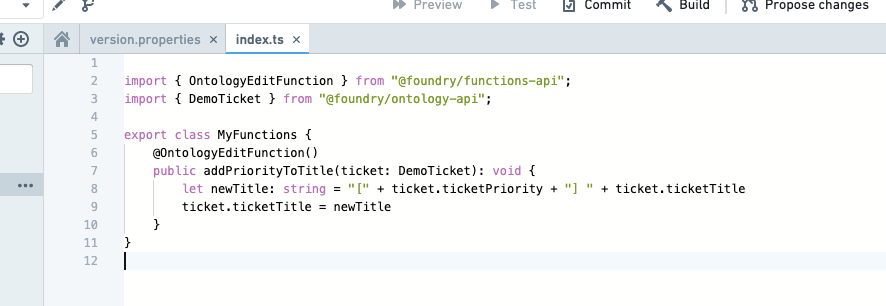
For convenience, the code is available here:
@OntologyEditFunction()
public addPriorityToTitle(ticket: DemoTicket): void {
    let newTitle: string = "[" + ticket.ticketPriority + "]" + ticket.ticketTitle;
    ticket.ticketTitle = newTitle;
}
:::callout{theme="warning"}
Functions for use in action types must be annotated with @OntologyEditFunction() instead of @Function(). Further details can be found in the documentation for functions on objects.
:::
Creating a function-backed action
In the Rules section, add a single rule of type Function. Search for the function you published as part of the prerequisites, and pick the latest version. Configure the inputs to match up to the action parameters, as below. Note that a function rule cannot be combined with other Ontology rules.
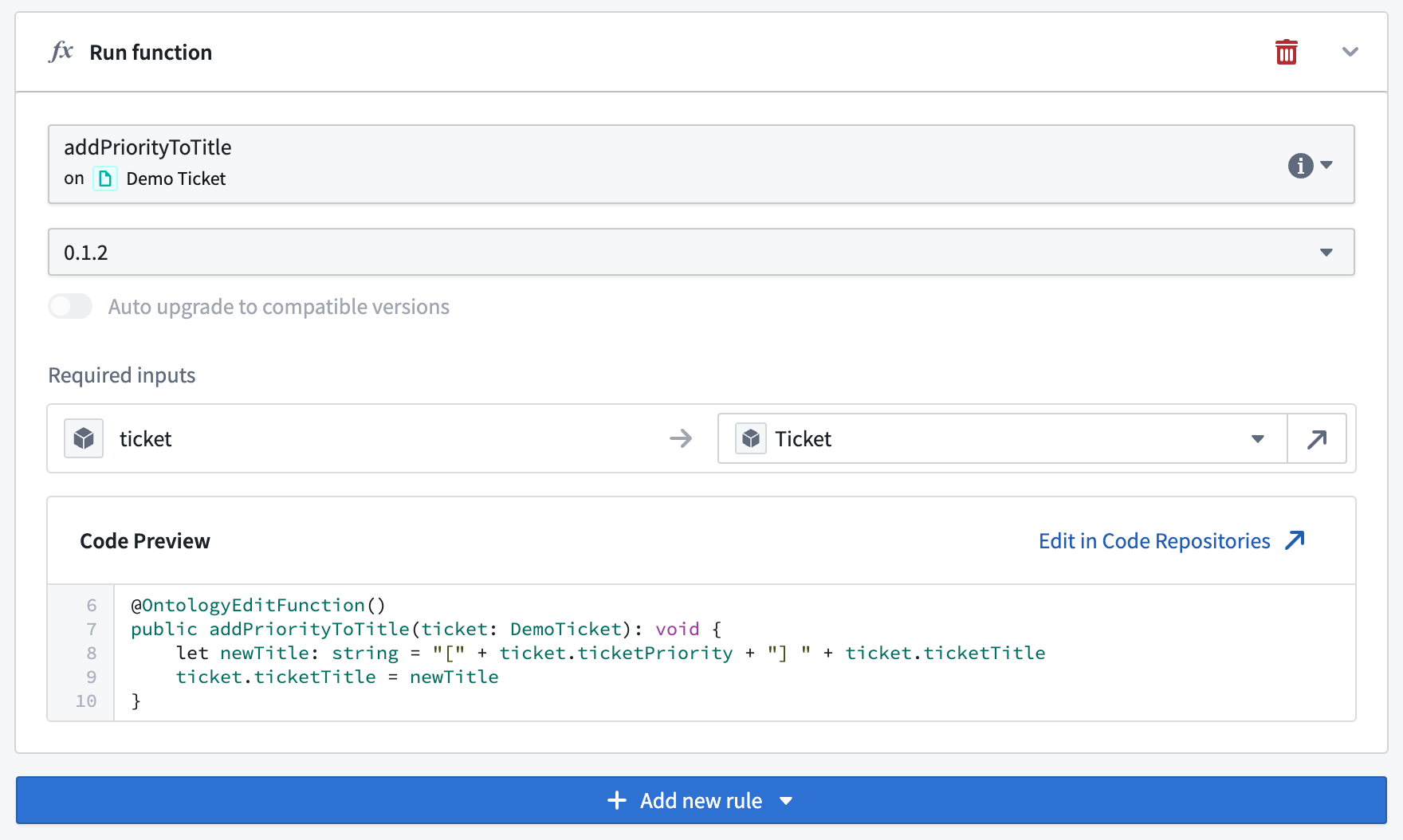
When selecting the function, all inputs of the function will automatically be created as parameters and added to the Parameters tab. In the example shown in these screenshots, a Demo Ticket parameter of type Object reference has been created. The parameter can now be customized further if needed.
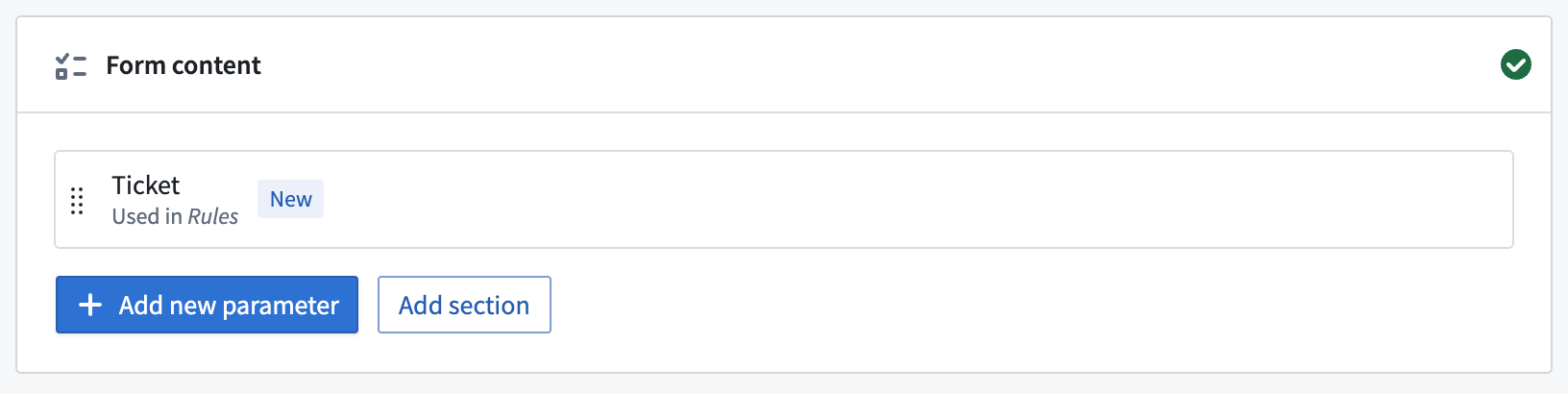
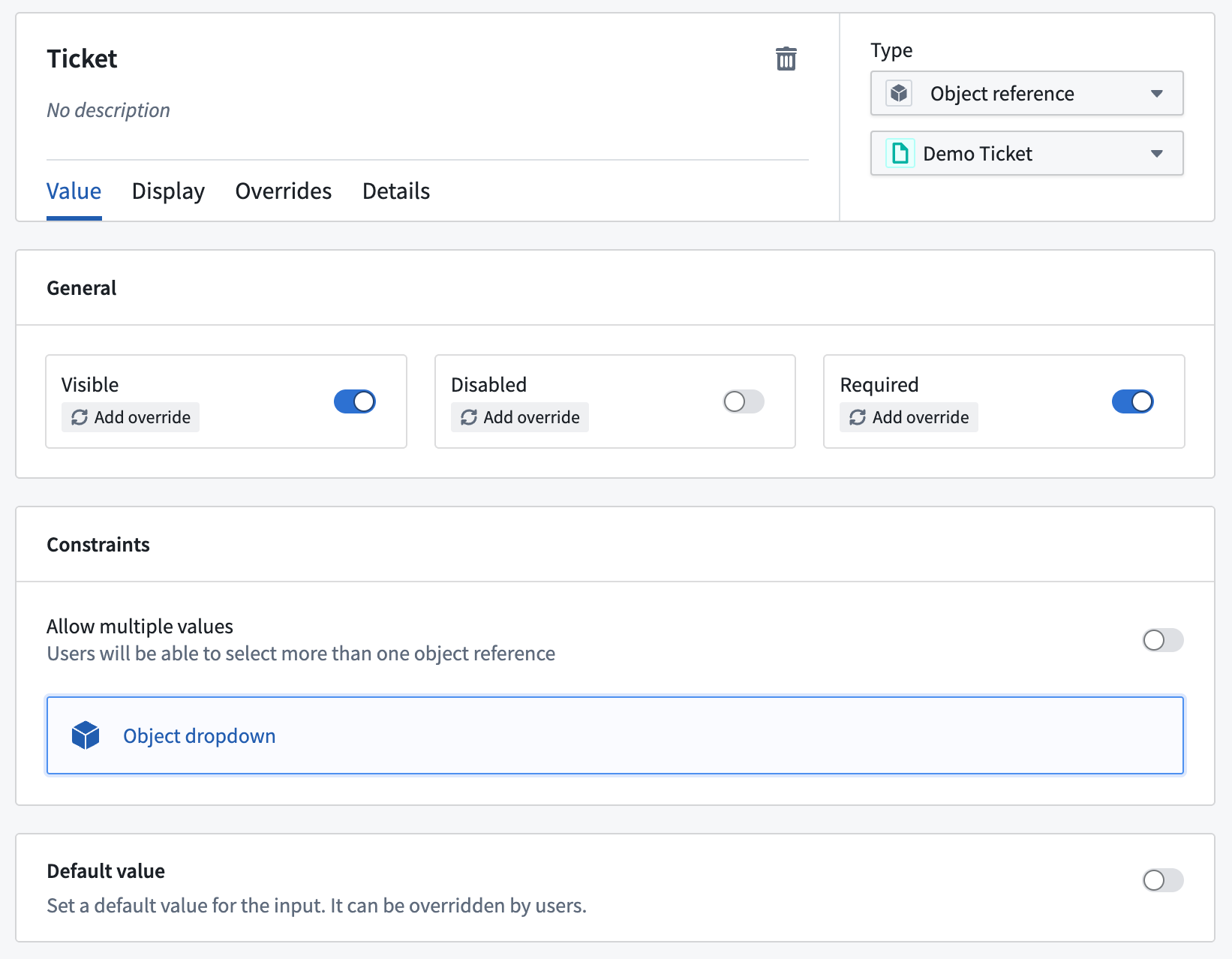
Save your action and configure it across the platform as described in the guidance for integration with other applications.
Changing function version
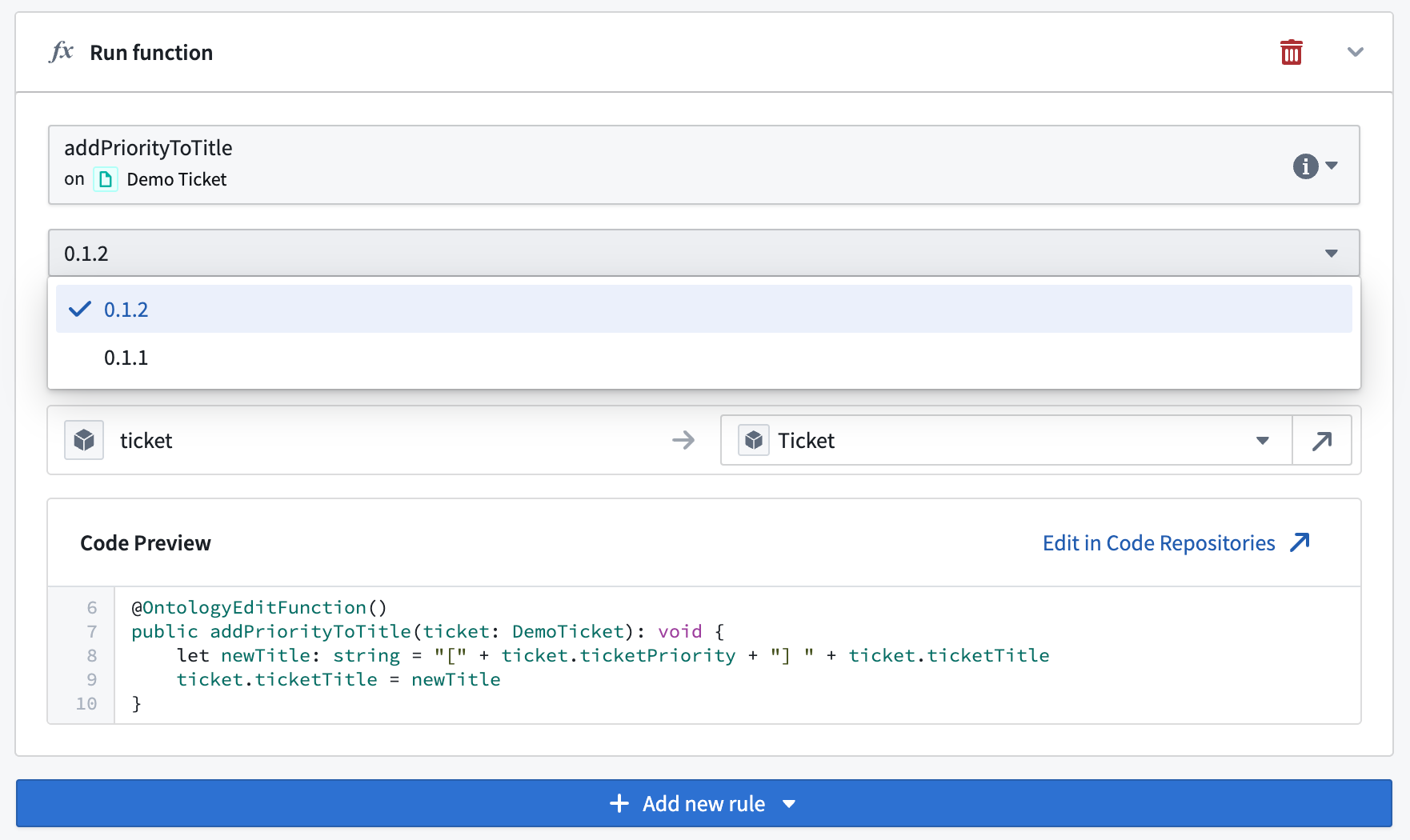
By default, if the function logic is changed, the action does not automatically update to match it. Instead, you must return to the Rules section of the action and upgrade the version of the function that the action is referencing. For example, if we published version 0.1.2 of the function, we would need to update it here:
Auto upgrades
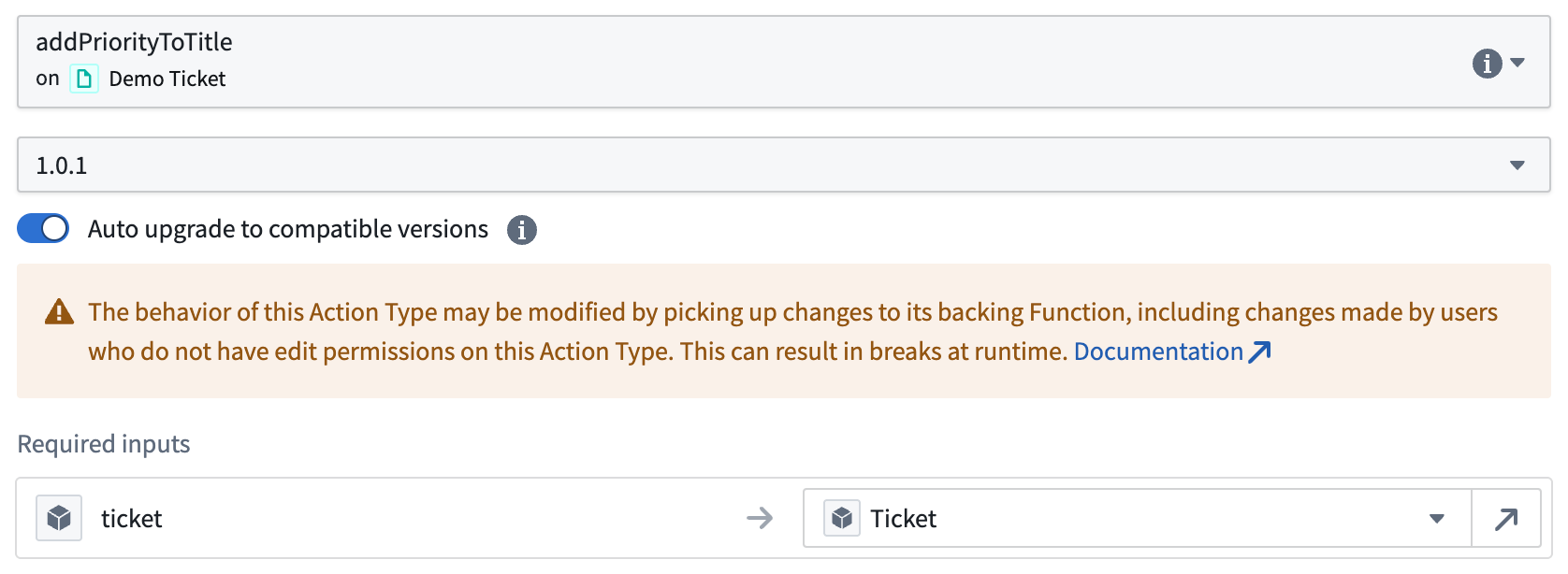
You can optionally choose to enable auto upgrades for the function that the action is referencing. If enabled, the action will depend on the function at a version range and resolve the version at runtime.
To enable auto upgrades for an action, navigate to the Rules section of the action and select the Function parameter. In the Function dropdown, select the minimum version of the function that you want to be run and enable the Auto upgrade option. This will correspond to a version range dependency that comprises all backward compatible versions, such as minor or patch upgrades, of the selected minimum version.
:::callout{theme="neutral"}
Auto upgrades are disabled for function versions of the form 0.y.z. These versions are reserved for initial development where function API and behavior may change frequently and should not be considered stable. Refer to the documentation on choosing a release version.
:::
Security
If auto upgrades are enabled for a function-backed action, users who do not have edit permissions on the action can modify the action's behavior by making changes to the backing function. This is because edit permissions on the function are not tied to the permissions on the action.
Breaking changes
Auto upgrades can result in action execution failures due to breaking changes in bad function releases.
Provenance
The provenance of the action is set according to the provenance of the selected minimum function version. If a newer release of the function returns edits outside of this provenance (for example, an additional object type), action execution will fail.
:::callout{theme="neutral"} Currently, the provenance consists only of the object types that the action may edit at runtime. :::
中文翻译
入门指南
本教程将介绍如何创建由本体编辑函数支持的操作类型(action type)。
前提条件
在本教程中,我们将使用与操作入门教程相同的Demo Ticket对象类型(object type)和示例对象。
首先编写一个本体编辑函数(Ontology edit function),用于执行操作所需的编辑。这需要:
- 使用对象函数TypeScript模板设置一个代码仓库(repository),
- 将相关对象类型导入代码仓库,
- 发布本体编辑函数以供操作读取。
有关这些步骤的详细信息,请参阅函数文档:
编写并发布本体编辑函数后,按照以下步骤将函数连接到操作,以便函数可用于编辑对象。在本教程中,我们已从代码仓库编写并发布了以下本体编辑函数:
为方便起见,代码如下:
@OntologyEditFunction()
public addPriorityToTitle(ticket: DemoTicket): void {
    let newTitle: string = "[" + ticket.ticketPriority + "]" + ticket.ticketTitle;
    ticket.ticketTitle = newTitle;
}
:::callout{theme="warning"}
用于操作类型的函数必须使用@OntologyEditFunction()注解,而非@Function()。更多详情请参阅对象函数文档。
:::
创建函数支持的操作
在规则部分,添加一条类型为函数的规则。搜索您在前提条件中发布的函数,并选择最新版本。如下所示配置输入以匹配操作参数。请注意,函数规则不能与其他本体规则结合使用。
选择函数时,函数的所有输入将自动创建为参数并添加到参数选项卡中。在以下截图所示的示例中,已创建一个类型为对象引用的Demo Ticket参数。如有需要,可进一步自定义该参数。
保存操作,并按照与其他应用程序集成的指南在整个平台上进行配置。
更改函数版本
默认情况下,如果函数逻辑发生更改,操作不会自动更新以匹配更改。相反,您必须返回操作的规则部分,并升级操作所引用的函数版本。例如,如果我们发布了函数的0.1.2版本,则需要在此处更新:
自动升级
您可以选择为操作引用的函数启用自动升级。如果启用,操作将依赖于版本范围内的函数,并在运行时解析版本。
要为操作启用自动升级,请导航至操作的规则部分,选择函数参数。在函数下拉菜单中,选择您希望运行的最低函数版本,并启用自动升级选项。这将对应一个版本范围依赖,包含所选最低版本的所有向后兼容版本,例如次要或补丁升级。
:::callout{theme="neutral"}
对于形式为0.y.z的函数版本,自动升级处于禁用状态。这些版本保留用于初始开发,函数API和行为可能频繁更改,不应视为稳定版本。请参阅选择发布版本的文档。
:::
安全性
如果为函数支持的操作启用了自动升级,则没有操作编辑权限的用户可以通过更改支持函数来修改操作的行为。这是因为函数的编辑权限与操作的权限无关。
破坏性变更
自动升级可能因不良函数发布中的破坏性变更而导致操作执行失败。
来源
操作的来源根据所选最低函数版本的来源设置。如果函数的新版本返回此来源之外的编辑(例如,额外的对象类型),操作执行将失败。
:::callout{theme="neutral"} 目前,来源仅包含操作在运行时可能编辑的对象类型。 :::