Notifications(通知)
Notifications can be added to an action through the Add new rule dropdown menu. Learn more about how to add a notification.

Configuring a notification requires specification of recipients and content. The following sections provide more detail on these options.
Recipients
Configuring the Recipients option of a notification allows you to specify the set of Foundry users who will receive a notification when the action runs. Notifications will be sent to each recipient individually. Adding users as CC (carbon copy) recipients to email notifications is not supported.
There are several supported ways of specifying recipients:

- Static: In the configuration, you may select a set of users or groups who will always be notified when the action runs.
- From a parameter: If you have a parameter to the action that is a Foundry user or group ID, you may specify this as your recipient for a notification.
- This can be used to allow the sender to select one or more recipients in the user interface of an application or module that uses this action, or to automatically detect and send a notification to the user running the action.
- From an attribute of an object parameter: If you have an object parameter to the action, and one of the properties of that object contains a Foundry user or group ID, you may specify that property of a parameter as the recipient. This is also possible for lists of Foundry user and group IDs.
- From a function: If your use case is not covered by the above options, you may write a custom function which takes in action parameters and will return the list of users or groups who should be notified. Learn more about how to write a function that returns a list of users or groups.
Examples of use cases for recipients based on a function include:
- Combining the other options for recipients; for example, notifying the
assigneespecified from an attribute of an object parameter and also always notifying a static set of additional recipients. - Recipient selection based on other parameters or property values of parameters; for example, whenever there is a new task in EMEA, notify one set of users; whenever there is a new task in North America, notify a different set of users.
- Any other custom logic which does not fit into the structured options.
:::callout{theme="neutral"} Recipients may change their preferences for how notifications are delivered to them. For example, one user may choose to only have notifications delivered in their web browser, while another user may choose to receive both in-platform toasts and emails. If a user has action notifications turned off in their personal preferences, they will not be notified. However, they may still view their notifications when logged into Foundry by going to "Notifications" and then "See All" in the Workspace. :::
Content
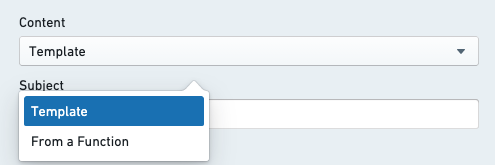
There are a number of options for customizing the content of notifications. Content may be configured via Template or provided via a custom function. Selecting template content will allow you to configure the full content directly in the configuration dialog. Function content will require you to have a published function, which returns the appropriate notification type.
Content components
-
Subject: Usually, content will include a subject line. By default, this will be the same for all delivery mechanisms.
-
Body: The body of the notification. For in-platform notifications, this will display inside the notification toast. For email, this will be rendered inside the body of the email.
-
Link: You may specify a link. This will appear as a button just below the body content of the notification. The text of the button can be customized.
-
The following options are available for configuring a link:
- Link to an existing object parameter
- Link to a Workshop app
- Link to a Carbon workspace
- Link to a newly created object
-
Advanced Email Configuration: When configuring a notification, you may specify a custom content body to use when delivering a notification via email. This option allows you use HTML for more advanced formatting which is not supported for in-platform notifications. The preview will show you how your notification will look, excluding any parameter references. Recipients will only receive this content if they set their preference to receive notifications via email.
:::callout Triple handlebars may be used to reference parameters and user attributes in the Subject, Body, and Link mentioned above. When editing a section, clicking on one of the available parameters will auto-generate the correct handlebar reference for that parameter or user attribute. :::
- From a Function: When selecting "From a Function", you do not configure the sections listed above. Instead, you must provide a Function that returns a
Notificationobject with the appropriate properties specifying each section of your custom content. You may need to use a Function if any of the following applies: - The notification content is completely different depending on the recipient or input parameters to the Action.
- You want to have a different subject line for email and in-platform notifications.
- You want to use full link URLs, including links to external systems or applications that live outside of Foundry.
- You want to perform Search Arounds, aggregations, or query data beyond what is provided via parameters when rendering the content.
- You have any other custom requirements that are not possible via the template content options.
More information on the Notification return type can be found in the Functions documentation.
:::callout{theme="neutral"} Any Ontology data used for generating notification content will reflect the state of the Ontology before edits of the current Action are applied. To give notification recipients access to the latest state of specific objects, it is possible to embed links to objects referenced via object parameters, or links to newly created objects (if those objects are created via a "create object" rule and not via a function) in the notification. :::
Example configuration
This is an example configuration for a notification.

- Recipients configuration
- Content configuration
- Choose from template (configure directly in the Ontology app dialog) or Function (specify a Function that returns a fully-formed
Notificationobject). - Subject line for template notification.
- Available parameters based on the available parameters to the Action. Click on a parameter to generate the
{{{}}}syntax to reference that parameter. - Body content for template notification.
- Link configuration for template notification (optional).
- Custom HTML content for email with template notification (optional).
Other key information
Maximum recipient limits
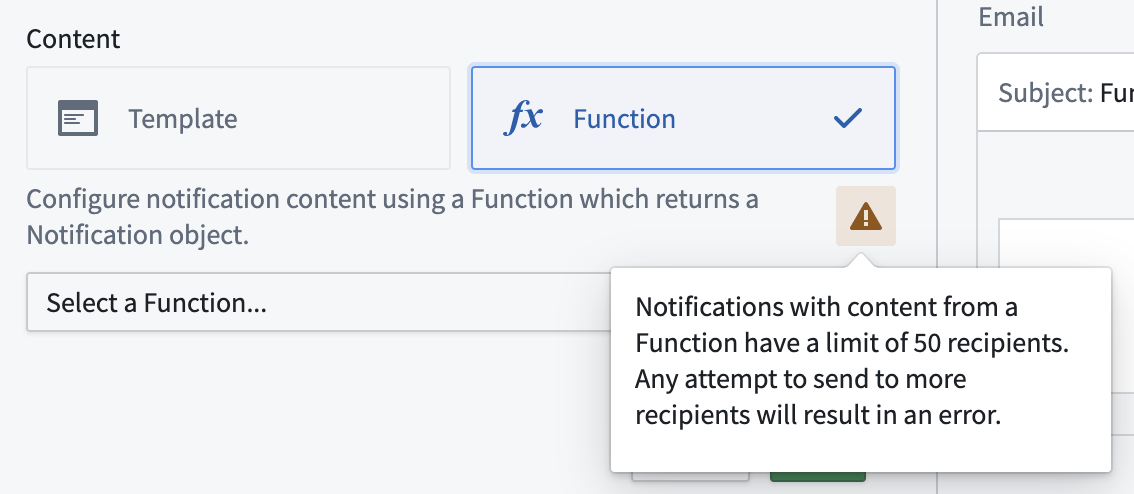
- There is a maximum of 50 recipients when using the "From a Function" option to render the notification content. There will be a warning in the configuration panel when selecting "From a Function" under the content configuration options, and the number of recipients will be checked each time the Action is run. If the number of recipients is over the limit, a red error toast will be displayed and the Action will fail to run.
- There is a maximum of 500 recipients for a single Action notification when the content is configured directly in the configuration dialog using the "Template" option.
Content length limits
- The maximum subject length is 250 characters.
- The maximum body length is 1,000 characters. When rendering custom HTML content for email, the maximum length is 51,200 characters.
Keep in mind that these maximum content lengths are validated and truncated when notifications are rendered. This means that if the rendered content is dynamic (for example, if the notification content includes object data), any content longer than the allowed maximum lengths will be truncated and indicated by trailing ....
Strict redaction
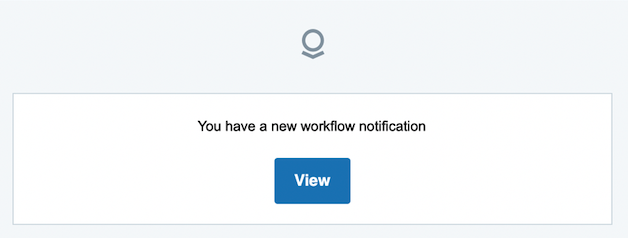
If "Strict Redaction" or "Group Redaction" on outbound email notifications is enabled for your Foundry instance, custom notification content will not be rendered. Instead, users will receive the generic message shown below. Selecting "View" will direct them into Foundry where they can view the full notification content. Learn more about email content redaction in Foundry.
Recipient user accounts
- Groups will be resolved to individual users in order to check permissions on the data before sending the notifications.
- Foundry user and group IDs can be found via Settings under Account. The configuration interface for notifications provides selectors for users and groups when choosing a static set of recipients. This will only display users and groups for which the person configuring the Action has adequate permissions.
- If recipient(s) are configured via reference to an object property, make sure the property stores the Foundry user or group ID as a string. You can use conditional formatting to display the associated user or group display name (for more detail, see the value formatting documentation).
- Sending directly to email addresses is not supported.
Links to newly-created objects
You must reference the primary key of a new object when linking it, since an object RID is not generated by time the notification is rendered.
Example: You have an Action that creates a new task object, and will be generating a unique ID when creating the task. Inside your Action notification you render a link to the newly created object using the parameter options provided by Object Explorer.
- There are two supported ways of specifying URL links when using Function generated content:
- Full link example:
https://<your-foundry-instance>.com/workspace/module/view/latest/<module-rid> - Relative link example:
/module/view/latest/<module-rid>
Required data access for recipients
- Users may only receive notifications containing data which they are allowed to view.
- In cases where there are multiple recipients, all recipients must have access to the object data rendered in the notification content.
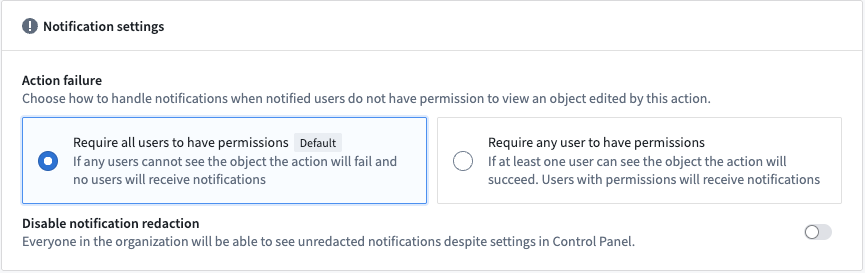
- When configuring your Action, two methods of handling notification failures are available at the bottom of the Security & Submission Criteria tab in the sidebar:
- Require all users to have permissions (default): If any recipients do not have the required access, an error will be shown when attempting to apply the Action. If this happens, no data will be edited and no notifications will be sent.
- Require any user to have permissions: If at least one user can see the object, the Action will succeed. Only users with permissions will receive notifications.
Override and disable email content redaction
If the organization settings allow, you can bypass other strict redaction settings set at the organization level for particular action types and have an action type that sends non-redacted content.
To override redaction for email notifications, navigate to the Security & Submission tab, then Notification settings > Disable notification redaction.
To learn how to enable this for the organization, refer to the email redaction documentation page.
中文翻译
通知
可以通过 添加新规则 下拉菜单向操作添加通知。了解如何添加通知的更多信息。
收件人
配置通知的收件人选项,可以指定在操作运行时将收到通知的 Foundry 用户集合。通知将单独发送给每位收件人。不支持将用户添加为电子邮件通知的抄送(CC)收件人。
有以下几种指定收件人的方式:
- 静态: 在配置中,您可以选择一组用户或用户组,当操作运行时,他们始终会收到通知。
- 来自参数: 如果您的操作参数是 Foundry 用户或用户组 ID,您可以将其指定为通知的收件人。
- 这可用于允许发送方在使用该操作的应用程序或模块的用户界面中选择一个或多个收件人,或自动检测并发送通知给运行该操作的用户。
- 来自对象参数的属性: 如果您的操作有一个对象参数,并且该对象的某个属性包含 Foundry 用户或用户组 ID,您可以将该参数属性指定为收件人。这也适用于 Foundry 用户和用户组 ID 的列表。
- 来自函数: 如果上述选项无法满足您的用例,您可以编写一个自定义函数,该函数接收操作参数并返回应被通知的用户或用户组列表。了解如何编写返回用户或用户组列表的函数的更多信息。
基于函数指定收件人的用例示例包括:
- 组合其他收件人选项;例如,通知从对象参数属性中指定的
assignee,同时始终通知一组静态的额外收件人。 - 根据其他参数或参数的属性值选择收件人;例如,每当 EMEA 地区有新任务时,通知一组用户;每当北美地区有新任务时,通知另一组用户。
- 任何其他不适合结构化选项的自定义逻辑。
:::callout{theme="neutral"} 收件人可以更改其接收通知的偏好设置。例如,一个用户可能选择仅在网页浏览器中接收通知,而另一个用户可能选择同时接收平台内提示和电子邮件。如果用户在个人偏好设置中关闭了操作通知,他们将不会收到通知。但是,他们登录 Foundry 后,仍然可以通过进入工作区的"通知"然后选择"查看全部"来查看通知。 :::
内容
有多种选项可用于自定义通知的内容。内容可以通过模板进行配置,也可以通过自定义函数提供。选择模板内容将允许您直接在配置对话框中配置完整内容。函数内容则需要您拥有一个已发布的函数,该函数返回适当的通知类型。
内容组件
-
主题: 通常,内容会包含一个主题行。默认情况下,所有投递机制的主题行都是相同的。
-
正文: 通知的正文。对于平台内通知,这将显示在通知提示框中。对于电子邮件,这将呈现在邮件正文中。
-
链接: 您可以指定一个链接。这将显示为通知正文内容下方的一个按钮。按钮的文本可以自定义。
-
配置链接时有以下选项可用:
- 链接到现有的对象参数
- 链接到 Workshop 应用
- 链接到 Carbon 工作区
- 链接到新创建的对象
-
高级电子邮件配置: 配置通知时,您可以指定通过电子邮件投递通知时使用的自定义内容正文。此选项允许您使用 HTML 进行更高级的格式化,平台内通知不支持此功能。预览将向您展示通知的外观,不包括任何参数引用。只有当收件人将其偏好设置为通过电子邮件接收通知时,他们才会收到此内容。
:::callout 三重大括号可用于在上述主题、正文和链接中引用参数和用户属性。编辑某个部分时,单击可用的参数之一将自动生成该参数或用户属性的正确大括号引用。 :::
- 来自函数: 选择"来自函数"时,您无需配置上述列出的各个部分。相反,您必须提供一个返回
Notification对象的函数,该对象具有适当的属性来指定自定义内容的每个部分。如果出现以下任何情况,您可能需要使用函数: - 通知内容因收件人或操作的输入参数而完全不同。
- 您希望电子邮件和平台内通知有不同的主题行。
- 您希望使用完整的链接 URL,包括指向 Foundry 外部系统或应用程序的链接。
- 您希望在呈现内容时执行搜索周边、聚合或查询超出参数提供范围的数据。
- 您有任何其他无法通过模板内容选项实现的自定义需求。
有关通知返回类型的更多信息,请参阅函数文档。
:::callout{theme="neutral"} 用于生成通知内容的任何本体数据都将反映当前操作编辑应用之前的状态。为了让通知收件人能够访问特定对象的最新状态,可以在通知中嵌入通过对象参数引用的对象的链接,或新创建对象的链接(如果这些对象是通过"创建对象"规则而非函数创建的)。 :::
示例配置
这是一个通知的示例配置。
- 收件人 配置
- 内容 配置
- 选择模板(直接在本体应用对话框中配置)或函数(指定一个返回完整
Notification对象的函数)。 - 模板通知的主题行。
- 基于操作可用参数的参数。单击某个参数可生成引用该参数的
{{{}}}语法。 - 模板通知的正文内容。
- 模板通知的链接配置(可选)。
- 模板通知的自定义电子邮件 HTML 内容(可选)。
其他关键信息
最大收件人限制
- 使用"来自函数"选项呈现通知内容时,最多可有 50 个收件人。在内容配置选项下选择"来自函数"时,配置面板中会出现警告,并且每次运行操作时都会检查收件人数量。如果收件人数量超过限制,将显示红色错误提示,操作将无法运行。
- 当使用"模板"选项直接在配置对话框中配置内容时,单个操作通知最多可有 500 个收件人。
内容长度限制
- 主题最大长度为 250 个字符。
- 正文最大长度为 1,000 个字符。渲染自定义电子邮件 HTML 内容时,最大长度为 51,200 个字符。
请注意,这些最大内容长度在渲染通知时会进行验证和截断。这意味着如果渲染的内容是动态的(例如,如果通知内容包含对象数据),任何超过允许最大长度的内容都将被截断,并以尾随的 ... 表示。
严格编辑
如果您的 Foundry 实例启用了出站电子邮件通知的"严格编辑"或"组编辑",则自定义通知内容将不会被渲染。相反,用户将收到如下所示的通用消息。选择"查看"将引导他们进入 Foundry,在那里他们可以查看完整的通知内容。了解有关 Foundry 中电子邮件内容编辑的更多信息。
收件人用户账户
- 用户组将被解析为单个用户,以便在发送通知前检查数据权限。
- 可以在账户下的设置中找到 Foundry 用户和用户组 ID。通知的配置界面在选择静态收件人集合时提供了用户和用户组的选择器。这只会显示配置操作的人员具有足够权限的用户和用户组。
- 如果通过引用对象属性来配置收件人,请确保该属性以字符串形式存储 Foundry 用户或用户组 ID。您可以使用条件格式来显示关联的用户或用户组显示名称(更多详情,请参阅值格式文档)。
- 不支持直接发送到电子邮件地址。
新创建对象的链接
链接新对象时,必须引用该对象的主键,因为在渲染通知时对象 RID 尚未生成。
示例: 您有一个创建新 task 对象的操作,并且在创建任务时会生成一个唯一 ID。在您的操作通知中,您使用对象资源管理器提供的参数选项渲染指向新创建对象的链接。
- 使用函数生成内容时,有两种指定 URL 链接的支持方式:
- 完整链接示例:
https://<your-foundry-instance>.com/workspace/module/view/latest/<module-rid> - 相对链接示例:
/module/view/latest/<module-rid>
收件人所需的数据访问权限
- 用户只能接收包含其有权查看的数据的通知。
- 如果有多个收件人,所有收件人都必须有权访问通知内容中渲染的对象数据。
- 配置操作时,侧边栏中安全与提交标准选项卡底部提供了两种处理通知失败的方法:
- 要求所有用户拥有权限(默认): 如果任何收件人没有所需的访问权限,尝试应用操作时将显示错误。如果发生这种情况,将不会编辑任何数据,也不会发送任何通知。
- 要求任意用户拥有权限: 如果至少有一个用户可以查看该对象,操作将成功。只有拥有权限的用户才会收到通知。
覆盖和禁用电子邮件内容编辑
如果组织设置允许,您可以绕过在组织级别为特定操作类型设置的其他严格编辑设置,并让操作类型发送未编辑的内容。
要覆盖电子邮件通知的编辑,请导航至安全与提交选项卡,然后选择通知设置 > 禁用通知编辑。
要了解如何为组织启用此功能,请参阅电子邮件编辑文档页面。