Use actions in the platform(在平台中使用操作)
Action types can be seamlessly integrated across applications in Foundry. Read on to learn how to configure and apply an action from Object Explorer and Workshop.
In the examples below, we use the term single action type to refer to an action type using an object reference parameter, and bulk action type to refer to an action using an object reference list parameter.
Object views
Actions can be added to an Object View using the Actions section.
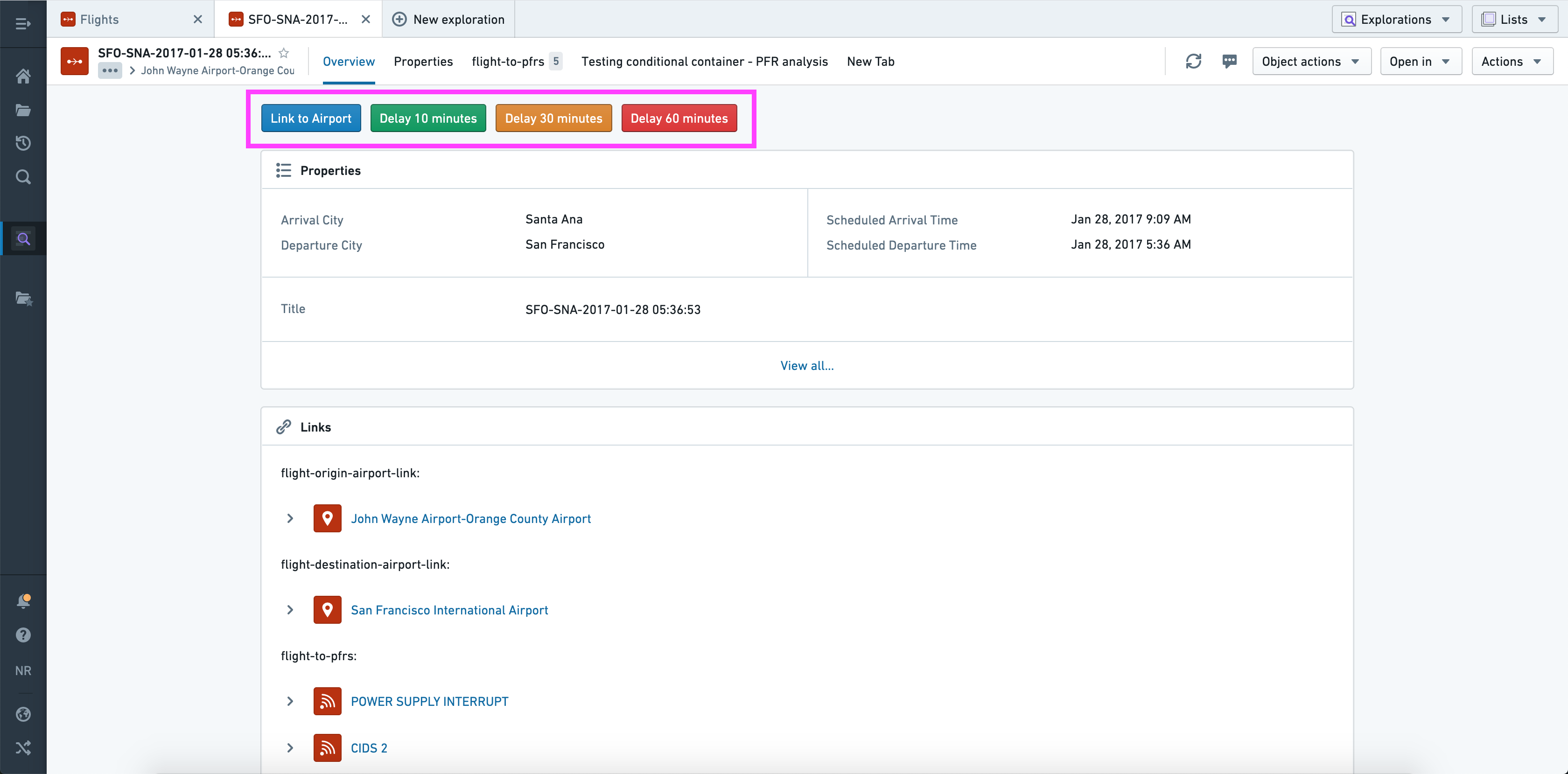
When configuring the Actions section you have the option to:
- Add any action as a button in the section.
- Give each button its own label and color.
- Change the default on-click behavior from opening the form to applying the action immediately using the default values (if valid).
- Specify whether the button should be hidden or disabled if a non-visible parameter is invalid (the idea being that visible parameters could be corrected upon opening the form).
- Provide a default value for each parameter; this can be a property value of the current object or a "local" value (current user, current timestamp, current object, or a manually entered value).
- Override the visibility of each parameter.
As shown above, you can therefore use this section to offer multiple structured versions of the same generic action ("Delay 10 minutes", "Delay 30 minutes", etc.).
Object Explorer
Actions will automatically be shown in three places across Object Explorer:
- From the Actions dropdown in the Exploration View (top right).
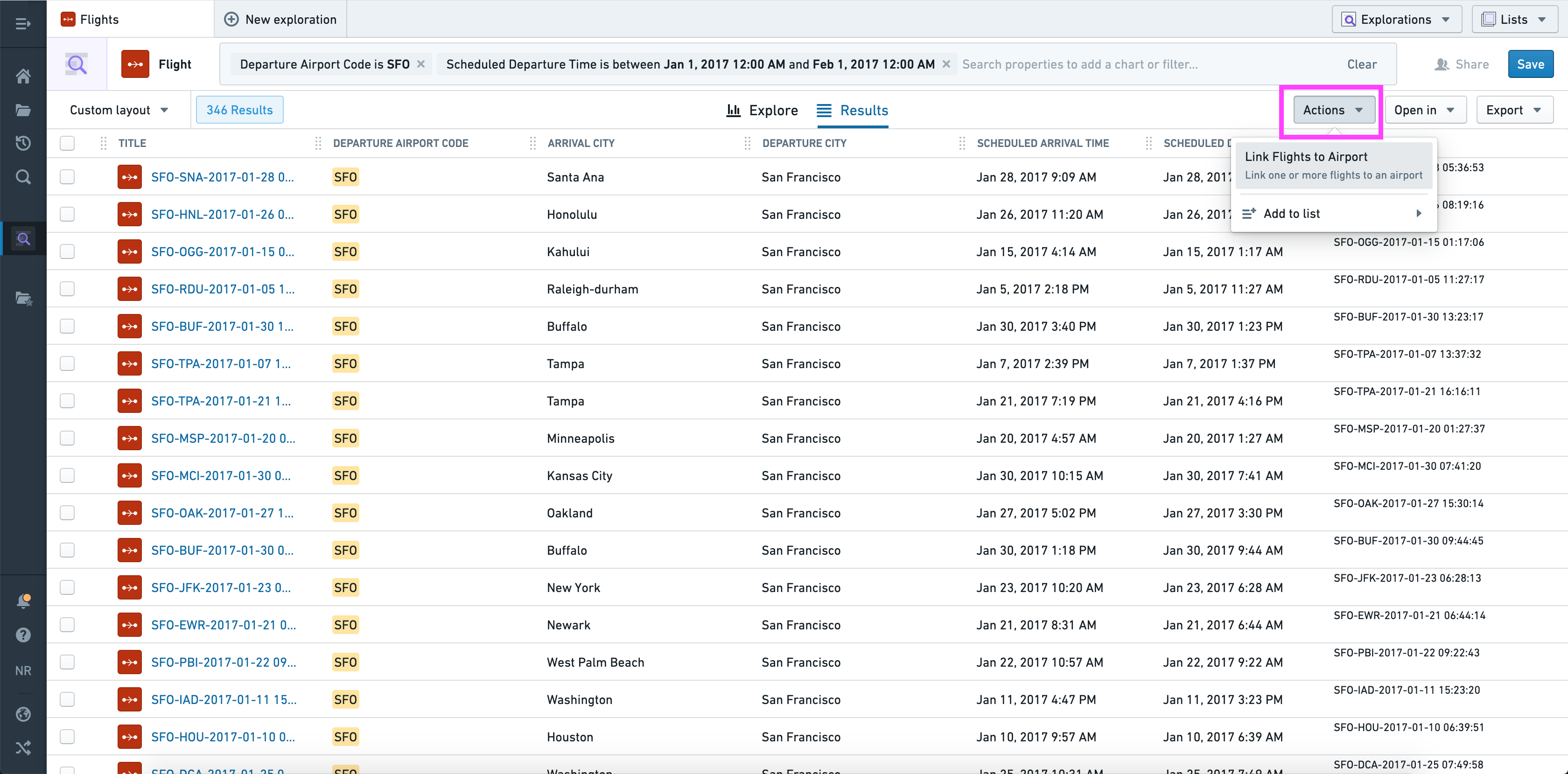
Using the current set of objects, this dropdown is automatically populated with applicable bulk actions.
- From the Object Actions dropdown menu in the Object View (top right).
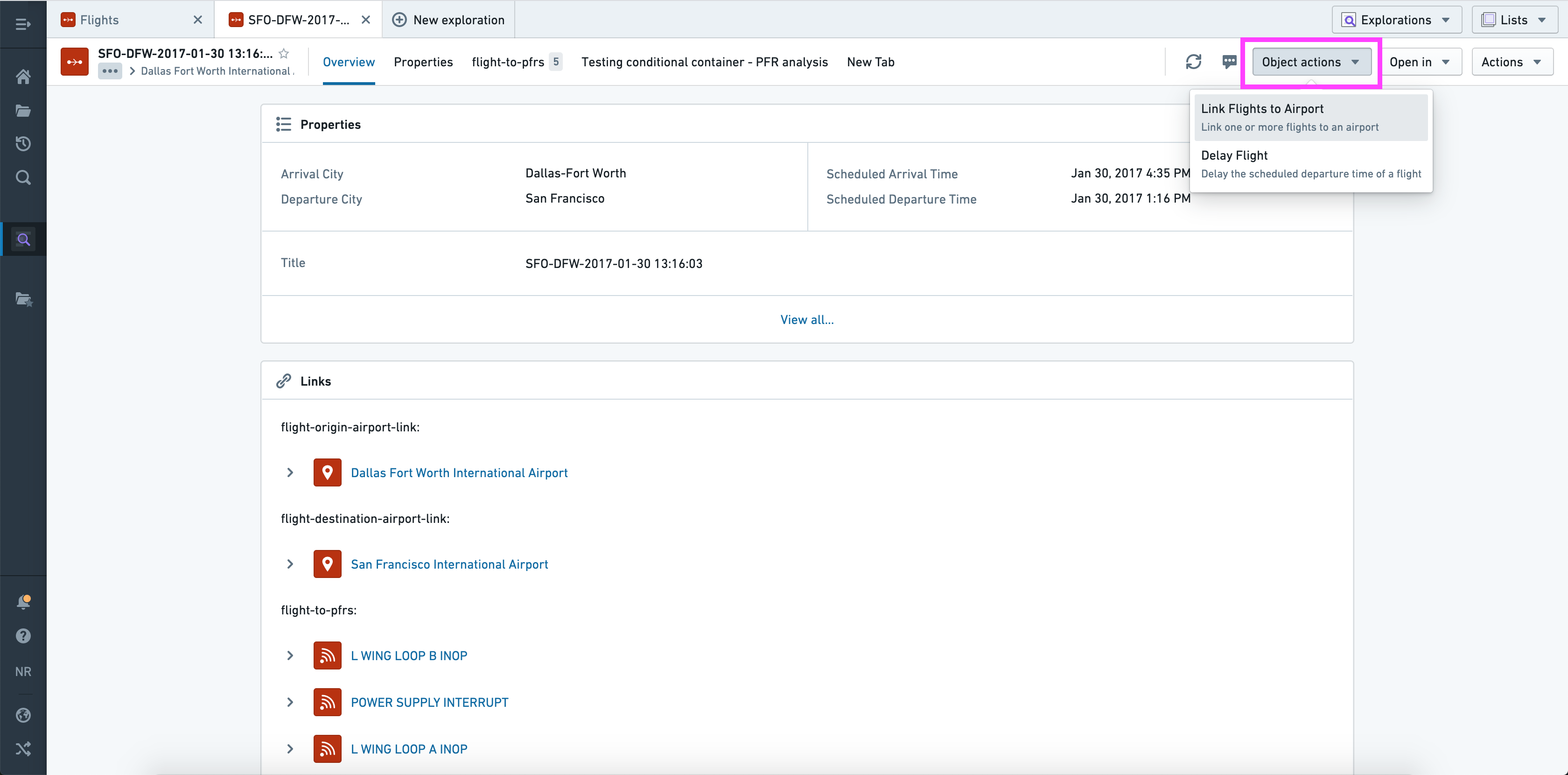
Using the current object, this dropdown menu is automatically populated with applicable single and bulk action types.
- From the Linked objects view section in the Object View (top).
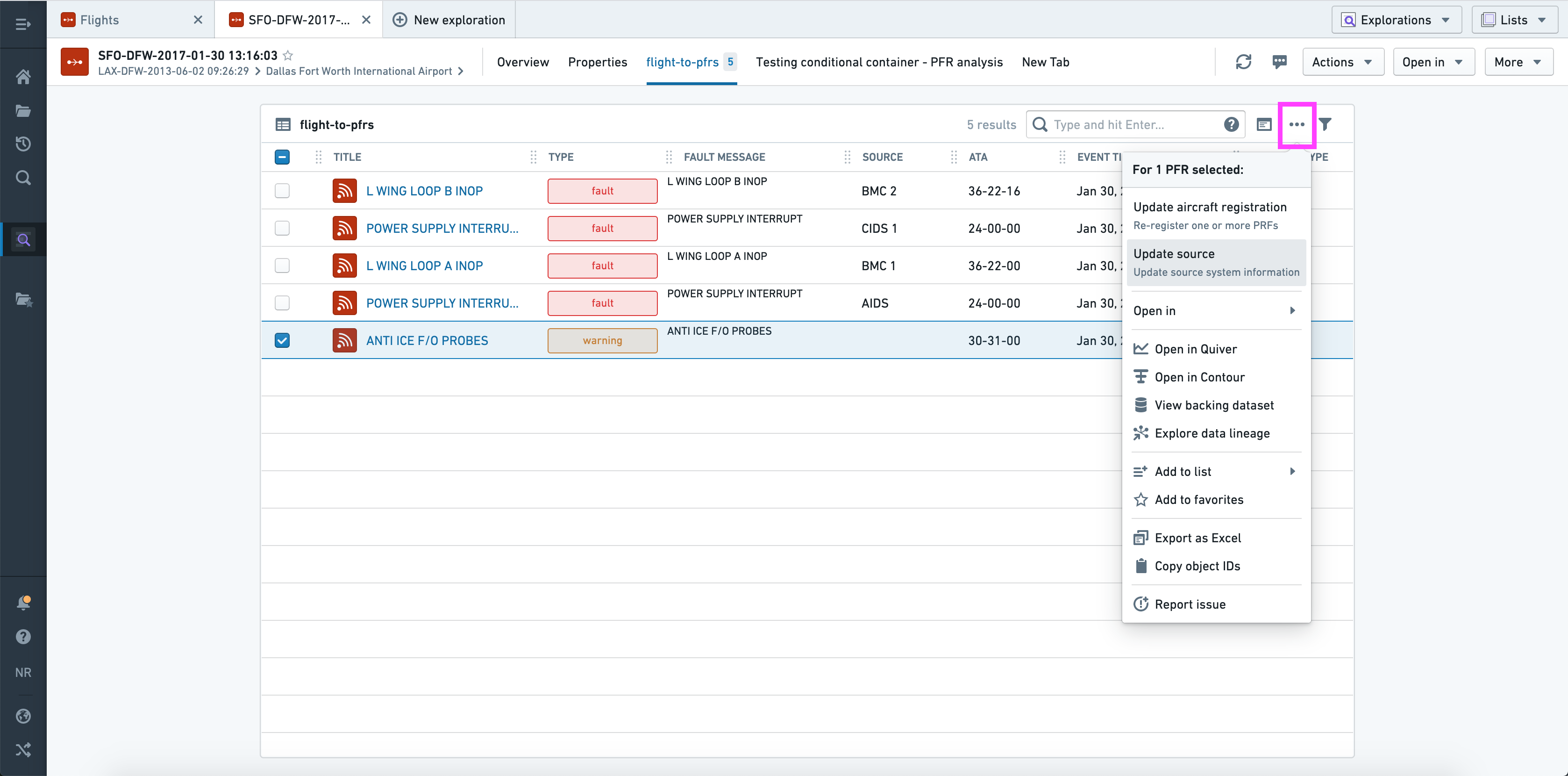
Using the selected object(s), this dropdown is automatically populated with applicable single and/or bulk action types.
:::callout In "bulk" contexts (where multiple objects are shown in a list view), only actions that accept object list parameters of the correct type will be shown. :::
Workshop
In Workshop, Actions can be configured and applied using the Button group widget.
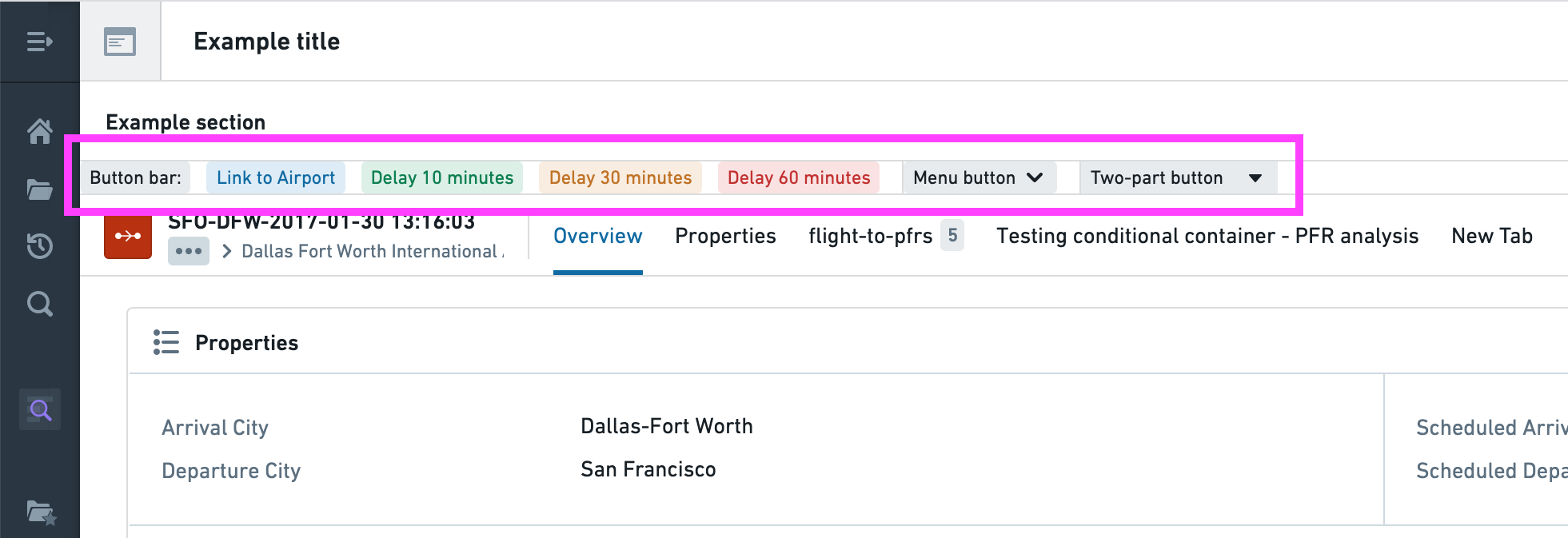
This widget has the same configuration options as the Actions section in an Object View, with a few notable extensions:
- There are three possible layouts, all of which are shown above.
- The buttons have additional display options, including left/right icons, minimal styles, and tag styles.
- In addition to an Action, an individual button can trigger a Workshop event, URL, or object set export.
And one difference:
- A default value can be a variable, the current user, or the current timestamp
Read more about Actions in Workshop, or read the full reference for the Button Group widget to learn about all available configuration options.
中文翻译
在平台中使用操作
操作类型(Action types)可以无缝集成到 Foundry 的各类应用中。请继续阅读,了解如何从 Object Explorer(对象浏览器)和 Workshop(工作坊)配置和应用操作。
在以下示例中,我们使用术语单操作类型(single action type)指代使用对象引用参数的操作类型,使用批量操作类型(bulk action type)指代使用对象引用列表参数的操作类型。
对象视图(Object views)
通过操作部分(Actions section),可以将操作添加到对象视图(Object View)中。
配置操作部分时,您可以选择:
- 将任意操作作为按钮添加至该部分。
- 为每个按钮设置独立的标签和颜色。
- 更改默认的点击行为:从打开表单改为使用默认值(若有效)立即执行操作。
- 指定当非可见参数无效时,按钮应隐藏或禁用(其逻辑在于可见参数可在打开表单后修正)。
- 为每个参数提供默认值;该值可以是当前对象的属性值,也可以是"本地"值(当前用户、当前时间戳、当前对象或手动输入的值)。
- 覆盖每个参数的可见性。
如上所示,您可以通过此部分为同一通用操作提供多个结构化版本(例如"延迟10分钟"、"延迟30分钟"等)。
Object Explorer(对象浏览器)
操作将自动显示在 Object Explorer 的三个位置:
- 在探索视图(Exploration View)的操作(Actions)下拉菜单中(右上角)。
该下拉菜单会根据当前对象集合自动填充适用的批量操作。
- 在对象视图(Object View)的对象操作(Object Actions)下拉菜单中(右上角)。
该下拉菜单会根据当前对象自动填充适用的单操作和批量操作类型。
- 在对象视图的关联对象视图部分(Linked objects view section)中(顶部)。
该下拉菜单会根据所选对象自动填充适用的单操作和/或批量操作类型。
:::callout 在"批量"场景下(即列表视图中显示多个对象时),仅会显示接受正确类型对象列表参数的操作。 :::
Workshop(工作坊)
在 Workshop 中,可以使用按钮组(Button group)组件配置和应用操作。
该组件具有与对象视图中操作部分相同的配置选项,并有以下显著扩展:
- 提供三种布局方式,如上图所示。
- 按钮具有更多显示选项,包括左/右图标、简约样式和标签样式。
- 除操作外,单个按钮还可触发 Workshop 事件、URL 或对象集导出。
以及一个差异点:
- 默认值可以是变量(variable)、当前用户或当前时间戳。
了解更多关于 Workshop 中的操作,或阅读按钮组组件的完整参考文档以了解所有可用配置选项。