Review a request(审核请求)
As the reviewer on a request, you can determine which tasks in the requests should be approved or rejected. Consider the effect of the entire request when reviewing, even though you can review and approve tasks individually. If you need more information on why someone needs the access they are requesting, use the comment functionality on the request.
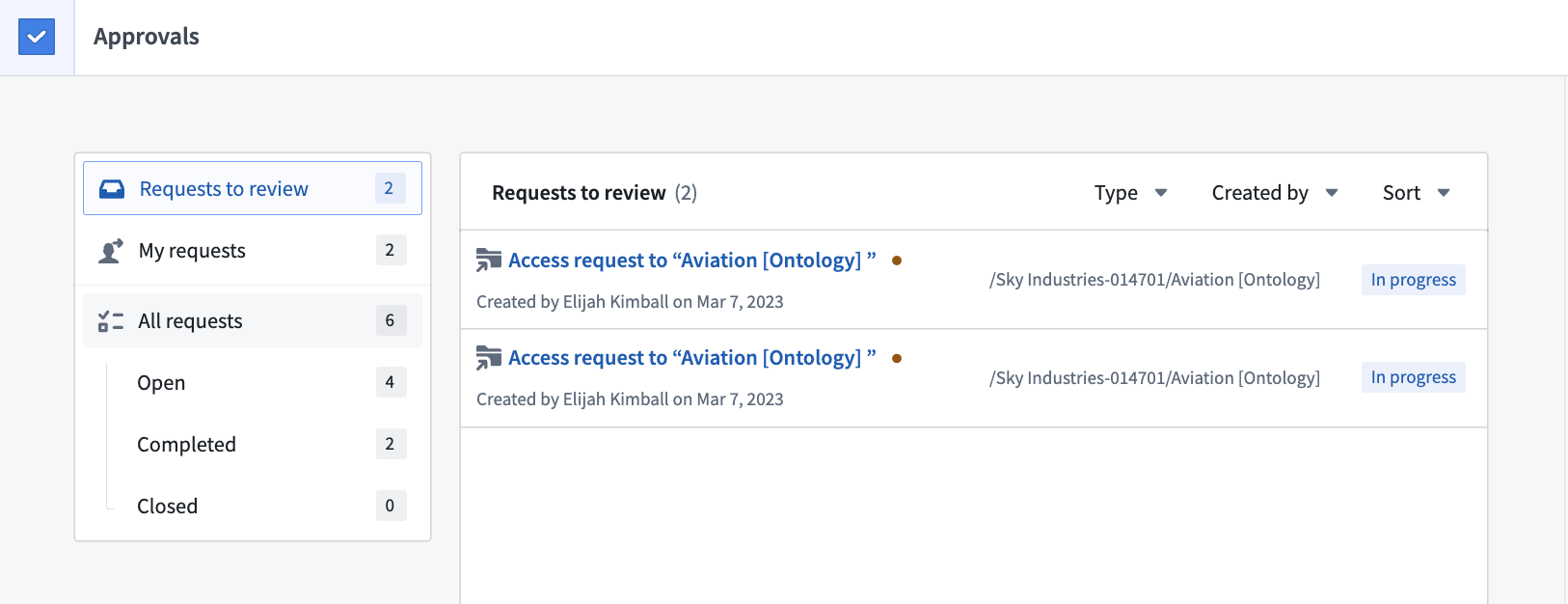
To get started reviewing, select the Requests to review filter in the Approvals inbox. This will filter down the available requests to a list of requests awaiting your review.
Eligible reviewers
By default, users who have the permission to perform an action themselves are eligible to review the corresponding task. Users may be eligible to review multiple tasks.
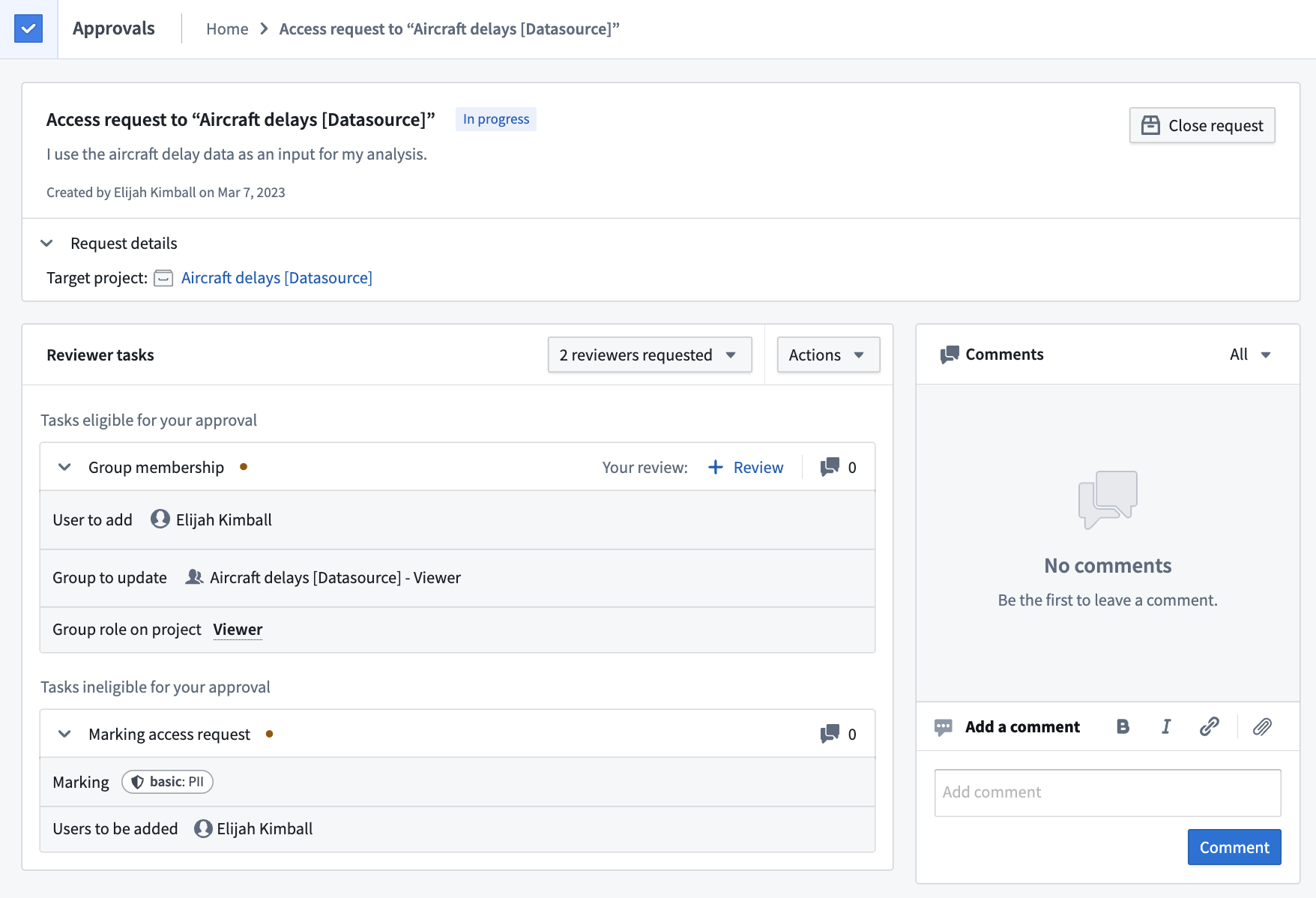
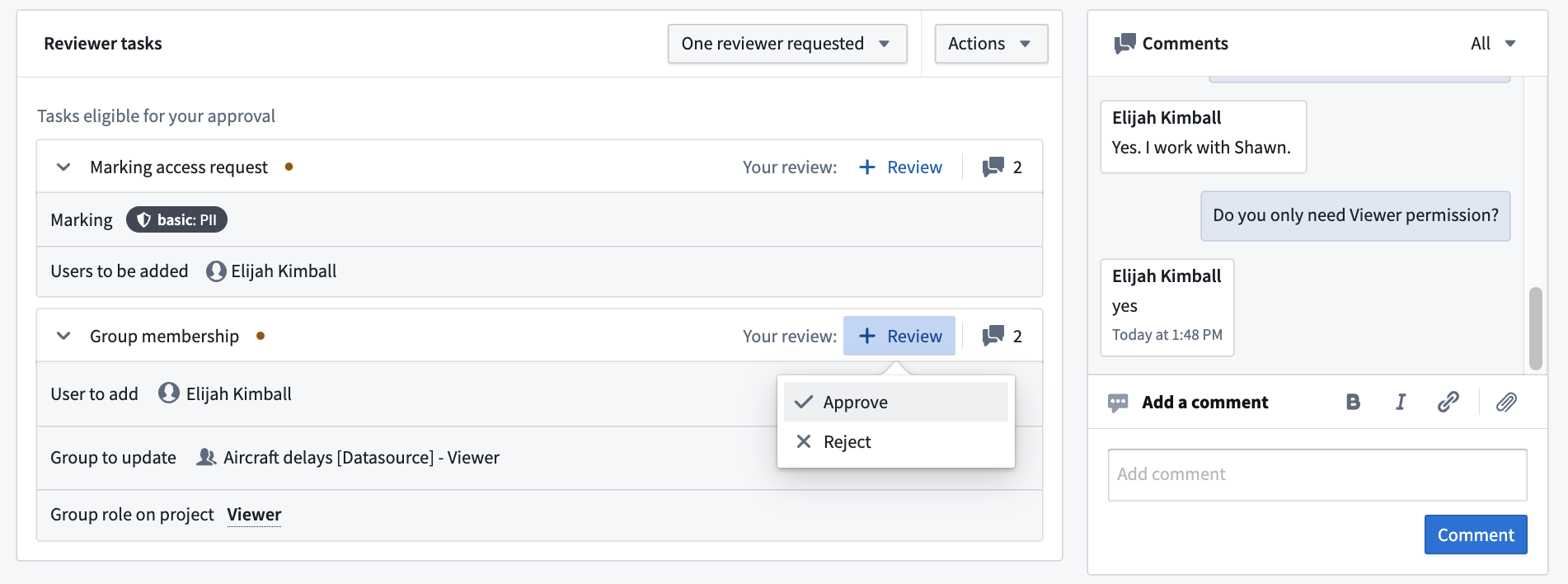
In the example above, the user is an eligible reviewer of the Group membership task but is not an eligible reviewer of the Marking access request task. This is because the user has Manage permissions access on the Aircraft delays [Datasource] - Viewer group but not on the PII Marking. Therefore, the user can approve the Group membership task. However, to approve the request and invoke changes, they need a user with Manage permissions access on the PII Marking to approve the Marking access request task.
Comment
You can comment on a request using the comments widget to the right of the request. By default, comments will be shown for the entire request, as indicated by the All dropdown.
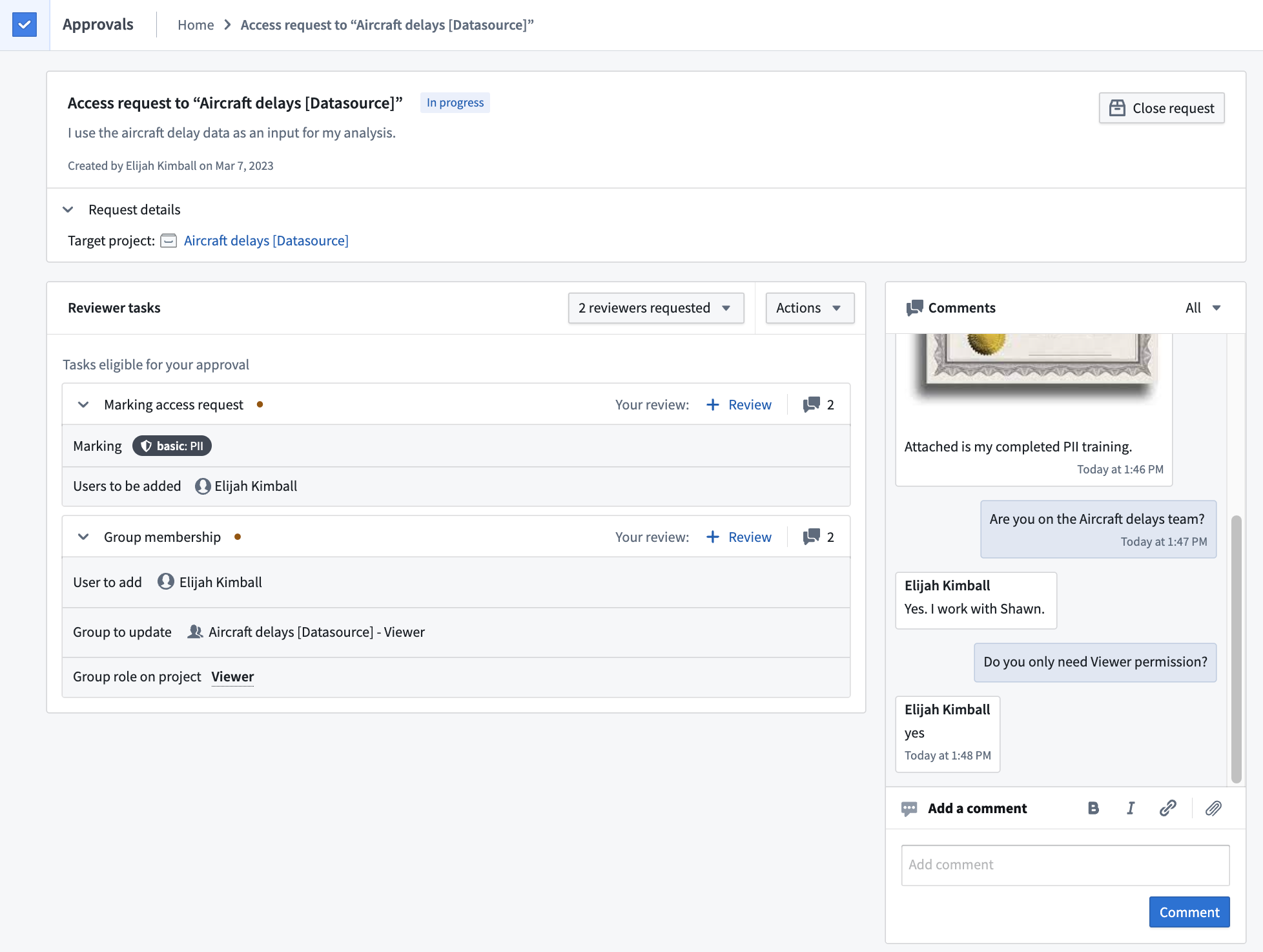
Comment on individual tasks by filtering the dropdown in the comments widget, or select the comment icon to the right of the task. In the example below, the reviewer filtered comments to only view those made on the Marking access request task.

The comment widget also allows you to add links and upload files that may be necessary to support a request. For example, the requester can share links to Foundry or external resources and upload necessary legal documents required for approval.
Add reviewer
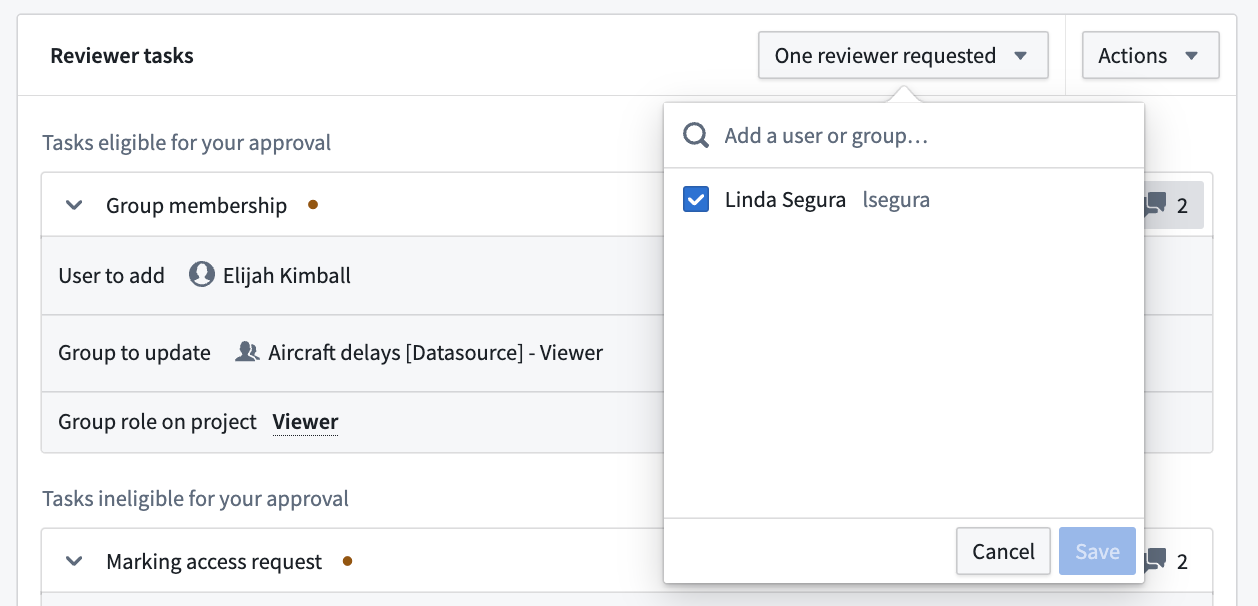
In most cases, users who have permission to approve a task will automatically be assigned as approvers once the request is created. If you would like to explicitly assign a task to a user who was not automatically assigned, invite them by selecting the Invite reviewers button. Note, inviting a reviewer does not grant permissions to view a request or approve tasks. Users who are requested to review will receive a notification and see the request in the Requests to review section of their Approvals inbox.
Provide review
An eligible reviewer can either Approve or Reject the task by selecting the + Review button.
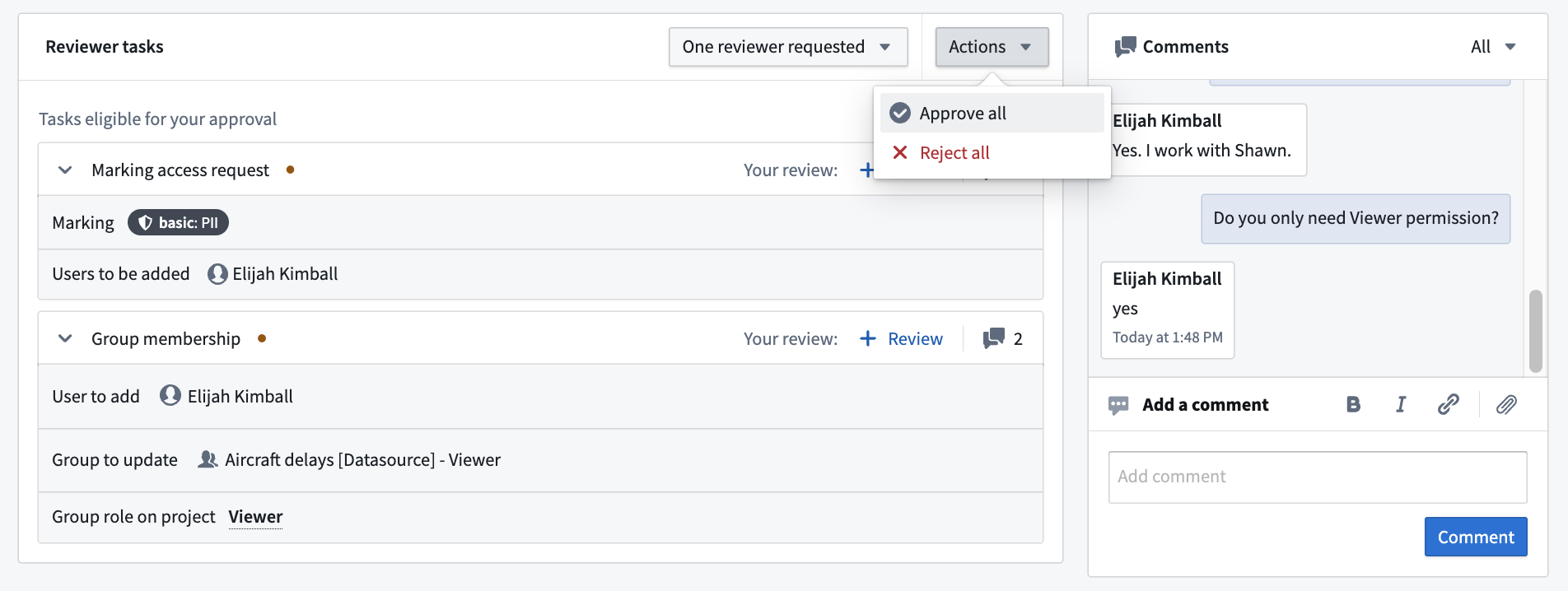
Alternatively, use the Approve all or Reject all button in the Actions dropdown to approve or reject all tasks in the request that you are eligible to review.
中文翻译
审核请求
作为请求的审核人,您可以决定请求中的哪些任务应被批准或拒绝。审核时需考虑整个请求的影响,尽管您可以单独审核和批准任务。如果您需要更多信息来了解某人为何需要所申请的访问权限,请使用请求上的评论功能。
要开始审核,请在审批收件箱中选择待审核的请求筛选器。这将把可用请求筛选为等待您审核的请求列表。
合格审核人
默认情况下,拥有自行执行操作权限的用户有资格审核相应的任务。用户可能有资格审核多个任务。
在上述示例中,用户是组成员资格任务的合格审核人,但不是标记访问请求任务的合格审核人。这是因为用户对 Aircraft delays [Datasource] - Viewer 组拥有管理权限访问权限,但对 PII 标记没有。因此,用户可以批准组成员资格任务。然而,要批准请求并触发变更,需要一位对 PII 标记拥有管理权限访问权限的用户来批准标记访问请求任务。
评论
您可以使用请求右侧的评论组件对请求进行评论。默认情况下,评论会显示整个请求的内容,如下拉菜单中的全部所示。
通过筛选评论组件中的下拉菜单,或选择任务右侧的评论图标,可以对单个任务进行评论。在以下示例中,审核人筛选了评论,仅查看针对标记访问请求任务的评论。
评论组件还允许您添加链接和上传可能支持请求所需的文件。例如,请求者可以分享指向 Foundry 或外部资源的链接,并上传批准所需的法律文件。
添加审核人
在大多数情况下,拥有批准任务权限的用户会在请求创建后自动被分配为审批人。如果您希望明确将任务分配给未自动分配的用户,请通过选择邀请审核人按钮来邀请他们。请注意,邀请审核人并不会授予查看请求或批准任务的权限。被邀请审核的用户将收到通知,并在其审批收件箱的待审核的请求部分看到该请求。
提供审核意见
合格审核人可以通过选择+ 审核按钮来批准或拒绝任务。
或者,使用操作下拉菜单中的全部批准或全部拒绝按钮,来批准或拒绝请求中您有资格审核的所有任务。