Changelog panel in Workshop(Workshop 中的变更日志面板(Changelog Panel))
The Workshop Changelog Panel allows builders to visualize changes between module versions. This is useful for tracking modifications made over time and identifying which change potentially caused an issue when debugging problems with the module.
Understanding the changelog
If changes exist for the selected module versions, the panel will be populated with changelog nodes. There are 5 different types of changes:
- Changed: A node has been modified (for example, the text on a button changed).
- Addition: A node was added to the module.
- Deletion: A node was removed from the module.
- Moved: The node was relocated (for example, moved from page 1 to page 2).
- Made unused: A widget was deleted but not removed from the module, moving it to
unused widgets.
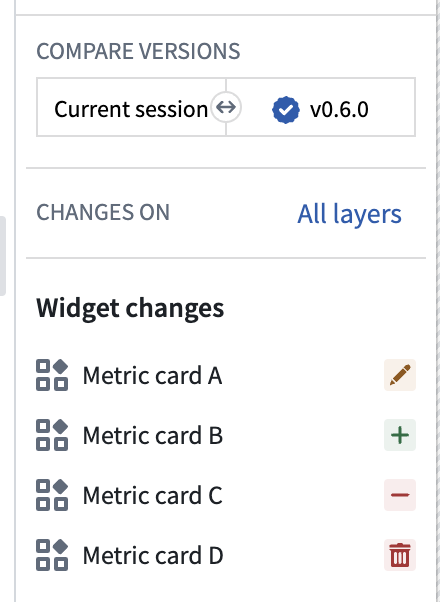
The image above conveys the following:
- Metric Card A was edited.
- Metric Card B was added to the module.
- Metric Card C was made unused.
- Metric Card D was removed from the module.
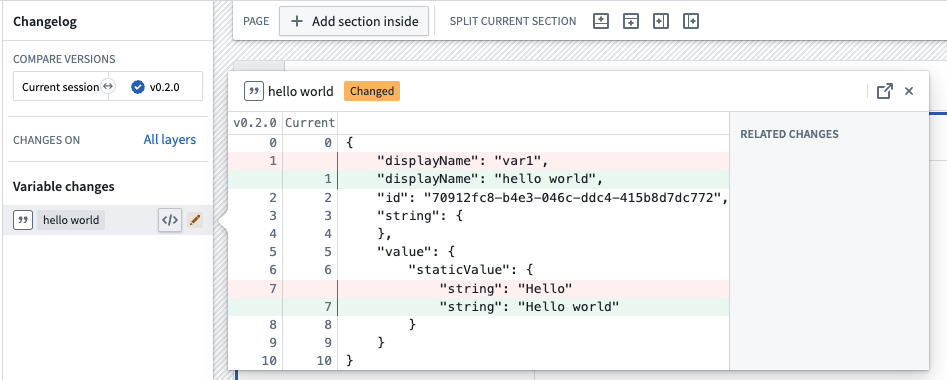
You can inspect the change node further by opening the JSON diff. Here, you can see the exact changes made to the node. In the screenshot below, we can see the variable value changed from Hello to Hello world and the variable name changed from var1 to hello world.
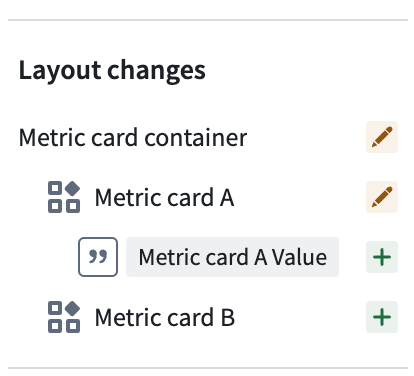
Additionally, the Changelog Panel displays a visual hierarchy of changes. In the example below, we can infer from the hierarchy that the Metric card container section contains the Metric card A widget, and both were modified. Furthermore, we see Metric card A value is used within Metric card A and was added to the module.
Module selection
There are two options for selecting module versions:
-
Range selection: Choose a start and end version to see the changes between the two. For example, you can select
0.1.0and0.4.0to see the changes between version0.1.0and0.4.0. -
Single selection: Single selection allows you to see the changes in a specific module version compared to the previous version. For example, if you select version
0.5.0, the changelog will populate with the changes between0.4.0and0.5.0.
Using the Changelog panel during rebasing
When rebasing is required before merging changes from a branch into main, the Changelog panel displays a visual notification dot and provides an option to begin the rebase.
During rebasing, the Changelog panel depicts changes being applied from your branch to the latest main version of the module and highlights merge conflicts. A change is marked as a conflict when it was modified both on main and on your branch. Common examples include:
- A widget or variable was modified on both
mainand your branch. - A section was deleted on
mainand edited on the branch. - A widget was moved from location
AtoBonmainand fromAtoCon your branch.
While resolving conflicts, you can switch the module between three states to evaluate outcomes in real time:
- Main: The modification as it appears on
main. - Branch: The modification as it appears on your branch.
- Modification: Changes you make after beginning the rebase to reconcile differences.
Once conflicts are resolved and you are satisfied with the module, save to finish rebasing. You can then safely merge your branch into main.
For end-to-end guidance, see Rebasing and conflict resolution.
中文翻译
Workshop 中的变更日志面板(Changelog Panel)
Workshop 的变更日志面板(Changelog Panel)允许构建者直观查看模块版本之间的变更。这对于追踪随时间所做的修改,以及在调试模块问题时定位可能引发问题的变更非常有用。
理解变更日志
如果所选模块版本之间存在变更,面板将显示变更日志节点。共有 5 种不同类型的变更:
- 已更改(Changed): 节点已被修改(例如,按钮上的文本发生了变化)。
- 新增(Addition): 模块中新增了一个节点。
- 删除(Deletion): 模块中移除了一个节点。
- 移动(Moved): 节点被重新定位(例如,从第 1 页移至第 2 页)。
- 标记为未使用(Made unused): 某个组件(widget)被删除但未从模块中移除,从而被移至
未使用的组件(unused widgets)。
上图传达了以下信息:
- 指标卡 A(Metric Card A)被编辑过。
- 指标卡 B(Metric Card B)被添加至模块。
- 指标卡 C(Metric Card C)被标记为未使用。
- 指标卡 D(Metric Card D)已从模块中移除。
您可以通过打开 JSON 差异(JSON diff)来进一步检查变更节点。在这里,您可以查看对节点所做的确切更改。在下面的截图中,我们可以看到变量值从Hello变更为Hello world,变量名从var1变更为hello world。
此外,变更日志面板会显示变更的可视化层级结构。在下面的示例中,我们可以从层级结构中推断出指标卡容器(Metric card container)部分包含指标卡 A(Metric card A)组件,并且两者都已被修改。此外,我们看到指标卡 A 的值(Metric card A value)在指标卡 A(Metric card A)内部使用,并且是新增到模块中的。
模块选择
有两种选择模块版本的选项:
-
范围选择(Range selection): 选择起始版本和结束版本,以查看两者之间的变更。例如,您可以选择
0.1.0和0.4.0来查看版本0.1.0与0.4.0之间的变更。 -
单一选择(Single selection): 单一选择允许您查看特定模块版本相较于前一版本的变更。例如,如果您选择版本
0.5.0,变更日志将显示0.4.0与0.5.0之间的变更。
在变基(Rebasing)过程中使用变更日志面板
当需要将分支的更改合并到main主分支而进行变基(rebasing)时,变更日志面板会显示一个可视化的通知点,并提供开始变基的选项。
在变基过程中,变更日志面板会描绘从您的分支应用到最新main主分支版本的变更,并高亮显示合并冲突(merge conflicts)。当一个变更在main主分支和您的分支上都被修改时,该变更会被标记为冲突。常见示例包括:
- 某个组件或变量在
main主分支和您的分支上都被修改。 - 某个部分在
main主分支上被删除,但在您的分支上被编辑。 - 某个组件在
main主分支上从位置A移至B,而在您的分支上从位置A移至C。
在解决冲突时,您可以在三种状态之间切换模块,以实时评估结果:
- 主分支(Main): 变更在
main主分支上的呈现方式。 - 分支(Branch): 变更在您的分支上的呈现方式。
- 修改(Modification): 您在开始变基后为协调差异所做的更改。
一旦冲突解决完毕并且您对模块感到满意,请保存以完成变基。然后,您可以安全地将您的分支合并到main主分支。
有关端到端的指导,请参阅变基与冲突解决。