Variables(变量)
Variables are used by module builders to configure how data moves through a Workshop module. A list of available variable types can be found below.
To access existing variables in a Workshop module or define new variables, open the Variables menu found in the left sidebar.
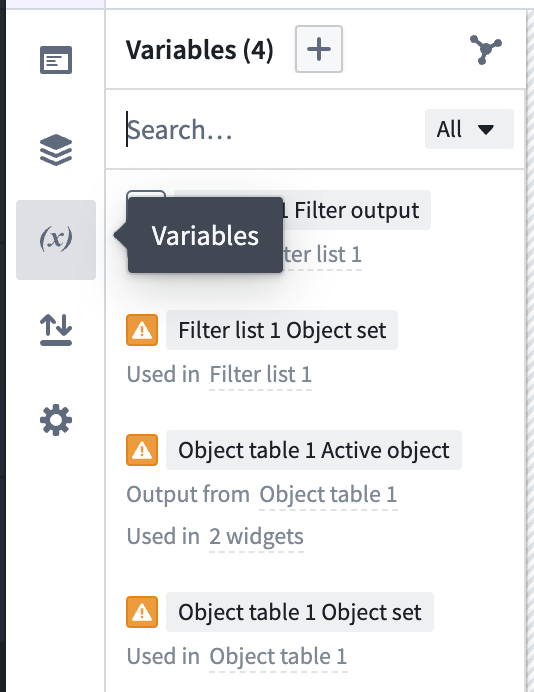
The Variables panel (shown above) displays a list with the current variables that exist within a module, a plus + option to add a new variable, an input to search variables by their name or unique ID, an option to open the variable lineage graph, and a filter to display variables based on their definition type or what settings are enabled. The variable list includes partitions to help you quickly find relevant variables: when a widget is selected, a partition displays variables used by that widget; when no widget is selected, a partition displays variables used in the active page.
Selecting a variable from the list on the left allows you to view and modify the configuration of that variable in a window that opens to the right of the variables list. The following configuration options are available:
- Variable name: Selecting the variable name or the pencil icon will allow you to edit the name of the variable. We recommend using descriptive variable names to help document the configuration of your Workshop module and make it easier to find a desired variable later in the configuration process.
- Variable definition type: Next to the variable name is a dropdown menu that provides options for how a given variable is defined and populated with data. Available choices will vary based on the selected variable type and can include options such as the following:
- Static: For manually set variable values
- Function: For function-backed, dynamically computed variables
- Object set aggregation: For variables derived from an aggregation of an object set
- Object property: For variables tied to a selected property value of single object
- Note: Complex non-performant object properties are not supported as variables in Workshop.
- Object set definition: Specifically for object set variables defined by selected object types, filters, and linked objects traversals
- Variable transformation: For defining a variable value as a series of common operations, possibly referencing other variables; review the variable transformations documentation for more information.
- Delete variable (trash icon): Variables that are unused in a module (by widgets or downstream variables) can be deleted.
- New variable from current (object set variables only): Next to the duplicate variable button, the New variable from current button allows you to create a new object set variable that automatically takes the current object set as its input. This is useful when you want to build upon an existing object set's configuration while maintaining a reference to the source variable.
- Variable definition configuration: The main part of the screen where the specifics of a variable are configured. The options provided here will change based on the selected variable type and variable definition type and will feature on-screen instructions.
- Variable settings: The variable settings panel allows configuration of an external ID and which of the below features should be enabled for a given variable.
- Module interface
- Routing
- State saving
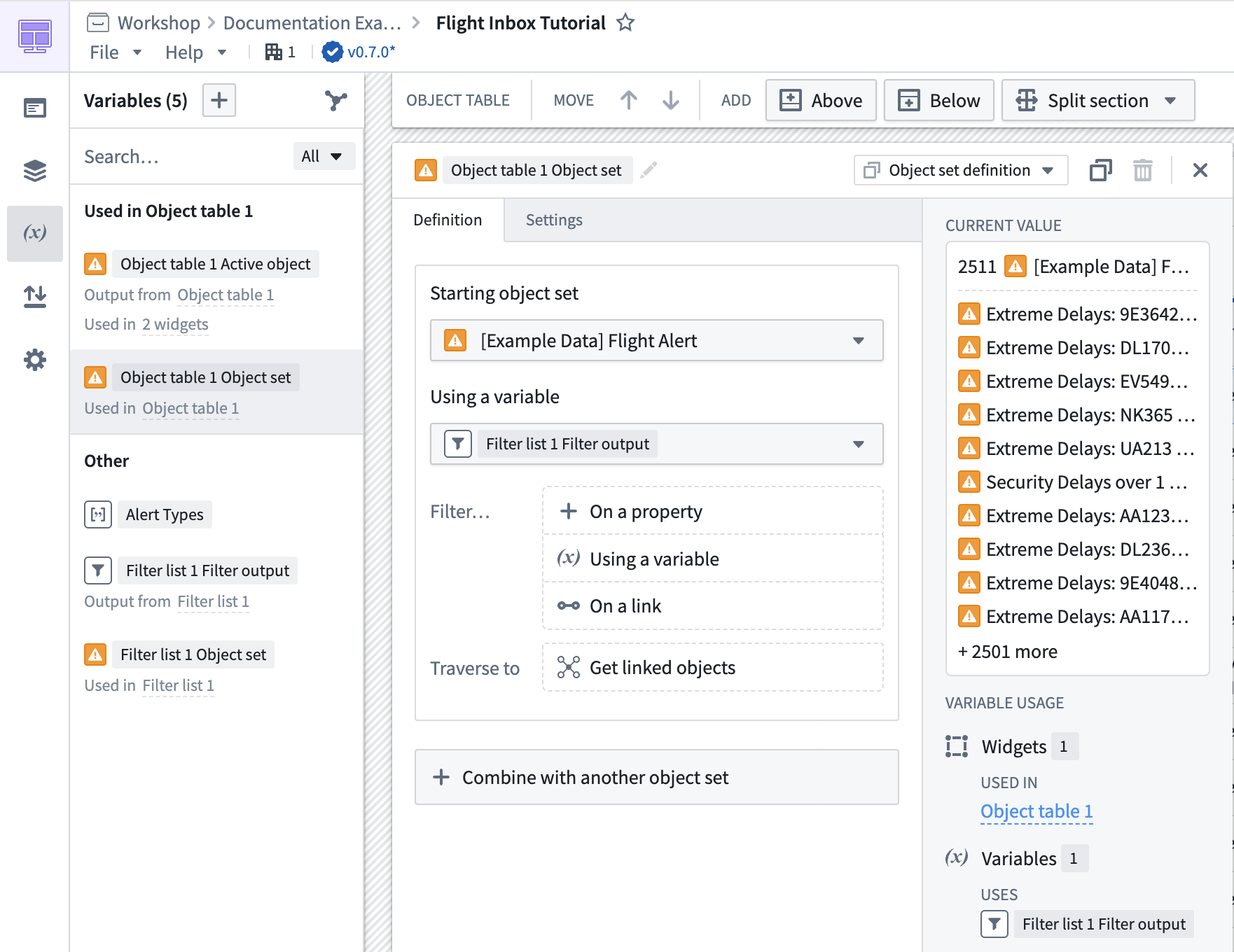
The screenshot below shows an example configuration for an Object Set variable:
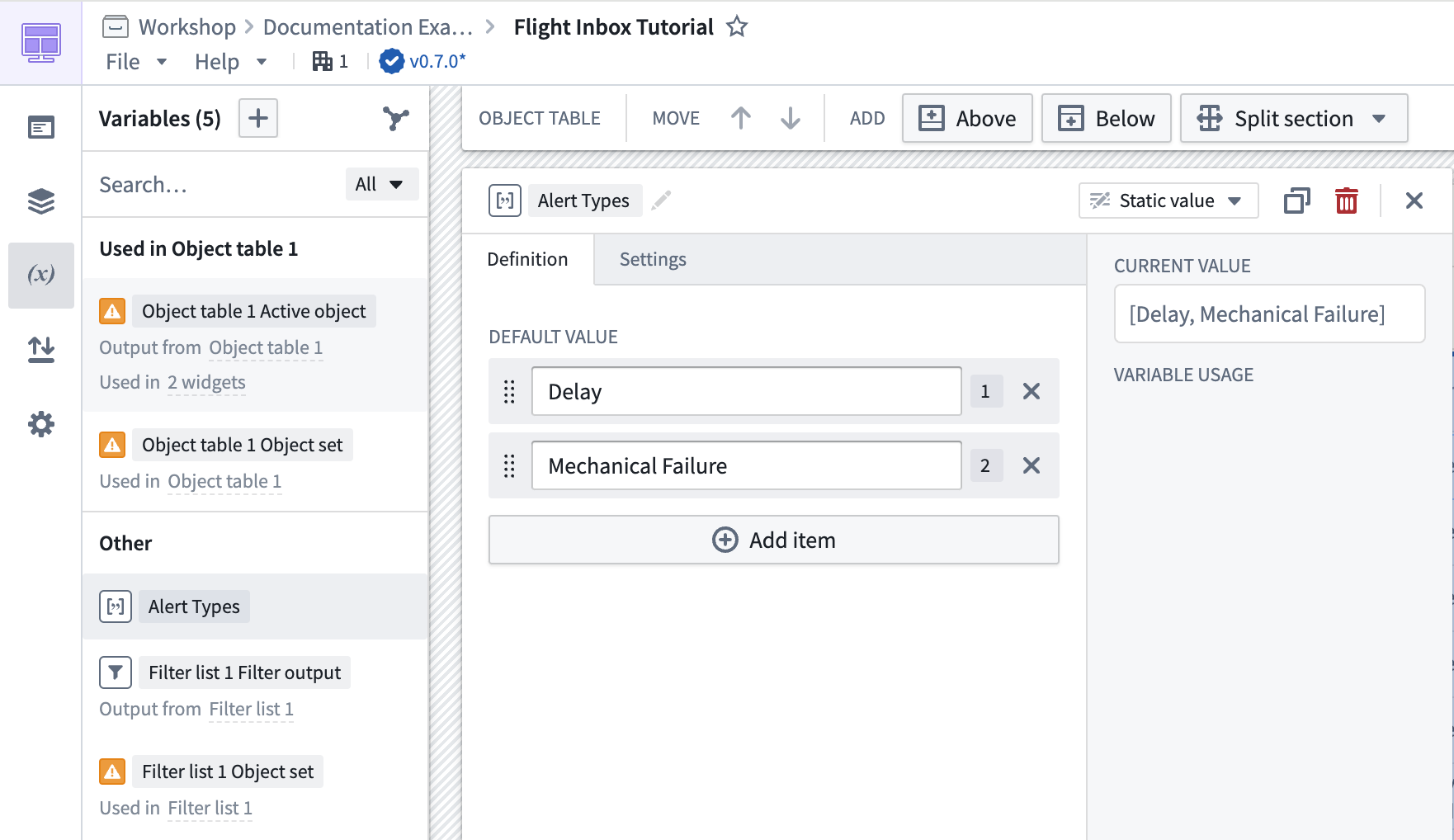
The screenshot below shows an example configuration for a string array variable:
Lazy variable loading
In both view and edit mode, Workshop variables will compute and recompute lazily only when displayed by a visible widget or layout. This means that variables used in non-visible pages, tabs, overlays, or non-visible pages of a looped layout will not be computed until they are shown. This behavior is the same for non-visible variables used in embedded modules.
Variable types
Workshop supports the following variable types:
- Array: Accepts an array of Boolean, date, numeric, geopoint, geoshape, string, timestamp, or struct values.
- Boolean: Accepts values of
trueorfalse. Initialized from either a static value or the output of a function, aggregation, or object property. - Date: Accepts a date. Initialized from either a static value or the output of a function, aggregation, or object property.
- GeoPoint: Accepts a geopoint. Initialized from an object property.
- GeoShape: Accepts a geoshape. Initialized from an object property or the output of a function.
- Numeric: Accepts a numerical value, including both integers and floats. Initialized from either a static value or the output of a function, aggregation, or object property.
- Object set: Stores a set of one or more objects. Initialized from either an entire object type or another object set variable and then may be optionally filtered by property values or Filter variables, or optionally pivoted to linked objects via a Search Around. You can also pivot to other object types across ontologies through shared property types or object-backed link types.
- Object set filter: Stores a set of property type / property value pairs used to filter object set variables. Initialized from an object type and then a set of property type / property value filter pairs. See object set filter variables for more information.
- String: Accepts text. Initialized from either a static value or the output of a function, aggregation, or object property.
- Struct: Stores a composite type that maps string fieldIDs to values. Currently, nested structs are not supported but any other Workshop variable type for a struct field's value is accepted. Initialized from the output of a function. See Struct variables for more information.
- Timestamp: Accepts a timestamp. Initialized from either a static value or the output of a function, aggregation, or object property.
- Time series set: Stores a time series property of a single object, optionally allowing the application of time series transforms to it. See Time series properties in Workshop for more information.
Recompute variable value
Workshop offers the following configurable recompute behavior options for variable definition types:
- Function
- Object set aggregation
- Object property
- Variable transformation
- Object set filter
The recompute options behave in the following ways:
- Automatic: The variable value is recomputed automatically when the value of any of the variables it depends on changes. This is the default option. Note that in some cases, variables with automatic recompute behavior may recompute even when no upstream values have changed. This can happen when upstream objects reload, for example after an action submission or other data reloading trigger, such as auto-refresh.
- Only when triggered by an event: The variable value is recomputed only when explicitly triggered by a recompute {variable name} event.
- On module load, and when triggered by an event: The variable value is recomputed when the module is initially loaded, and when explicitly triggered by a recompute {variable name} event.
The Object set definition variable definition type does not offer recompute behavior configuration, and functions similarly to Automatic recompute behavior. If this is undesirable, the recompute behavior may be set on upstream variables. If you wish to manage the recompute behavior of object set variables explicitly, you can use a function backed variable.
Variable lineage graph
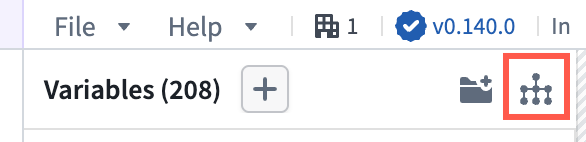
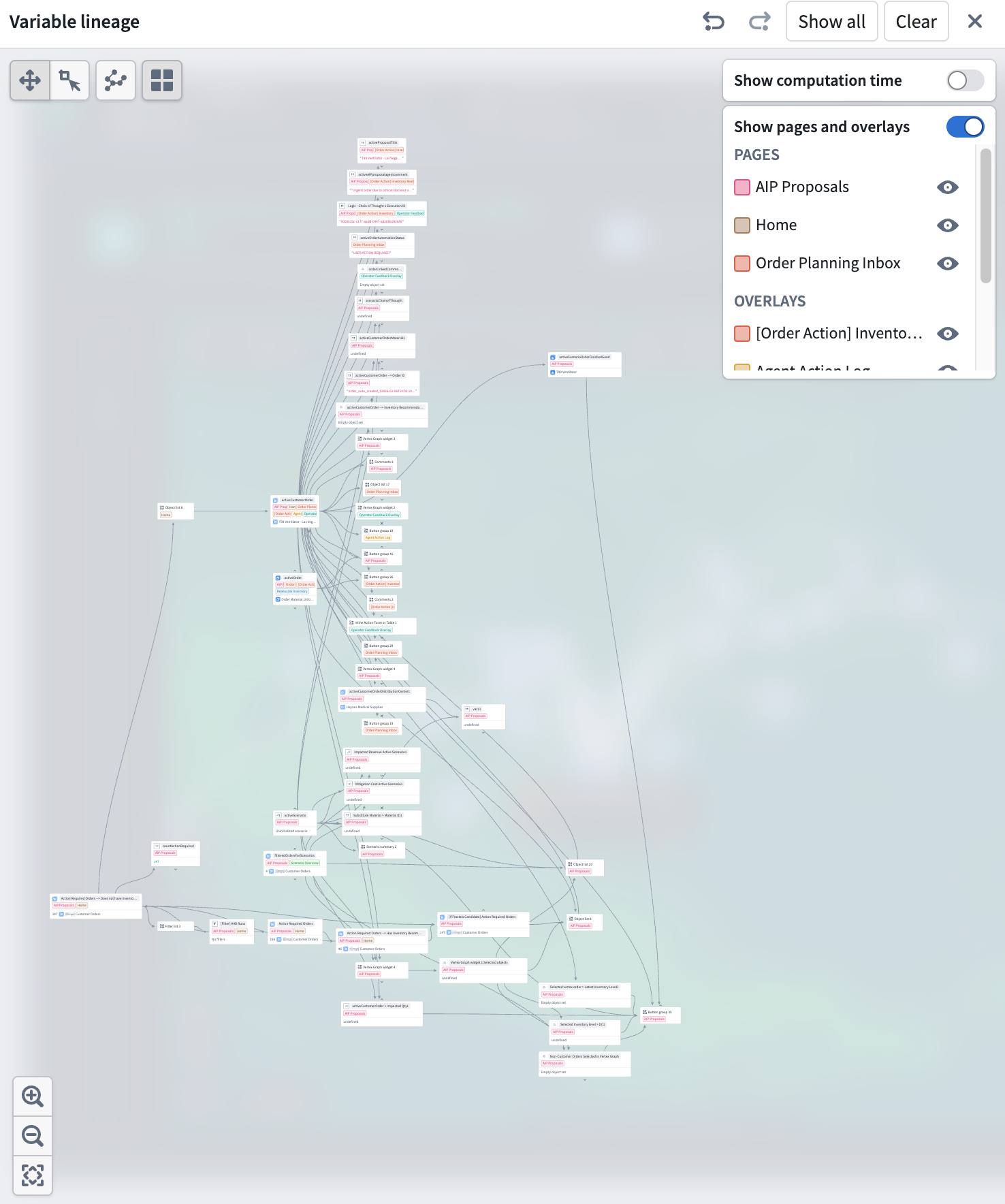
Use the Variable lineage graph option found in the header of the Variables panel, to visualize how variables and widgets in your module depend on one another. Use it to debug recompute behavior, trace which widgets read or write a variable, and better understand complex relationships between application elements.
Expanding the graph
Each node on the graph represents a variable or widget. Nodes with dependencies have chevron arrows on their top and bottom edges. Select an arrow to expand a node's parents (upstream dependencies) or children (downstream consumers) and trace a chain of relationships through the module. Use the Show all action in the graph header to expand to the full application graph or Clear to remove all nodes.
Undo and redo options in the graph header step backward and forward through expand, collapse, and selection actions, mirroring the module's own undo/redo controls.
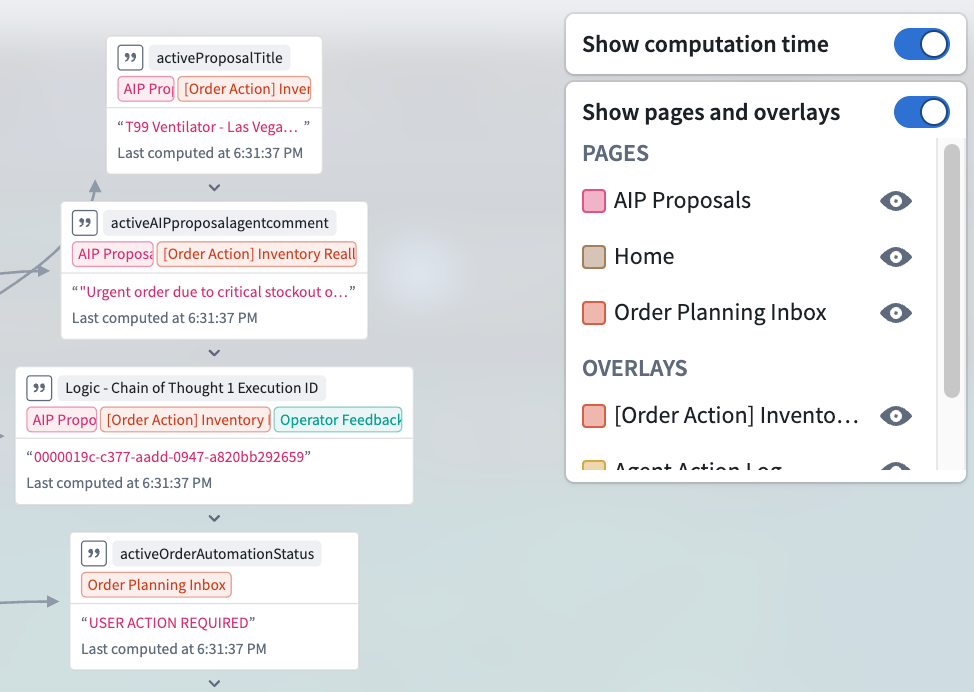
Each node can display the pages and overlays where a variable is used and the time at which a variable was computed.
Pages and overlays
Nodes are tagged with the pages and overlays where they are referenced. Toggle Show pages and overlays in the header to display a legend that lists each page and overlay in use. The legend only lists pages and overlays that appear on visible graph nodes, so the list stays scoped to what you can see in the graph.
Computation time
Toggle Show computation time in the header to display per-variable timing information. Computation time refers to when the value of the variable was last computed in the application (as it appears to the user), not when the underlying data was last updated outside of the application. Variables that take longer to recompute may be candidates for restructuring: for example, splitting a complex function-backed variable into smaller pieces or changing the recompute behavior on upstream variables to avoid unnecessary work.
中文翻译
变量
变量 供模块构建者使用,用于配置数据如何在 Workshop 模块中流动。下方列出了可用的变量类型列表。
要访问 Workshop 模块中的现有变量或定义新变量,请打开左侧边栏中的变量菜单。
变量面板(如上所示)显示了一个列表,其中包含模块中现有的变量、用于添加新变量的加号 + 选项、用于按名称或唯一 ID 搜索变量的输入框、用于打开变量谱系图的选项,以及用于根据变量定义类型或已启用的设置来筛选变量的过滤器。变量列表包含分区,可帮助您快速找到相关变量:当选中某个小部件时,分区会显示该小部件使用的变量;当未选中任何小部件时,分区会显示当前页面中使用的变量。
从左侧列表中选择一个变量后,您可以在变量列表右侧打开的窗口中查看和修改该变量的配置。可用的配置选项如下:
- 变量名称: 选择变量名称或铅笔图标可编辑变量名称。我们建议使用描述性变量名称,以帮助记录 Workshop 模块的配置,并在后续配置过程中更容易找到所需的变量。
- 变量定义类型: 变量名称旁边是一个下拉菜单,提供如何定义和填充给定变量的选项。可用选项会根据所选变量类型而变化,可能包括以下选项:
- 静态: 用于手动设置的变量值
- 函数: 用于基于函数、动态计算的变量
- 对象集聚合: 用于从对象集的聚合中派生的变量
- 对象属性: 用于与单个对象的选定属性值相关联的变量
- 注意: Workshop 不支持将复杂低性能对象属性作为变量。
- 对象集定义: 专门用于由选定对象类型、过滤器和链接对象遍历定义的对象集变量
- 变量转换: 用于将变量值定义为一组常见操作,可能引用其他变量;请查阅变量转换文档了解更多信息。
- 删除变量(垃圾桶图标): 模块中未使用的变量(未被小部件或下游变量使用)可以被删除。
- 从当前变量创建新变量(仅限对象集变量): 在复制变量按钮旁边,从当前变量创建新变量按钮允许您创建一个新的对象集变量,该变量自动将当前对象集作为其输入。当您希望在保留对源变量引用的同时,基于现有对象集的配置进行构建时,此功能非常有用。
- 变量定义配置: 屏幕的主要部分,用于配置变量的具体细节。此处提供的选项会根据所选变量类型和变量定义类型而变化,并会提供屏幕上的操作指引。
- 变量设置: 变量设置面板允许配置外部 ID,以及应为给定变量启用以下哪些功能。
- 模块接口
- 路由
- 状态保存
下方截图显示了一个对象集变量的示例配置:
下方截图显示了一个字符串数组变量的示例配置:
变量惰性加载
在查看和编辑模式下,Workshop 变量仅在被可见的小部件或布局显示时才会惰性计算和重新计算。这意味着,在不可见的页面、选项卡、覆盖层或循环布局的不可见页面中使用的变量,只有在它们被显示时才会进行计算。此行为同样适用于嵌入模块中使用的不可见变量。
变量类型
Workshop 支持以下变量类型:
- 数组: 接受布尔值、日期、数值、地理点、地理形状、字符串、时间戳或结构体值的数组。
- 布尔值: 接受
true或false值。从静态值或函数、聚合、对象属性的输出初始化。 - 日期: 接受一个日期。从静态值或函数、聚合、对象属性的输出初始化。
- 地理点: 接受一个地理点。从对象属性初始化。
- 地理形状: 接受一个地理形状。从对象属性或函数的输出初始化。
- 数值: 接受数值,包括整数和浮点数。从静态值或函数、聚合、对象属性的输出初始化。
- 对象集: 存储一个或多个对象的集合。从整个对象类型或其他对象集变量初始化,然后可以选择按属性值或过滤器变量进行过滤,或者通过"搜索周围"功能透视到链接对象。您还可以通过共享属性类型或对象支持的链接类型跨本体透视到其他对象类型。
- 对象集过滤器: 存储一组用于过滤对象集变量的属性类型/属性值对。从对象类型初始化,然后是一组属性类型/属性值过滤对。有关更多信息,请参阅对象集过滤器变量。
- 字符串: 接受文本。从静态值或函数、聚合、对象属性的输出初始化。
- 结构体: 存储一个复合类型,将字符串字段 ID 映射到值。目前不支持嵌套结构体,但接受结构体字段值的任何其他 Workshop 变量类型。从函数的输出初始化。有关更多信息,请参阅结构体变量。
- 时间戳: 接受一个时间戳。从静态值或函数、聚合、对象属性的输出初始化。
- 时间序列集: 存储单个对象的时间序列属性,可选地允许对其应用时间序列转换。有关更多信息,请参阅Workshop 中的时间序列属性。
重新计算变量值
Workshop 为变量定义类型提供以下可配置的重新计算行为选项:
- 函数
- 对象集聚合
- 对象属性
- 变量转换
- 对象集过滤器
重新计算选项的行为如下:
- 自动: 当变量所依赖的任何变量的值发生变化时,变量值会自动重新计算。这是默认选项。请注意,在某些情况下,具有自动重新计算行为的变量即使上游值没有变化也可能重新计算。这可能在以下情况发生:上游对象重新加载时,例如在操作提交或其他数据重新加载触发器(如自动刷新)之后。
- 仅在事件触发时: 变量值仅在由重新计算 {变量名称} 事件显式触发时重新计算。
- 模块加载时及事件触发时: 变量值在模块初始加载时重新计算,并且在由重新计算 {变量名称} 事件显式触发时重新计算。
对象集定义 变量定义类型不提供重新计算行为配置,其行为类似于 自动 重新计算行为。如果这不理想,可以在上游变量上设置重新计算行为。如果您希望显式管理对象集变量的重新计算行为,可以使用基于函数的变量。
变量谱系图
使用变量面板标题中的变量谱系图选项,可视化模块中变量和小部件之间的依赖关系。使用它来调试重新计算行为,追踪哪些小部件读取或写入变量,并更好地理解应用程序元素之间的复杂关系。
展开图表
图表中的每个节点代表一个变量或小部件。具有依赖关系的节点在其顶部和底部边缘有 V 形箭头。选择箭头可展开节点的父节点(上游依赖项)或子节点(下游消费者),并追踪模块中的关系链。使用图表标题中的显示全部操作展开完整的应用程序图表,或使用清除移除所有节点。
图表标题中的撤销和重做选项可向前和向后执行展开、折叠和选择操作,与模块自身的撤销/重做控件相对应。
每个节点可以显示使用该变量的页面和覆盖层,以及变量计算的时间。
页面和覆盖层
节点会标记有引用它们的页面和覆盖层。切换标题中的显示页面和覆盖层以显示图例,列出正在使用的每个页面和覆盖层。图例仅列出出现在可见图表节点上的页面和覆盖层,因此列表范围仅限于您在图表中可以看到的内容。
计算时间
切换标题中的显示计算时间以显示每个变量的计时信息。计算时间指的是变量值在应用程序中最后计算的时间(如用户所见),而不是底层数据在应用程序外部最后更新的时间。重新计算时间较长的变量可能是重构的候选对象:例如,将复杂的基于函数的变量拆分为更小的部分,或更改上游变量的重新计算行为以避免不必要的工作。